
How repeats and conditional display work
The differences between repeating an element, repeating its children, showing an element, and rendering it conditionally.
Choose the repeat or conditional-display behavior that matches your page structure.
Repeat Children keeps the wrapper
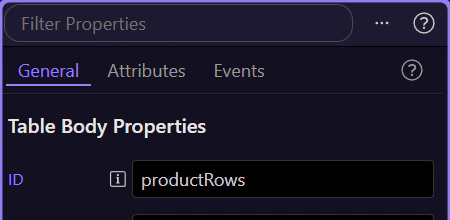
Section titled “Repeat Children keeps the wrapper”productRows is one Table Body. Its single template row is rendered for every item in products.value. Each copy gets the current product as its local scope.
Repeat duplicates the selected element
Section titled “Repeat duplicates the selected element”An element repeat duplicates the selected row or card itself. Repeat Children duplicates the contents of a wrapper. Choose one according to which HTML element should remain once. A table heading should usually stay outside either repeat.
Bindings inside a repeat use the current record
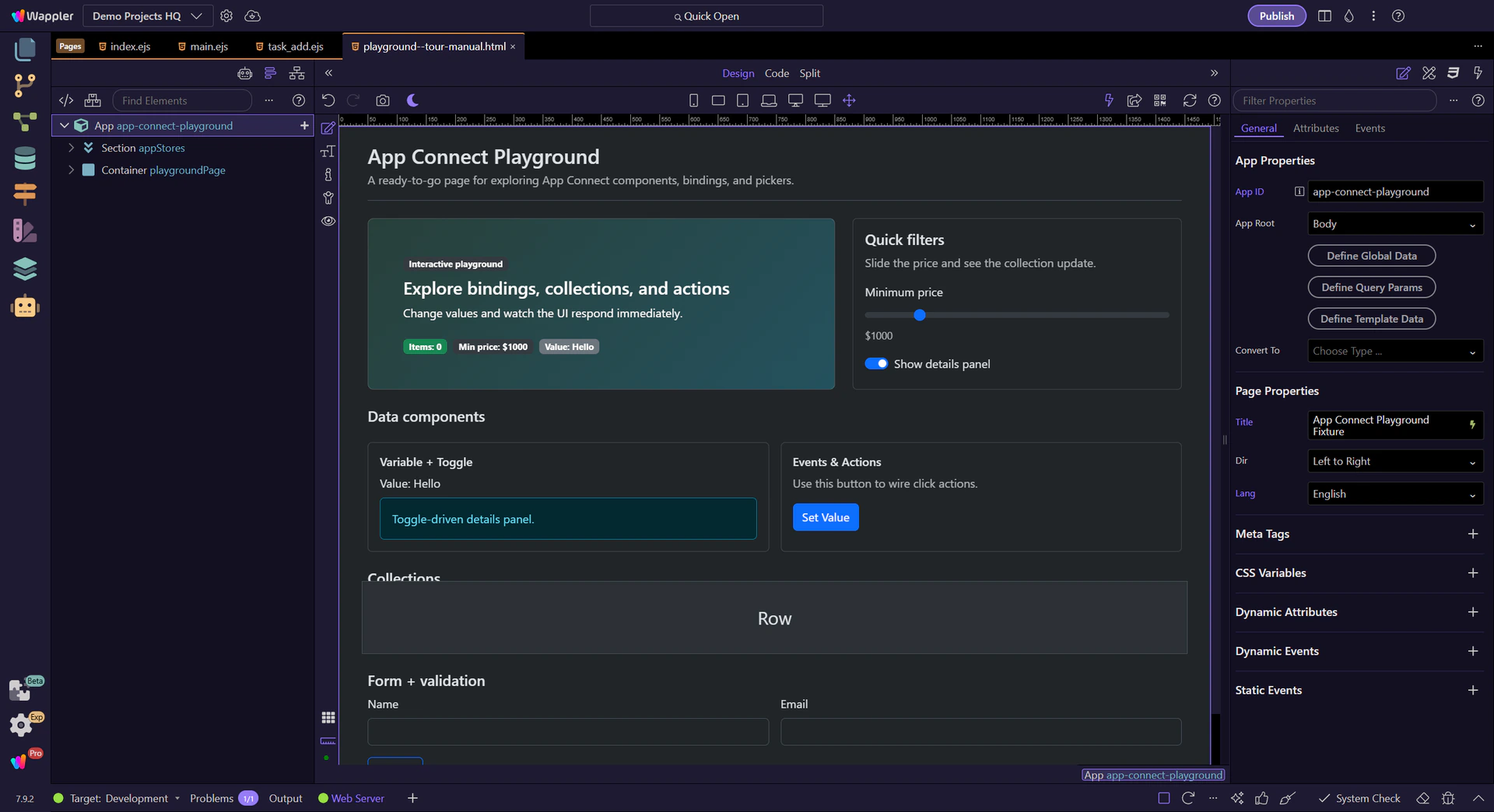
Section titled “Bindings inside a repeat use the current record”The name cell uses name, not a fixed collection index. This is why each row can display a different product. Outside the repeat, the current product is not available; start from an explicit source there.
Show controls visibility; If controls existence
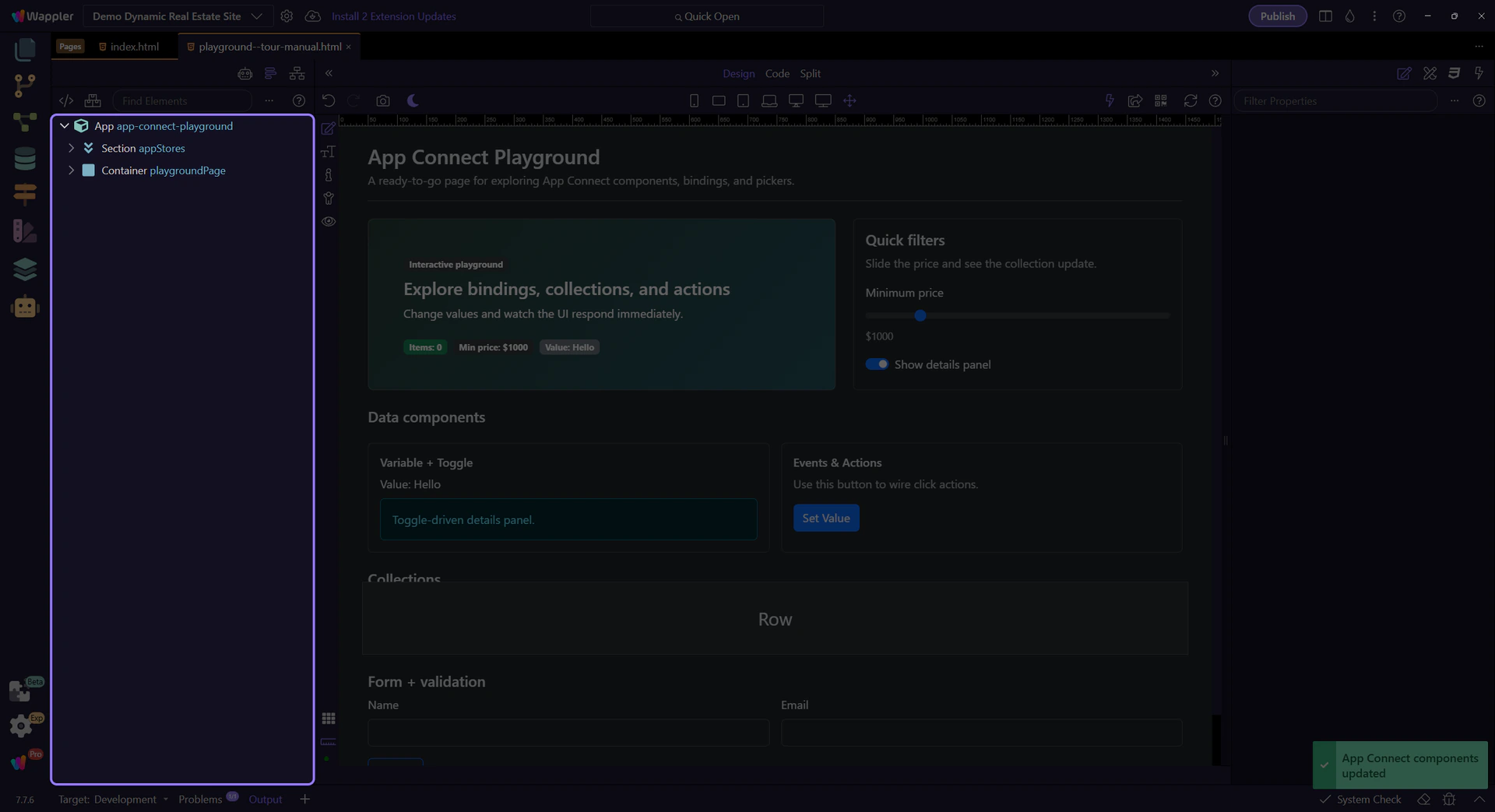
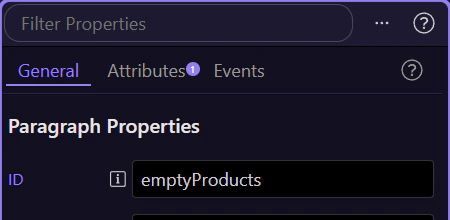
Section titled “Show controls visibility; If controls existence”The emptyProducts message uses Show with products.value.length == 0. Show and Hide keep the element in the DOM. If creates or removes the element when its condition changes; component state inside it may be recreated. Use Show for a simple empty message and If when the content should not exist while false.
Check your result
Section titled “Check your result”You can identify the collection, template row, item scope and visibility condition in the example. For construction steps, continue with Repeat table rows and bind data.