
Browse
Folders + flows Project structure
Learn the App Flows manager list panel (App Flow type): browse, search, refresh, and open flows in the dedicated editor.
This tour focuses on the list panel in Workflows > App Flows: browsing App Flows (the isolated flow type), organizing with folders, searching, and opening in the dedicated editor.
NOTE: App Flows (in this panel) are isolated workflows that return results. Page Flows run inside a page; Inline Flows are action sequences inside event handlers.
This panel is where you browse your App Flows. You can expand folders, select a flow, and keep larger projects organized.
Use folders to group flows by feature (auth, onboarding, cart, admin) or by lifecycle (init, navigation, error handling).
Folders are organization only — the flow’s logic is defined when you open it.
Use search to quickly find an App Flow by name, especially in large projects.
Use refresh to reload the list when files change (or after you add / rename flows).
This help button can start the built-in panel tour (if available for your version/config).
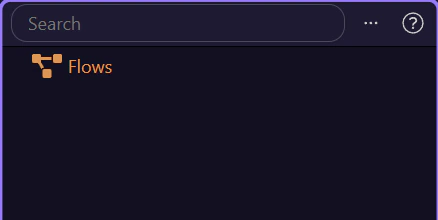
After you select an App Flow in the list, you can open it in the dedicated editor for focused editing of triggers, steps, and branching.
Review what you did and choose a next tour.
Pick a related tour to continue.