
Database Manager Reference
Extended reference tour for Database Manager: full UI layout, toolbar actions, Basic/Advanced modes, properties/options, and table context actions exposed in the manager UI.
Introduction
Section titled “Introduction”Treat this as the full UI reference for Database Manager, not a quick tour. It maps the visible controls and the practical options behind them, so when a docs tour points you at a panel or button later, you already know what else lives in that same area and what each control is for.
Main tree and work area
Section titled “Main tree and work area”The main panel is the operational center of Database Manager. This is where you browse connections, tables, sub tables, multi references, migrations, seeds, and templates, then launch the action you need from the selected node. When a database docs tour points at a table or relation, it is usually starting from this tree context.

Database tree focus
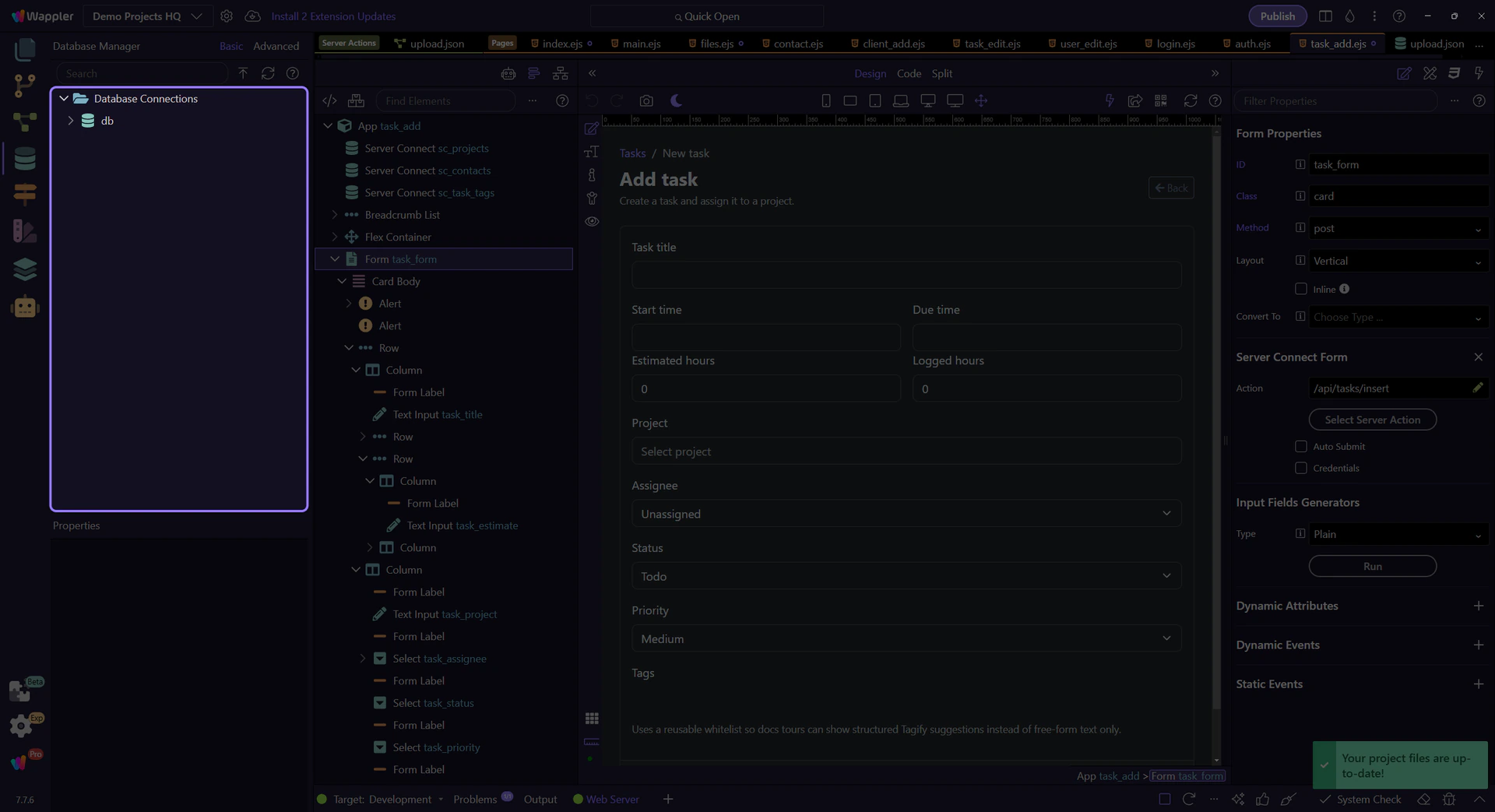
Section titled “Database tree focus”Before drilling into individual nodes, keep the larger tree area in view. The next few steps stay inside this one region while the tour selects the real Demo Projects HQ connection, expands the live branch, and then moves through concrete example tables.
Demo Projects HQ connection selection
Section titled “Demo Projects HQ connection selection”On the next step, the tour selects the project’s real db connection node so the Properties panel and the rest of the tree are grounded in the same concrete sample the HQ actions use.

Demo Projects HQ branch expansion
Section titled “Demo Projects HQ branch expansion”On the next step, the tour expands the real db branch through its context menu. This is the on-demand part of the panel in action: the deeper tables only become visible once the relevant branch is expanded.

On-demand tree branches
Section titled “On-demand tree branches”The tree is not just a static outline. Much of Database Manager appears only when you expand the relevant branch, so tables, columns, relations, and deeper child nodes are revealed progressively as you drill into the connection. In Demo Projects HQ, that means you do not just see one flat list: you expand into business tables like clients, then discover linked structures such as projects, contacts, and task-related branches as you move deeper. That matters when documenting the panel, because users need to learn that some structure is discoverable only after selecting and expanding the right parent node.

clients table selection
Section titled “clients table selection”On the next step, the tour selects the Demo Projects HQ clients table. This is the parent business entity that later pages and actions expand into projects and contacts, so it is a good example of how the manager exposes a table before you inspect its related branches.

users table selection as a live action example
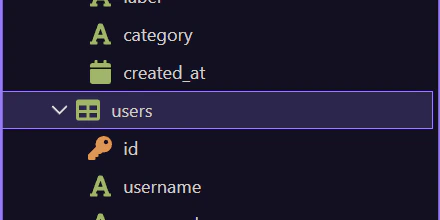
Section titled “users table selection as a live action example”On the next step, the tour selects the Demo Projects HQ users table as a proven live action example. It is a strong reference node because it backs the project security provider, the admin user flows, and the real users/update.json action.
Real table context menu on users
Section titled “Real table context menu on users”This step opens the actual context menu on users. Here the abstract action list becomes concrete on a live-resolvable table: Wappler exposes View/Edit Data, Create Seed, Create New Template, and schema modeling commands on the selected node.

Return from the users menu
Section titled “Return from the users menu”The menu closes on the next step so the tree is readable again before the tour moves from this live table example into the rest of the reference coverage.

Search box
Section titled “Search box”The built-in search field in the main toolbar helps you filter the visible database tree when a schema gets large. Use it to jump to tables, fields, or related nodes faster instead of manually expanding the whole hierarchy each time.

Apply Database Changes
Section titled “Apply Database Changes”This button is the schema-commit control for pending database changes. Use it when you have intentionally changed tables, fields, references, sub tables, or multi references and are ready to persist that work. It is different from row editing: this control is about schema history and database structure, not day-to-day table content.

Refresh
Section titled “Refresh”Refresh reloads the schema from the selected connection so the tree reflects the real database state. Use it after external schema edits, branch switches, teammate changes, or when you need to verify that Database Manager is no longer showing stale structure.

Show Tour help button
Section titled “Show Tour help button”The help button opens the panel tour entry point directly from the manager toolbar. That matters for docs coverage because it makes the panel self-describing: users can discover the guided documentation from inside the UI they are currently using.

Properties panel
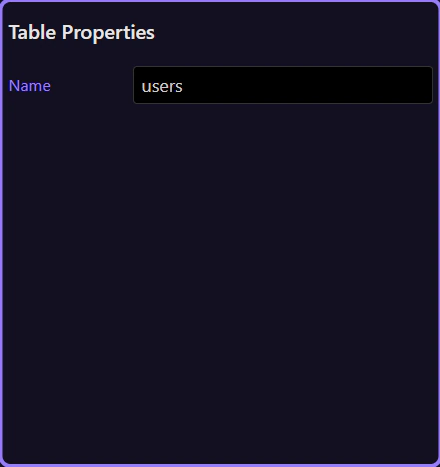
Section titled “Properties panel”The preview panel on the right is the properties workspace for the selected node. It changes meaning with context: a database connection shows connection and naming options, a table shows table properties, and relation nodes expose the settings that shape references, sub tables, or multi references.
Basic and Advanced view switch
Section titled “Basic and Advanced view switch”The content toolbar lets you switch between Basic and Advanced views. Basic view keeps the common fields visible and automates more of the relationship setup. Advanced view exposes deeper structural details and advanced-only nodes, which is why reference tours need to mention both modes whenever a panel behaves differently between them.

Demo Projects HQ as a reference schema
Section titled “Demo Projects HQ as a reference schema”Use Demo Projects HQ as the concrete reference model while learning this panel. The tree can show a business-style structure where clients expands into related project and contact records, projects_tasks links work items back to projects and assignees, and the separate users table supports the project’s security provider and admin user actions. That mix makes it a strong example for understanding both relational browsing and selection-based actions in the manager.
users table selection
Section titled “users table selection”On the next step, the tour selects the Demo Projects HQ users table. This is not just another table: it backs the project’s security provider, the admin users list, and the real users/update.json action.

Real table context menu on users
Section titled “Real table context menu on users”This step opens the actual context menu on users. It is the clearest security-backed example in the tree: the same menu items you see here govern the table behind login-protected admin flows.

Return from the users menu
Section titled “Return from the users menu”The menu closes on the next step so the tree is readable again before the tour shifts back into the broader reference summary.

Connection options visible in Properties
Section titled “Connection options visible in Properties”When a database connection is selected, the properties panel exposes the general options that affect the whole manager experience: connection Name, naming Convention, default Primary Key Type, and in non-Node targets the Use Direct Connection option. That last setting matters because the source makes its limitation explicit: without a direct connection, Database Manager can read schema but cannot manipulate schema or table data directly.
Table context actions
Section titled “Table context actions”Right-click the currently selected node to access the actions that are valid for that part of the tree. The important detail is that the menu is selection-driven: a connection, table, relation, or other node can expose a different action set. In Demo Projects HQ, selecting a working table like projects_tasks or users is where actions such as View/Edit Data, Create Seed, and schema-oriented commands become concrete, because those same tables already feed real list, get, insert, update, and security-backed flows elsewhere in the project. For table nodes, the source shows the core set clearly: New Field, New Reference, New Multi Reference, New Sub Table, View/Edit Data, Create Seed, and Create New Template. This is the action cluster that turns the tree from a browser into a working database tool.
Relation and data actions
Section titled “Relation and data actions”The context menu structure also explains how Database Manager thinks about work, and that structure changes with selection. References, sub tables, and multi references are modeling actions exposed when the selected node supports relation design. View/Edit Data is a live-record action you reach from table context. Seeds and templates are reuse/export actions. Keeping those categories separate helps you decide whether you are changing structure, content, or reusable project assets.
Next steps
Section titled “Next steps”Continue into the workflow-specific tours once you know where each control lives. Use General Usage for the normal flow, Recipes for task-focused jobs, or one of the focused leaf tours when you already know you need live row editing, sub tables, or multi references.