
Connections, Schema, and Live Data
A practical Database Manager workflow for verifying the connection, exploring schema, and separating structure changes from live data work.
Introduction
Section titled “Introduction”Database Manager is where you move from connection setup into real database work inside Wappler. The practical flow is usually consistent: verify the connection and target state, inspect the schema you are working against, decide whether you are changing structure or live data, and only then move on to actions, pages, or forms that depend on that database shape.
Database Manager: General Usage
Section titled “Database Manager: General Usage”Use Database Manager to create connections, design tables, manage relations, inspect migrations, and review or edit live table data. In practice, this is the panel that gives context to the rest of the stack: if a query, updater, or page binding feels unclear, the manager is often the fastest place to verify the underlying structure. Just remember that much of that structure is revealed on demand as you expand the right branches rather than all at once.
Connections and targets
Section titled “Connections and targets”Start with the connection and target you actually mean to work on. This matters because the panel can represent different capabilities depending on connection setup. A direct connection supports schema and data manipulation in the manager, while non-direct setups are more limited. That distinction changes what actions later steps can safely assume.

Database tree focus
Section titled “Database tree focus”The next steps stay inside the live tree area. First the tour selects the real Demo Projects HQ connection, then it expands the visible branch, and then it moves onto a working table so the available actions are tied to a concrete example instead of a generic description.
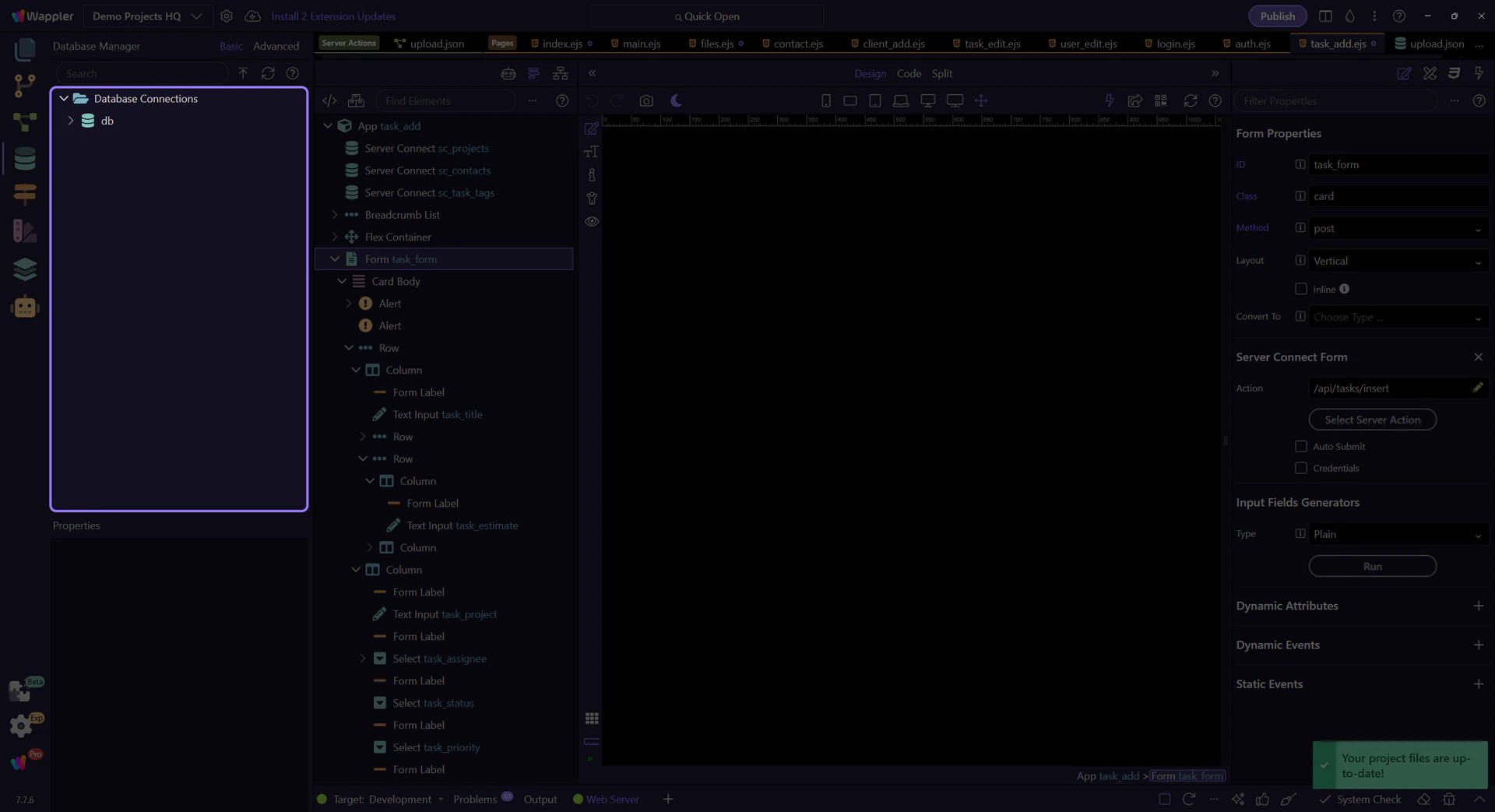
Demo Projects HQ `db` selection
Section titled “Demo Projects HQ `db` selection”On the next step, the tour selects the Demo Projects HQ db connection so the rest of the workflow follows the same live schema that the project’s actions and pages depend on.

Real branch expansion
Section titled “Real branch expansion”On the next step, the tour expands the real db branch. A normal Database Manager workflow is branch-driven: start at the connection, then reveal only the table or relation branch you need to inspect so the tree stays manageable even when the schema grows.

Selection drives the available actions
Section titled “Selection drives the available actions”What you can do next depends on what is selected in the tree. A table selection is where actions like View/Edit Data, New Field, and relation creation make sense. Other nodes expose different context actions. That is why practical Database Manager work is not just about finding the right branch, but also about selecting the exact node that unlocks the action you need.
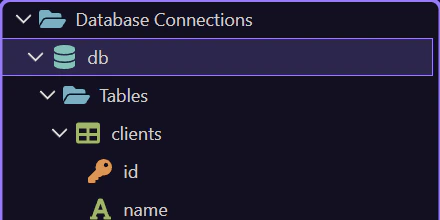
`users` table selection
Section titled “`users` table selection”On the next step, the tour selects users, a live Demo Projects HQ table that backs the security provider, admin user flows, and the real users/update.json action. This is the kind of concrete selection you make when checking whether a table matches what a real action expects.
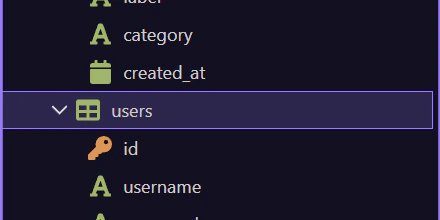
Real context menu on `users`
Section titled “Real context menu on `users`”This step opens the real table context menu on users, so the available actions are not just described but actually shown on a working example table.

Schema changes in practice
Section titled “Schema changes in practice”Schema work means adding tables and fields, shaping references, and then applying those changes intentionally. Demo Projects HQ gives a clear mental model here: clients fans out into child collections like clients_projects and clients_contacts, while projects_tasks links tasks back to projects and assignees. A realistic workflow might start with a simple table, grow into references between those records, or branch into nested structures like sub tables and multi references when the data shape demands it. The important habit is to treat Apply Database Changes as a deliberate structural commit, not as a casual click.
Return from the `users` menu
Section titled “Return from the `users` menu”The menu closes on the next step so the panel can move cleanly from table actions into the live-data side of the workflow.

Live data work in practice
Section titled “Live data work in practice”Once the schema exists, the same panel also becomes a data inspection tool. In Demo Projects HQ, this is where you would open projects_tasks to verify the rows that feed the real tasks/list.json action, inspect clients when a client dashboard or nested project view looks wrong, or check the users table that powers the admin users list and update flows. That makes Database Manager useful even after schema design is finished, because it lets you compare what the app is doing with the records that actually exist.
Basic and Advanced working styles
Section titled “Basic and Advanced working styles”The panel supports two working styles. Basic mode is optimized for common tasks and simpler relation setup. Advanced mode is where you inspect deeper structure and advanced-only details. In practical use, many users design most everyday things in Basic mode and switch to Advanced only when they need to understand or adjust something more explicit.

Refresh Schema
Section titled “Refresh Schema”Refresh is the safety step that keeps the panel honest. If anything changed outside the current session, refresh before you trust the tree, the properties, or the assumptions you are about to build an action around.

Next steps
Section titled “Next steps”Return to the main Database Manager hub when you are ready for the next subject. That keeps the learning path sequential and makes it easier to choose the next database topic from one place instead of from branching follow-up menus.