Expression Builder
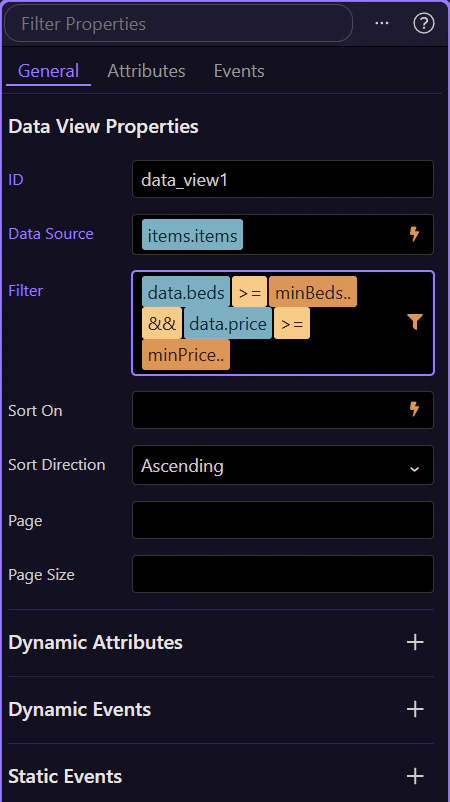
Use Wappler’s Visual Expression Builder to construct conditions from the picker UI instead of hand-writing filter expressions.
Visual Expression Builder
Section titled “Visual Expression Builder”This tour opens a dedicated App Connect page so you can inspect the exact UI Wappler uses for visual condition building, from the filter field in Properties to the Expression Builder popup.
The component that owns the filter
Section titled “The component that owns the filter”This step highlights the sample Data View so the filter field is available in the Selection Panels and the next control appears in a real context.
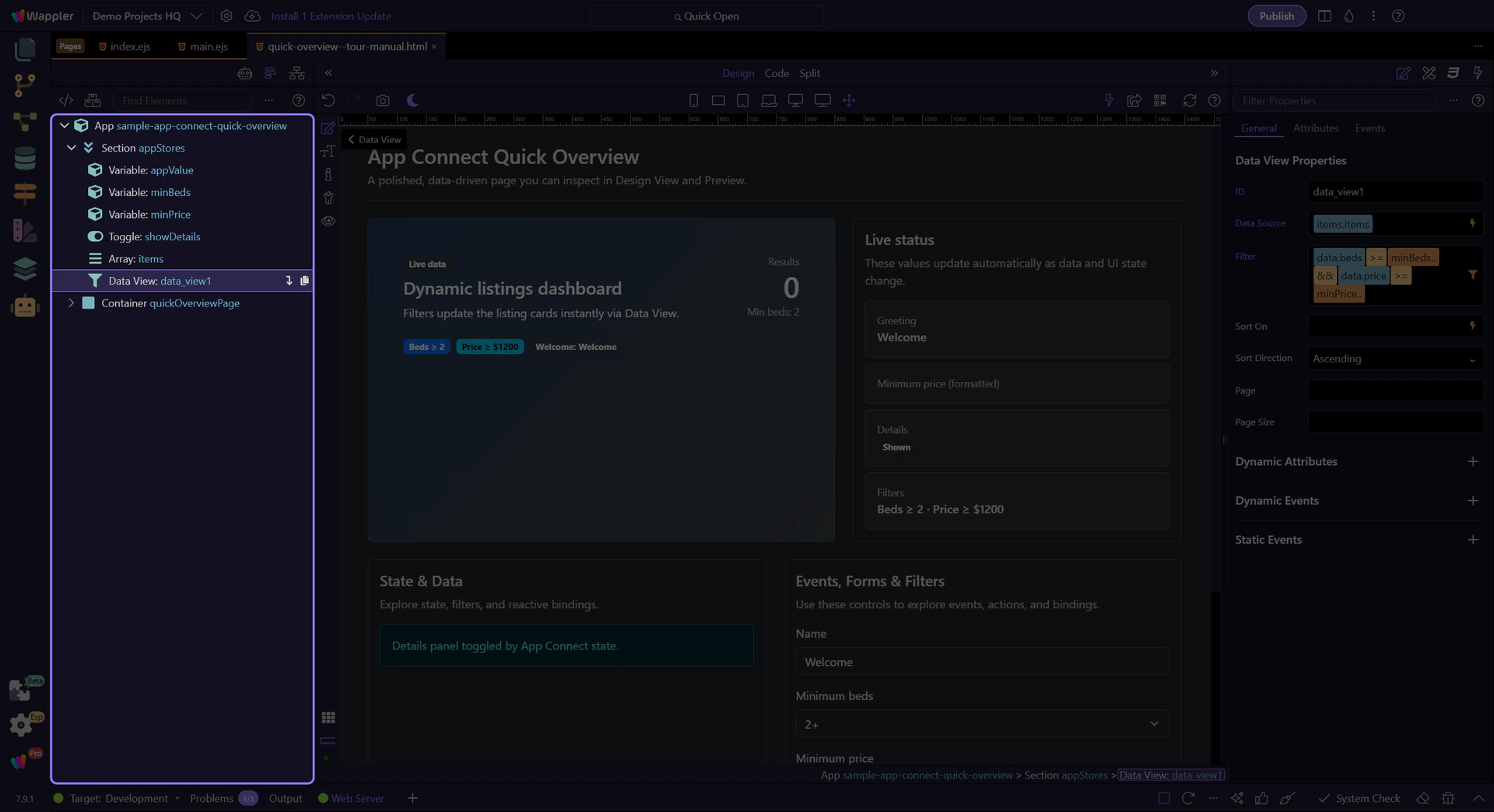
The filter field sits inside the Properties workflow
Section titled “The filter field sits inside the Properties workflow”Start with the wider Properties area before zooming into the filter control. That context matters because the Expression Builder is just one tool inside the broader property-editing workflow.
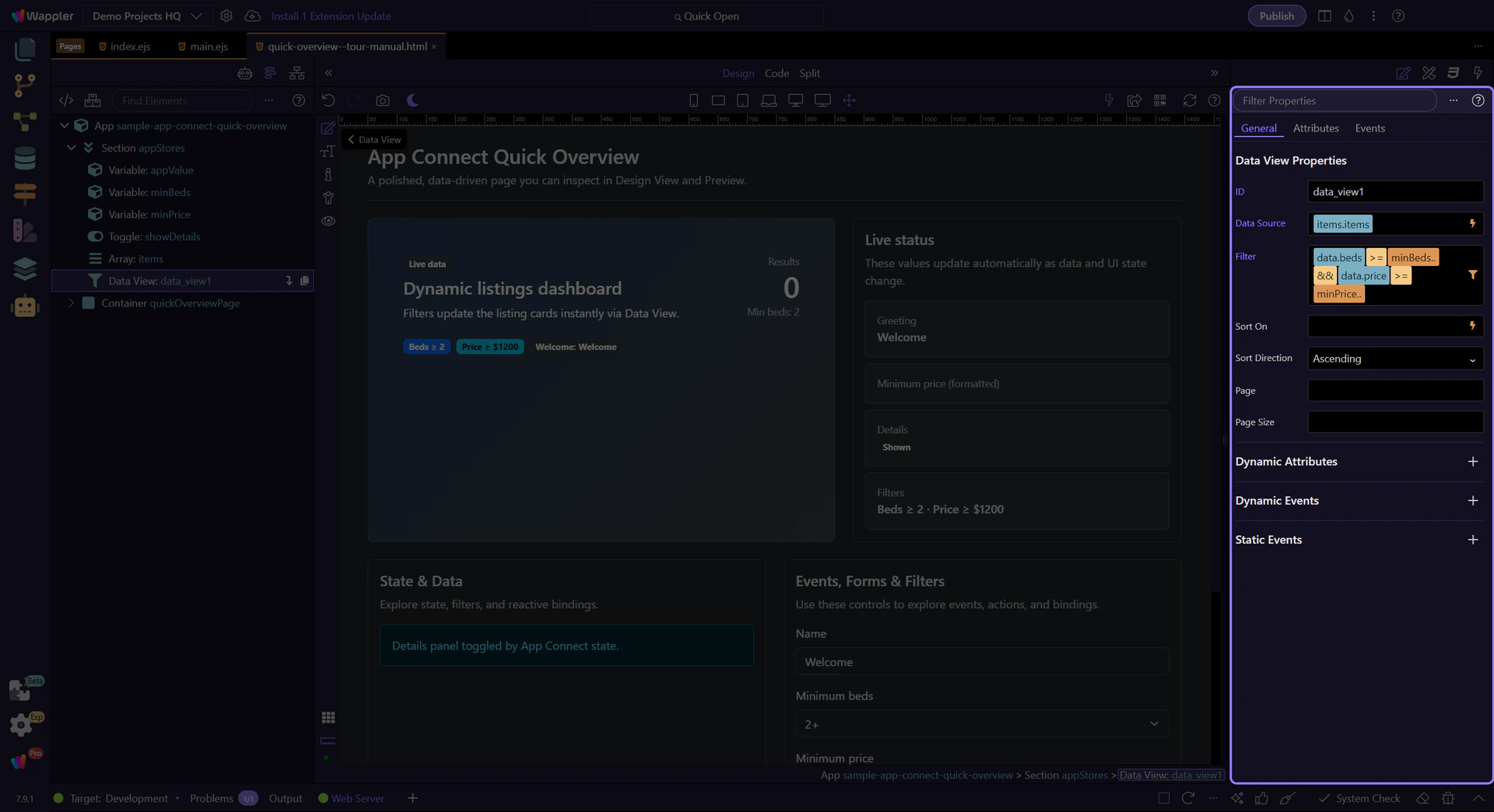
The filter field launches the Visual Expression Builder
Section titled “The filter field launches the Visual Expression Builder”We’ll use this filter field to open the Visual Expression Builder. Launching it from the property keeps the expression in the right scope and avoids hand-writing a fragile condition.
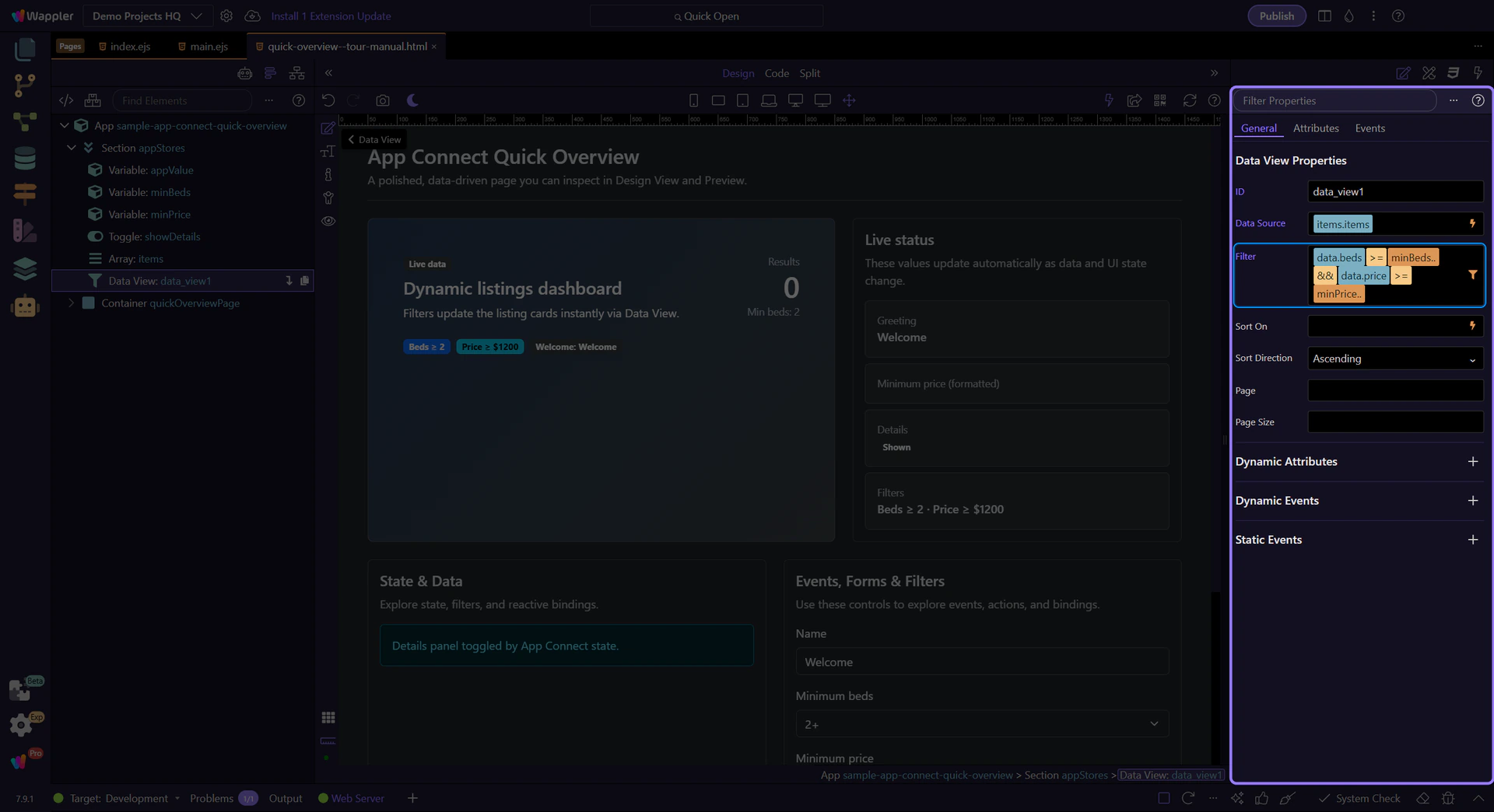
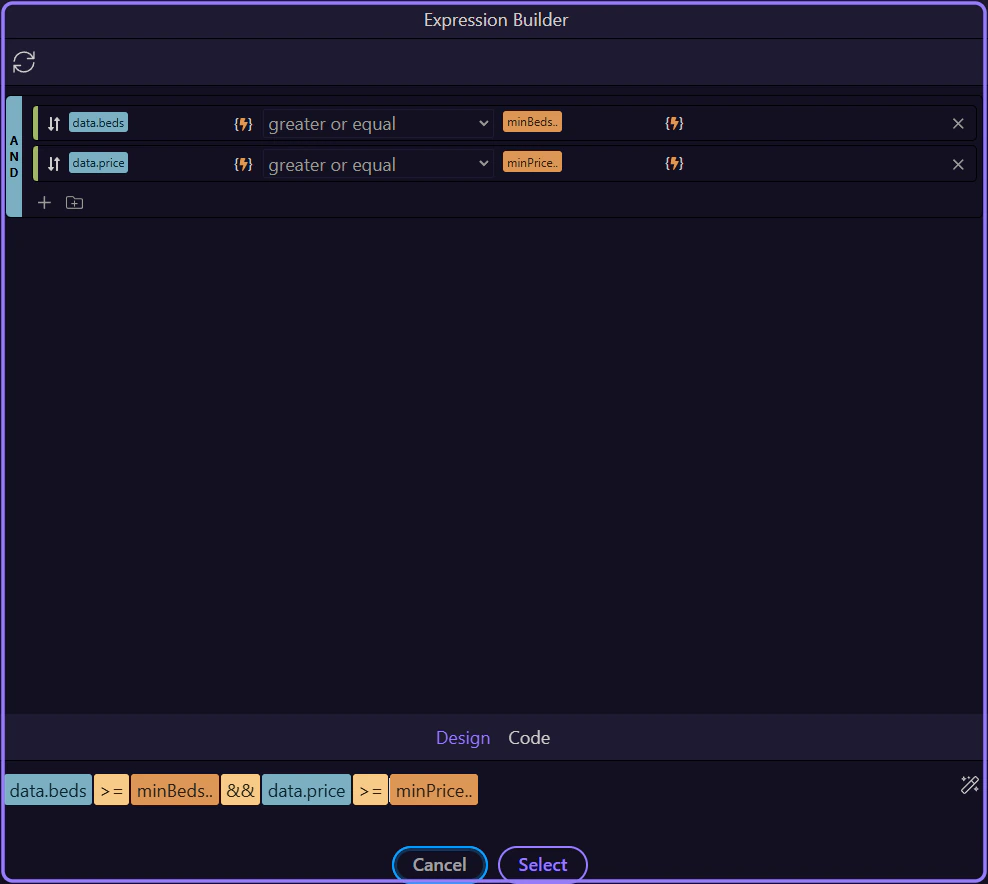
The popup is where you build the condition visually
Section titled “The popup is where you build the condition visually”The Visual Expression Builder popup keeps the current scope, available sources, and the condition you are composing in one place. This is the UI surface that replaces trial-and-error typing for most filter logic.
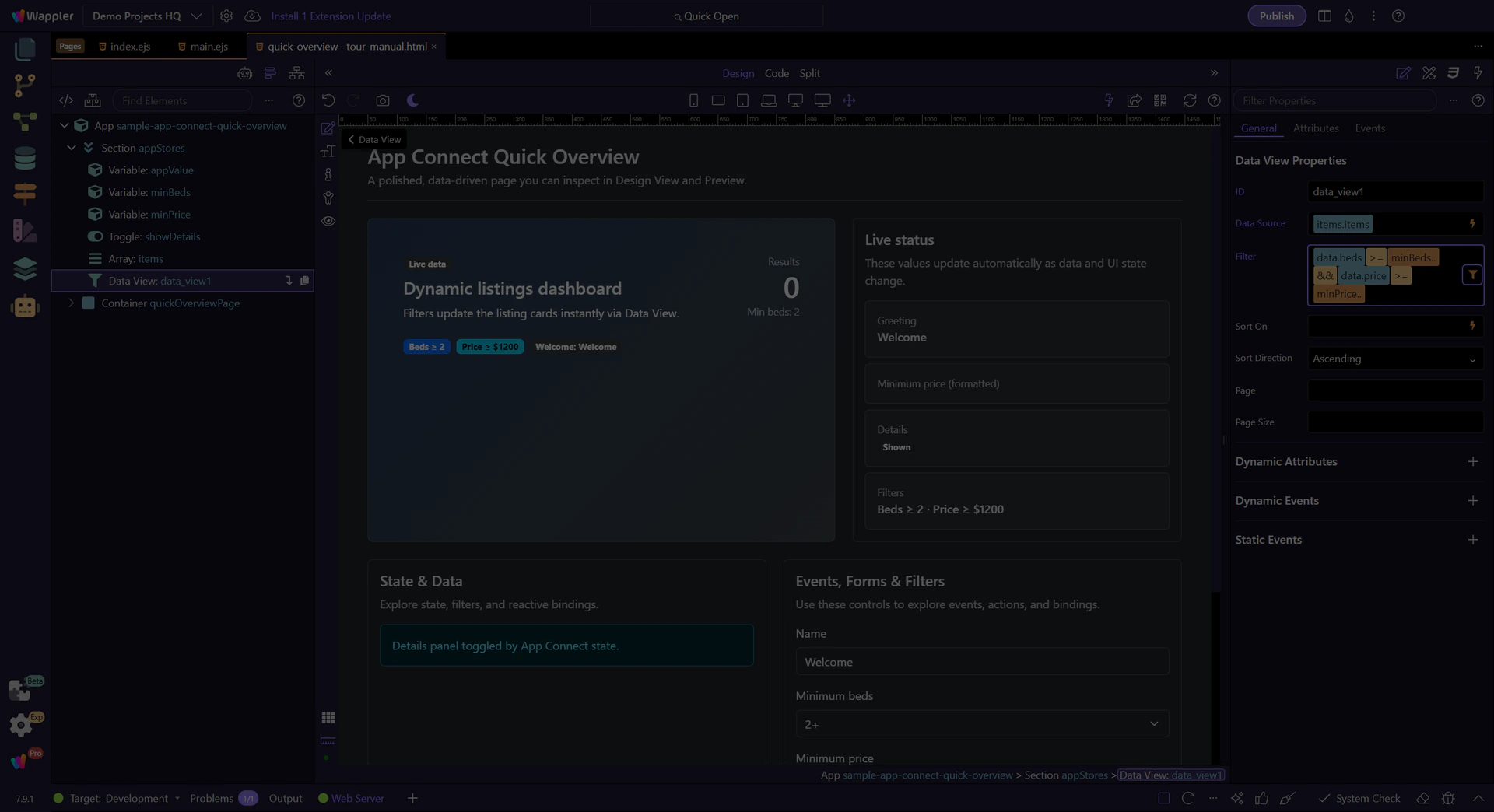
Use the preview to verify the final expression
Section titled “Use the preview to verify the final expression”You’ll see the exact expression that will be written back into the property here, which makes it the fastest place to confirm the final condition before closing the builder.
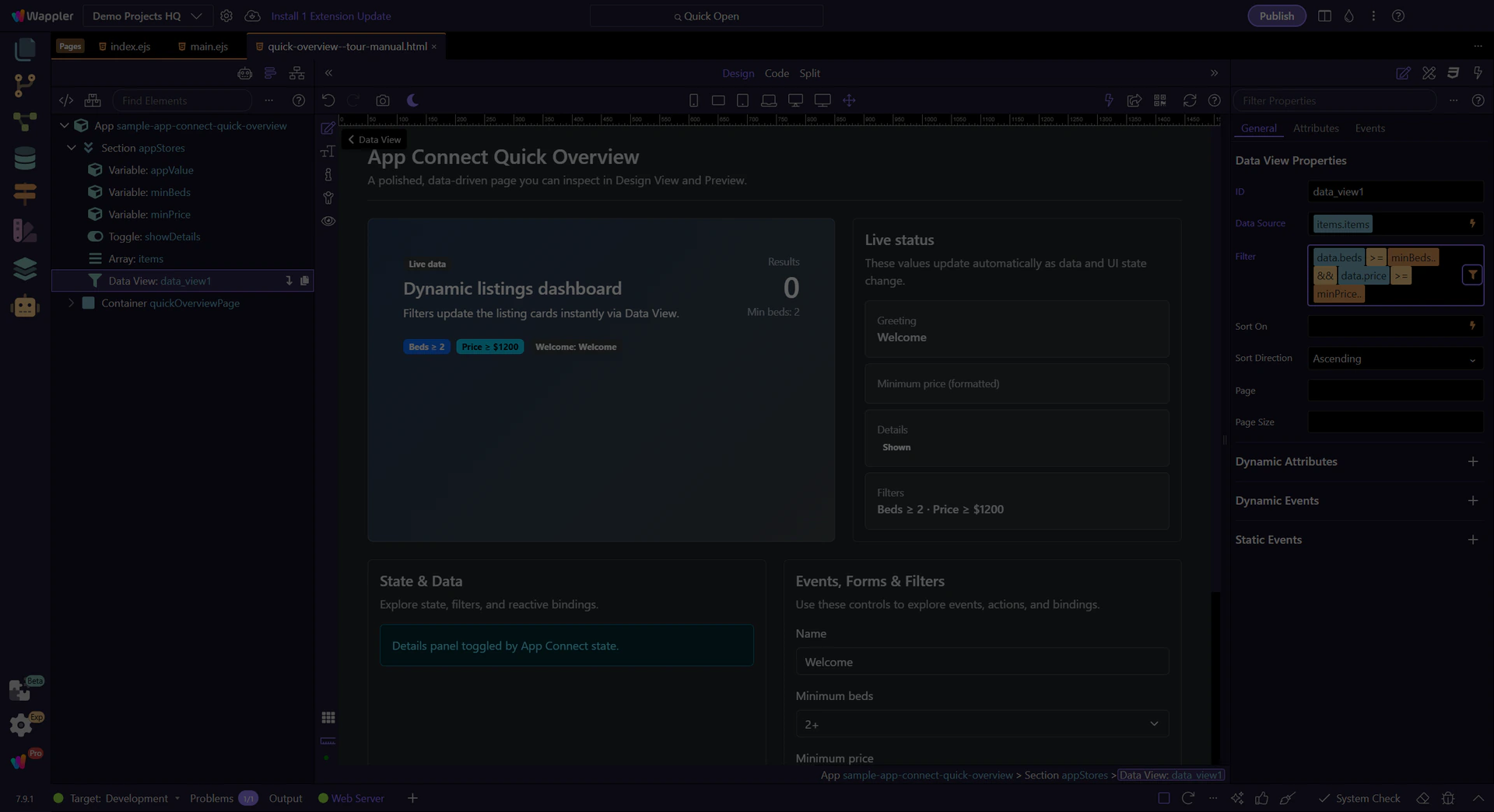
Close the Expression Builder
Section titled “Close the Expression Builder”Close the popup once the expression looks right so you can compare the result against the original property field and continue working in the normal Properties workflow.
Continue with deeper picker and formatting tours
Section titled “Continue with deeper picker and formatting tours”This topic focused on the exact Expression Builder popup and the filter field that launches it. Continue with the fuller Data Bindings Picker tour for scope and Design/Code editing, or move into formatting once the expression itself is correct.