
How To: Insert component
Learn how to insert component in Design View. Use this tour as a quick refresher.
Orient yourself in Structure panel
Section titled “Orient yourself in Structure panel”Start with the wider context in the Structure panel so the next control makes sense in the full workflow. In the next step, you will focus on Insertion target and see how it fits into this area.
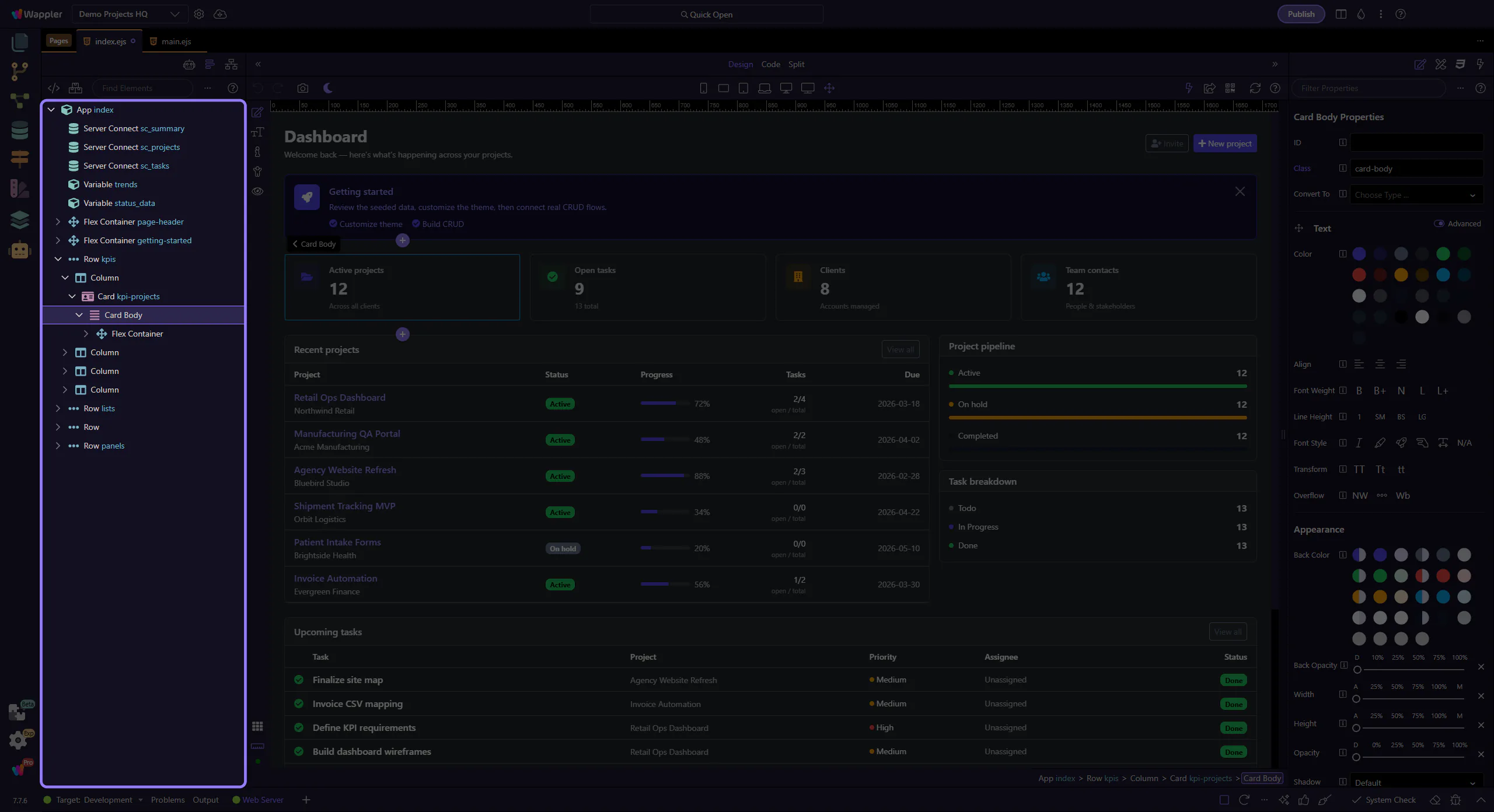
Insertion target
Section titled “Insertion target”We’ll select the element you want to insert into (for example body) in the App Structure. This step matters because Insertion target is part of Page Panels Structure Body, and understanding that context makes the next action easier to repeat in your own project.
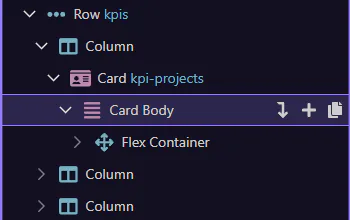
Context menu
Section titled “Context menu”We’ll open the Structure context menu for the selected element. This step matters because Context menu is part of Page Panels Structure Body, and understanding that context makes the next action easier to repeat in your own project.
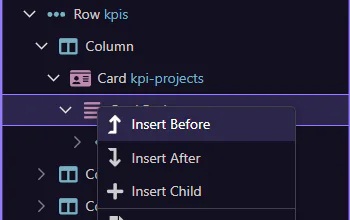
Insert picker
Section titled “Insert picker”We’ll use Insert Child to open the Components picker. This step matters because Insert picker is part of Page Panels Structure Body, and understanding that context makes the next action easier to repeat in your own project.
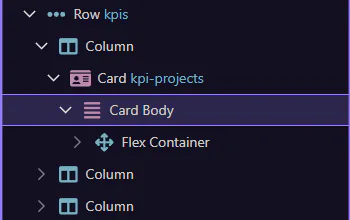
Search and insert
Section titled “Search and insert”Search for a component and insert it. This step matters because Search and insert is part of Components Popup Anchor Right, and understanding that context makes the next action easier to repeat in your own project.
