Create Project from Git Repository
Tour of the Project Manager Clone From Git flow and the fields that define how an existing repository is imported as a local Wappler project.
Clone From Git In Project Manager
Section titled “Clone From Git In Project Manager”Project Manager keeps the Git import entry on the main toolbar so you can start from an existing repository instead of creating a blank local project first.

The Clone Project Dialog
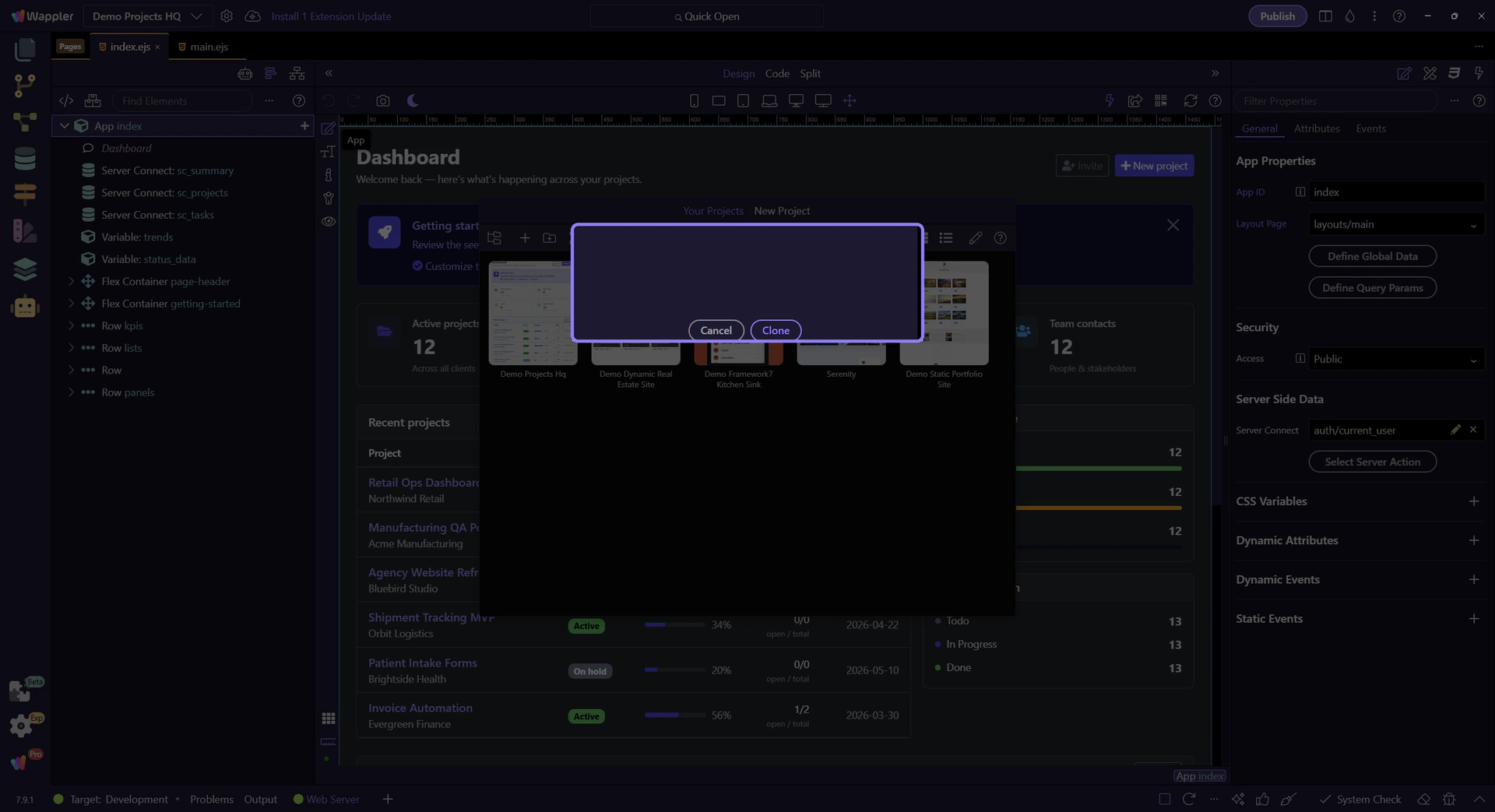
Section titled “The Clone Project Dialog”After you select Clone From Git, Project Manager shows a form for the repository address, the project name, and the empty local folder that will receive the clone.
Clone Project Settings
Section titled “Clone Project Settings”These settings decide how the remote repository becomes a local Wappler project on your machine.
- Project Name: the Wappler project name that will appear in Project Manager
- Git Repository: the repository URL to clone
- Project Folder: an empty destination folder for the local copy
- Clone: starts the clone, then imports the project into Wappler
- Cancel: closes this dialog without cloning
Clone When The Details Are Ready
Section titled “Clone When The Details Are Ready”After the repository URL, project name, and empty destination folder are correct, Clone creates the local copy and imports it into Project Manager as a Wappler project.