Create a New Local Project
From the Welcome screen, start a New Local Project: pick a template, configure basics, and create the project.
Create a New Local Project
Section titled “Create a New Local Project”This is the welcome-screen version of your first project setup.
Its job is to get you moving quickly without assuming you already understand Wappler’s project structure.
You will:
- start the New Project flow from the welcome screen
- understand what templates are for
- keep your first project organized and easy to continue later
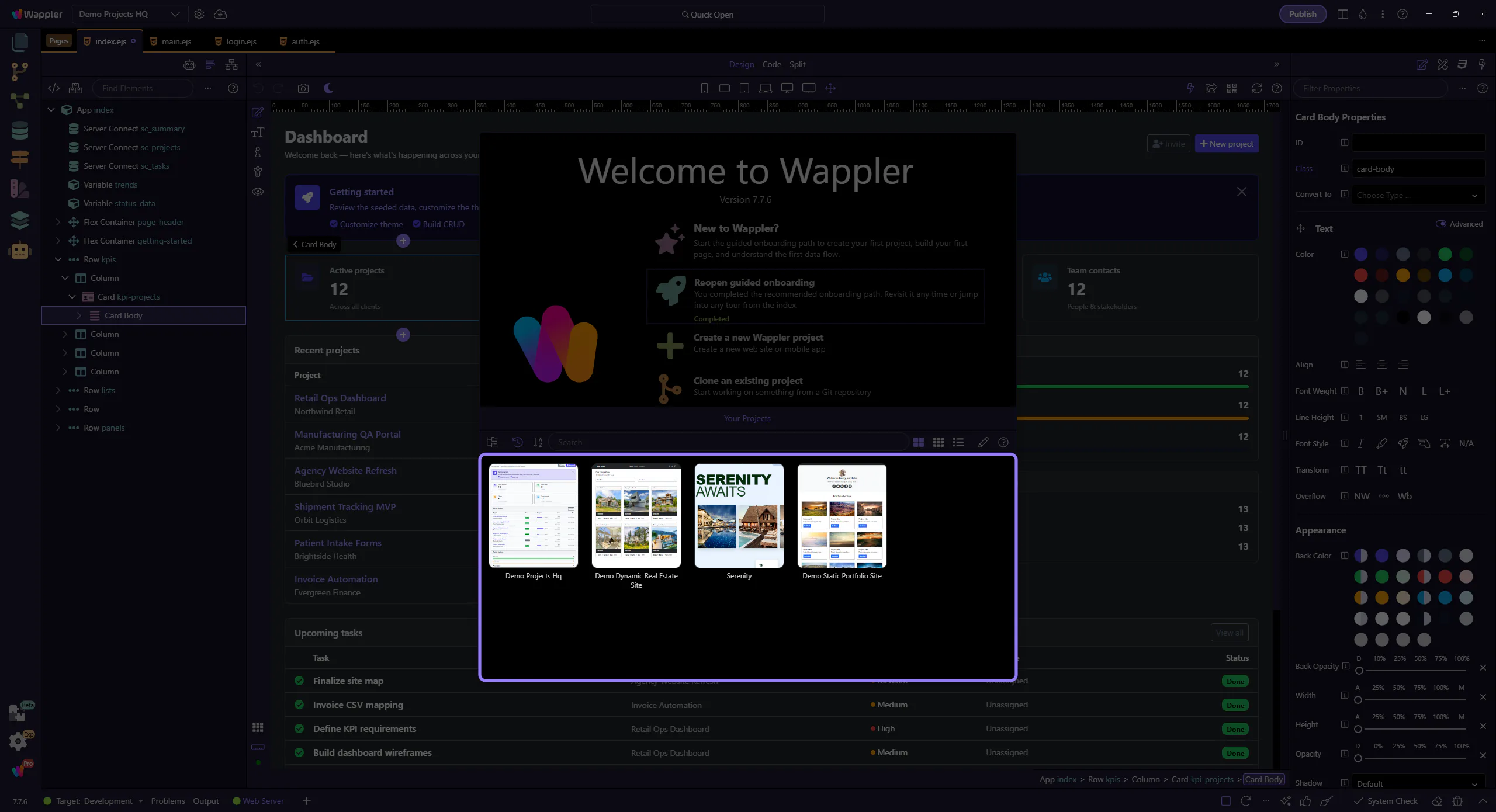
Start the New Project wizard
Section titled “Start the New Project wizard”On the Welcome Screen, click here to start creating a new local project. This step matters because Start the New Project wizard is part of Manager Projectsmanagerpicker, and understanding that context makes the next action easier to repeat in your own project.
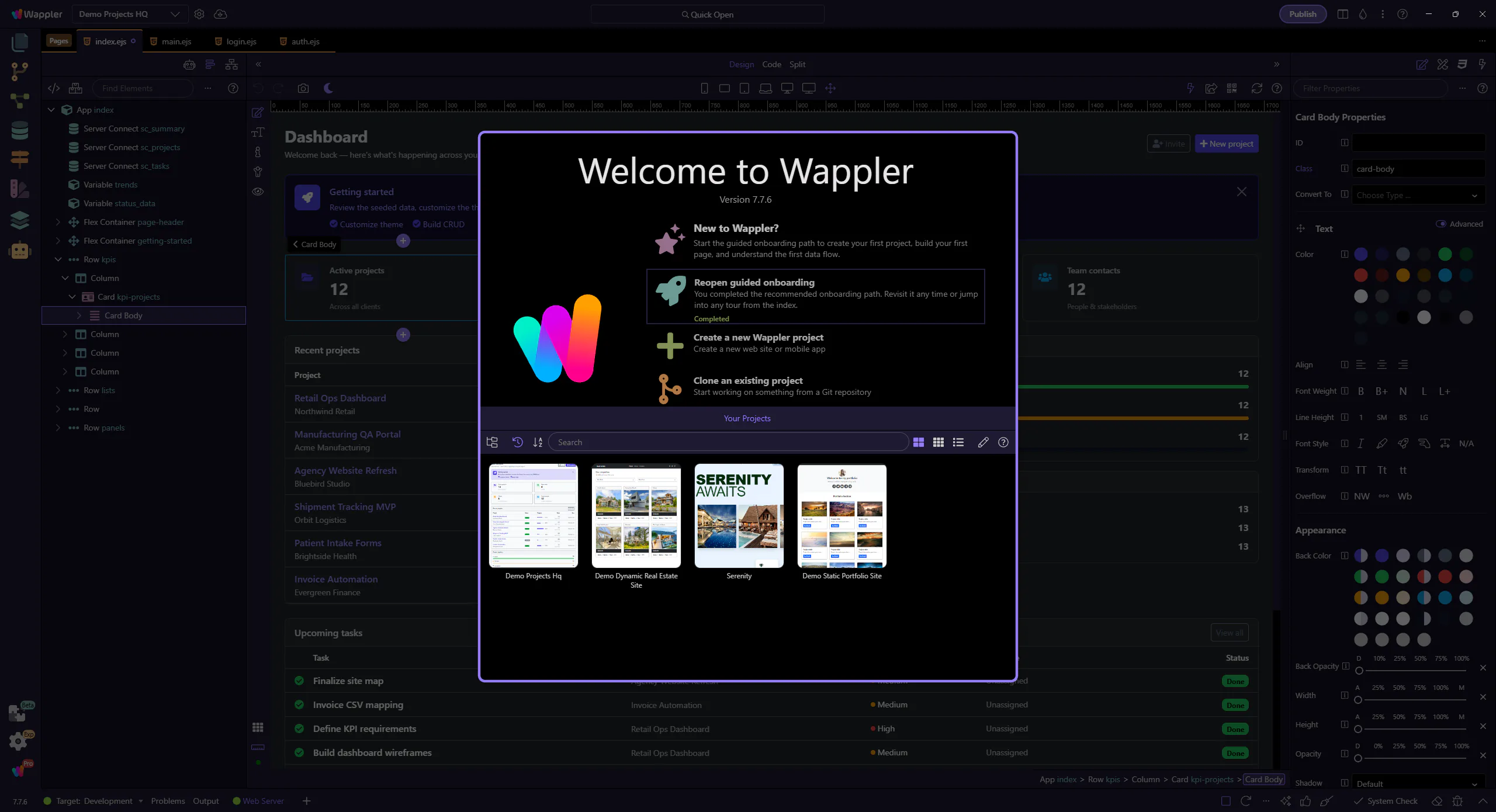
Back to Welcome
Section titled “Back to Welcome”In the standalone Projects window, use Back to return to the Welcome Screen if you opened the New Project view by accident.
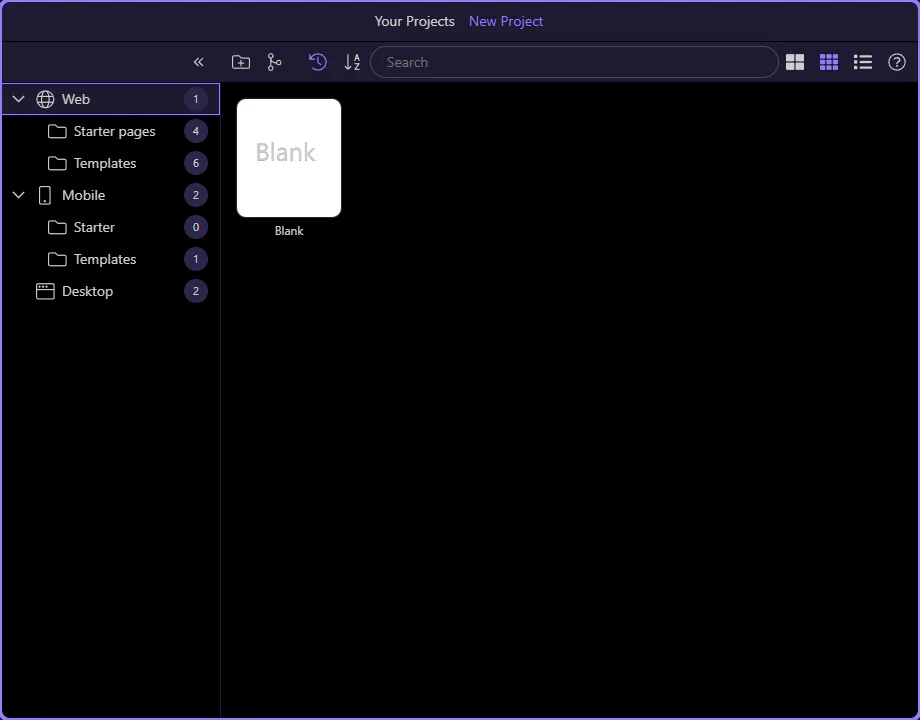
Choose a template
Section titled “Choose a template”New projects are created from templates. Think of a template as a starting structure, not a commitment to a finished app.
For onboarding, start with the simplest possible template so the next tours can teach you what gets added and why.
First pick the category that matches what you want to build, then choose the smallest starter that fits.
Project folder
Section titled “Project folder”Store each project in its own empty folder. This keeps files, server code, and configuration clean and makes it much easier to understand what belongs to this app.
Beginners usually learn faster when each practice project is isolated and easy to reopen later.
After this step, continue with the First Success Path so you can move into the next onboarding stage without bouncing back through the welcome hub.