
Actions panel
Browse step types Insert quickly
All the ways to add and organize steps in the Server Connect Actions editor (Actions panel, drag & drop, inline + controls, context menu).
Adding steps becomes much easier once you understand how each new node changes the action flow instead of just the tree shape. This tour frames step insertion as a workflow decision, so you can see where logic belongs, how order affects results, and why named steps make later debugging easier.
The tour opens the Actions panel so you can browse available step types (Database, HTTP, Files, Logic, …).
Typical workflow:
Tip: if you don’t see the Actions panel, use the left panel toggle in the editor header.
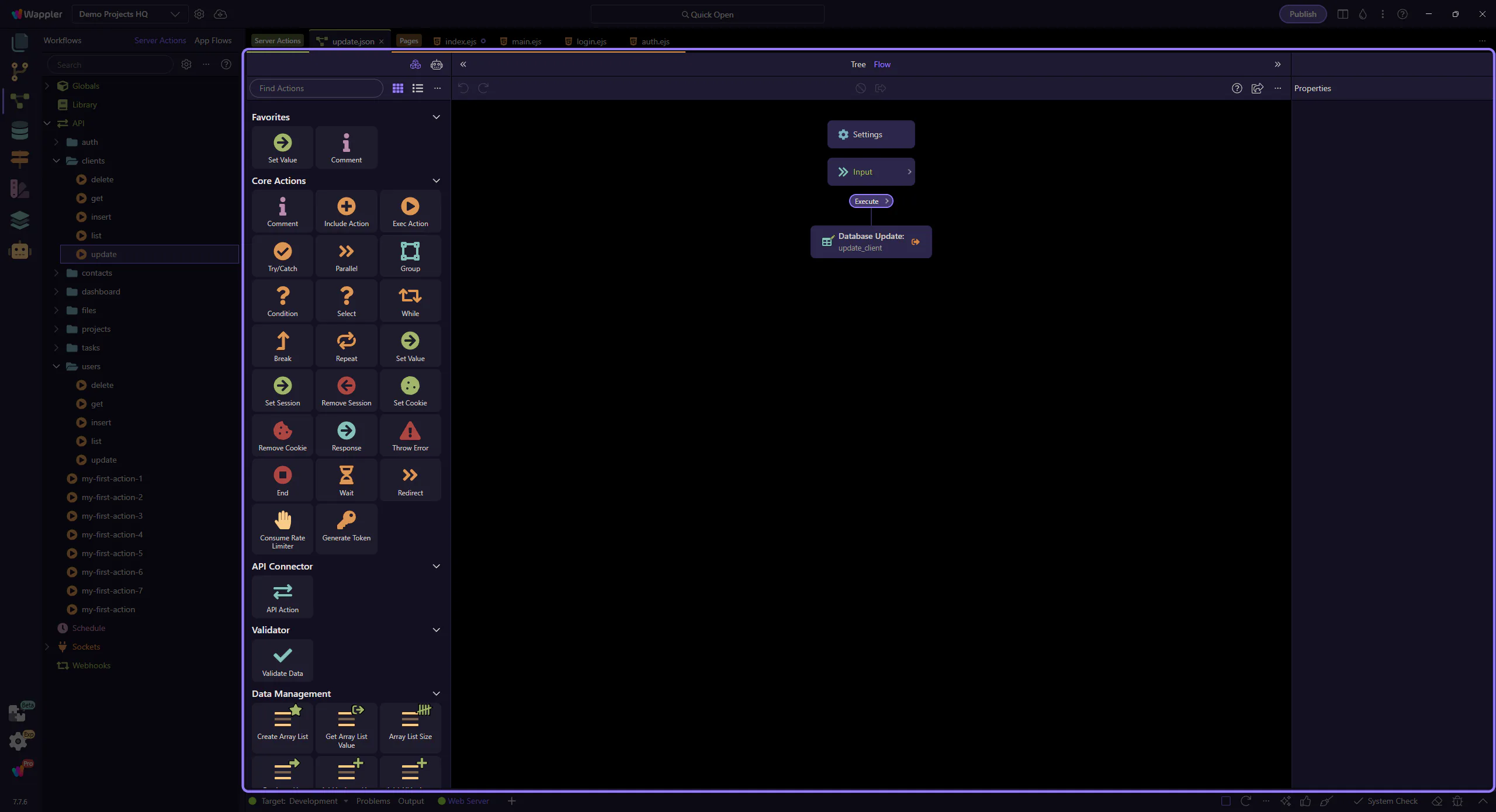
The editor shows inline “+” insertion controls around steps (before/after) and inside container steps.
Use these when you want to insert something quickly without opening any panel.
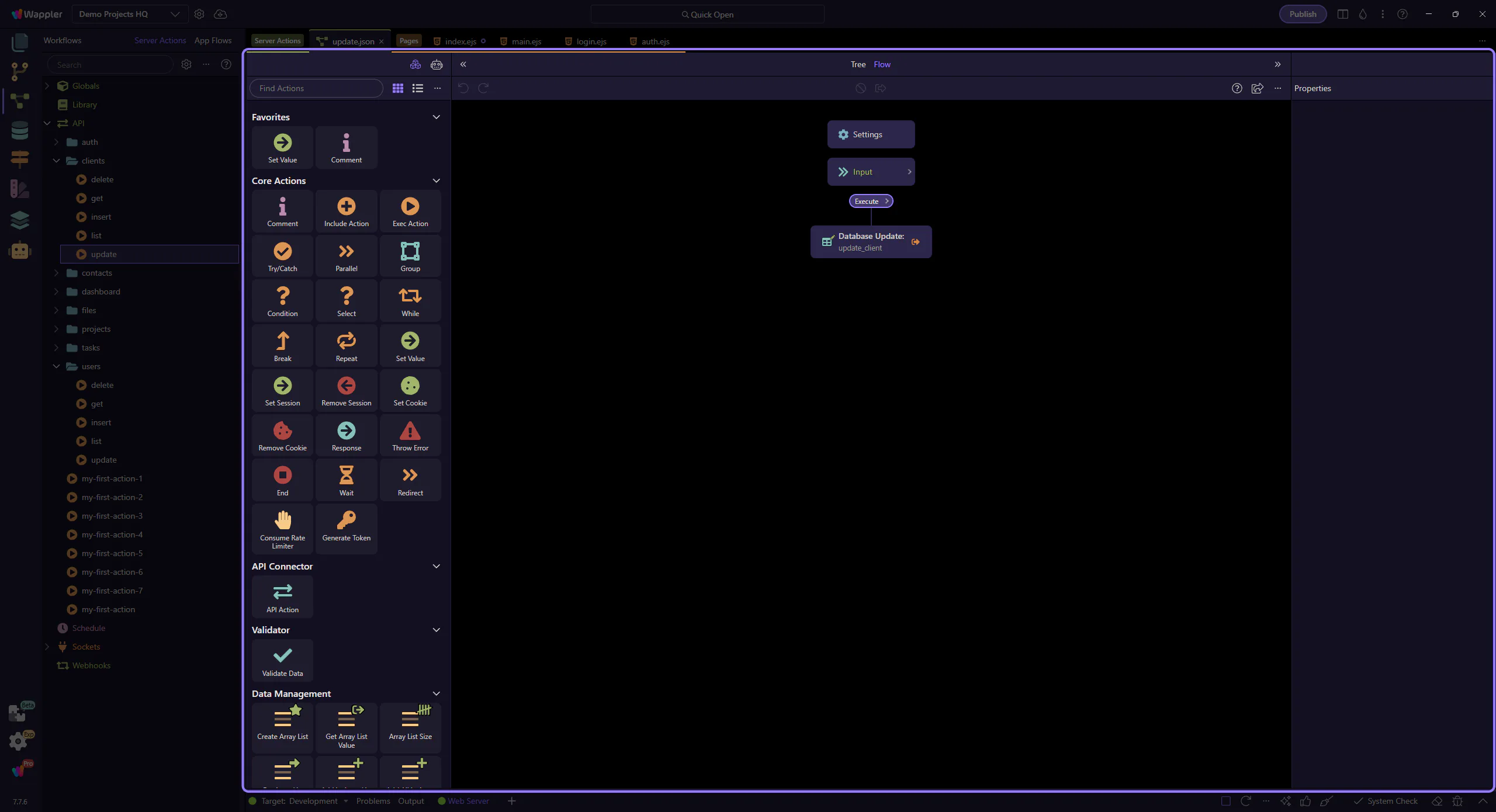
You can drag steps to reorder them, and in many cases you can also drag a step type from the Actions panel into the tree.
Tip: use drag & drop to quickly clean up the flow after experimenting.
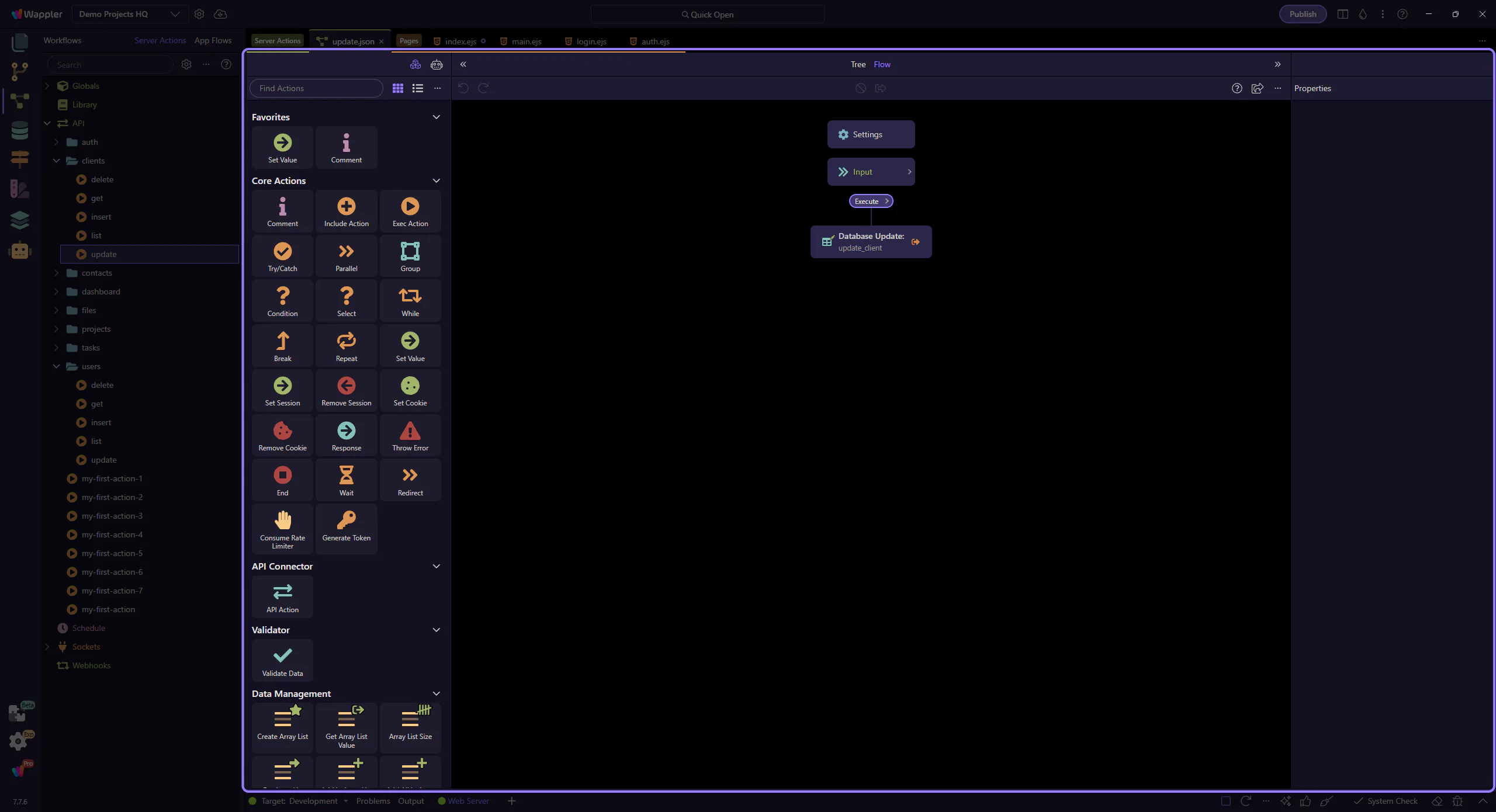
In the Steps tree, right-click a step to access common actions:
This is often the fastest way when your hand is already on the tree.
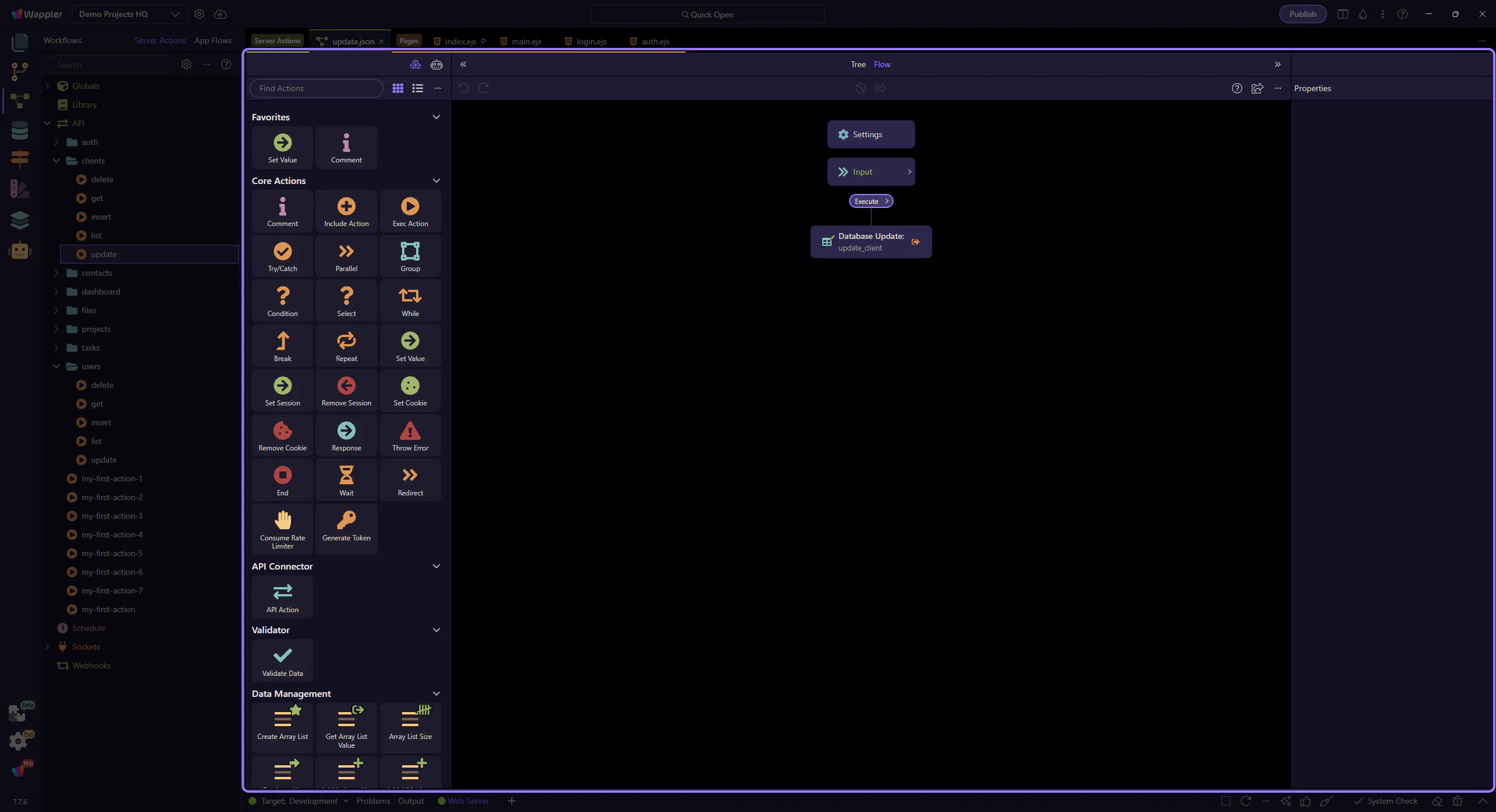
Most insertion methods work relative to the currently selected step.
You can insert before or after a step, or insert inside a container step (like an If / Try / Repeat / Switch).
Tip: when in doubt, click the step you want to insert next to, then add the new step.
Recap what you learned and choose where to go next.
Pick a related tour to continue.