
Database: Query Builder (SELECT)
Use the Database Query Builder dialog (opened from a dbconnector SELECT step) to inspect tables, columns, conditions, sorting, and preview the generated SQL.
The Demo Projects HQ SELECT action opens
Section titled “The Demo Projects HQ SELECT action opens”This step loads the real clients/list.json action from Demo Projects HQ so the Query Builder opens against the project’s live database connection and schema.
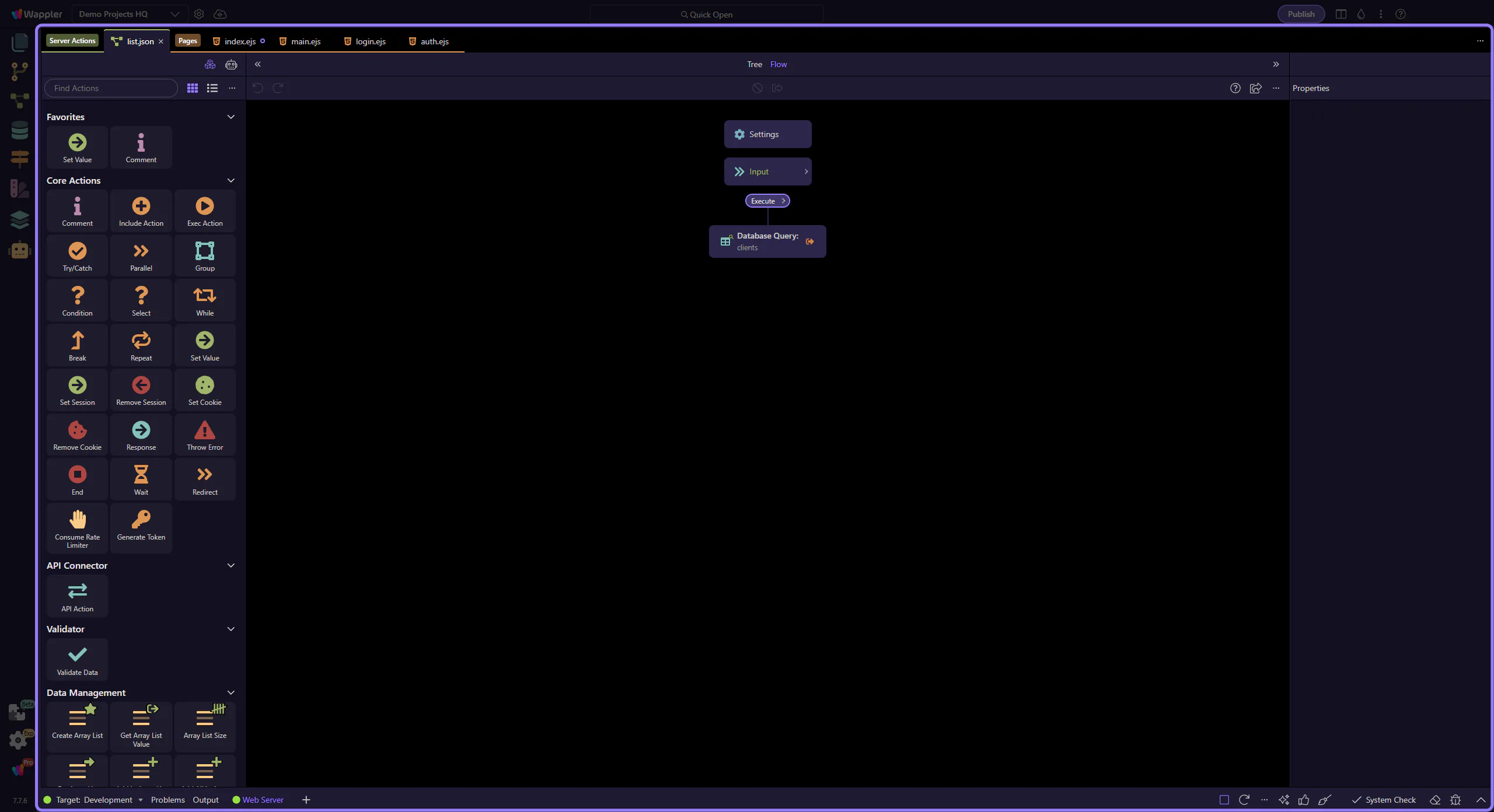
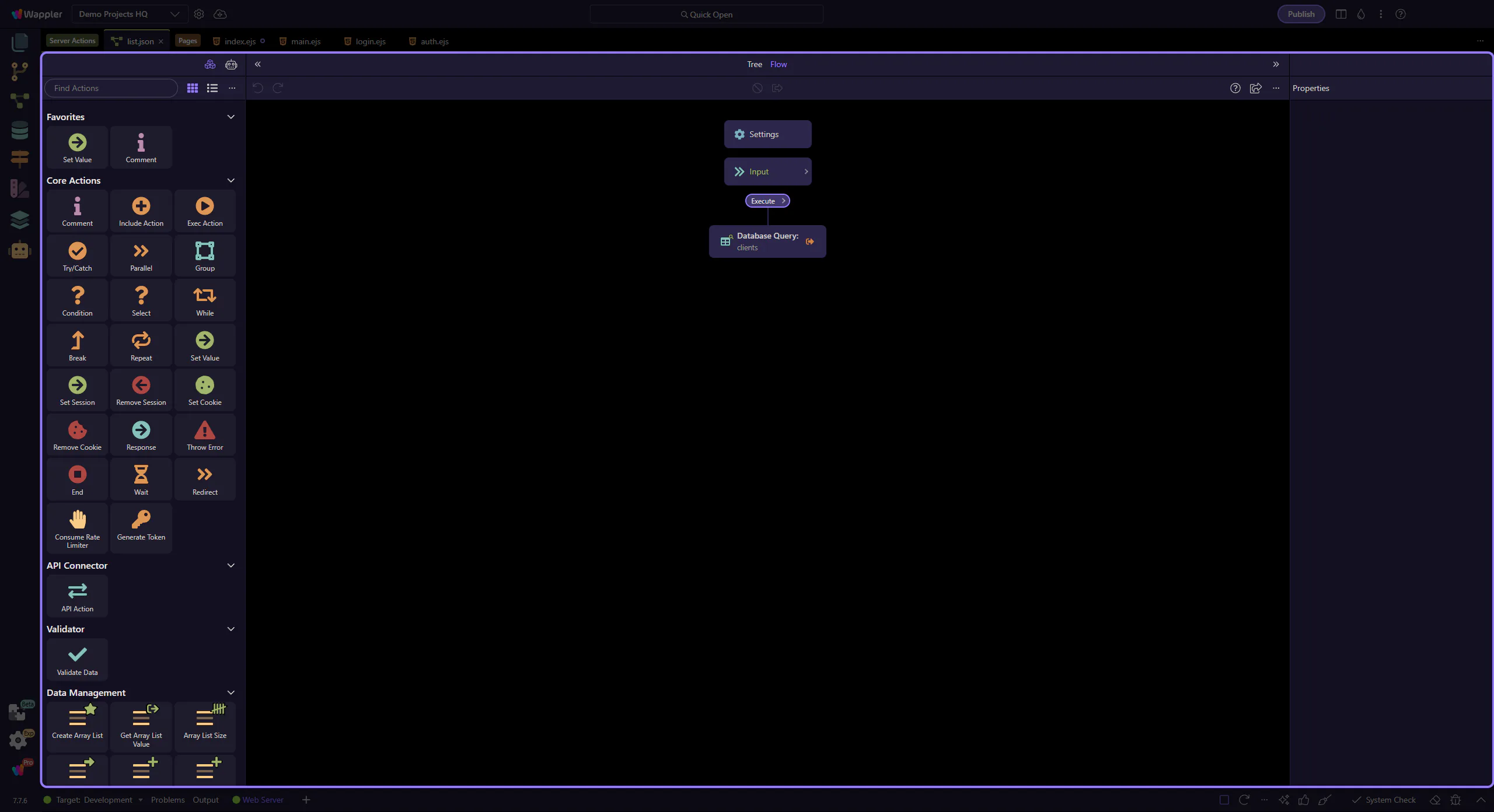
The Server Connect editor is now the focus
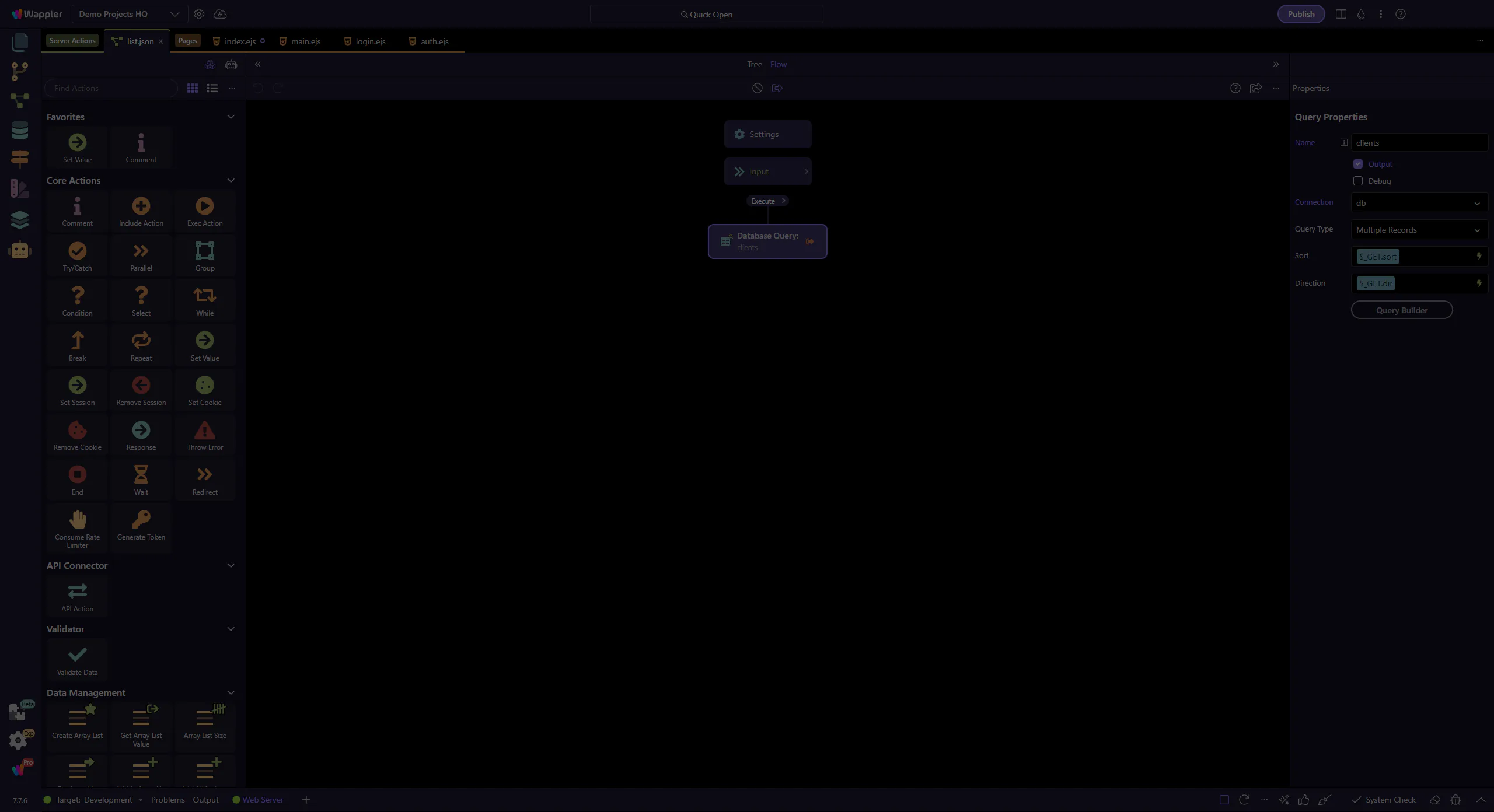
Section titled “The Server Connect editor is now the focus”The action now opens in the dedicated Server Connect editor. Collapse the manager so the workflow tree and Properties panel become the clear focus before selecting the database step.
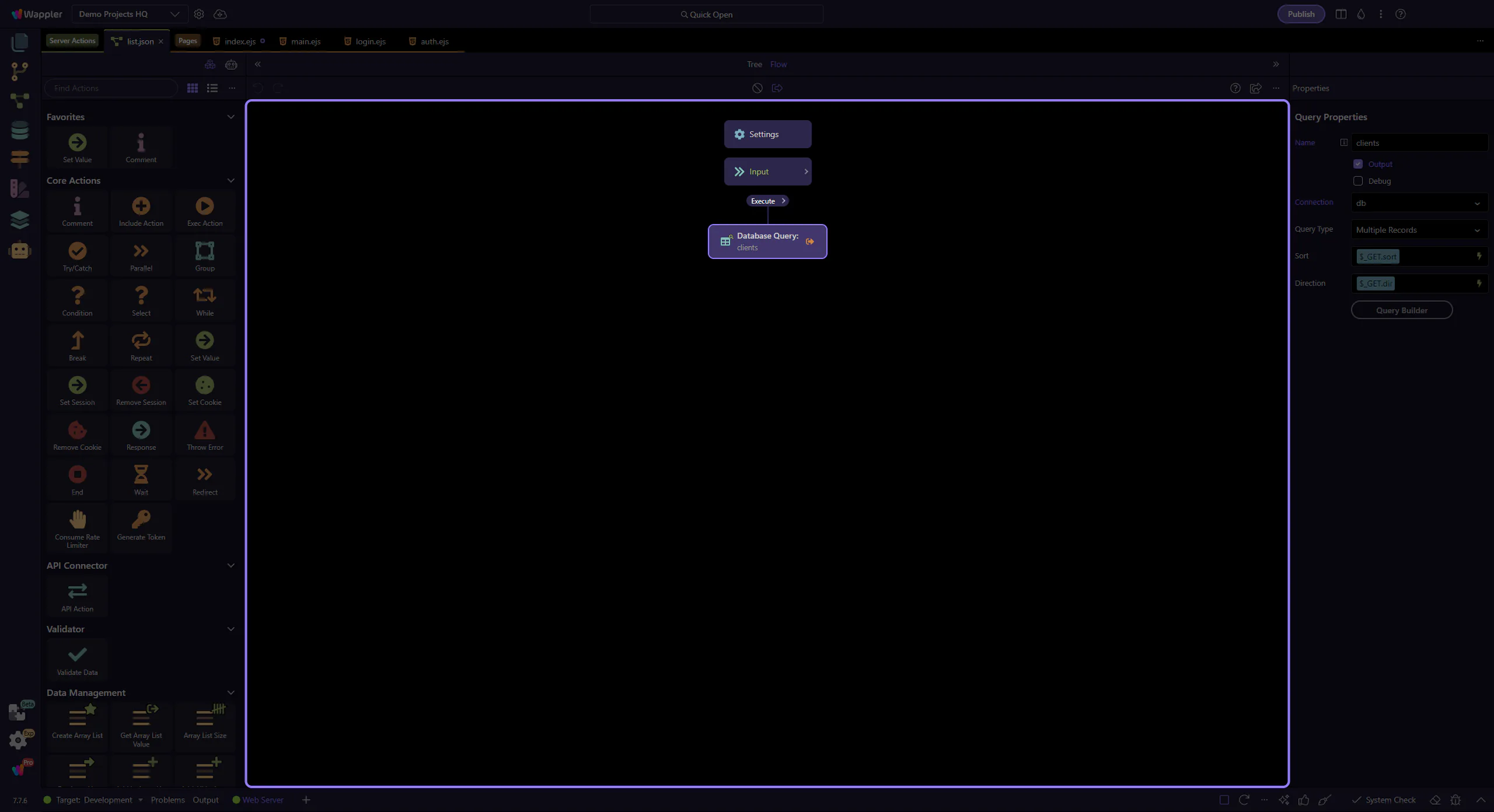
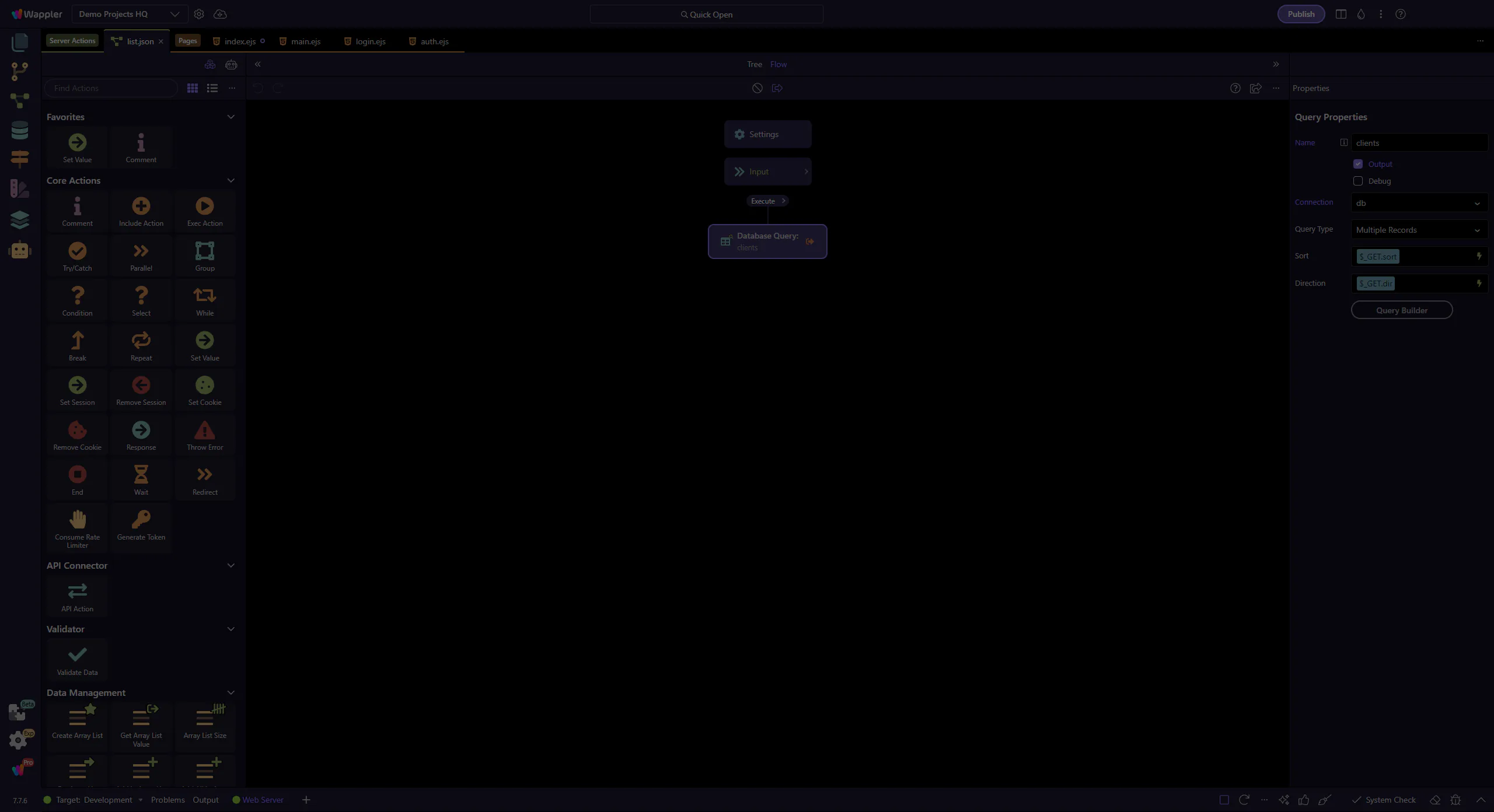
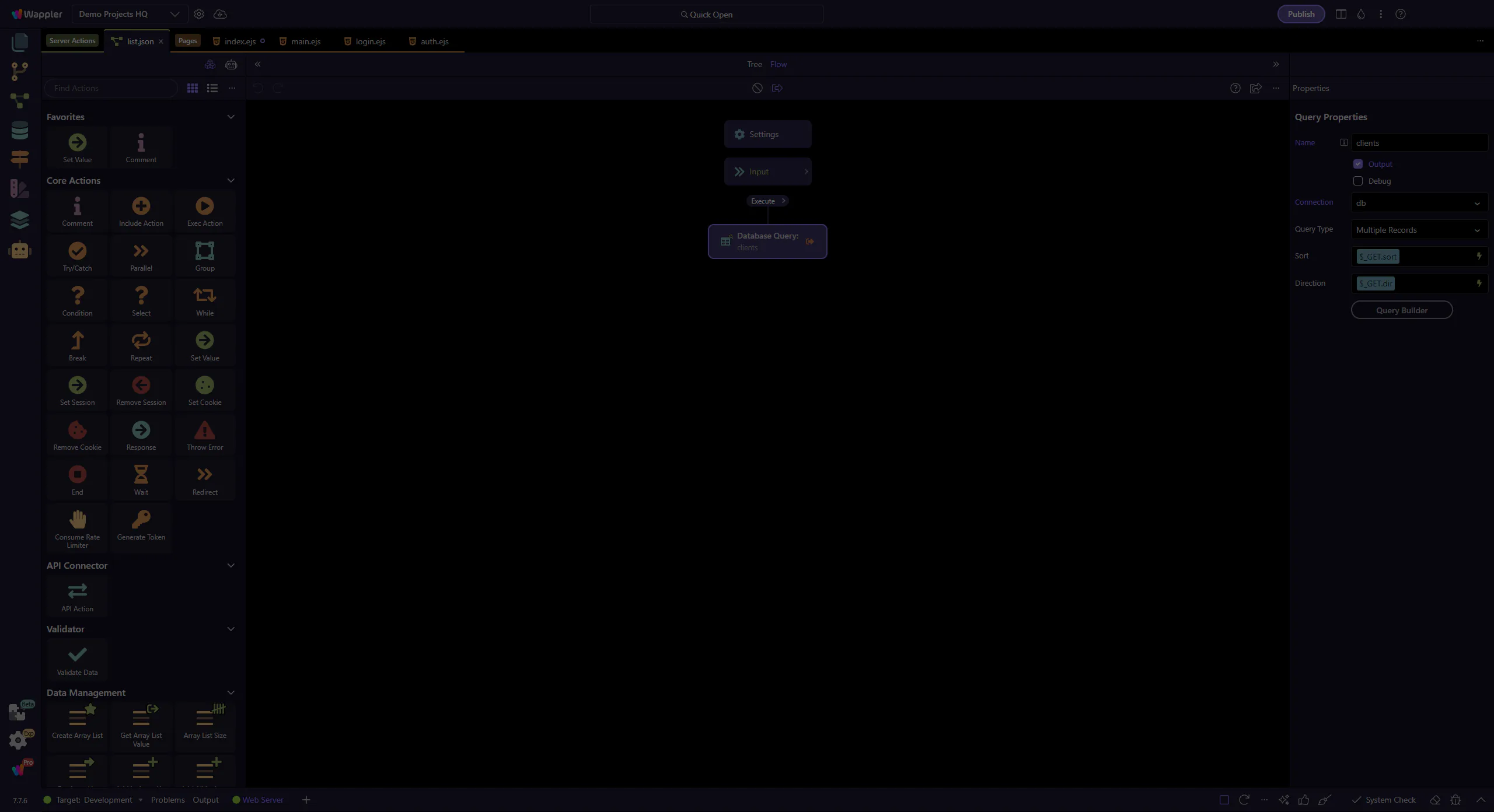
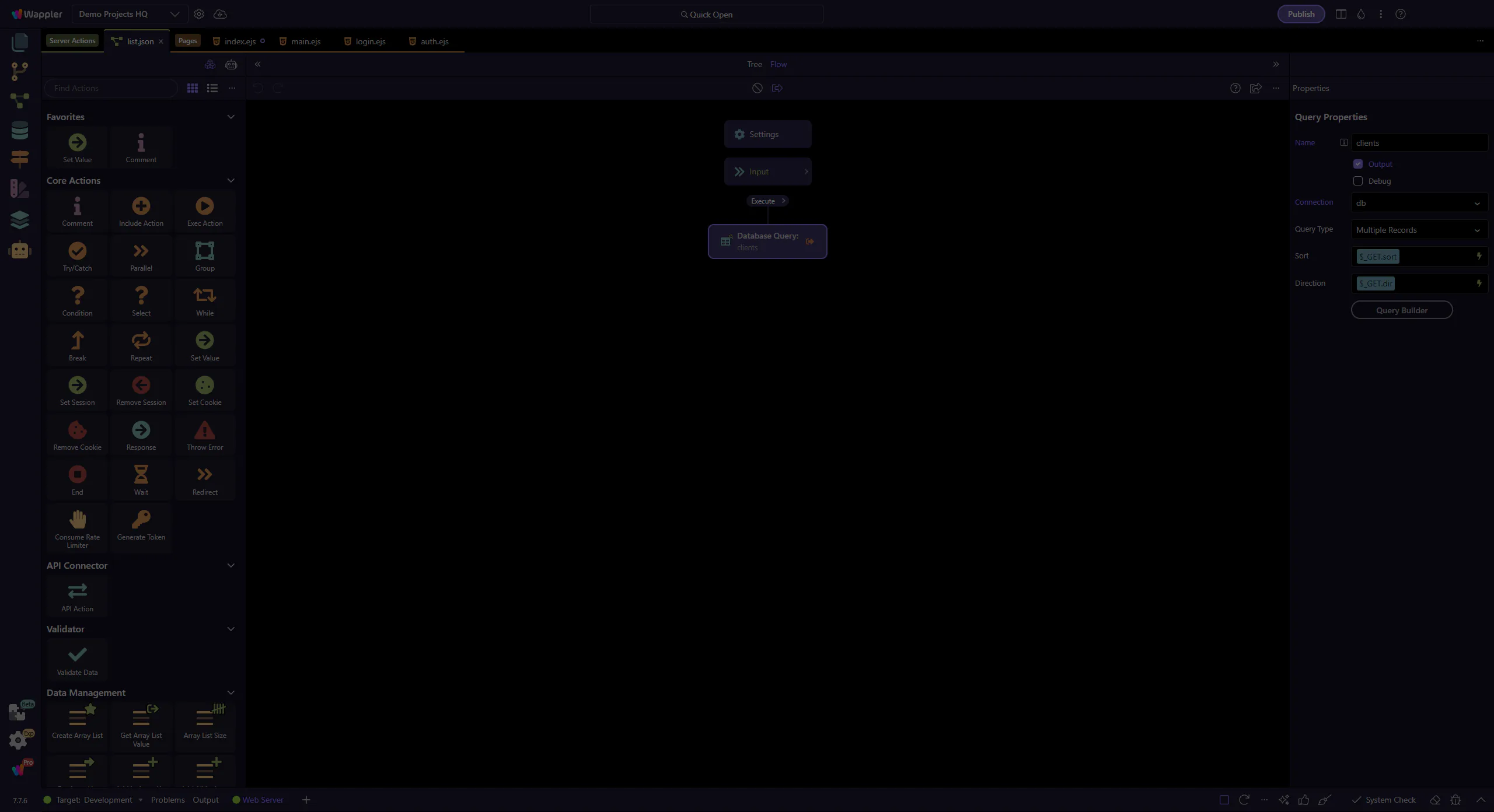
The SELECT step is selected
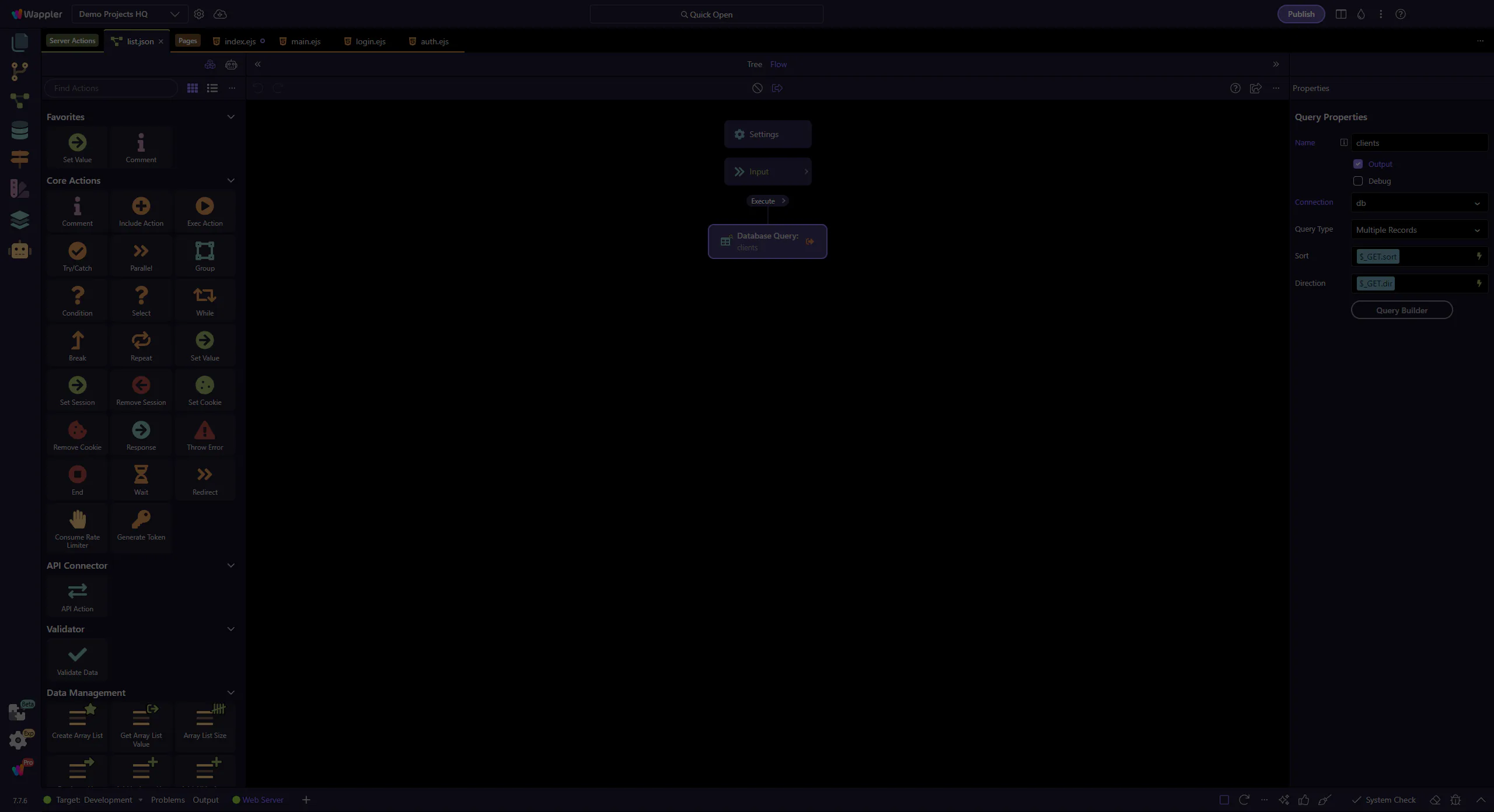
Section titled “The SELECT step is selected”This step selects the clients workflow step so its SQL/Query Builder options are shown in the Properties panel.
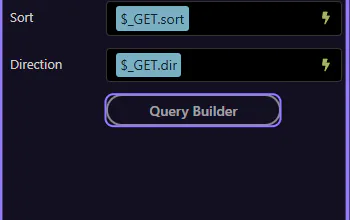
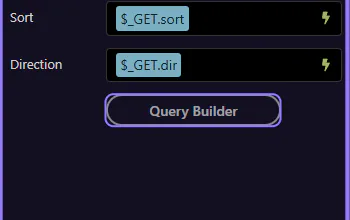
Locate the “Query Builder” button
Section titled “Locate the “Query Builder” button”In the Properties panel, locate the “Query Builder” button for the selected SELECT step. This step matters because Locate the “Query Builder” button is part of Serverconnecteditor Properties Control Sql, and understanding that context makes the next action easier to repeat in your own project.
The Query Builder dialog opens
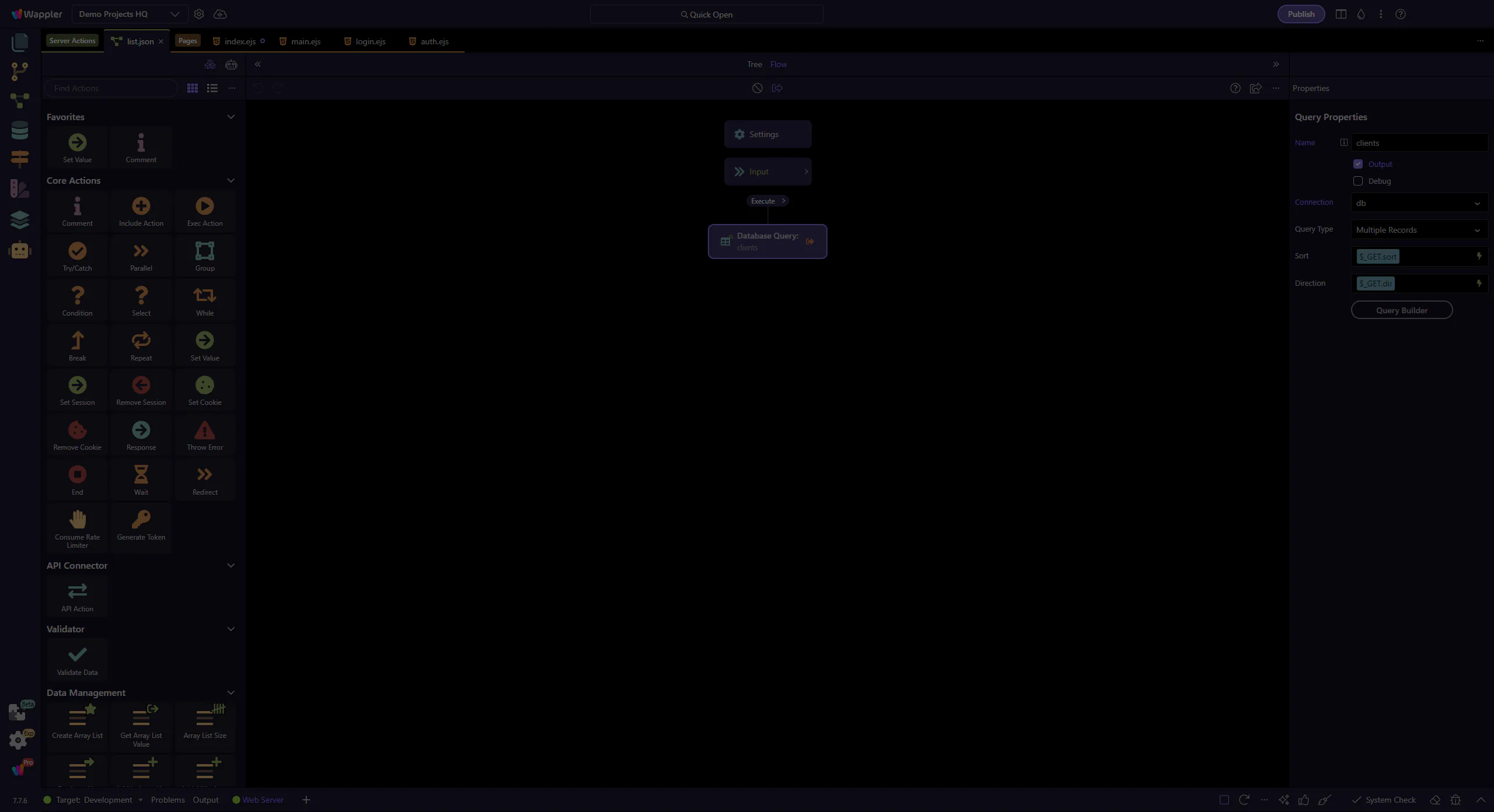
Section titled “The Query Builder dialog opens”The “Query Builder” control opens the Database Query Builder dialog for this SELECT step. This step matters because The Query Builder dialog opens is part of Serverconnecteditor Properties Control Sql, and understanding that context makes the next action easier to repeat in your own project.
Database Query Builder dialog
Section titled “Database Query Builder dialog”This dialog edits the structured SQL behind your dbconnector SELECT. You can switch panes for columns, conditions (WHERE), sorting (ORDER BY), and then preview/test the generated query.
Tables tree (left panel)
Section titled “Tables tree (left panel)”Use the left panel to browse schema and add tables/columns. For multi-table queries you can also define joins and edit join/table options.
Columns (SELECT list)
Section titled “Columns (SELECT list)”Columns define what the query returns. You can add columns, set aliases, and apply aggregates (COUNT/SUM/etc).
Conditions (WHERE)
Section titled “Conditions (WHERE)”Conditions filter rows. The builder supports grouped AND/OR rules and expression values (including Server Connect inputs like $_GET / $_POST).
Sorting (ORDER BY)
Section titled “Sorting (ORDER BY)”Sorting controls the result order. Add one or more sort rules (column + direction).
Preview SQL and Preview Data
Section titled “Preview SQL and Preview Data”Use Preview to inspect generated SQL and run Preview Data against your connection. This data preview/testing workflow is available in Query Builder dialogs (SELECT), not in Updater dialogs.
Close the Query Builder
Section titled “Close the Query Builder”When finished reviewing, close the Database Query Builder dialog to return to the Server Connect editor.
Next steps
Section titled “Next steps”Continue with the Updater dialog tours for INSERT/UPDATE/DELETE, or go back to the Database actions hub.