
Browse
Folders + items Project structure
Explore Server Connect Manager: Server Connect Manager Overview, Server Connect Manager: groups, and Tree groups.
This tour focuses on the Server Connect Manager in Workflows: browsing Server Connect Actions by type, organizing with folders, searching, and opening an action in the dedicated editor.
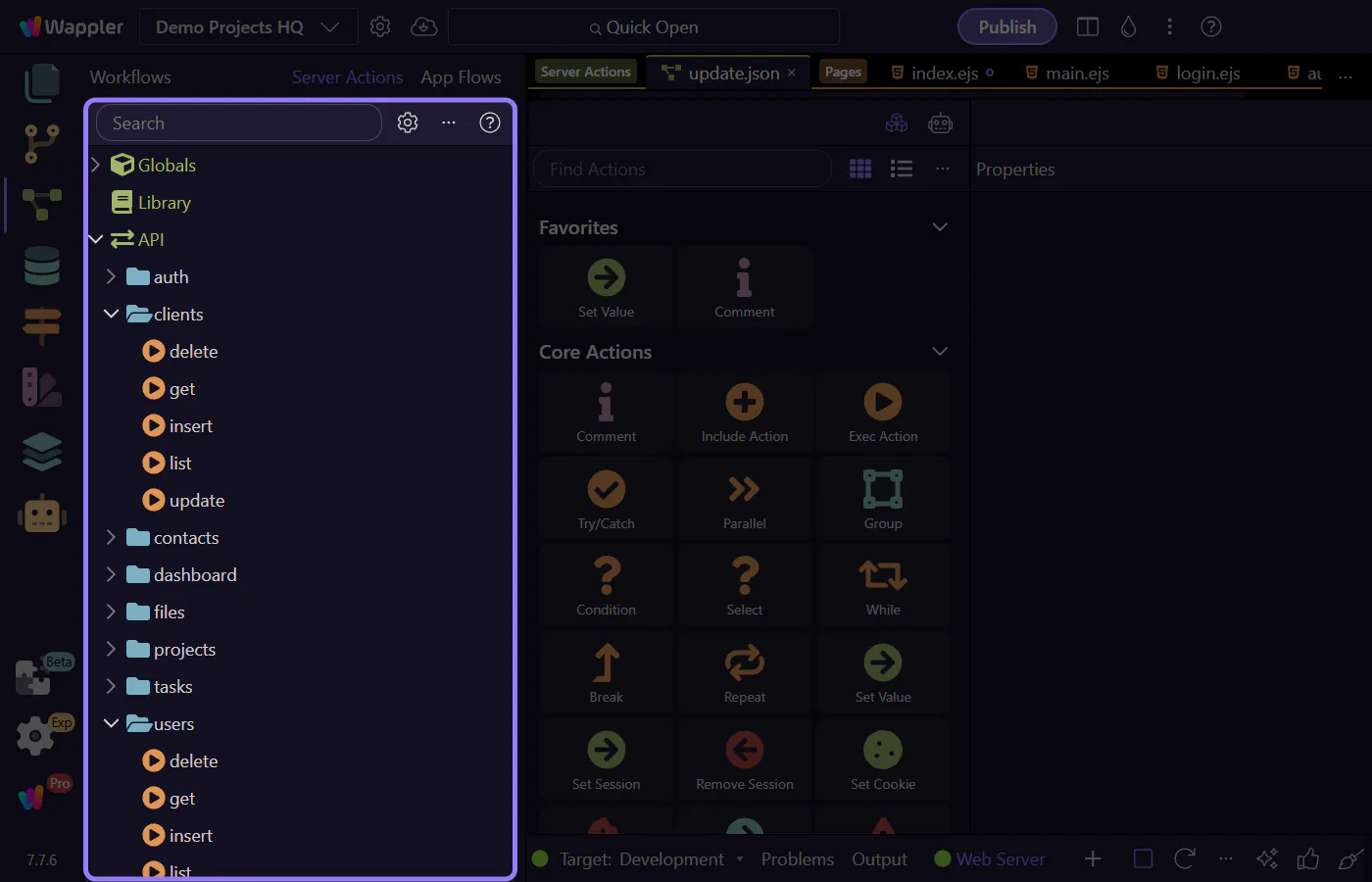
The Server Connect Manager is your hub for Server Connect Actions and related server resources. Browse groups, organize with folders, and select an action to open it in the dedicated editor.
The available groups depend on your Server Model, but you’ll usually work in Globals (shared configuration) and API (your actions/endpoints).
Common groups:
Often Node.js-only:
You can explore each group in the next section — the tour will auto-expand and select them for you.
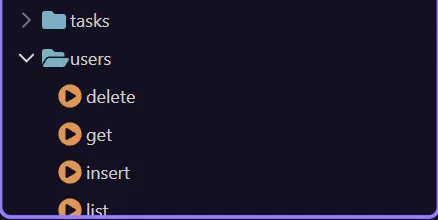
Let’s quickly go over the main groups in the tree. Each step auto-expands and selects the corresponding group for you.
As projects grow, the manager becomes your navigation system. A good structure makes actions easier to find, reuse, and secure.
Practical guidelines:
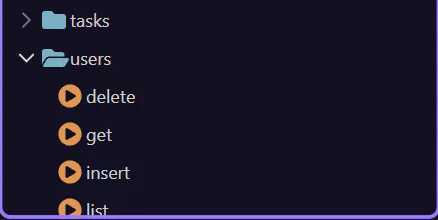
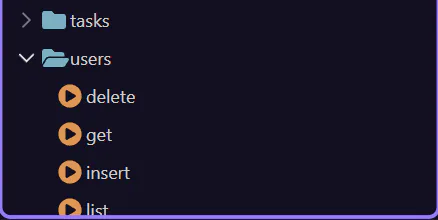
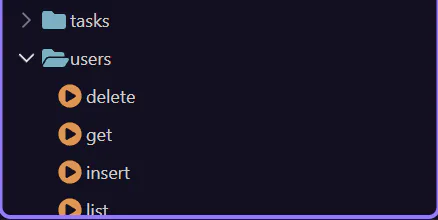
Use folders per feature area (for example users/, orders/, admin/). Use consistent action names (for example list, get, create, update, delete). Put shared logic in Library actions and call them from API actions.
We call API actions “endpoints” because they’re reachable by URL, but in Wappler you’ll usually think of them as Server Connect Actions.
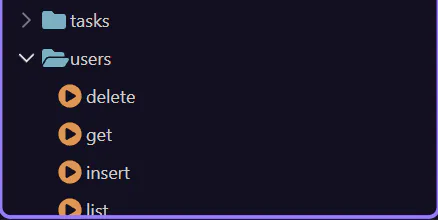
Use search to quickly find a Server Connect Action by name, especially in large projects. This step matters because Search in the tree is part of Manager Serveractions, and understanding that context makes the next action easier to repeat in your own project.
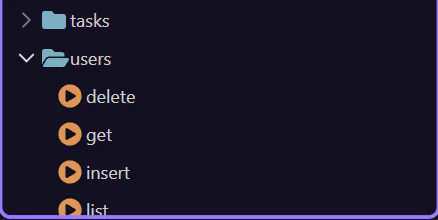
Use refresh to reload the list when files change (or after you add / rename actions). This step matters because Refresh the tree is part of Manager Serveractions, and understanding that context makes the next action easier to repeat in your own project.
This help button can start the built-in panel tour (if available for your version/config). This step matters because Panel help is part of Manager Serveractions, and understanding that context makes the next action easier to repeat in your own project.
If a Server Connect Action is selected in the tree, this step opens it in the dedicated editor for focused editing of steps, inputs, and output.
Review what you did and choose a next tour.
Pick a tour to continue.