
Demo walkthrough: Clients list (API → Page)
Trace the Clients list page end-to-end: a Server Connect SELECT action feeds a dmx-serverconnect component and a repeater.
Open the demo page
Section titled “Open the demo page”This walkthrough begins on a real Clients list page so the relationship between the page, the data loader, and the backend action is visible from the start. Opening the page first gives you the context needed to trace how Server Connect results move from API output into App Connect rendering.
The Clients page opens
Section titled “The Clients page opens”We open the Clients list page. It loads data via a Server Connect action and renders it via App Connect bindings.
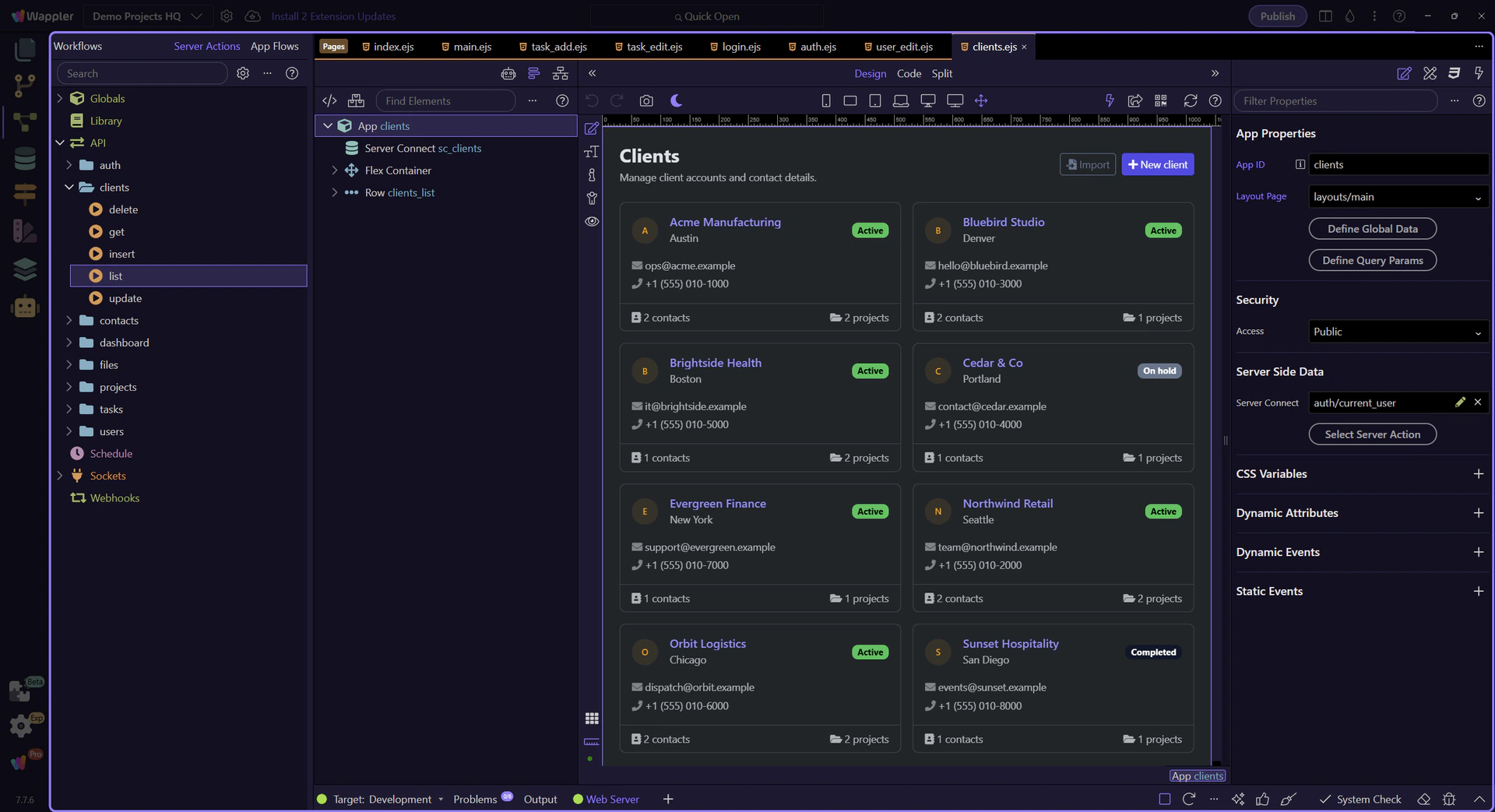
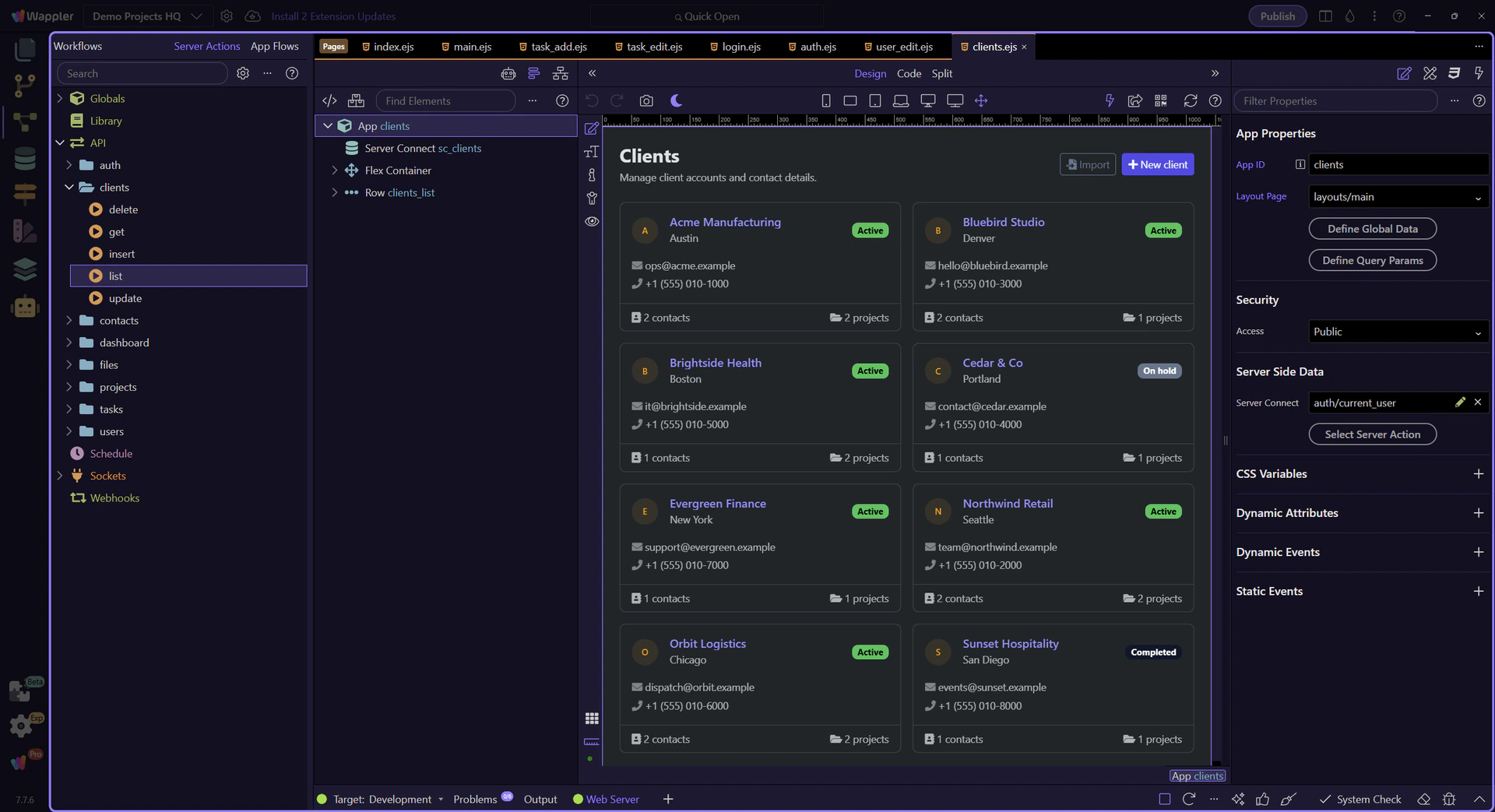
The page is ready for inspection
Section titled “The page is ready for inspection”With the page open, the next steps can trace how the frontend component and repeater bind to the backend action.
Frontend: load data from an API
Section titled “Frontend: load data from an API”First we look at how the page loads data: a dmx-serverconnect component calls a Server Connect endpoint and stores the JSON response.
The Clients page opens in the HTML editor
Section titled “The Clients page opens in the HTML editor”This step opens the page in the HTML editor so the Structure panel can be used in the following step.
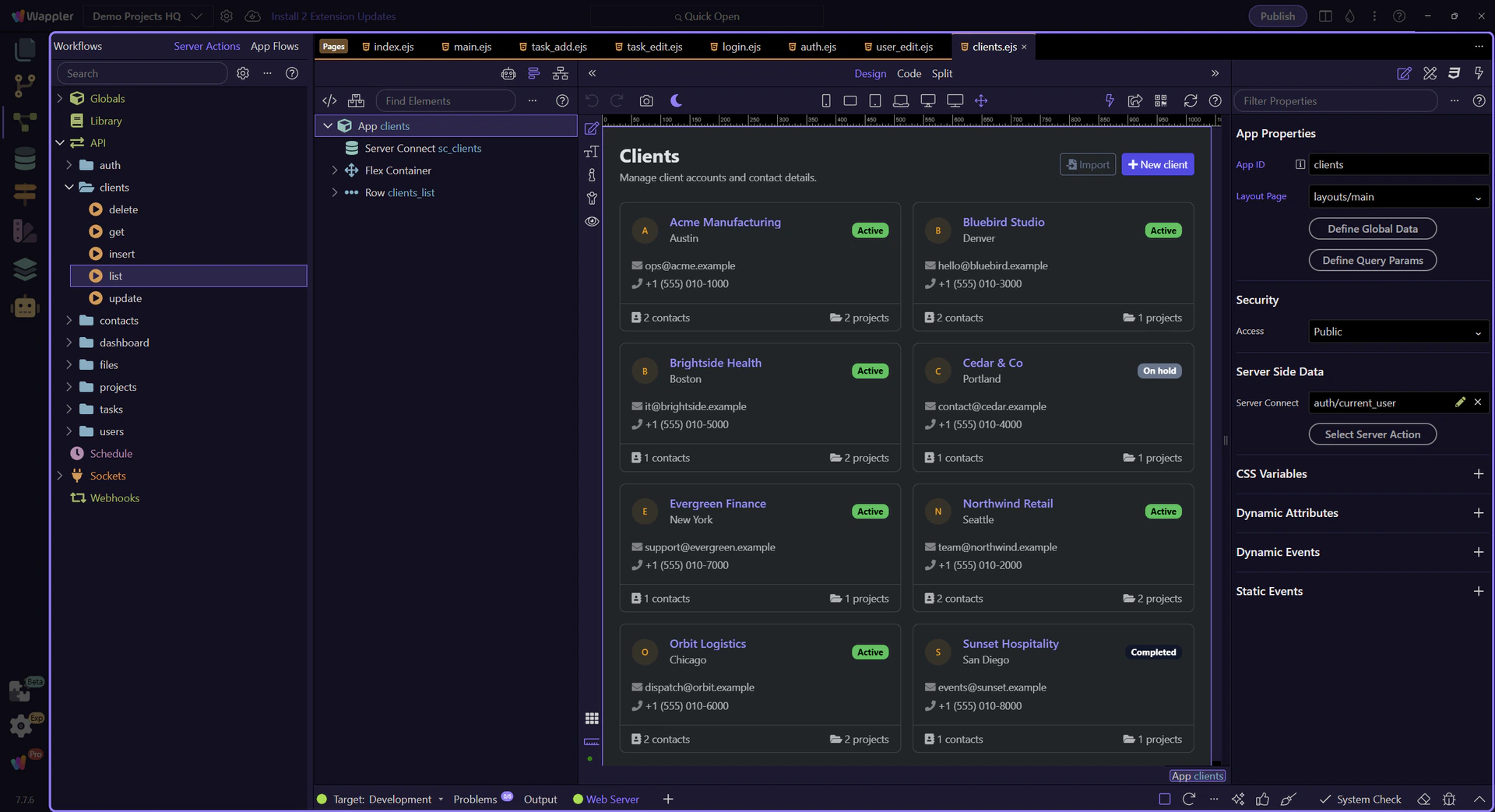
The Structure panel is ready
Section titled “The Structure panel is ready”The page is open in the HTML editor, and the Structure panel is ready so the Server Connect component can be selected cleanly.
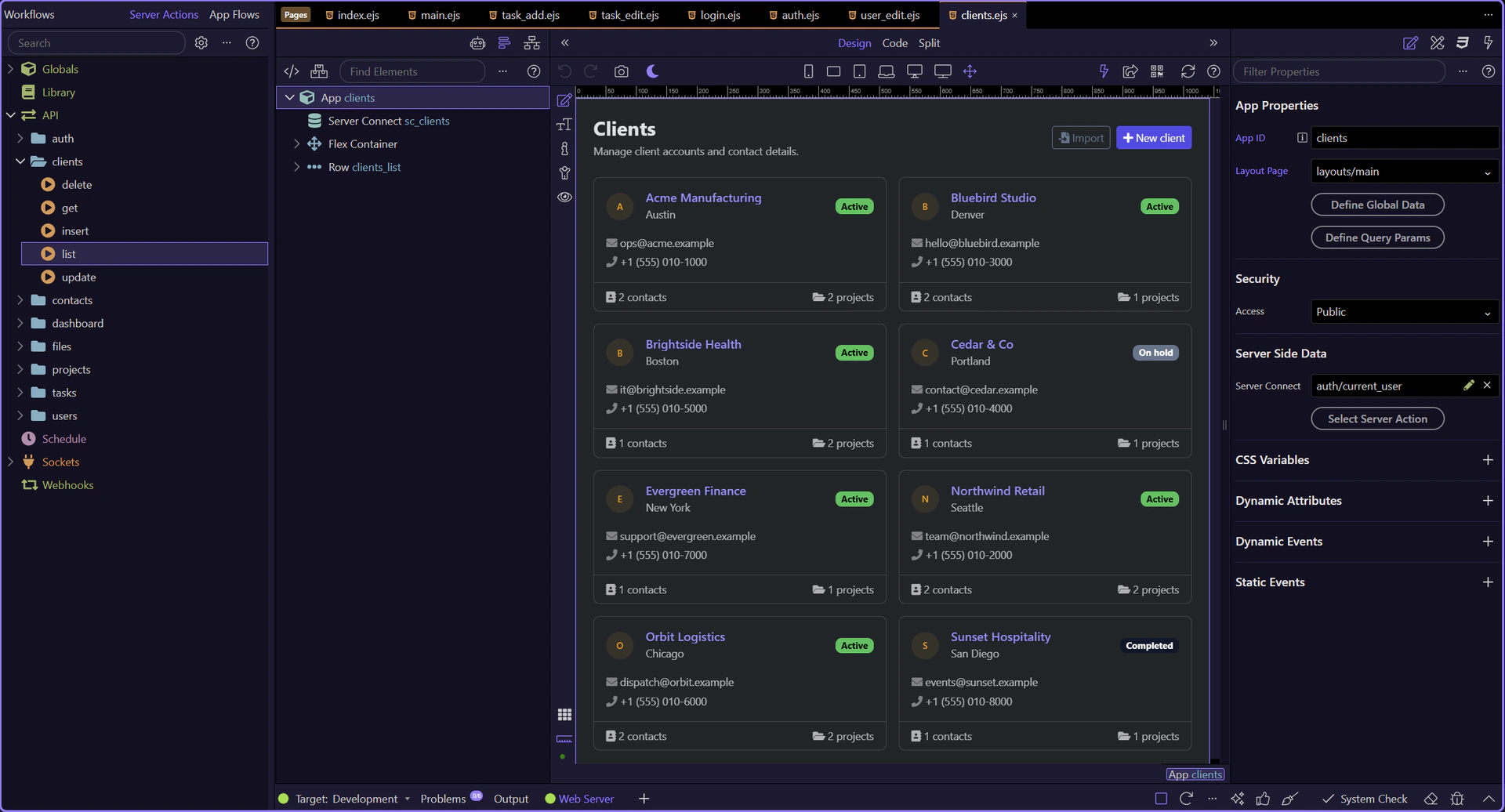
Server Connect component
Section titled “Server Connect component”This component performs the request. In this page it is named sc_clients and calls /api/clients/list.
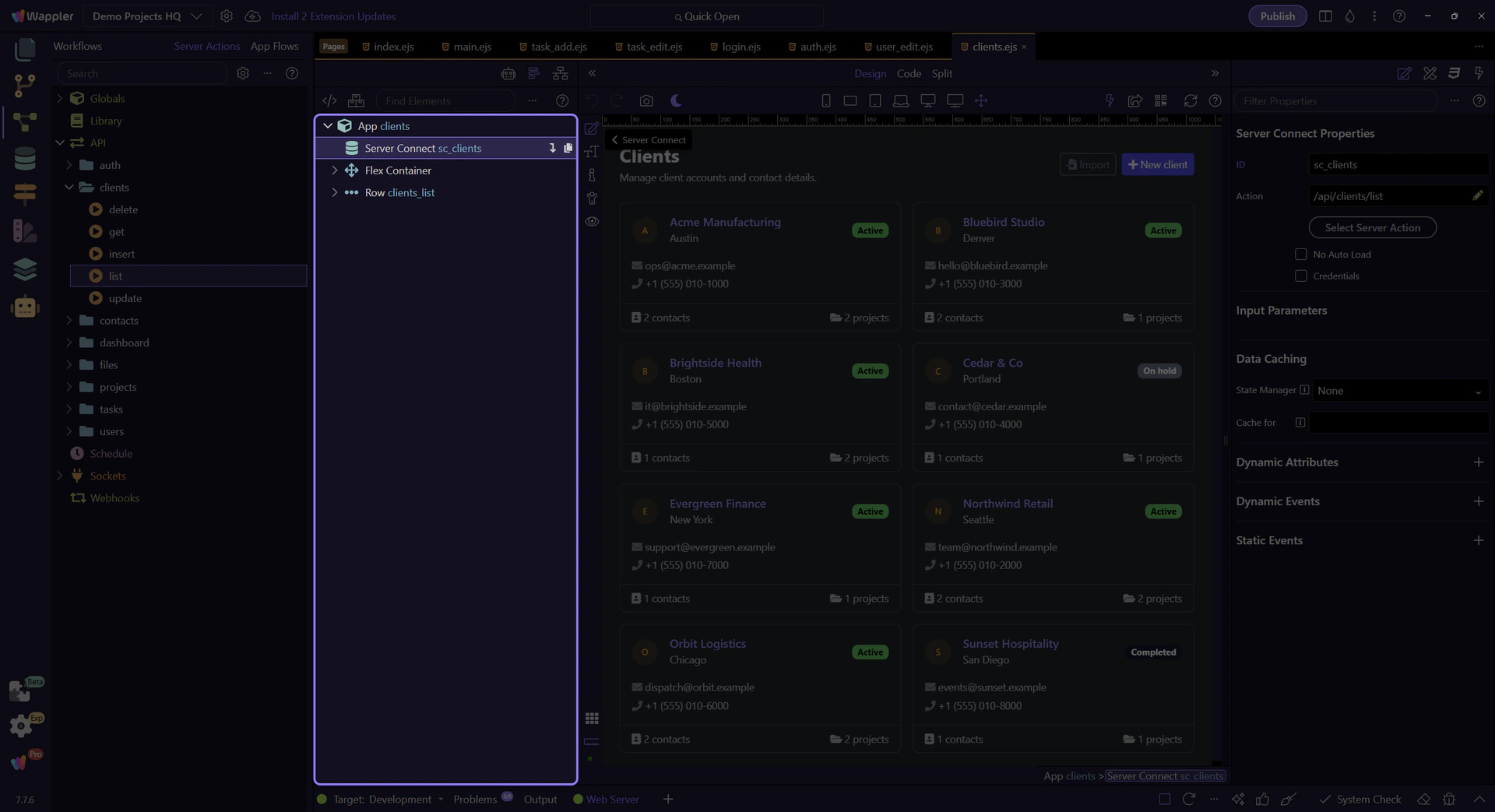
Component properties (URL + state)
Section titled “Component properties (URL + state)”In Properties you can see the URL (/api/clients/list) and, at runtime, state like executing, lastError, and data.
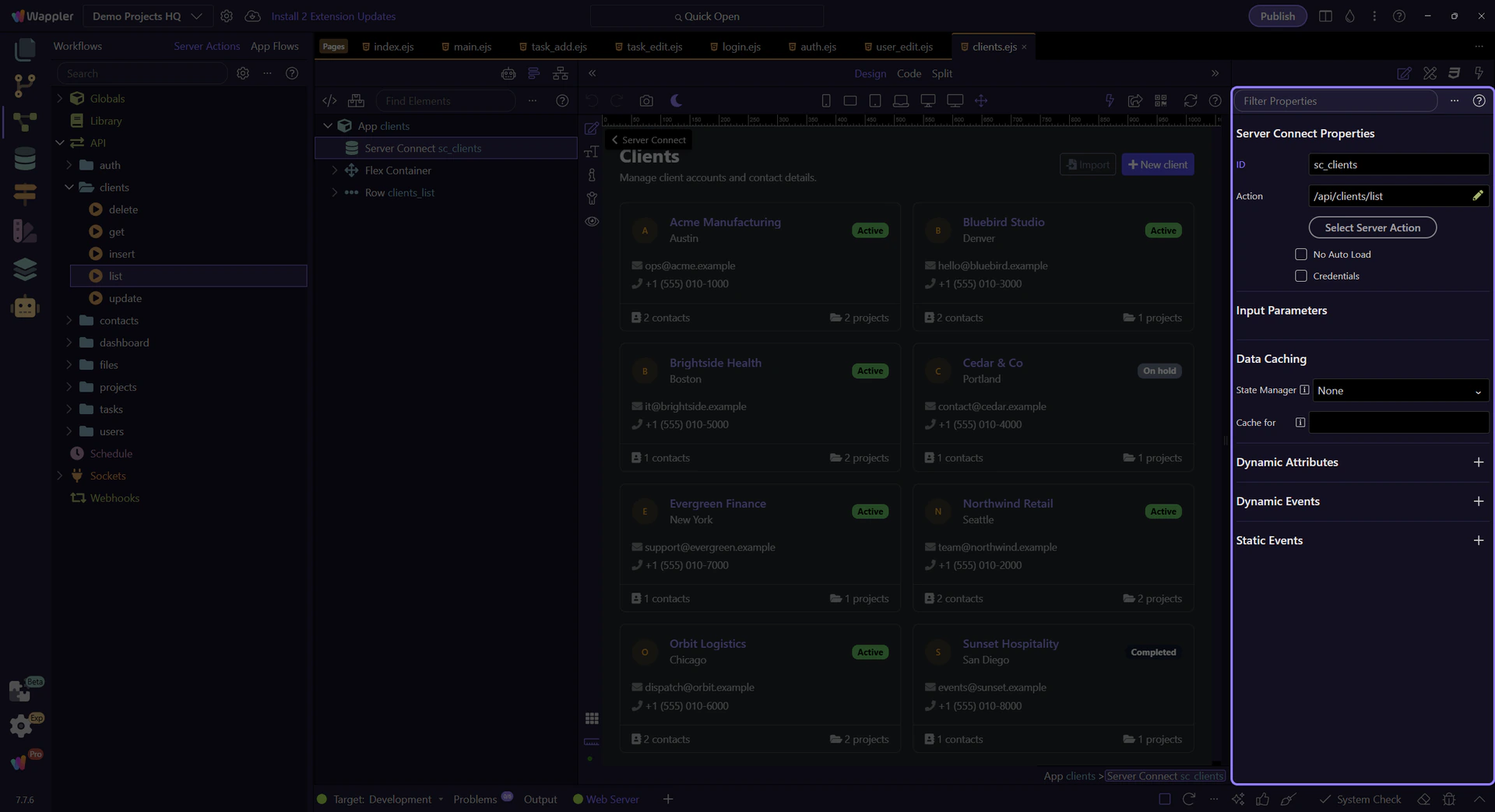
The design canvas is ready
Section titled “The design canvas is ready”The design surface is ready, so the repeater can be selected without mixing file-open and selection actions in the same step.
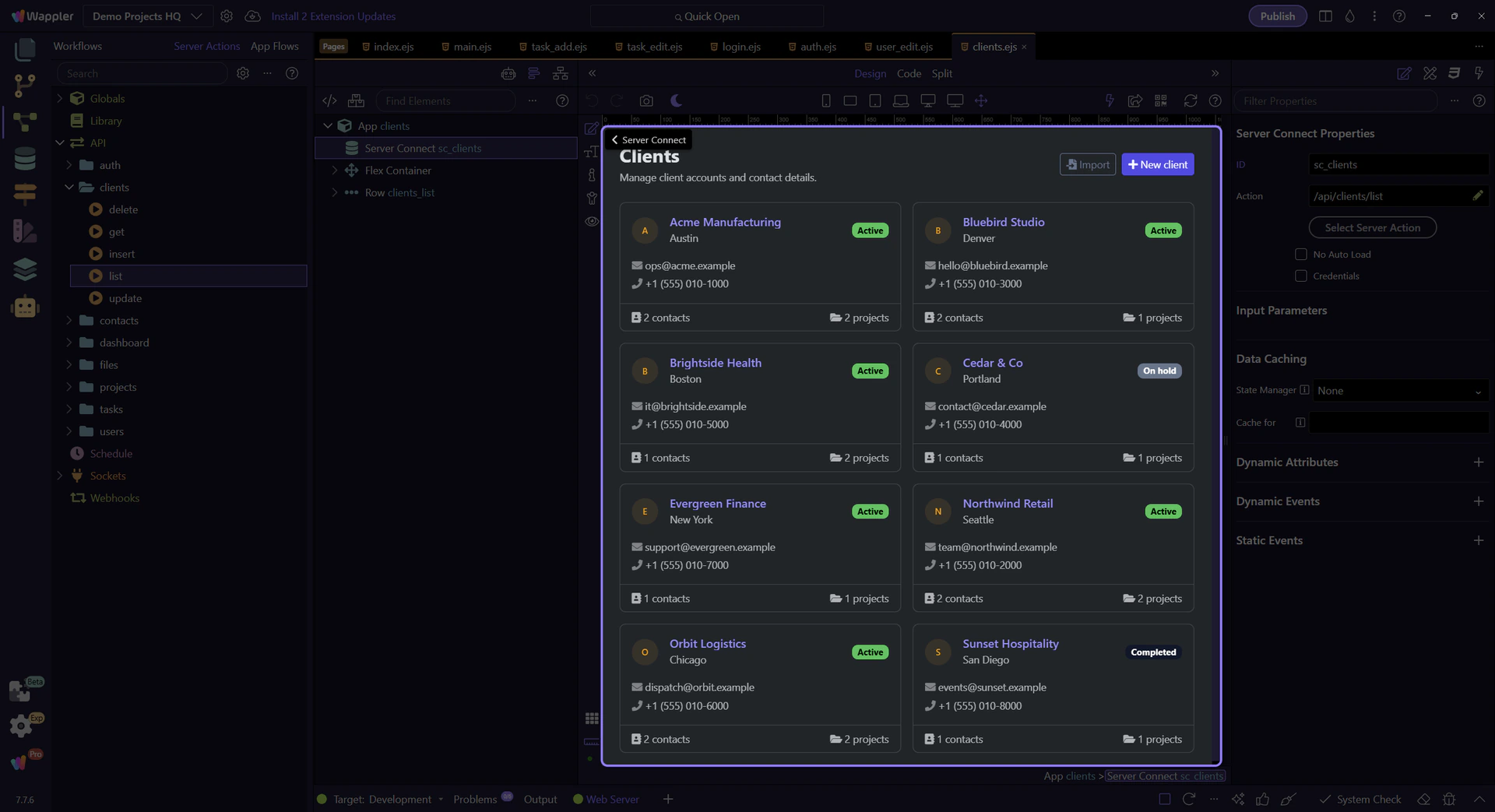
Repeater uses the response
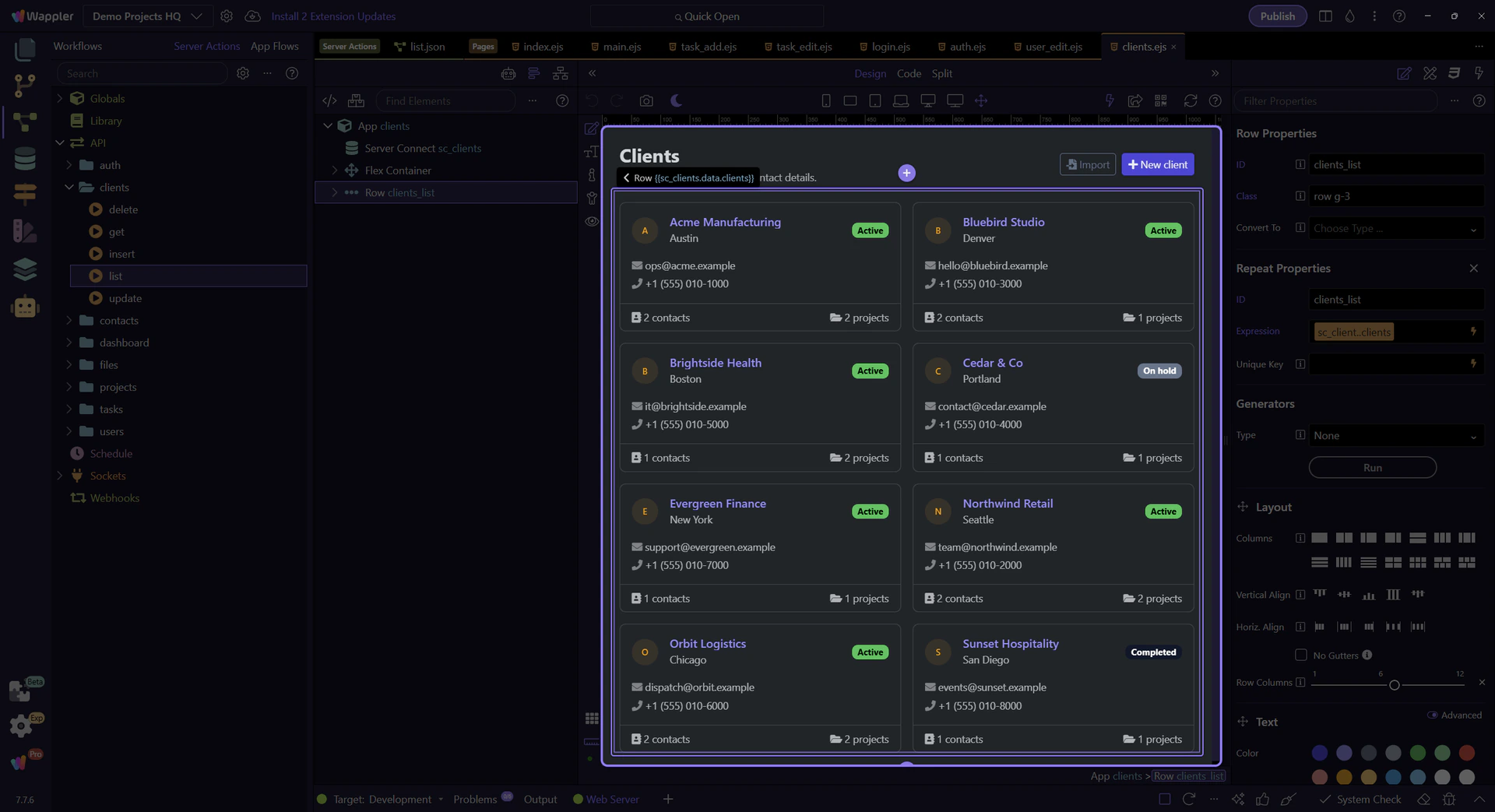
Section titled “Repeater uses the response”This repeater renders one card per client. Its repeat expression is sc_clients.data.clients, so it depends on the JSON key returned by the backend action.
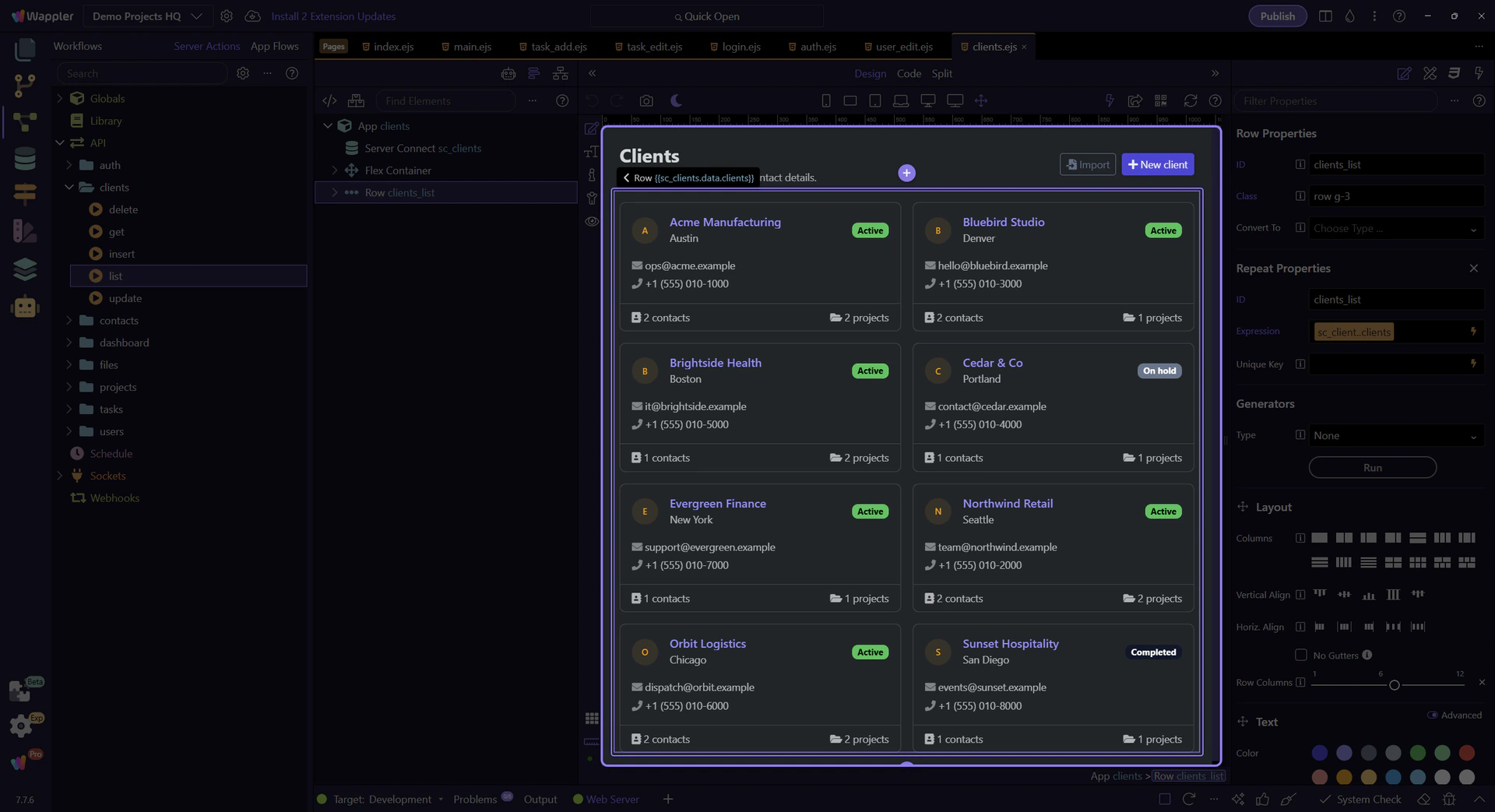
Backend: the Server Connect action
Section titled “Backend: the Server Connect action”Now we open the Server Connect action that powers the page. The step name becomes the JSON key the page binds to.
The /api/clients/list action opens
Section titled “The /api/clients/list action opens”This opens the backend endpoint used by the page and selects the query step used by the frontend binding.
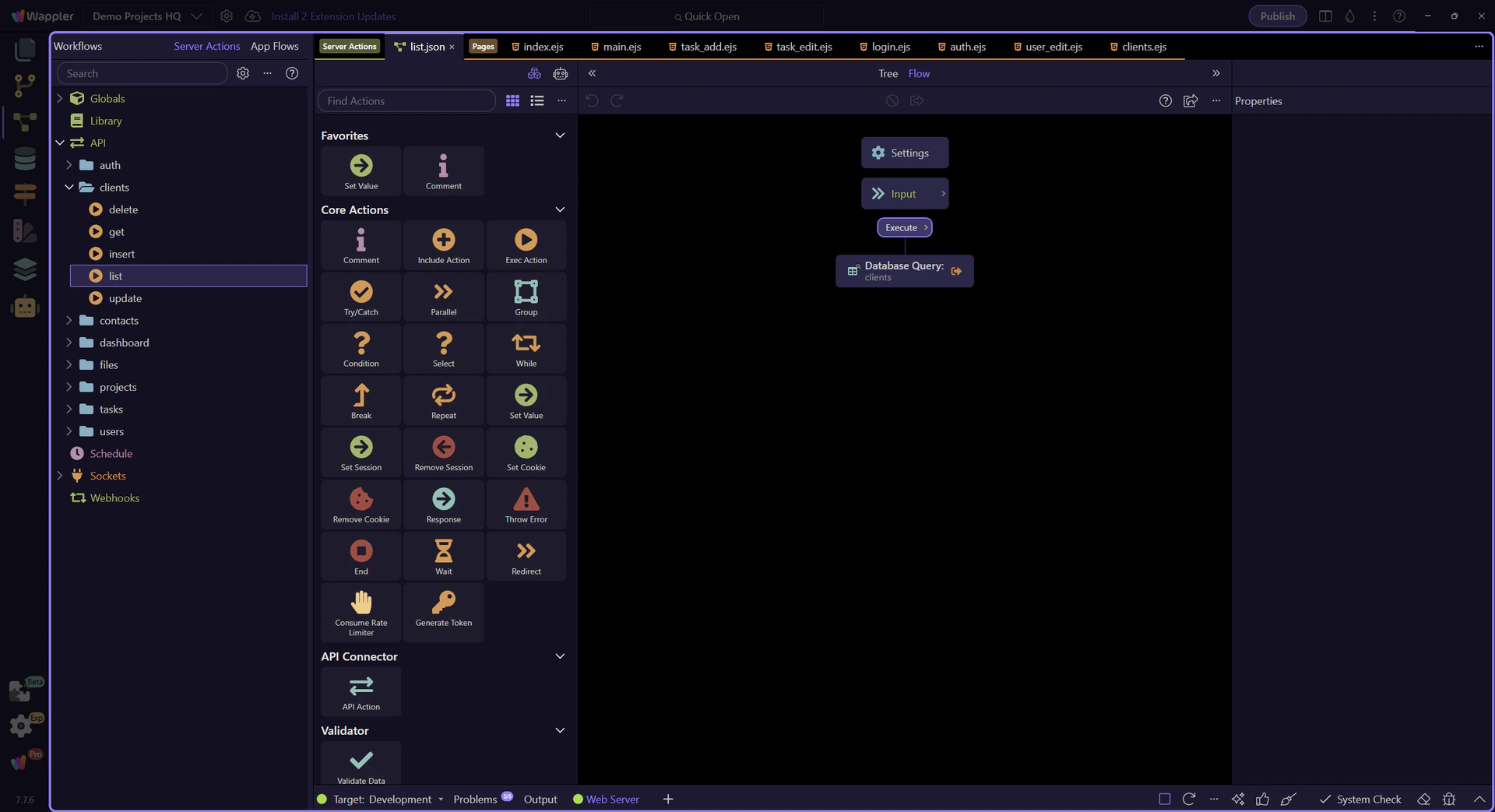
Orient yourself in Server Connect editor
Section titled “Orient yourself in Server Connect editor”Start with the wider context in the Server Connect editor so the next control makes sense in the full workflow. In the next step, you will focus on The SELECT step is selected and see how it fits into this area.
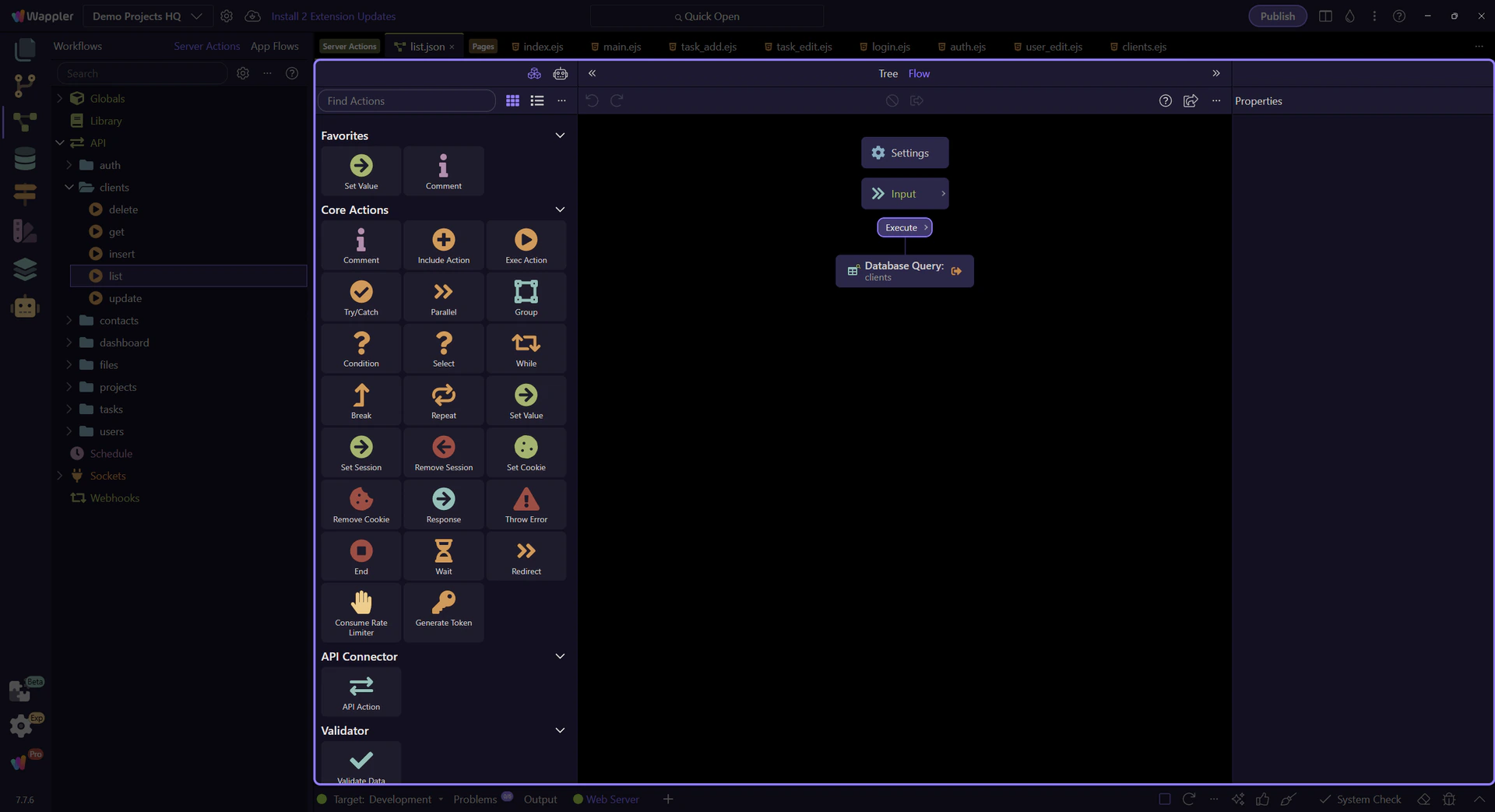
The SELECT step is selected
Section titled “The SELECT step is selected”This step selects the clients workflow step so its Query Builder button is available in the Properties panel.
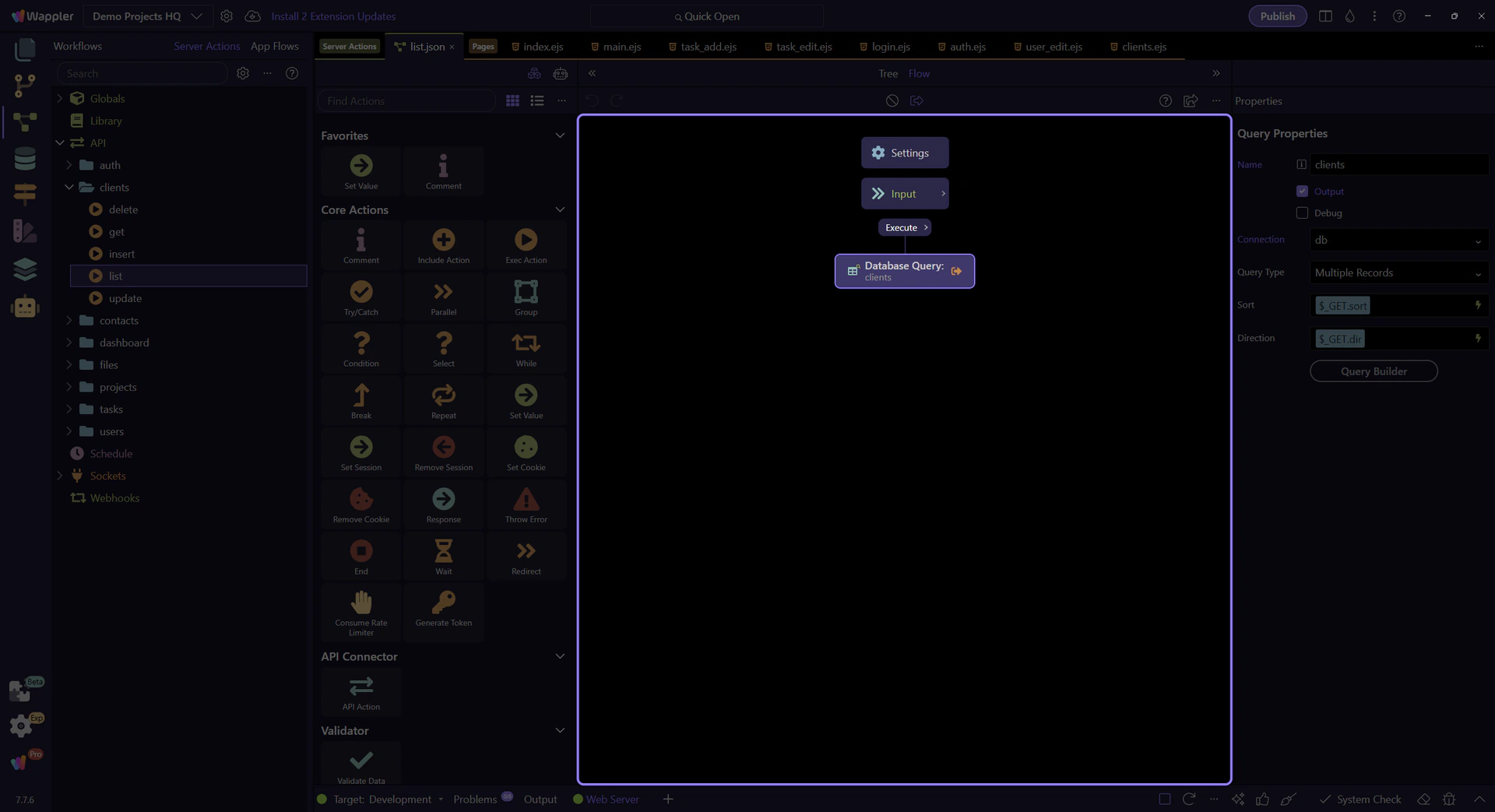
The clients step output
Section titled “The clients step output”The clients step outputs the data key used by the page. That’s why the page repeats sc_clients.data.clients.
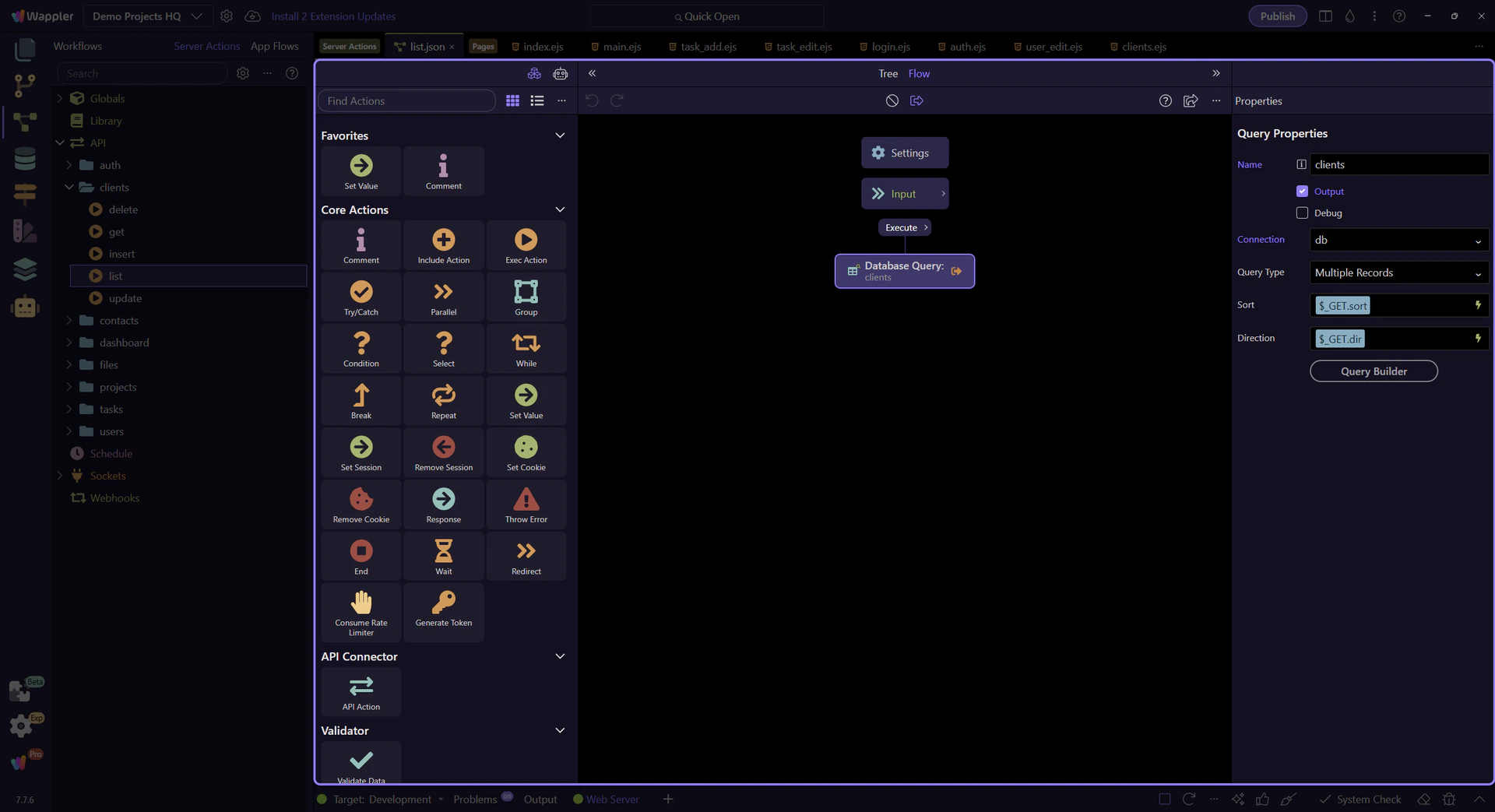
Locate the “Query Builder” button
Section titled “Locate the “Query Builder” button”In the Properties panel, locate the “Query Builder” button for the selected SELECT step. This step matters because Locate the “Query Builder” button is part of Serverconnecteditor Properties Control Sql, and understanding that context makes the next action easier to repeat in your own project.

The Query Builder dialog opens
Section titled “The Query Builder dialog opens”The Query Builder dialog opens and shows the same SELECT step used by this page. This step matters because The Query Builder dialog opens is part of Serverconnecteditor Properties Control Sql, and understanding that context makes the next action easier to repeat in your own project.

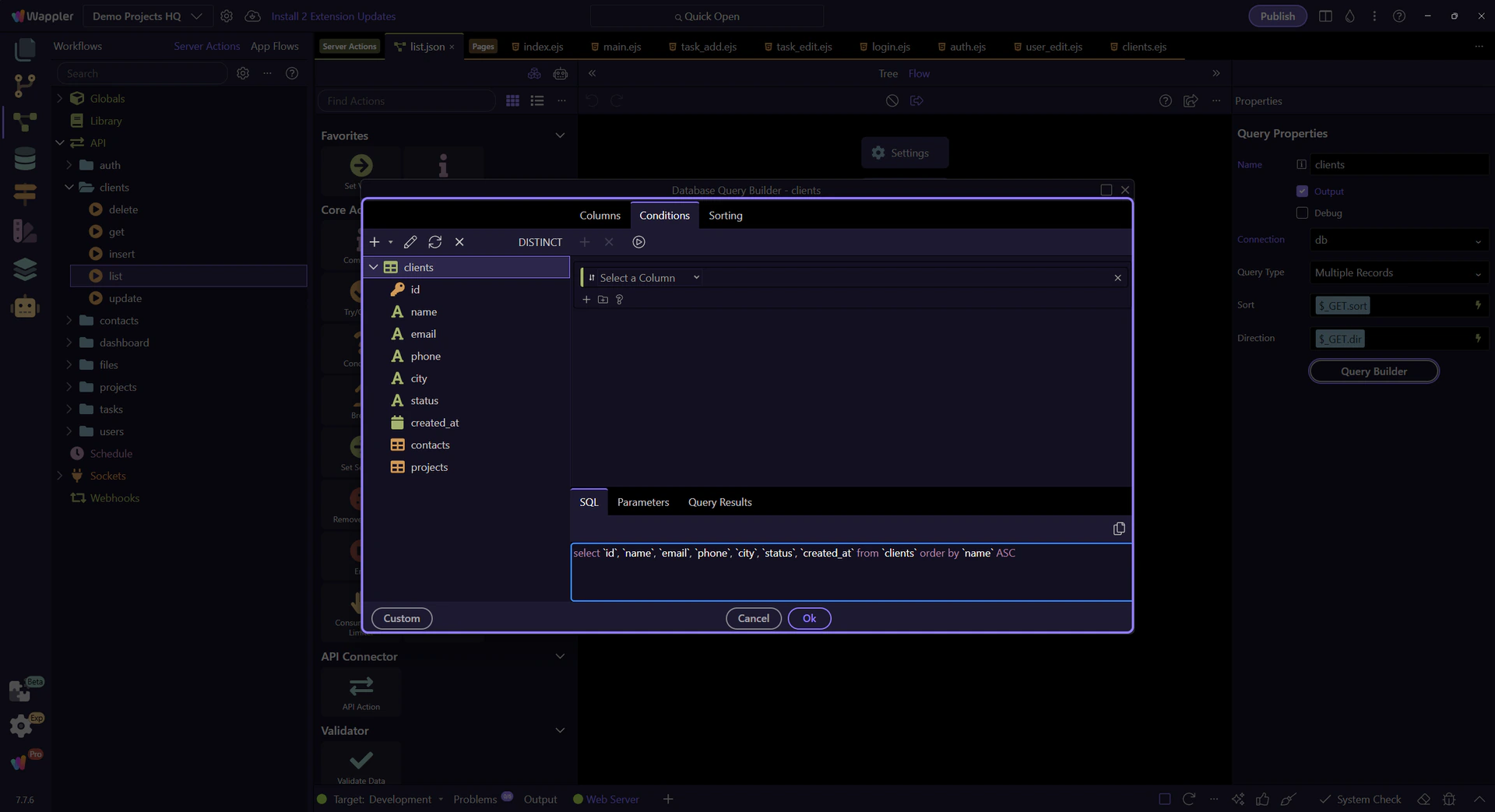
Database Query Builder dialog
Section titled “Database Query Builder dialog”This dialog shows the structured SELECT query behind the clients step. From here you can inspect the source table, returned columns, filters, sorting, and preview output.
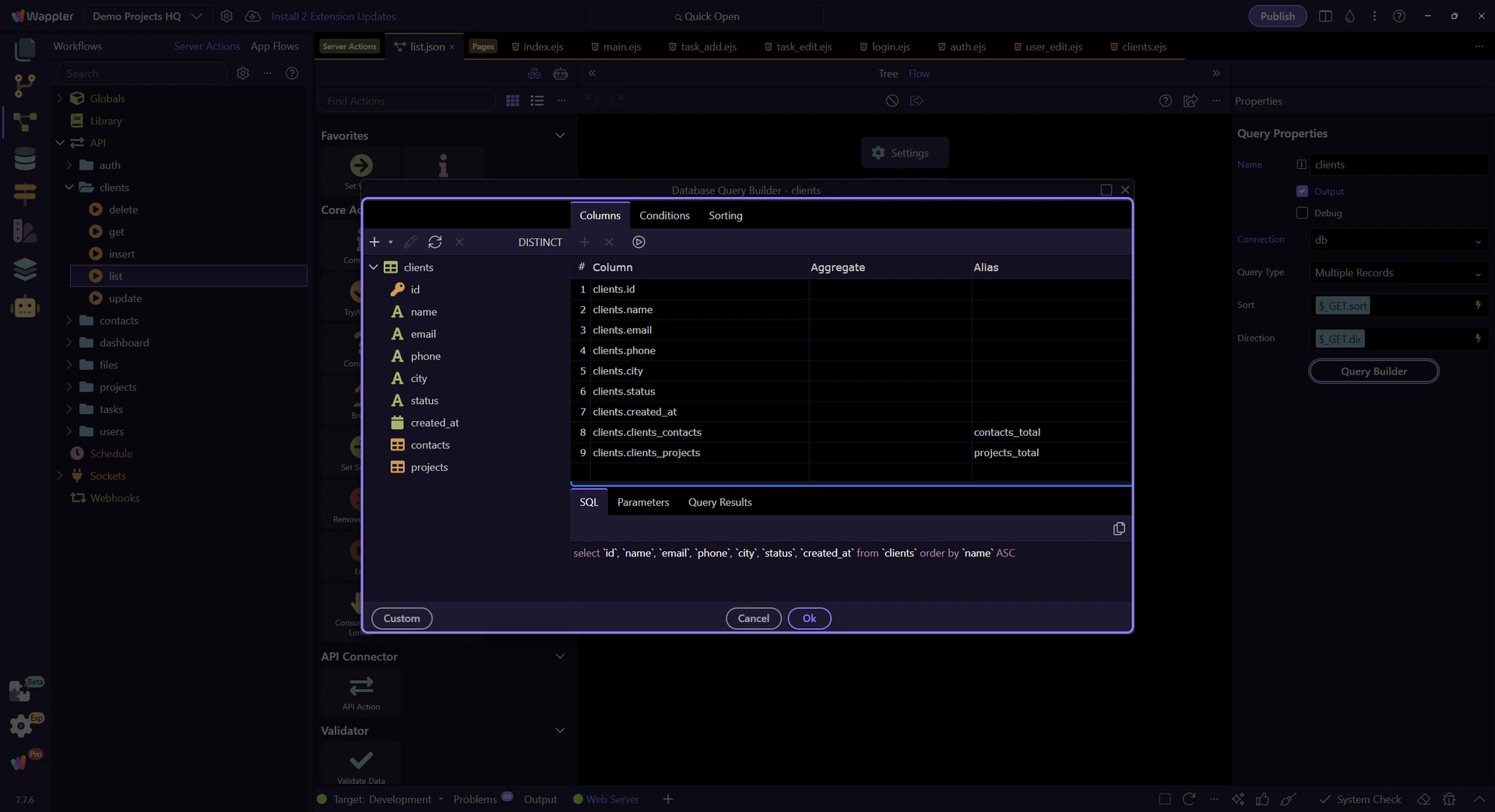
Table source
Section titled “Table source”Start in the table tree to confirm the base table/view used by this clients step and any joined sources.
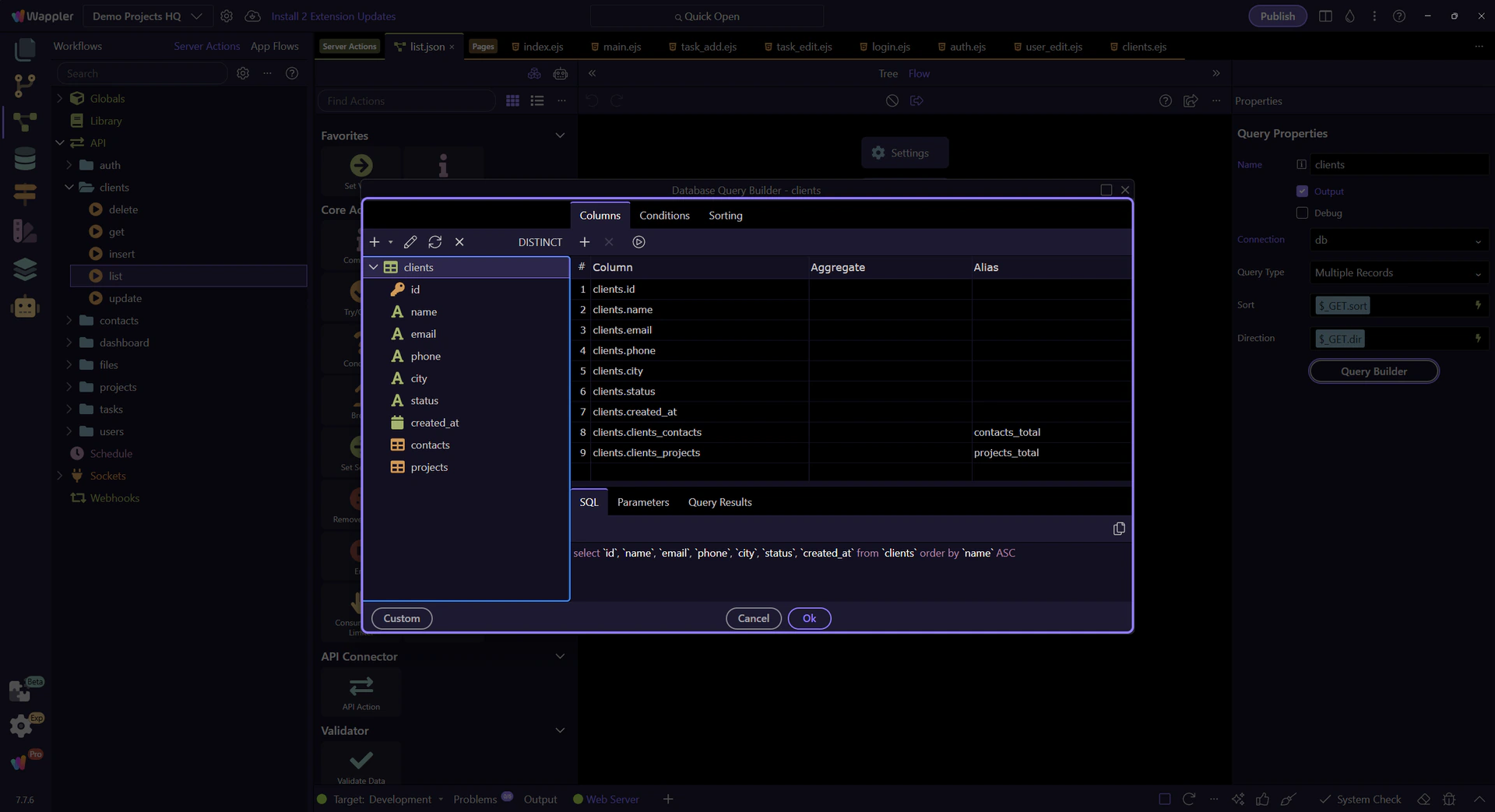
Selected columns
Section titled “Selected columns”Next check Columns to verify which fields are returned to the page (and any aliases used in output).
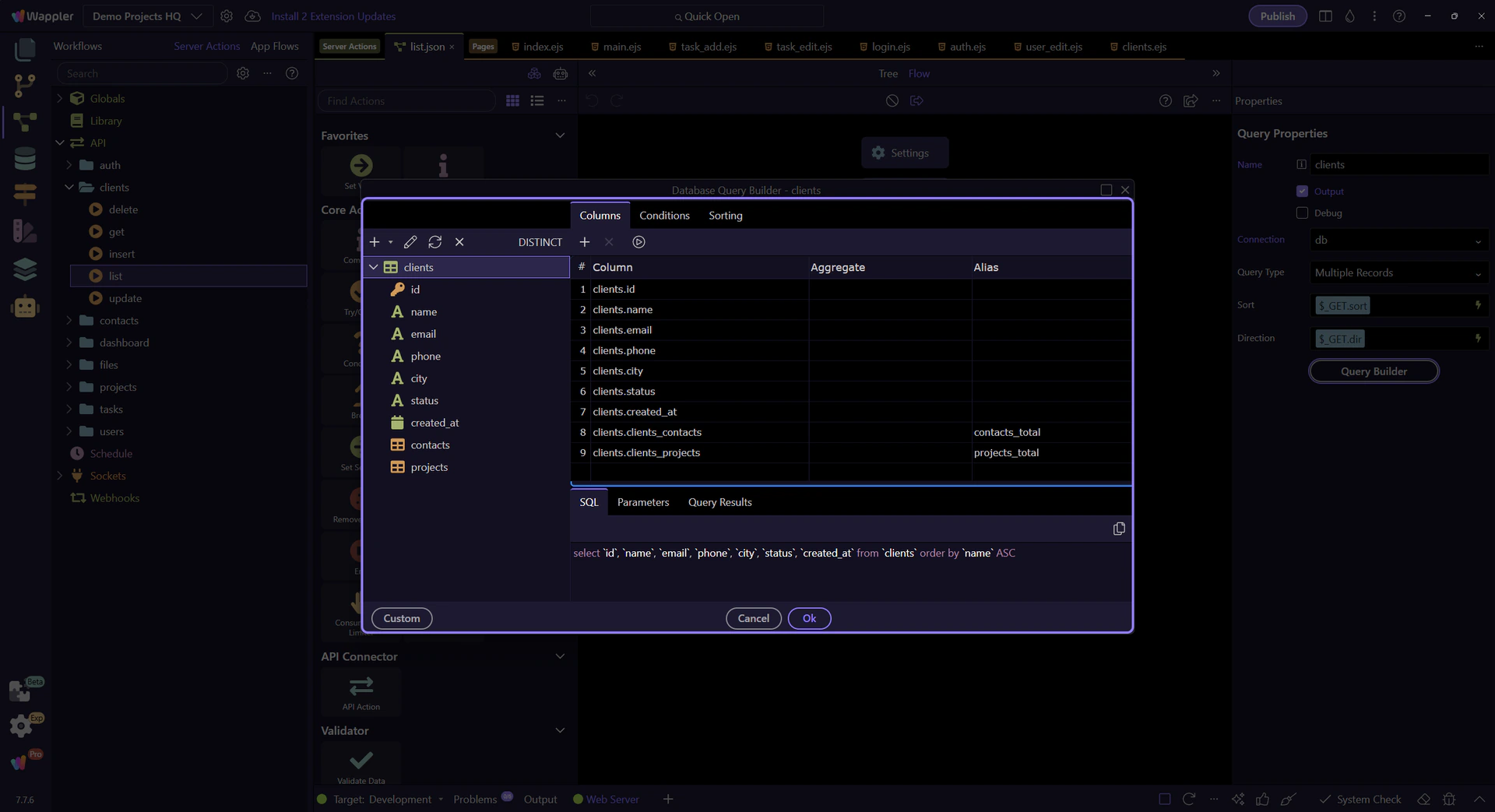
Filters (WHERE)
Section titled “Filters (WHERE)”Then inspect WHERE conditions to see how this query narrows records before they are returned to the frontend repeater.
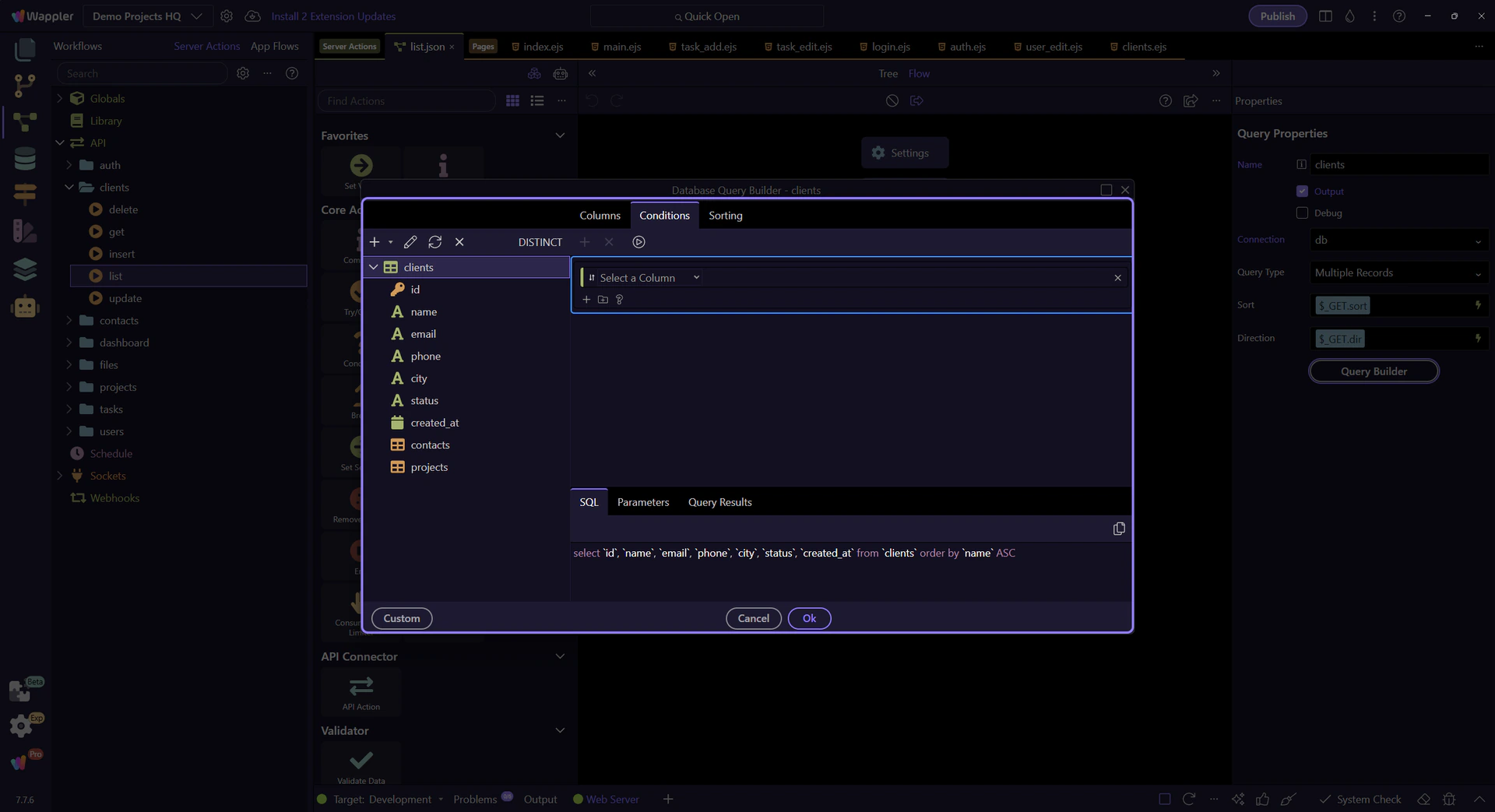
Preview & test (advanced)
Section titled “Preview & test (advanced)”Finally use Preview to inspect generated SQL and test results. For parameterized queries, set test values before running.
Close Query Builder
Section titled “Close Query Builder”Close Query Builder to return to the Server Connect editor and continue tracing how this selected workflow step feeds the page.
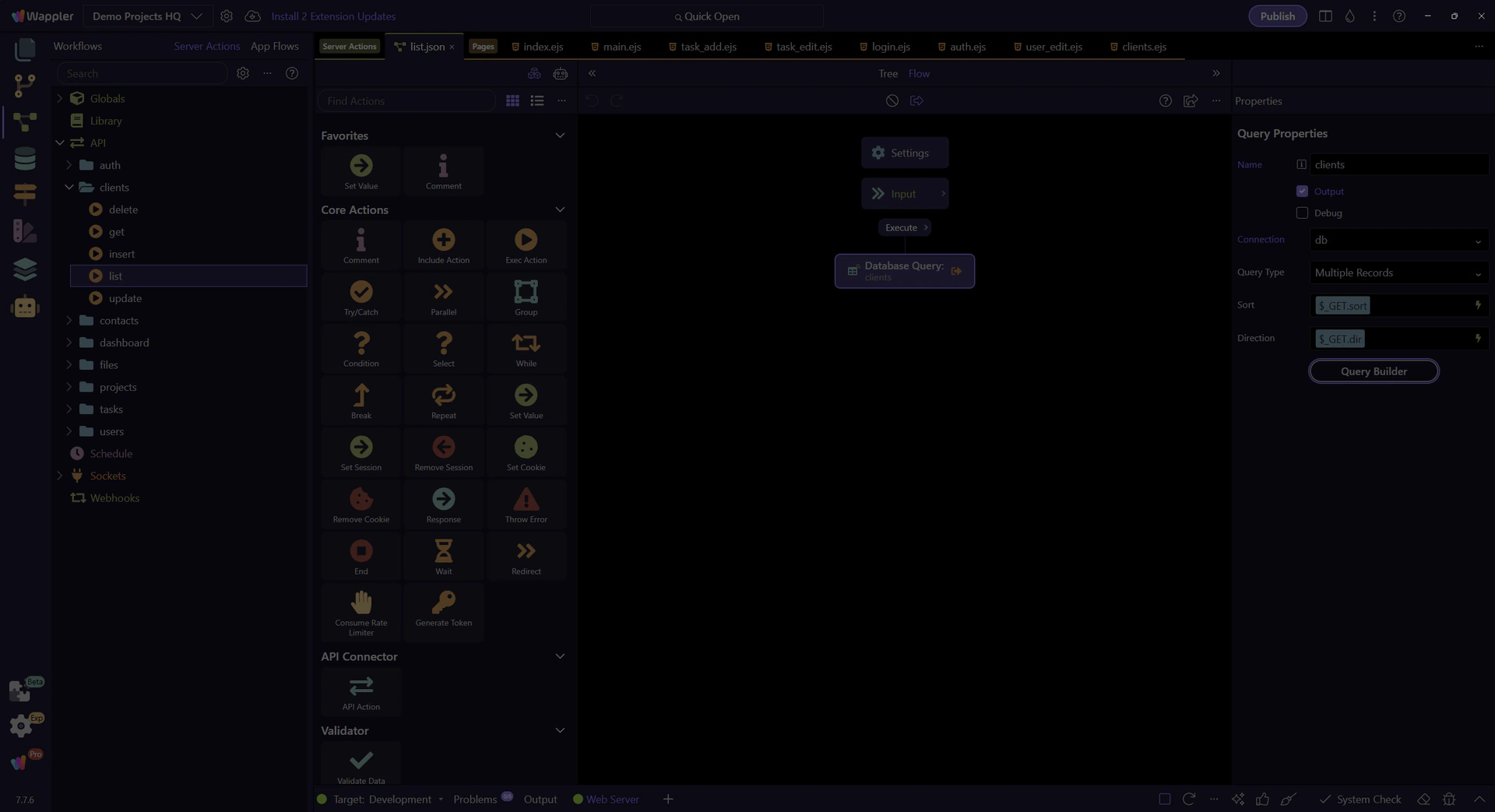
Connect backend output → frontend bindings
Section titled “Connect backend output → frontend bindings”We return to the page and connect the exact backend output key to the frontend binding expression.
Return to views/clients.ejs
Section titled “Return to views/clients.ejs”We go back to the page so you can see the binding again in context.
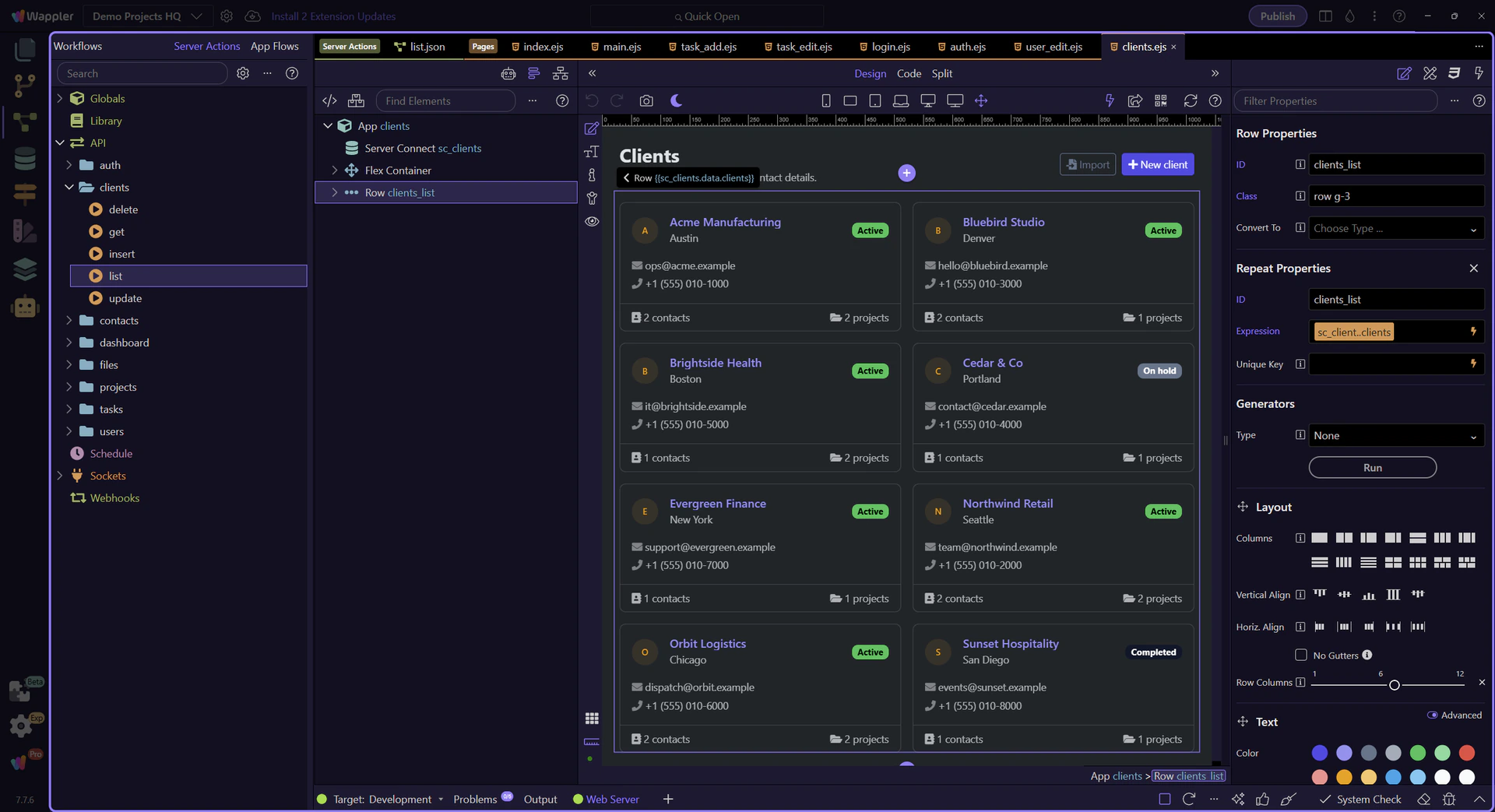
The repeater element is ready
Section titled “The repeater element is ready”The design canvas is ready again, so the repeater can be selected cleanly before the binding is explained.
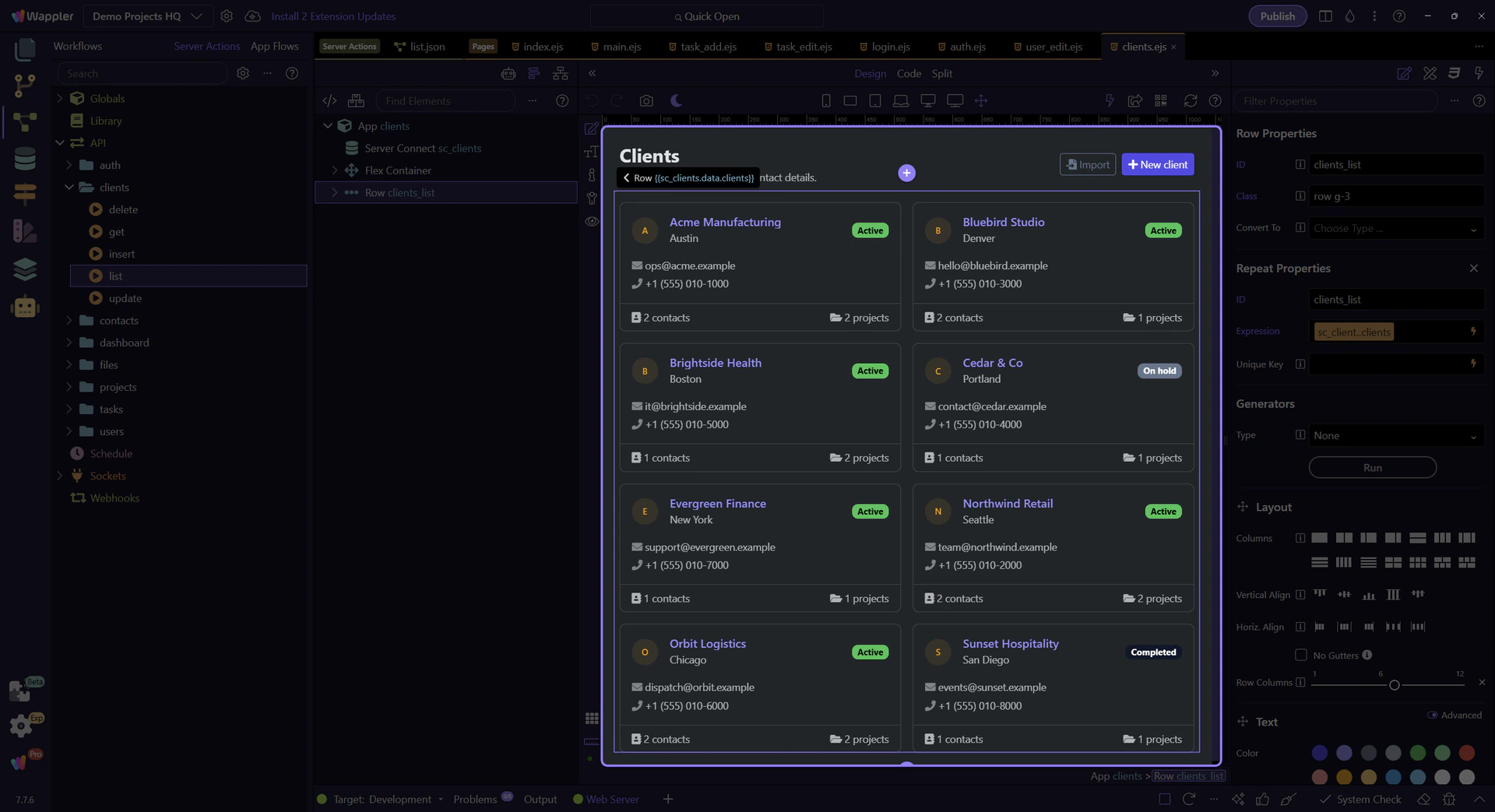
Repeat binding
Section titled “Repeat binding”The repeat expression sc_clients.data.clients means: take the response stored in sc_clients.data, then iterate the clients array returned by the Server Connect action.
Wrap-up
Section titled “Wrap-up”You traced a real page to its real backend action. Next you can learn forms (POST) and database updaters (INSERT/UPDATE/DELETE).
Continue learning
Section titled “Continue learning”Pick a related tour to go deeper.