
Demo walkthrough: Files library (query + links)
Use the real files page and list action to connect the files library query, its project/client joins, and the links the page exposes downstream.
Introduction
Section titled “Introduction”The Demo Projects HQ files page is useful after upload as well as during upload. The list action reloads the file library with joined project and client context, and the page turns those results into outbound file links plus project navigation.
Frontend: the files table is a downstream usage surface
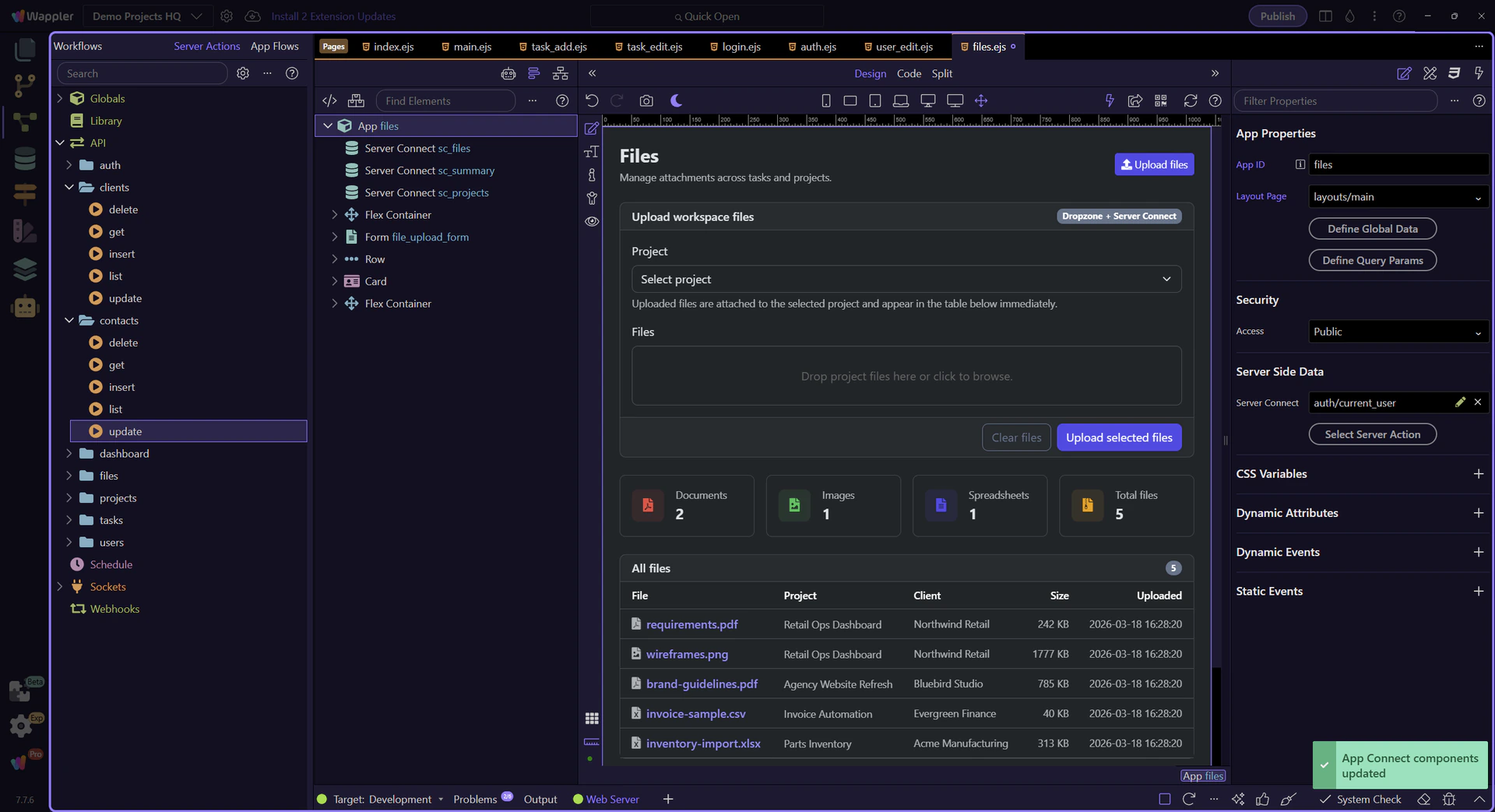
Section titled “Frontend: the files table is a downstream usage surface”The files page is not only an upload form. Its table is the downstream usage surface where uploaded files become real links, project context, and sortable business information that users can act on.
The files page shows the downstream library view
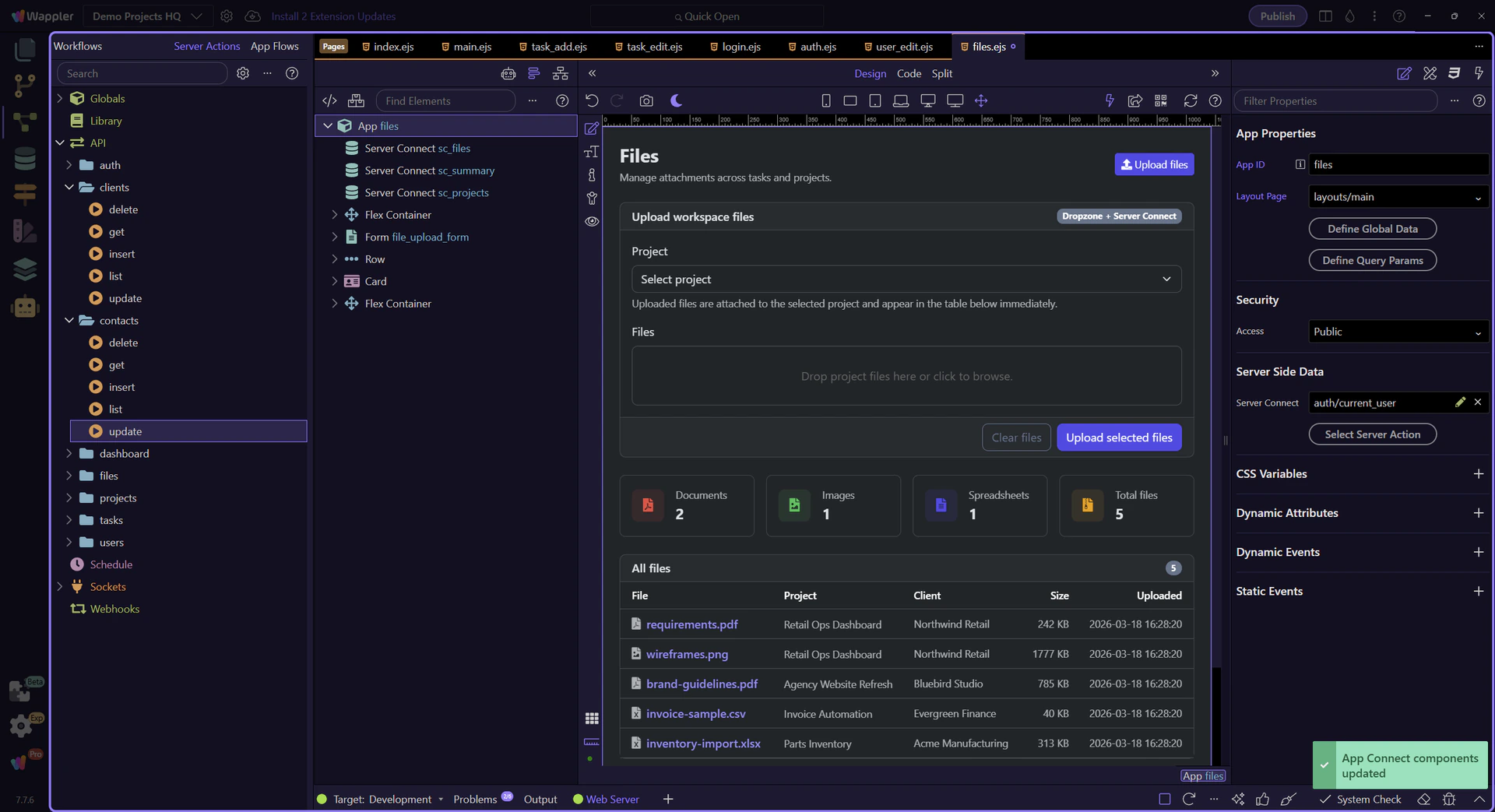
Section titled “The files page shows the downstream library view”Start on the real files page so the table and links are visible before inspecting the backend query. This is where the uploaded files stop being a server-side result and become usable library rows for the user.
Design view is active for the files page
Section titled “Design view is active for the files page”Switch to Design view before selecting the files table so the next steps can inspect the live page structure instead of spending time on editor setup.
Each row exposes both the file and its related project
Section titled “Each row exposes both the file and its related project”#files_list binds each row to one file record, including the direct file URL and the related project link. That makes the page a real downstream usage surface rather than a passive upload receipt.
Backend: one list query provides file, project, and client context
Section titled “Backend: one list query provides file, project, and client context”The files list action stays readable because it does one clear job. It selects from projects_files, joins the related project and client names, and returns the data the page needs for both file links and surrounding context.
The files list action opens in the Server Connect editor
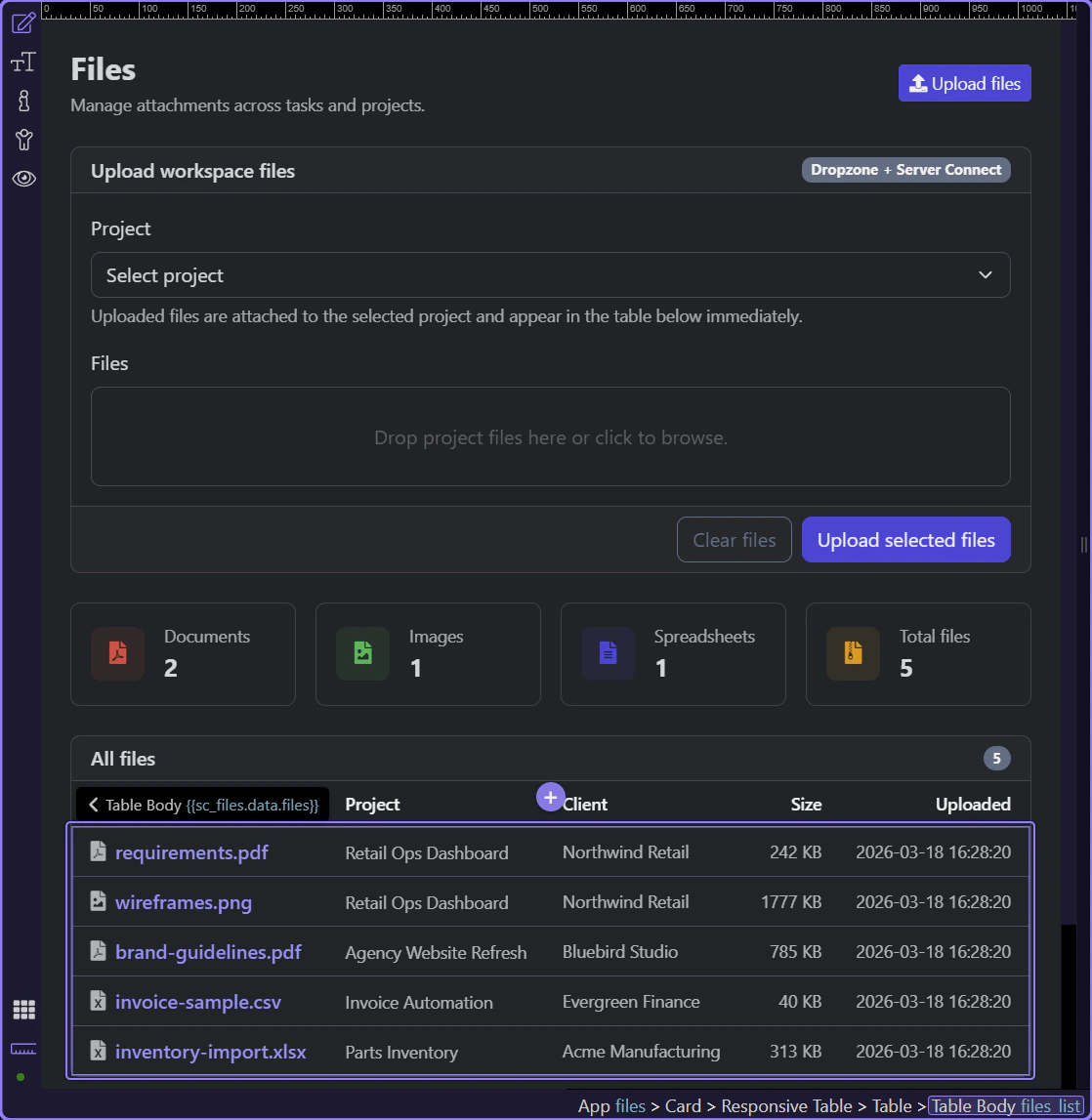
Section titled “The files list action opens in the Server Connect editor”The real list action is now visible in the editor. This is the backend counterpart to the files table, and it keeps the downstream file library readable by gathering the file rows and their context in one query.
The Server Connect editor becomes the main inspection area
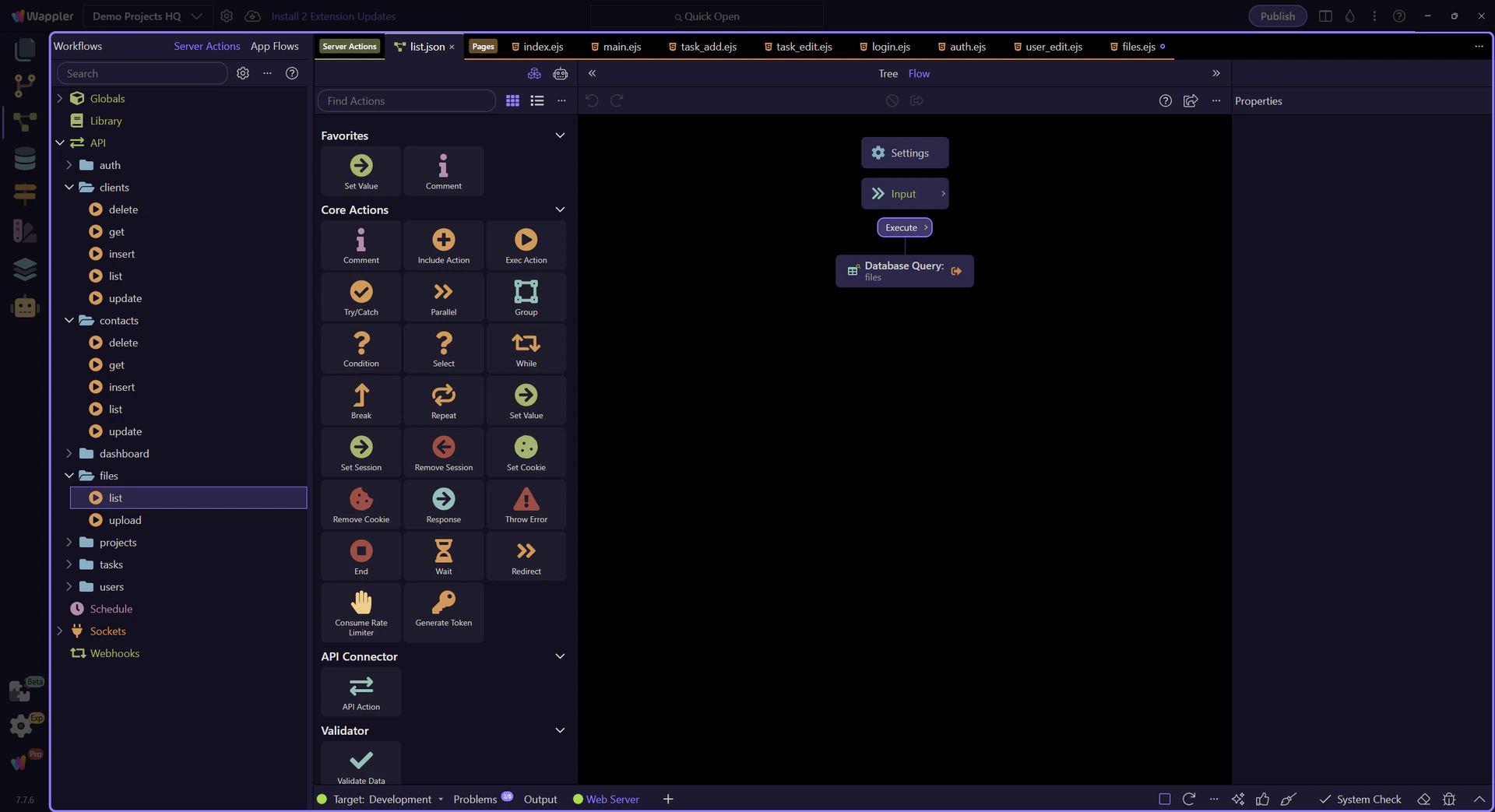
Section titled “The Server Connect editor becomes the main inspection area”The real files list action is now open in the dedicated Server Connect editor. Focus on the workflow tree and the Properties panel first so the next steps can move from the overall action structure into the selected query details.
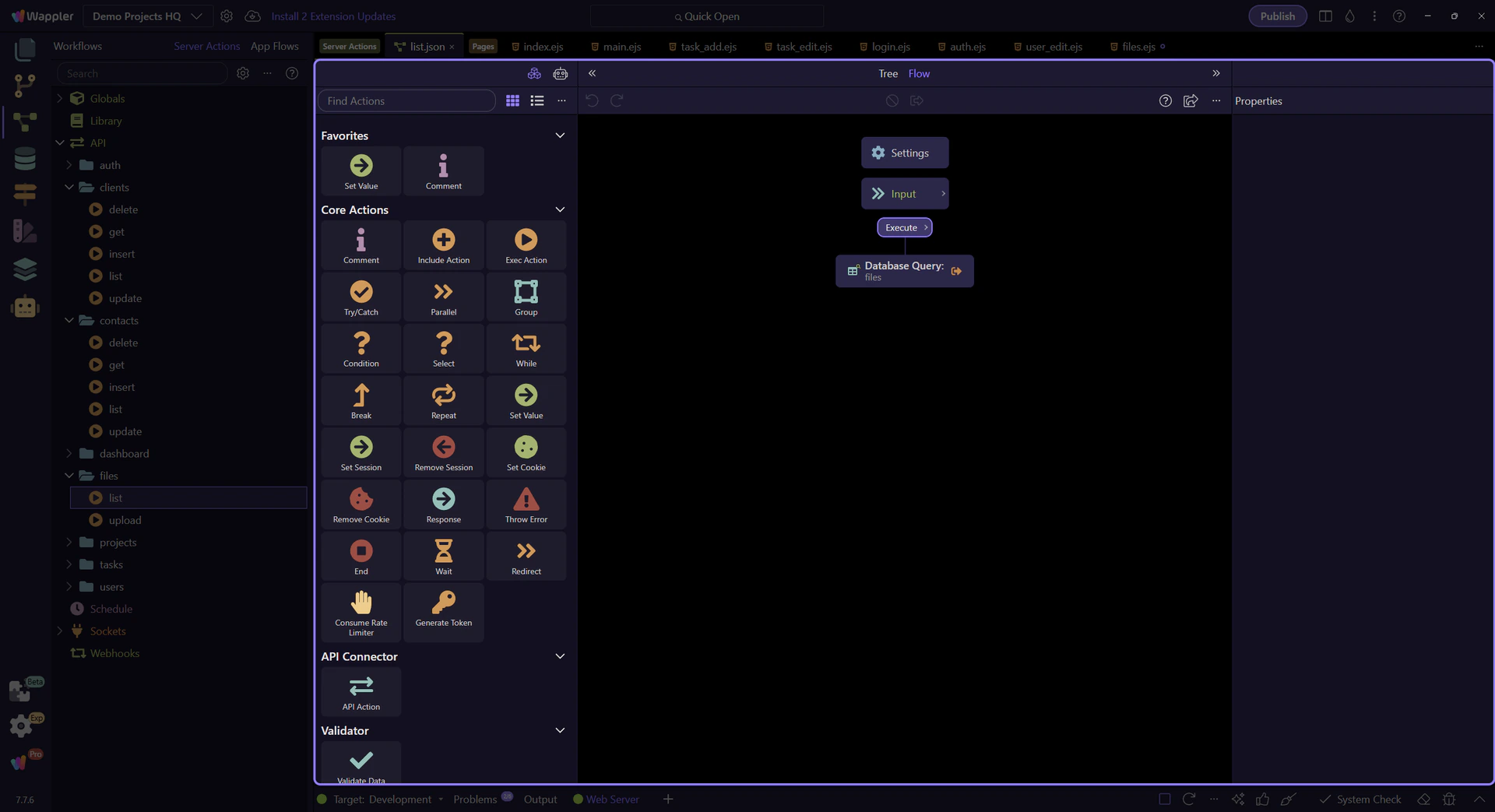
The list action is one select query, not a chain of scattered steps
Section titled “The list action is one select query, not a chain of scattered steps”The files action uses one dbconnector select step named files, which is why the page can rely on one stable dataset. The file rows, related project name, and related client name all come back from that same action output.
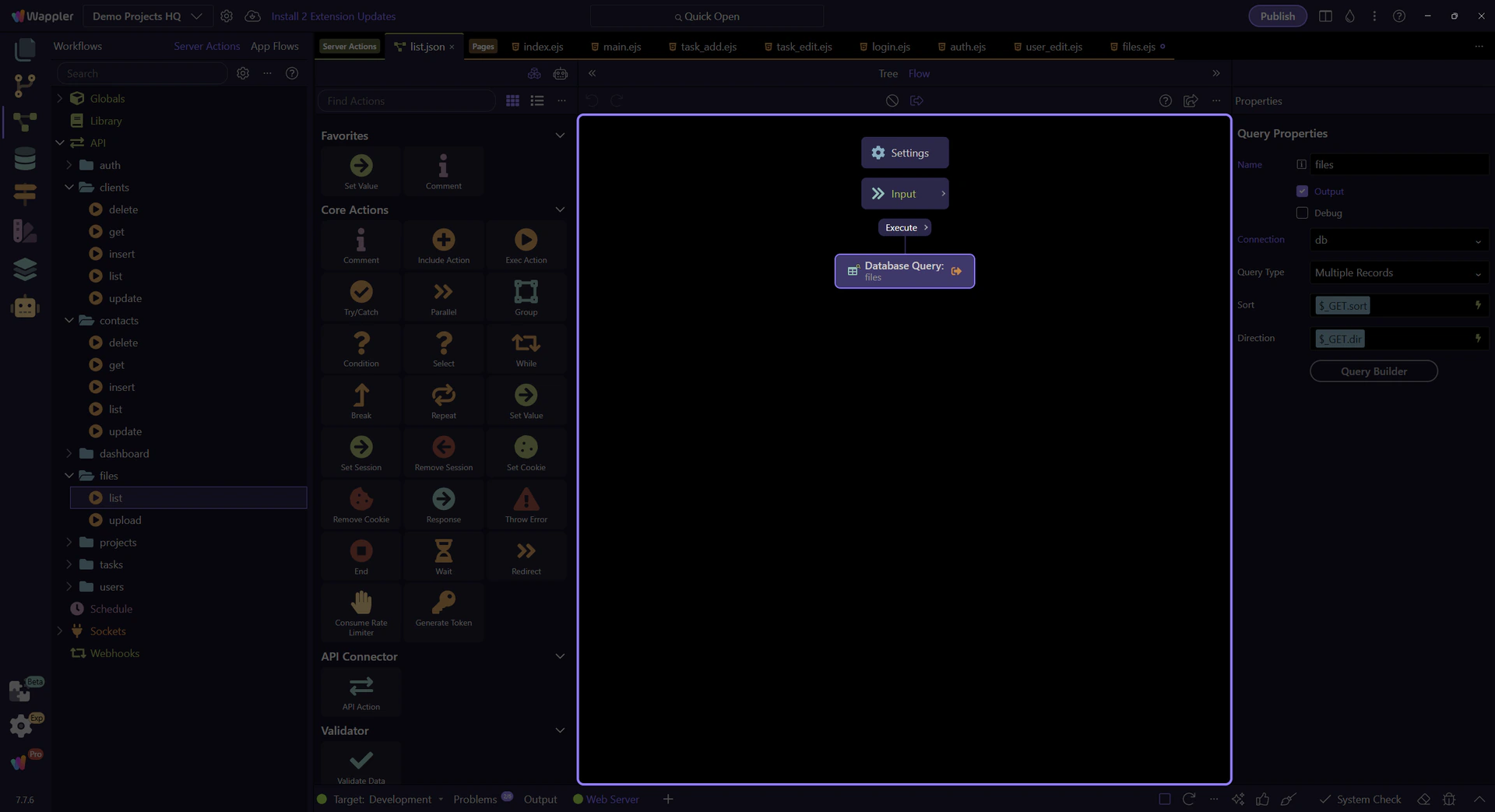
The Properties panel shows the selected query configuration
Section titled “The Properties panel shows the selected query configuration”Once the files query step is selected, the Properties panel becomes the main place to inspect how that query is configured. Use this broader panel view before zooming into the SQL control that summarizes the joins and ordering.
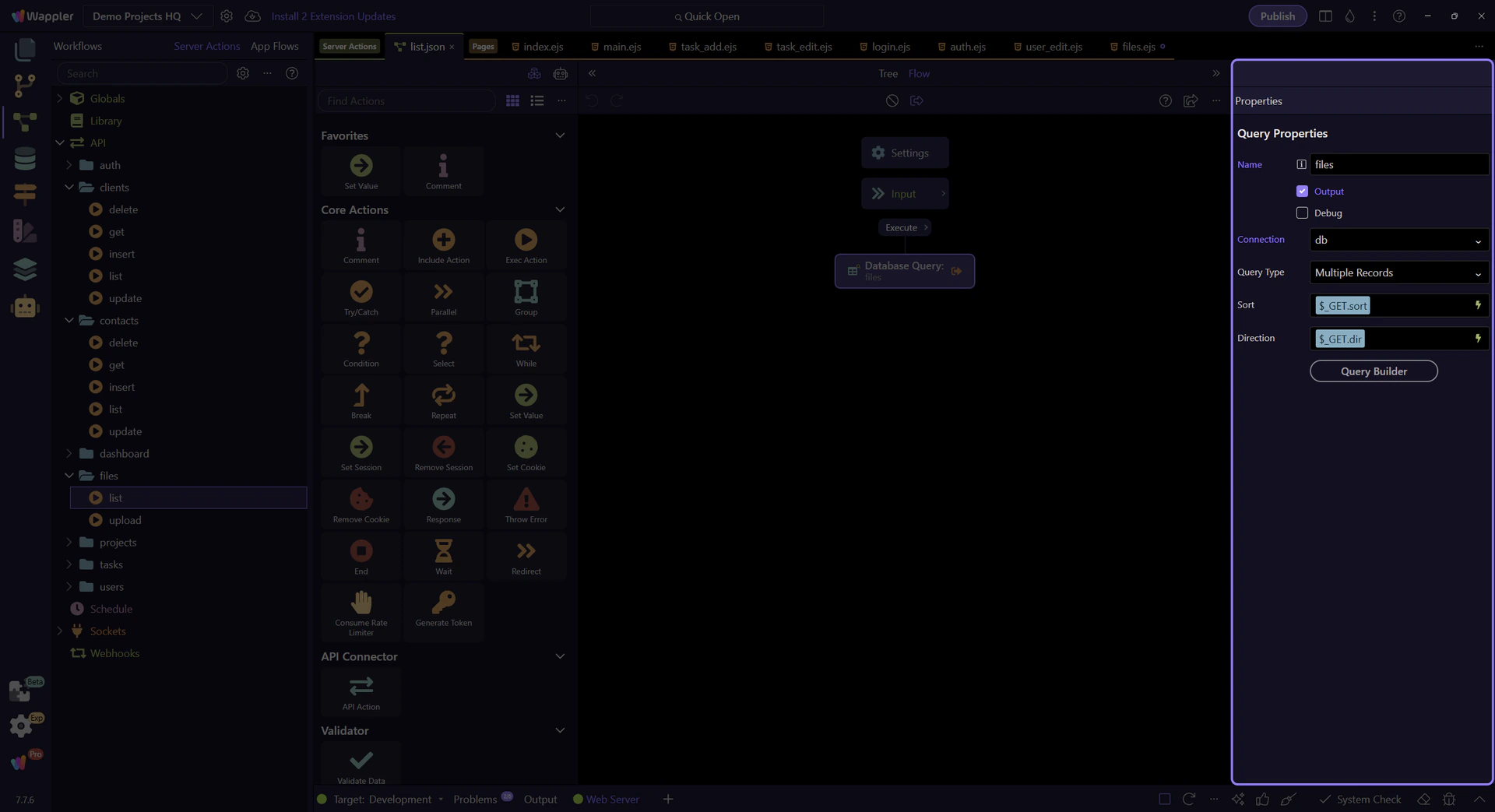
The query joins project and client names onto each file row
Section titled “The query joins project and client names onto each file row”The query does more than fetch raw file fields from projects_files. It also joins clients_projects and clients so each row already includes project_name and client_name when the page renders the table.

The list stays useful because newest files come first
Section titled “The list stays useful because newest files come first”The query orders by uploaded_at descending, which matches how users usually expect a files library to behave after recent uploads. That ordering decision is part of the downstream usage experience, not just a backend detail.

Conclusion
Section titled “Conclusion”The files library stays understandable because the page and action divide responsibility cleanly. The query returns file rows with the project and client context already joined, and the page turns that result into usable file and project links.