
See the command area first
Start with the full toolbar so individual shortcut destinations make visual sense.
Use Wappler shortcut habits to move faster across editors, managers, and common editing workflows.
This top toolbar is the overview area behind many of the keyboard habits that matter in Wappler. Before you teach individual shortcuts, make sure users recognize the larger command surface they are speeding up: navigation, project access, quick open, and other high-frequency controls live here.
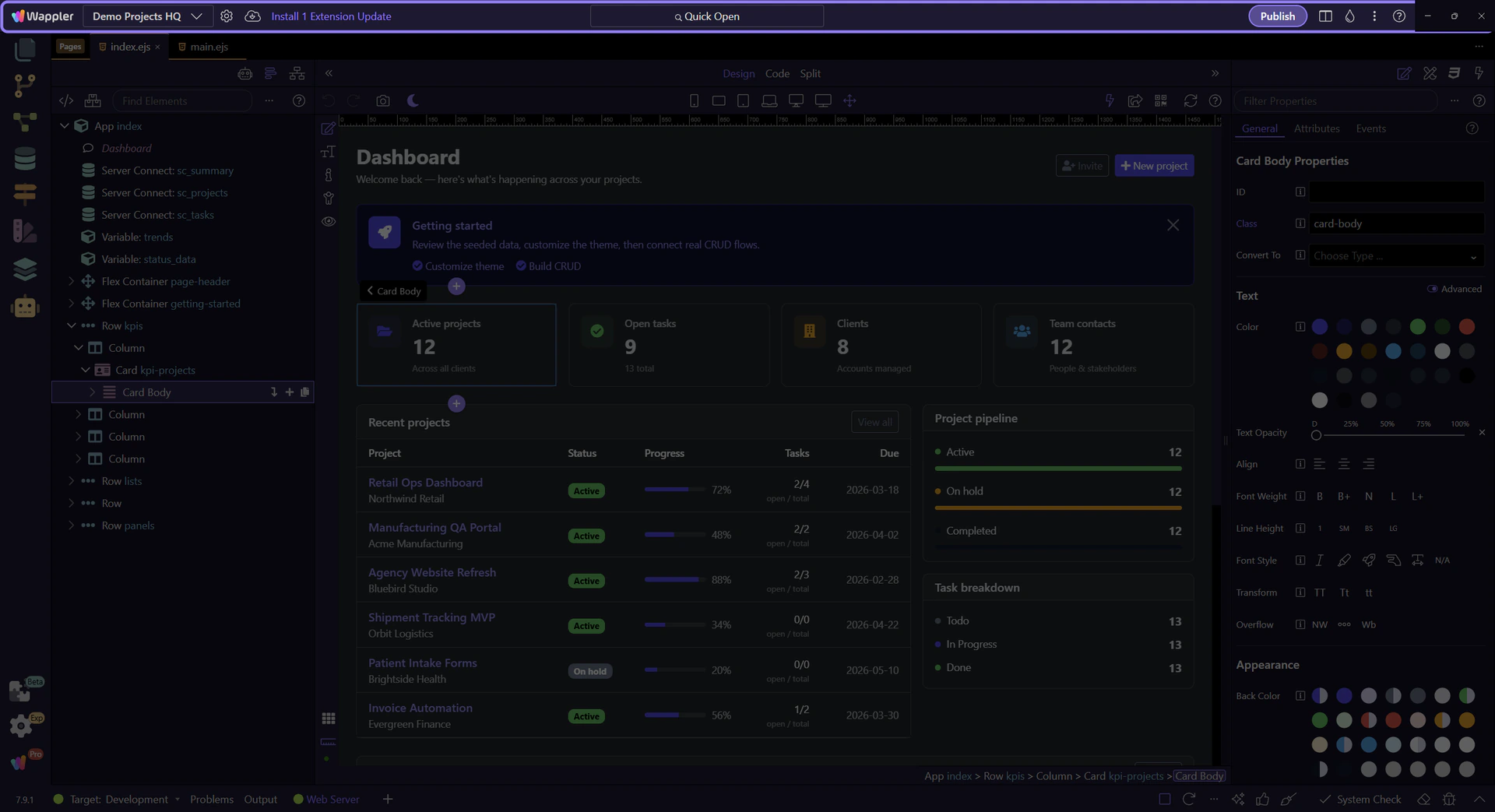
Whether you trigger it from this button or from its keyboard shortcut, Quick Open is one of the fastest ways to jump to files, pages, and commands without breaking flow. Once users know the broader toolbar, this is the specific control that makes shortcut-driven navigation concrete.
TIP: Start with the commands you use every session, then add panel-specific shortcuts only after the editor flow itself feels natural.
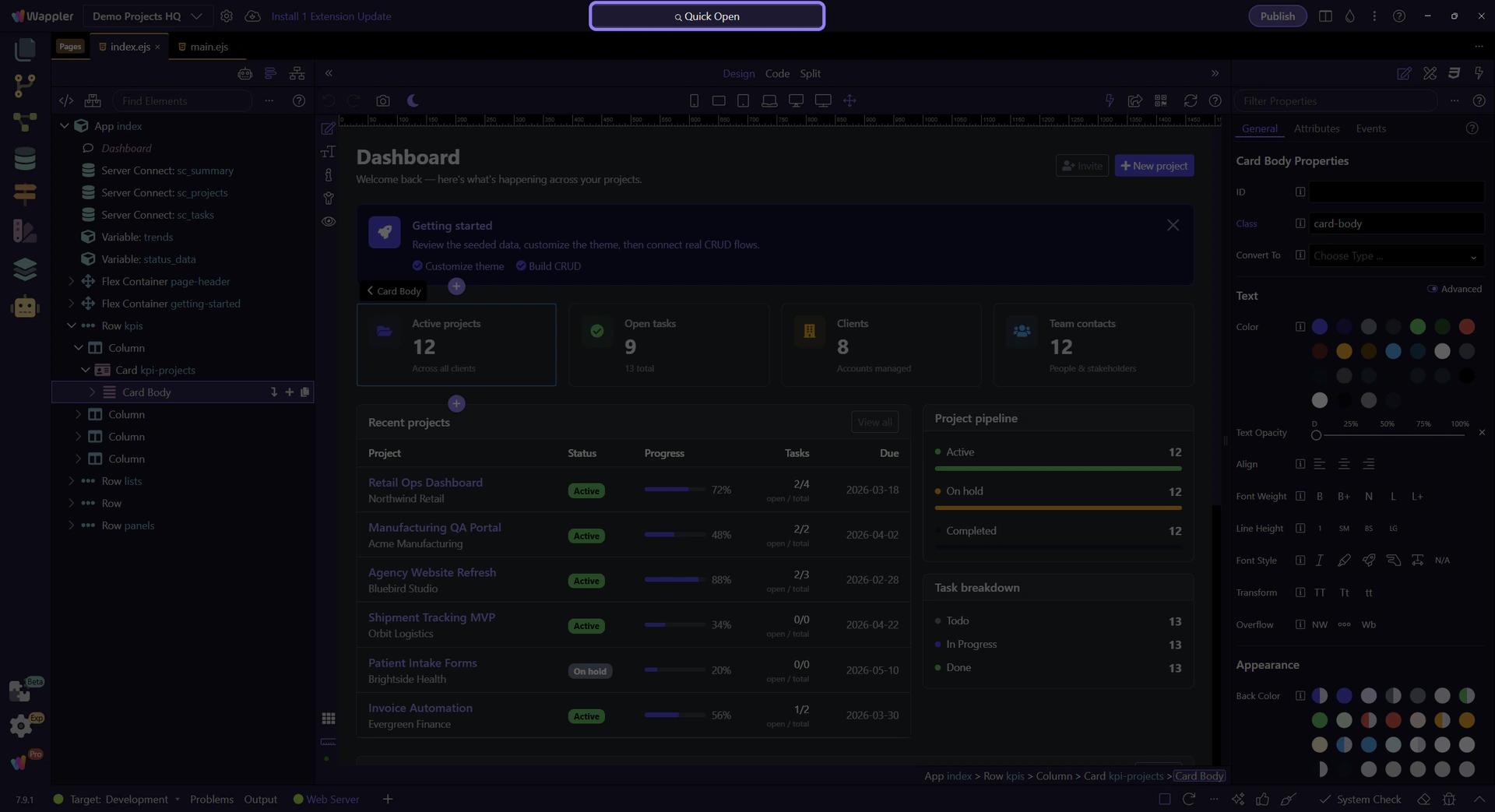
Selection panels like Properties, Styles, and Data are where keyboard habits start saving real time during page work. Use shortcuts to move faster inside these panels, but keep the panel context clear so you know exactly which UI surface you are affecting.