
Choose the right project
Switch from the real project list instead of relying on stale editor context.
Switch between projects cleanly so the active manager state, files, and tooling stay aligned with the app you mean to edit.
This highlighted list is where project switching actually happens. When you move between projects, use this Project Manager surface as the source of truth instead of assuming the last open files, managers, or Git state have already updated themselves.
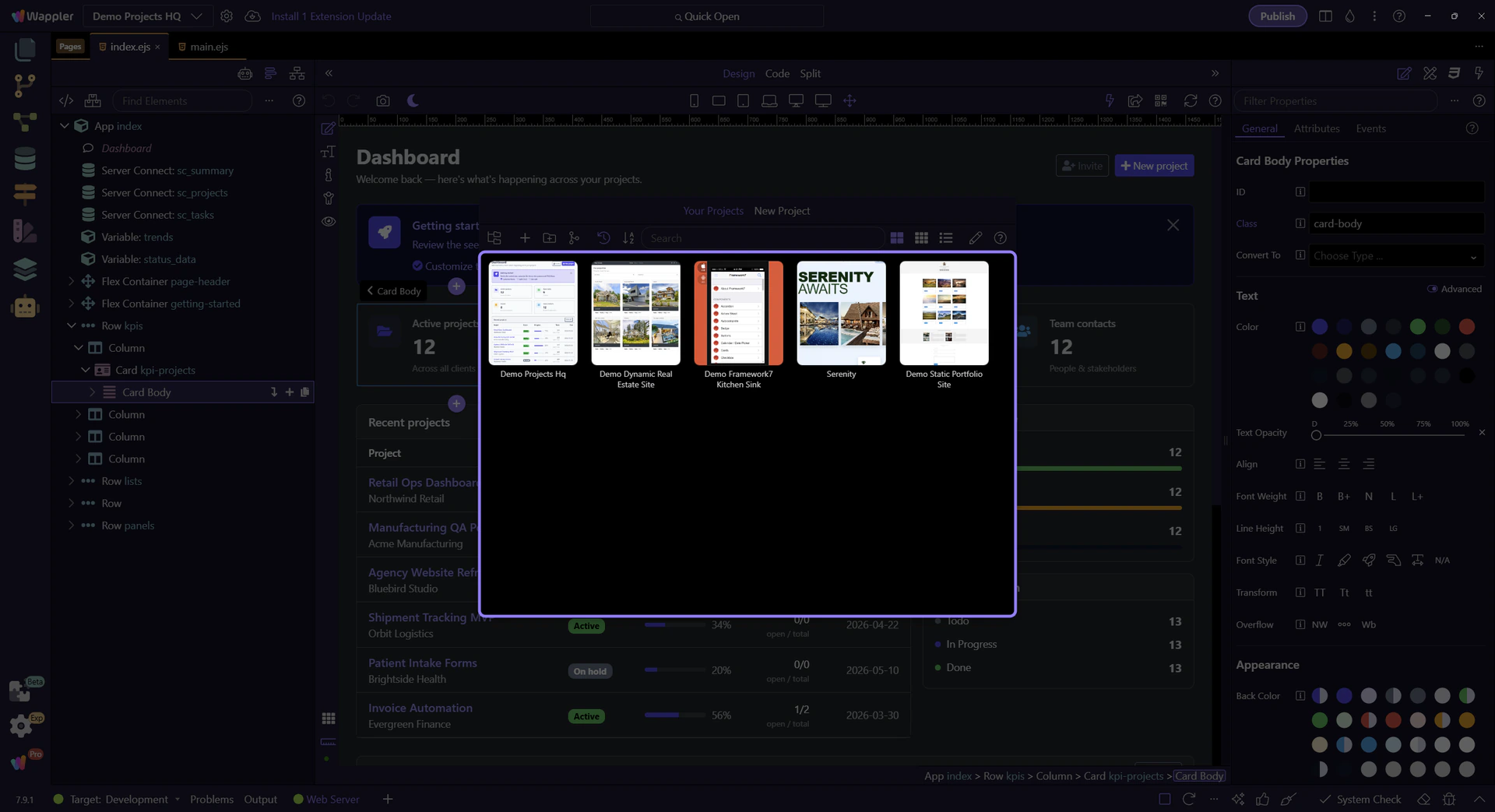
The Project Manager toolbar is what makes switching practical once you have more than a few apps. Search narrows the list, management actions help you clean up entries, and the controls around the list make it clear which project you are about to open instead of guessing from memory.
TIP: If a project looks stale after external file or Git changes, reopen it before you trust the surrounding manager state.
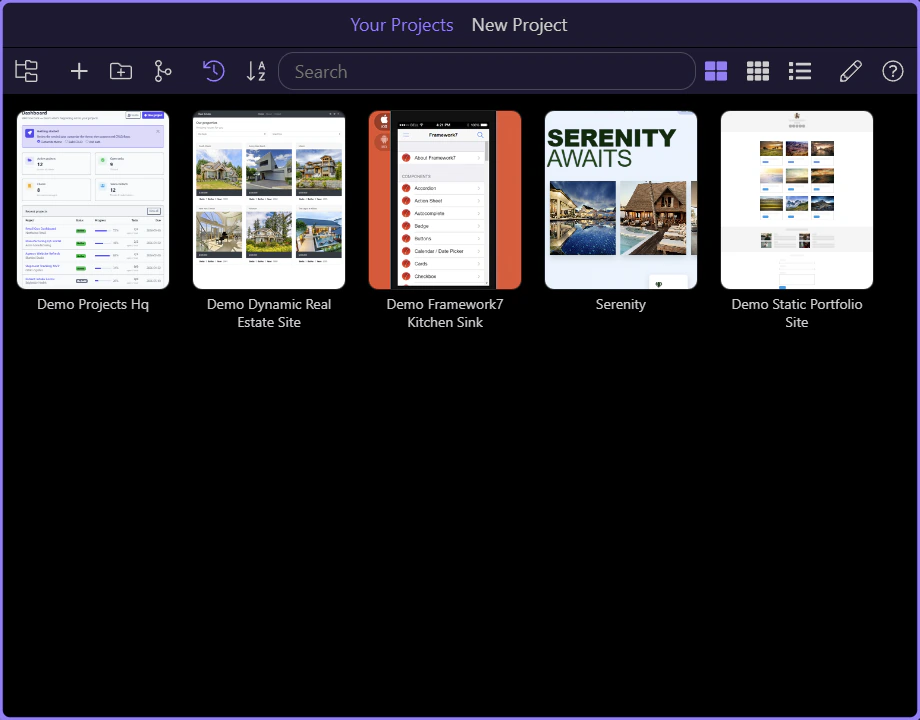
Before you leave Project Manager, confirm that the highlighted list contains the project whose files, pages, and Git state you intend to touch next. That small UI check prevents most of the cross-project confusion this topic is meant to avoid.