
Theme Manager
Explore Theme Manager: Theme Manager tours and Design Framework.
Theme Manager
Section titled “Theme Manager”Theme Manager lets you customize the design framework (Bootstrap 4/5) by adjusting theme variables and generating an updated theme using Wappler’s built-in Sass compiler.
Theme Manager tours
Section titled “Theme Manager tours”Use this menu as the guided starting point for Theme Manager rather than guessing which path covers your task. Choose the overview tour for orientation, the advanced tour for build and upload work, or the Bootstrap 5 tour when you need the current framework-specific setup and validation flow.
Orient yourself in top toolbar
Section titled “Orient yourself in top toolbar”Start with the wider context in the top toolbar so the next control makes sense in the full workflow. In the next step, you will focus on Tip and see how it fits into this area.
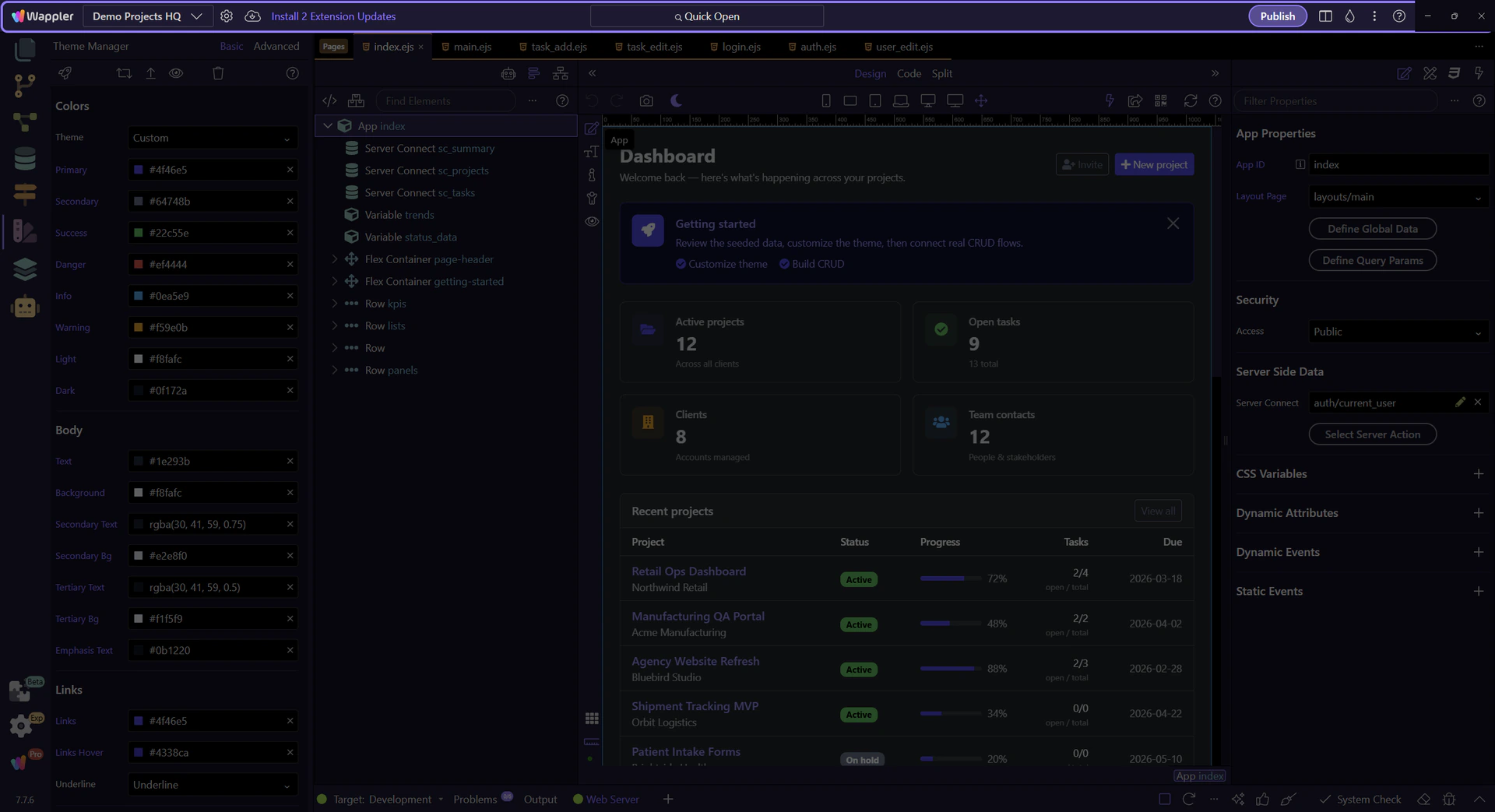
If Theme Manager looks inactive, select Bootstrap 4/5 in Project Settings first. This step matters because Tip is part of App Toolbar Project Settings, and understanding that context makes the next action easier to repeat in your own project.
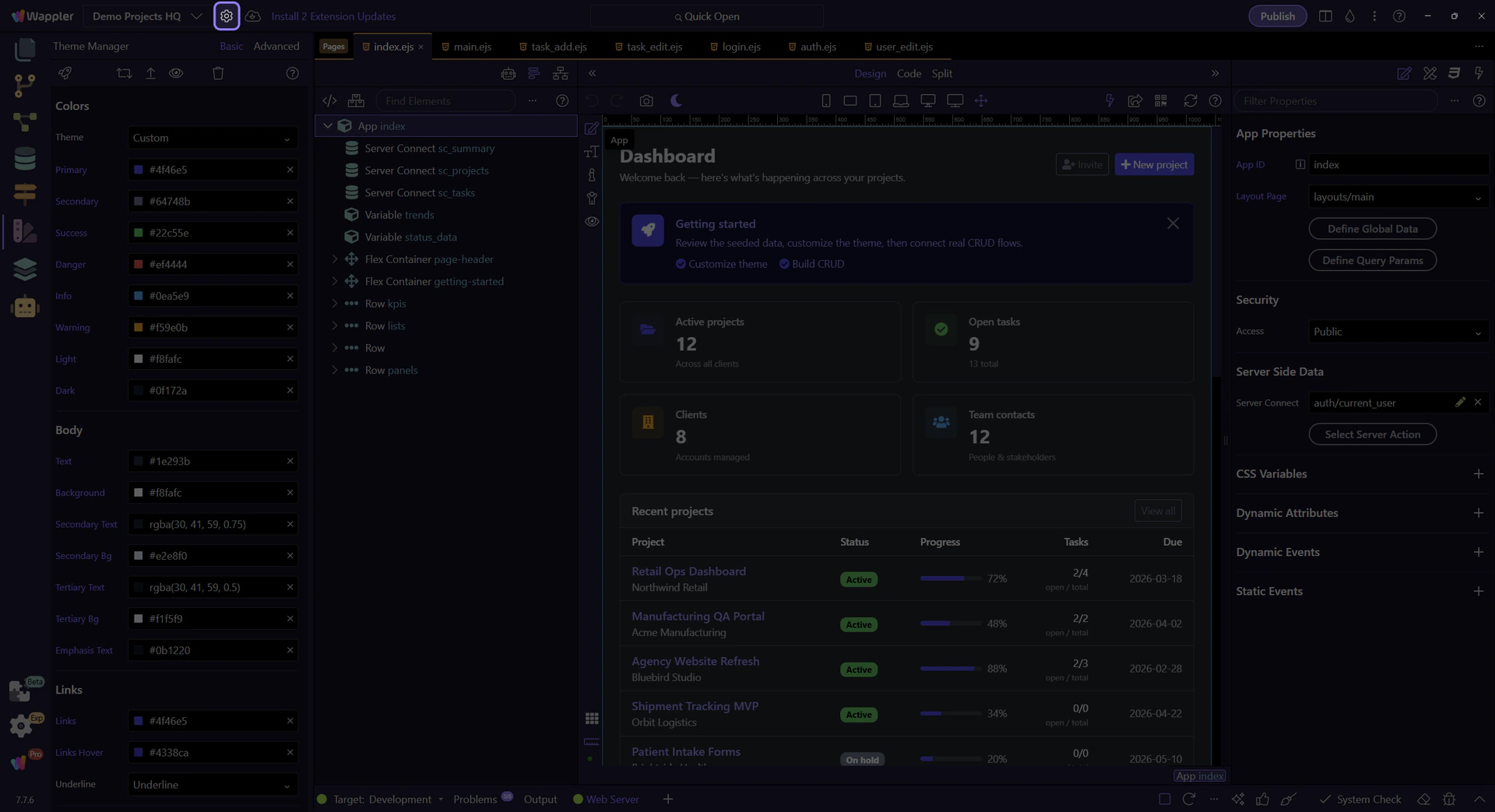
Select a Design Framework
Section titled “Select a Design Framework”Theme Manager requires a project Design Framework (Bootstrap 4 or Bootstrap 5). If Theme Manager looks inactive, set the design framework in Project Settings first.
Open Project Settings
Section titled “Open Project Settings”Open Project Settings and select your Design Framework (Bootstrap 4/5), then Save. This step matters because Open Project Settings is part of App Toolbar Project Settings, and understanding that context makes the next action easier to repeat in your own project.
tip: Once a Design Framework is selected, Theme Manager becomes active and exposes framework variables.
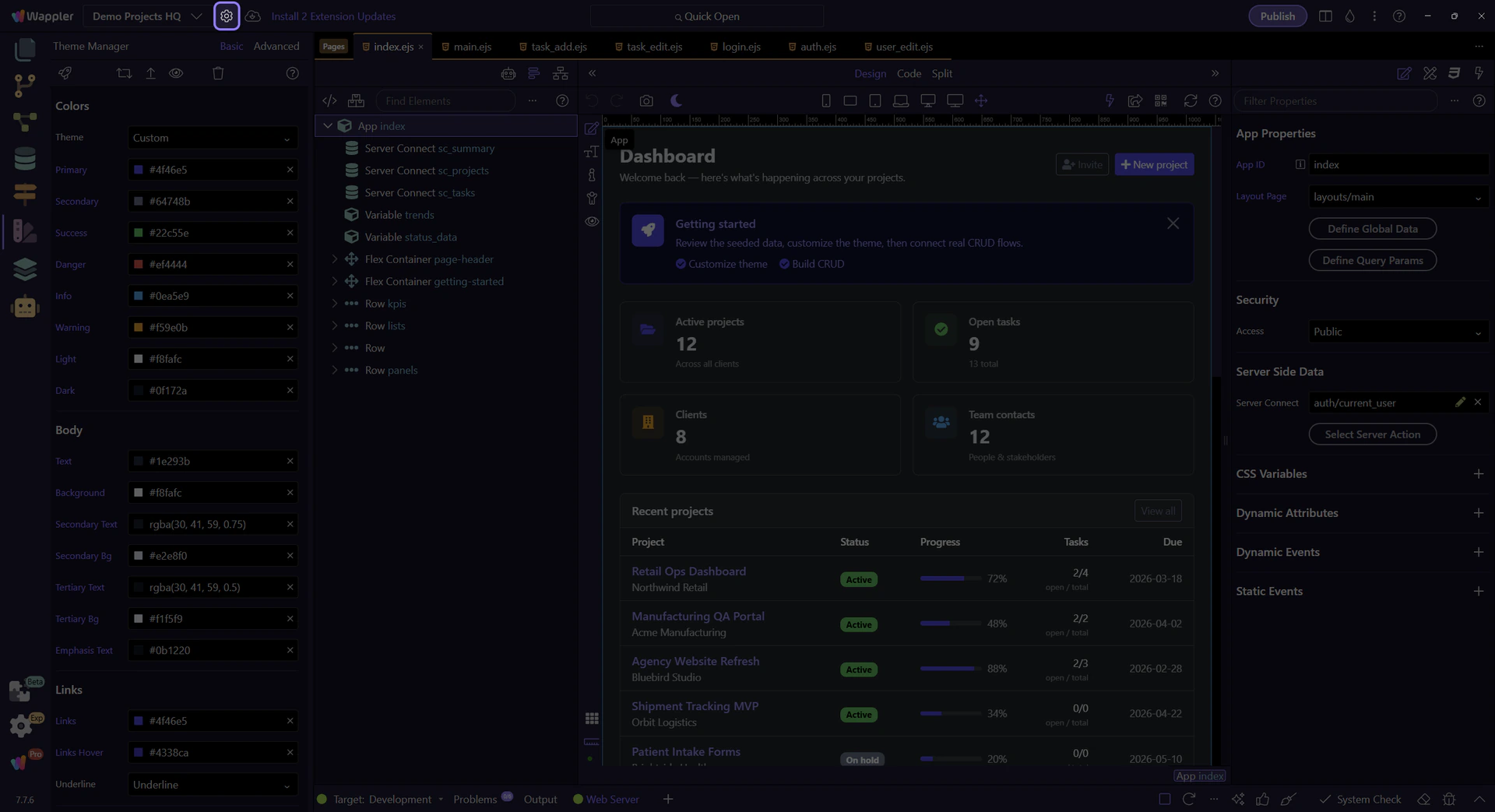
Orient yourself in Manager Thememanager
Section titled “Orient yourself in Manager Thememanager”Start with the wider context in Manager Thememanager so the next control makes sense in the full workflow. In the next step, you will focus on Recap and see how it fits into this area.
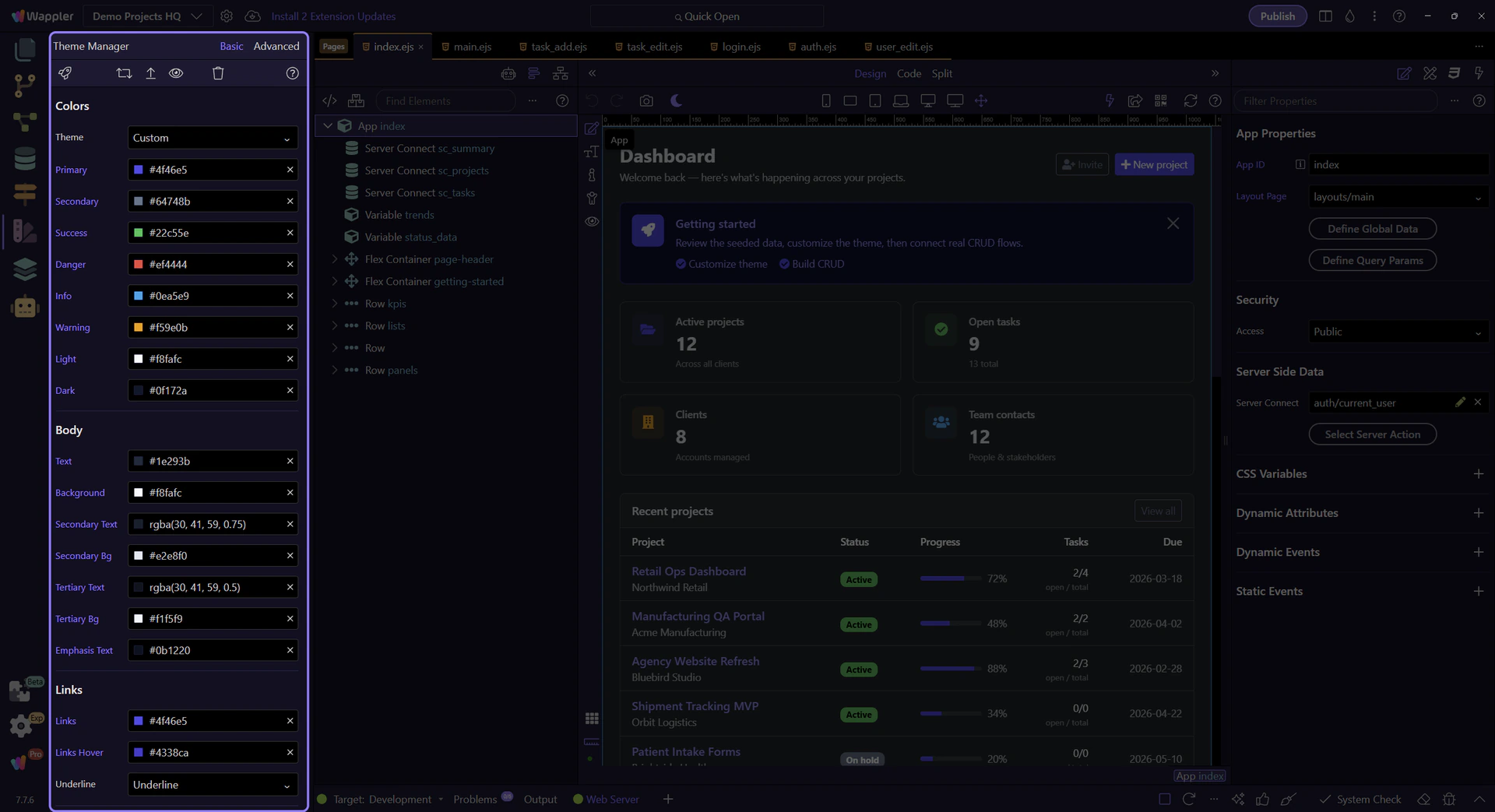
After saving Project Settings, reopen Theme Manager to load the framework variables. This step matters because Recap is part of Manager Thememanager Layout, and understanding that context makes the next action easier to repeat in your own project.
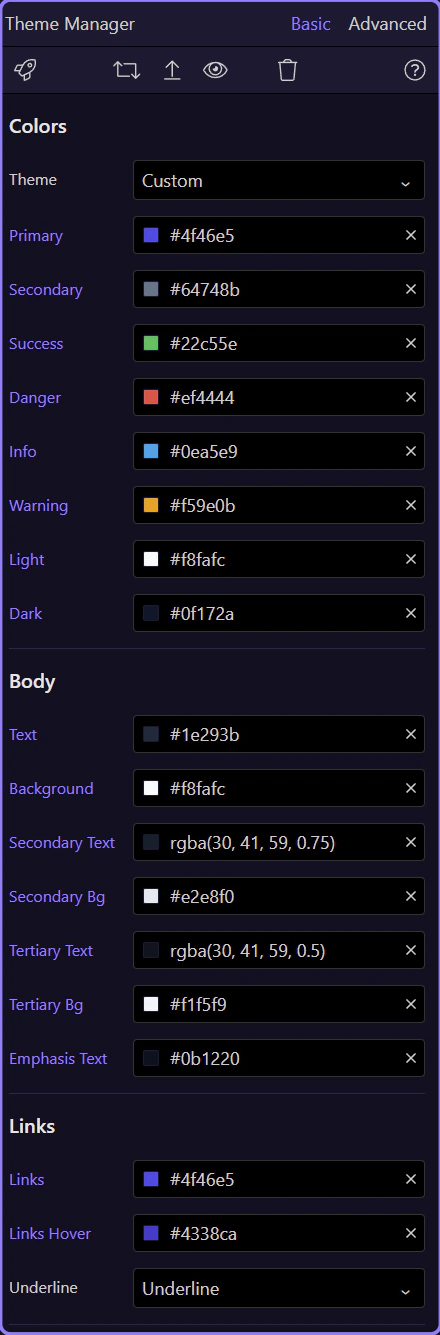
Basic vs Advanced
Section titled “Basic vs Advanced”Use the Basic/Advanced toggle to switch between commonly-used variables and the full advanced variable set.
Toggle view
Section titled “Toggle view”Start with Basic. Switch to Advanced when you need deeper control over framework variables. This step matters because Toggle view is part of Manager Thememanager Toolbar, and understanding that context makes the next action easier to repeat in your own project.
tip: If you’re not sure what a variable does, use Preview to see the change immediately.

Use Basic for common tweaks; use Advanced for full control, then Preview to validate changes. This step matters because Recap is part of Manager Thememanager Toolbar, and understanding that context makes the next action easier to repeat in your own project.

Preview Your Changes
Section titled “Preview Your Changes”Use Theme Preview to see your changes applied. When you’re happy with the results, upload/build the theme for production.
Open Theme Preview
Section titled “Open Theme Preview”Open Theme Preview to validate color, font, and styling changes quickly. This step matters because Open Theme Preview is part of Manager Thememanager Toolbar, and understanding that context makes the next action easier to repeat in your own project.

Upload / Build / Reset
Section titled “Upload / Build / Reset”Upload sends the generated theme to your server. Build Theme is used for production builds. Reset Theme restores defaults if you want to start over.
caution: Reset Theme can discard your changes — use it when you intentionally want to revert.
