Using shortcut keys for dynamic events
Use the Dynamic Events UI to add keyboard-driven events and review the modifier controls that constrain when they fire.
Keyboard-driven Dynamic Events
Section titled “Keyboard-driven Dynamic Events”This tour opens a small App Connect page so you can see where Wappler exposes keyboard-triggered events and the modifier controls that keep them readable.
The Properties panel is the control surface
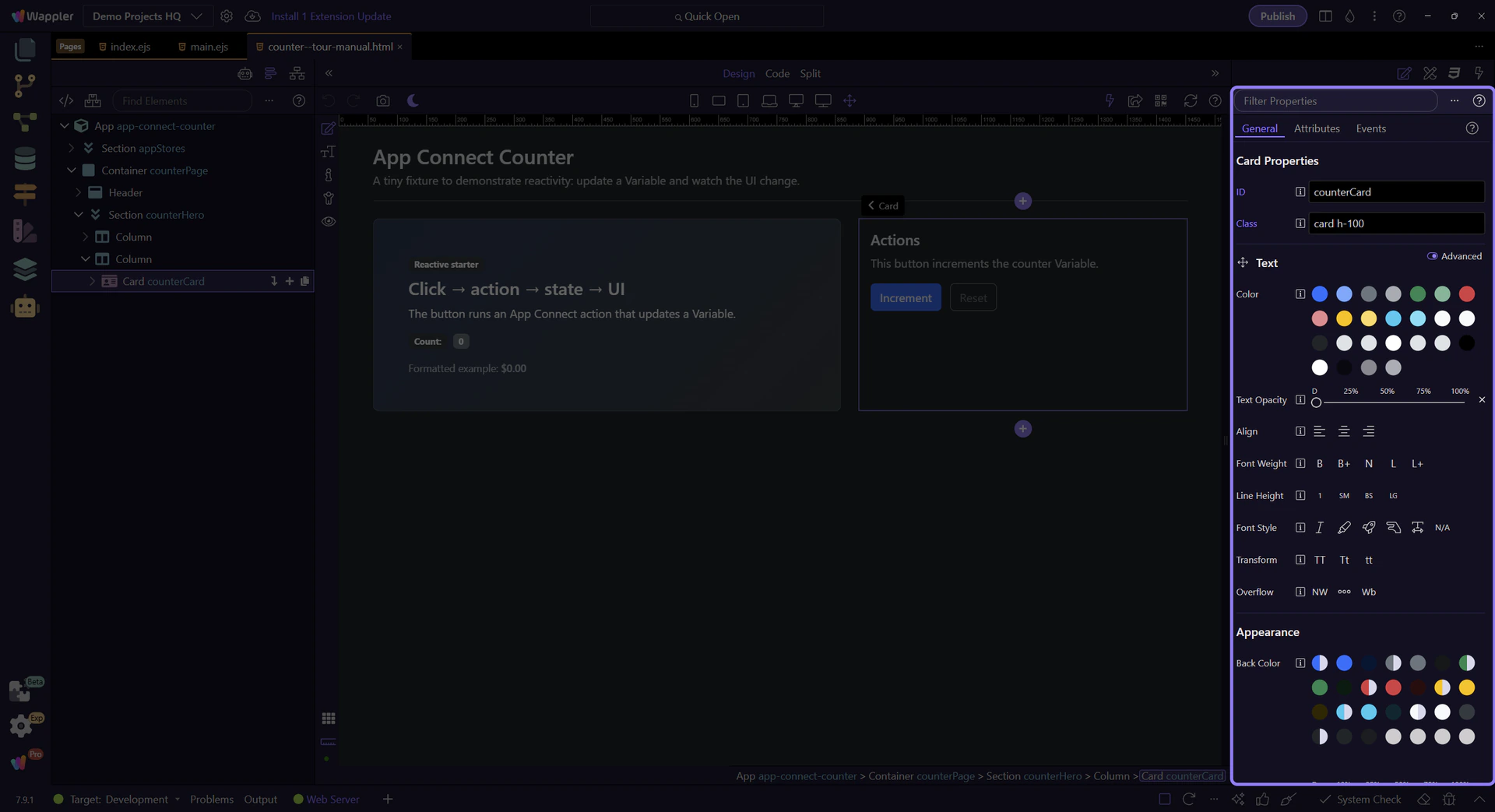
Section titled “The Properties panel is the control surface”Keyboard-triggered behavior is configured in the same Properties panel you already use for Dynamic Events. The selected card has no event yet, so you can see the full add flow without extra controls getting in the way.
Keyboard events are added from the Dynamic Events menu
Section titled “Keyboard events are added from the Dynamic Events menu”This Dynamic Events (+) menu is where you add keyboard-driven handlers such as keyup or keydown to the selected element. Wappler filters the list by the current selection, so the safest way to build shortcut behavior is to start here instead of typing event attributes yourself.
Inspect an element that already has an event
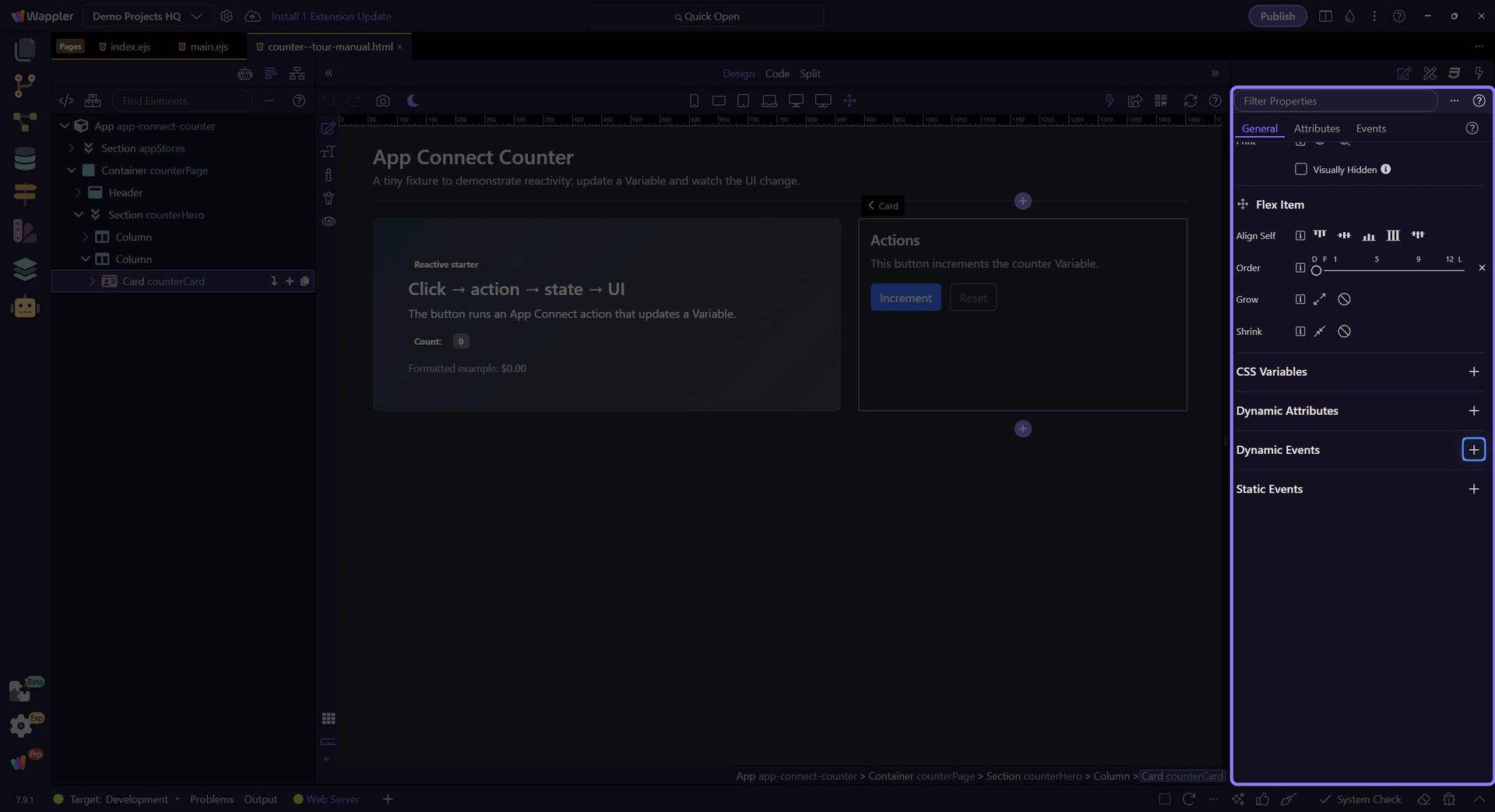
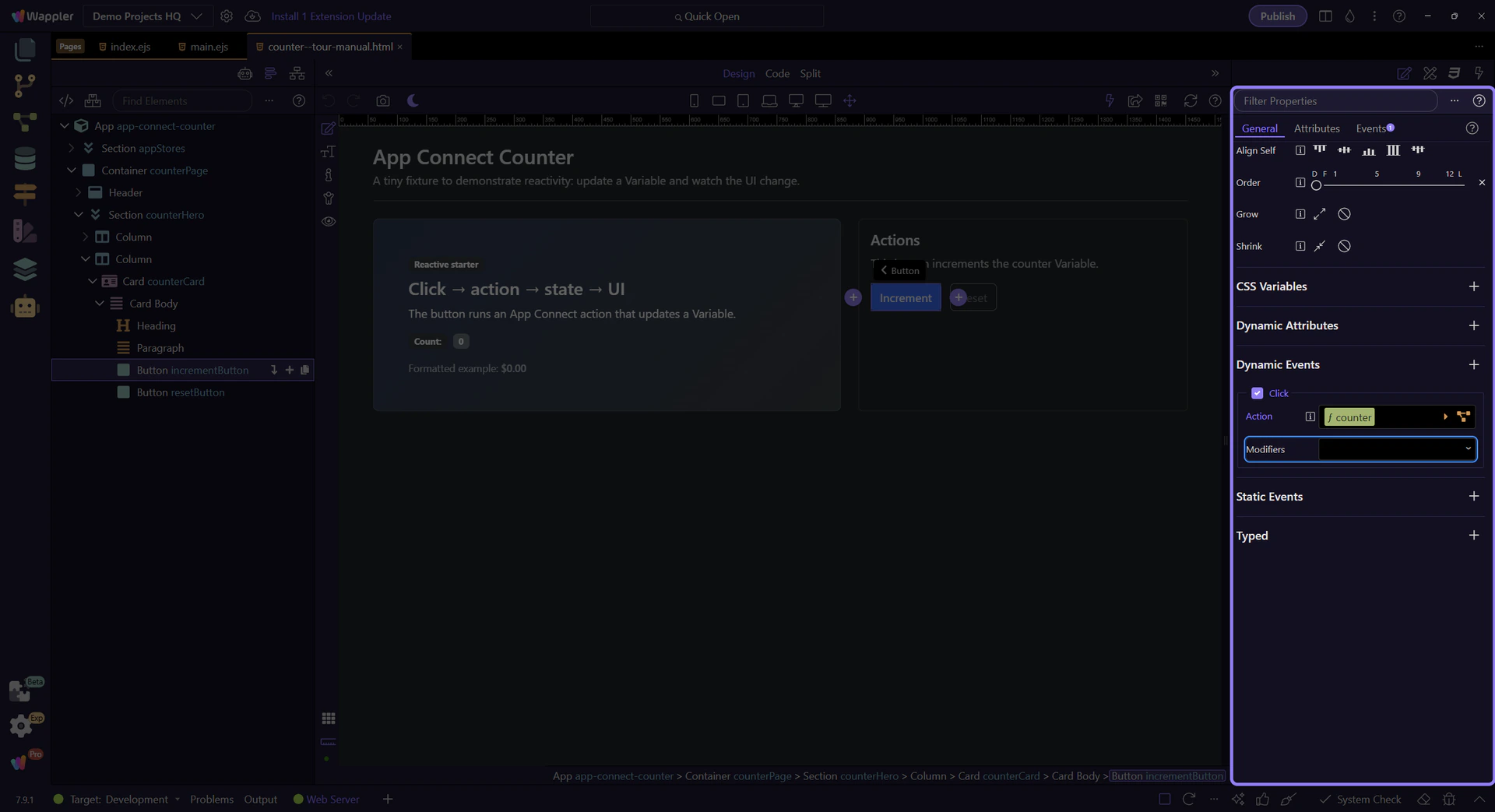
Section titled “Inspect an element that already has an event”The tour now selects a button that already has a Dynamic Event so the modifier controls become visible. This is the same event row you would use after adding a keyboard event in your own page.
Modifiers keep shortcut logic visible
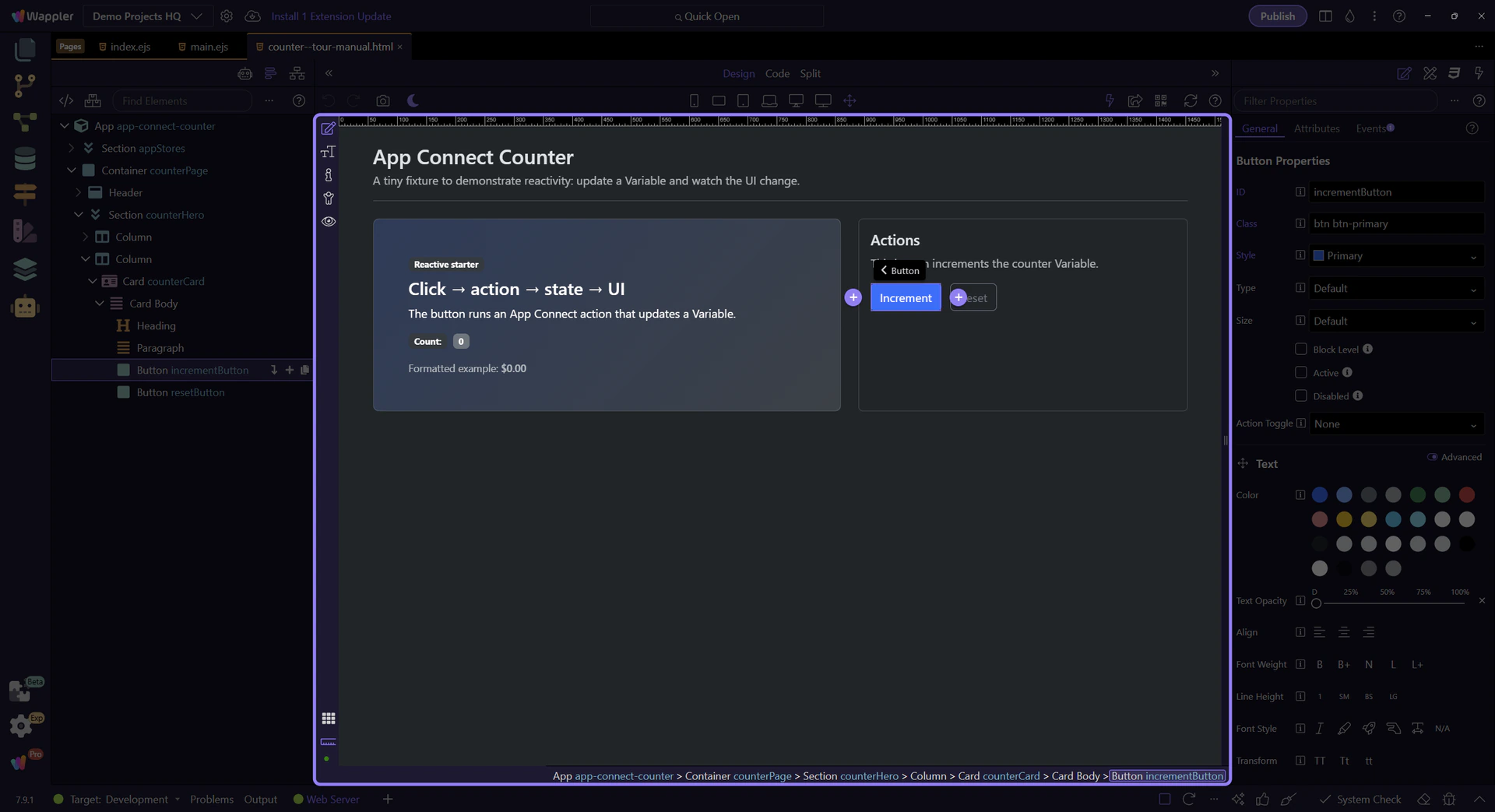
Section titled “Modifiers keep shortcut logic visible”Once the event row exists, this modifier area is where Wappler keeps the shortcut conditions readable. Keyboard events use this same pattern to narrow behavior to a specific key or shortcut combination instead of hiding that rule in handwritten code.
Continue with the full Dynamic Events workflow
Section titled “Continue with the full Dynamic Events workflow”This topic focused on the exact Wappler controls for keyboard-triggered events and shortcut-style conditions. Continue with the full Dynamic Events tour for the add/edit workflow, or open Events & actions for the broader action model.