
File Management Index
Here you will find everything related to file upload, file management and image processing. You will learn how to upload single or multiple files, delete or mov
Assets Manager Overview
Section titled “Assets Manager Overview”A quick orientation to Assets Manager so you can understand reusable assets, media handling, and the bridge between files and UI resources.
Assets Manager Overview
Section titled “Assets Manager Overview”Use this bridge when you want a quick orientation to Assets Manager before diving into broader file or frontend workflows. In Demo Dynamic Real Estate Site, Assets Manager is tied to real media folders that feed the listing cards you see in the sample app.
Use it to connect reusable assets with file organization, UI building, and publishing.
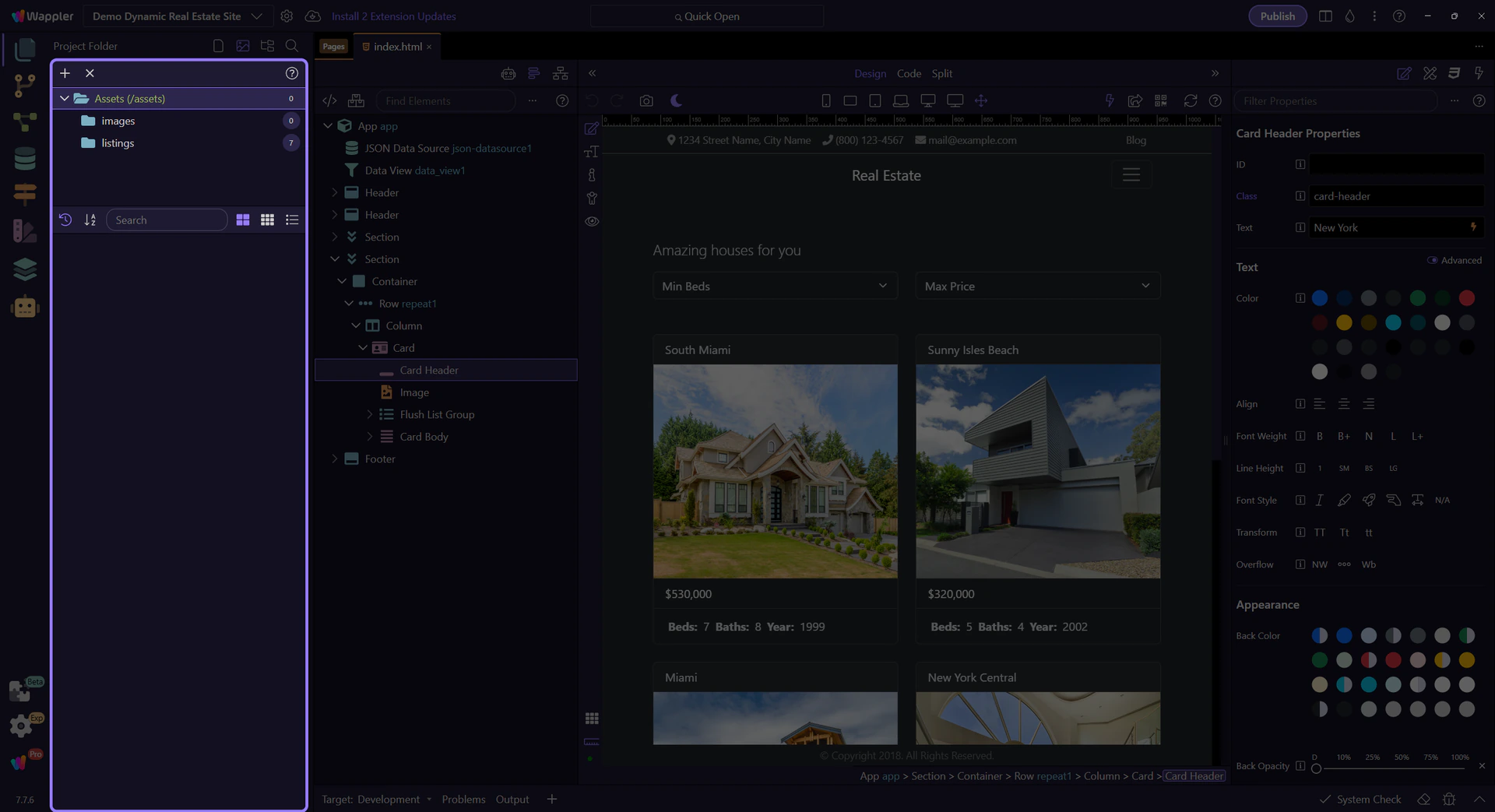
Assets tree overview
Section titled “Assets tree overview”The live Assets tree is the practical starting point. In Demo Dynamic Real Estate Site, it exposes the actual assets hierarchy behind the sample app, including the listing images used by the property cards.
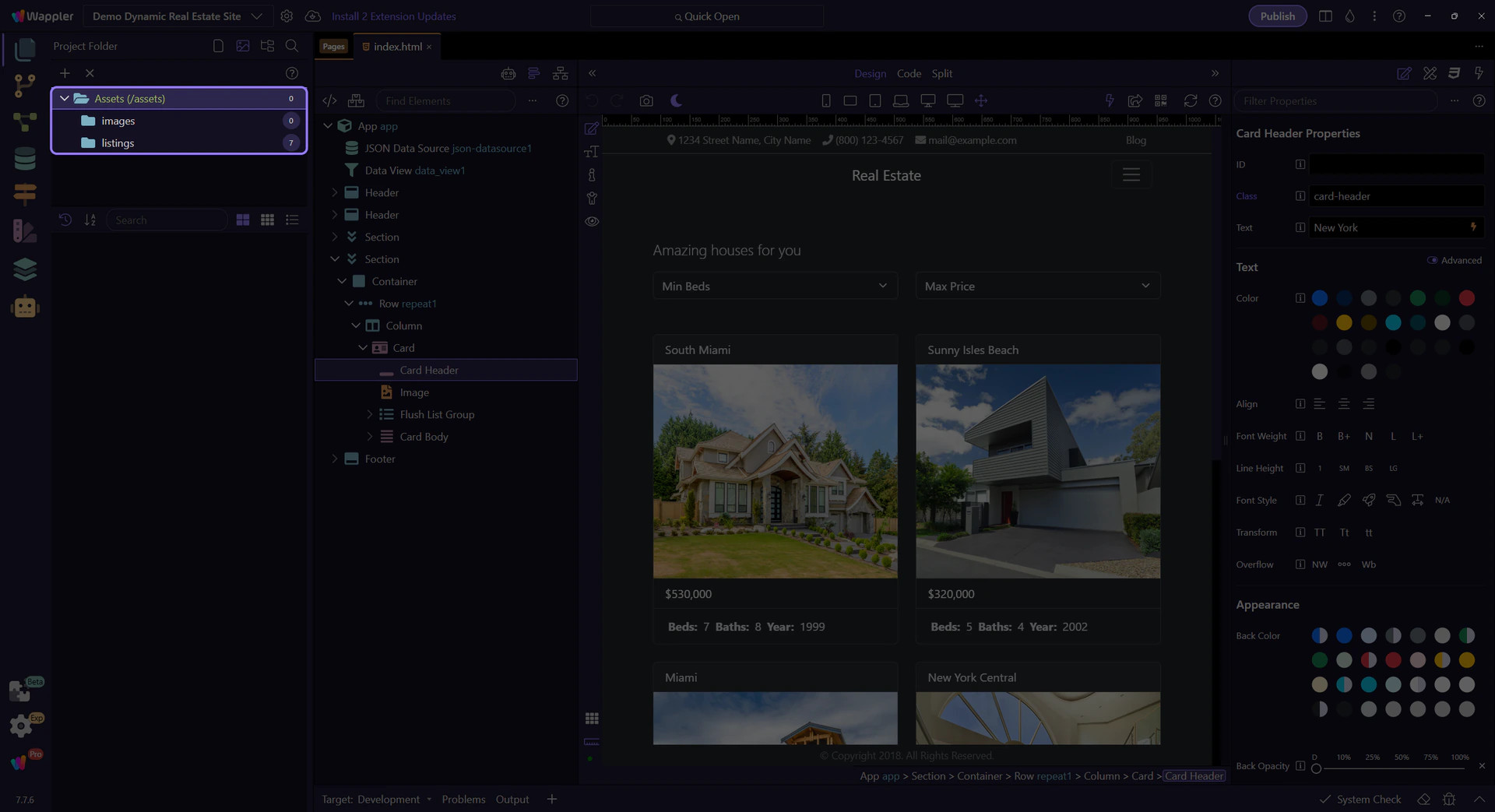
Project assets root
Section titled “Project assets root”This step selects the real project_assets root node so the tour starts at the top of the live asset tree before drilling into the listing media folders used by the demo.
Concrete listing media folder
Section titled “Concrete listing media folder”Move from the project root into the real /listings folder. In Demo Dynamic Real Estate Site, this folder contains the JPG files referenced by data.json, so selecting it ties Assets Manager directly to the media that powers the property-card images in the demo UI.
Assets root context menu
Section titled “Assets root context menu”This step opens the real context menu on the selected assets root. That makes the overview practical immediately, because Create Folder, Rename, Delete, Upload, and Show in Explorer all operate from this live tree surface.
Close the assets context menu
Section titled “Close the assets context menu”Close the context menu before continuing into broader file and frontend workflows so the overview leaves the manager in a clean state.
File Management
Section titled “File Management”Start here for file-oriented work in Wappler: project files, assets, upload workflows, and the handoff into publish-safe habits.
File Management
Section titled “File Management”Use this page as the file-oriented map through Wappler. Start with File Manager for the core project-file workflow, then branch into assets, upload/download workflows, or adjacent setup tasks depending on what kind of files you are managing.
The goal is to help beginners understand where project files live, where reusable assets are handled, and how file work connects to deployment.
File Manager Recipes
Section titled “File Manager Recipes”Task-focused File Manager recipes: organize folders, upload assets safely, and handle external file changes.
File Manager Recipes
Section titled “File Manager Recipes”Use these recipes when the job is to put files in the right place, keep the tree readable, and avoid surprises caused by hidden or externally changed files.
Create and Organize Folders
Section titled “Create and Organize Folders”Create folders before you need them desperately. A small amount of structure early prevents pages, assets, and support files from drifting into the project root.
Upload Assets Safely
Section titled “Upload Assets Safely”Upload with intent. Put images, downloads, and support files where the rest of the team will expect them, not where they happen to land first.
Handle External Changes
Section titled “Handle External Changes”When files changed outside Wappler, do not guess. Refresh the File Manager, confirm what moved or appeared, and only then decide whether the problem is a missing file, a build artifact, or a real accidental change.
Next steps
Section titled “Next steps”Return to the File Manager tours menu to continue with quick orientation, workflow guidance, or UI reference.
File Manager
Section titled “File Manager”Browse File Manager tours: quick overview, general usage, recipes, and reference.
File Manager
Section titled “File Manager”Choose a File Manager tour to start. If you’re new, begin with Quick Overview.
File Manager: Quick Overview
Section titled “File Manager: Quick Overview”Get a quick overview of File Manager: what it is, where to find it, and how it fits in your workflow.
File Manager Overview
Section titled “File Manager Overview”File Manager is where you inspect the project folder structure that Wappler works with every day. It is the fastest place to answer a simple question: where is this file, and is it in the right place?
Project Tree
Section titled “Project Tree”The tree gives you the real project shape: pages, includes, assets, server actions, and support files. When you understand this tree, navigation across Wappler becomes much easier.
Main Toolbar
Section titled “Main Toolbar”Use the main toolbar for actions that change or refresh what you are looking at. This is where you create, upload, and refresh instead of hunting through menus first.
A Good Working Habit
Section titled “A Good Working Habit”Treat File Manager as the source of truth for project organization. If files were changed outside Wappler, come back here, refresh, and confirm the tree before you continue editing.
Conclusion
Section titled “Conclusion”The beginner takeaway is simple: use File Manager to stay oriented, open the right file, and keep your project structure clean before you move deeper into pages, workflows, or deployment.
File Manager Reference
Section titled “File Manager Reference”Reference tour for the File Manager: file tree structure, toolbar controls, and best practices for organizing project files.
Introduction
Section titled “Introduction”Use this reference tour as a navigation guide to File Manager before you start moving assets around. It shows which areas handle project files, uploads, and file actions, so you can tell where to work and what each part of the manager is responsible for when a project grows.
File Tree
Section titled “File Tree”The tree is the primary navigation surface. Use it to confirm folder location, open the correct file, and spot unexpected structure changes quickly.
Main Toolbar
Section titled “Main Toolbar”The toolbar groups the actions you use most often while managing files: create, upload, and refresh. Learn this strip once and most file-navigation work becomes faster.
Manager Root
Section titled “Manager Root”The manager root is your orientation frame. When you are unsure whether a file issue is about structure, uploads, or external changes, start here and then drill into the tree or toolbar.
Next steps
Section titled “Next steps”Continue with the File Manager overview for a guided start, or use General Usage and Recipes when you want more applied guidance.
General Usage
Section titled “General Usage”Typical File Manager workflow: browse folders, open files, and keep project assets organized.
File Manager: Basic Workflow
Section titled “File Manager: Basic Workflow”A typical File Manager workflow is simple: find the right folder, open or create the file you need, then refresh if outside tools changed the project behind your back.
Browse, Then Open
Section titled “Browse, Then Open”Start by navigating to the folder that matches the feature you are working on. Opening the right file from the right place prevents accidental edits in duplicate or generated files.
Create or Upload Deliberately
Section titled “Create or Upload Deliberately”Use toolbar actions when you need a new file, a new folder, or an upload. The habit to build early is intention: put assets and support files in the place your future self will expect them.
Refresh After External Work
Section titled “Refresh After External Work”If Git, a build tool, or another editor changed files outside Wappler, refresh here before assuming the tree is current. It is the quickest way to avoid acting on stale information.
Workflow Finish
Section titled “Workflow Finish”Good file habits compound: clean structure makes Pages, Workflows, Git, and publishing easier because every other tool depends on the same project layout.