Skip to content

How To: Use Act mode

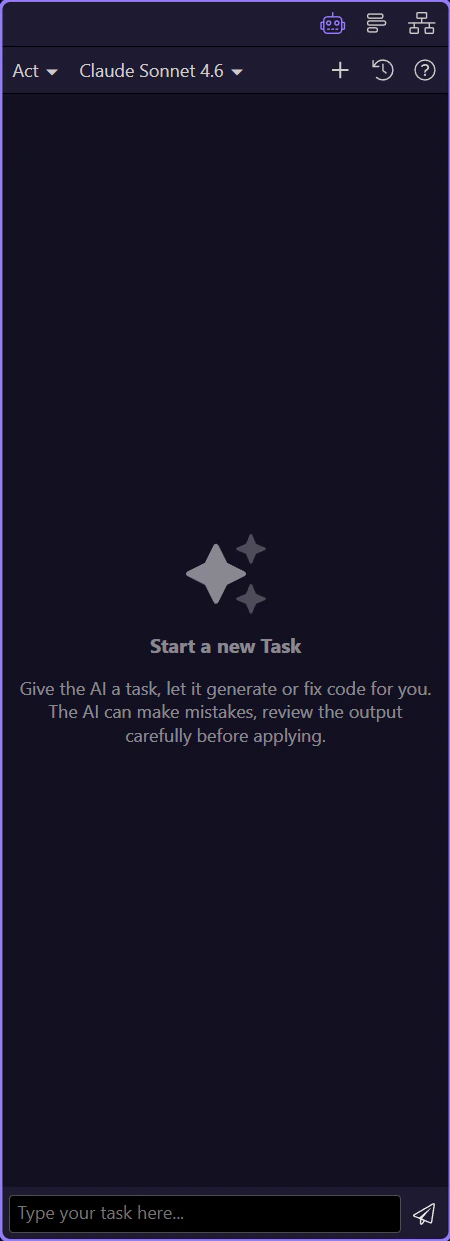
Learn how to use Act mode in the AI panel. Use this tour as a quick refresher.

Goal: Use Act mode

Act mode is best when you want the assistant to propose or perform concrete changes. This step matters because Goal: Use Act mode is part of the Page Panels area, and understanding that context makes the next action easier to repeat in your own project.
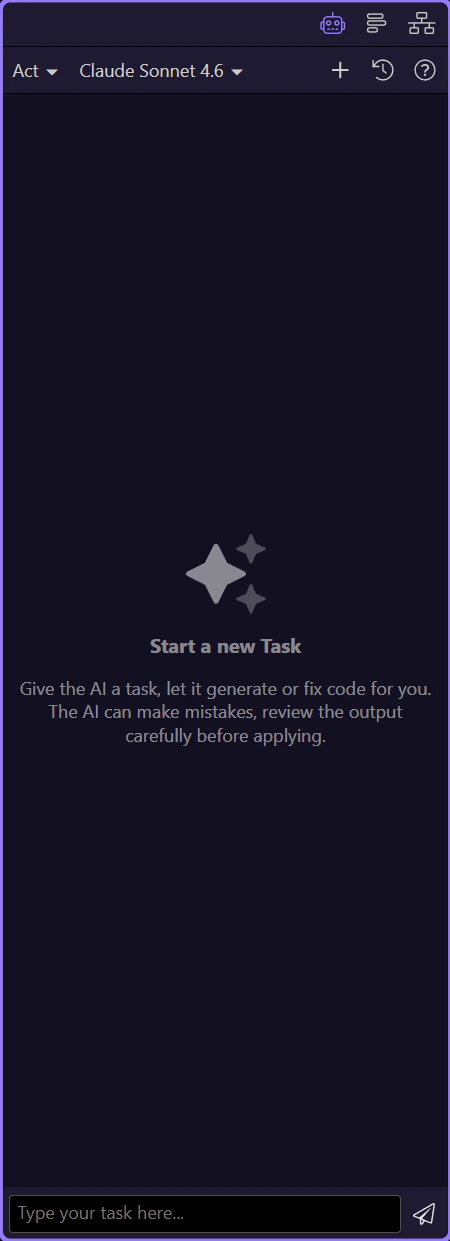
Switch to Act

Switch the mode to Act before requesting edits. This step matters because Switch to Act is part of the Page Panels area, and understanding that context makes the next action easier to repeat in your own project.
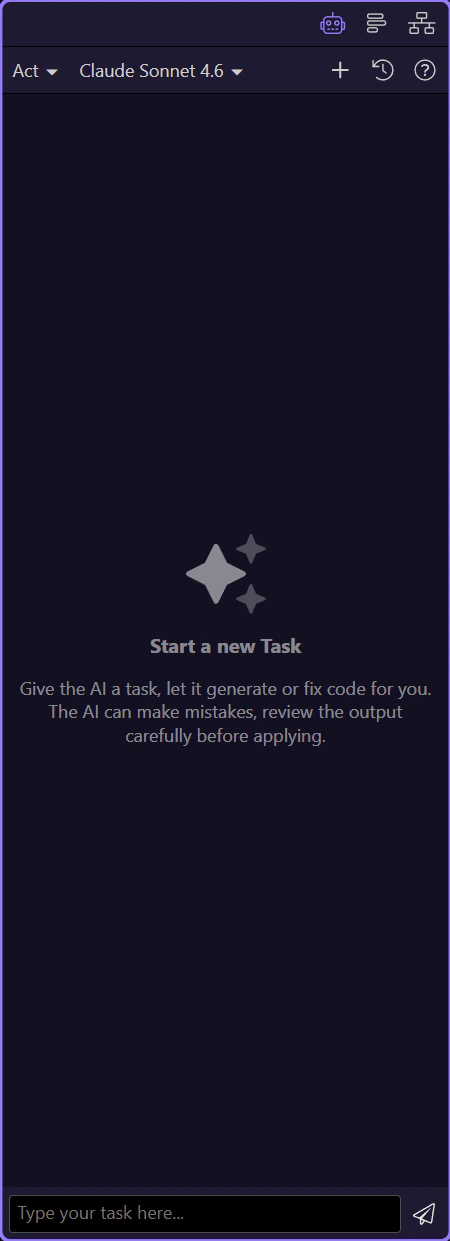
Review the result

Review the proposed changes and apply only what you understand. This step matters because Review the result is part of the Page Panels area, and understanding that context makes the next action easier to repeat in your own project.
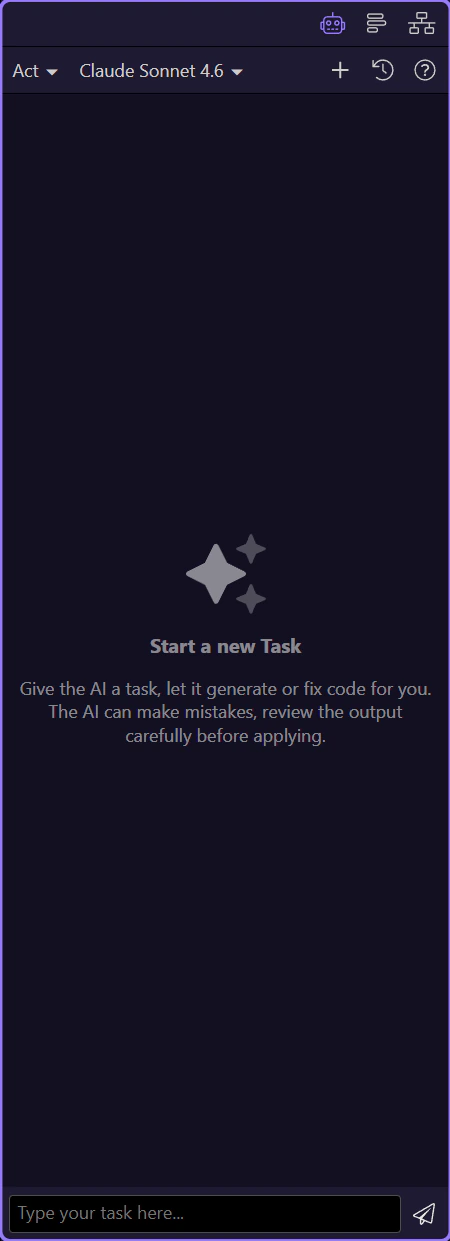
Done

If needed, start a new chat to reset context. This step matters because Done is part of the Page Panels area, and understanding that context makes the next action easier to repeat in your own project.