
Create a working login form
The complete connection between a Security Provider, a login action and the page’s success/error states.
Sign in through a Server Connect form and handle both valid and invalid credentials.
Also called: login, sign in, authentication, login form, security provider.
Before you begin
Section titled “Before you begin”- A database with user IDs, usernames and password hashes.
- A NodeJS project with App Connect. The tour inspects the ready-made Demo Projects HQ login form.
Configure the shared Security Provider
Section titled “Configure the shared Security Provider”In Server Connect’s shared Globals settings, add a Database Security Provider named security. Select your database connection and the users table. Map Identity to id, Username to username, and Password to password. Enable password verification for the stored hashes. The sample provider is stored at app/modules/SecurityProviders/security.json; use your project’s own secret and settings rather than copying the demo secret.
Create the login action
Section titled “Create the login action”Create the API action auth/login. Under Inputs → POST, define required text inputs username and password. Add Security Login and select provider security. Bind Username to $_POST.username and Password to $_POST.password. Save. The provider verifies the submitted password against the stored hash; do not compare raw passwords in a database query.
Connect the form to auth/login
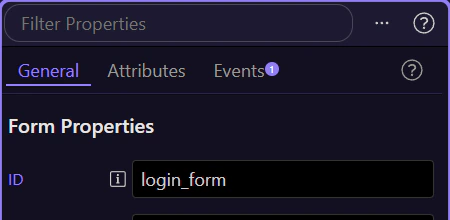
Section titled “Connect the form to auth/login”Create a form with ID login_form, username and password inputs, and a submit button. Set the input Names to username and password to match the action; use the Password input type for the password. Configure the form as a Server Connect Form, select auth/login, and use POST. The sample calls /api/auth/login.

Redirect only after success
Section titled “Redirect only after success”Add a Browser component named browser to the page or shared layout. In the form’s Dynamic Events, add Success → Browser → Go To and set the destination to your signed-in landing page. The sample uses browser.goto('/'). Do not redirect from the button’s click event before the server has confirmed the login.
Show the failed-login state
Section titled “Show the failed-login state”Add an alert for invalid credentials and use Show with login_form.lastError.status == 401. Add separate general request-error feedback for other failures. Keep the submitted username so the user can correct the form; never display the password or its hash in a response or error message.

Prevent repeated clicks while signing in
Section titled “Prevent repeated clicks while signing in”Bind the submit button’s Disabled property to login_form.state.executing. Use that same state to show a spinner and Signing in… label. The button becomes available again when the request finishes.

Protect the server-side resources
Section titled “Protect the server-side resources”A successful login creates a session; hiding a page element does not protect data. Add Security Restrict with the same provider to protected server actions and configure protected page access as needed. Test using the actual role/permission you intend to allow.
Test success, failure and signed-out access
Section titled “Test success, failure and signed-out access”Preview with a test account whose password hash matches the configured provider. Correct credentials should redirect; incorrect credentials should show the alert. Sign out, then request a protected action directly and verify it is denied. If login always fails, check the provider mappings, hash verification, input Names and actual request response.
Check your result
Section titled “Check your result”A valid test account is signed in and redirected. Invalid credentials leave the user on the form with an error; protected actions still reject an unauthenticated request.