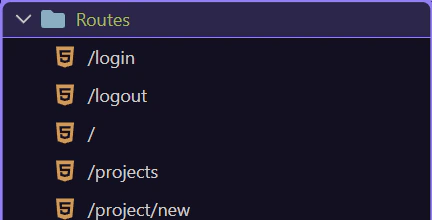
Routing Manager Overview
A quick orientation to Routing Manager so you can understand route structure, layout/content page mapping, and where URL behavior is configured.
Routing Manager Overview
Section titled “Routing Manager Overview”Use this bridge when you want a quick orientation to the current Routing Manager workflow before diving into detailed routing tasks. In Demo Projects HQ, Routing Manager is the live route map that reflects how URLs, layouts, and content pages are actually connected.
Pages Manager creates the route-backed page types. Routing Manager keeps the generated route structure. Layout pages provide the shared shell, content pages attach to routes, and the layout renders that route content through dmx-view. That is why this manager is the right place to explain navigation, route parameters, security, and page inheritance before you open a specific routed page.
Routing Manager overview
Section titled “Routing Manager overview”Use this as a short orientation, then continue into concrete route, layout, and content-page workflows.
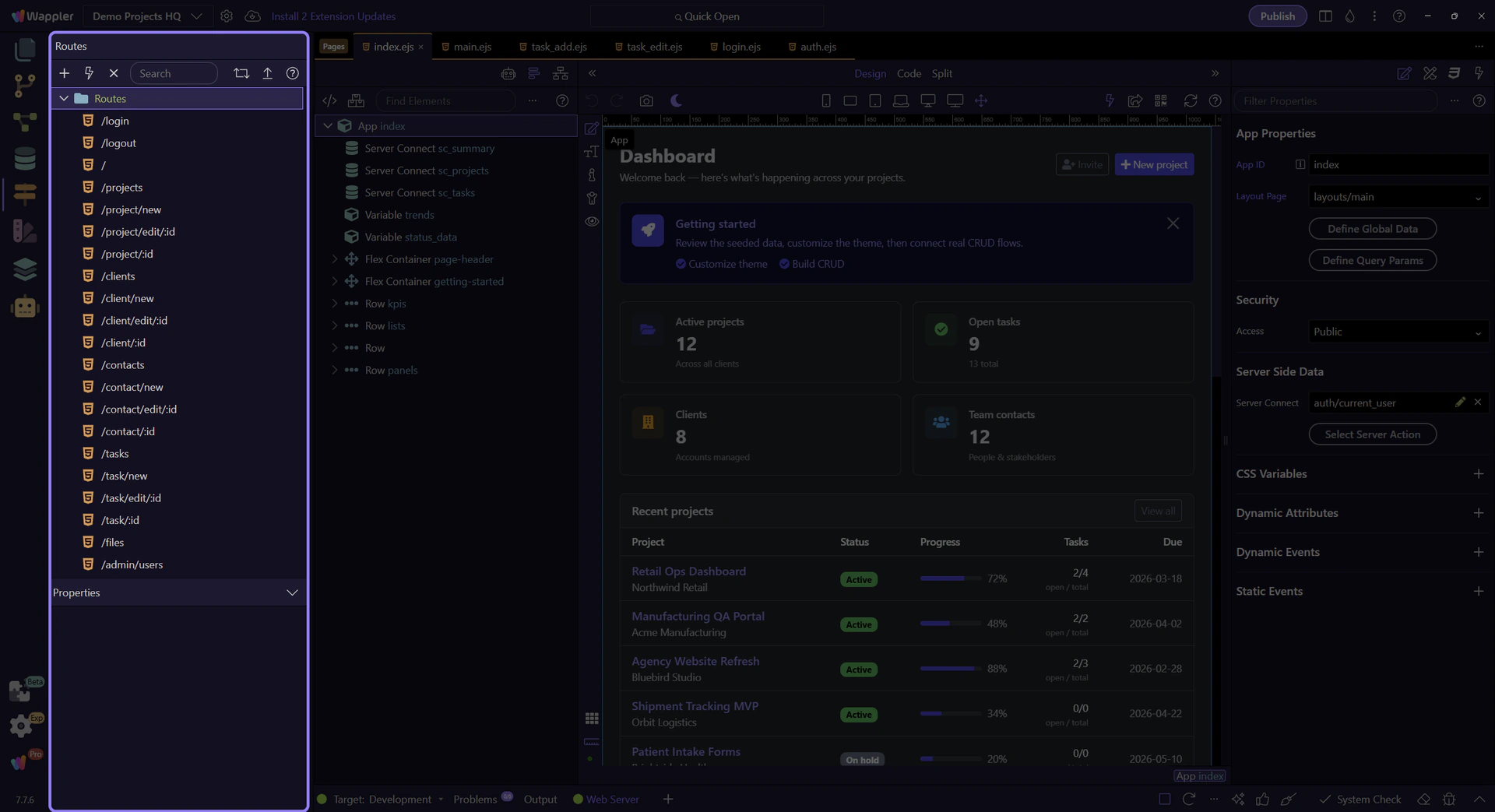
Routing tree overview
Section titled “Routing tree overview”The live Routing tree is the practical surface to read first. It shows the generated route hierarchy that Wappler uses for this project, so you can reason about parent routes, nested structure, and where route-specific actions will apply.

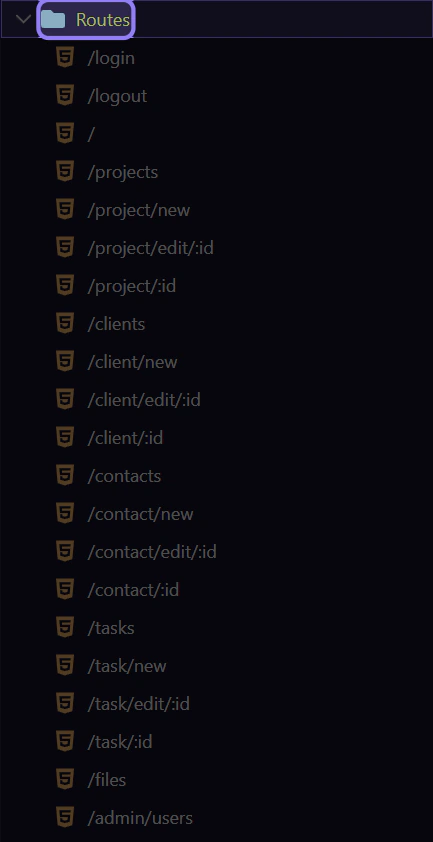
Routes root selection
Section titled “Routes root selection”This step selects the real Routes root node. That anchors the overview in the actual Routing Manager tree instead of a static explanation and makes it clear where top-level route operations begin.
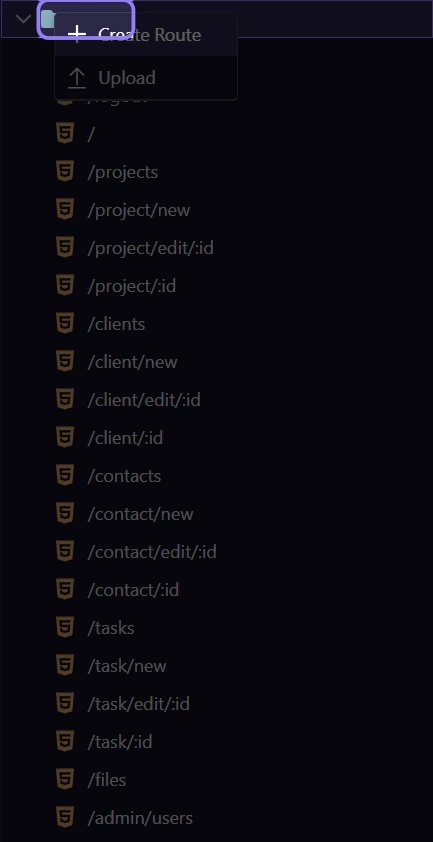
Routes root context menu
Section titled “Routes root context menu”This step opens the real context menu on the selected Routes root. That turns the overview into a real manager walkthrough: this is where route-creation and upload actions are attached in the live tree.
Close the route context menu
Section titled “Close the route context menu”Close the context menu before continuing into deeper routing topics. Keeping popup flows explicit prevents the overview from leaking temporary UI state into the follow-up tours.