
Explore real styles
Use this page as a live reference for headings, paragraphs, and text utilities.
Apply Bootstrap typography styles: headings, lead text, lists, and text utilities for consistent content styling.
In this tour you’ll review Bootstrap typography basics in Wappler: headings, paragraphs, and common text utilities.
Typography settings matter because they shape readability, hierarchy, and emphasis before any component-specific styling begins. This sample gives you a concrete visual context for headings, body text, and spacing, so the later controls make sense as deliberate readability choices rather than random tweaks.
tip: Prefer Bootstrap utilities (e.g. text-center, fw-bold, text-muted) before writing custom CSS.
Before styling, make sure you’ve selected the correct node in App Structure (or the canvas) so Properties updates the right element.
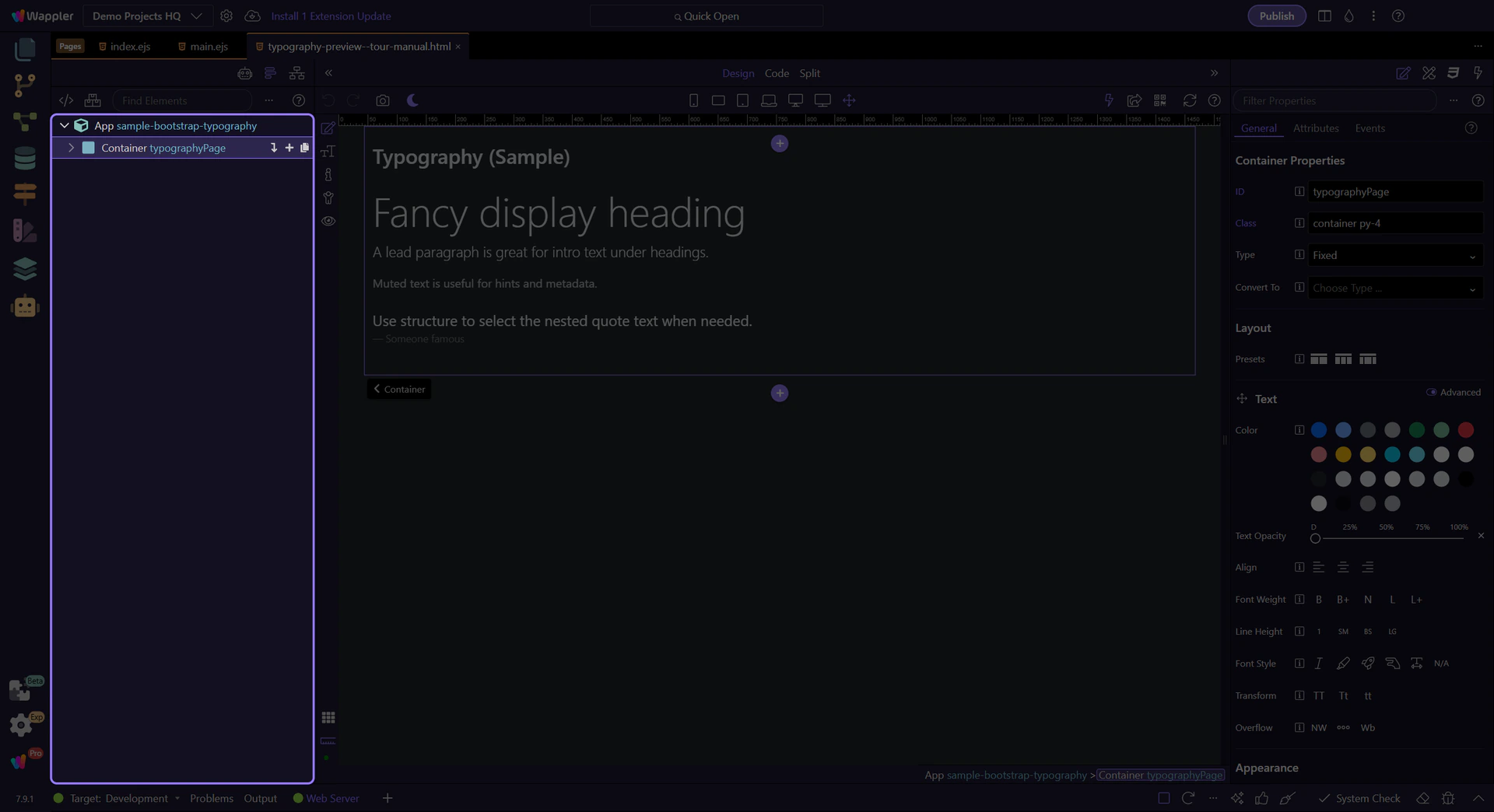
Now we’ll select a heading and some paragraphs and review the key Properties you’ll use most often.
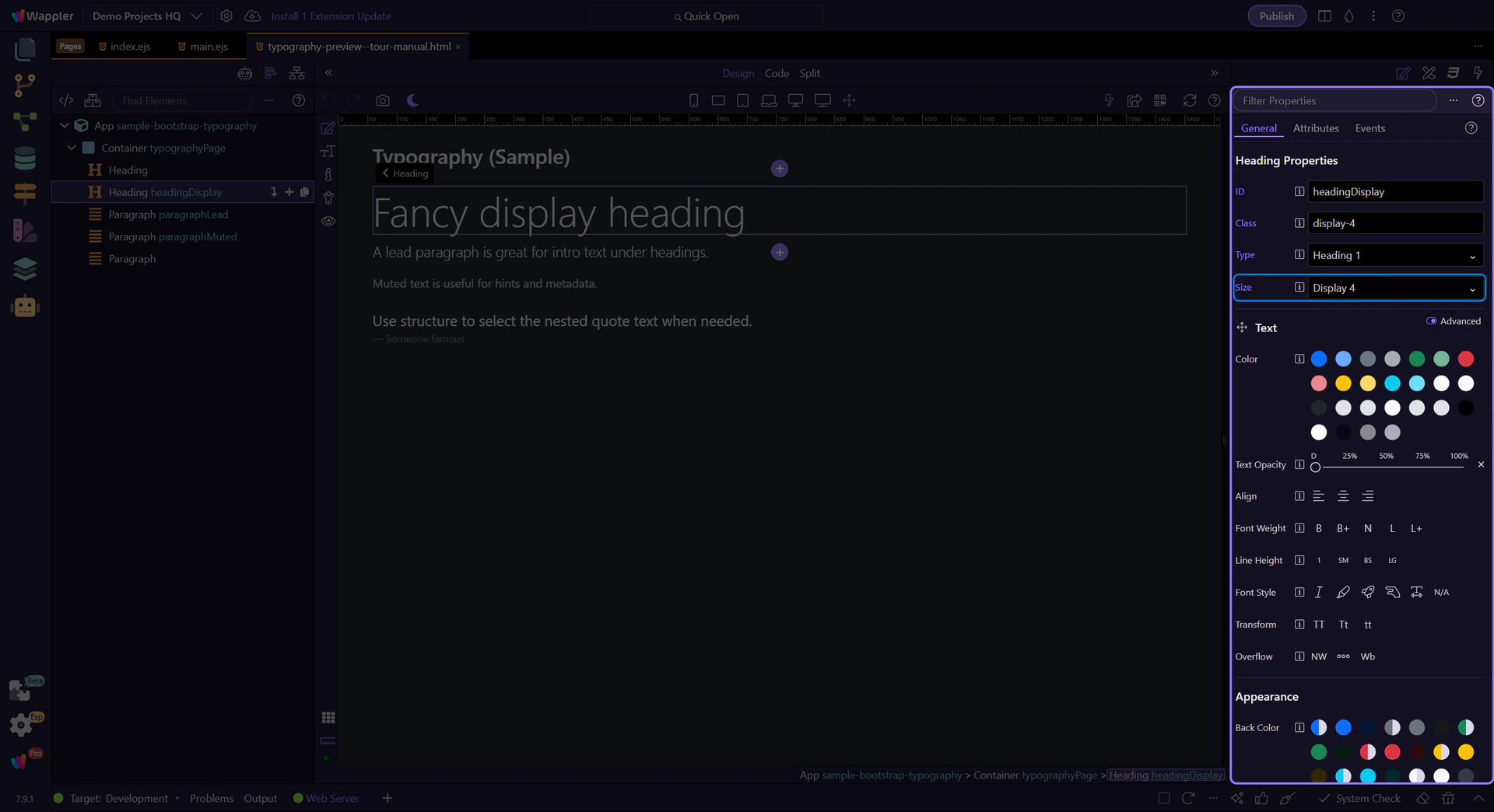
Headings set hierarchy. This example is a display-style heading.
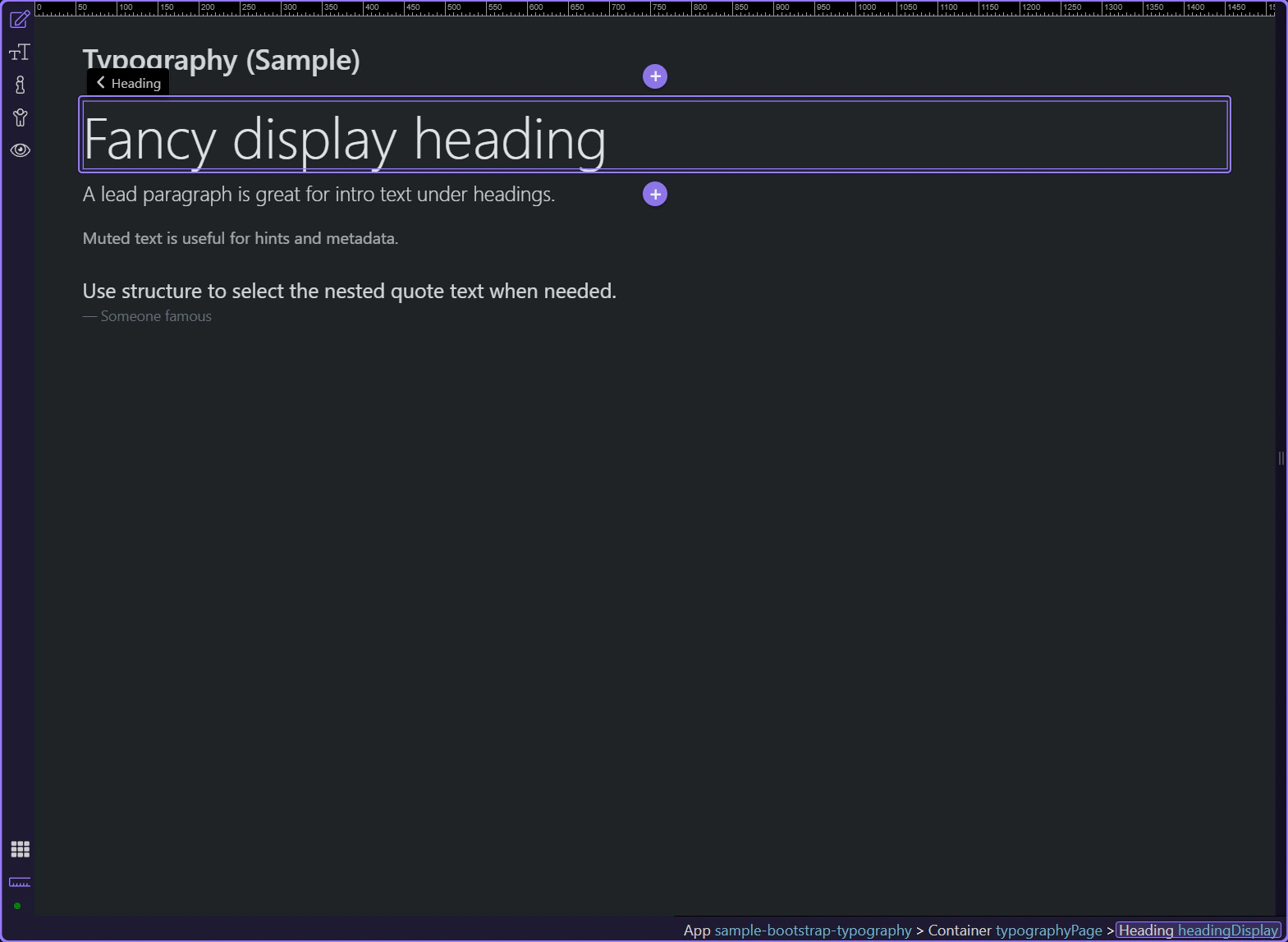
In Properties, set Tag name (titleType) for semantic structure (h1/h2/…).
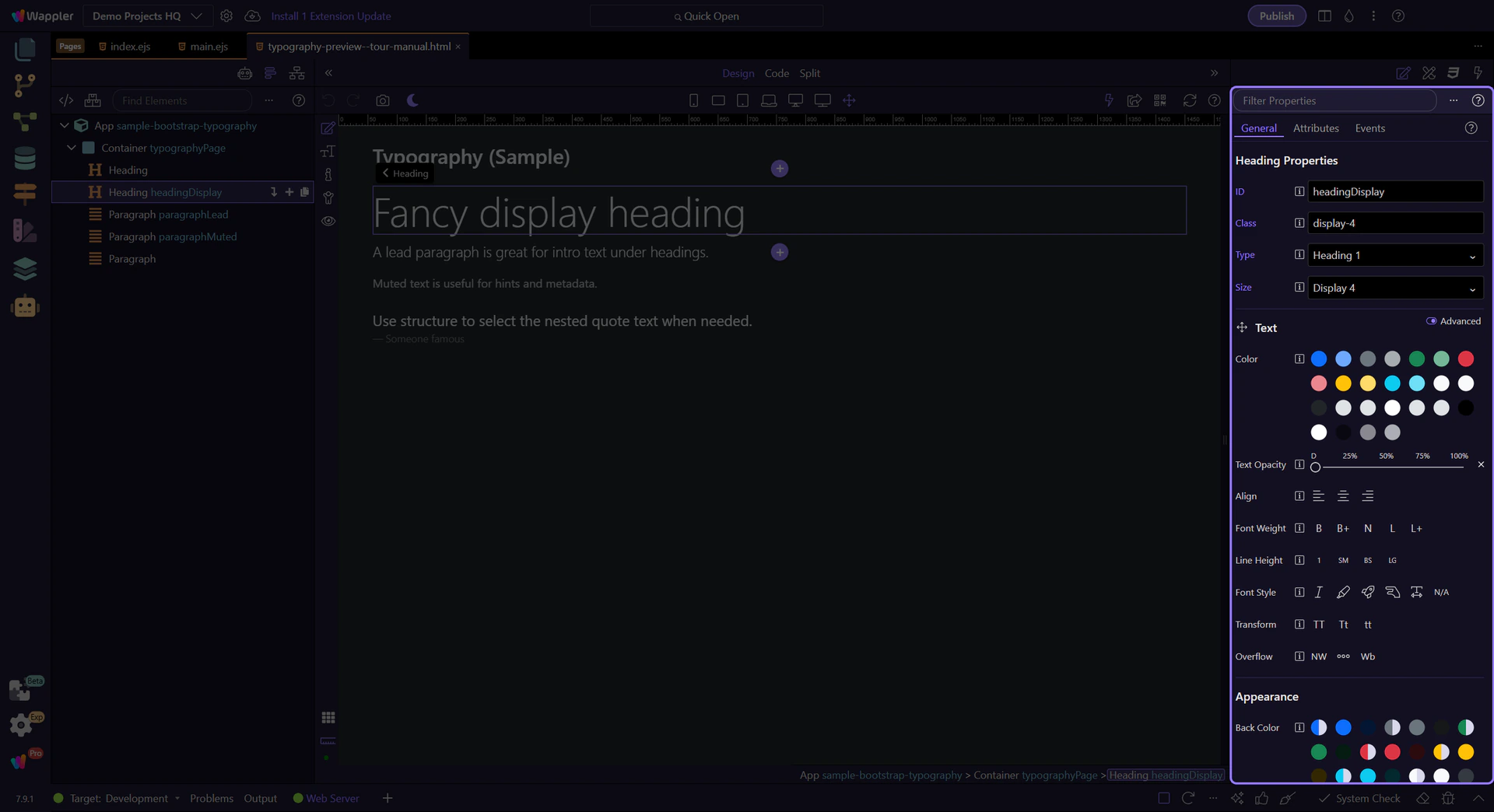
Set the visual size (titleSize) without changing the semantic tag.
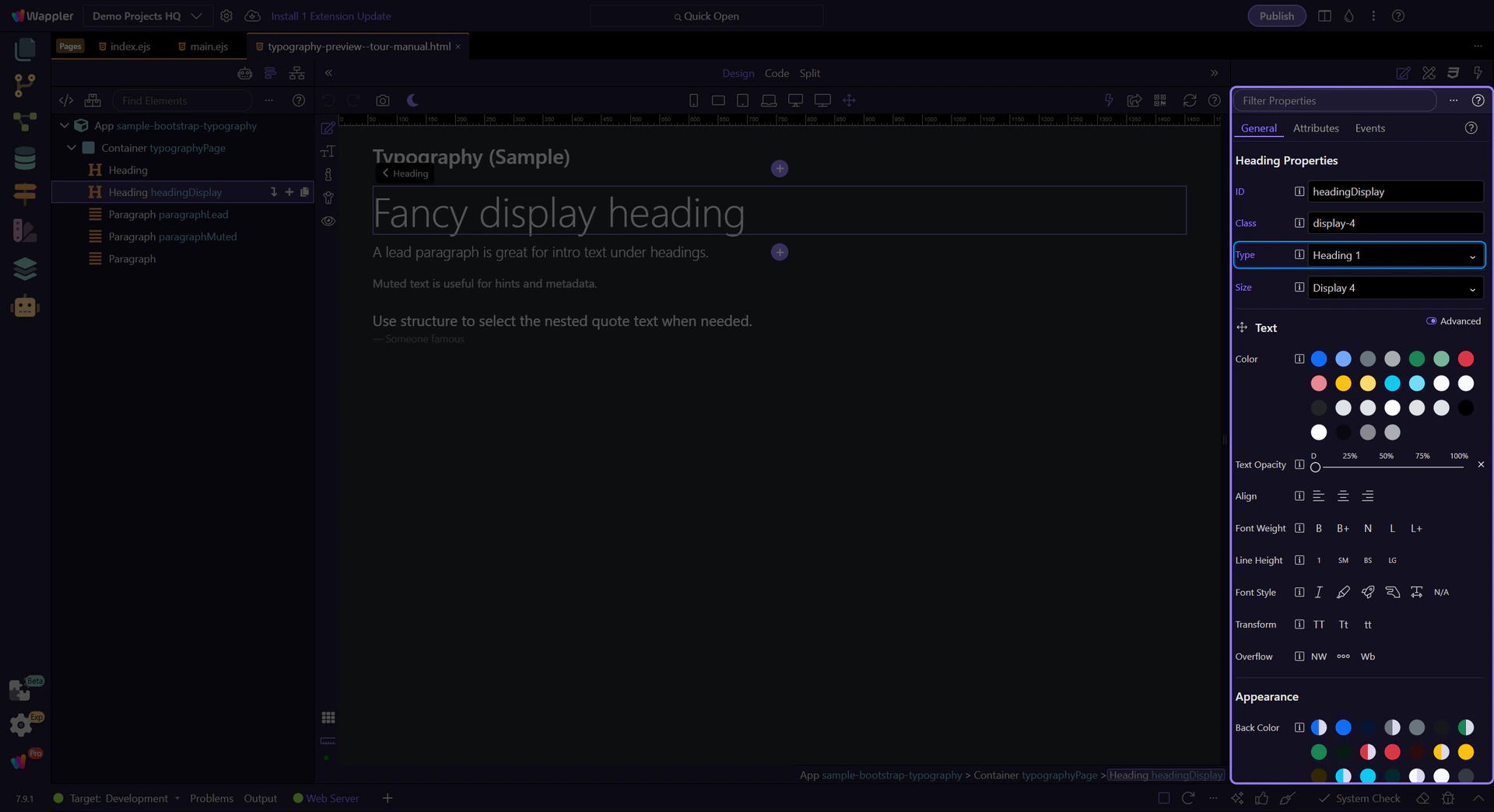
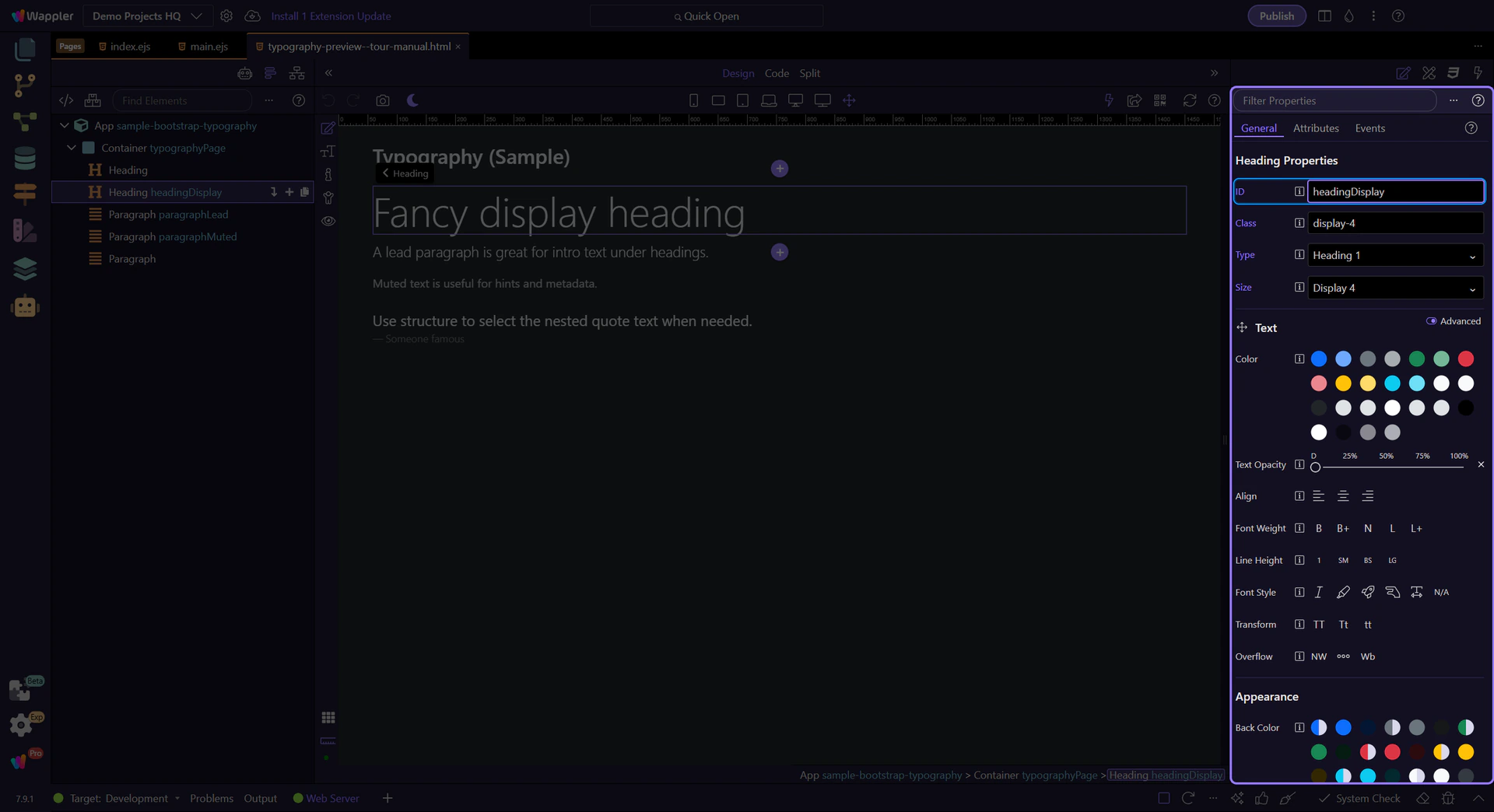
Use ID (theId) when you need a unique identifier for links, scripts, or tests.
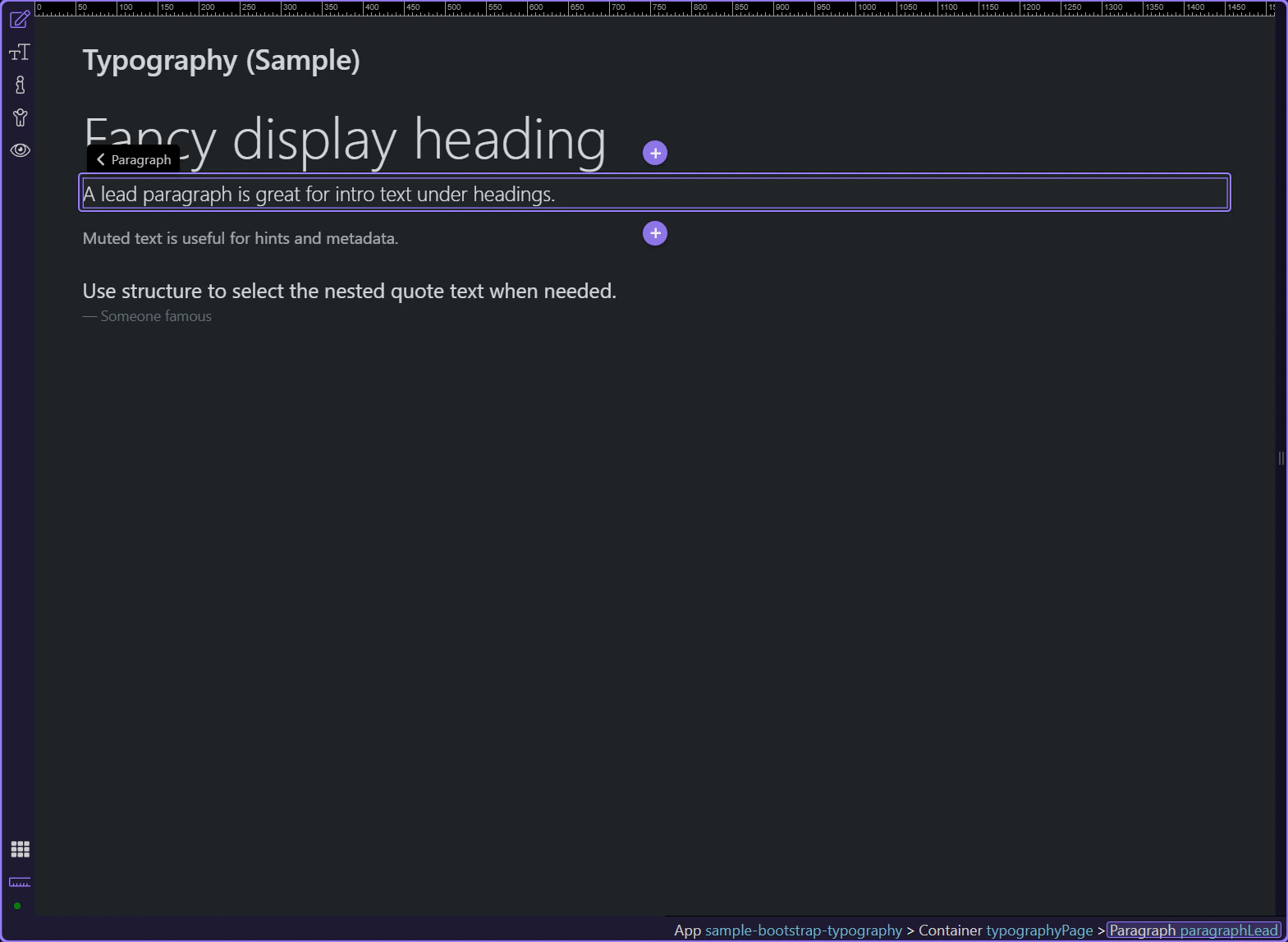
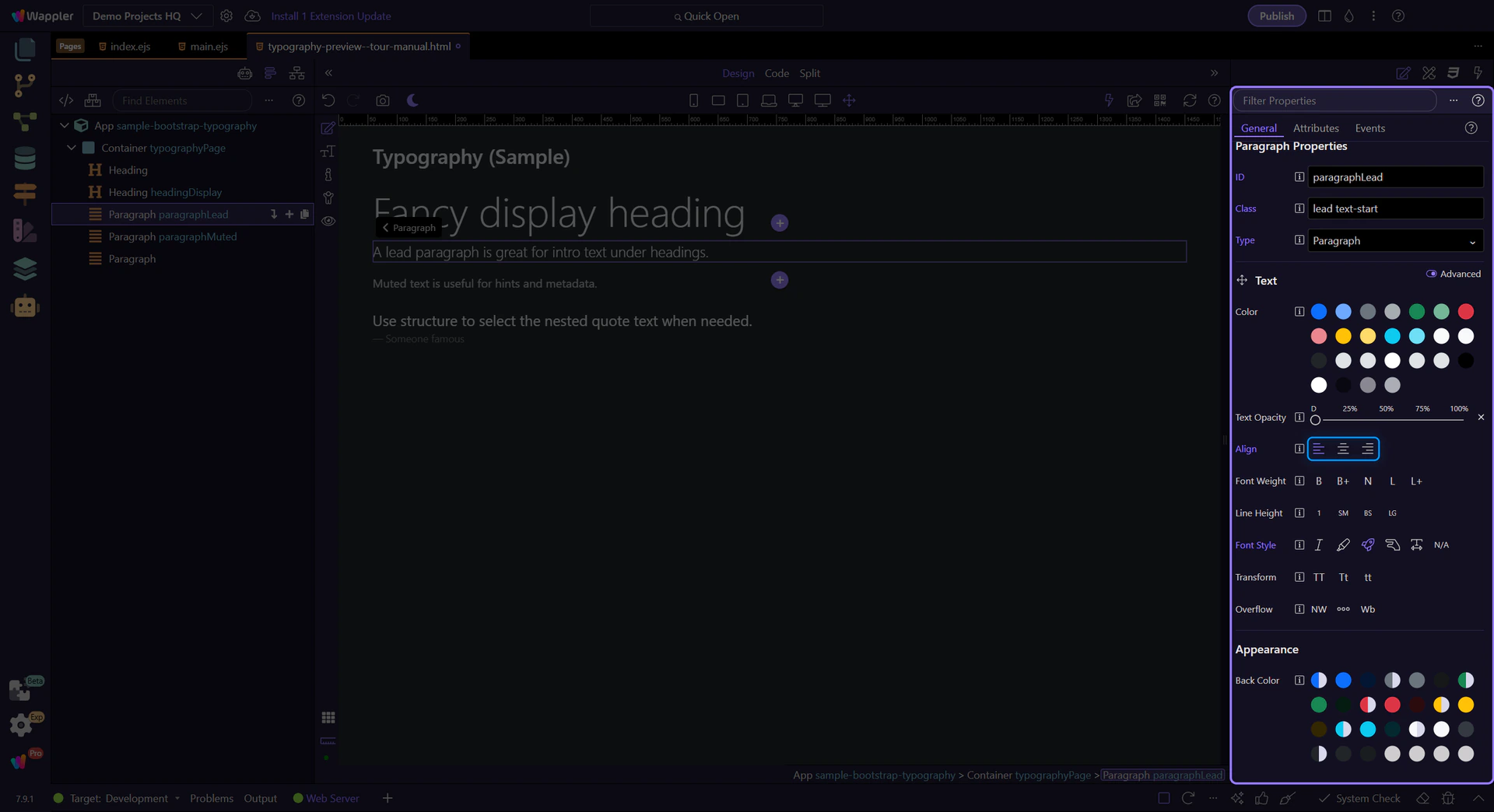
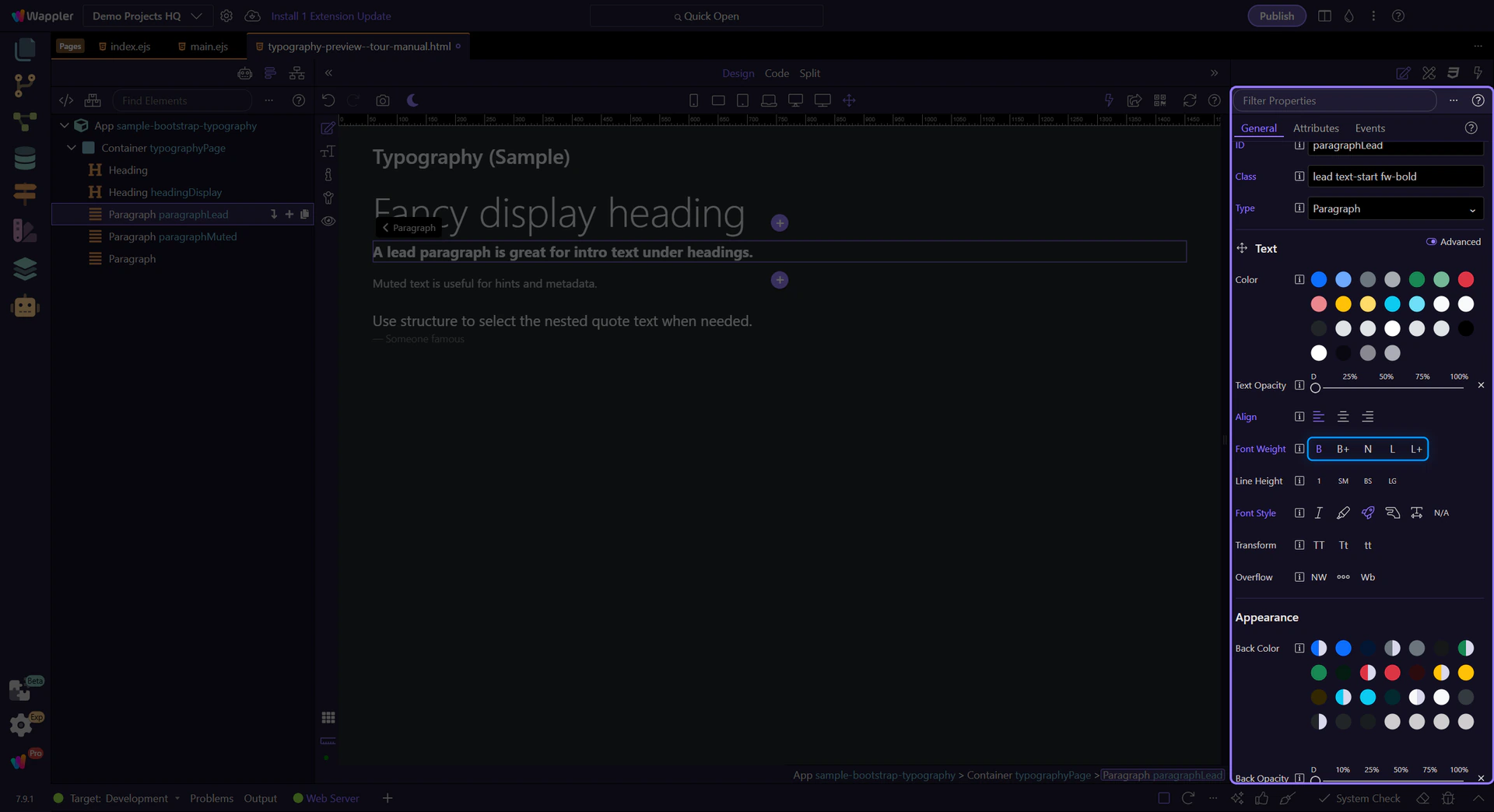
Lead paragraphs create emphasis for introductions and section summaries.
Use Alignment (textAlign) for text-start, text-center, and text-end.
Use Font Weight (textFontWeight) for fw-bold, fw-normal, and fw-light.
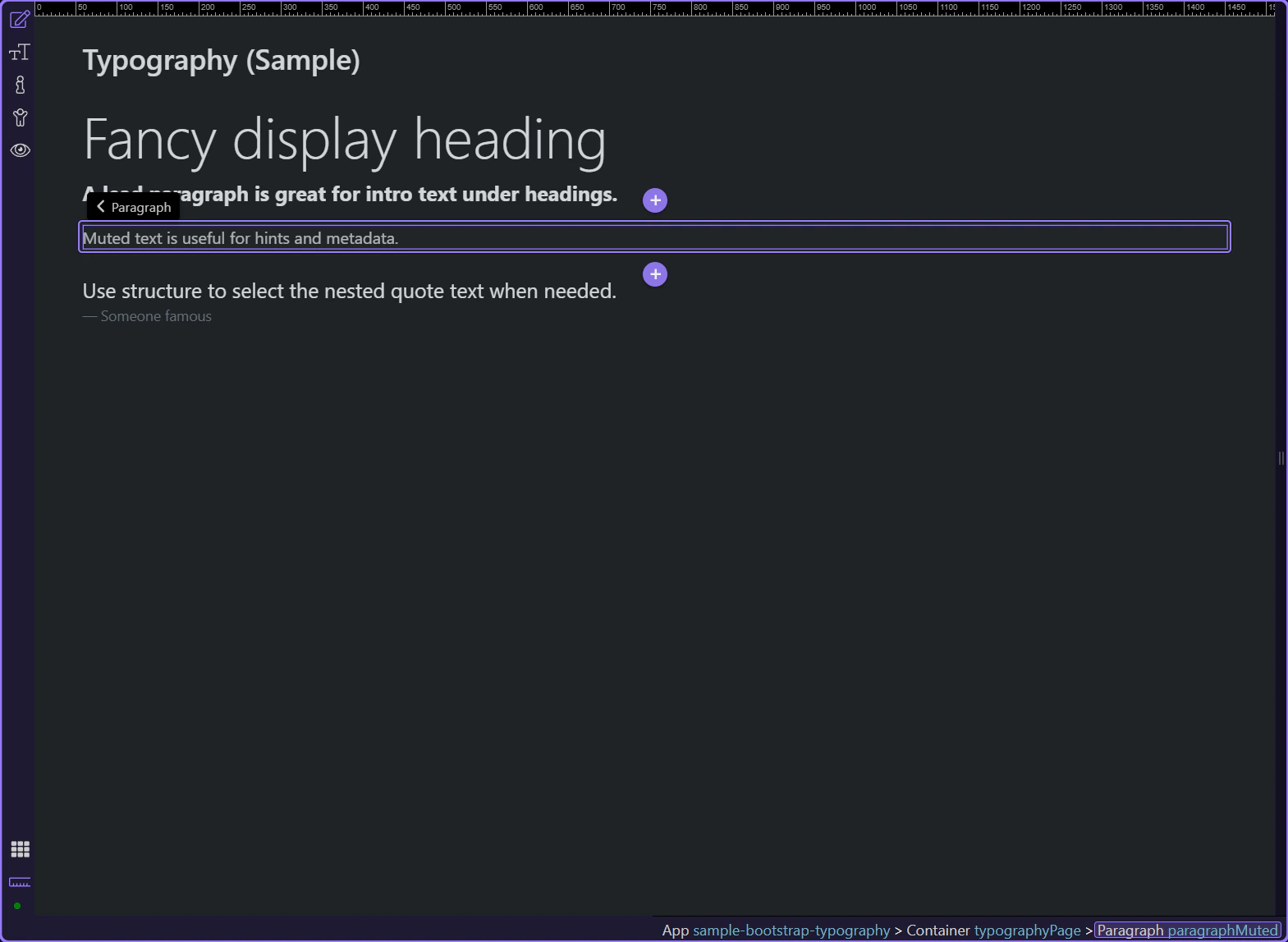
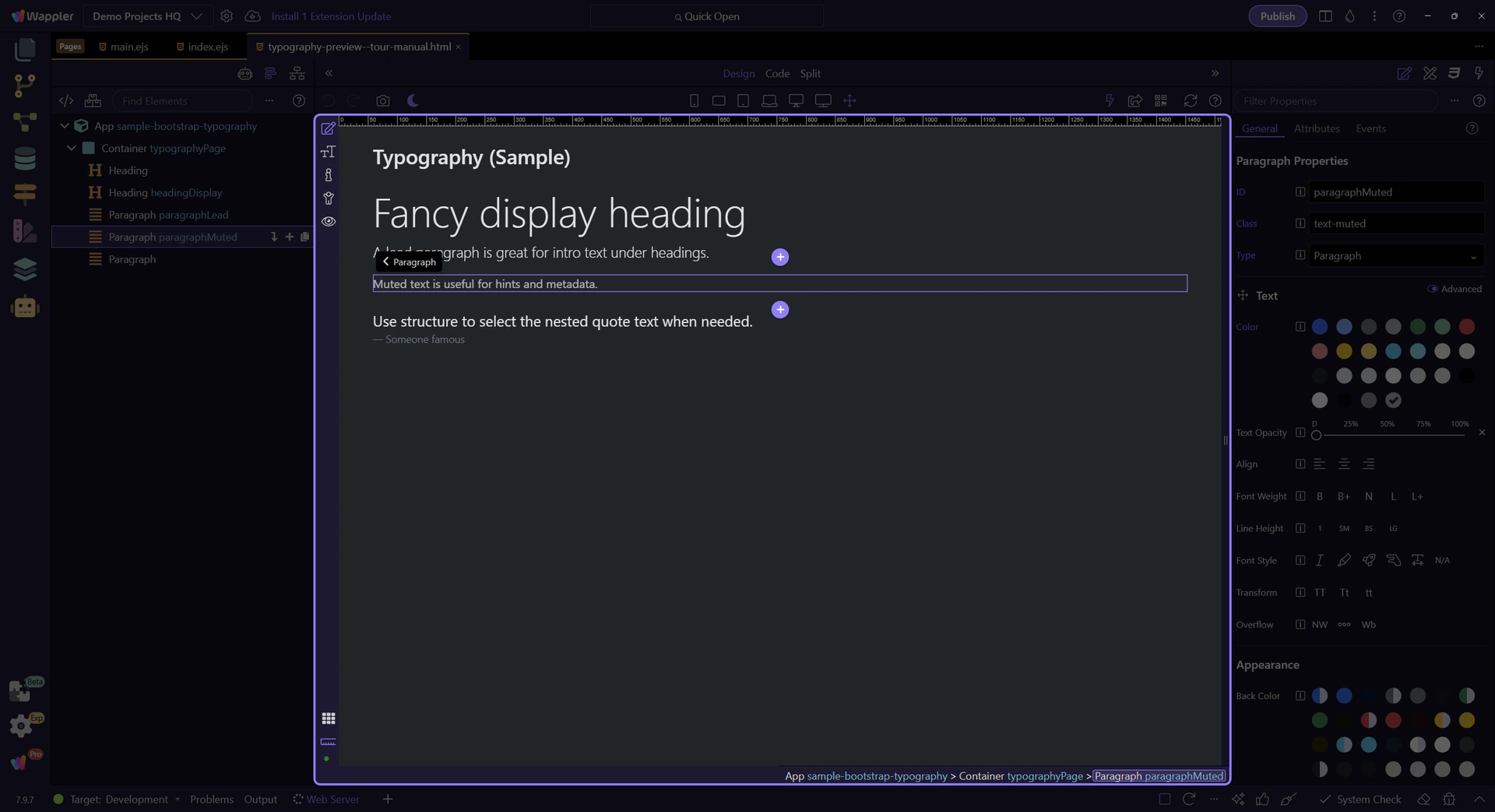
Muted text is useful for secondary information and helper text.
Typography is often nested (figure → blockquote → paragraph). If you need to style a nested node you can’t easily click, use App Structure as a fallback to select the exact element.
Typography is a mix of semantics (the right tag) and utilities (alignment, weight, color). Keep your typography consistent across a section.
When typography feels inconsistent, this short checklist usually helps:
Continue with a related tour or go back to the Bootstrap tours index.