
Images
Work with responsive images: fluid sizing, thumbnails, alignment, and common image helpers.
Review image properties
Section titled “Review image properties”Images often need responsive sizing, correct alt text, and consistent rounding/alignment. Let’s review the key image options.
Image example
Section titled “Image example”Bootstrap image options focus on responsiveness, alignment, and subtle presentation patterns like figures and captions.
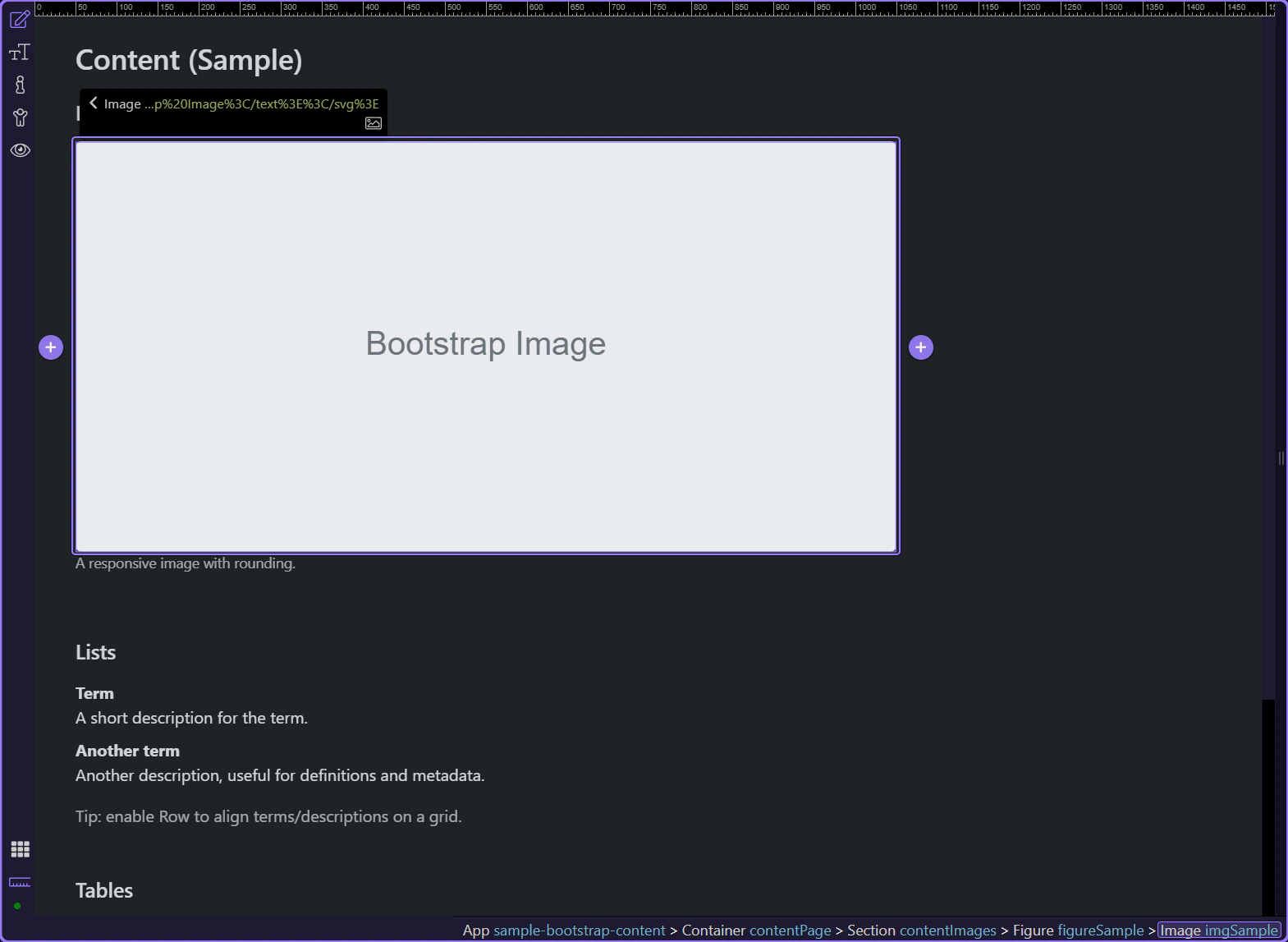
Image: Src
Section titled “Image: Src”Use Src to choose the image file.
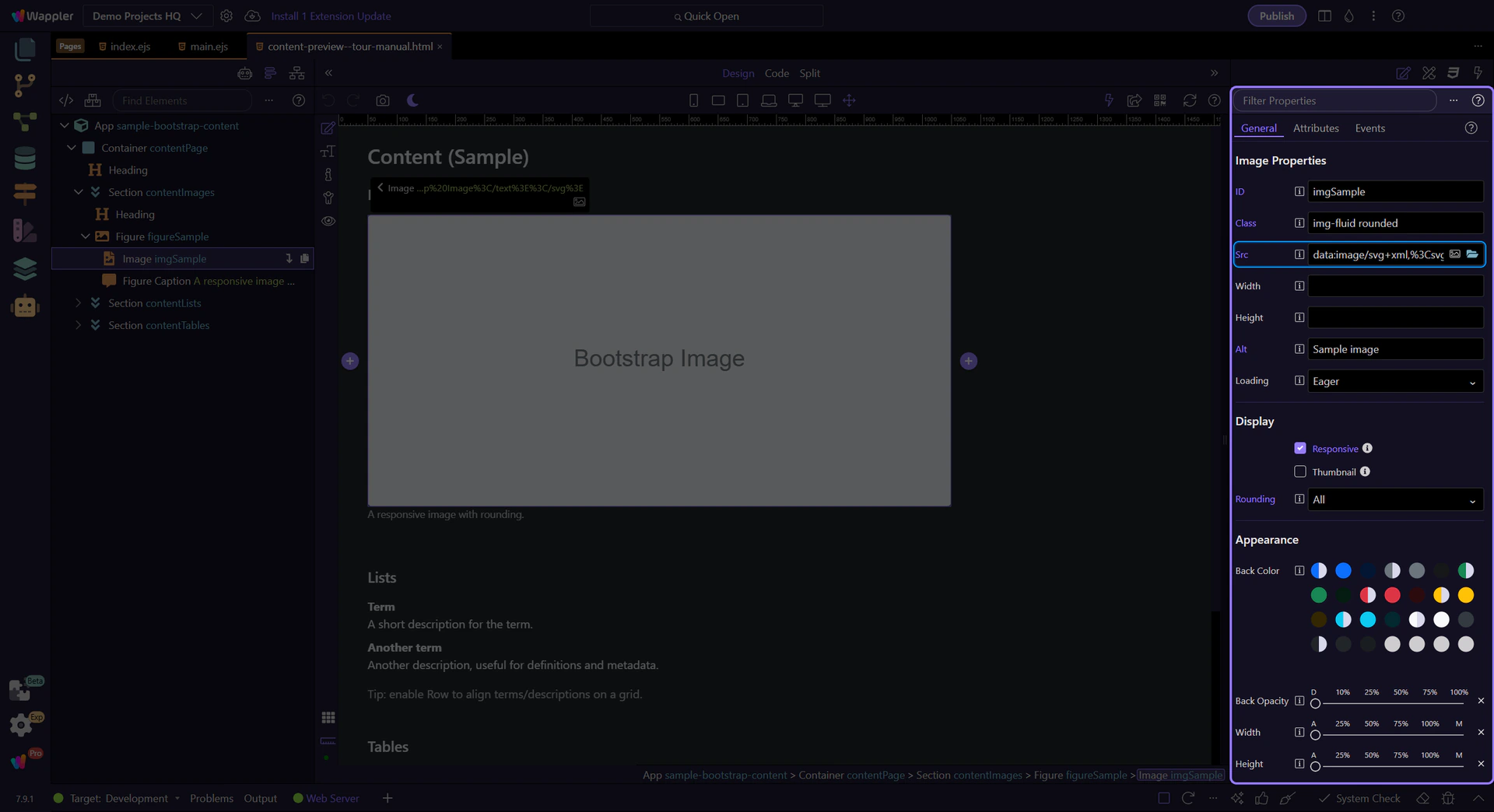
Image: Alt (accessibility)
Section titled “Image: Alt (accessibility)”Use Alt for accessibility and SEO. Write descriptive alt text for meaningful images.
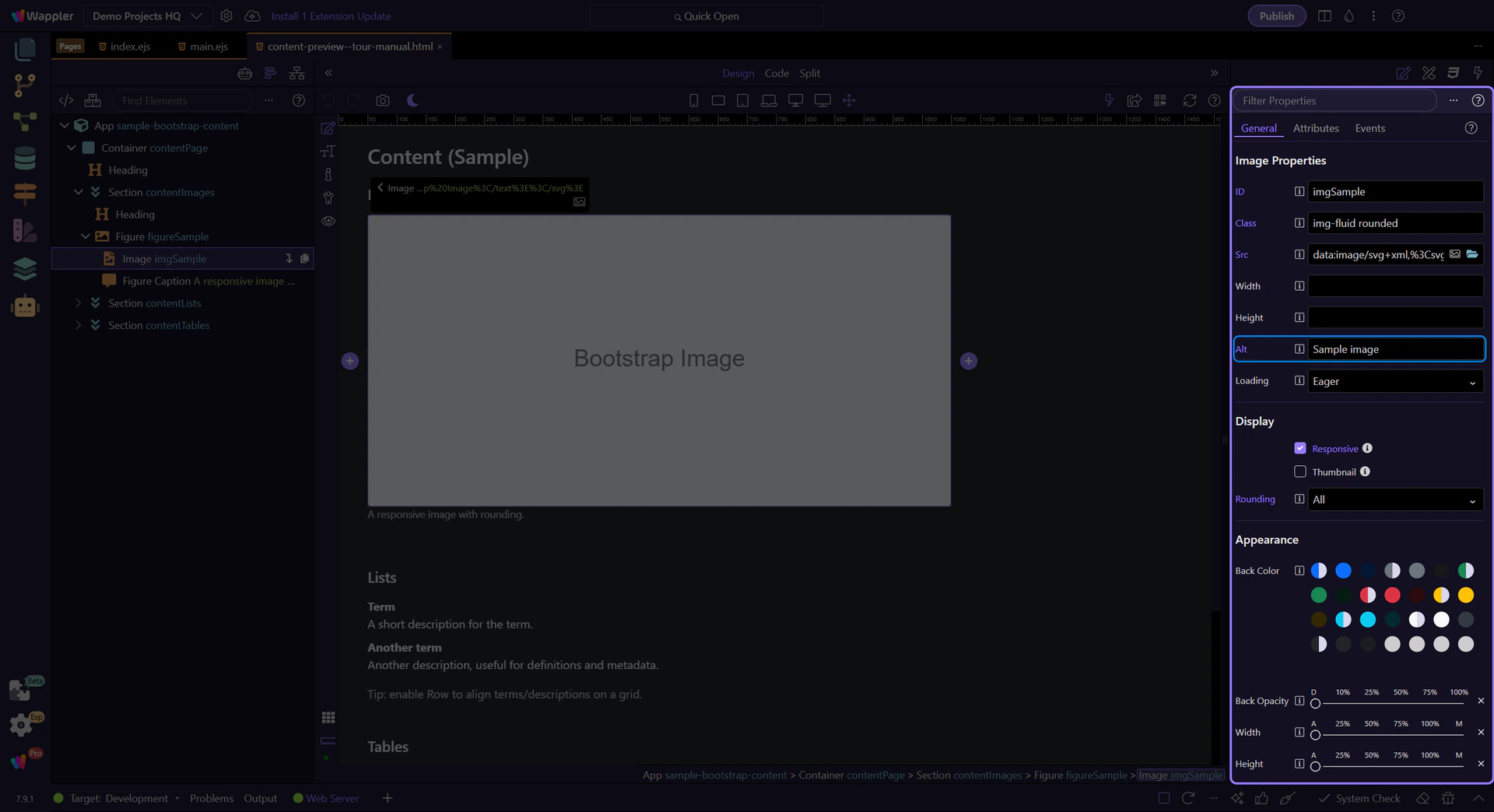
Image: Loading
Section titled “Image: Loading”Use Loading to enable lazy loading for below-the-fold images.
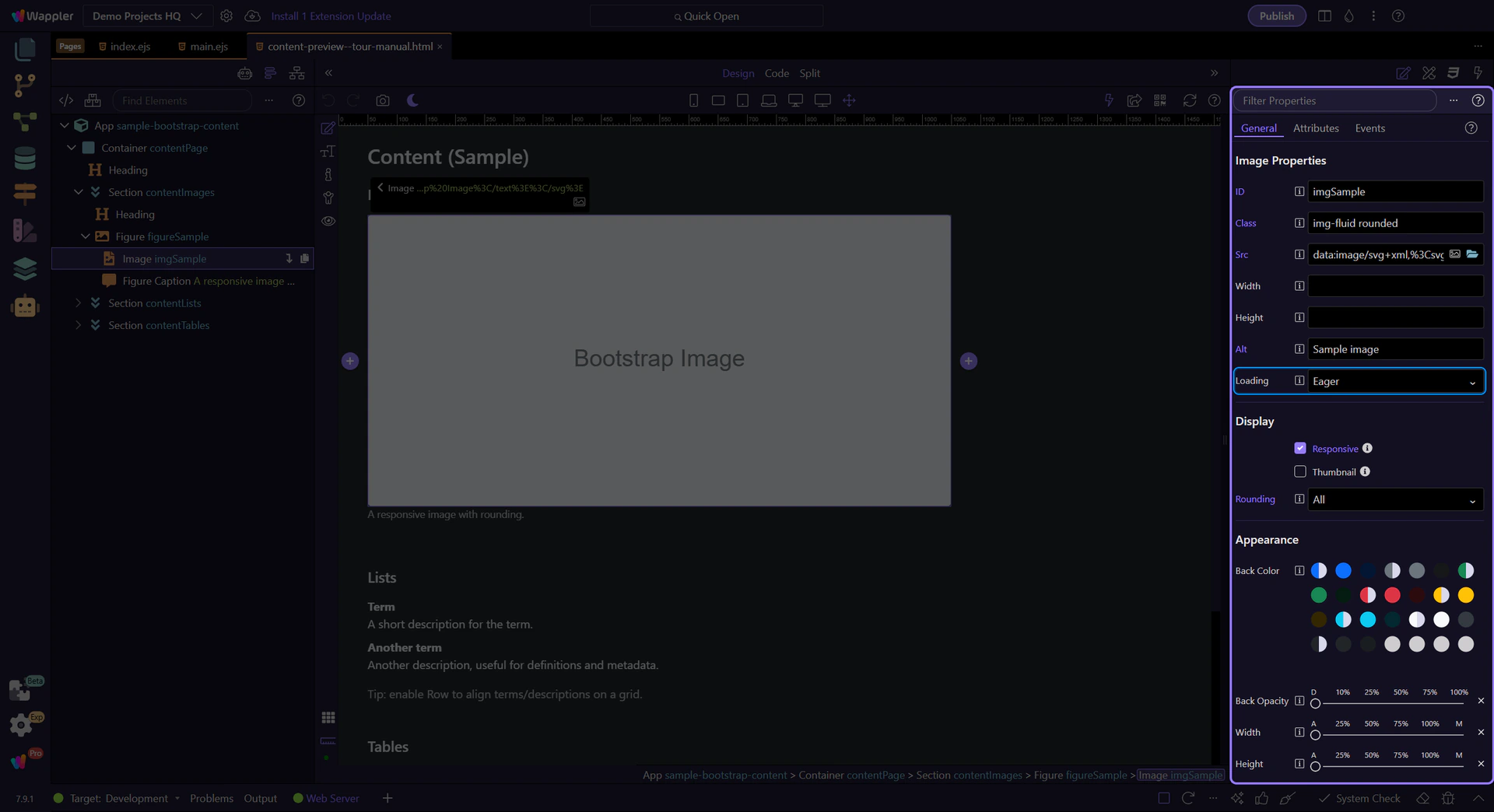
Image: Responsive
Section titled “Image: Responsive”Use Responsive to add img-fluid so the image scales with the container.
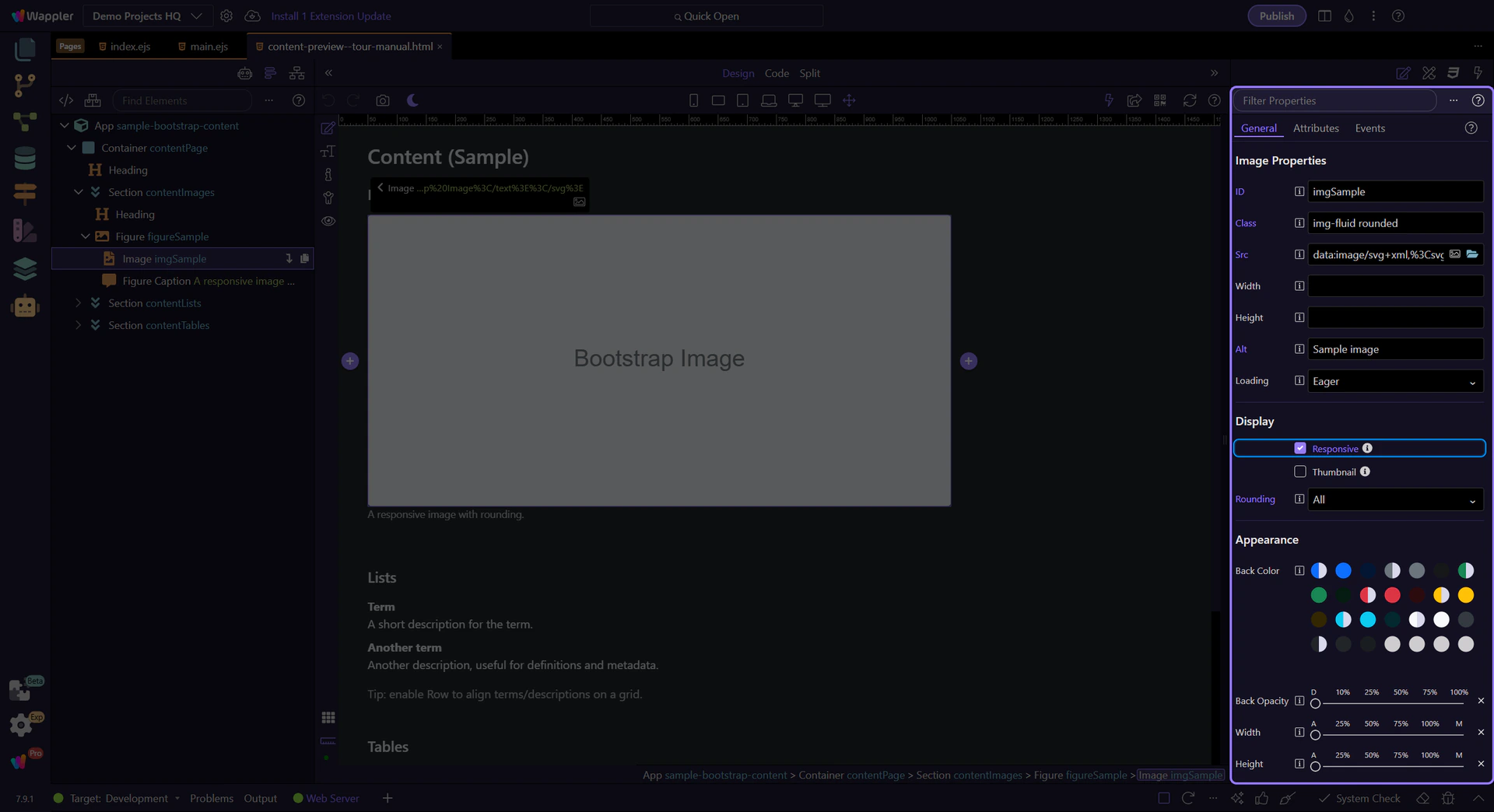
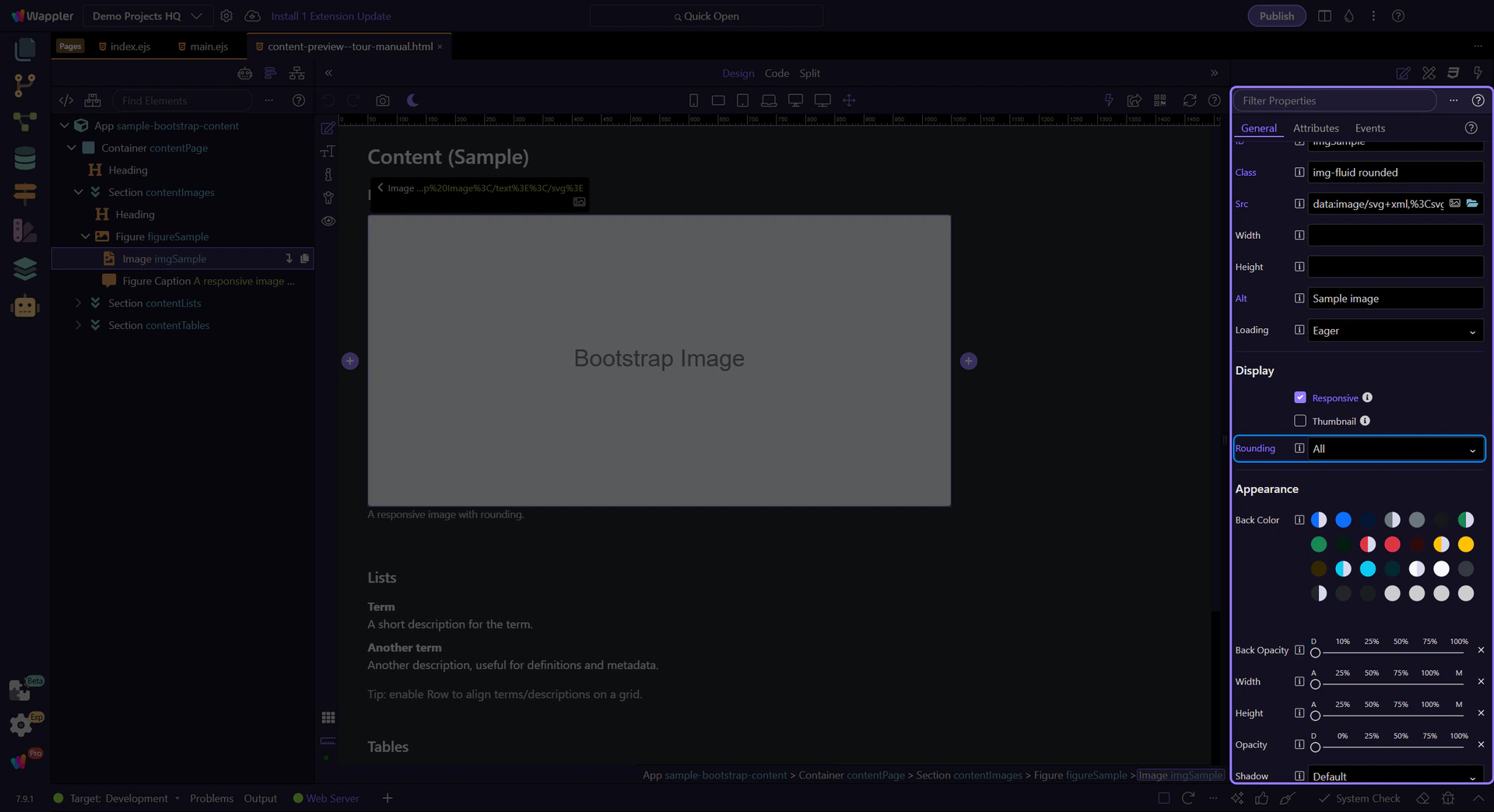
Image: Rounding
Section titled “Image: Rounding”Use Rounding for rounded corners or circle images.
Next steps
Section titled “Next steps”Continue with tables or return to the Content menu.