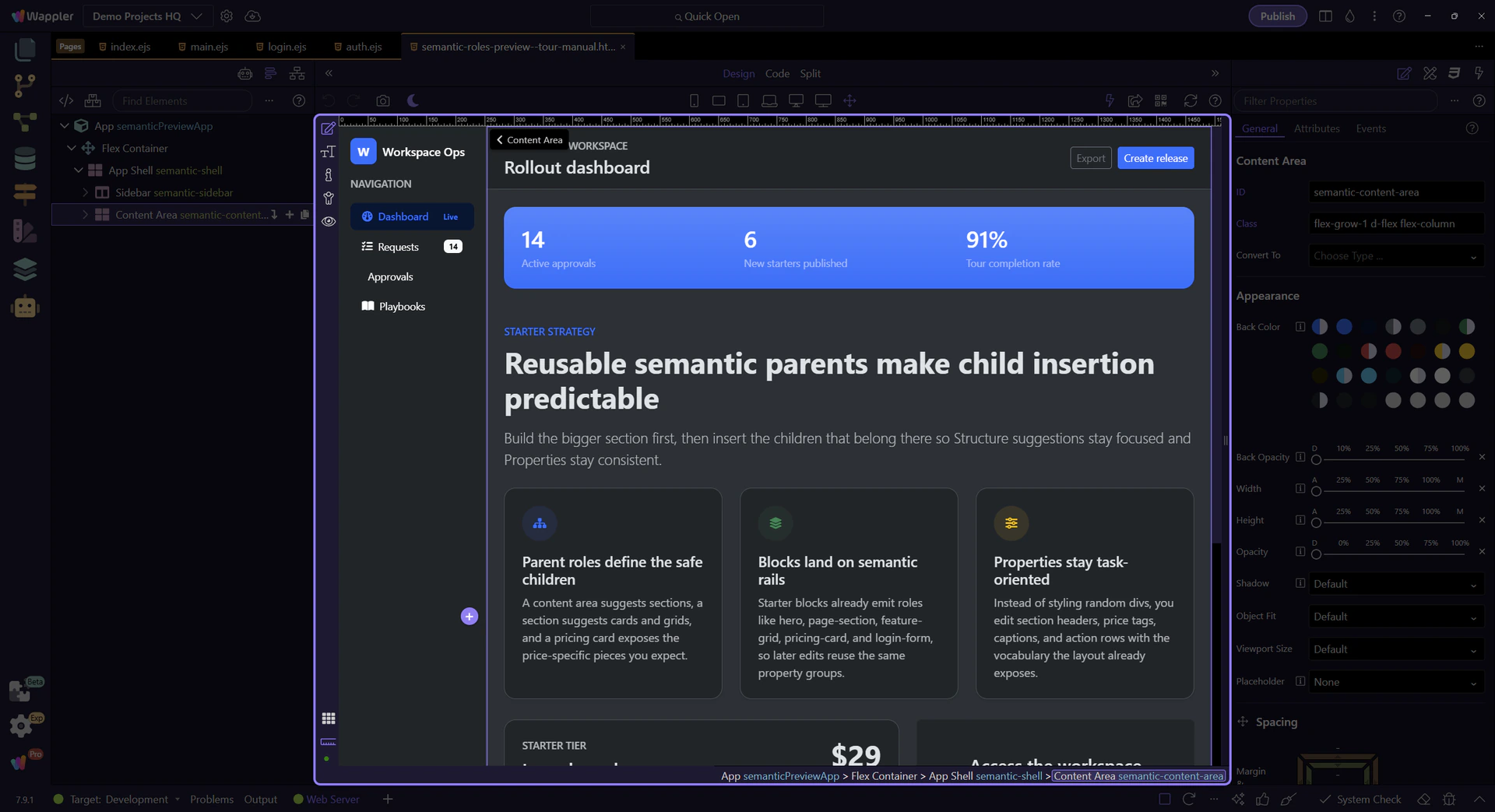
Parent-first editing
Select the semantic parent before you insert so the row actions stay relevant.
See how semantic children flow through the Structure panel so each parent narrows the right next building block.
This tour starts from a purpose-built semantic page, but the goal is practical: select a semantic parent in Structure, then use the inline Insert Inside action at the end of that tree row. That quick menu is the main usability win of the semantic system because it starts with the parent’s direct suggested children before you ever need the broader picker.
You’ll extend the preview by inserting a new page section, then a feature grid inside that section, then a feature item inside the grid. The sequence matters because each parent should offer the next semantic child directly from the Structure row actions instead of forcing you through the full component catalog.
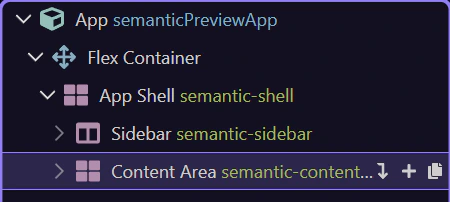
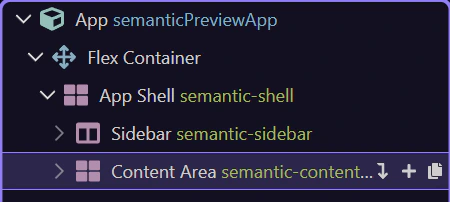
The content area is the right parent because new sections belong to the main working surface, not inside the sidebar or another specialized child. It is also the row whose inline Insert Inside action you want to use for the fastest semantic workflow.
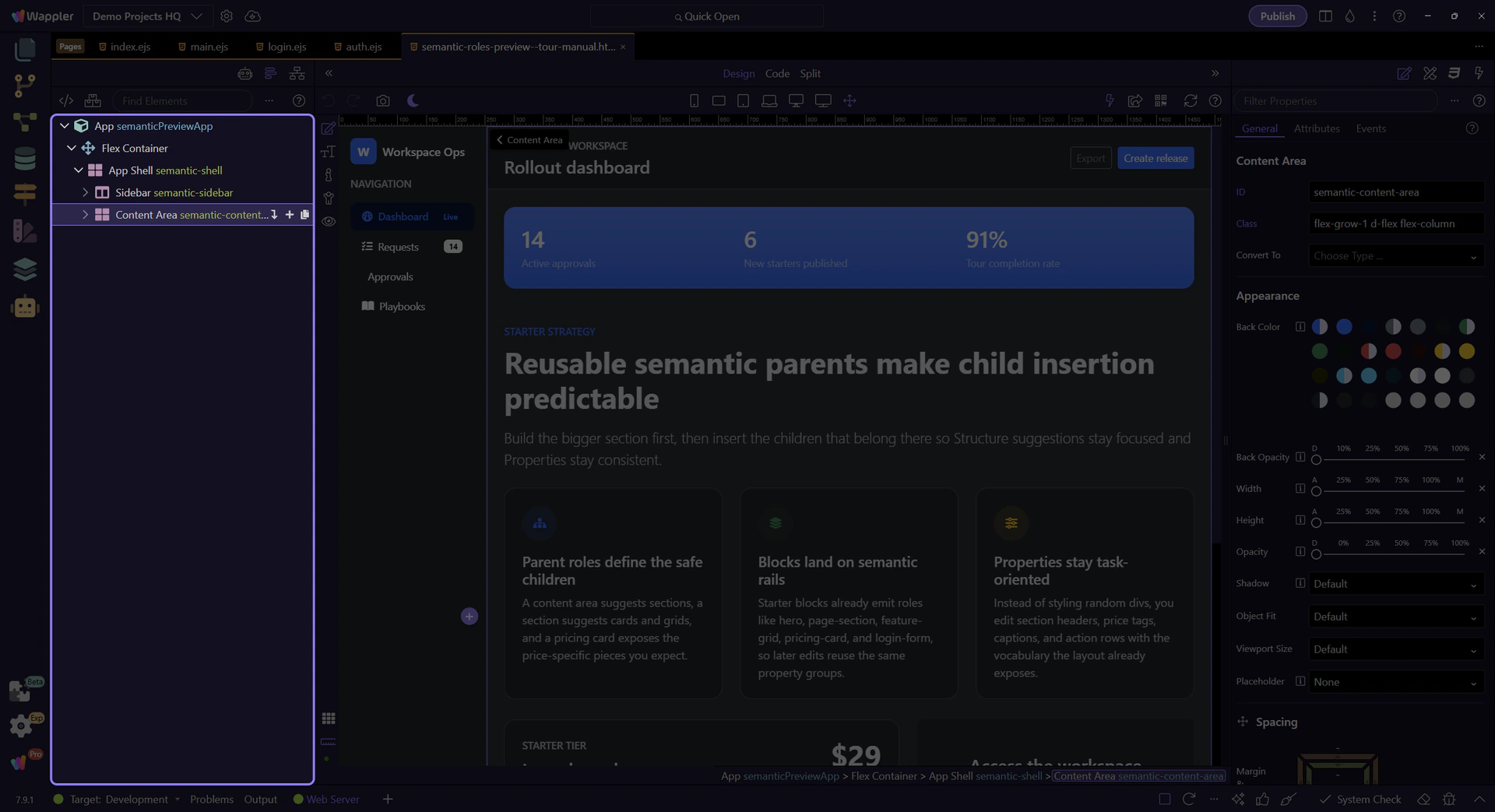
A page section is a strong first child because it creates a clean container for a thematic slice of the page. The Structure row’s inline Insert Inside menu should already surface that kind of section-level child directly, so this is where the quick semantic workflow becomes obvious.
Re-select the content area in the Structure panel before opening the inline insert action. This keeps the next click anchored to the real semantic parent instead of relying on whatever was selected earlier.
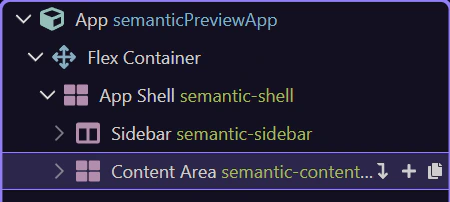
Use the highlighted plus action at the end of the selected Structure row. The row reveals these actions on hover, so this step calls out the exact Insert Inside icon first. Click Next to press that icon and open the quick insert menu from the current row.

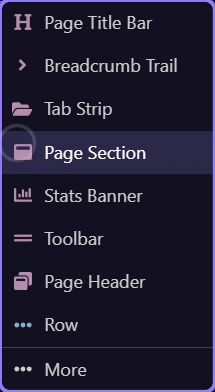
Because the content area is a semantic parent, the quick insert menu already shows section-level children like Page Section directly. Hover the option in the menu to see that this list is already narrowed to likely structural children before you click.
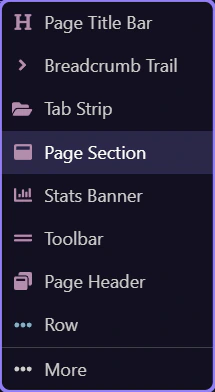
Insert the section directly from this quick menu. The important outcome is that the tree selection should move onto the newly inserted row without leaving the Structure-panel workflow.
The new section is now the active semantic parent. At this point you stop thinking about the content area and start thinking about what belongs inside this specific section, using the same inline row action again.
Now the section becomes the parent for a grid, and the grid becomes the parent for a single feature item. This cascading pattern is what makes semantic editing feel composed instead of chaotic, especially when you stay on the Structure row actions instead of reopening the broader picker.
The new section should already be the active semantic parent. Confirm that row selection before opening Insert Inside again so the next popup belongs to the correct parent.
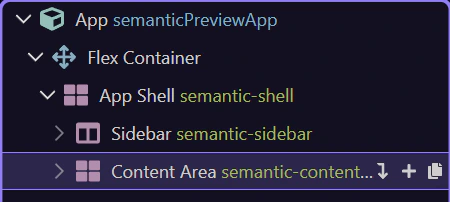
Use the highlighted plus action at the end of the section row. These row actions only show on hover, so the step points at the exact Insert Inside icon before the click happens. Click Next to press that icon and open the quick insert menu with the narrower section-level choices.

Feature Grid is a good section child because it expects repeated feature items underneath it. Hover it in the menu to make the narrowed section-level suggestions visible before insertion.
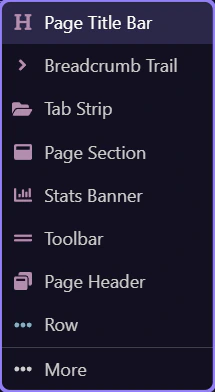
Insert the Feature Grid directly from this quick menu. The important outcome is that the tree selection should move onto the newly inserted grid row without leaving the Structure-panel workflow.
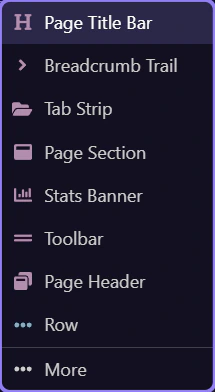
The new grid should now be the active semantic parent. Confirm that row selection before opening Insert Inside again so the next popup stays on the correct row.
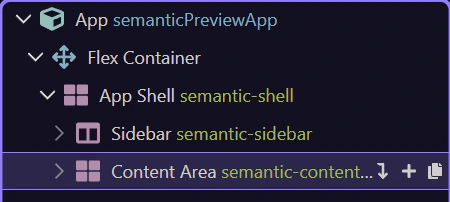
Use the highlighted plus action at the end of the grid row. Because these row actions appear on hover, this step isolates the exact Insert Inside icon before the click. Click Next to press that icon and open the quick insert menu as the choices narrow down to item-level content.

Feature Item still belongs inside the grid, but the current picker can surface more choices than the older direct-suggestion flow. Type into the picker search first so the item-level result is narrowed before insertion.
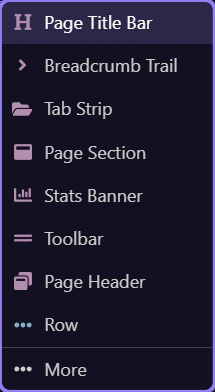
This final insertion completes the parent-child chain in the same Structure-first workflow, so you can read the result directly from the tree without switching mental models.
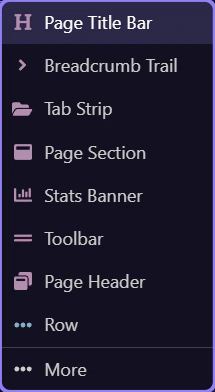
This is the outcome you want to internalize. Each parent created the right home for the next child, and the Structure panel stayed readable because each level used the same inline Insert Inside workflow.
Once you know this parent-child pattern, starter blocks become easier to customize because you recognize the same semantic roles after they land on the page.
Next, compare this manual insertion workflow with ready-made starter blocks and Pages Manager starter pages. The same role system is there; you are just entering the workflow later.