Theme Manager (Advanced)
Explore Theme Manager (Advanced): Switch to Advanced and Preview, then build/upload.
Advanced mode exposes a larger set of variables. First orient yourself in Theme Manager, then switch to Advanced, preview the result, and build or upload when ready.
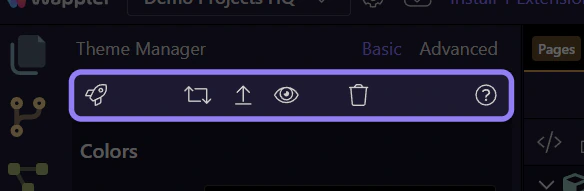
Orient yourself in Theme Manager
Section titled “Orient yourself in Theme Manager”Start with the wider Theme Manager workspace so the Advanced toggle makes sense in the full workflow. In the next step, you will zoom into the Advanced switch.
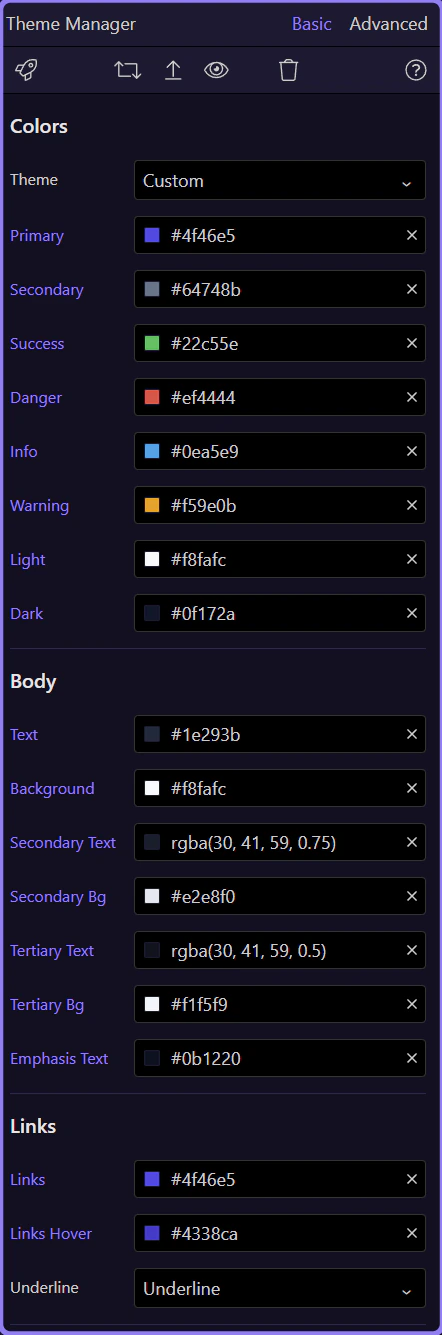
Switch to Advanced
Section titled “Switch to Advanced”Switch Theme Manager to Advanced to access the full set of variables.
tip: Make small changes and validate them in Preview as you go.
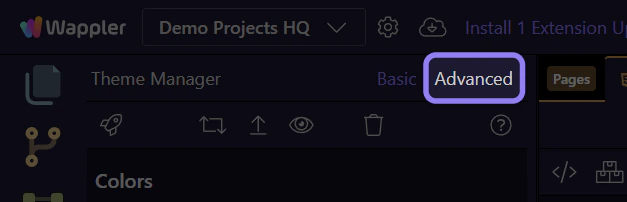
Orient yourself in Theme Manager actions
Section titled “Orient yourself in Theme Manager actions”Before focusing on the specific actions, look at the full Theme Manager workspace again so Preview, Build, and Upload are grounded in the overall editing flow.
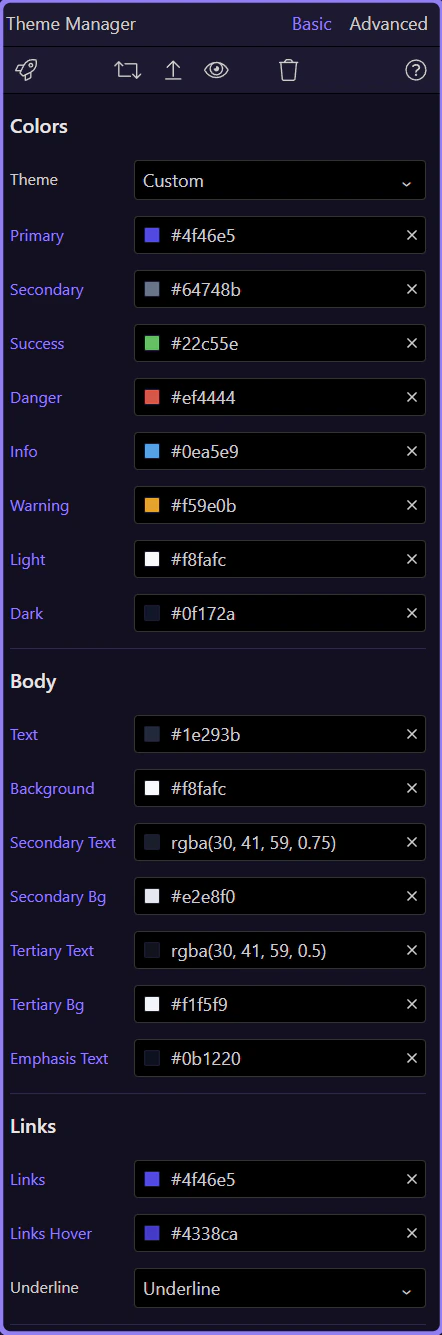
Preview, then build/upload
Section titled “Preview, then build/upload”After tweaking advanced variables, use Theme Preview to validate changes, then use the build or upload actions when you are ready to publish the result.