
Theme Manager
Explore Theme Manager: Theme Manager tours and Design Framework.
Theme Manager lets you customize the design framework (Bootstrap 4/5) by adjusting theme variables and generating an updated theme using Wappler’s built-in Sass compiler.
Theme Manager tours
Section titled “Theme Manager tours”Use the Theme Manager overview as the starting hub for this area instead of guessing which follow-up tour matches your goal. It routes you to the overview, advanced, or Bootstrap 5 path with the cleaner handoff pattern the Theme Manager family already uses elsewhere.
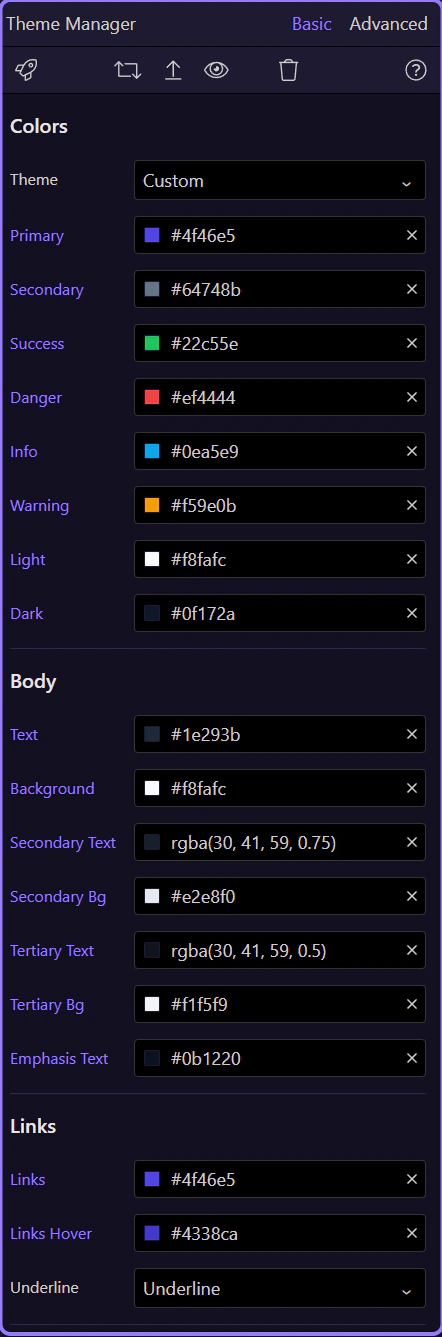
If Theme Manager looks inactive, select Bootstrap 4/5 in Project Settings first.
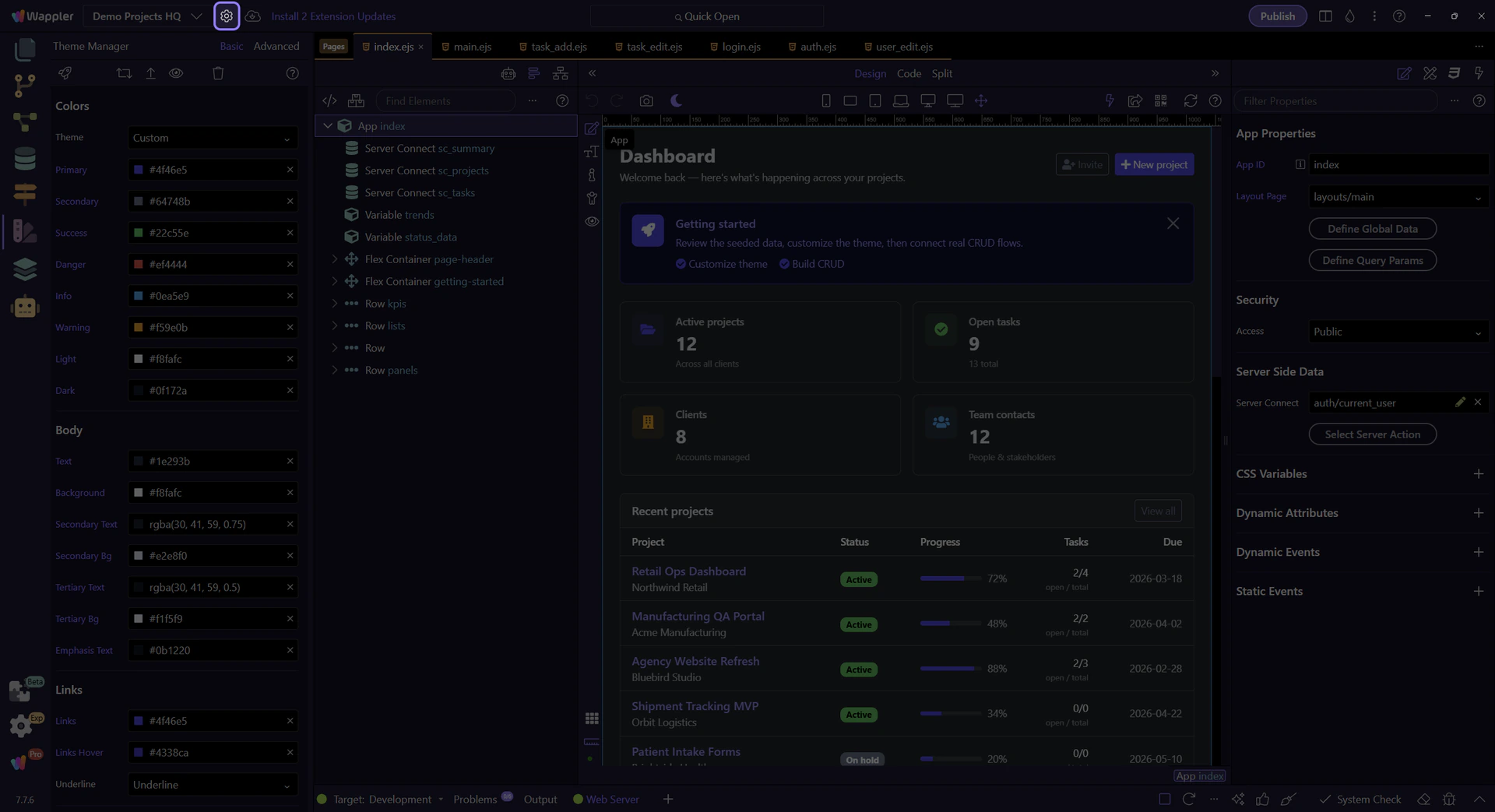
Select a Design Framework
Section titled “Select a Design Framework”Theme Manager requires a project Design Framework (Bootstrap 4 or Bootstrap 5). If Theme Manager looks inactive, set the design framework in Project Settings first.
Open Project Settings
Section titled “Open Project Settings”Open Project Settings and select your Design Framework (Bootstrap 4/5), then Save.
tip: Once a Design Framework is selected, Theme Manager becomes active and exposes framework variables.
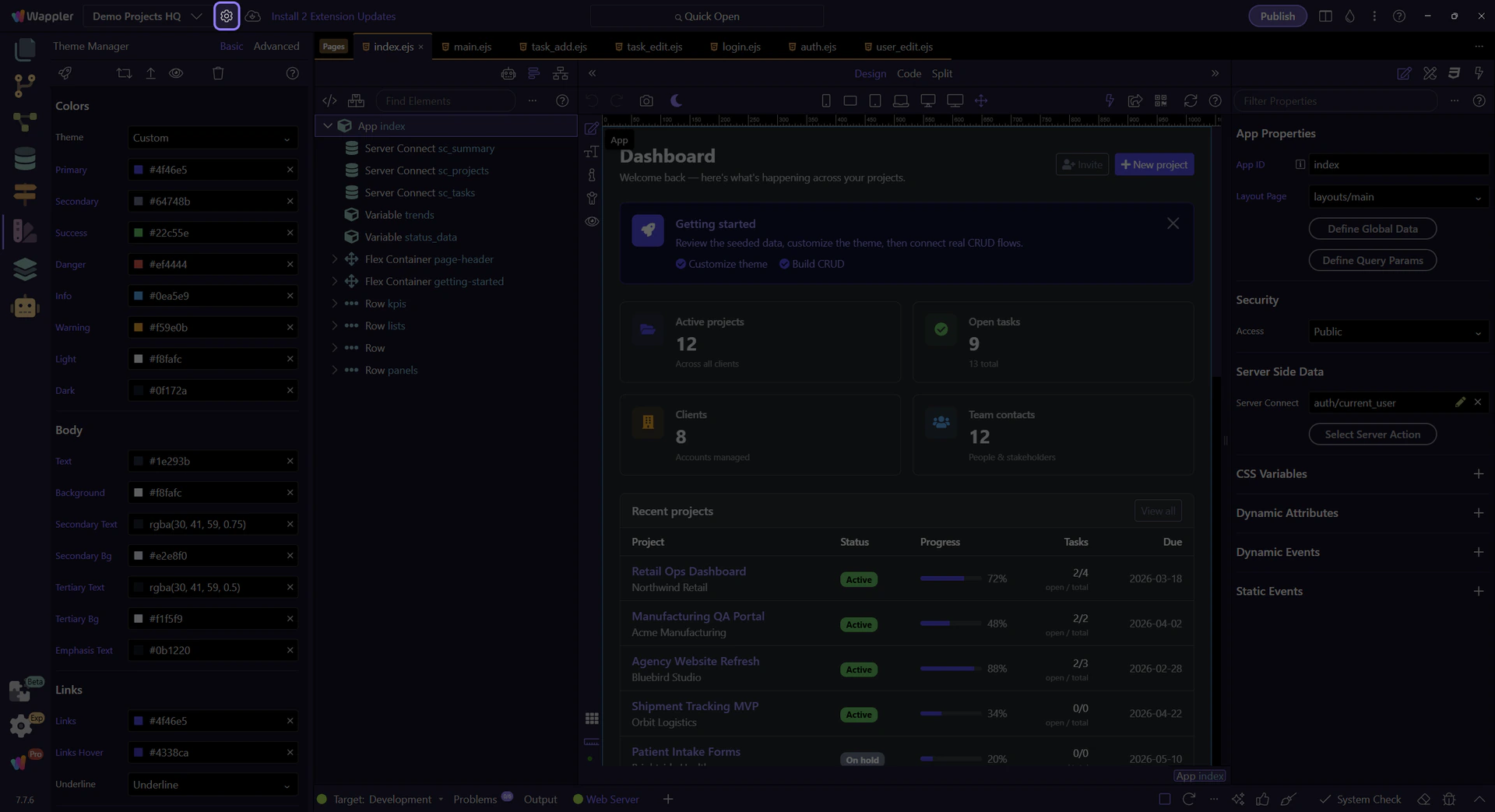
After saving Project Settings, reopen Theme Manager to load the framework variables.
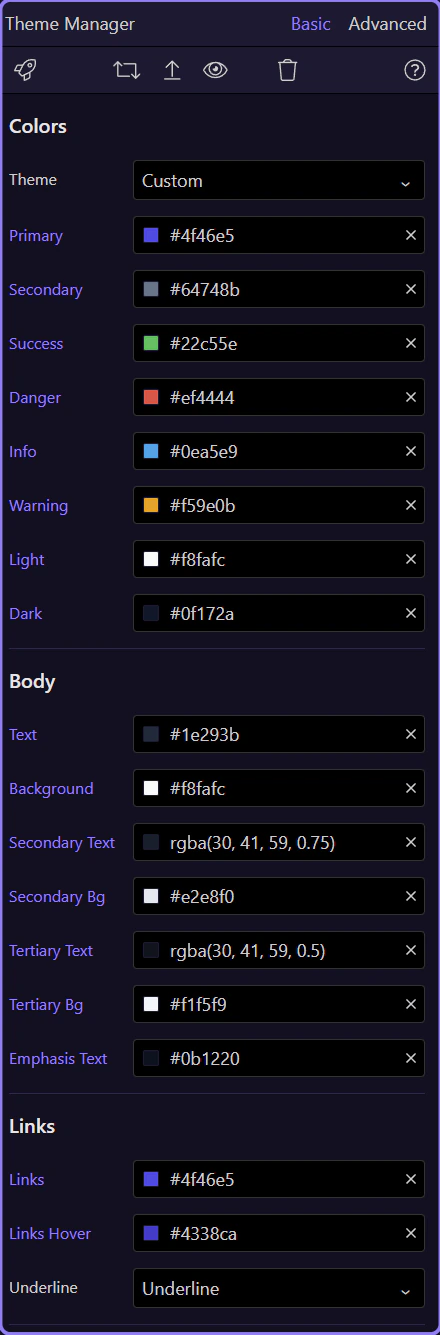
Basic vs Advanced
Section titled “Basic vs Advanced”Use the Basic/Advanced toggle to switch between commonly-used variables and the full advanced variable set.
Toggle view
Section titled “Toggle view”Start with Basic. Switch to Advanced when you need deeper control over framework variables.
tip: If you’re not sure what a variable does, use Preview to see the change immediately.

Use Basic for common tweaks; use Advanced for full control, then Preview to validate changes.

Preview Your Changes
Section titled “Preview Your Changes”Use Theme Preview to see your changes applied. When you’re happy with the results, upload/build the theme for production.
Open Theme Preview
Section titled “Open Theme Preview”Open Theme Preview to validate color, font, and styling changes quickly.

Upload / Build / Reset
Section titled “Upload / Build / Reset”Upload sends the generated theme to your server. Build Theme is used for production builds. Reset Theme restores defaults if you want to start over.
caution: Reset Theme can discard your changes — use it when you intentionally want to revert.
