
Tables
Style tables with Bootstrap classes: borders, hover/striped, responsive wrappers, and alignment.
Table styling
Section titled “Table styling”Bootstrap tables add readability (striping, hover, borders) and can be wrapped for responsive scrolling. Let’s review the key table options.
Table example
Section titled “Table example”Tables are deeply nested (thead/tbody/tr/td), so it’s common to style the table itself while editing content inside rows and cells.
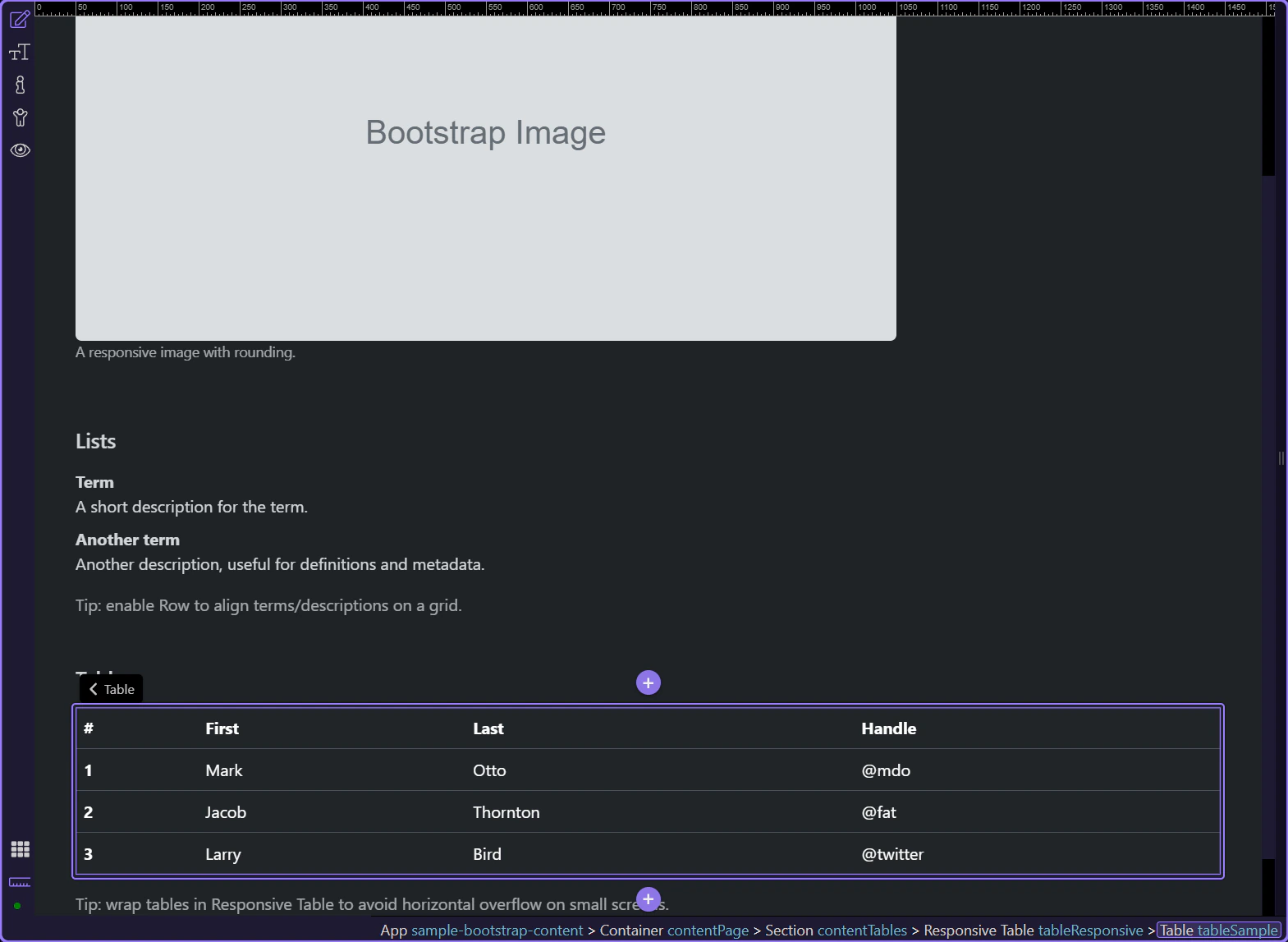
Table: Theme
Section titled “Table: Theme”Use Theme for light/dark tables.
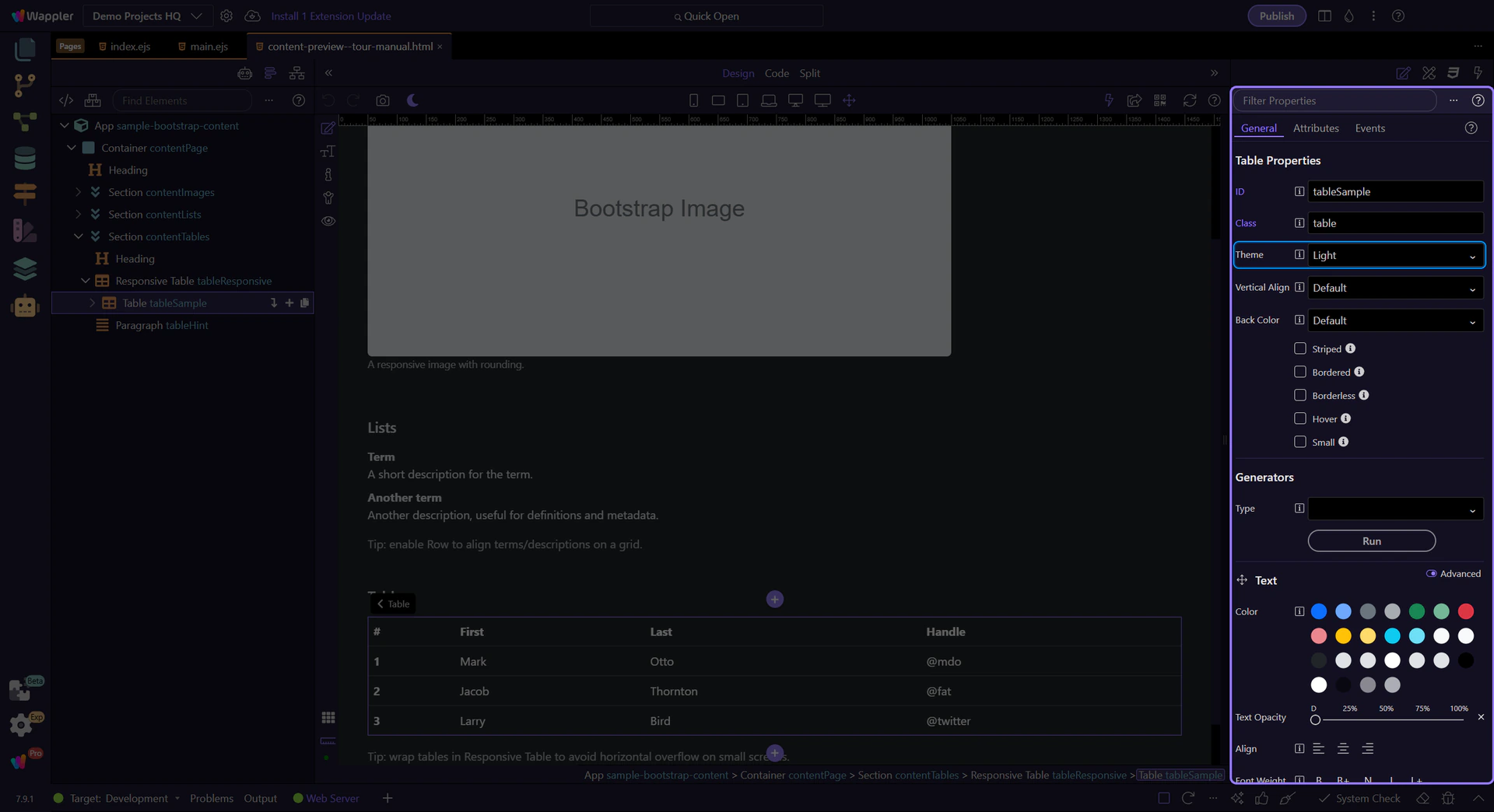
Table: Background variant
Section titled “Table: Background variant”Use Back Color for contextual table variants (primary/success/etc.).
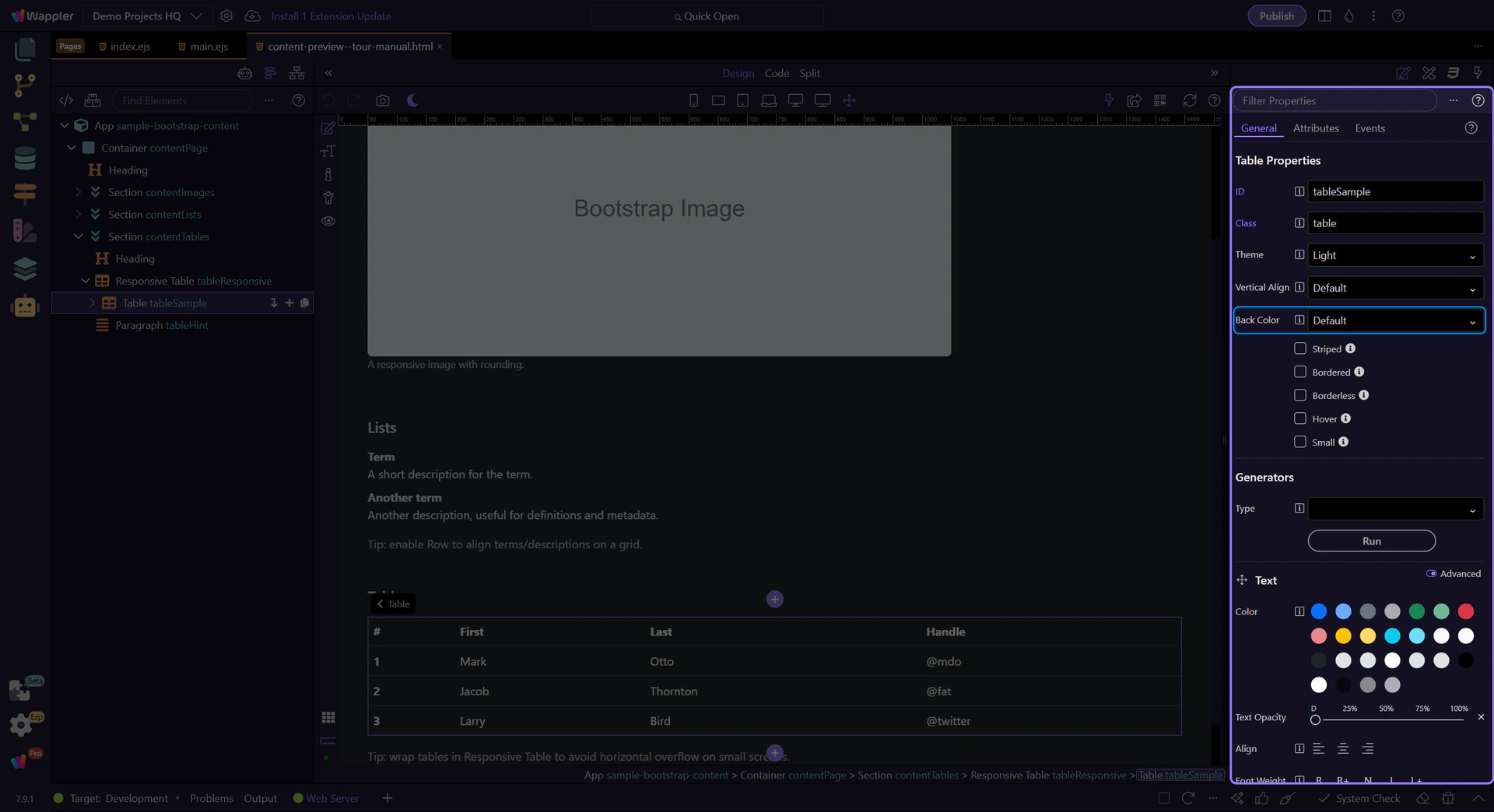
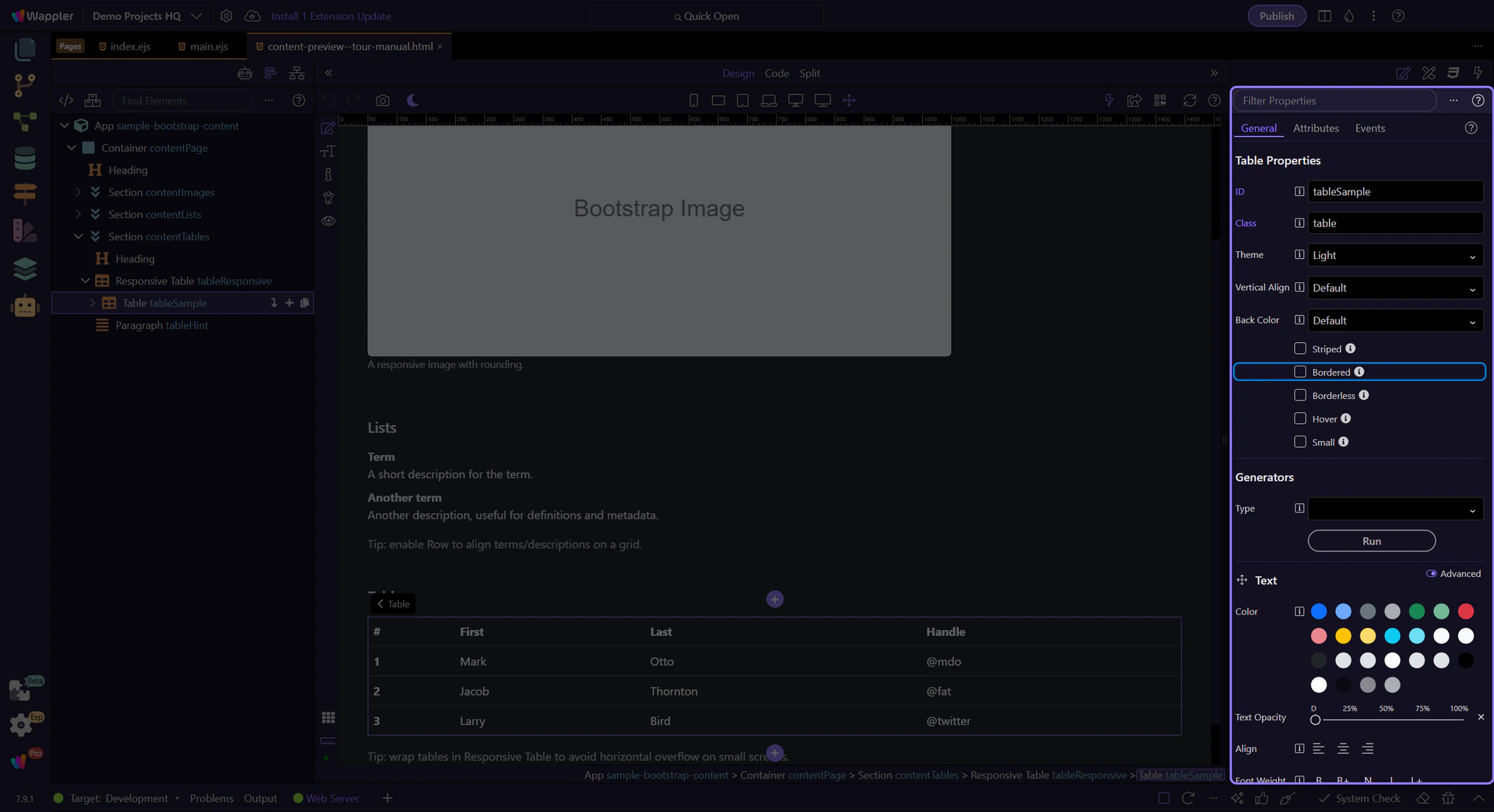
Table: Striped / Hover / Small
Section titled “Table: Striped / Hover / Small”Use Striped, Hover, and Small for common table density and interaction patterns.
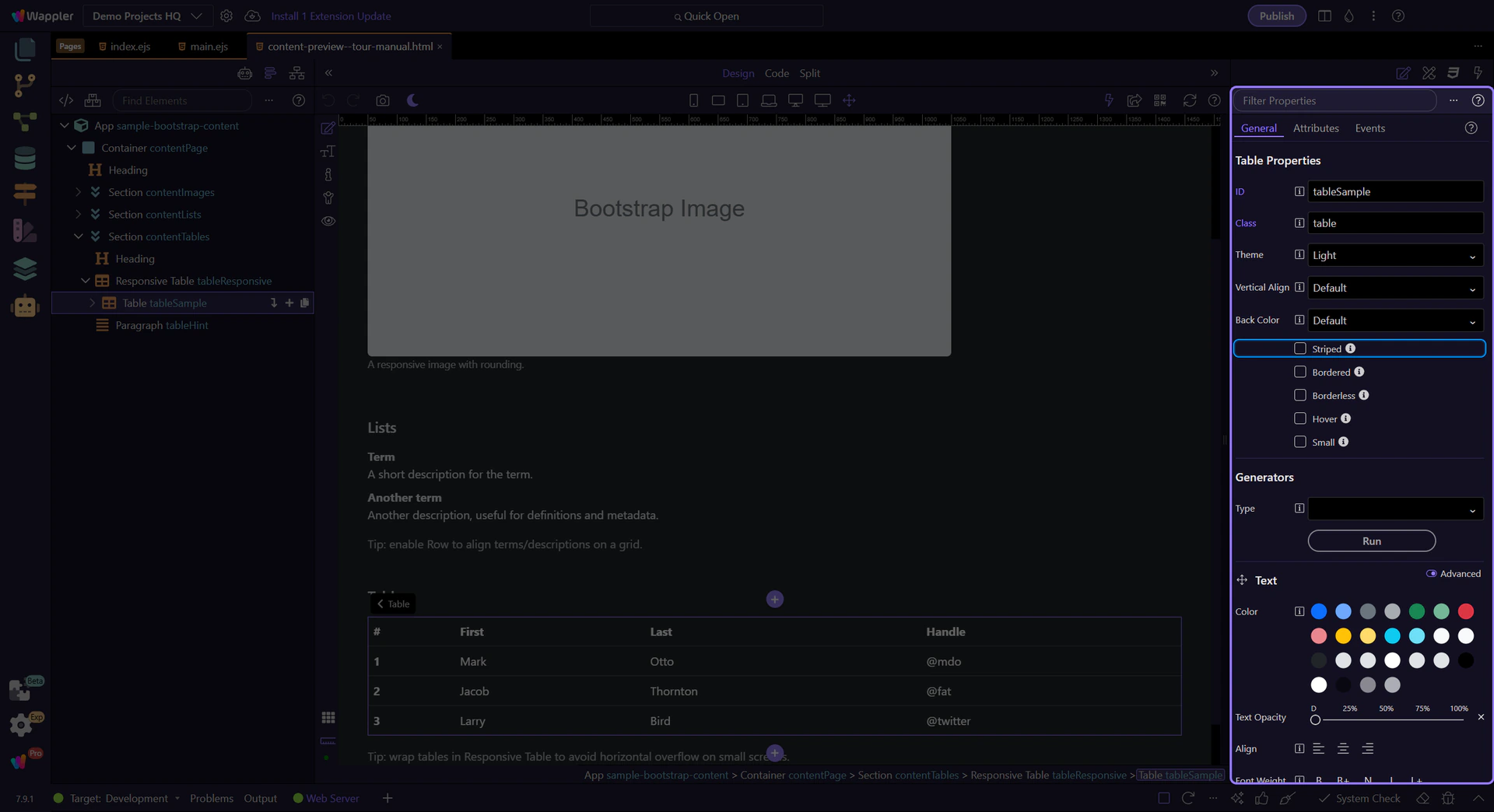
Table: Bordered + border color
Section titled “Table: Bordered + border color”Use Bordered and Border Color when you need stronger table separation.
Responsive wrapper
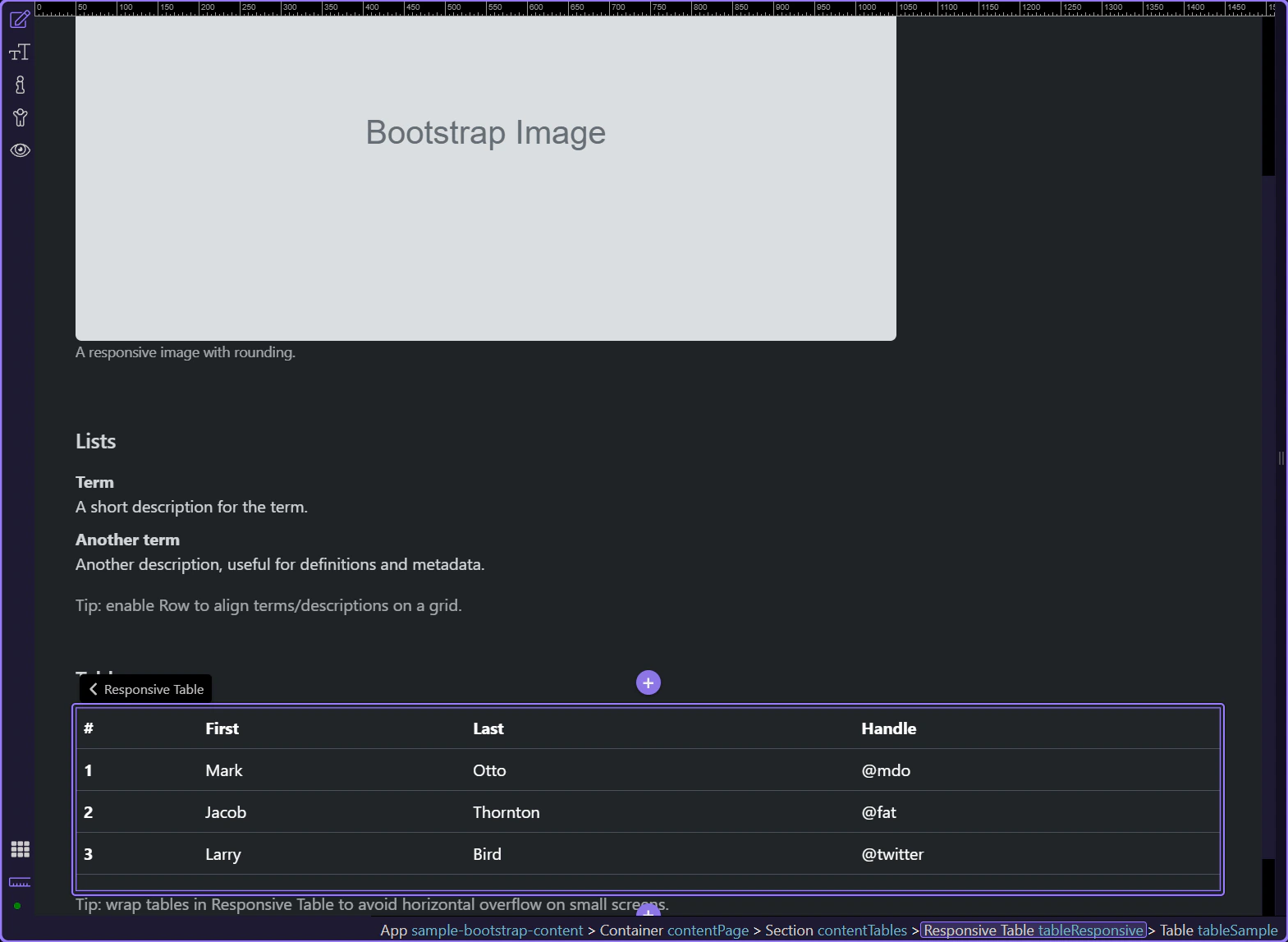
Section titled “Responsive wrapper”Responsive wrappers add horizontal scrolling on smaller screens, without breaking the table layout.
Responsive wrapper
Section titled “Responsive wrapper”The .table-responsive wrapper controls when scrolling is enabled (not the table itself).
Responsive: Breakpoint behavior
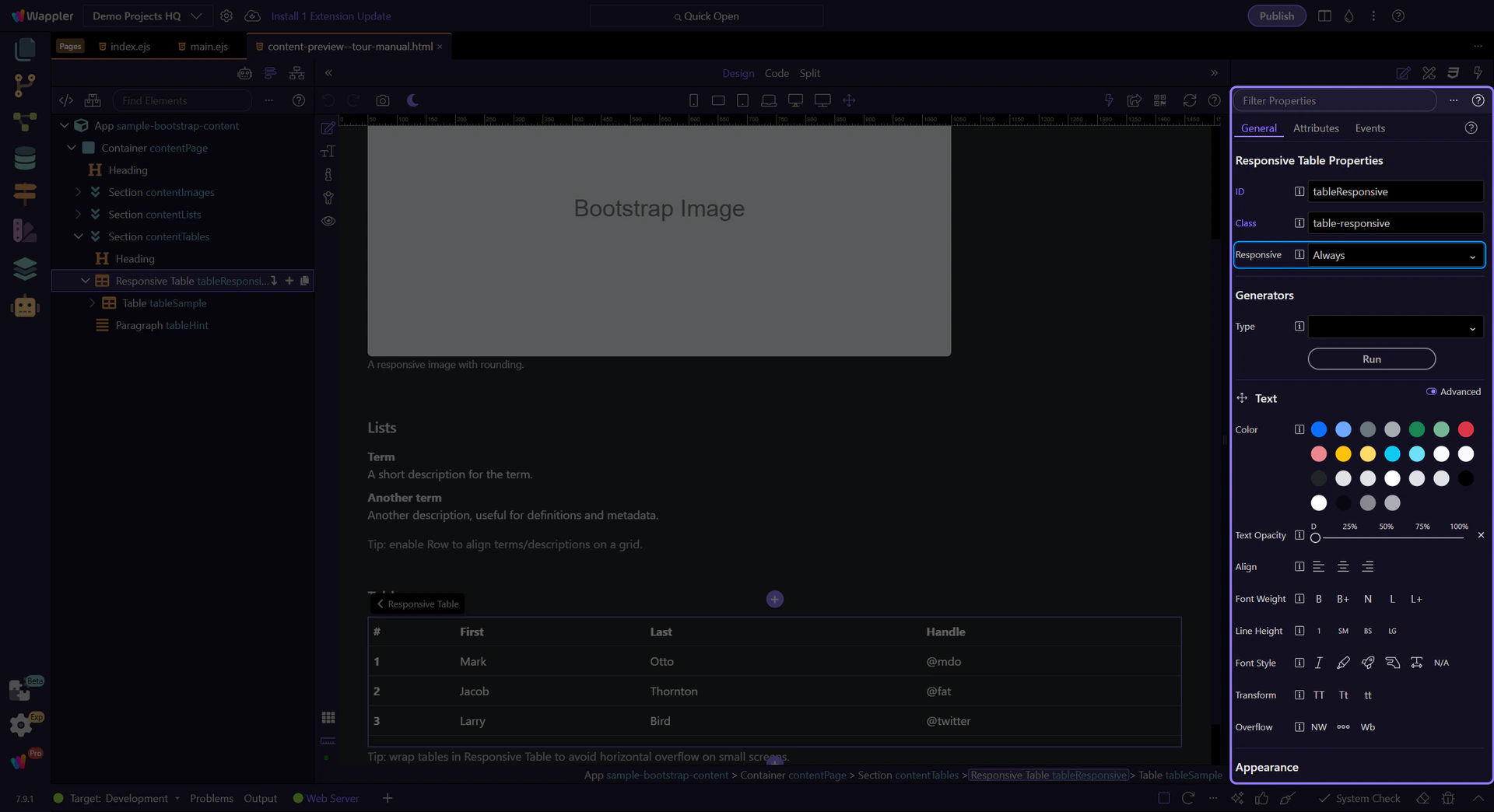
Section titled “Responsive: Breakpoint behavior”Use Responsive to choose if the table should scroll horizontally always, or only up to a specific breakpoint.
Next steps
Section titled “Next steps”Continue with other Content topics or return to the Content menu.