Git Manager: Branches and Merges
Work with local branches, the branch menu, merged commit and ref context actions, and merge-resolution flow in Git Manager.
Demo Projects HQ is prepared to show real branch states
Section titled “Demo Projects HQ is prepared to show real branch states”This repository includes local feature branches, a prototype branch, and a remote-only branch so Git Manager can show the branch cases teams actually hit: switching locally, creating tracking branches, merging work back, and understanding which refs are only on the remote.
The branch button is now the normal switching menu
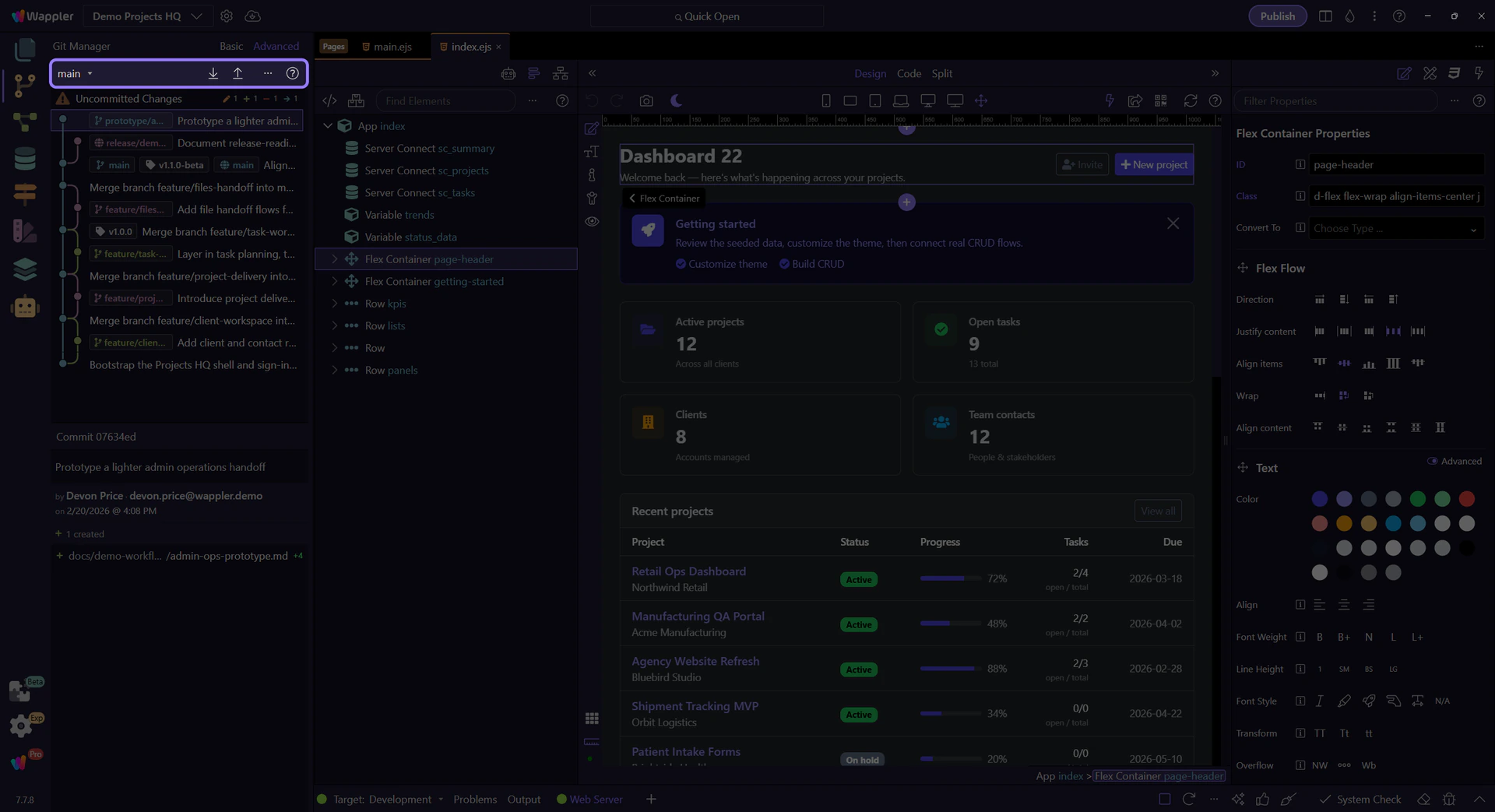
Section titled “The branch button is now the normal switching menu”Use the branch selector first because it decides which local line of work the next branch and merge actions will affect.

The branch menu makes switching explicit
Section titled “The branch menu makes switching explicit”This is the real branch menu from the toolbar. Plain branch names appear as direct items, while prefixed names such as feature or prototype collapse into grouped submenus so the root menu stays readable. The current branch keeps its checkmark, alternate branches stay one click away, and Create Branch remains at the bottom because switching existing work and starting new work are different decisions.
Prefixed branch families open nested submenus
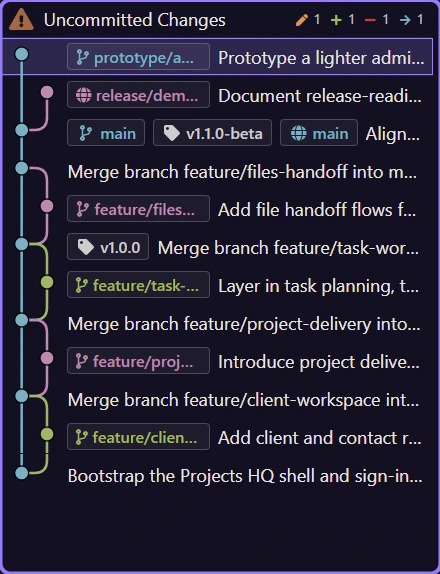
Section titled “Prefixed branch families open nested submenus”When several branches share a prefix, Git Manager groups them into a family entry such as feature or prototype instead of leaving one long flat list. Hover the family entry to reveal the actual branch names inside that branch type.
The submenu holds the concrete branches you can switch to
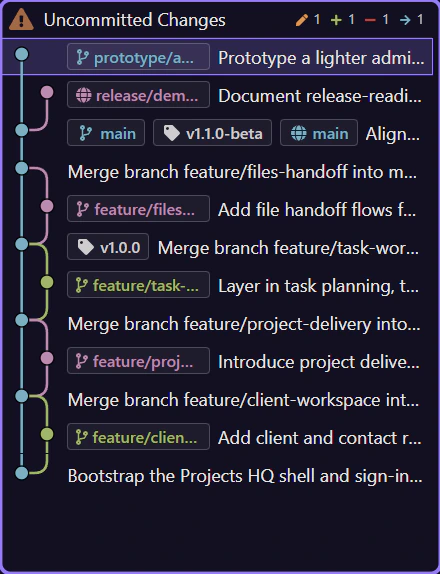
Section titled “The submenu holds the concrete branches you can switch to”The submenu contains the concrete branch names you can switch to. In Demo Projects HQ that means the feature branches live inside the feature group, while other prefixed work such as prototype/admin-ops can live in a different family. Choose the exact branch here; Create Branch stays on the root menu because starting new work is different from switching to existing work.
A simple feature branch flow keeps unfinished work isolated
Section titled “A simple feature branch flow keeps unfinished work isolated”A lightweight team flow is to create one branch per feature or fix, commit only that work on the branch, and push it to the shared remote as progress builds. That lets teammates keep main stable while still reviewing or helping with the feature branch before it is merged.
History can be the branching point
Section titled “History can be the branching point”History is also a branching surface now. You can create a branch from the branch menu when you want to start from the current point, or create a branch at a specific commit from the commit context menu when you need to rescue or extend an earlier snapshot. That is much safer than branching blindly from HEAD when the real starting point lives deeper in history.

Switch to Advanced view
Section titled “Switch to Advanced view”This advanced view matters when you need branch context beside the commit list, because it changes how you read merge state before acting.
Advanced view shows where branches diverge and rejoin
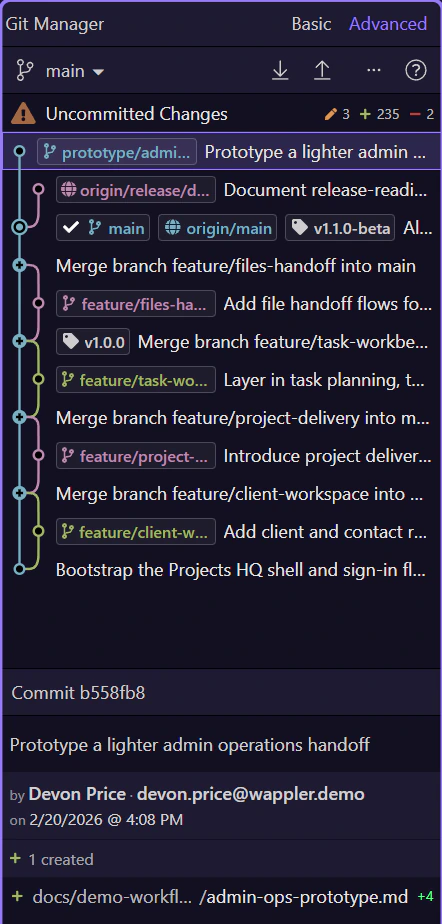
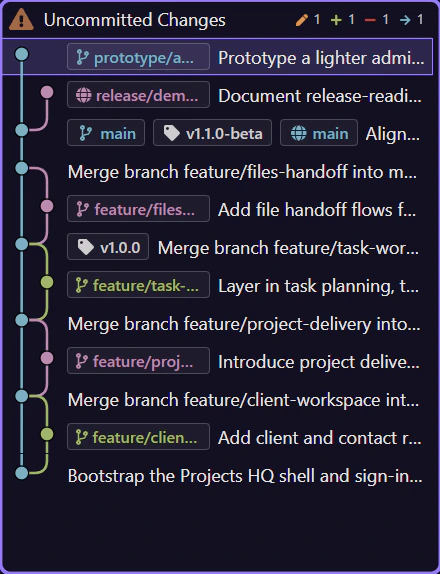
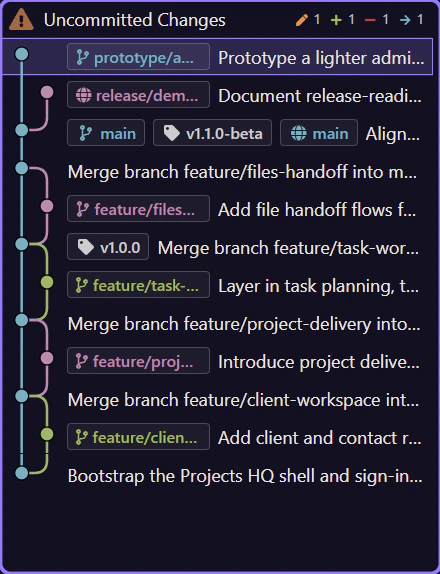
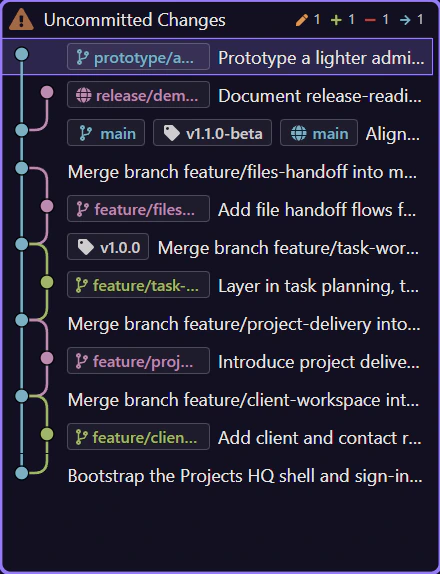
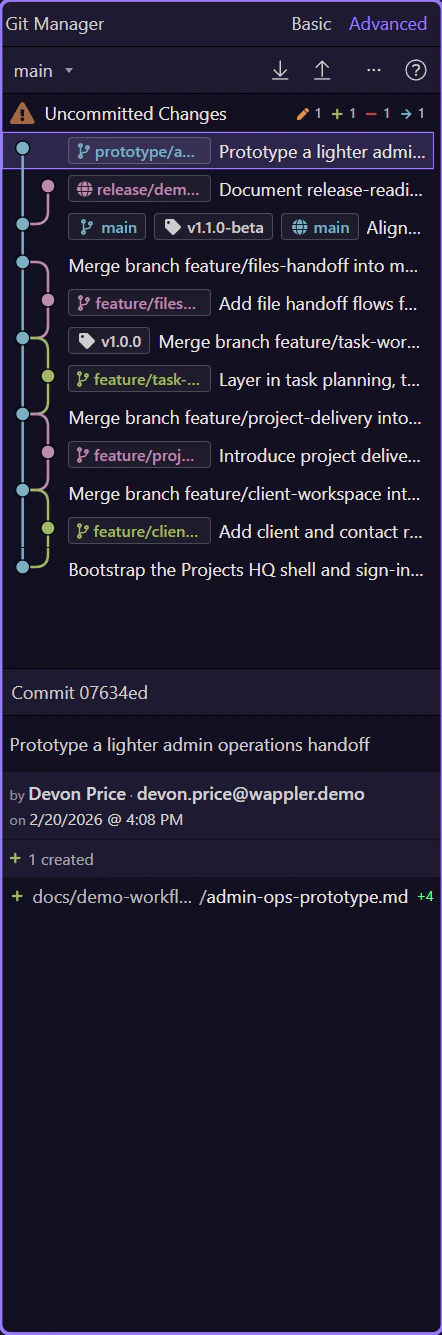
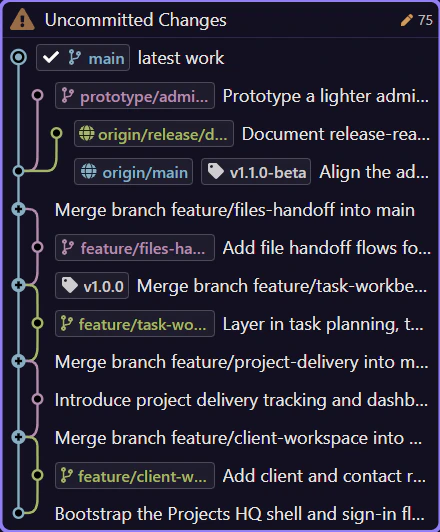
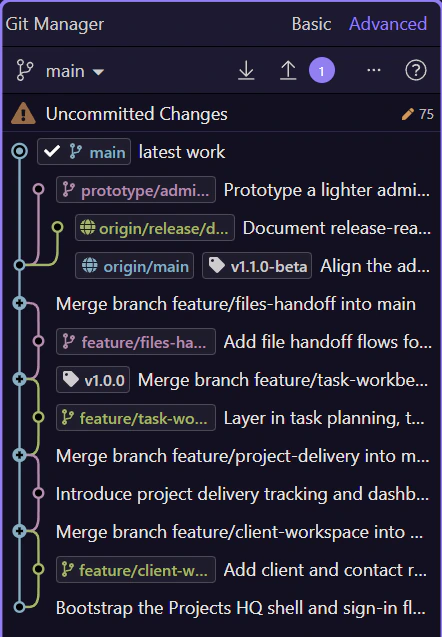
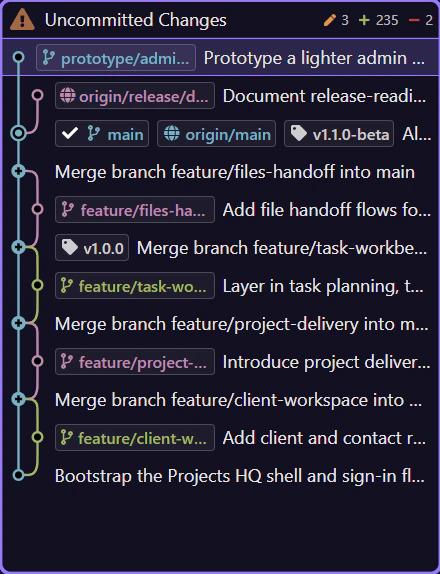
Section titled “Advanced view shows where branches diverge and rejoin”Advanced view is active here in the history list. The graph lines and refs show where a feature branch split from the main line, which commits belong to it, and which refs are local versus remote-tracking.
Advanced actions & options help isolate the merge story
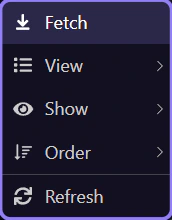
Section titled “Advanced actions & options help isolate the merge story”Use Next here to open the real actions & options menu for Advanced view while the selected Advanced button is still on screen. Use its View and Show submenus to narrow the history, toggle graph layers, and change ordering until the merge path you care about is obvious.

Advanced menu options help isolate the merge path
Section titled “Advanced menu options help isolate the merge path”This is the real Advanced actions & options menu. Use the View submenu to narrow the history scope, use the Show submenu toggles to hide or reveal graph context, and then change ordering until the merge path is obvious enough to act on confidently.
Close the options menu
Section titled “Close the options menu”Close the open Advanced menu so the history list becomes the active surface again. That reset matters because the next step deliberately reselects a real commit row before opening branch and tag actions from that exact snapshot.
Keep Advanced context visible
Section titled “Keep Advanced context visible”Restore Advanced view before the commit row is selected so branch and ref context stay visible for the following history action step.
A real commit row is reselected before its context menu opens
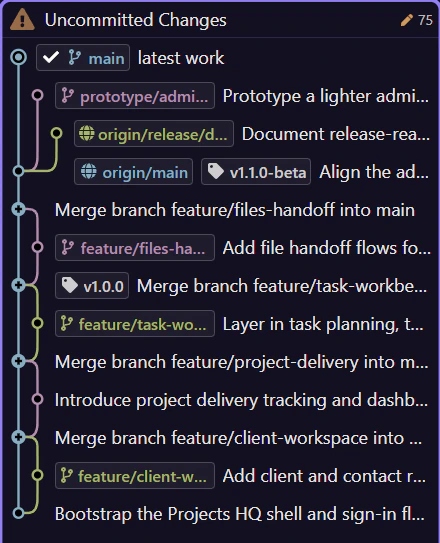
Section titled “A real commit row is reselected before its context menu opens”This step reselects a real commit row after the Advanced actions & options menu closes, so the following context-menu step starts from the exact snapshot you want to inspect for branch and tag actions.

Branch ref actions stay attached to the commit that exposes them
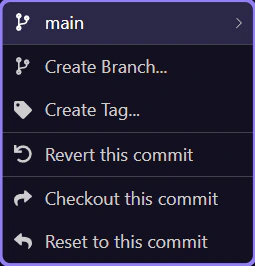
Section titled “Branch ref actions stay attached to the commit that exposes them”This is the real commit menu on the selected history row. Top-level Create Branch and Create Tag start new refs at this exact snapshot, while Revert this commit, Checkout this commit, and Reset to this commit are the direct history-changing or recovery actions. If the commit already carries branch or tag refs, those ref names open submenus so branch-specific merge, rename, delete, and copy actions stay attached to the commit that revealed them.
Merge state takes over the toolbar
Section titled “Merge state takes over the toolbar”When a merge is in progress, Git Manager makes that state explicit. Continue Merge and Abort Merge become the important controls, while branch switching and sync are disabled so you do not layer risky operations on top of an unresolved repository.
Conflicts are resolved from file state upward
Section titled “Conflicts are resolved from file state upward”Conflicts are resolved from file state upward. The merge workflow can show an explicit conflict dialog with Abort Merge plus resolve-all shortcuts using mine or theirs, and conflicted files also expose their own resolve using mine and resolve using theirs actions. Continue Merge only enables when the conflict state is clear, so the ladder stays visible: resolve files, then complete or abort the merge, then return to normal branch and remote work.
Continue with the next collaboration topic
Section titled “Continue with the next collaboration topic”Branching is only half the story. Continue with remotes if you want to understand collaboration, or recovery if you want the safest repair paths after a bad merge or wrong branch decision.