
Git Manager: Remotes and Sync
Connect a GitHub, GitLab, Bitbucket, generic HTTPS, or SSH remote, understand provider authentication, and use fetch, pull, push, and ahead/behind cues safely.
A remote connects local history to a shared repository
Section titled “A remote connects local history to a shared repository”Git Manager keeps local changes and commits distinct from the repository hosted by GitHub, GitLab, Bitbucket, or another Git server. Connecting the remote creates the bridge; fetch, pull, and push then move repository knowledge and commits across it.
Connect, authorize, and sync from one surface
Section titled “Connect, authorize, and sync from one surface”You’ll open the real Remote Repository dialog, enter a representative provider URL without connecting it, learn the authentication path chosen for each URL type, and read the toolbar controls used for daily synchronization.

Local work comes first
Section titled “Local work comes first”Your working tree and local commits remain usable without a remote. Add a remote when you want backup, collaboration, continuous deployment, or another machine to share the same commit history.

Connect the repository URL
Section titled “Connect the repository URL”When no remote exists, the globe button opens the Remote Repository dialog. Wappler creates the conventional origin remote from that URL and tests access by fetching before it treats the connection as ready.
The toolbar reflects repository connection state
Section titled “The toolbar reflects repository connection state”A repository without a remote shows Connect to Remote Repository. Once origin exists, Pull and Push take its place. Demo Projects HQ already has a seeded origin, so this tour opens the same connection dialog directly while leaving that working demo remote unchanged.
Remote Repository is the connection entry point
Section titled “Remote Repository is the connection entry point”Use Next to open the real dialog. This is the same URL entry surface used by Connect to Remote Repository, opened without removing or replacing the demo project’s existing remote.

Remote Repository dialog
Section titled “Remote Repository dialog”The dialog needs only the clone URL supplied by your Git provider. For the primary connection, Git Manager uses the standard remote name origin, so there is no separate remote-name decision in this flow.
The provider repository URL is entered
Section titled “The provider repository URL is entered”This example uses a GitHub HTTPS URL. GitLab and Bitbucket use the same field, generic Git servers can use their own HTTPS URL, and SSH users can paste the provider’s SSH clone URL. The tour fills the field but does not connect or contact the example repository.
https://github.com/acme/customer-portal.git

Connect adds `origin` and validates it
Section titled “Connect adds `origin` and validates it”In a real repository, Connect validates the URL, adds origin, and fetches it. If that validation fails, Git Manager removes the incomplete remote instead of leaving a broken connection behind. This tour cancels now because the example URL is illustrative.

Git Manager chooses authentication from the remote URL
Section titled “Git Manager chooses authentication from the remote URL”Authentication is requested when the remote operation needs credentials. The provider host and URL scheme determine the right path, so authorization stays part of the Git workflow instead of a separate global setup screen.
GitHub, GitLab, and Bitbucket use browser authorization
Section titled “GitHub, GitLab, and Bitbucket use browser authorization”For HTTPS remotes hosted on github.com, gitlab.com, or bitbucket.org, Git Manager recognizes the provider and opens its authorization flow in your browser. Complete the provider approval, return to Wappler, and the pending Git operation continues with the granted access.

Other HTTPS remotes use repository credentials
Section titled “Other HTTPS remotes use repository credentials”For another HTTPS host, Git Manager asks for the username and password or access token accepted by that server. If the server rejects stored access, Wappler clears it and asks again before retrying the operation.

SSH remotes use your SSH agent and keys
Section titled “SSH remotes use your SSH agent and keys”An SSH clone URL bypasses the HTTPS credential dialogs. Git Manager checks for a running SSH agent, so load the key accepted by your provider before connecting or synchronizing an SSH remote.
git@github.com:acme/customer-portal.git

Fetch, pull, and push each answer a different question
Section titled “Fetch, pull, and push each answer a different question”After origin is connected, use the sync controls according to intent: fetch to update remote-tracking knowledge, pull to integrate incoming commits, and push to publish local commits.
Pull integrates commits from the tracked remote branch
Section titled “Pull integrates commits from the tracked remote branch”Pull first checks that the working tree is safe, then brings the remote branch into the active local branch. If overlapping work produces conflicts, Git Manager switches into the merge workflow so you can resolve, continue, or abort deliberately.

Push publishes local commits and tags
Section titled “Push publishes local commits and tags”Push sends the active branch’s committed work to its remote and also publishes local tags. Commit and review the intended files before pushing so the shared history contains a coherent checkpoint.

Ahead and behind counts explain the next sync decision
Section titled “Ahead and behind counts explain the next sync decision”A count on Push means the local branch is ahead of its tracked remote. A count on Pull means the local branch is behind. When both are present, fetch has revealed diverging histories: review them before deciding how to integrate and publish.

The actions menu contains Fetch
Section titled “The actions menu contains Fetch”Use Next to open the real Git Manager actions menu. Fetch appears when a remote exists and updates remote-tracking refs without integrating those commits into your active branch.

Fetch updates remote knowledge; Refresh redraws repository state
Section titled “Fetch updates remote knowledge; Refresh redraws repository state”Fetch is the right choice when you want the latest remote refs before reviewing history or ahead/behind state. Refresh rereads and redraws the repository information already available to Wappler. The tour leaves both commands untouched.

Verify sync in history and refs
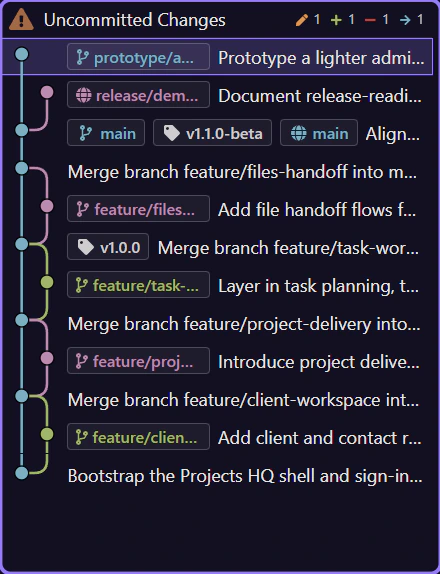
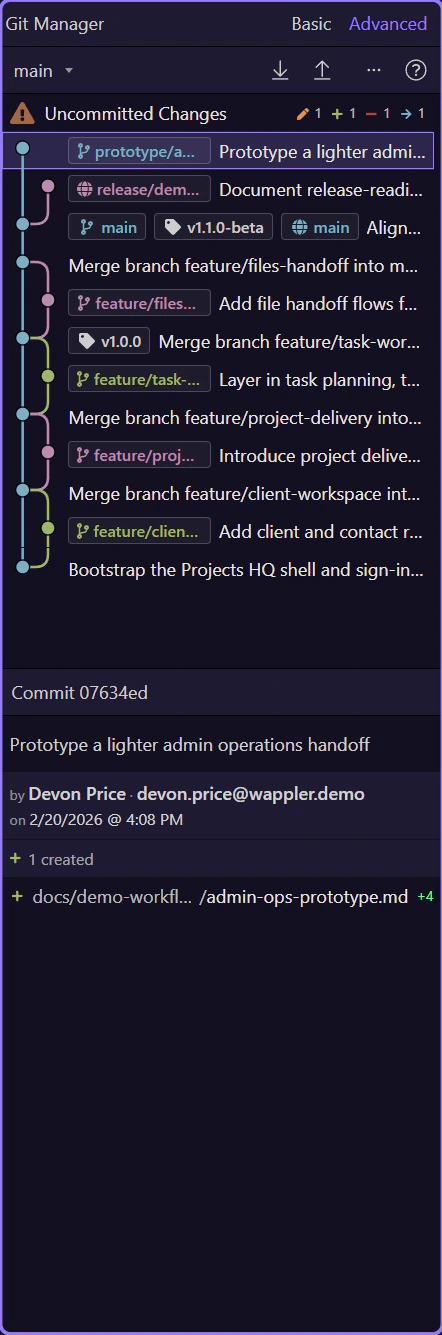
Section titled “Verify sync in history and refs”After pull or push, read the history instead of relying on a notification alone. Incoming commits should appear after pull; after push, the active local and remote refs should align again. Advanced view is especially useful when you need to inspect that relationship directly.

Connect once, then sync with intent
Section titled “Connect once, then sync with intent”Use the provider clone URL to create origin, complete browser, HTTPS, or SSH authentication when requested, fetch to inspect remote movement, pull to integrate incoming work, and push only committed work you are ready to share.