Git Manager: History and Details
Understand how Git Manager represents uncommitted changes, commit history, refs, and commit details in Basic and Advanced view.
History is split between now and already committed
Section titled “History is split between now and already committed”The experimental Git Manager deliberately keeps the working tree and commit history in one timeline. That means your current edits, your recent commit story, your branch refs, and your tags can be reasoned about in one place instead of making you jump between separate Git views.
Basic view keeps history inspection lean
Section titled “Basic view keeps history inspection lean”Start in Basic view. Here Git Manager emphasizes commit subjects, time, and the current working-tree flow without adding graph lines or extra branch structure. This is the cleaner reading when you mainly need to review what changed recently and move into commit inspection quickly.

Uncommitted Changes anchors the current working tree
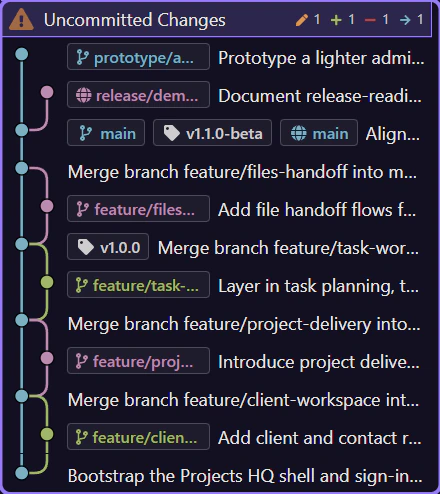
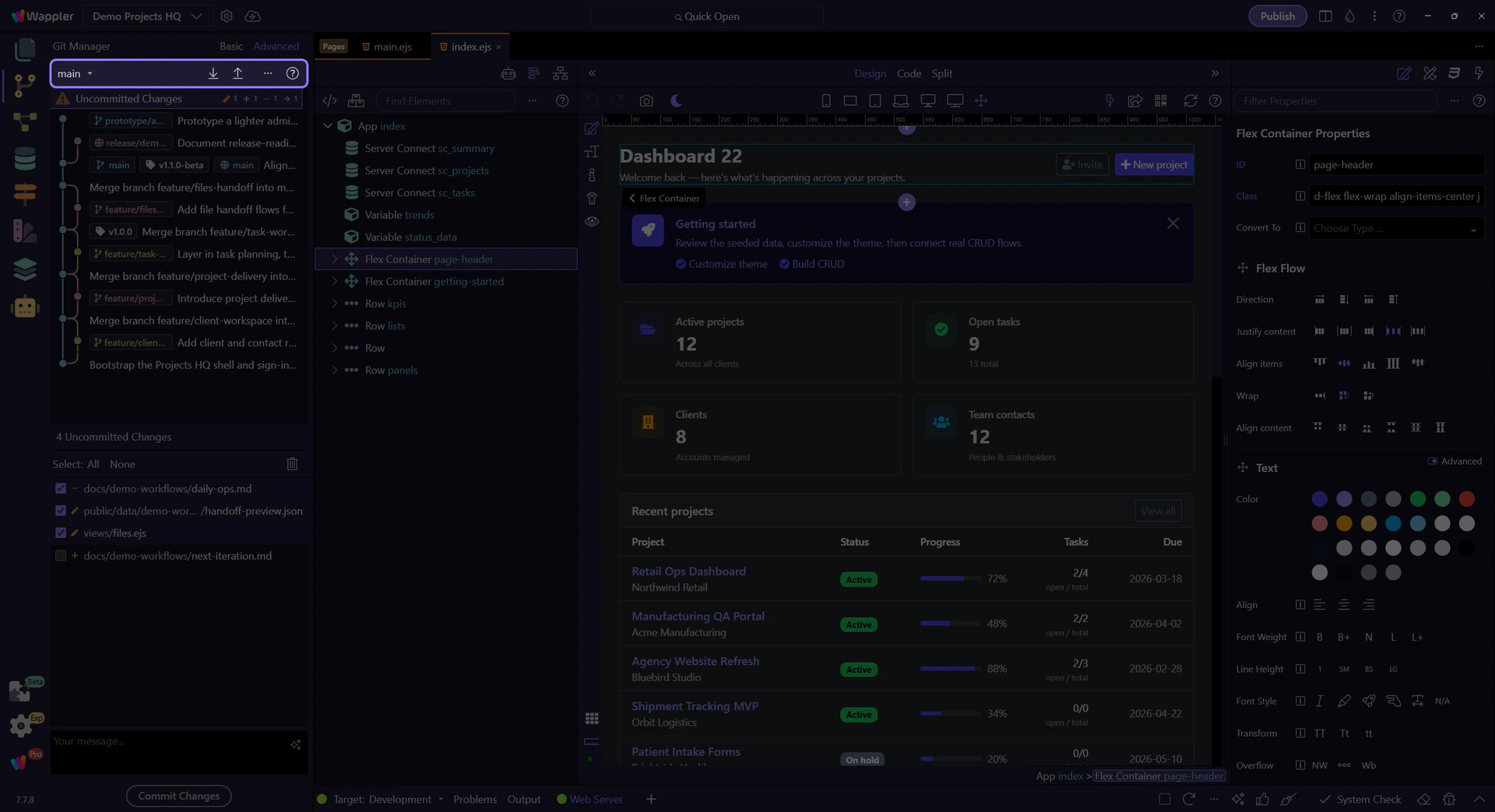
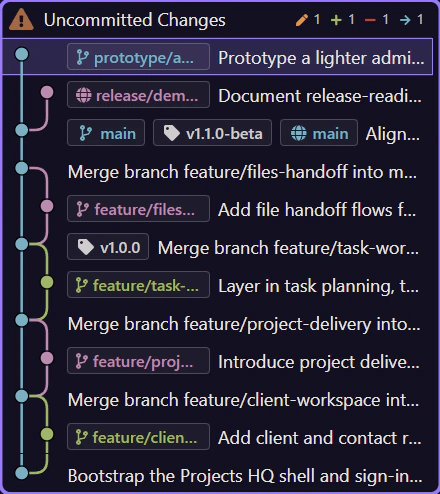
Section titled “Uncommitted Changes anchors the current working tree”The pinned Uncommitted Changes row at the top of the list switches the detail workspace from recorded history to the current working tree. In Demo Projects HQ, that workspace lists the files that are modified, deleted, renamed, or still untracked right now. This is the row that answers the practical question: what would go into the next commit?
The current file list uses checkbox selection for staging
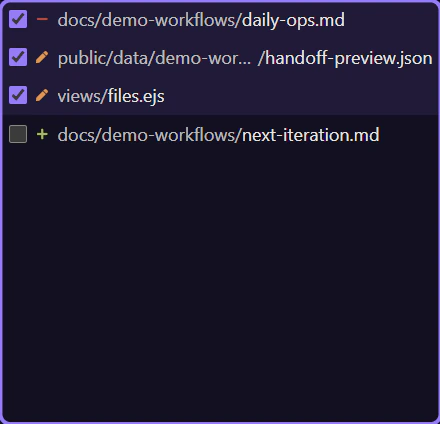
Section titled “The current file list uses checkbox selection for staging”The file list underneath is a wui-list running in checkbox selection mode. Each row is a current file, not an old snapshot. Checkboxes let you decide exactly which files should be staged for the next commit, while the status icons tell you why the file is here: added, modified, renamed, deleted, or conflicted.
The preview toolbar controls batch review before you commit
Section titled “The preview toolbar controls batch review before you commit”When Uncommitted Changes is selected, the preview area exposes batch tools for the working tree. Select All and Select None change the staged selection quickly, while Discard All is the destructive escape hatch for throwing away the current working tree. This toolbar only belongs to the uncommitted workspace, because a past commit is something to inspect, not stage.

The commit box turns the reviewed selection into a snapshot
Section titled “The commit box turns the reviewed selection into a snapshot”The commit message box belongs to the same uncommitted workspace. After you trim the staged selection to the files you want, describe the change here and create the next snapshot. The important habit is order: review the files, refine the selection, then write the message that matches exactly what is being committed.

Advanced view adds graph context before deep inspection
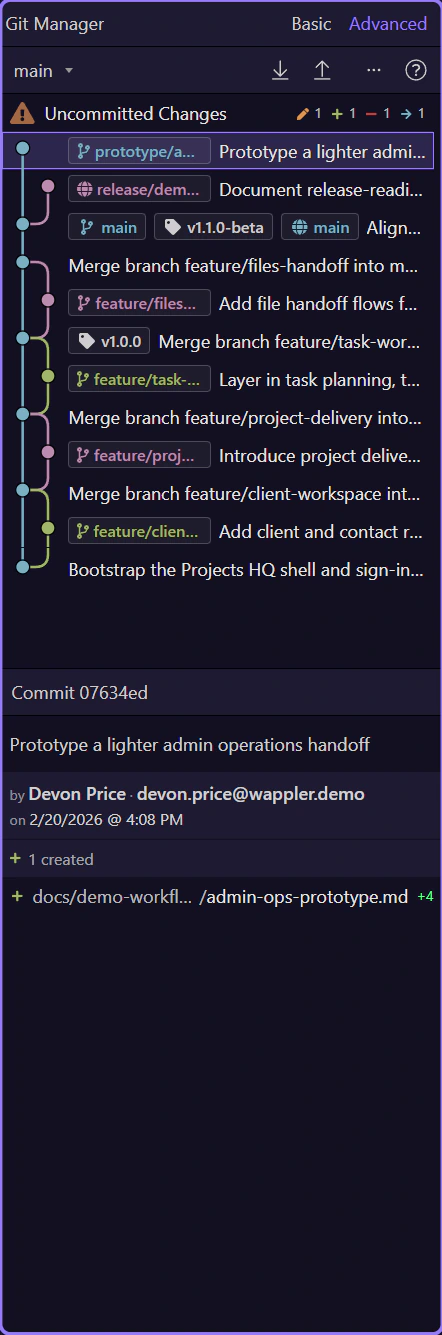
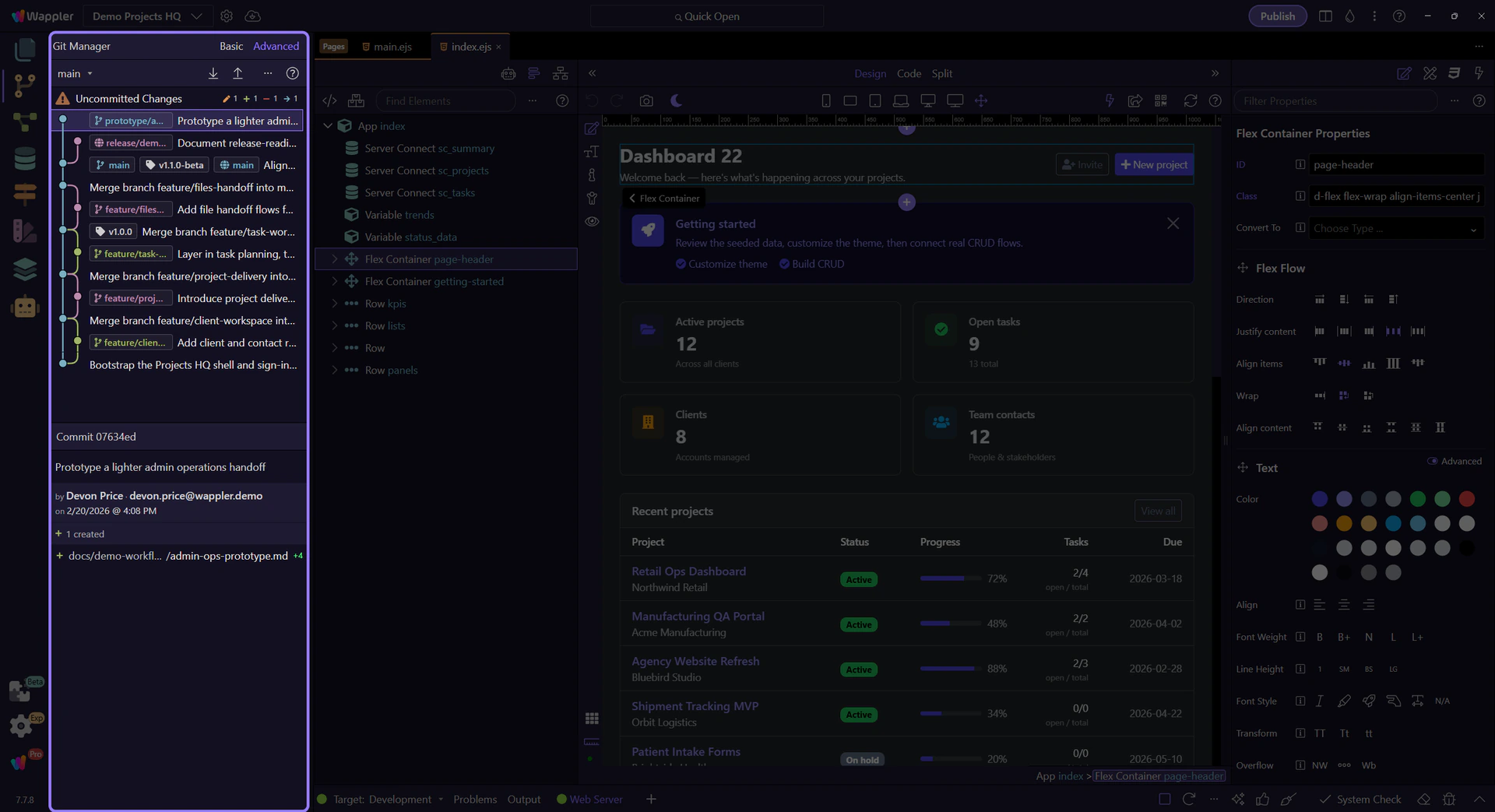
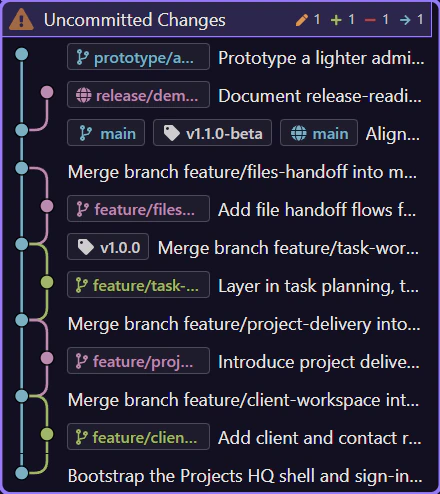
Section titled “Advanced view adds graph context before deep inspection”Now switch to Advanced view before moving deeper into history inspection. Advanced keeps the same commits but adds graph lines, refs, tags, and richer context so you can judge branch movement and merge placement instead of reading only a flat timeline.

Advanced history shows refs and commit shape at the same time
Section titled “Advanced history shows refs and commit shape at the same time”With Advanced selected, the history list becomes more than a sequence of commit messages. Branch refs, tags, and graph structure sit alongside the commits so the next inspection steps happen with branch context already visible on screen.
Advanced mode adds a history filter, not another repository
Section titled “Advanced mode adds a history filter, not another repository”In Advanced mode, the overflow menu lets you switch between All Branches and Current Branch. Use that when the graph is too busy. You are not changing repositories or deleting refs. You are only changing how much branch context the history list should show at once.
A commit row opens the recorded snapshot details
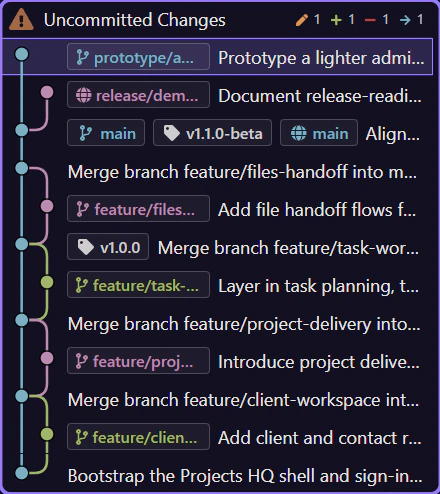
Section titled “A commit row opens the recorded snapshot details”A real commit row below Uncommitted Changes switches the detail workspace from commit preparation to commit inspection. The preview shows the recorded message, author, date, and totals for that snapshot, so the question changes here from what will I commit next to what exactly was committed at this point in history?
The summary strip explains the shape of the selected commit
Section titled “The summary strip explains the shape of the selected commit”At the top of the commit preview, Git Manager summarizes what kind of change set this commit contains. Those totals tell you whether the snapshot mostly created files, modified existing work, removed code, or renamed paths. It is the quickest way to judge the scope of a commit before opening the file rows one by one.

Committed files are shown in a read-only inspection list
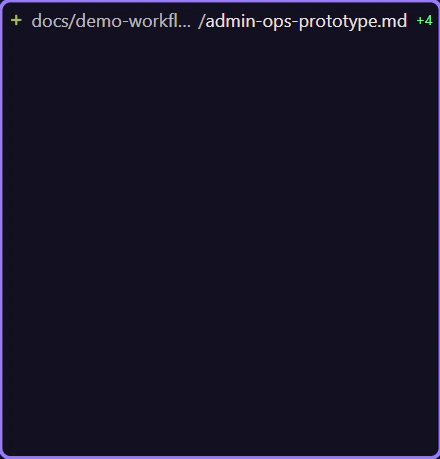
Section titled “Committed files are shown in a read-only inspection list”The committed file list is another wui-list, but this one is for inspection instead of staging. Each row represents a file captured by the selected commit. In Advanced mode, the rows also expose insertion and deletion counts, so you can distinguish a tiny focused edit from a larger refactor before you even open a diff.
Context actions turn history into a working tool
Section titled “Context actions turn history into a working tool”Right-click commit refs and commits to create branches, create tags, merge a branch into the active branch, delete refs, or revert a commit. Advanced mode expands that toolbox with commit checkout and reset so history becomes something you can act on, not just read.
Changed files have their own history actions
Section titled “Changed files have their own history actions”The two detail lists support different kinds of decisions. In the Uncommitted Changes workspace, file rows help you inspect, discard, or resolve one current file at a time. In commit inspection, file rows help you diff, compare with HEAD, or check out one file from that past snapshot. The manager keeps those actions file-sized so review and recovery do not always require a branch-sized operation.
Continue with the next Git decision
Section titled “Continue with the next Git decision”Once the history model is clear, continue with the area that normally depends on it: recovery, branches, or remotes.