Git Manager: Quick Overview
Get a fast, accurate map of the new Git Manager: view modes, branch and actions & options menus, adaptive sync toolbar, history list, and detail workspace.
Git Manager at a glance
Section titled “Git Manager at a glance”Think of Git Manager as a live repository view inside Wappler, not a single-purpose commit screen. In Demo Projects HQ you are looking at a repo that already has uncommitted changes, local branches, remote-tracking branches, and tags, so the UI can expose real decisions instead of empty-state placeholders.
Start in Basic view for the day-to-day reading
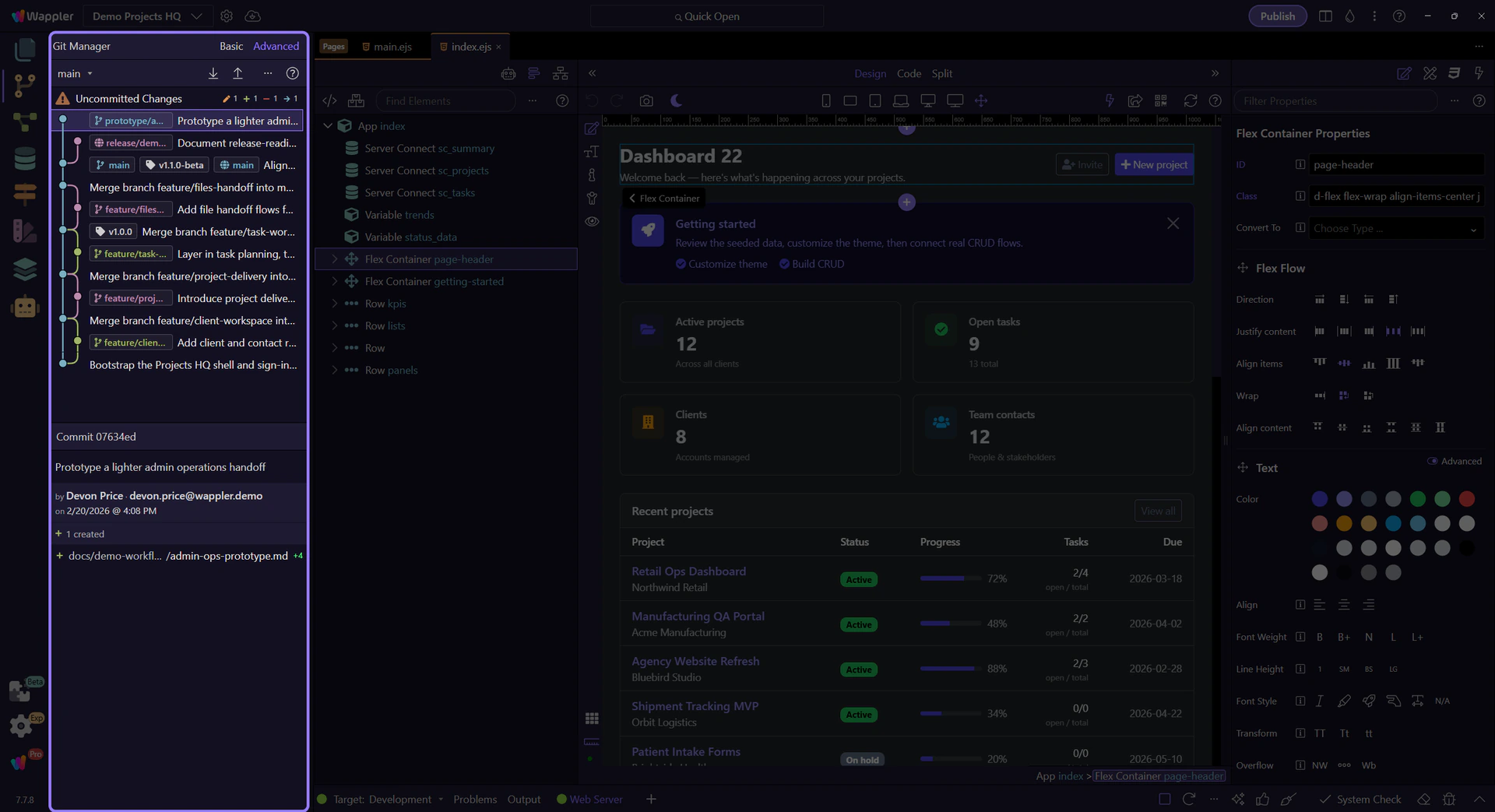
Section titled “Start in Basic view for the day-to-day reading”This step switches Git Manager to Basic view first. Basic is still the faster day-to-day reading of the repository, but it is no longer a stripped-down dead end: the actions & options menu can still show the commit graph and tags when you want light structure without committing to full Advanced mode.

Switch to Advanced when branch context matters
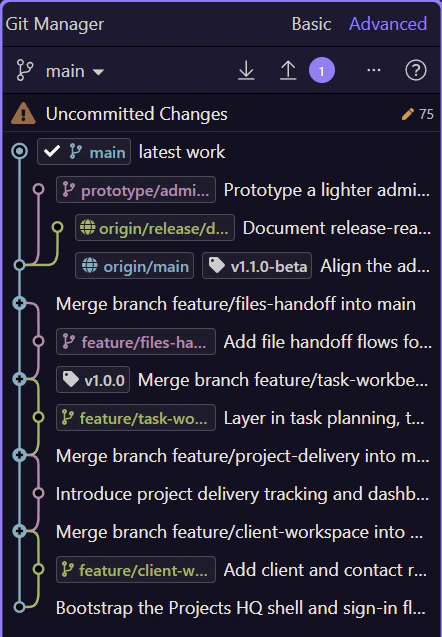
Section titled “Switch to Advanced when branch context matters”Now switch to Advanced view. Advanced reads the same repository with more structure on screen: graph lines, local and remote refs, tags, and stronger history-oriented context. Use it when you need to understand where work came from, how branches relate, or where a safe restore point sits in the broader history.

Advanced view adds history context, not a different repository
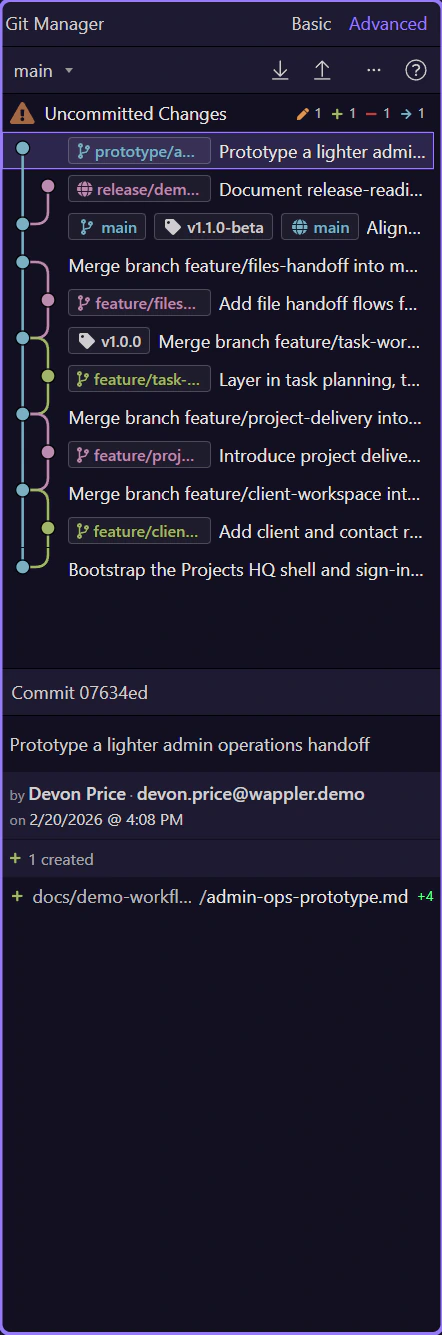
Section titled “Advanced view adds history context, not a different repository”With Advanced selected, the history list becomes a richer reading surface. The same commits are still here, but now the graph, refs, and extra commit context help you see feature-branch movement and merge direction instead of only reading a flat sequence of subjects.
The toolbar centers on the branch menu and sync state
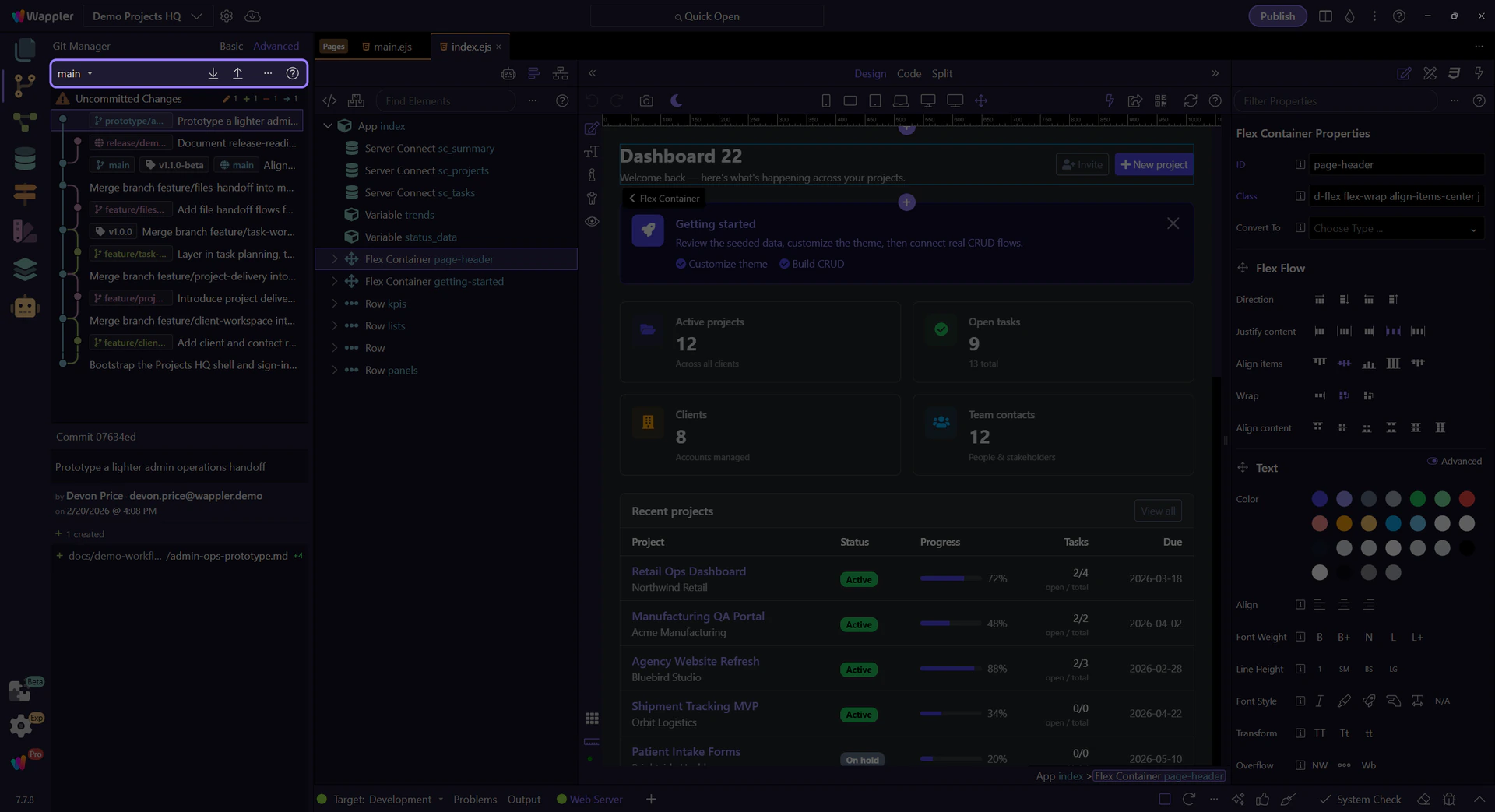
Section titled “The toolbar centers on the branch menu and sync state”The main toolbar now teaches two things at once: which branch you are on, and what sync state that branch is in. The branch button is a menu for switching local branches or creating a new one, while pull and push surface ahead/behind counts when tracking is active. No remote means Connect. An active merge suppresses normal sync and replaces it with Continue Merge and Abort Merge.
The actions & options menu changes with the current view
Section titled “The actions & options menu changes with the current view”The actions & options menu is where Git Manager keeps the controls that reshape how you read the repository. In Basic view it adds Refresh, optional Fetch, and a Show submenu with toggle items for the graph and tags. In Advanced view the same menu grows into the history control center with View and Show submenus, checkmarked toggles, and ordering options.
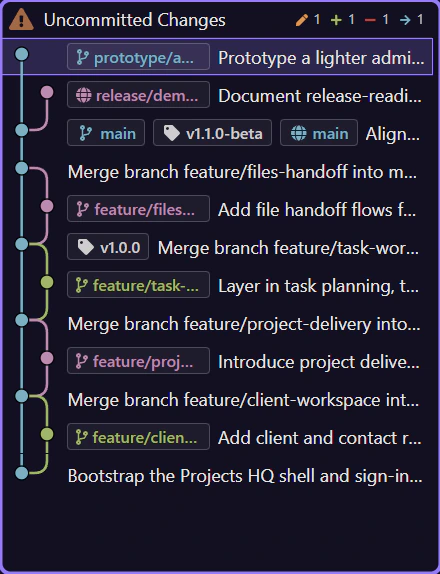
History starts with what needs attention now
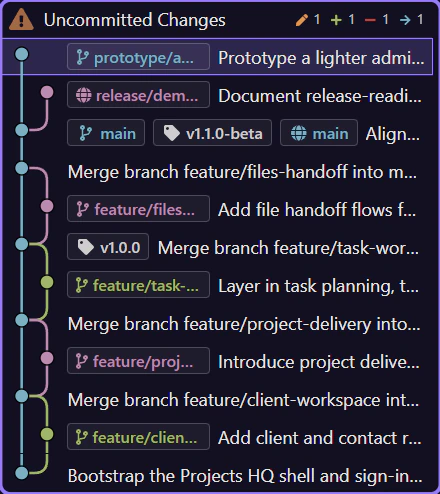
Section titled “History starts with what needs attention now”The main panel is not just old commits. When the working tree is dirty, Git Manager pins an Uncommitted Changes row above the history so you can move from today’s edits into the commit timeline without switching tools.
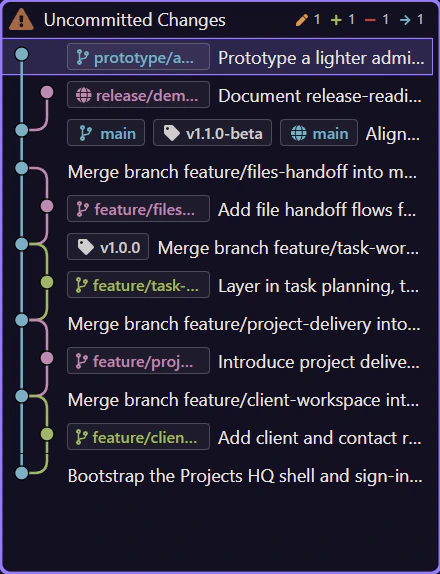
Selecting something changes the workspace
Section titled “Selecting something changes the workspace”Select Uncommitted Changes and the manager becomes a staging-and-commit workspace. Select a commit and the manager turns into an inspection view with message, author, changed files, and diff-oriented actions. The list and the detail workspace are designed to work as one flow.
Choose the next Git task
Section titled “Choose the next Git task”If the layout makes sense now, continue with the guide that matches the job you actually need to do.