Git Manager: Remotes and Sync
Connect remotes, understand toolbar state changes, and use pull and push safely from Git Manager.
The toolbar tells you whether the repository is connected
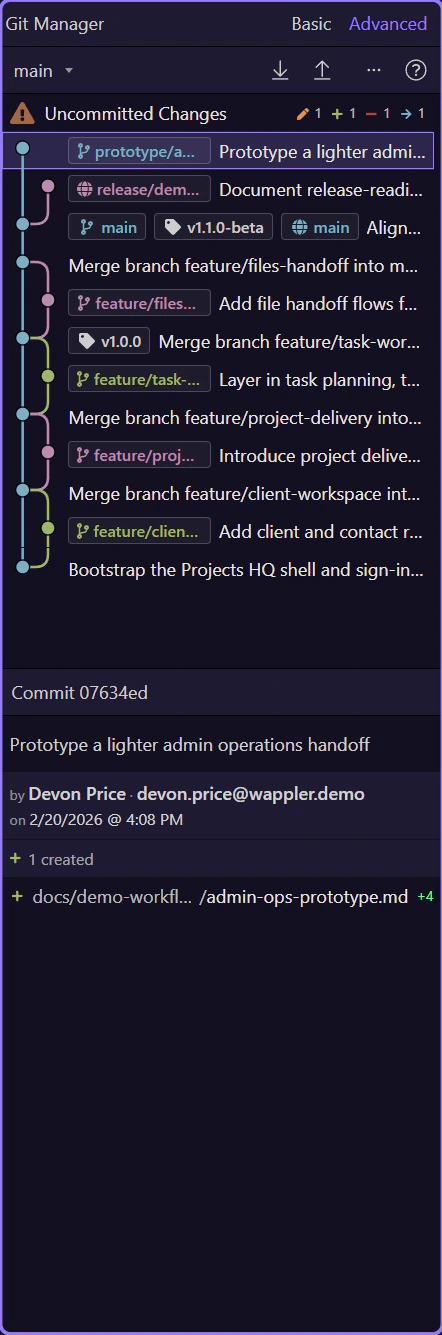
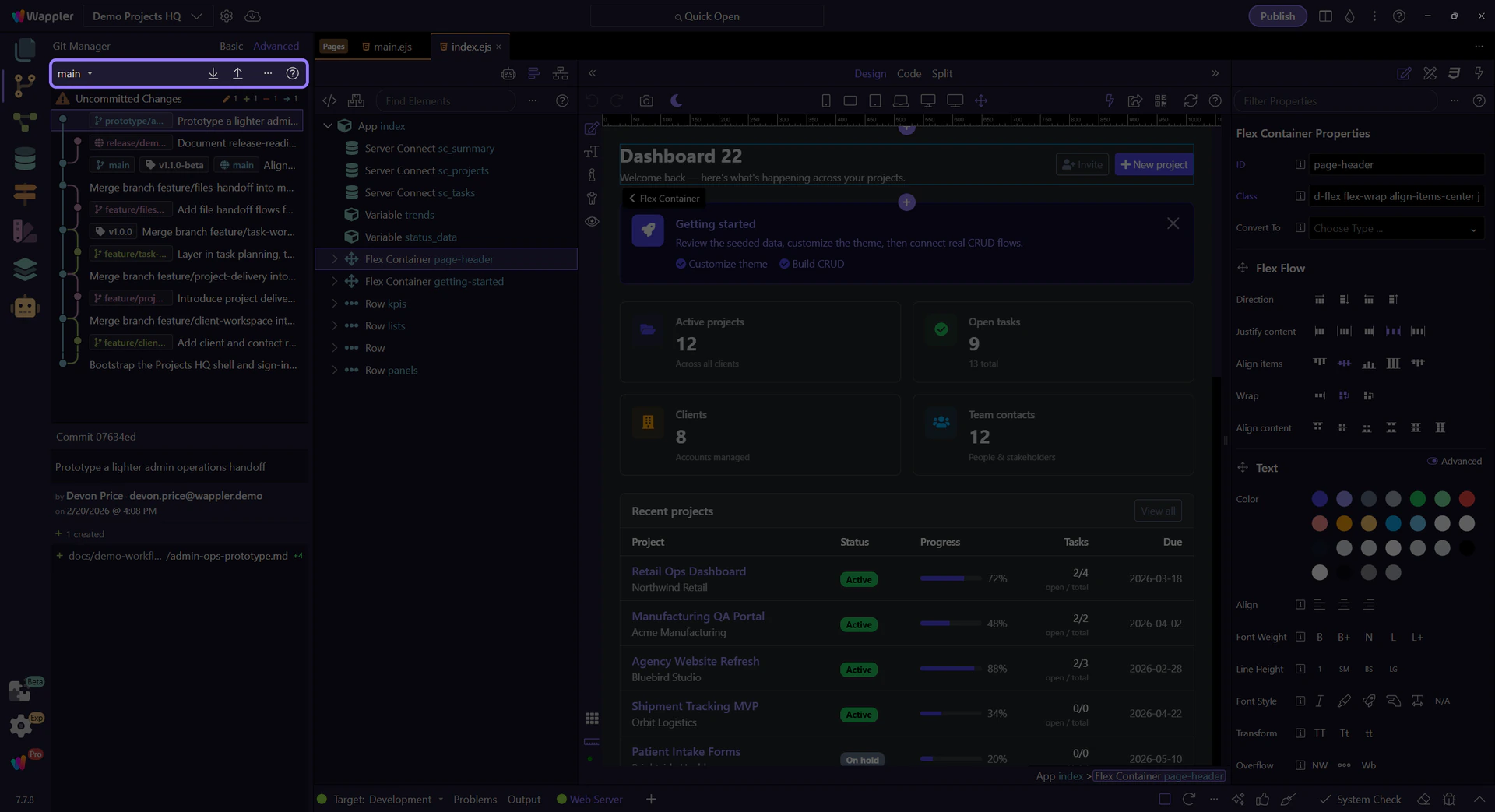
Section titled “The toolbar tells you whether the repository is connected”Git Manager uses the toolbar to make remote state visible. With no remotes, you see a Connect action. Once a remote exists, the toolbar changes to a sync-oriented layout with active remote state and pull/push actions. Remote setup is treated as repository state, not hidden configuration.
Connect first, authenticate when needed
Section titled “Connect first, authenticate when needed”Connect to Remote Repository opens a simple name-and-URL flow. Authentication is handled when the actual remote operation needs it, which keeps setup lightweight while still supporting GitHub, GitLab, Bitbucket, and generic remotes.

Remote management is part of Git Manager, not a terminal-only task
Section titled “Remote management is part of Git Manager, not a terminal-only task”Once remotes exist, Git Manager lets you review, add, edit, or delete them from the remote-management flow. In practice, that remote can be two things at once: a personal off-machine backup for solo work, or the shared repository that the whole team uses to exchange feature branches and merge work back together.

Pull first to catch up, push when your local branch is ready
Section titled “Pull first to catch up, push when your local branch is ready”The normal sync loop is pull, review, then push. Pull brings the latest remote commits into your local branch and may begin a merge, so Git Manager checks whether the working tree is safe before it starts. Push sends the commits you already made locally once your branch is ahead of the remote and your working tree is in a shareable state.

Sync changes the history view you are reading
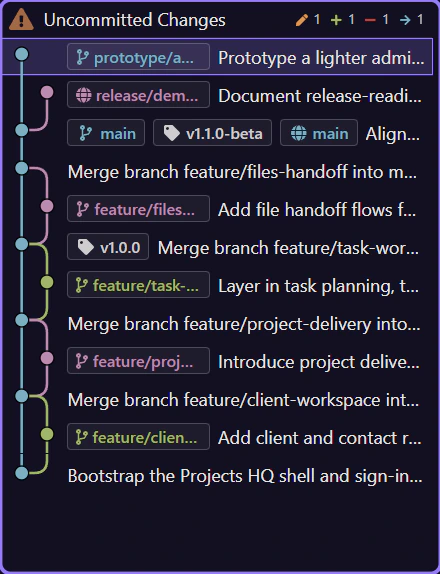
Section titled “Sync changes the history view you are reading”After a successful sync, read the result in the history list and refs instead of relying on a toast alone. After pull, you should see incoming commits appear and remote-tracking refs move. After push, the local and remote refs line up again. Advanced mode makes that easiest to verify because it shows how the remote branch moved relative to your local branch.
A pull may turn into a merge workflow
Section titled “A pull may turn into a merge workflow”If pull brings in changes that overlap with yours, Git Manager does not pretend the sync is finished. It switches into merge-aware state, exposes Continue Merge and Abort Merge, and expects conflict resolution before normal push, pull, or branch actions resume. That is especially important when several teammates are pushing feature work into the same shared remote.

Continue with the related Git topic
Section titled “Continue with the related Git topic”Remote work is easiest to reason about once you also understand the branch model and the history model behind it.