Adding Pull To Refresh Functionality to your Mobile Apps in Framework 7
Pull to refresh is a special component that can be used to run different actions, for example - refreshing the data on the page. In this tutorial we will show you how to refresh dynamic data coming fr
Pull to refresh is a special component that can be used to run different actions, for example - refreshing the data on the page. In this tutorial we will show you how to refresh dynamic data coming from a server action.
Data Source
Section titled “Data Source”Our data source is a server action from a separate Data API project.
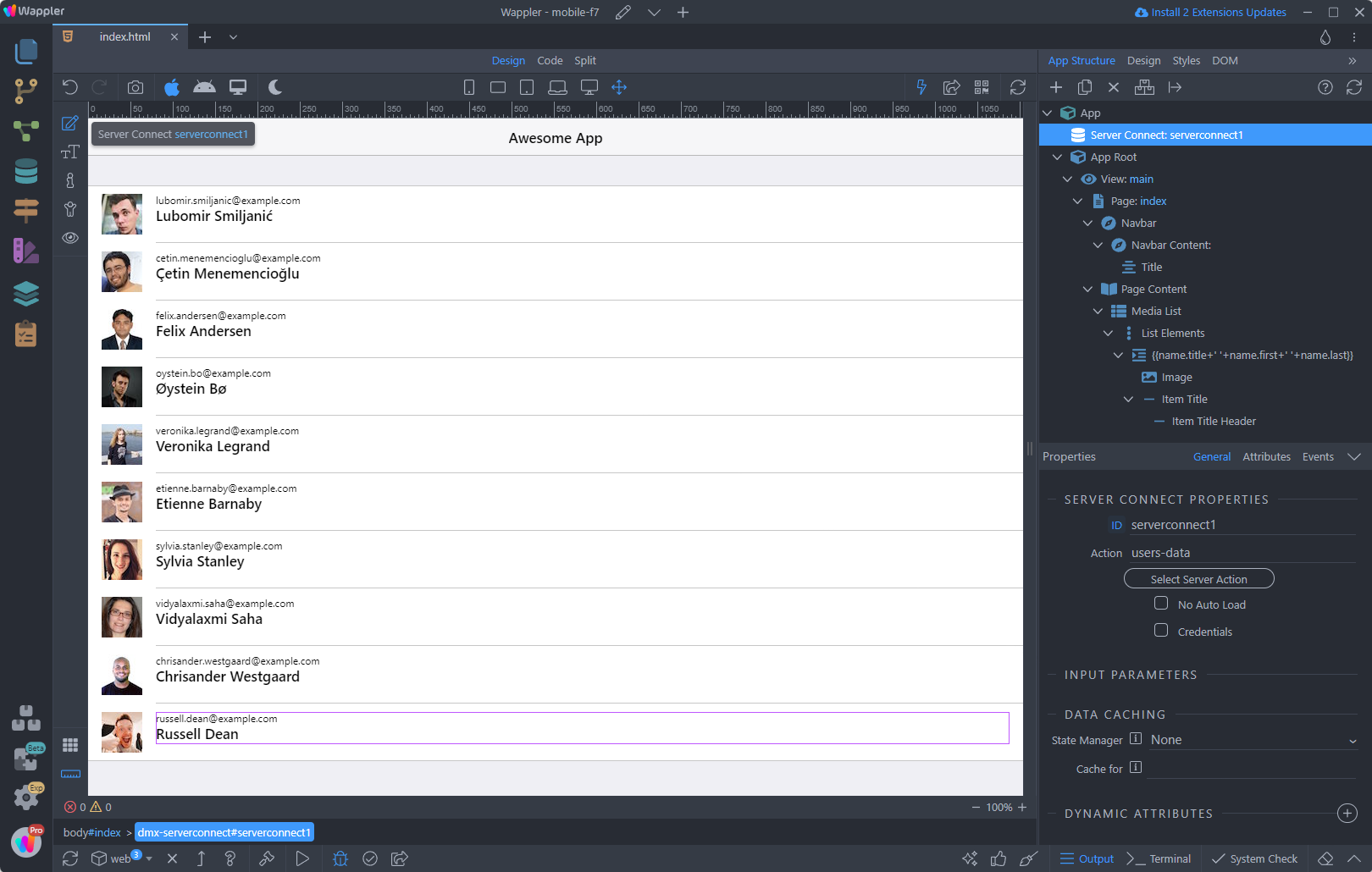
We’re using it to populate a list with users on the page:
Section titled “We’re using it to populate a list with users on the page:”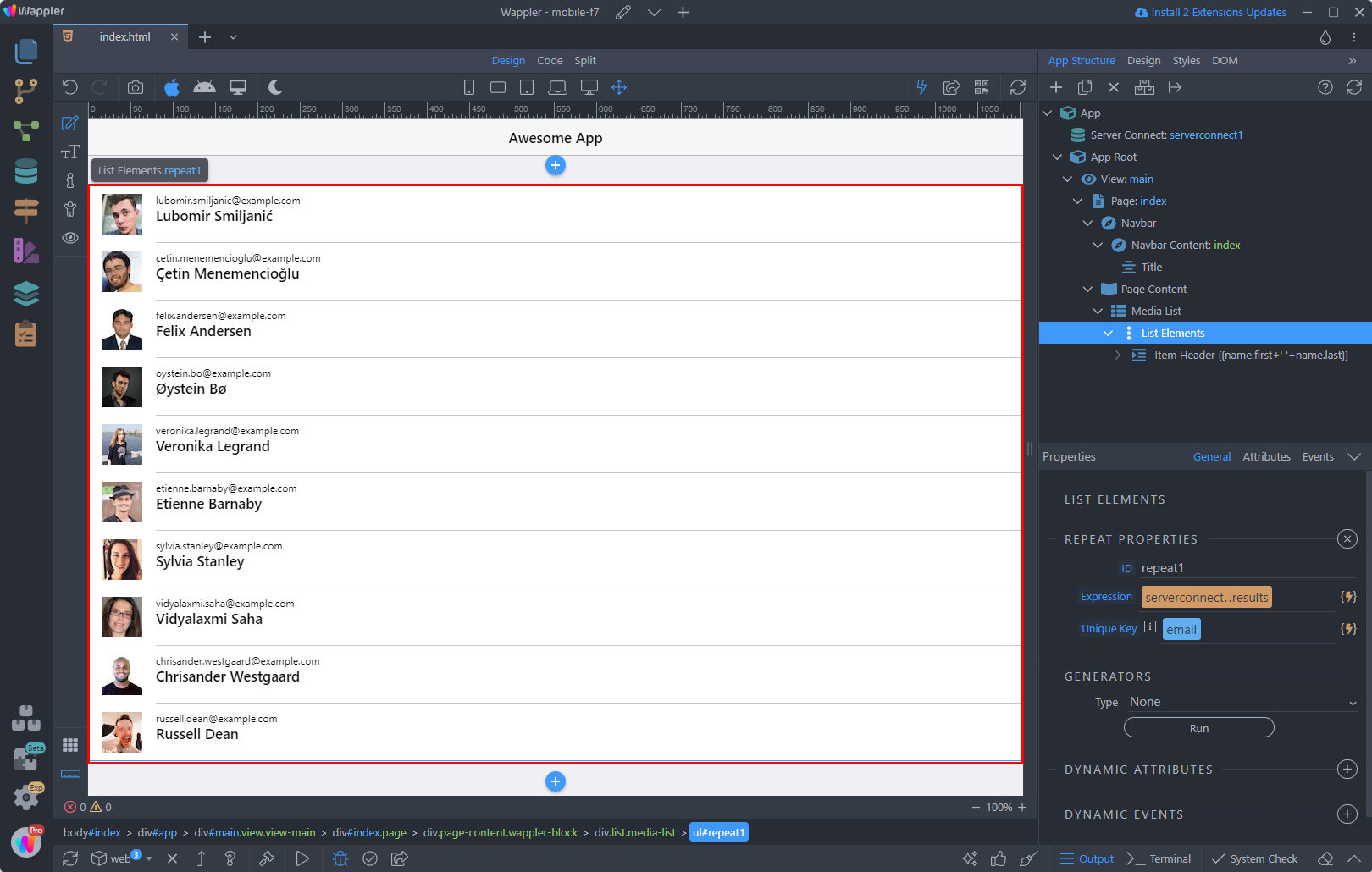
Pull To Refresh
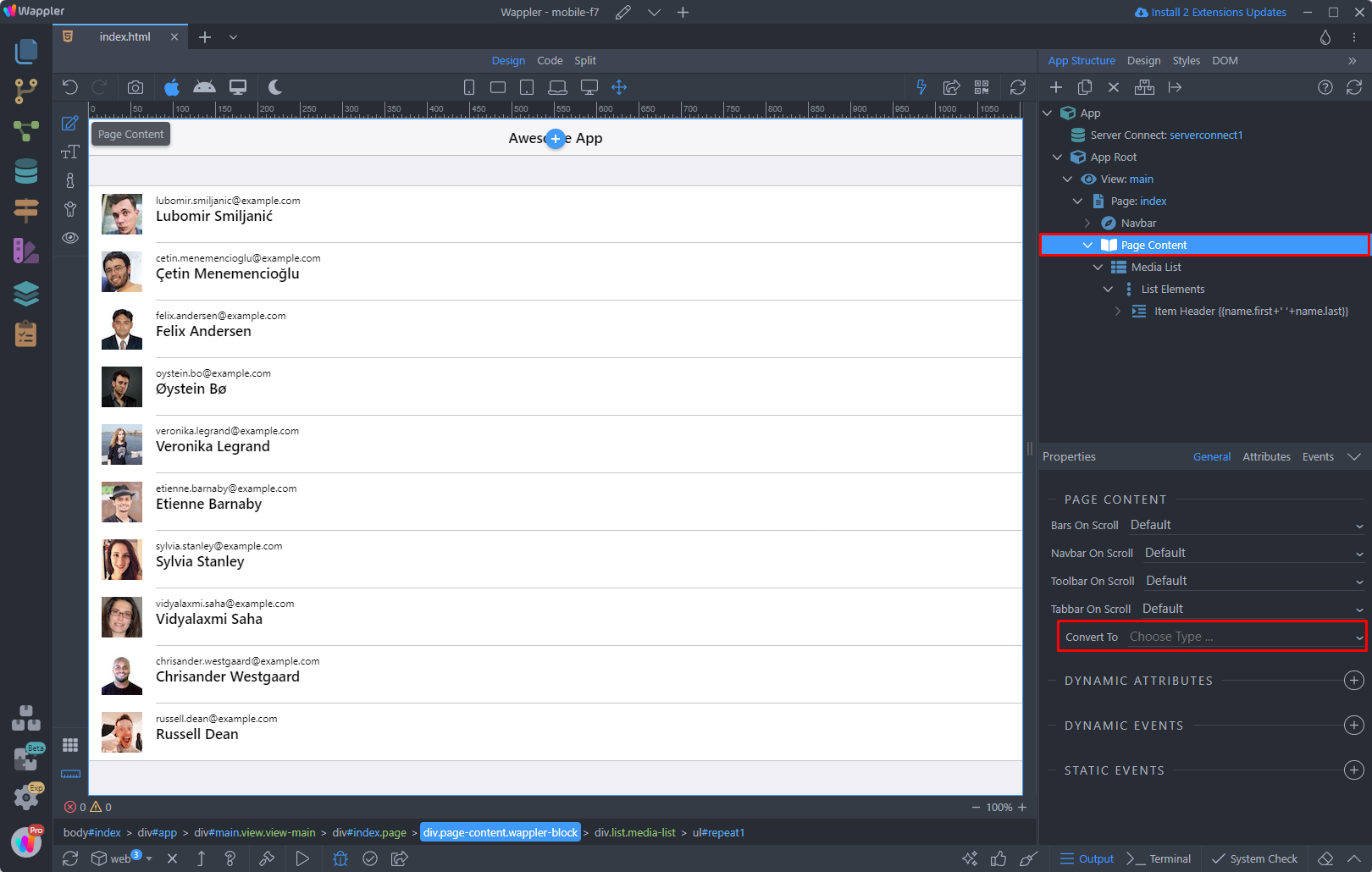
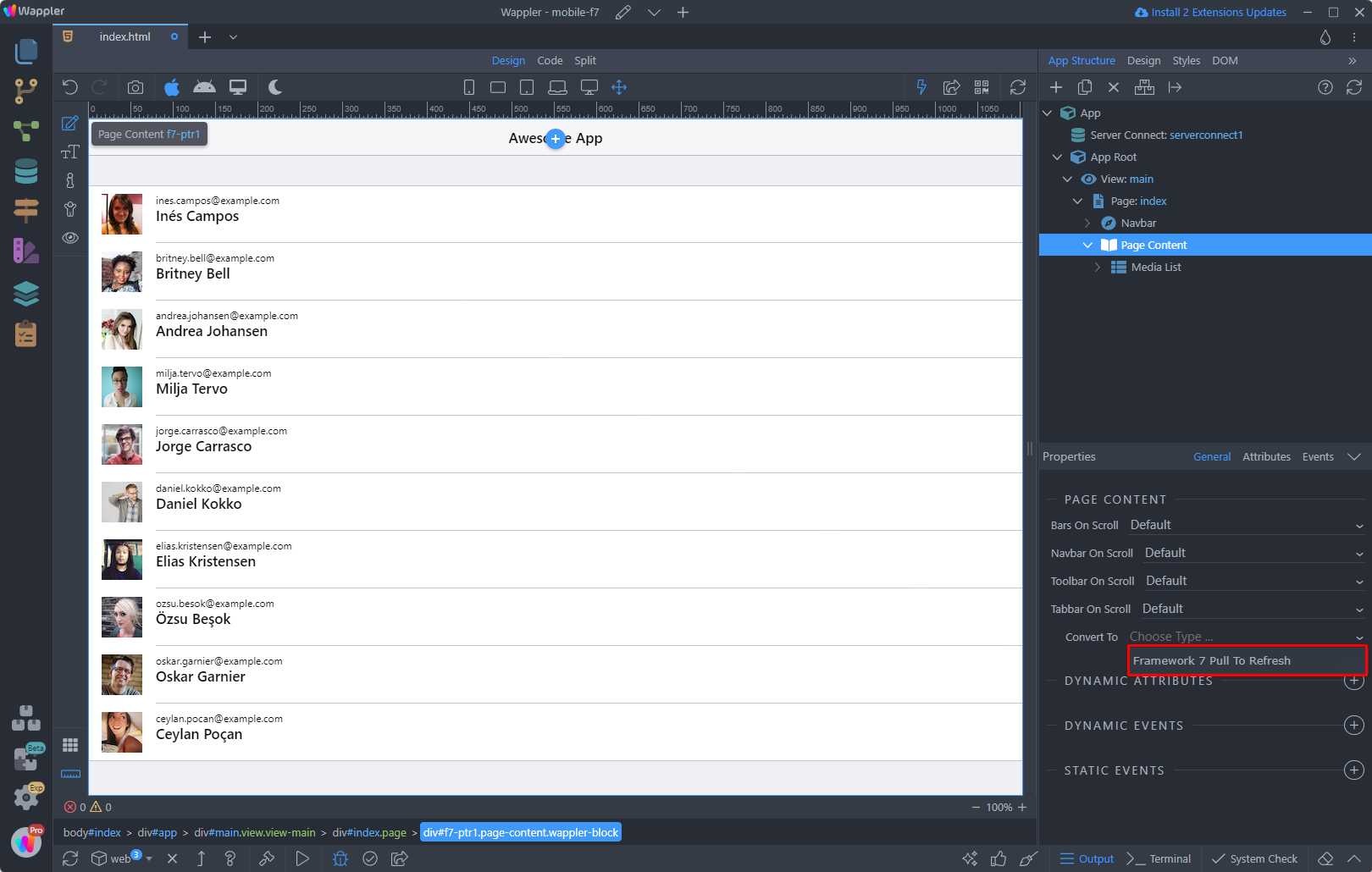
Section titled “Pull To Refresh”In order to enable the pull to refresh action on our page, select the Page Content and open the Convert to menu:
Step 7
Section titled “Step 7”And select Framework 7 Pull to Refresh. This will enable the pull to refresh behavior on this page, so that you can use it to call a dynamic action:
With the Page Content selected, add new dynamic event:
Section titled “With the Page Content selected, add new dynamic event:”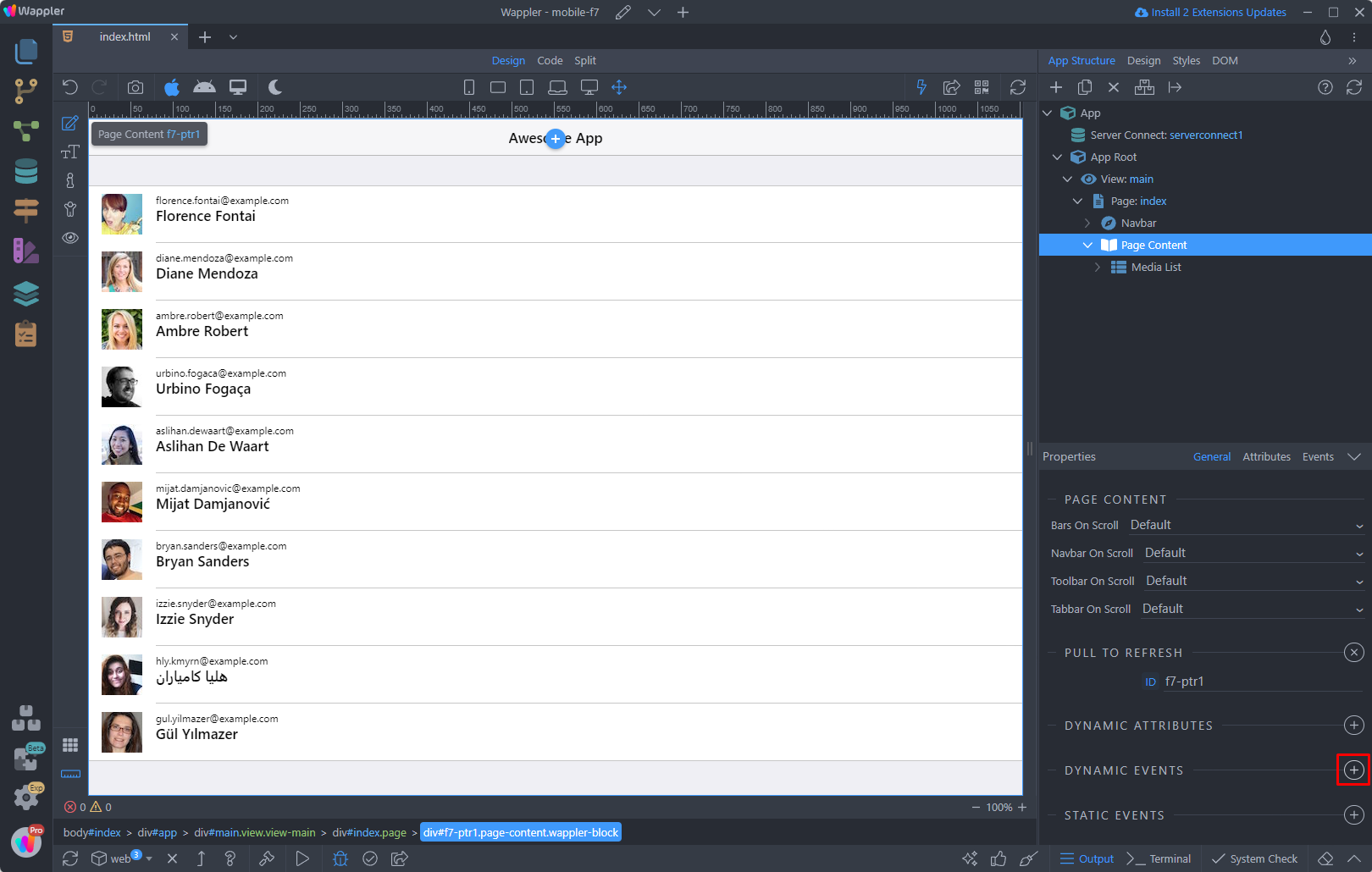
Step 9
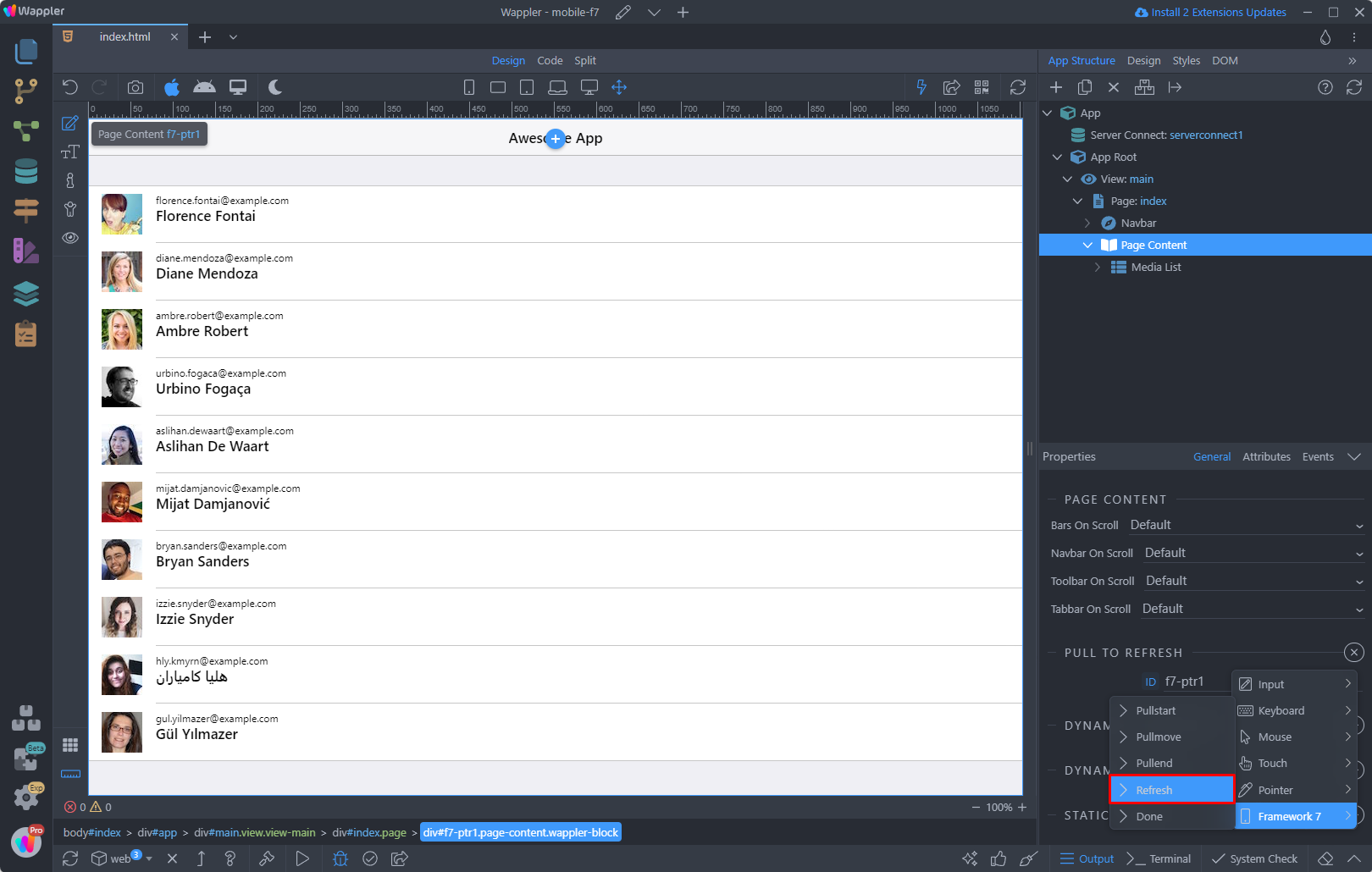
Section titled “Step 9”Select Framework 7 > Refresh. Event will be triggered when pull to refresh enters in “refreshing” state - after releasing the page, when you pull it down with your finger:
Select a dynamic action to run on this event:
Section titled “Select a dynamic action to run on this event:”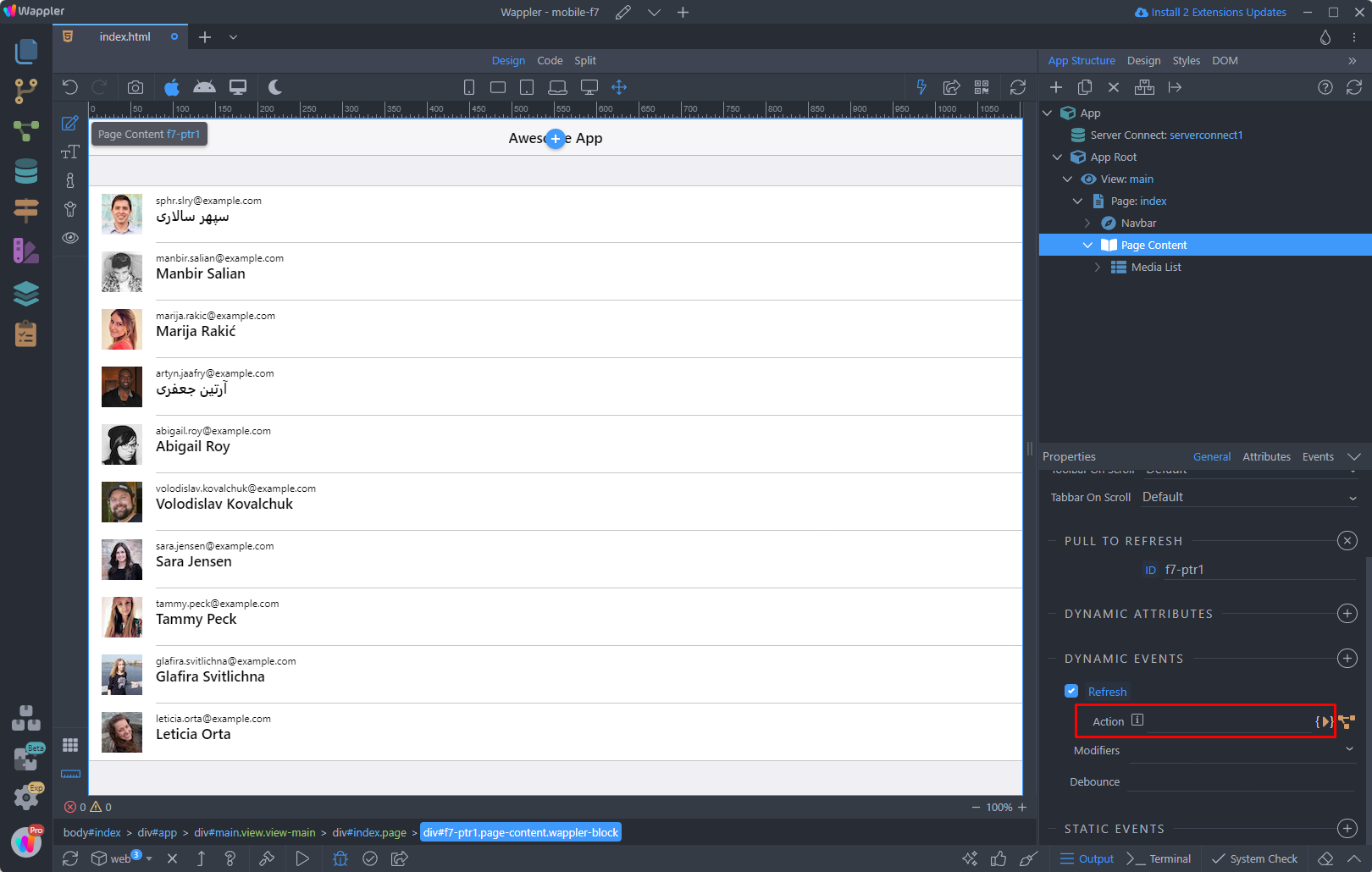
We select the server action, which shows the data on the page:
Section titled “We select the server action, which shows the data on the page:”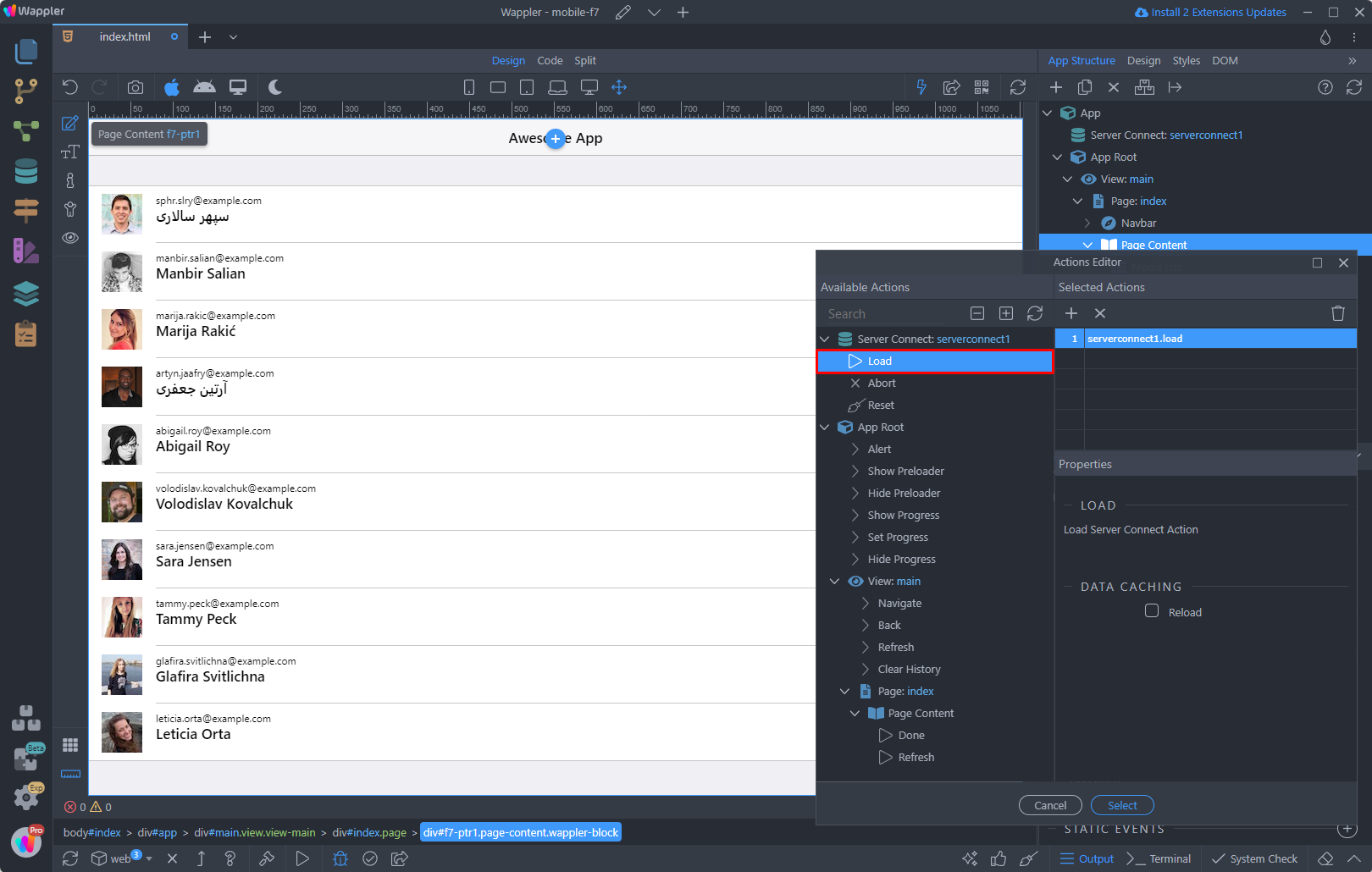
Step 12
Section titled “Step 12”While the pull to refresh action is running, a loader is shown on the page. We need this loader to disappear after the data has been refreshed.
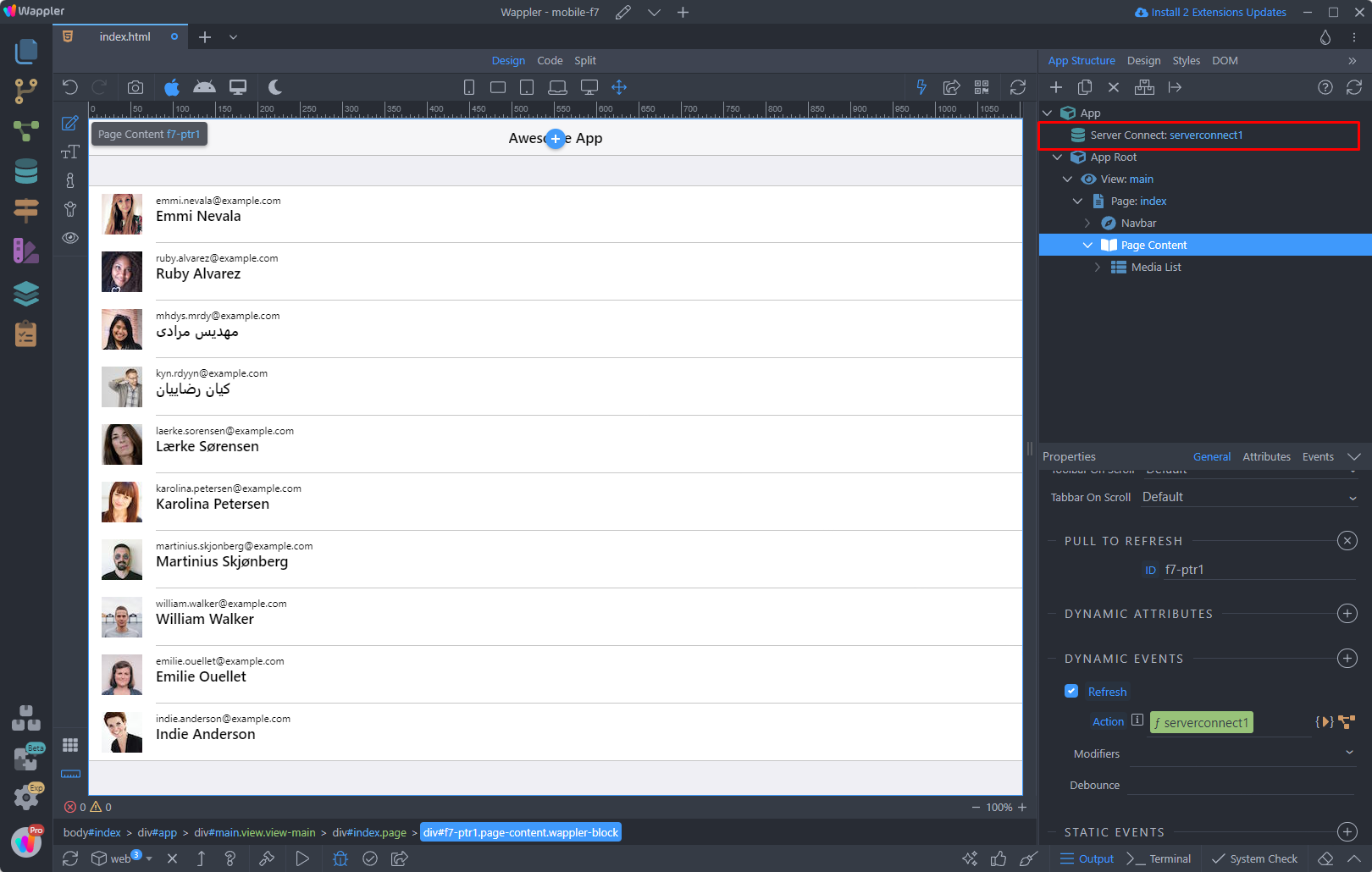
In order to do this we need to use the on done event of our server action. Select the server action:
Add new dynamic event:
Section titled “Add new dynamic event:”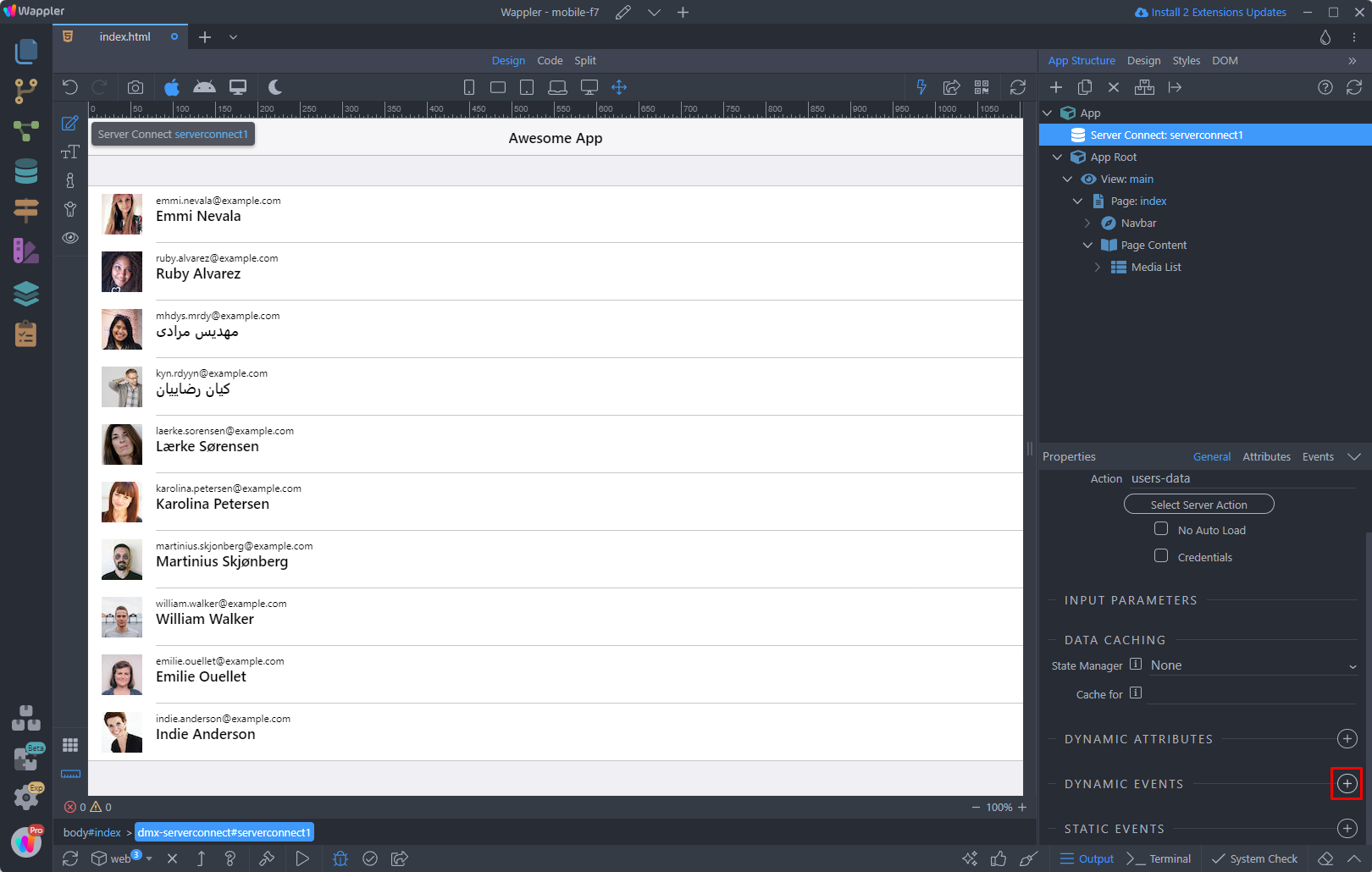
Select Server Connect > Done:
Section titled “Select Server Connect > Done:”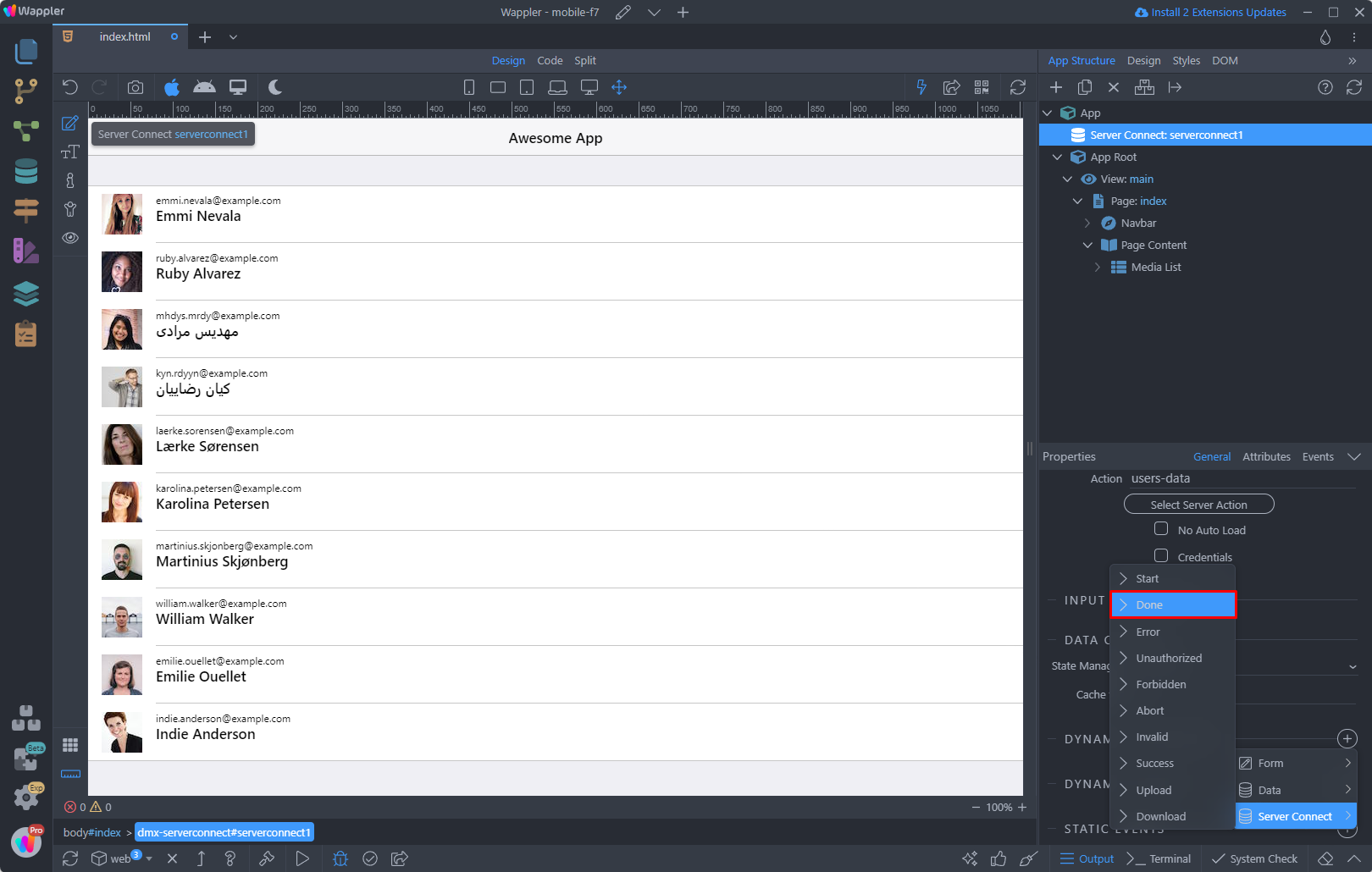
And select an action to run:
Section titled “And select an action to run:”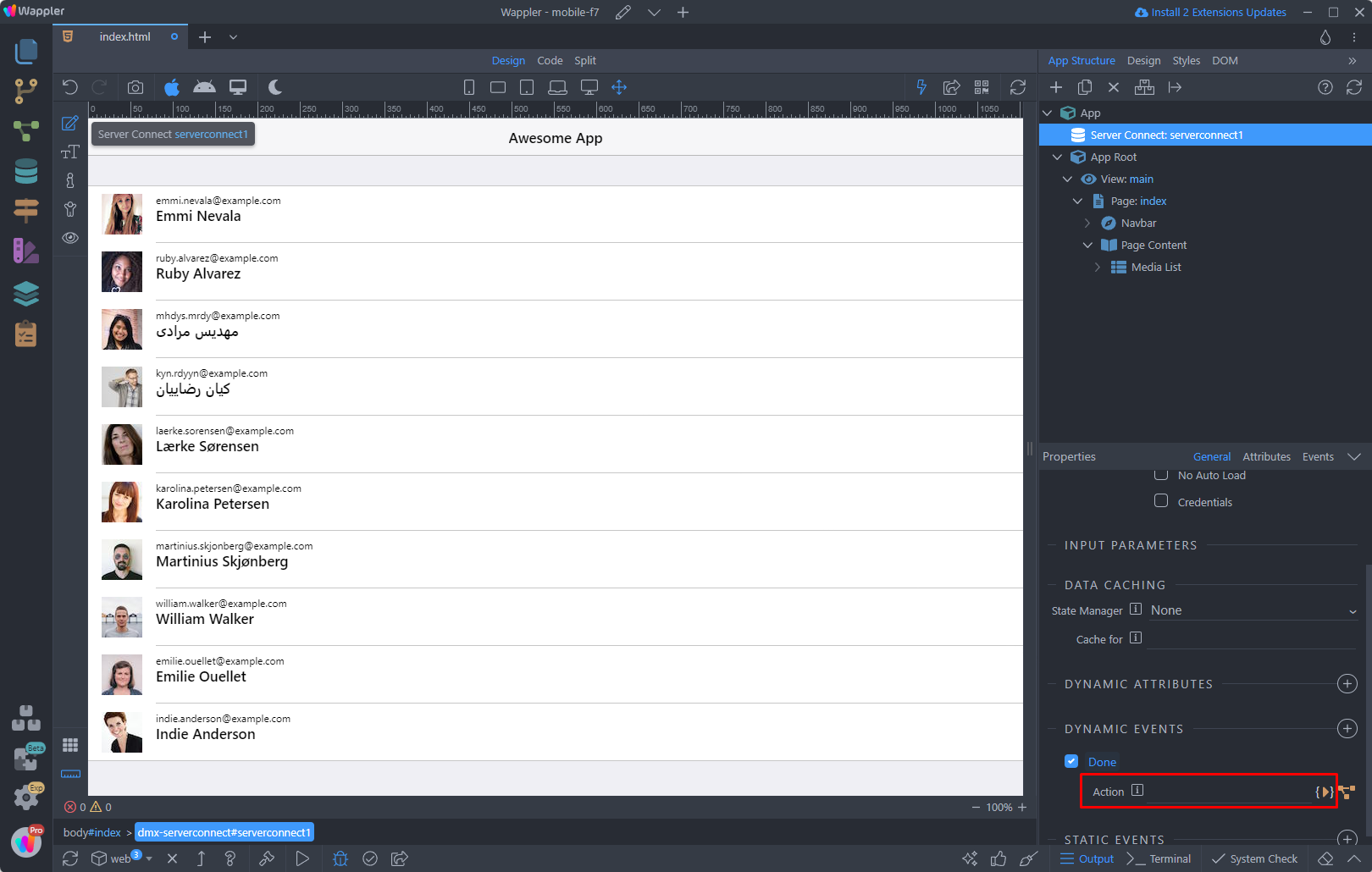
Step 16
Section titled “Step 16”We need to set the state of the Pull to refresh component to Done, when the data is loaded. So select Done, under Page Content:
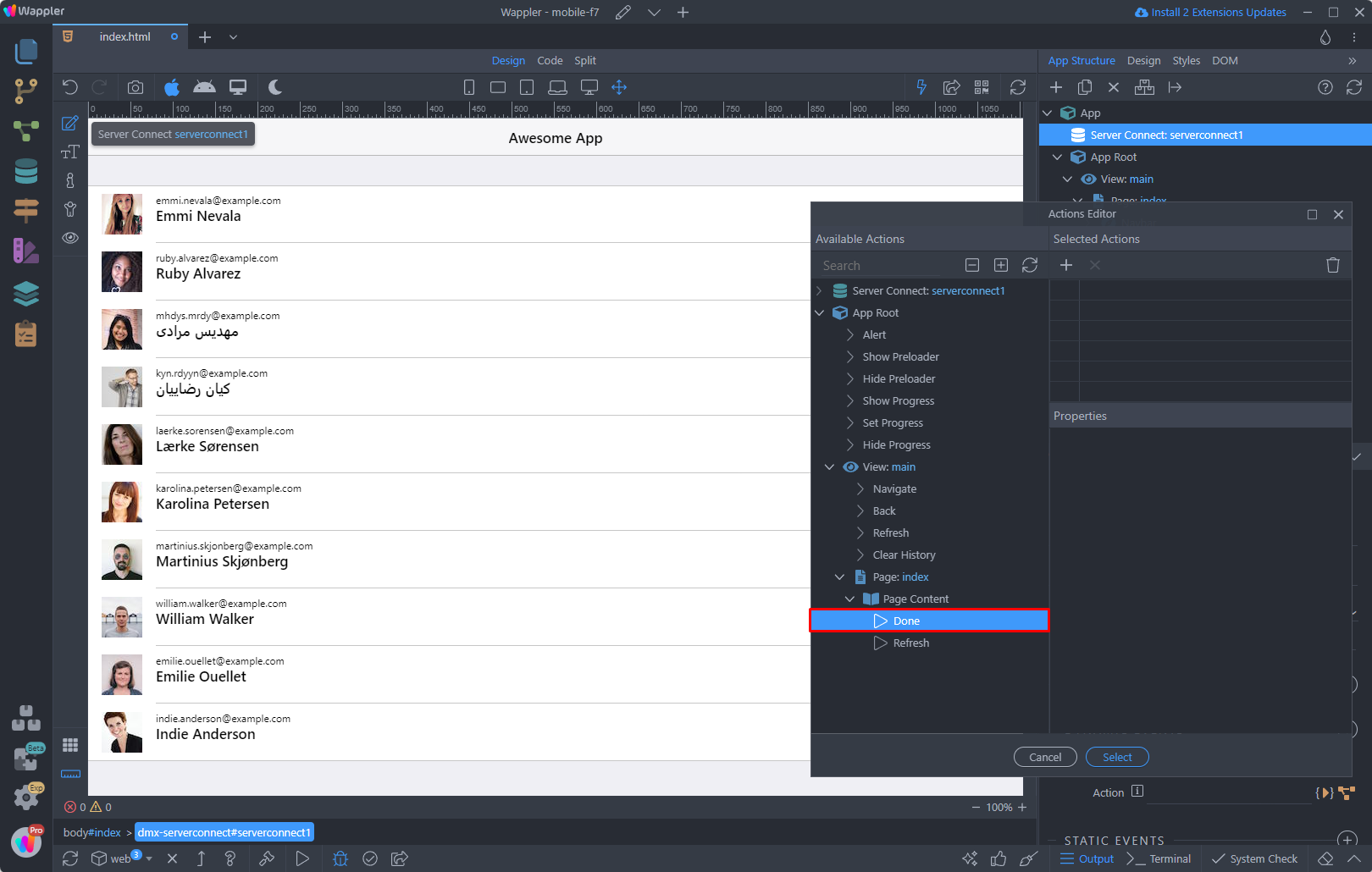
Click Select and you are done:
Section titled “Click Select and you are done:”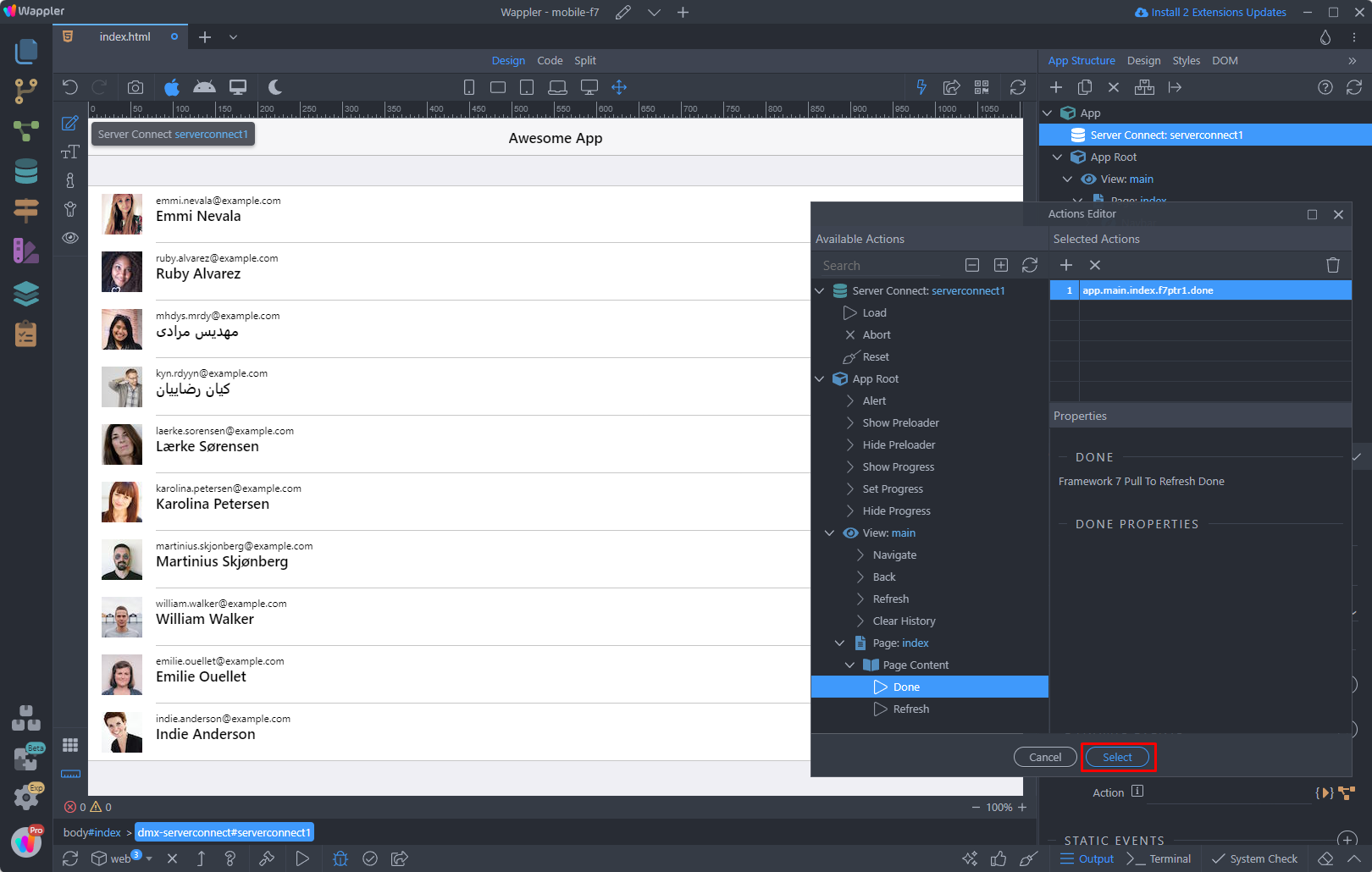
Step 18
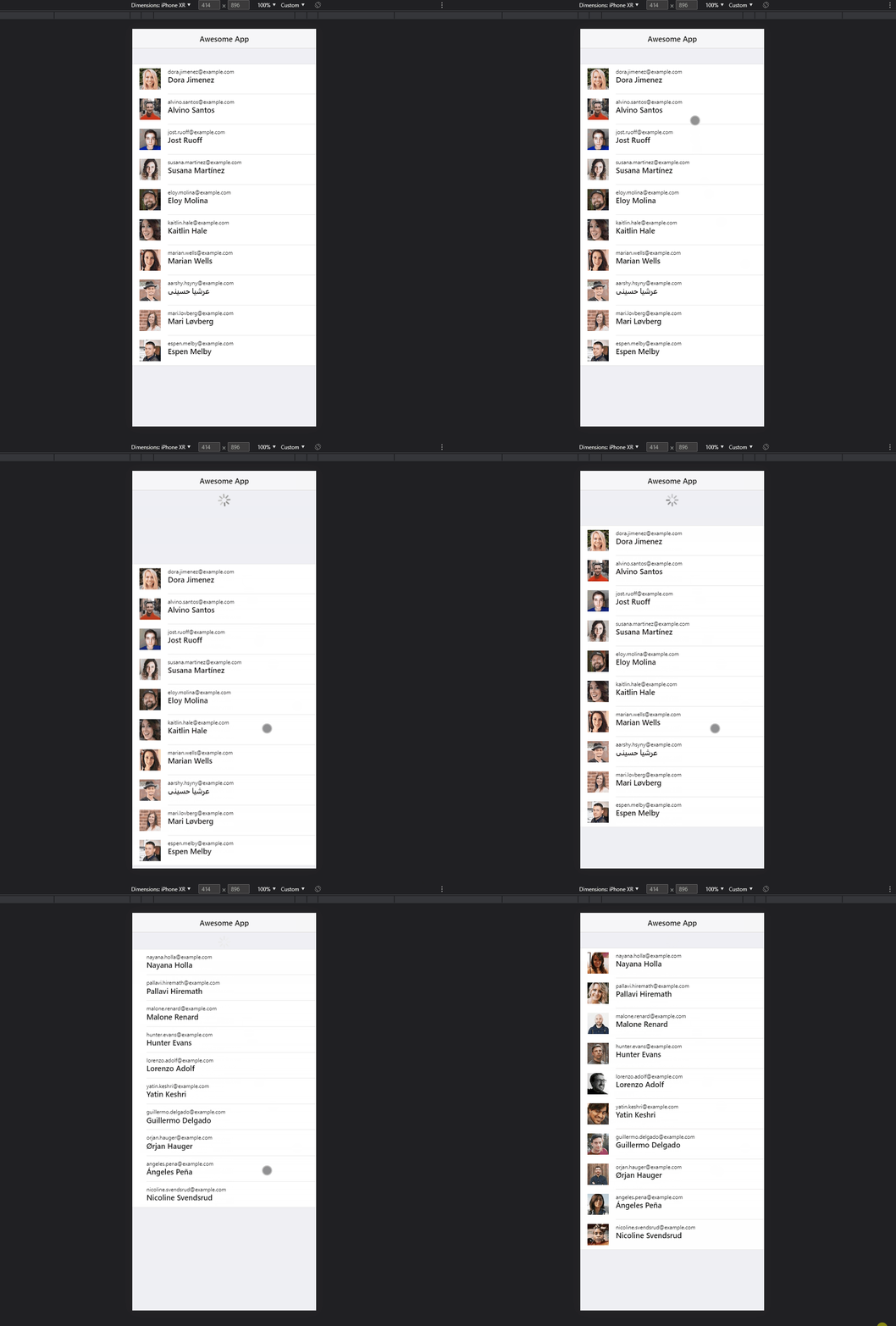
Section titled “Step 18”Save your page and let’s preview the results. When you pull the page down, the loader shows, the data is being reloaded and then the loader hides: