
Using Multi References in the Database Manager
Intro Thanks to multi references in the Database Manager you can define many-to-many relationship between items in two database tables. With many-to-many relations an item from one collections can be
Thanks to multi references in the Database Manager you can define many-to-many relationship between items in two database tables.
With many-to-many relations an item from one collections can be referenced to more than one item in another collection. Simple examples:
- Authors and books - a book may have one or many authors and each author may have written multiple books.
- Actors and movies - a movie has many actors and each actor may be playing in different movies.
- Students and classes - each student can take multiple classes, and each class can have multiple students enrolled
- People and meetings - each person can participate in multiple meetings and each meeting can have multiple people attending it.
For many-to-many relationships you need a “junction table” that stores information about those relationships. This is really simple to set up in Wappler’s Database Manager, as it handles the creation of the junction table and the references automatically for you.
In our example we will show you how to setup a multi reference for people and meetings.
Database Tables
Section titled “Database Tables”First we will create our database tables - one for storing the meetings and one for the people.
Meetings
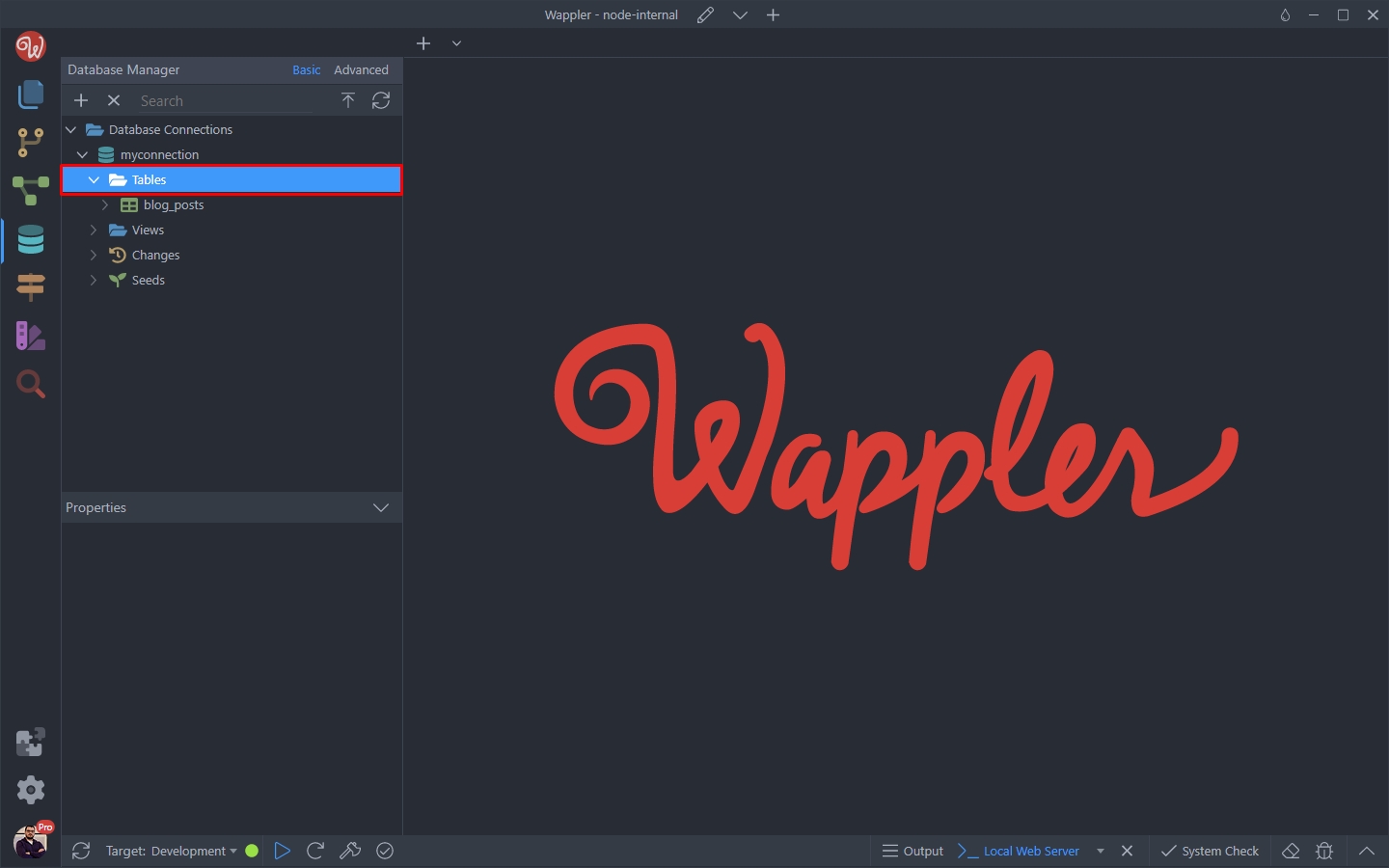
Section titled “Meetings”Open the Database Manager and right click Tables:
Select New Table:
Section titled “Select New Table:”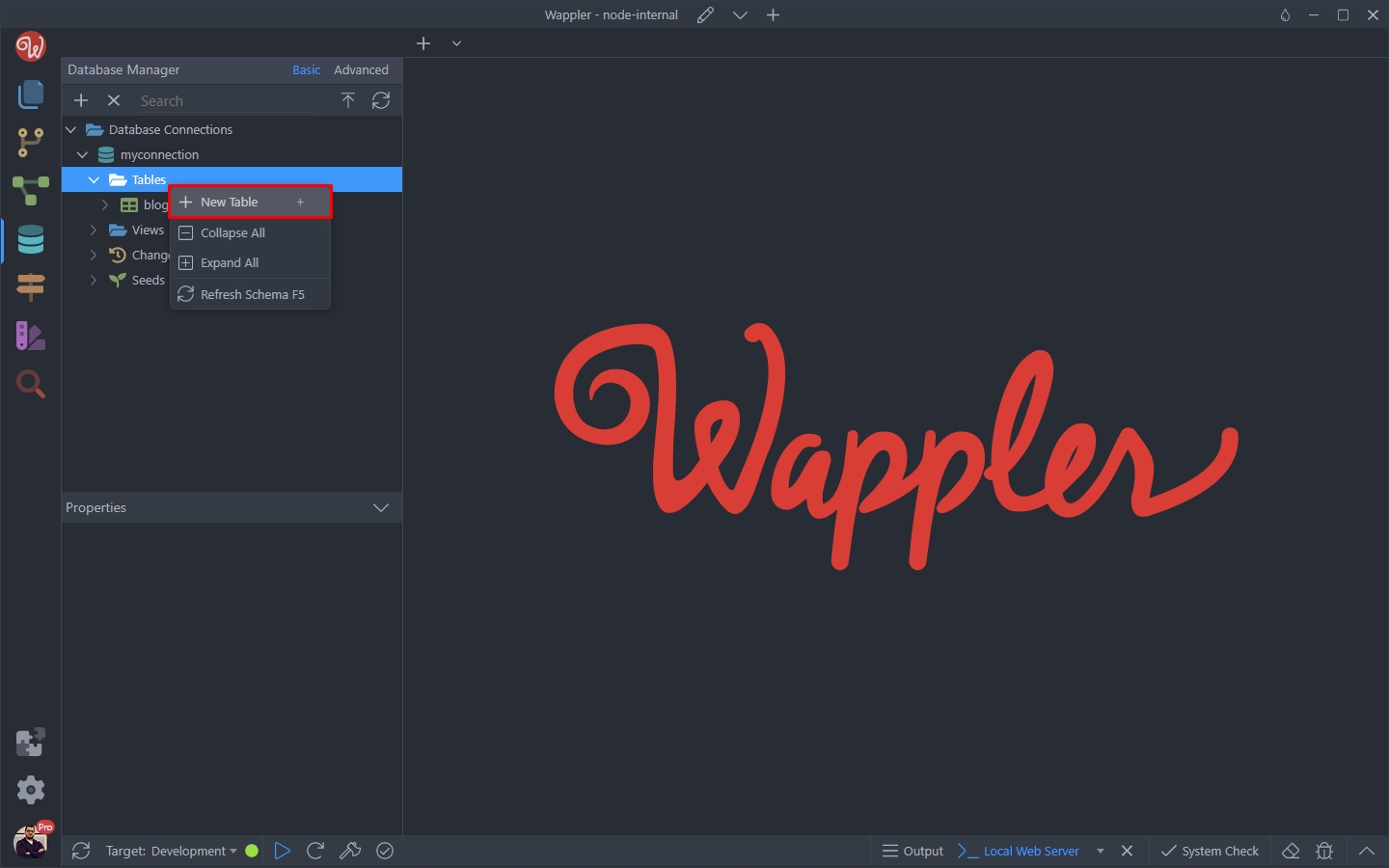
And add a name for it - meetings:
Section titled “And add a name for it - meetings:”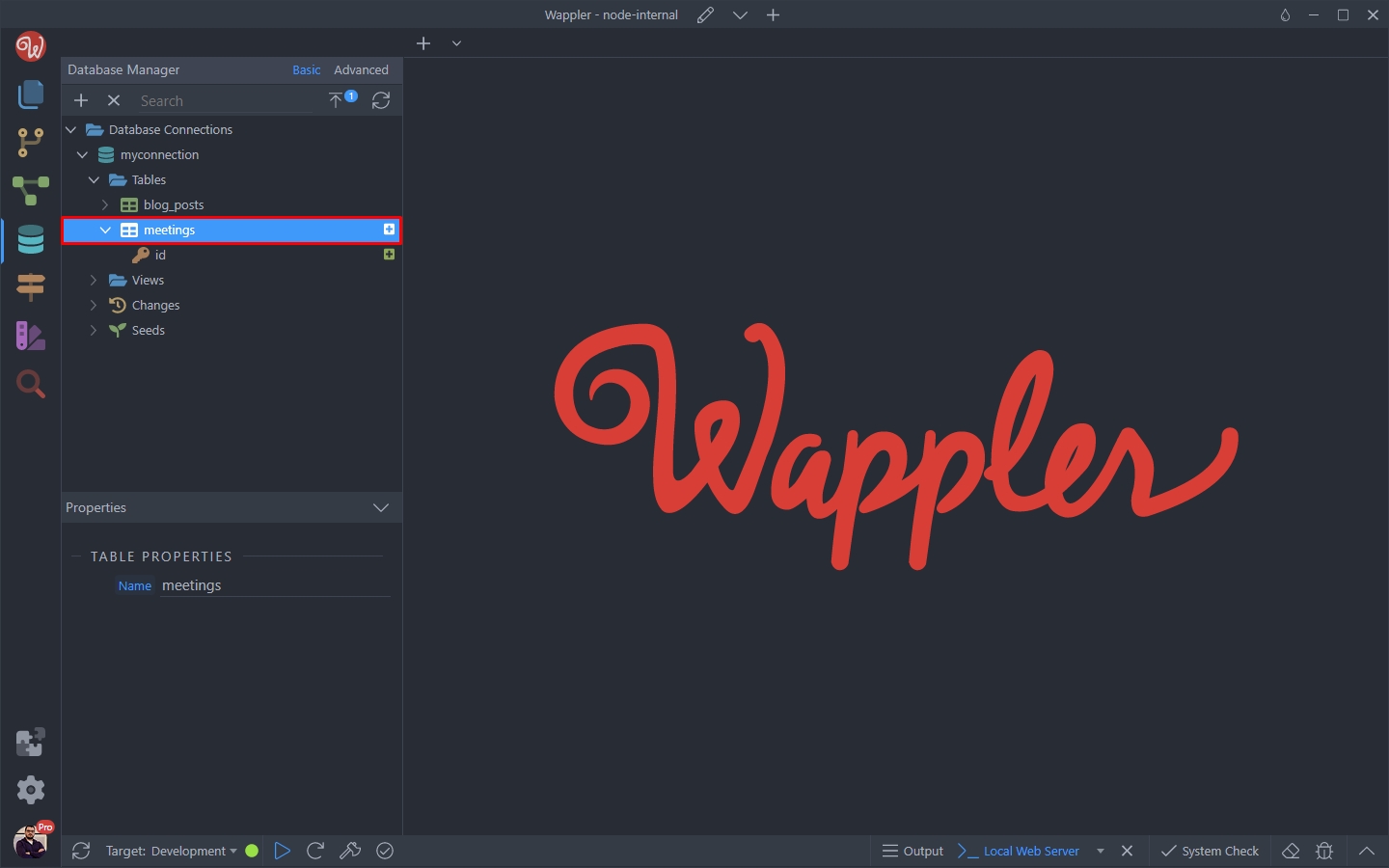
A primary key field has been automatically created:
Section titled “A primary key field has been automatically created:”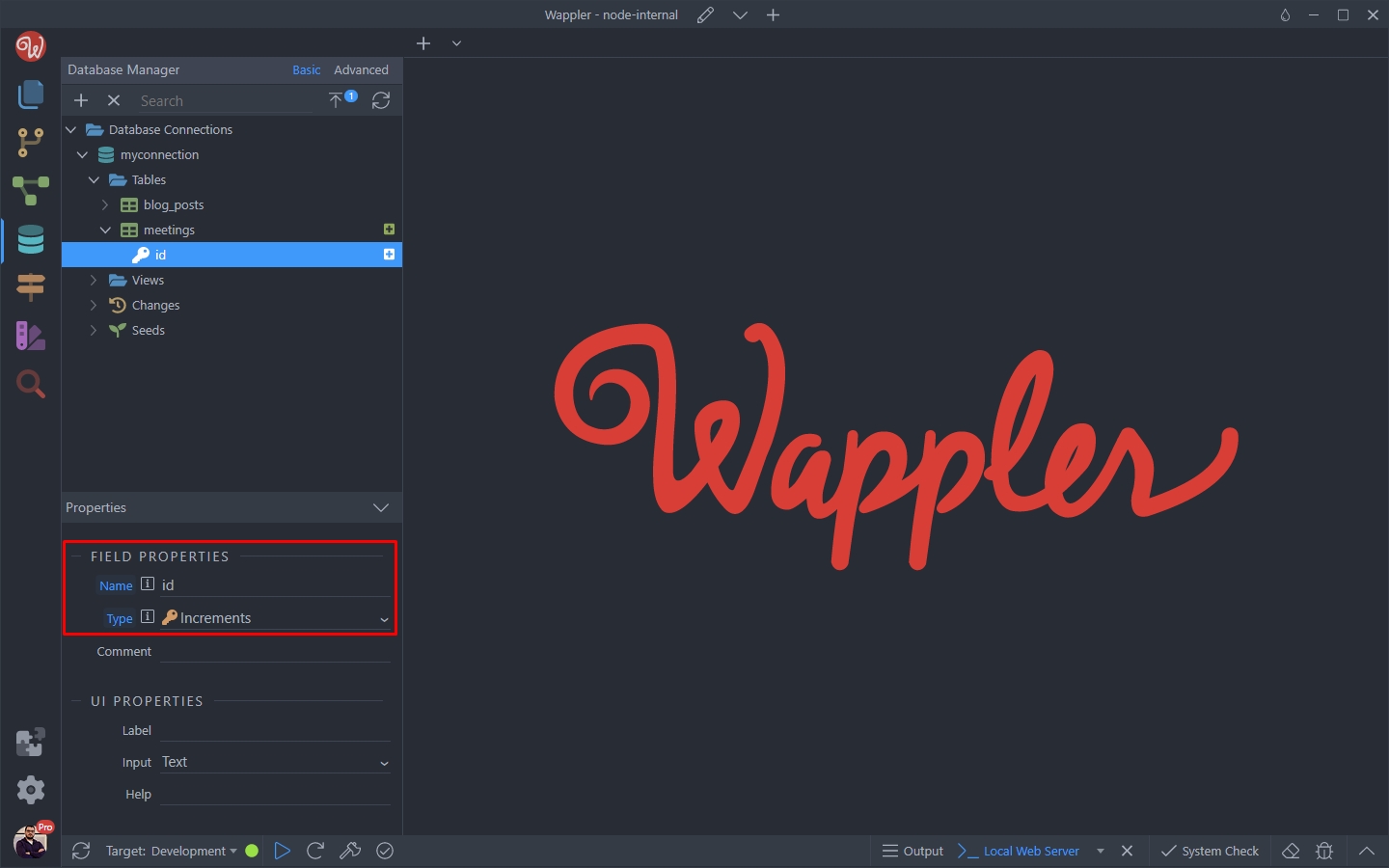
Let’s add some more fields to our meetings table. Right click the table and add a new field:
Section titled “Let’s add some more fields to our meetings table. Right click the table and add a new field:”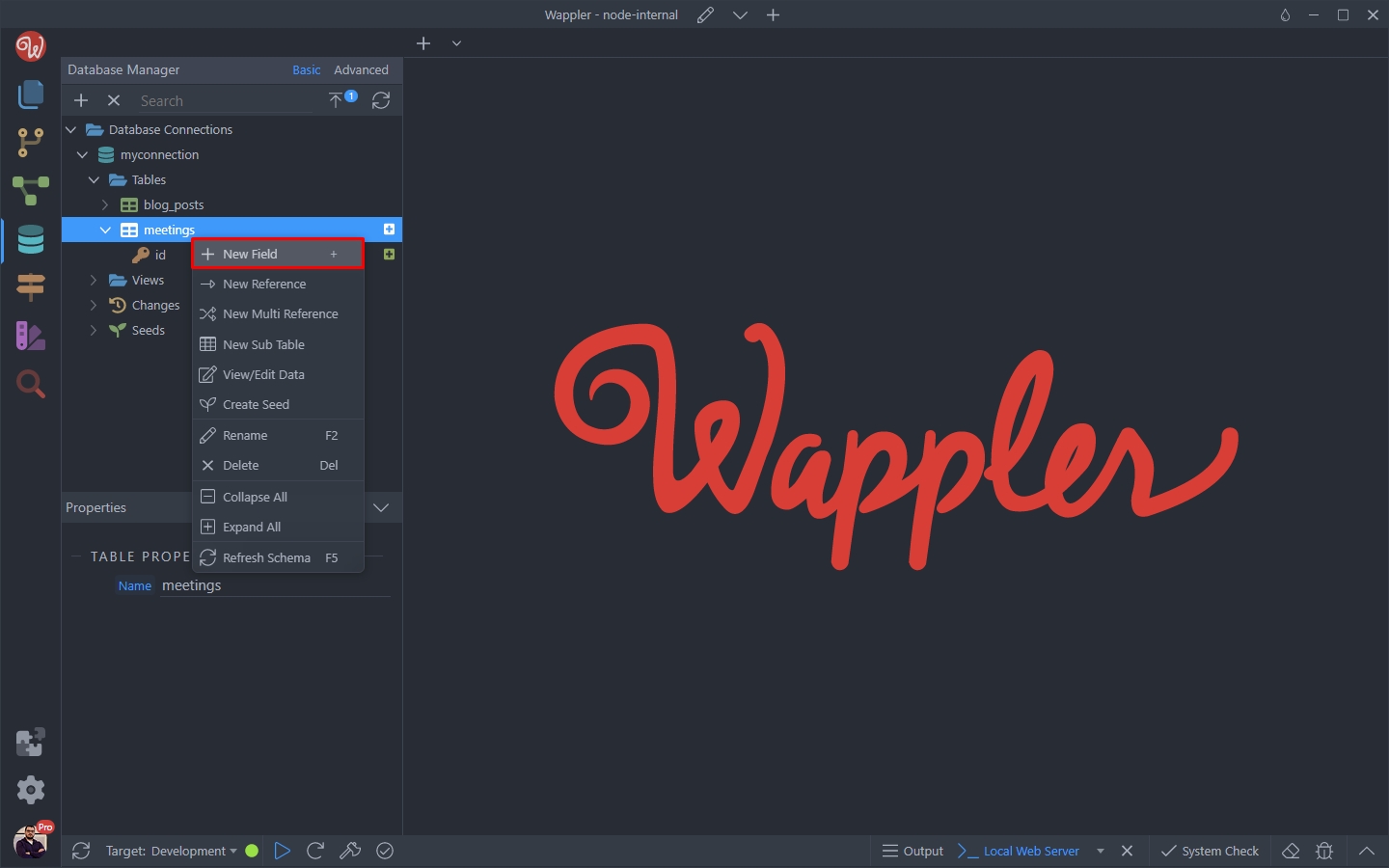
We call it name and set its type to string:
Section titled “We call it name and set its type to string:”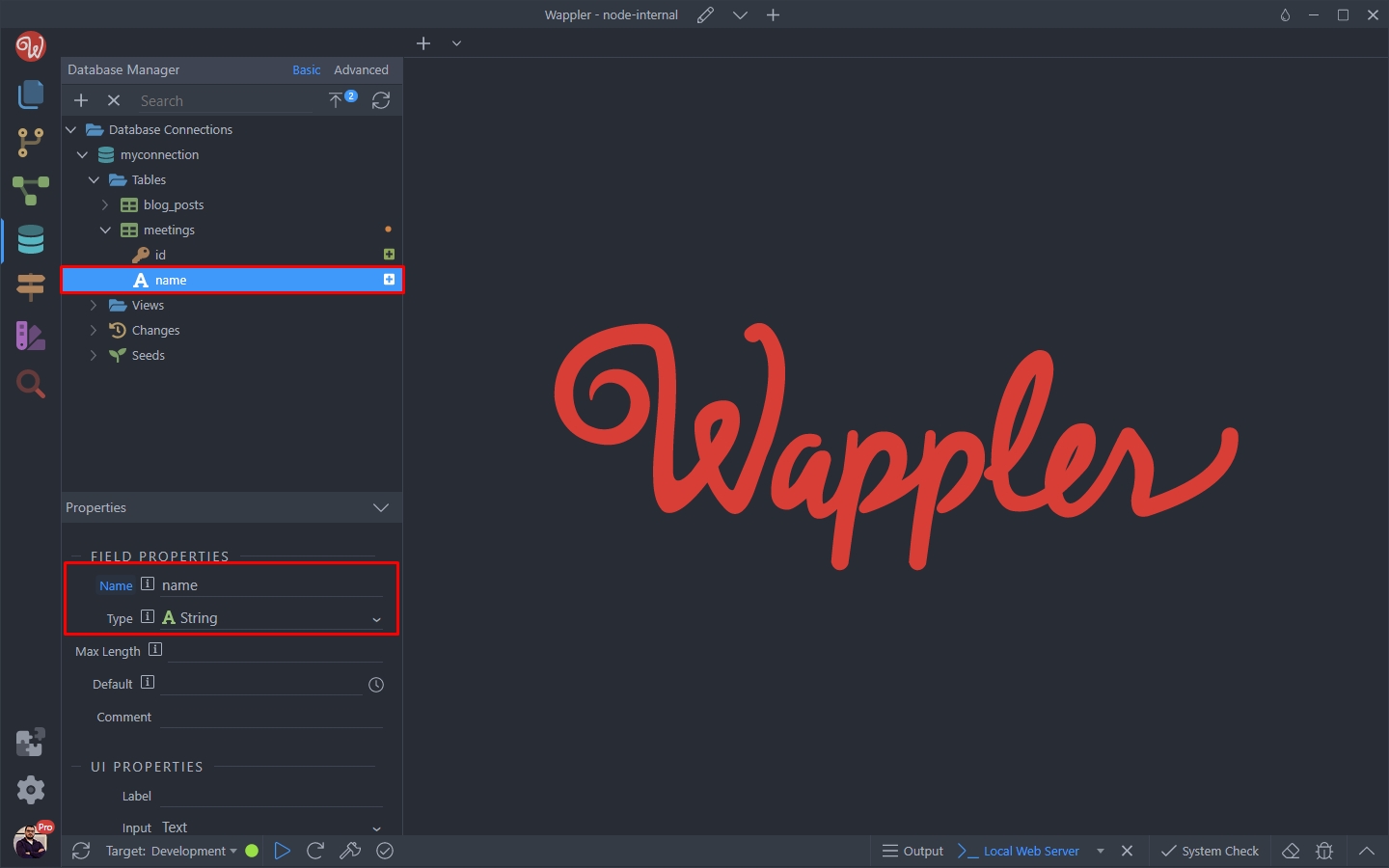
The same way we add a few more fields. description - set to type text:
Section titled “The same way we add a few more fields. description - set to type text:”The same way we add a few more fields.
description - set to type text:
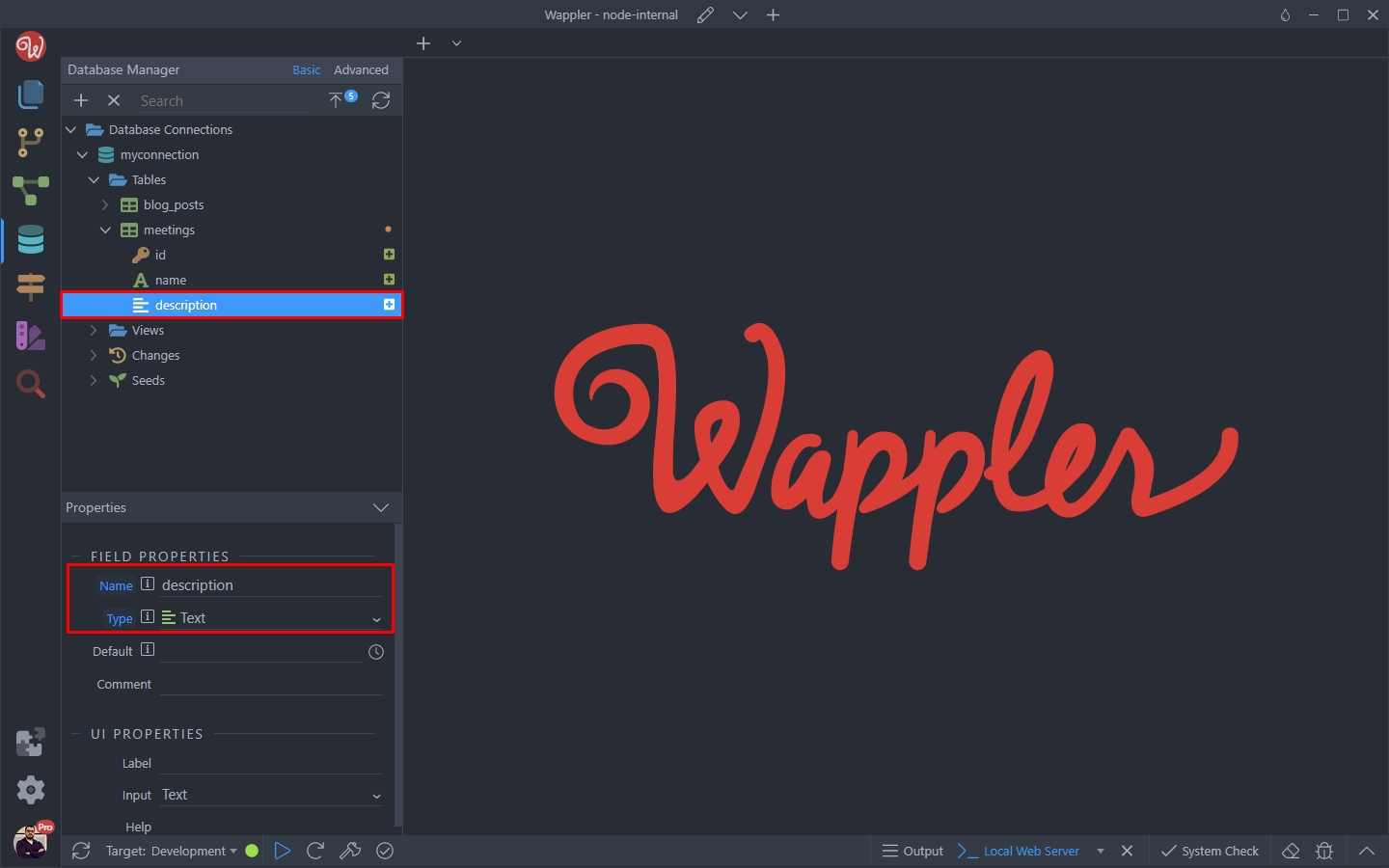
date - set to type datetime:
Section titled “date - set to type datetime:”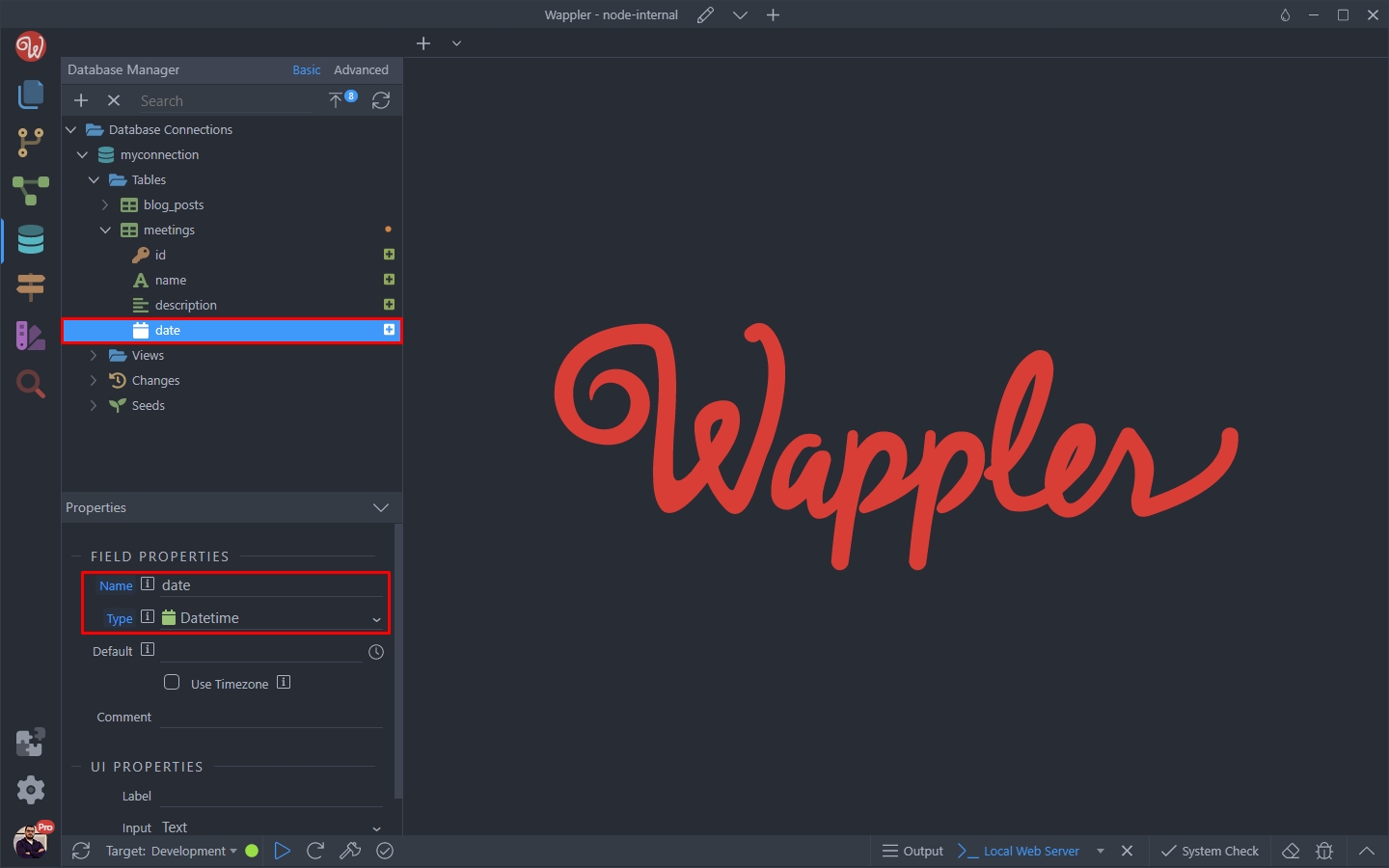
And we are pretty much done with the meetings table.
Section titled “And we are pretty much done with the meetings table.”People
Section titled “People”Now let’s setup the people table.
Right click tables and add New Table:
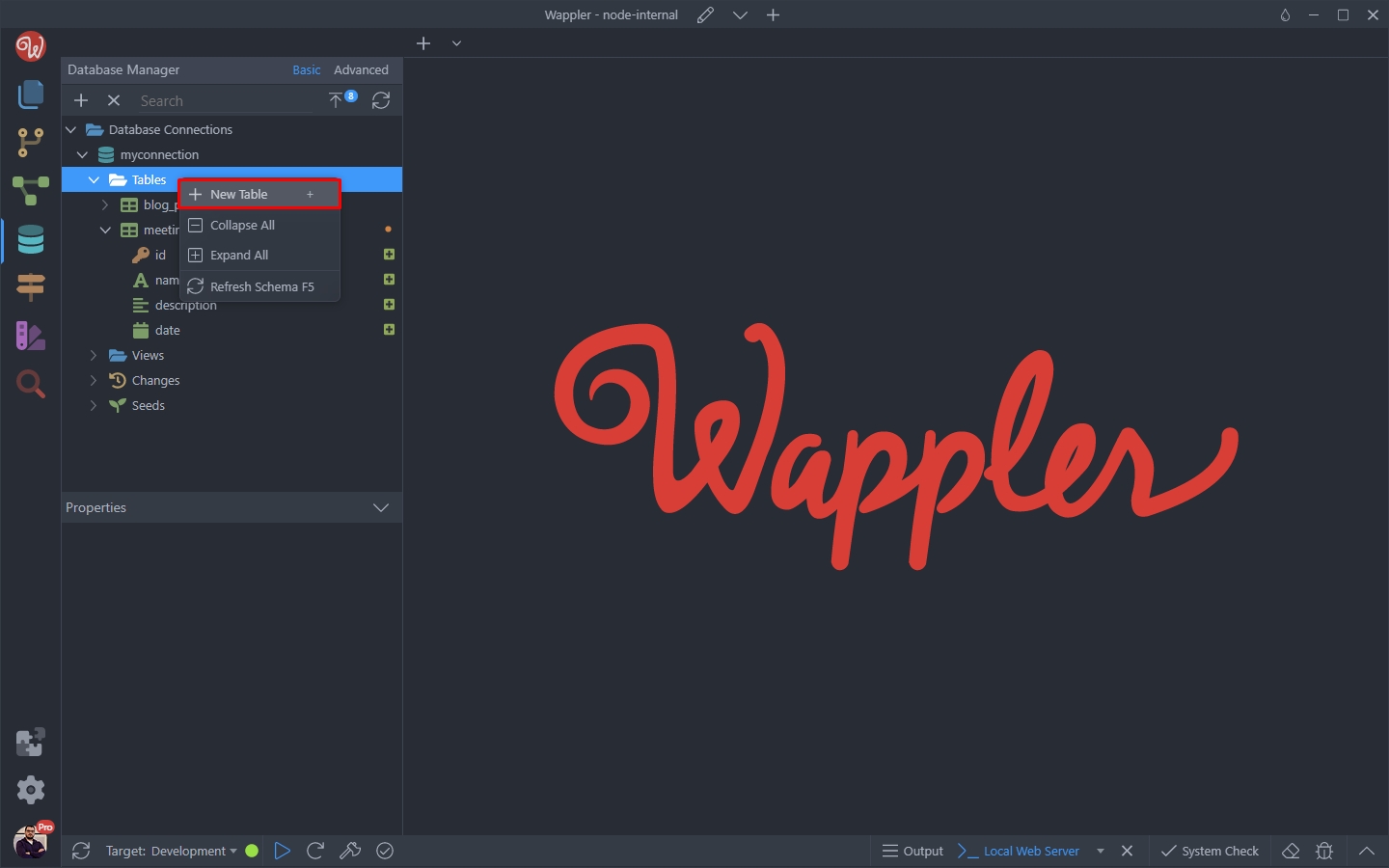
We call it people:
Section titled “We call it people:”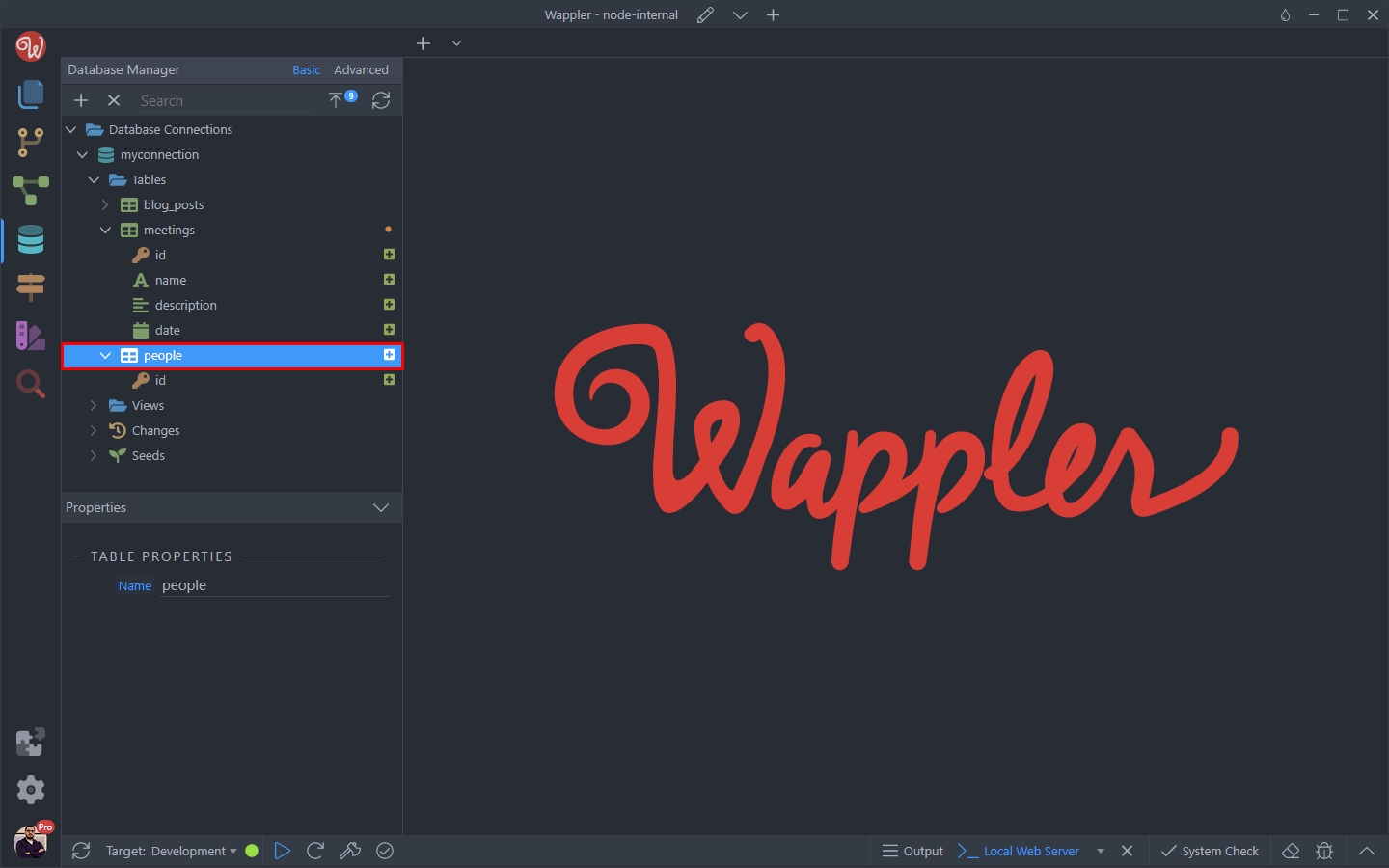
A primary key field has been automatically created:
Section titled “A primary key field has been automatically created:”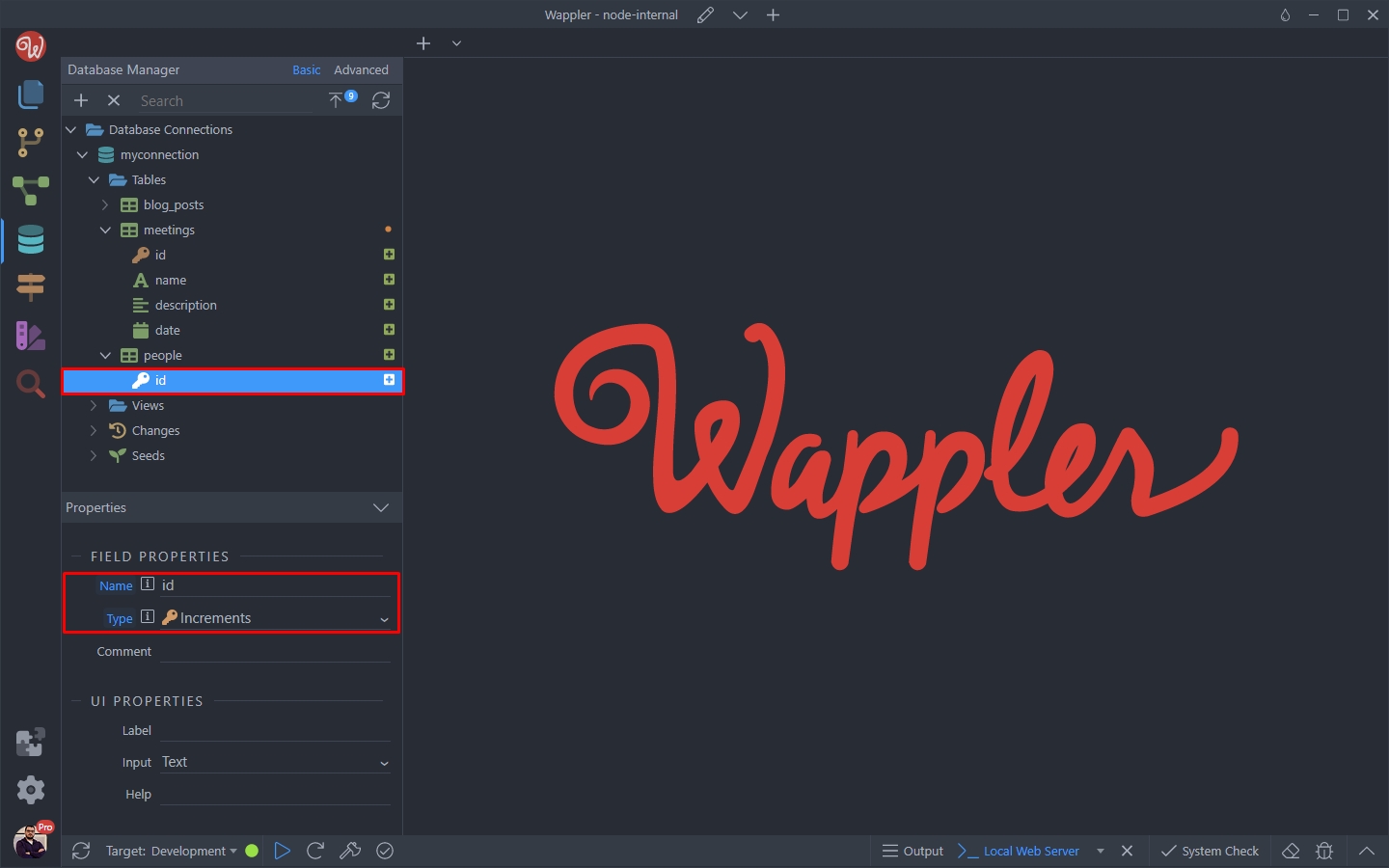
Let’s add some more fields to our meetings table. Right click the table and add a new field:
Section titled “Let’s add some more fields to our meetings table. Right click the table and add a new field:”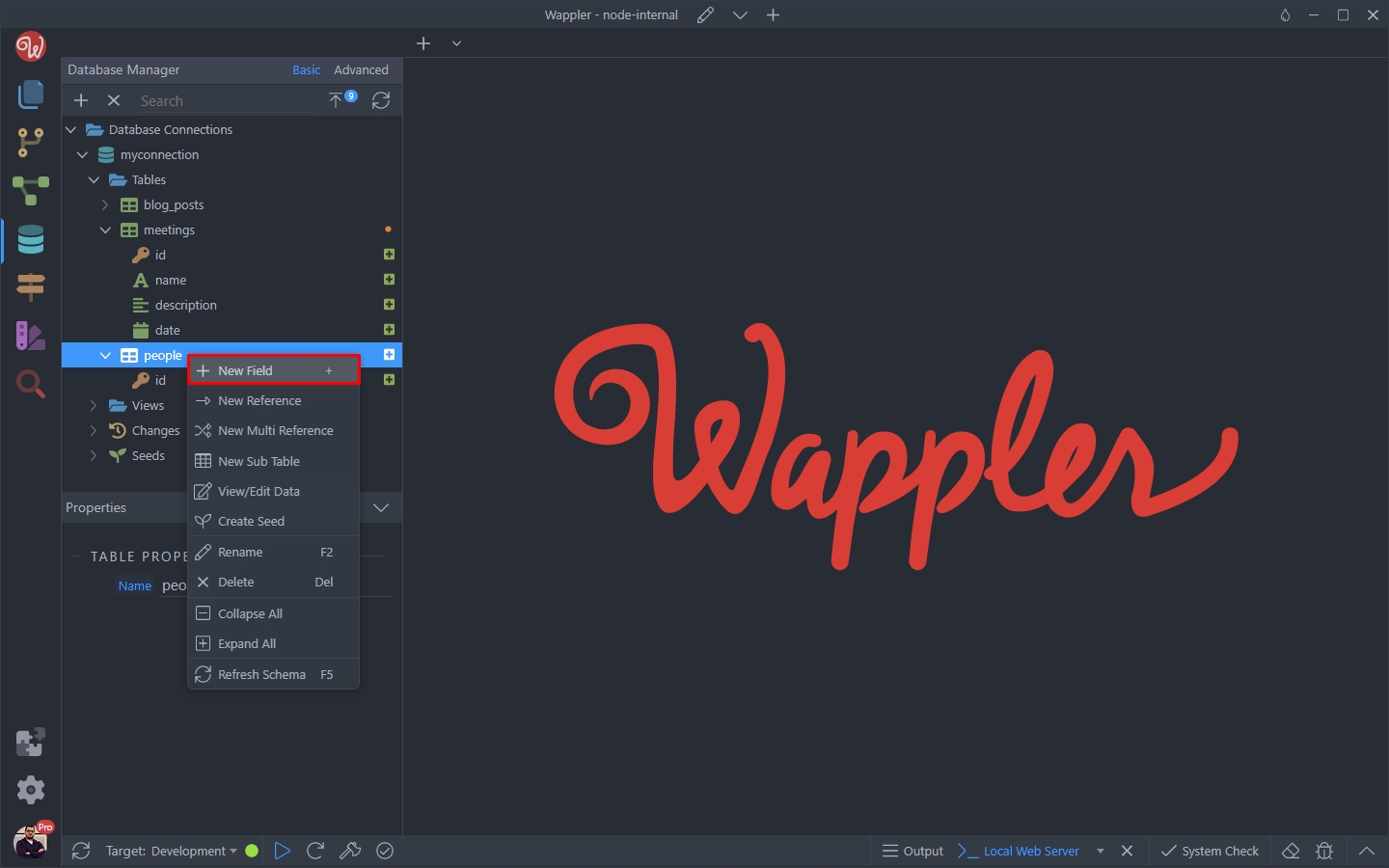
We call it first_name and set its type to string:
Section titled “We call it first_name and set its type to string:”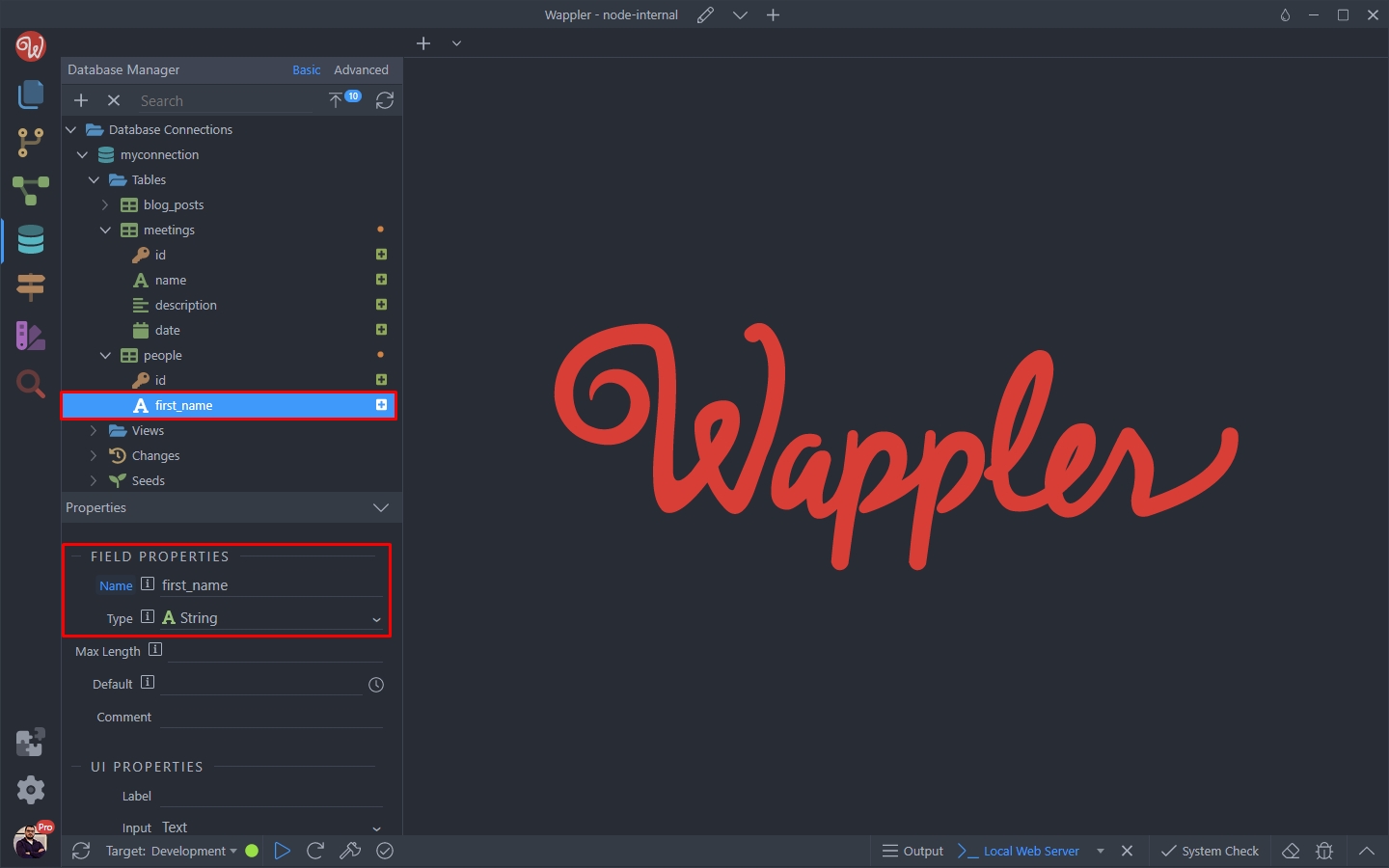
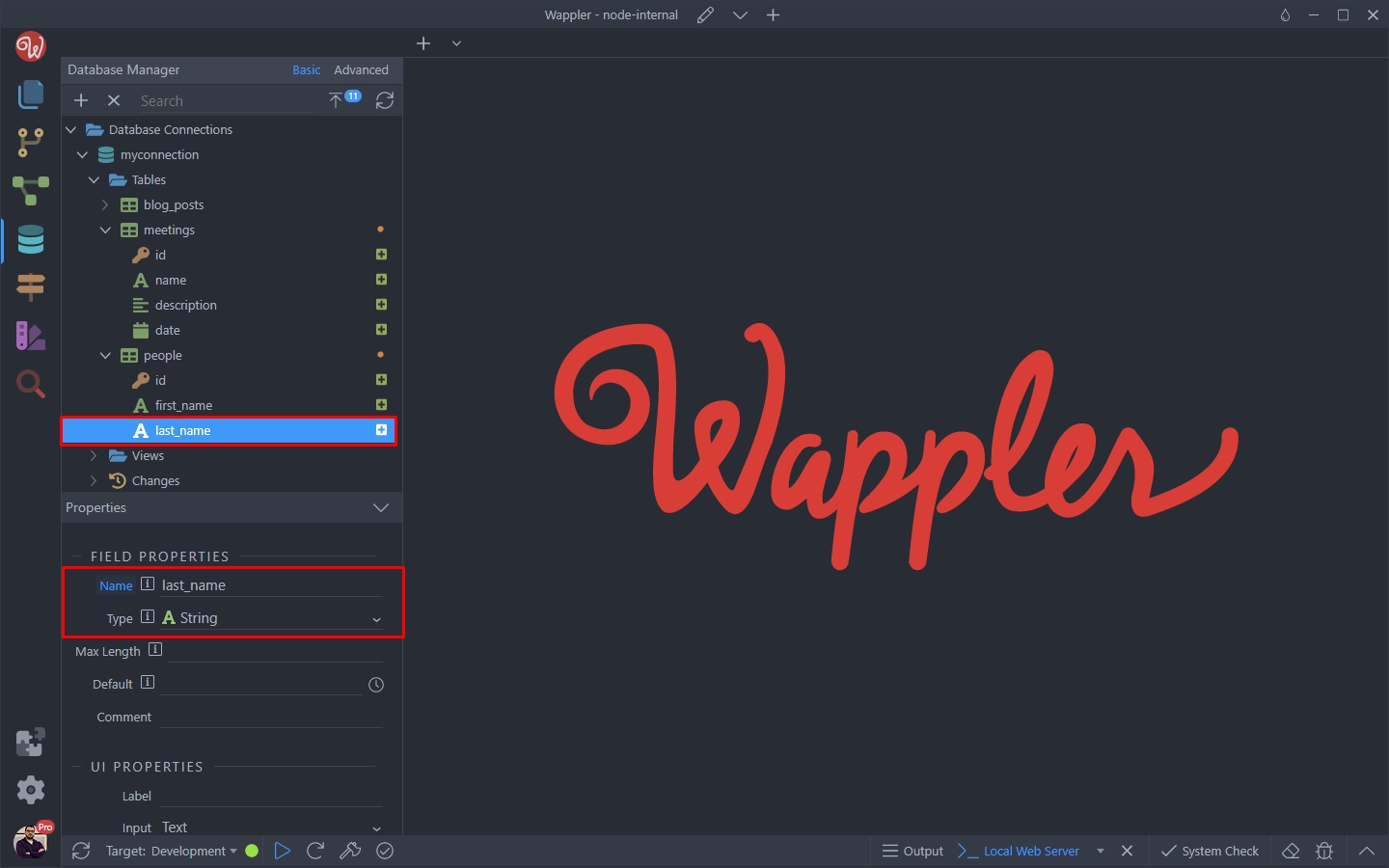
Now we add a few more fields the same way. last_name - set to type string:
Section titled “Now we add a few more fields the same way. last_name - set to type string:”Now we add a few more fields the same way.
last_name - set to type string:
email - set to type string:
Section titled “email - set to type string:”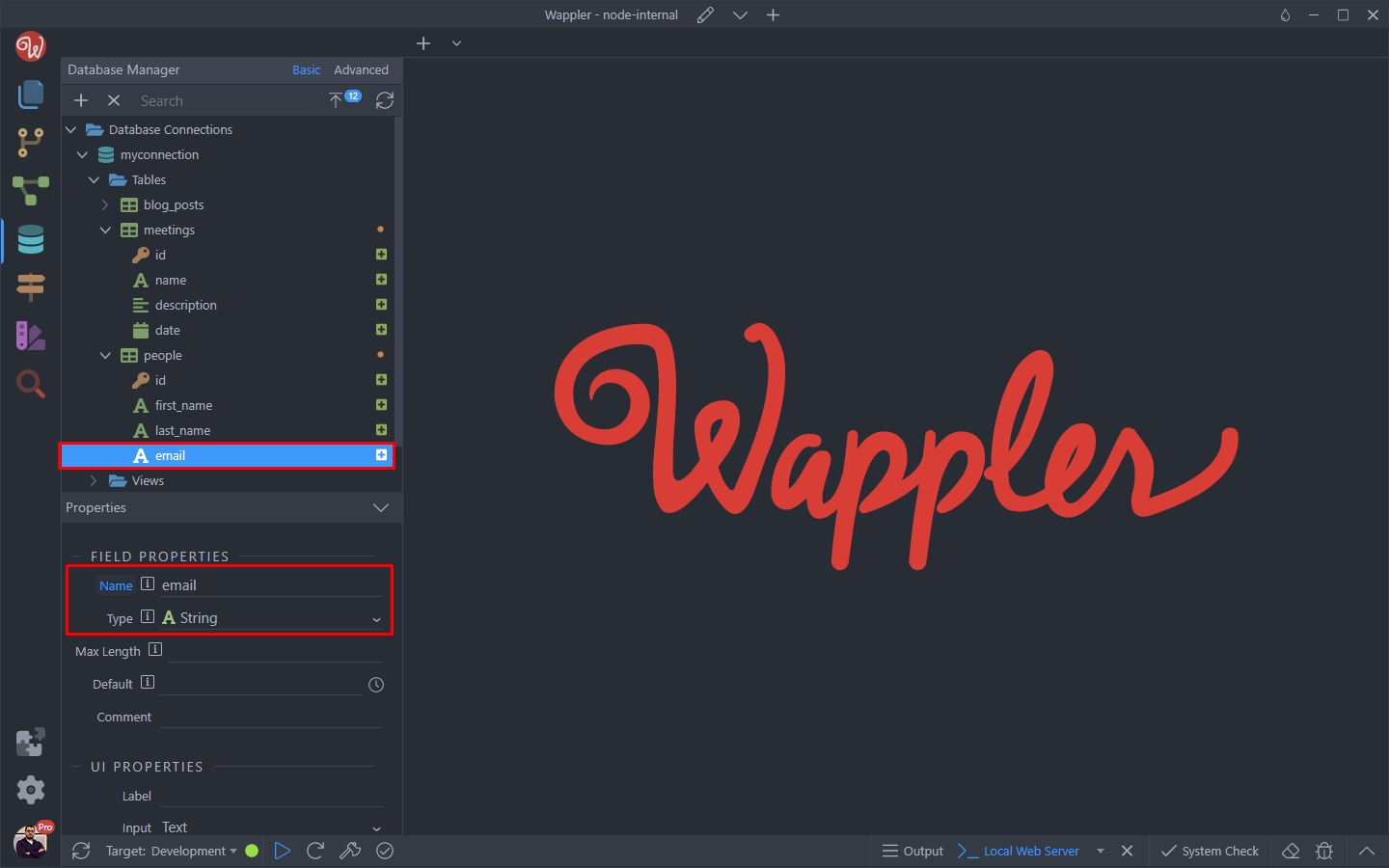
avatar - set to type string:
Section titled “avatar - set to type string:”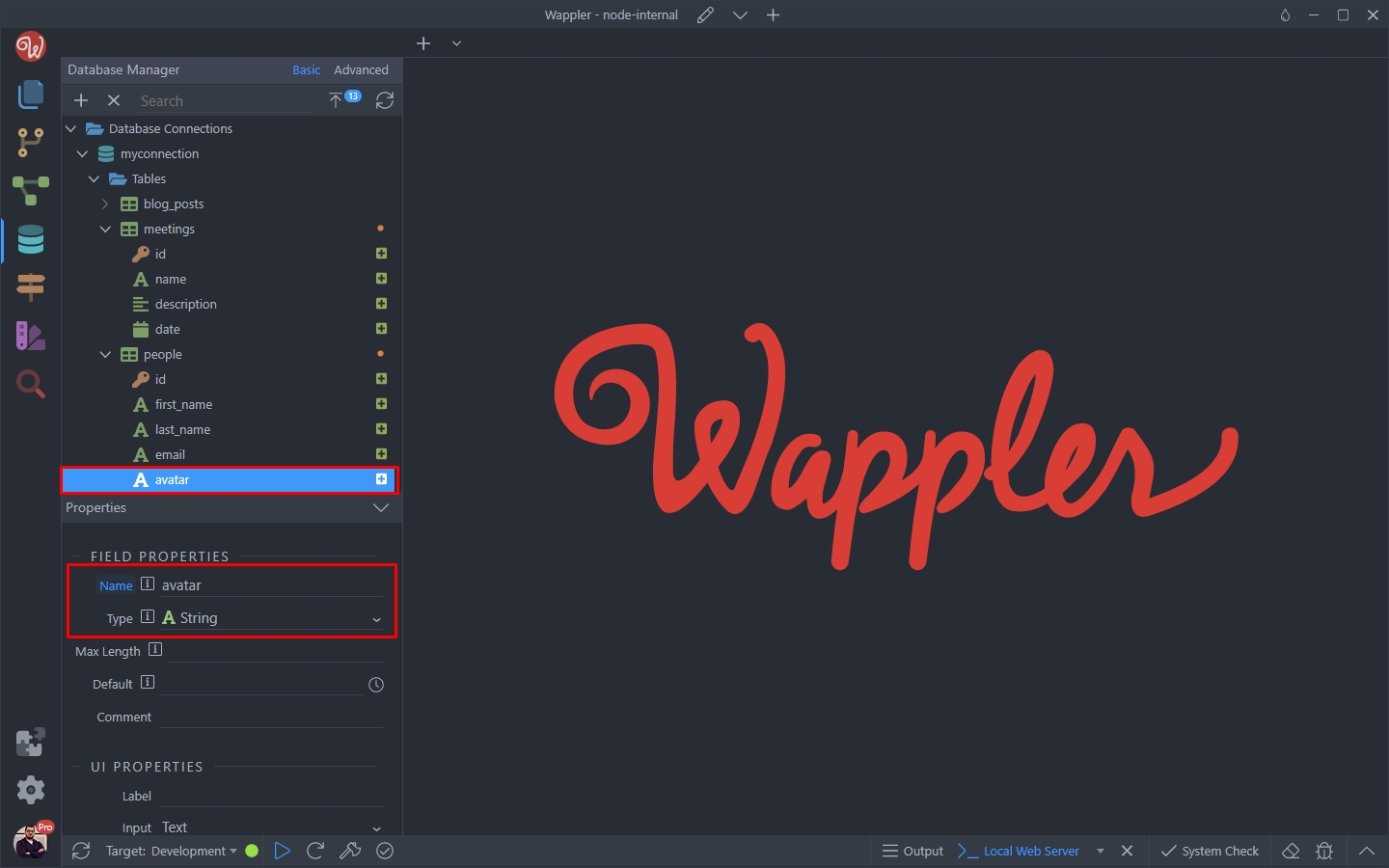
We are done with the people table.
Section titled “We are done with the people table.”Multi Reference
Section titled “Multi Reference”Now as we have our both tables - meetings and people set up, let’s setup the multi reference for them.
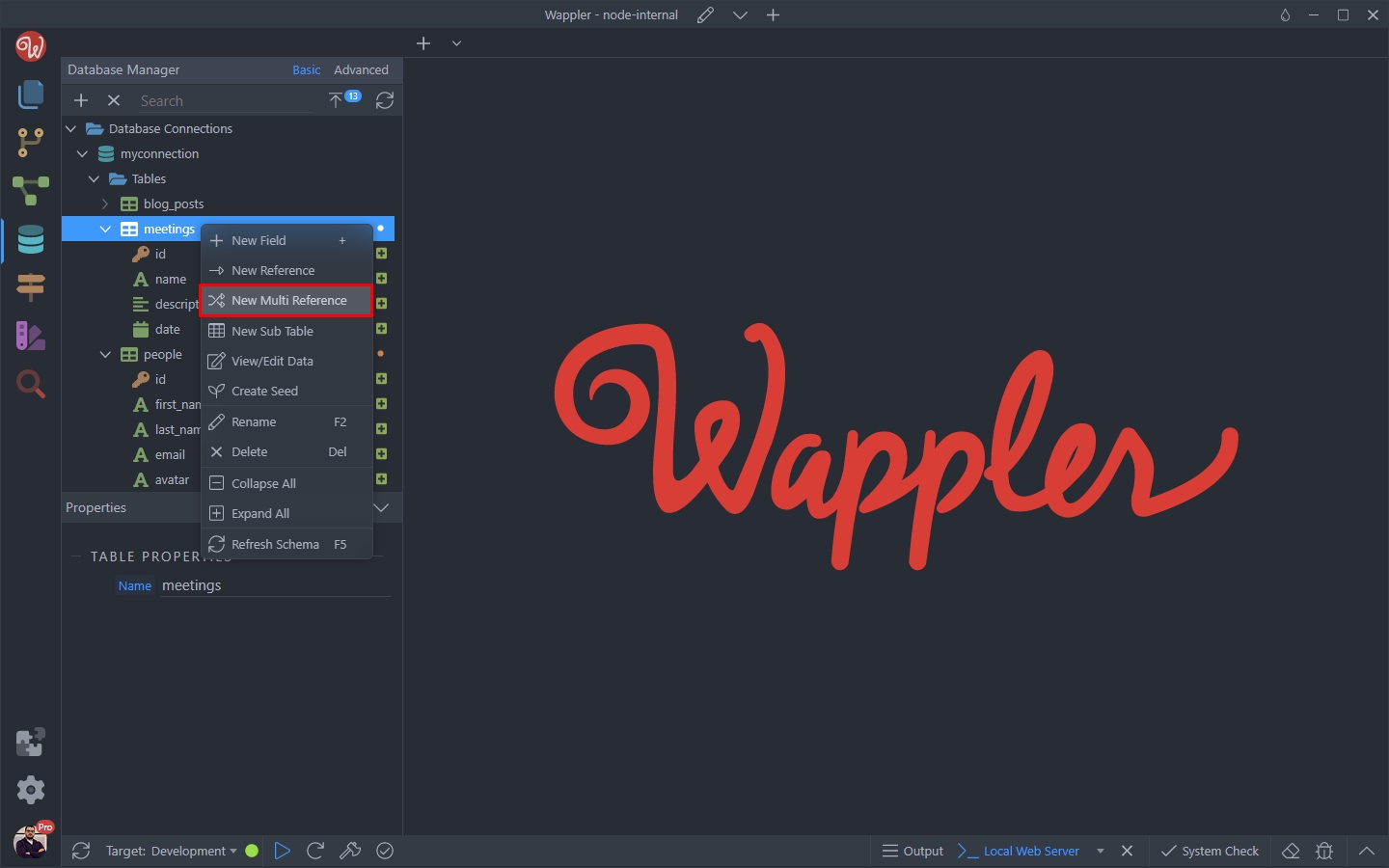
Right click the meetings table and select New Multi Reference:
And add a name for it. We call it attendees:
Section titled “And add a name for it. We call it attendees:”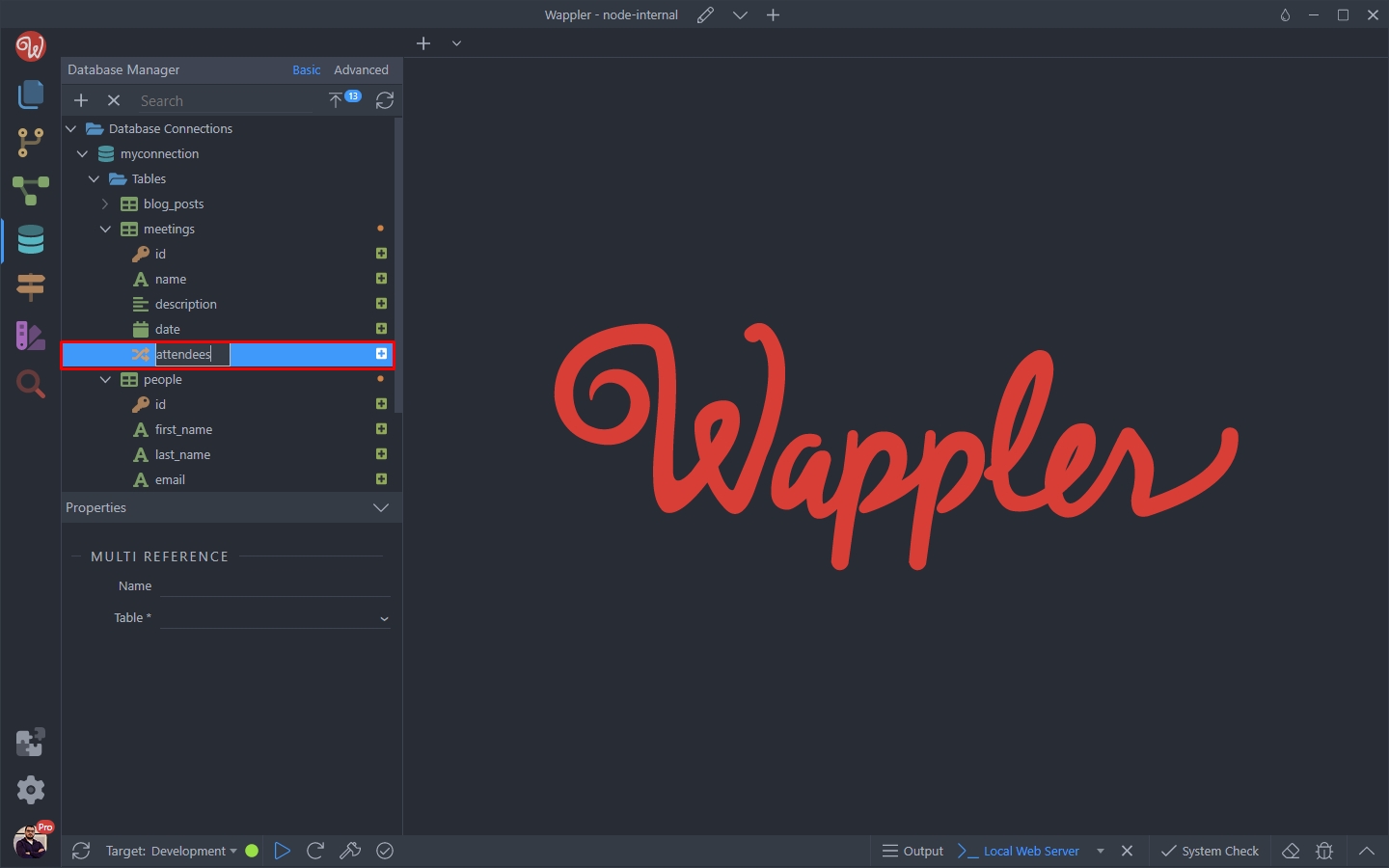
Open the Table dropdown and select the people table, so that we can reference people with meetings:
Section titled “Open the Table dropdown and select the people table, so that we can reference people with meetings:”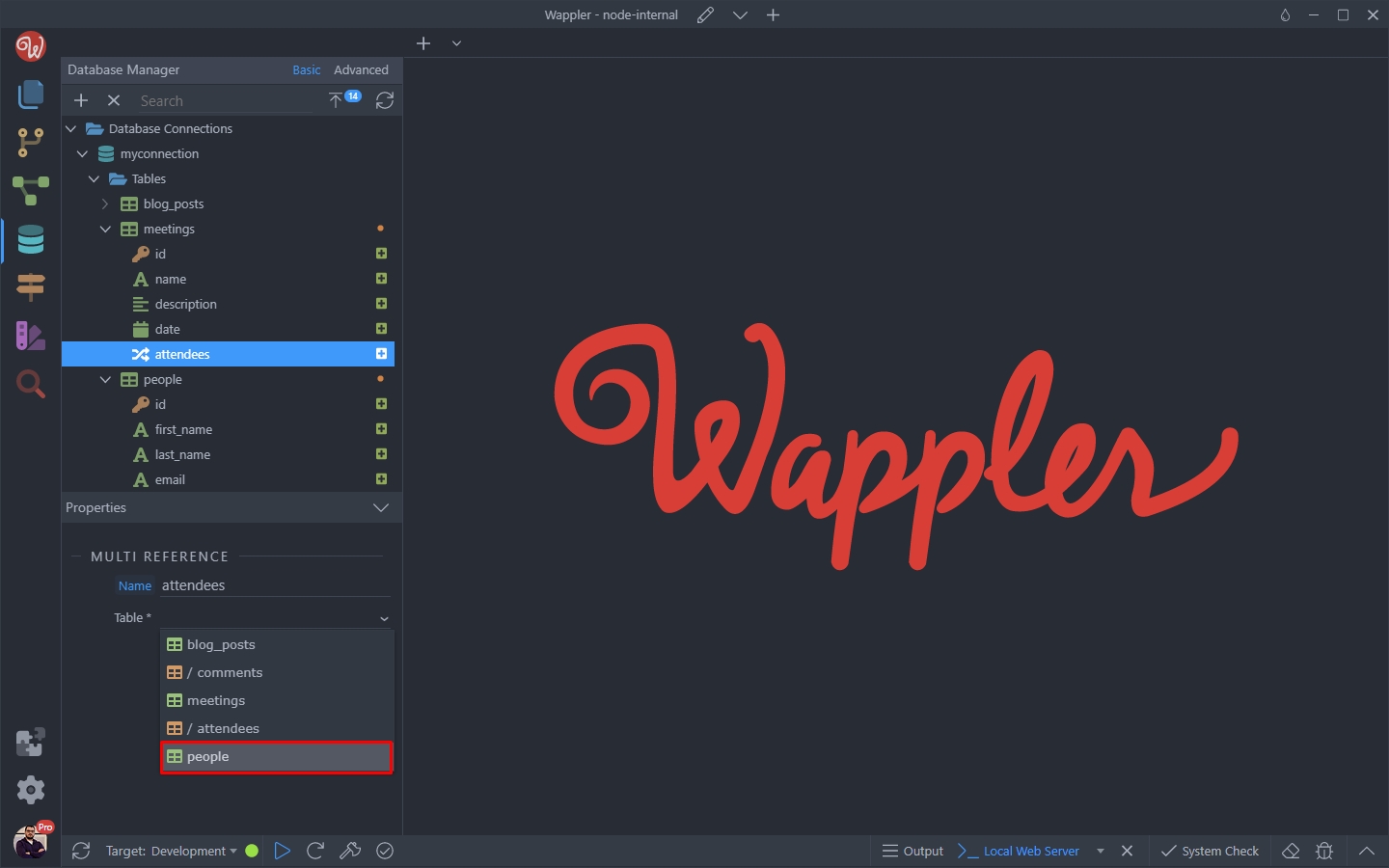
Step 25
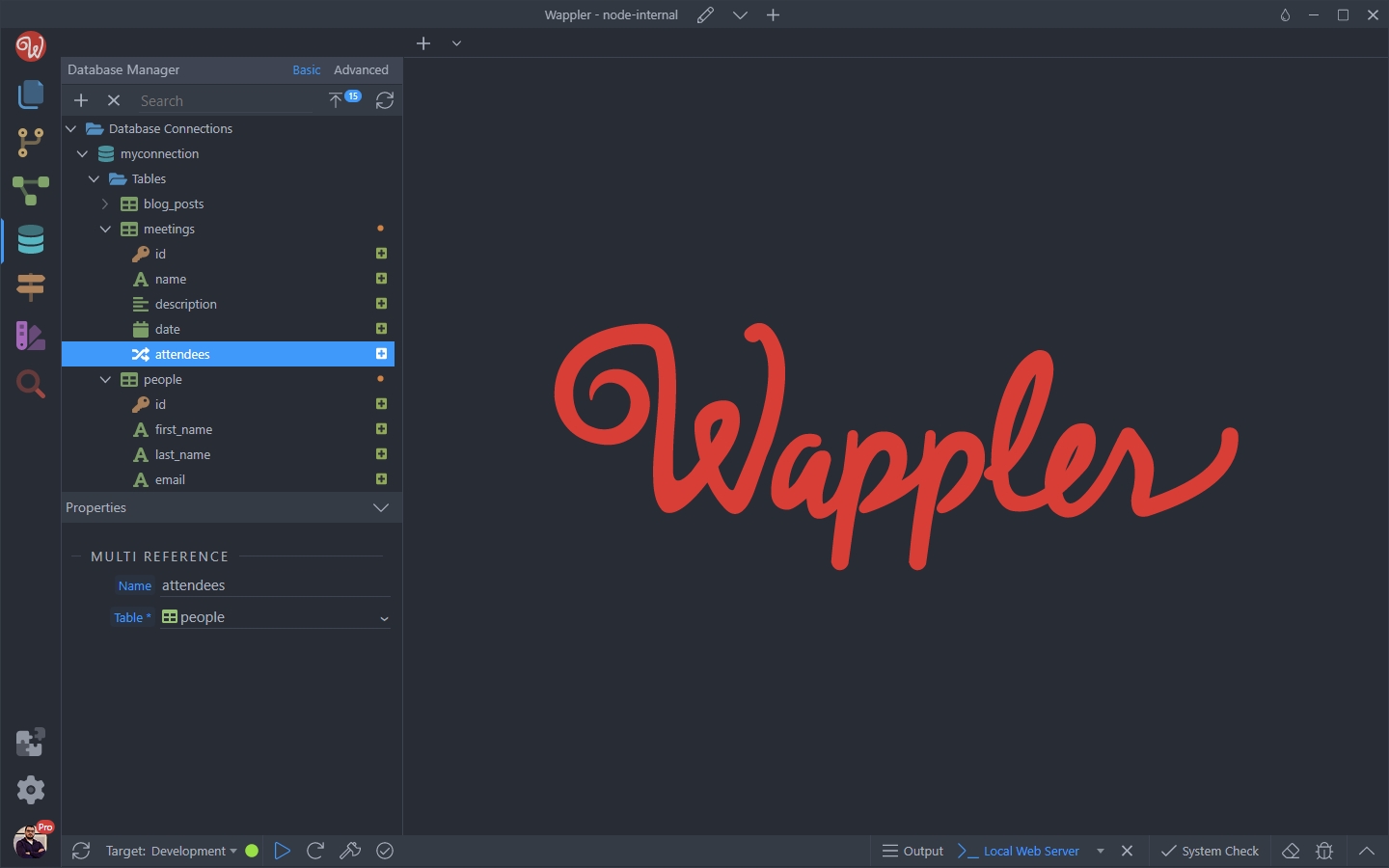
Section titled “Step 25”And we are done! The multi reference has been created and Wappler has automatically created the needed junction table for you:
Advanced Mode
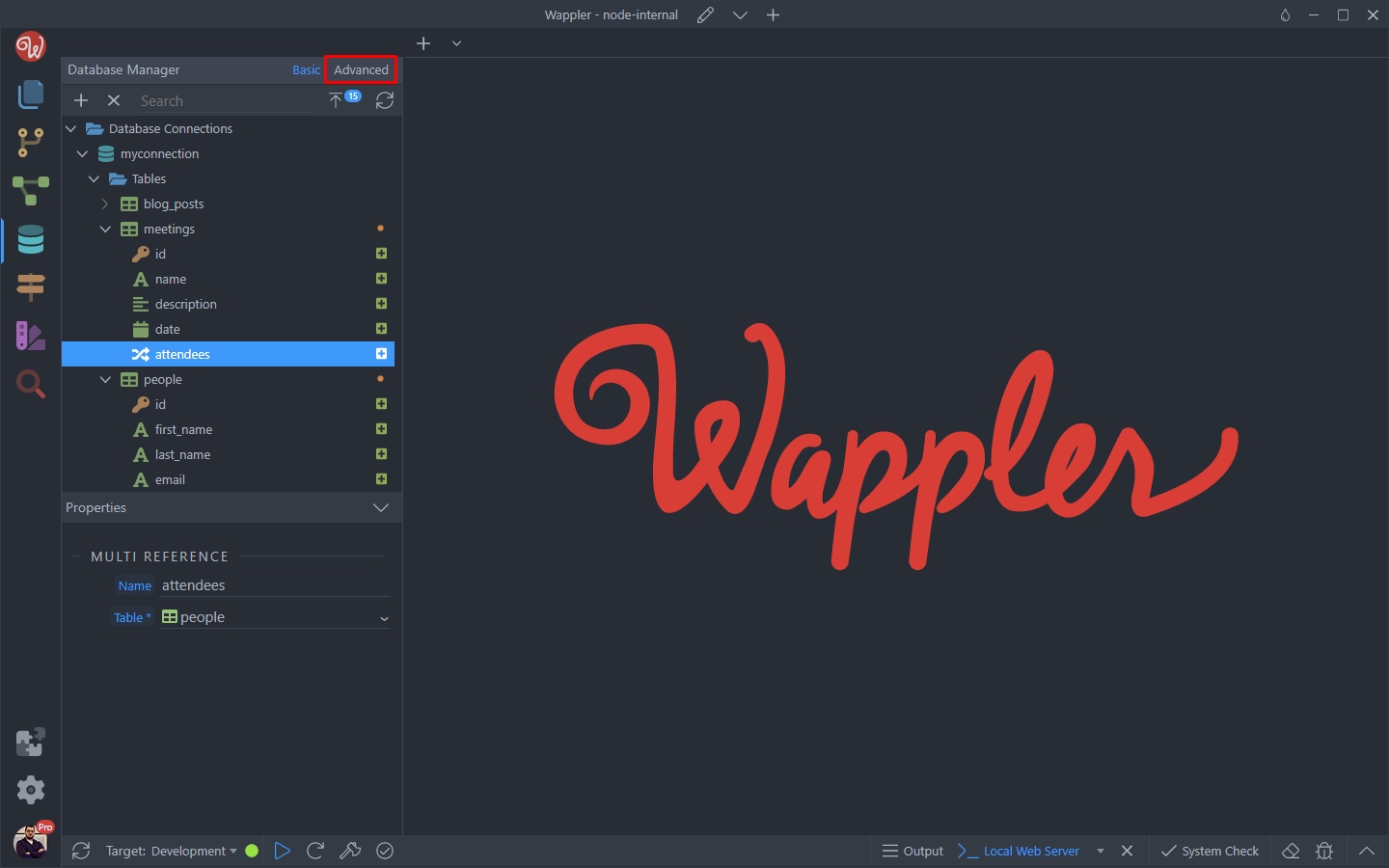
Section titled “Advanced Mode”You can see the details about the multi reference, by clicking the Advanced button in the Database Manager:
When in Advanced mode, you can see the two references to the related tables created automatically for you:
Section titled “When in Advanced mode, you can see the two references to the related tables created automatically for you:”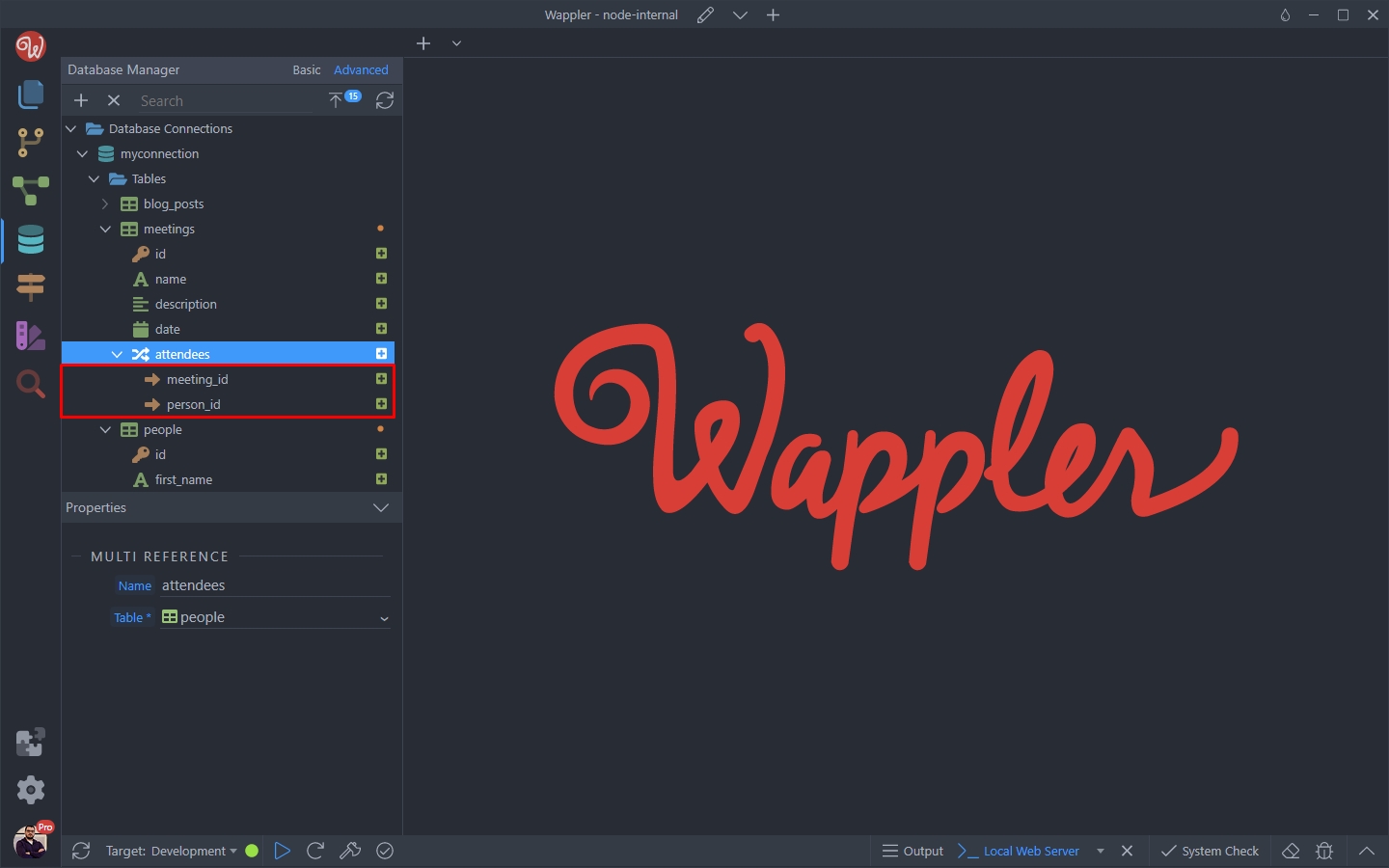
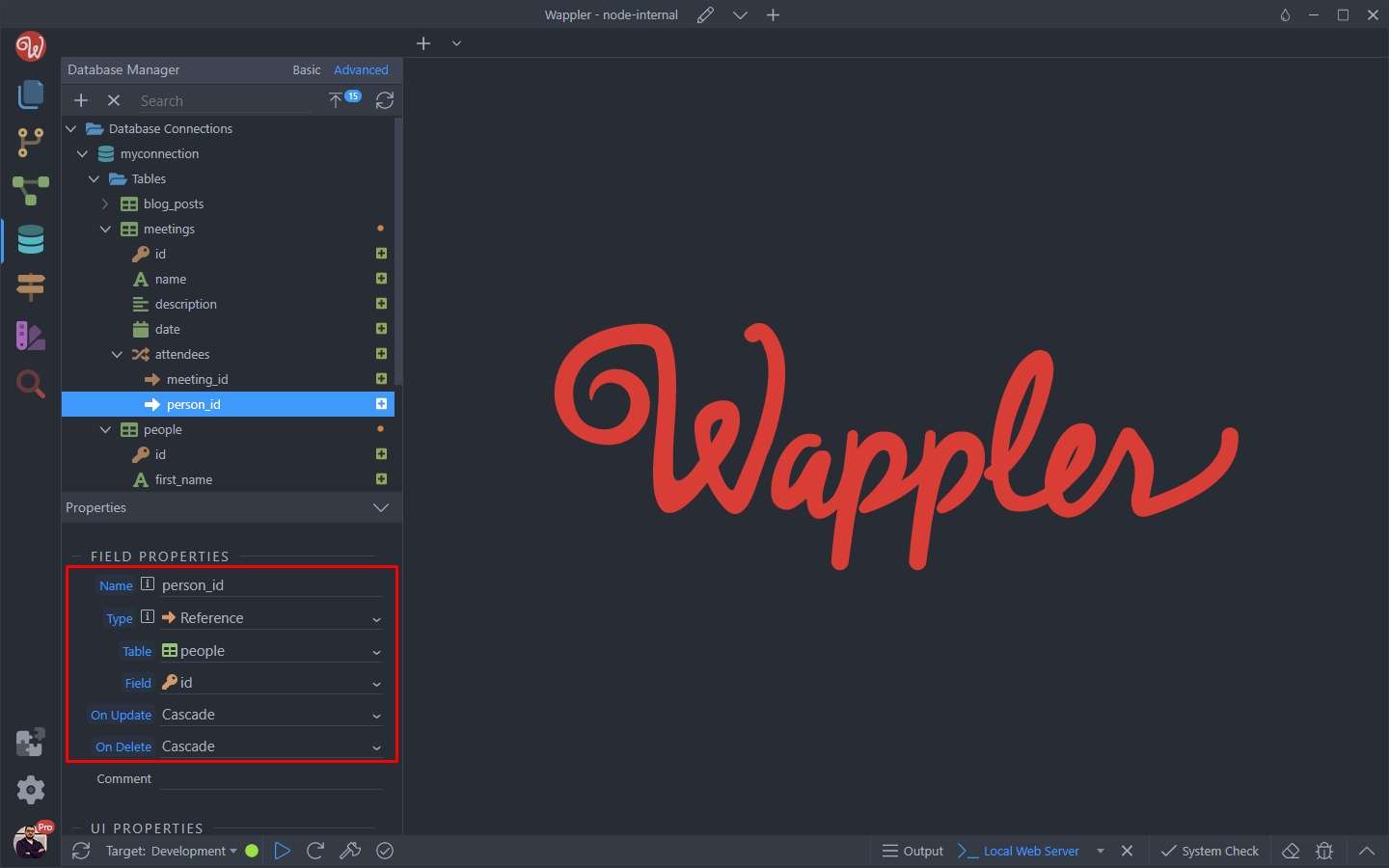
You can explore their properties by selecting them:
Section titled “You can explore their properties by selecting them:”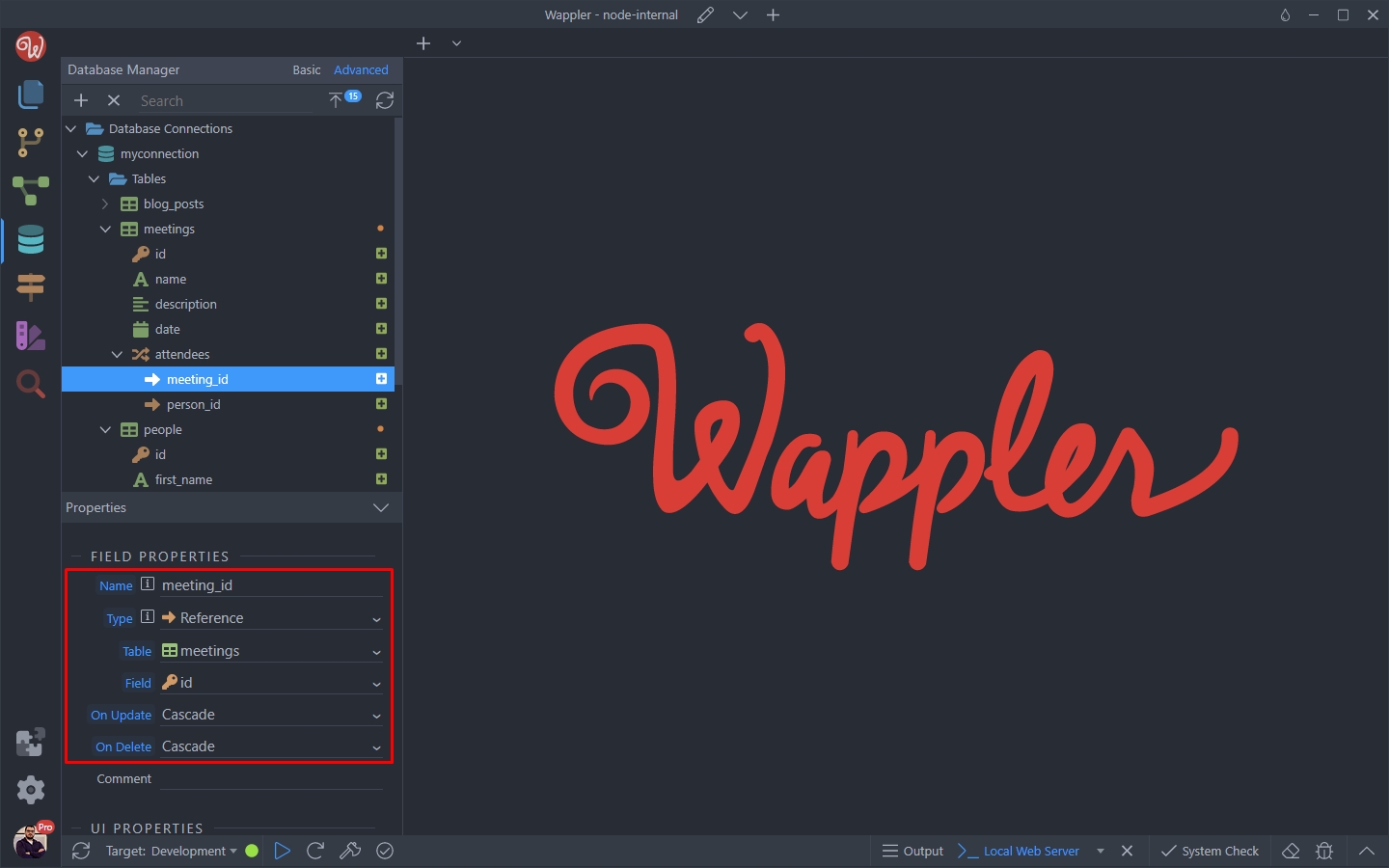
Don’t forget to apply the database changes:
Section titled “Don’t forget to apply the database changes:”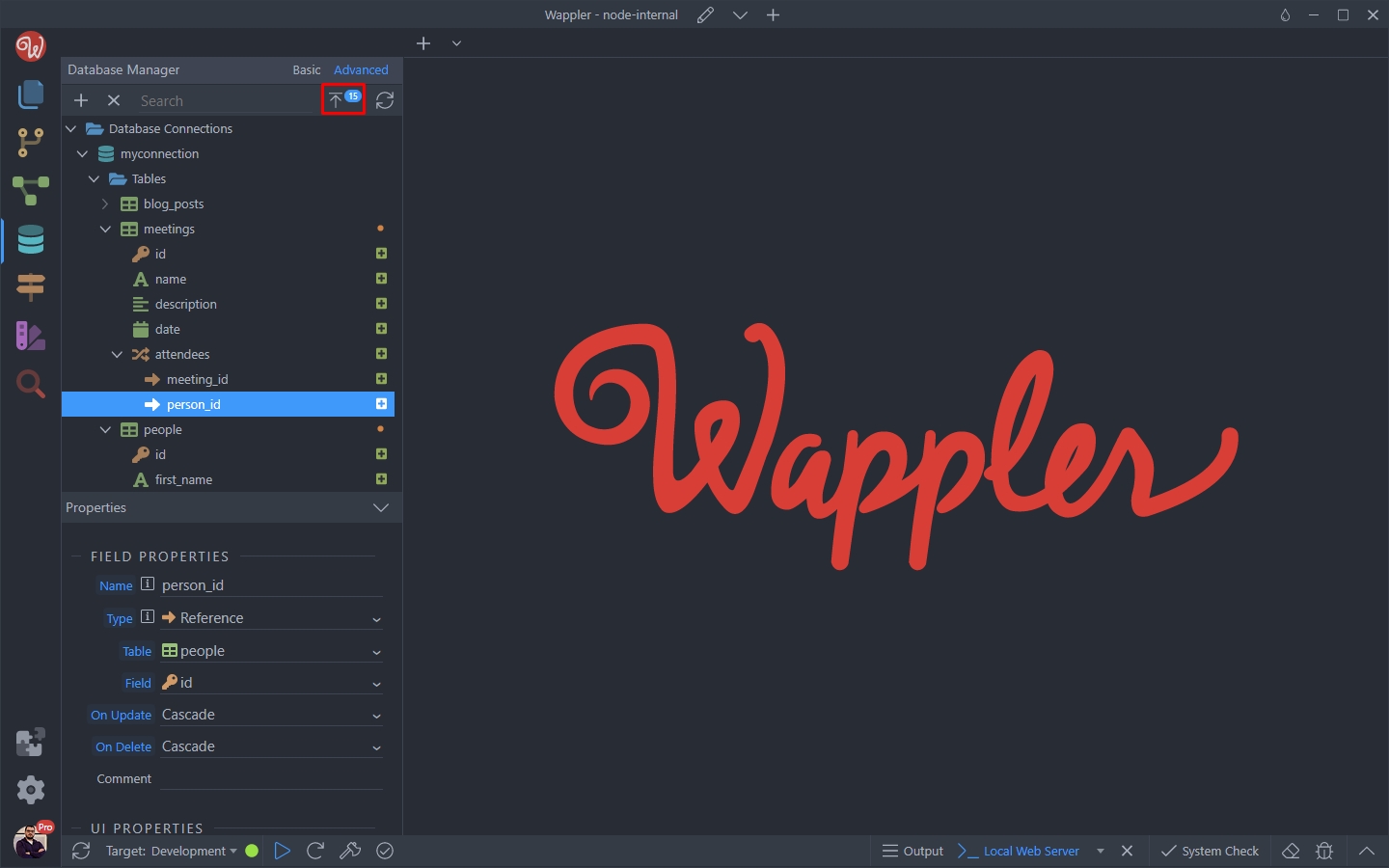
And we are done. That’s how easy it is to use multi references in order to create many-to-many relationships!
Section titled “And we are done. That’s how easy it is to use multi references in order to create many-to-many relationships!”And we are done.
That’s how easy it is to use multi references in order to create many-to-many relationships!