
Using Wappler Extensions Channels
Intro In Wappler Project Updater you can choose between stable, beta and the deprecated App Connect 1 extensions channels. This means that you can switch between the stable and beta channels in order
In Wappler Project Updater you can choose between stable, beta and the deprecated App Connect 1 extensions channels. This means that you can switch between the stable and beta channels in order to test Wappler extensions updates, without breaking your existing work.
Note: this tutorial applies to Wappler 6.5 and newer only. In order to get the latest stable extensions, make sure to update to Wappler 6.5+.
Versions prior 6.5 will not get the latest App Connect 2 stable versions.
Switching Extensions Channels
Section titled “Switching Extensions Channels”It’s easy to switch between the different extensions channels in a couple of clicks.
Beta Channel
Section titled “Beta Channel”In order to test new extension updates, released as beta, you need to switch to the beta channel first. Open the Project Assets Updater:
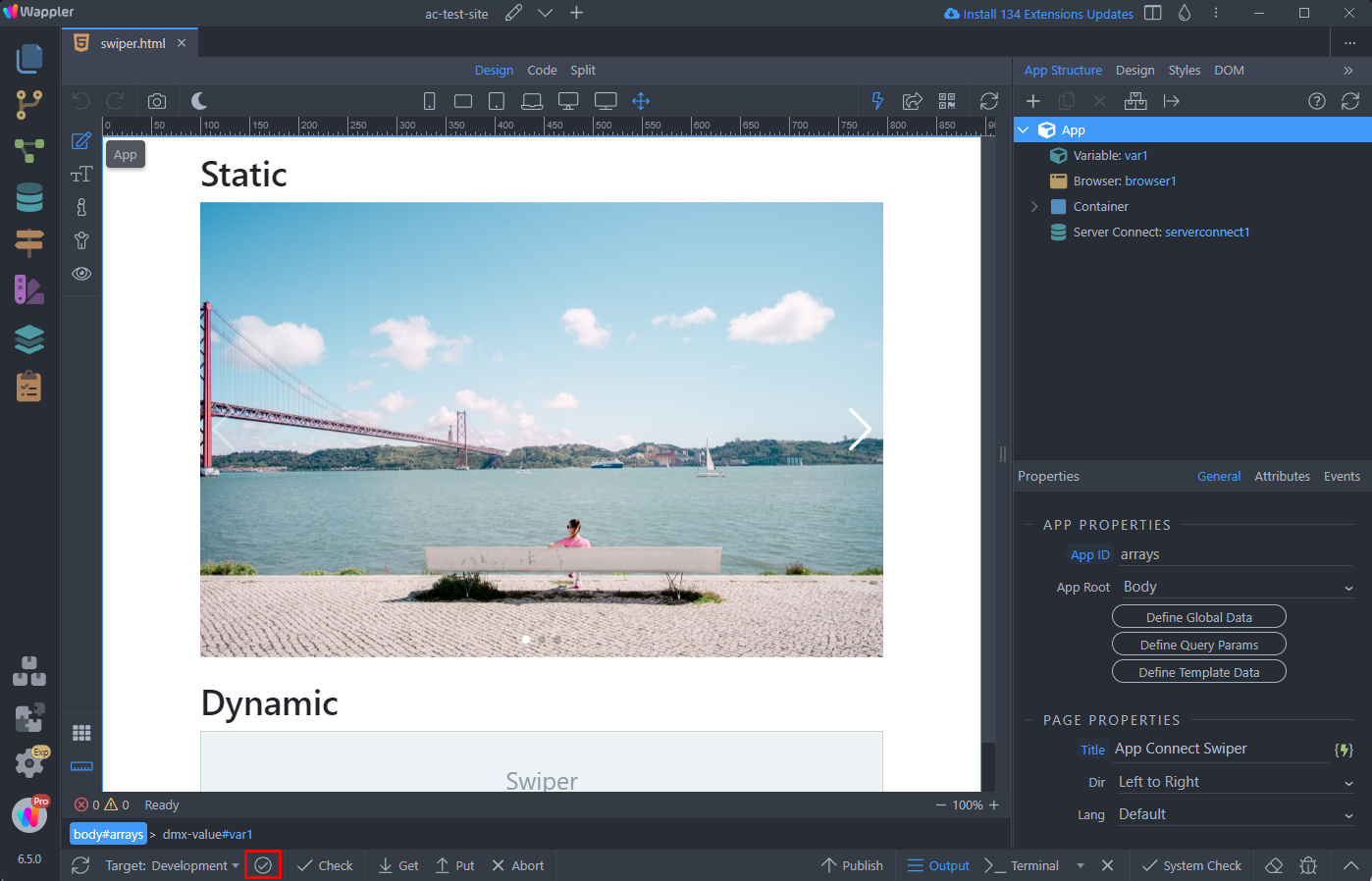
Then open the Extensions Update Channel menu:
Section titled “Then open the Extensions Update Channel menu:”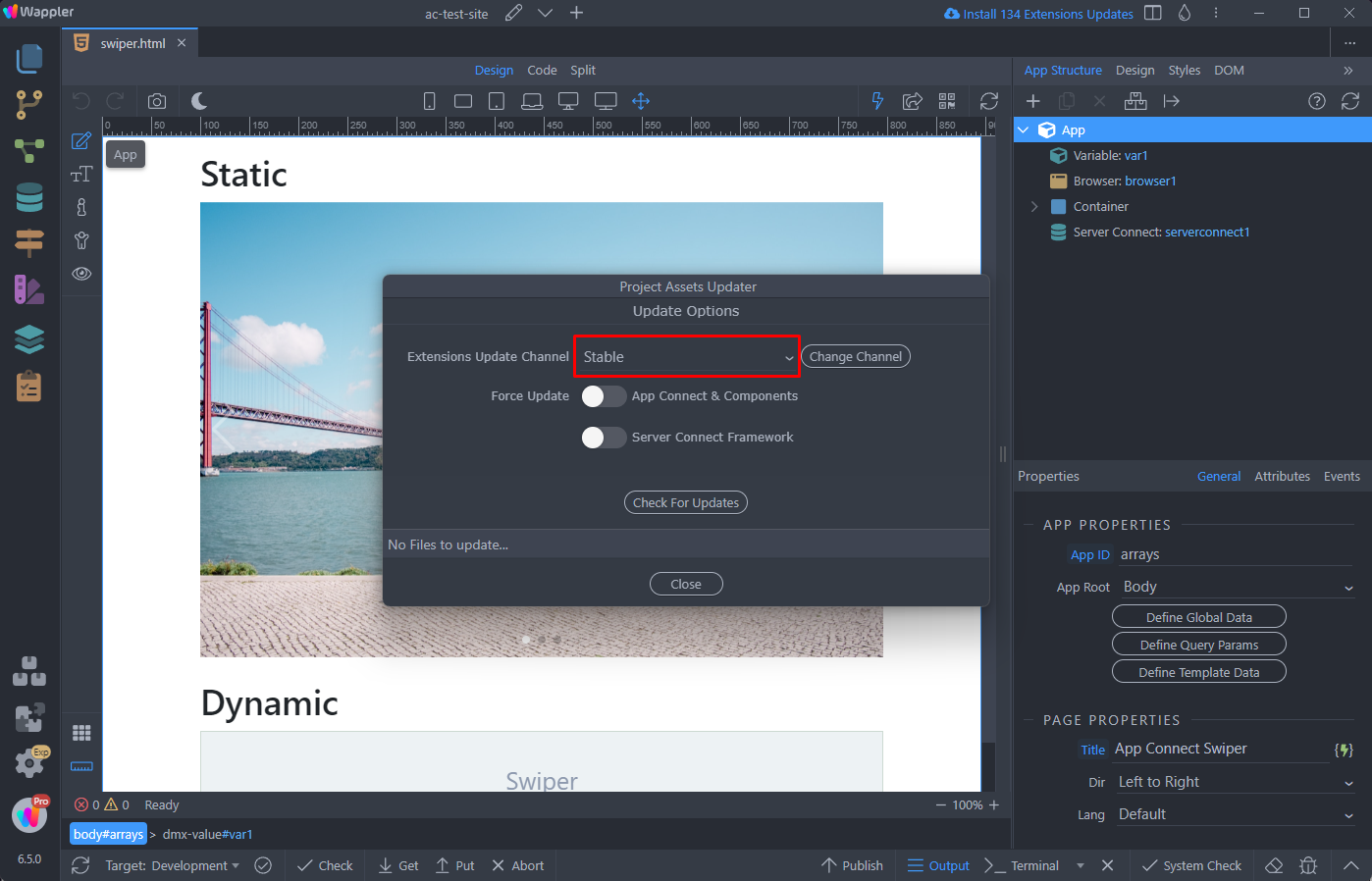
Select Beta:
Section titled “Select Beta:”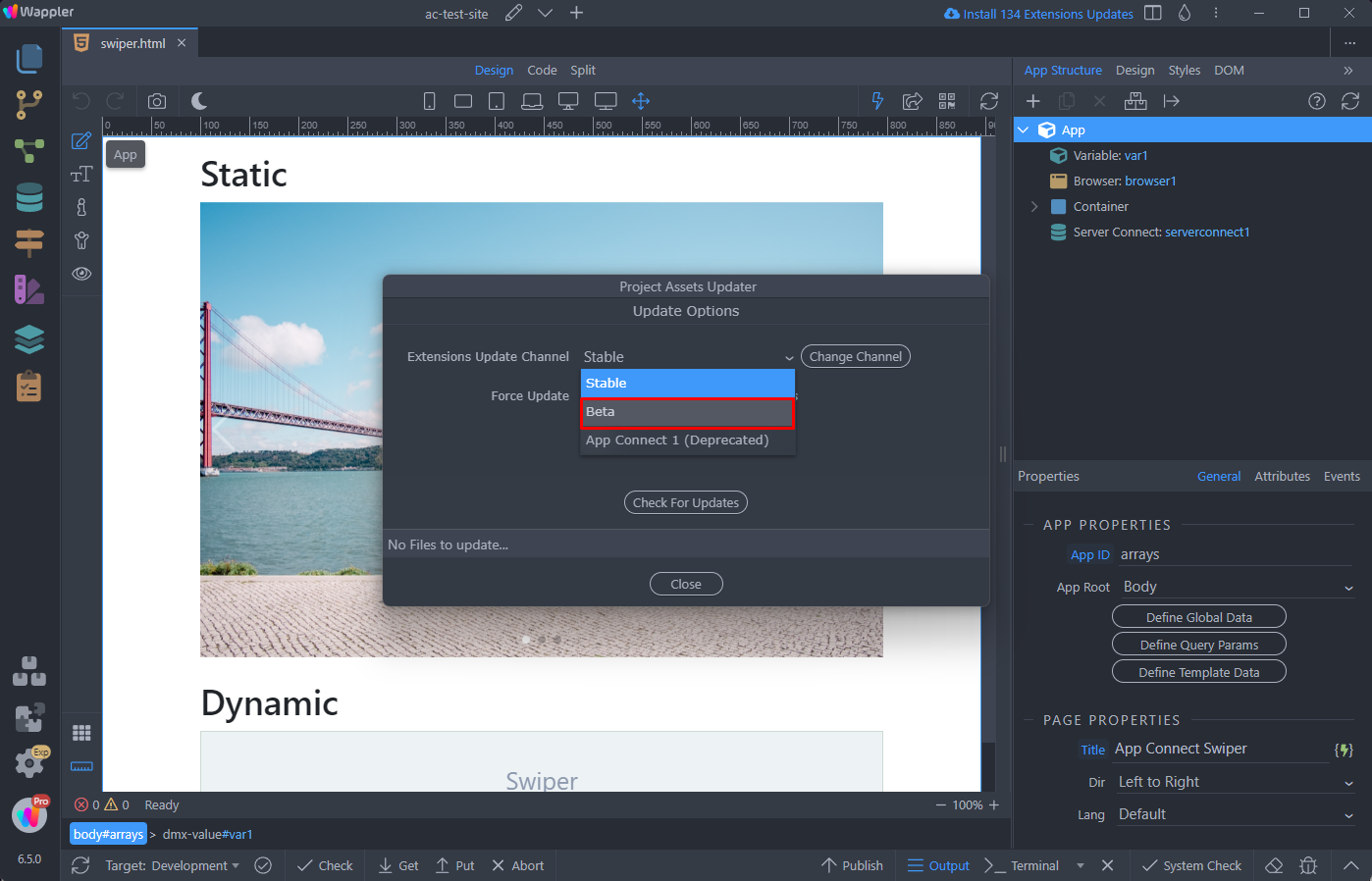
And click the Change Channel button to change to beta channel:
Section titled “And click the Change Channel button to change to beta channel:”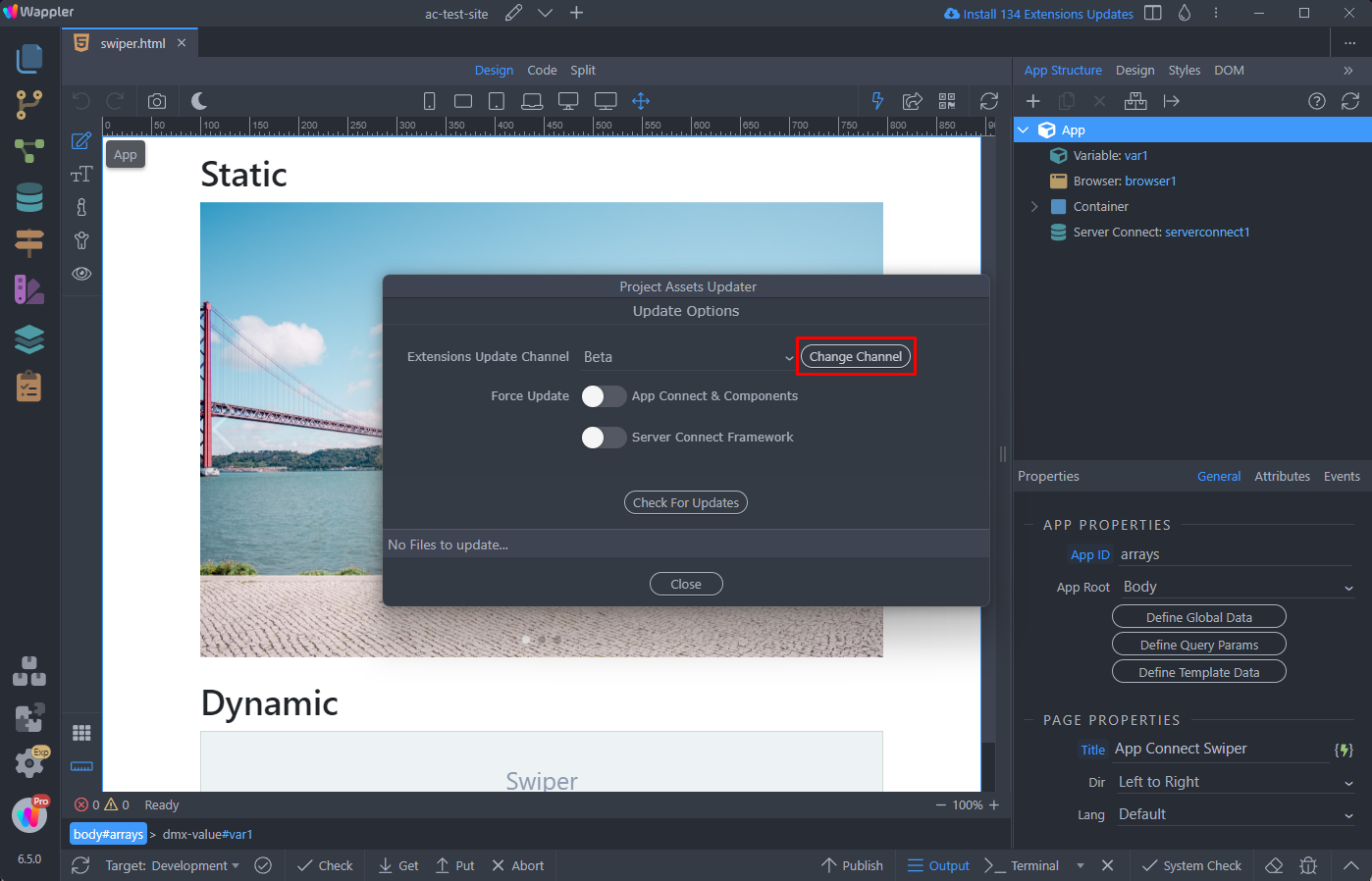
You will see notifications about the beta extensions installation progress:
Section titled “You will see notifications about the beta extensions installation progress:”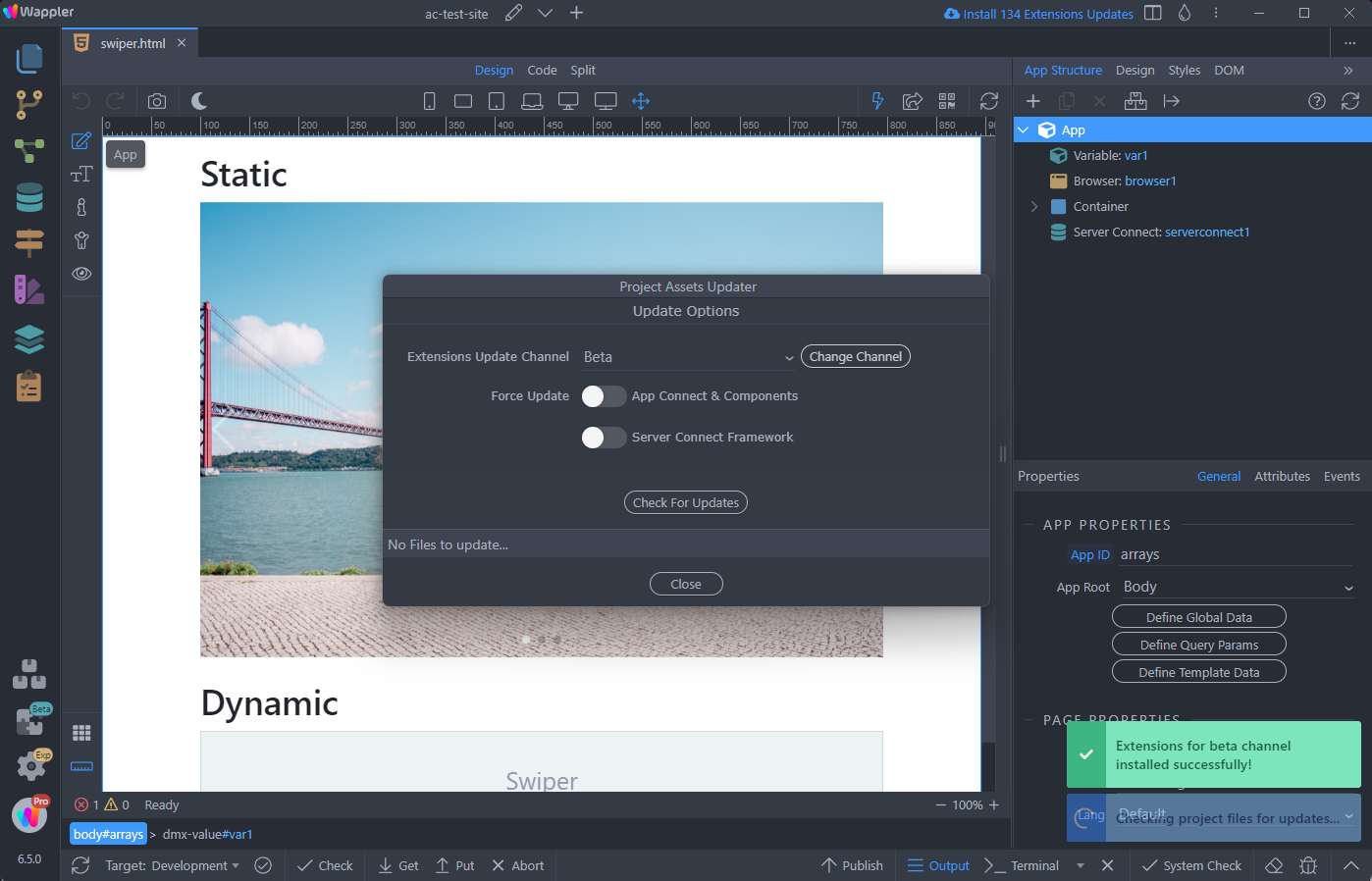
Once you change the channel, you will see the available beta updates:
Section titled “Once you change the channel, you will see the available beta updates:”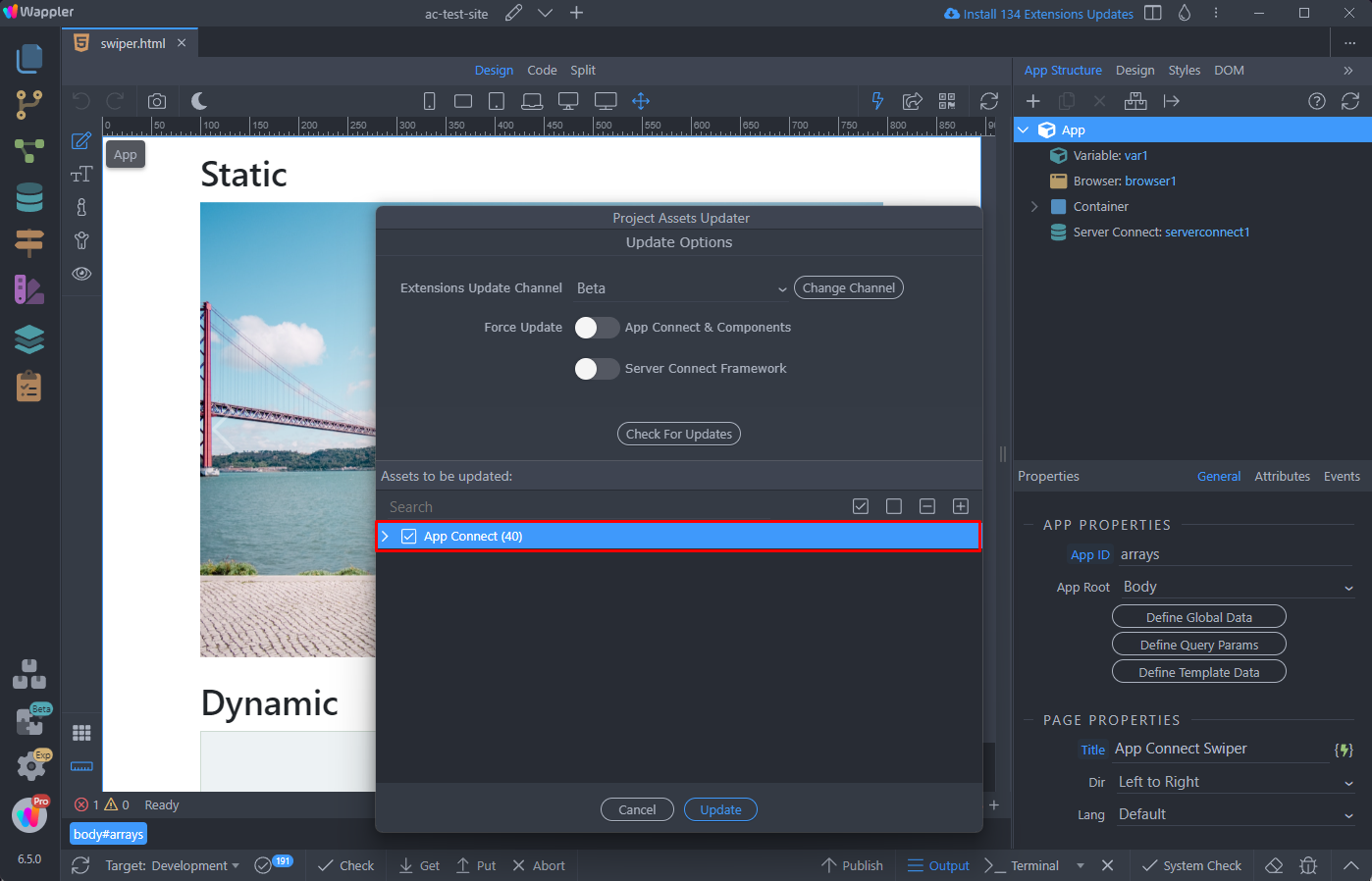
Step 10
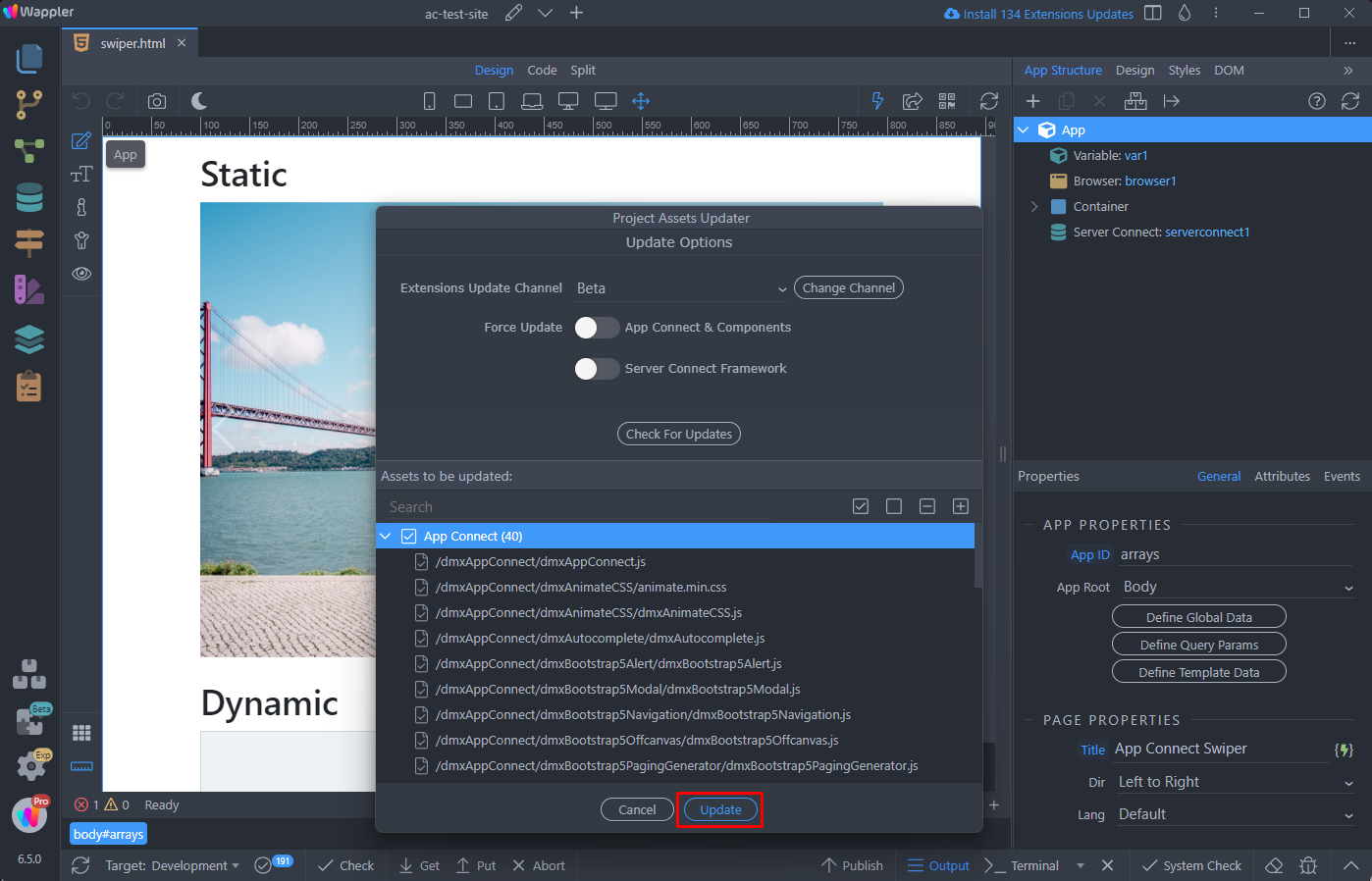
Section titled “Step 10”You can expand the list and select which of them to update, by double clicking the checkbox in front of the extension’s name. Click the Update button in order to apply the available beta extensions updates:
And you are done. The updates have been applied to your project, now you can test them:
Section titled “And you are done. The updates have been applied to your project, now you can test them:”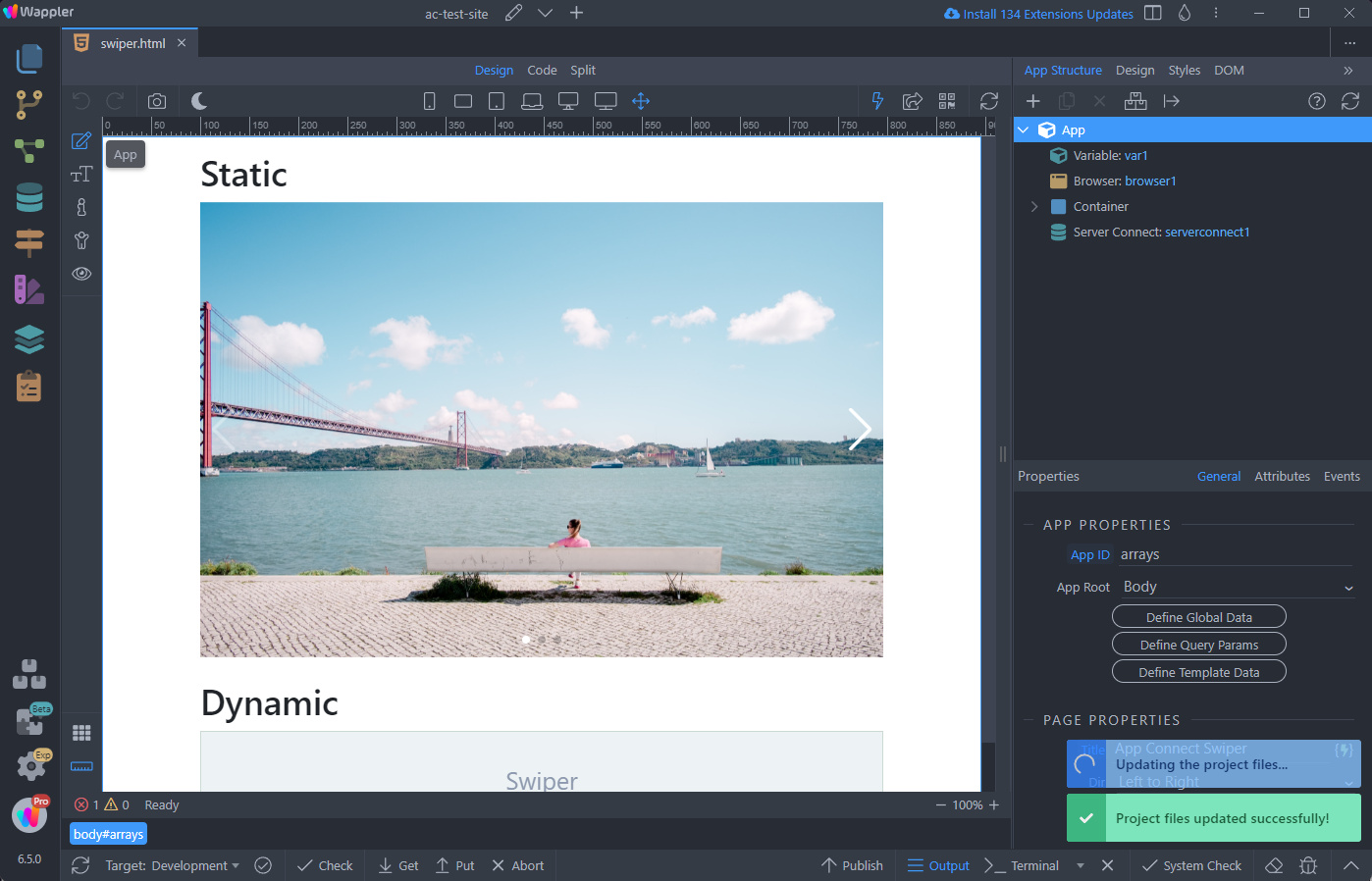
Stable Channel
Section titled “Stable Channel”You can always revert back to the stable extensions update channel.
Open the Project Assets Updater:
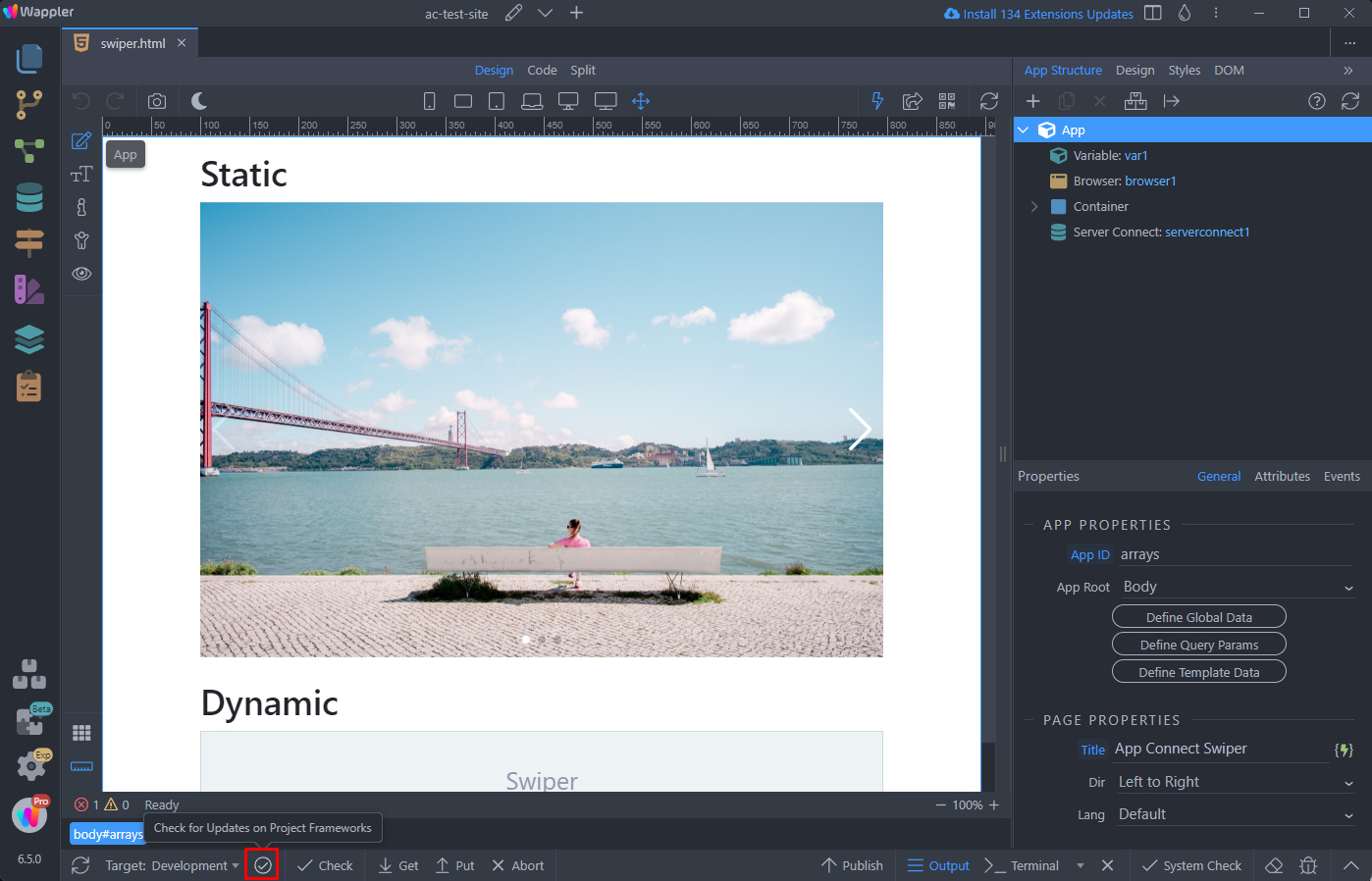
Then open the Extensions Update Channel menu:
Section titled “Then open the Extensions Update Channel menu:”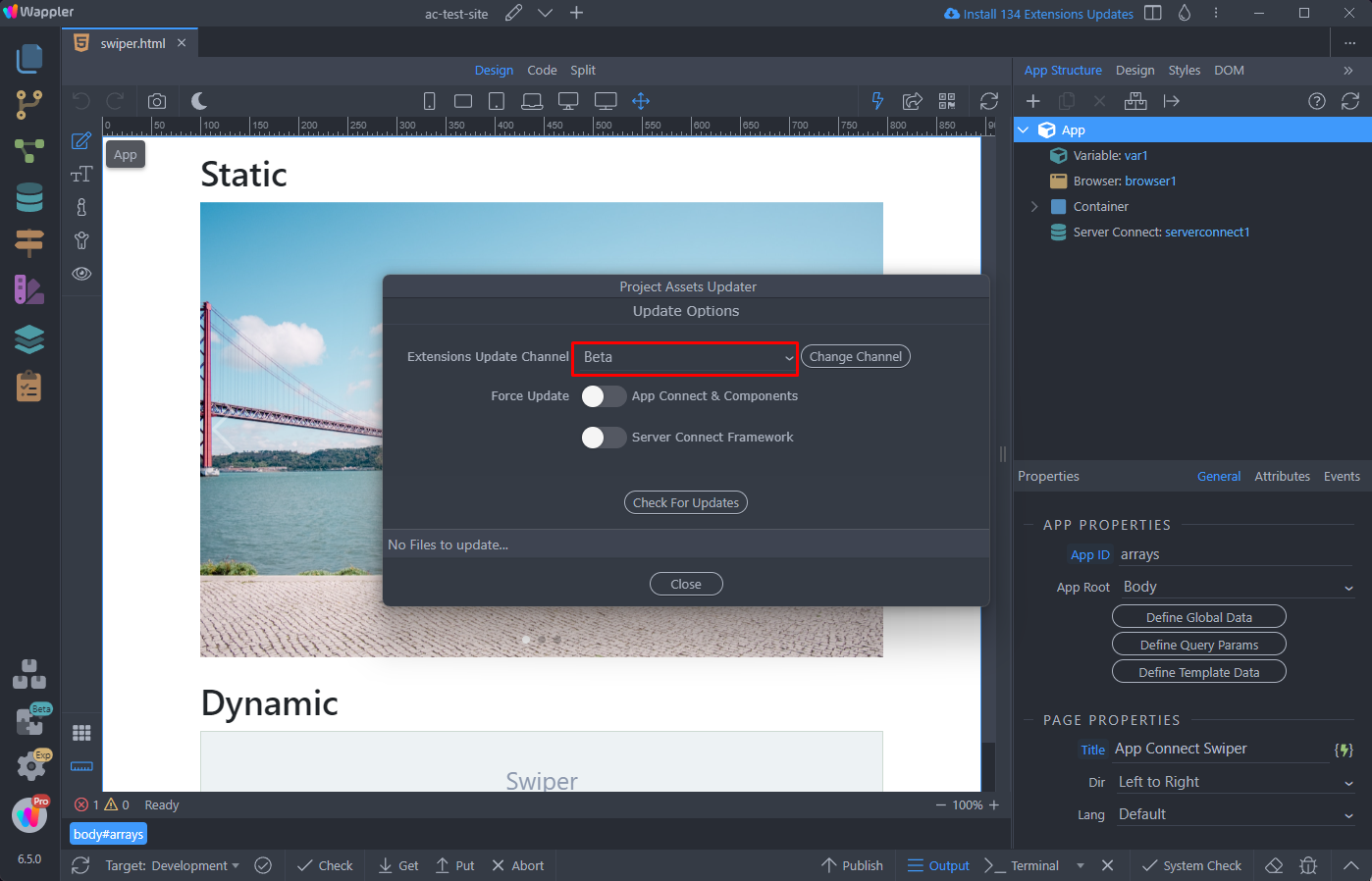
Select Stable:
Section titled “Select Stable:”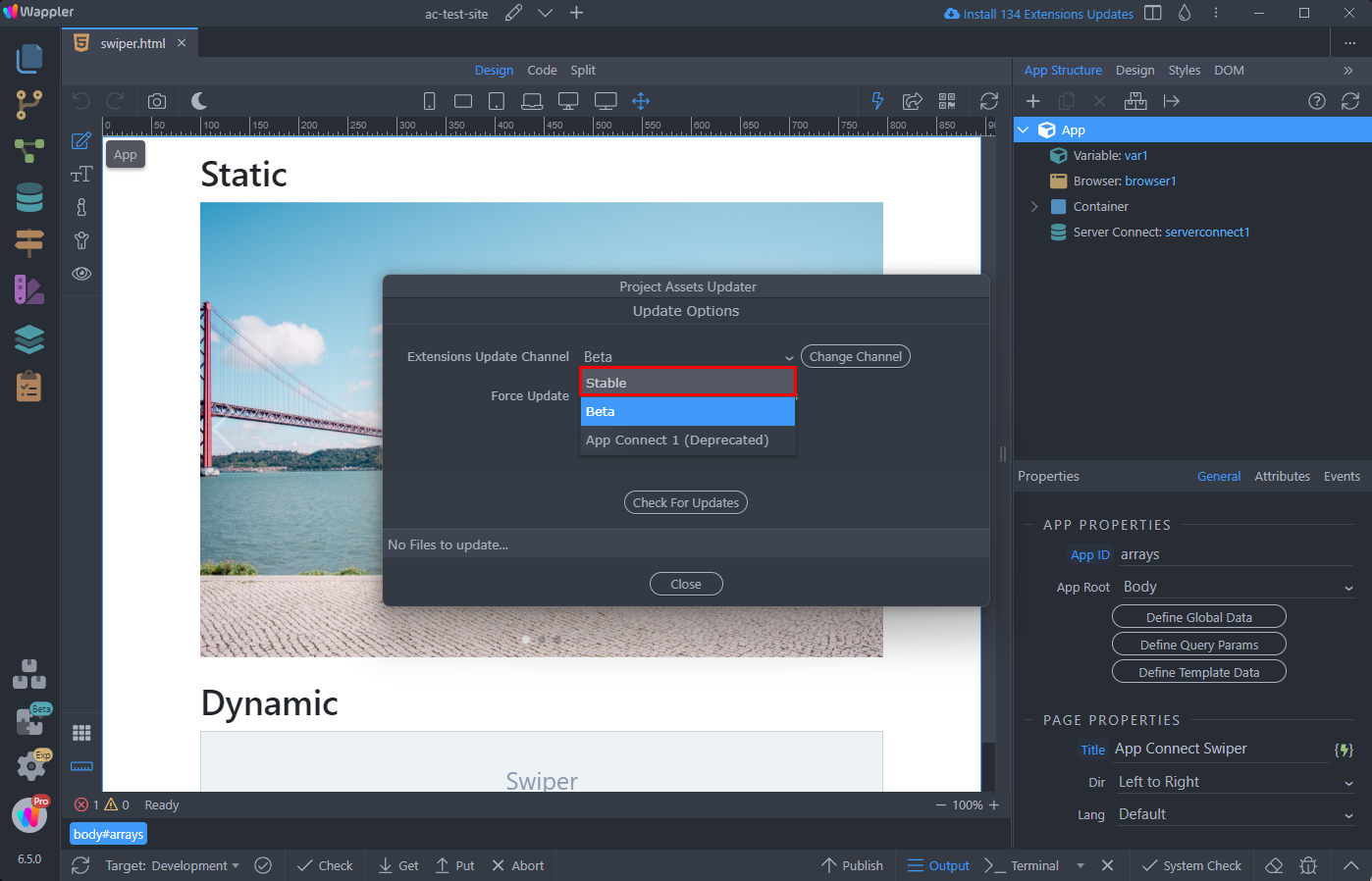
And click the Change Channel button to change to the stable channel:
Section titled “And click the Change Channel button to change to the stable channel:”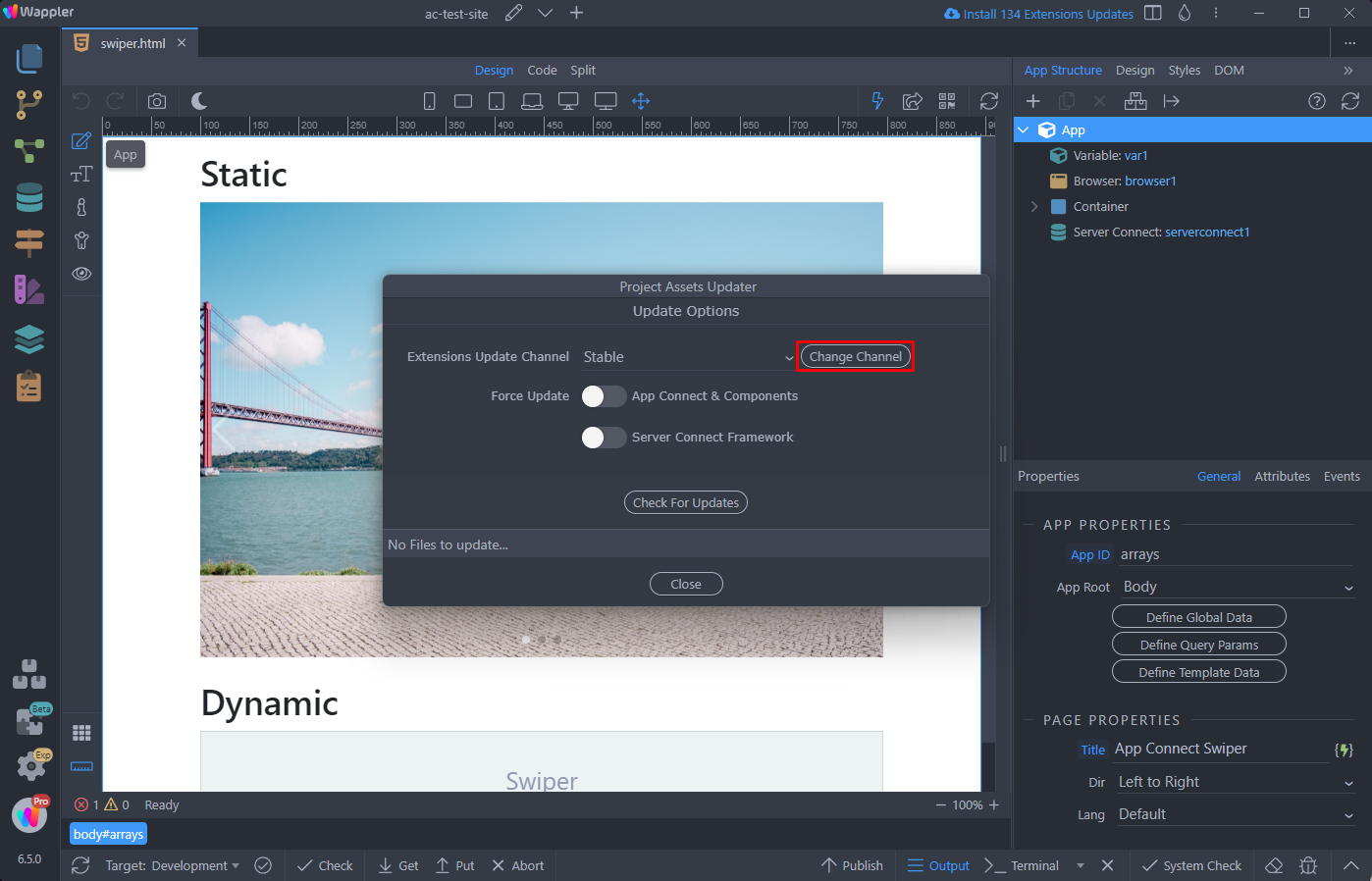
Once you change the channel, you will see the available updates:
Section titled “Once you change the channel, you will see the available updates:”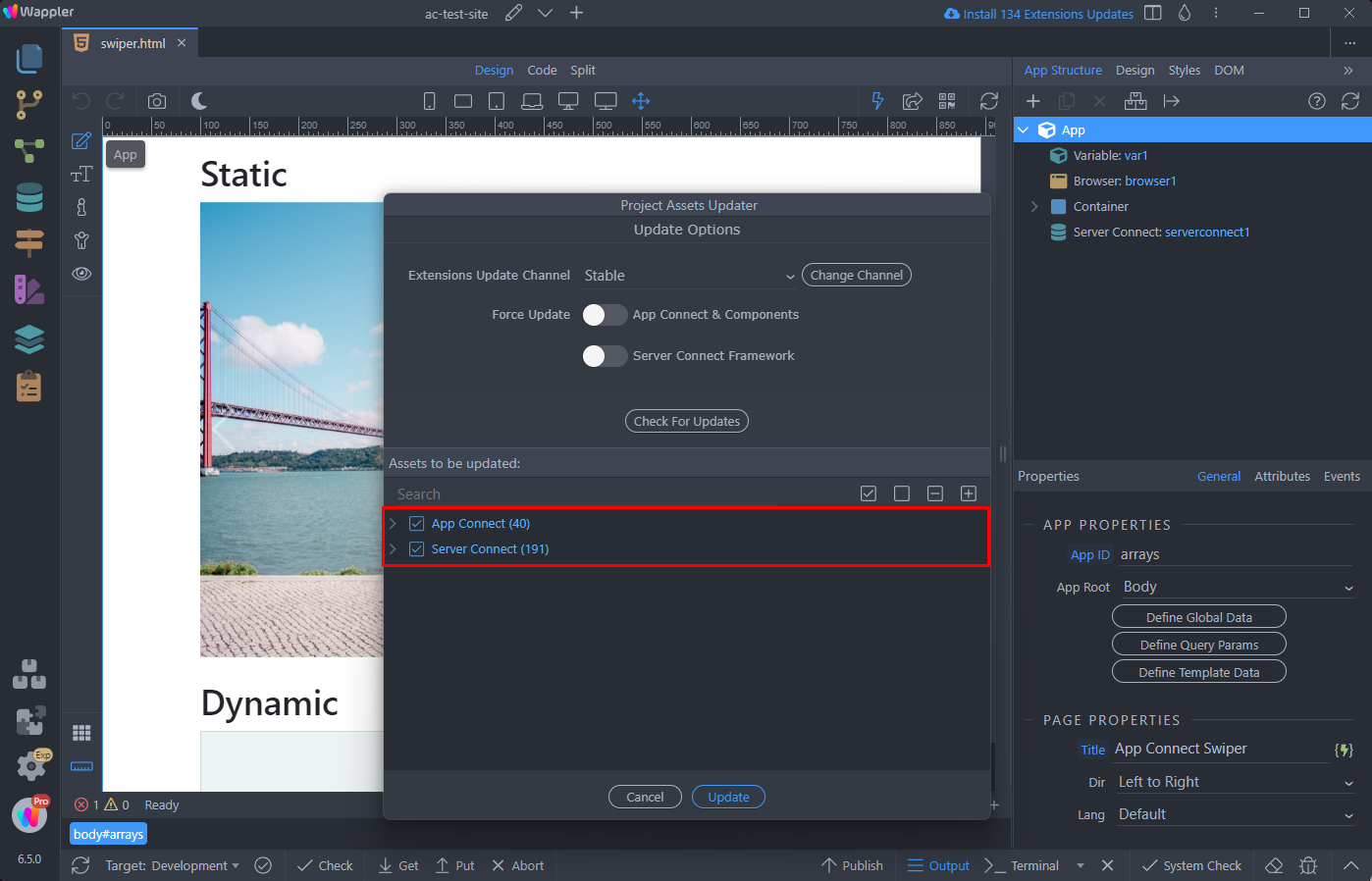
Click the Update button in order to apply the available stable extensions updates:
Section titled “Click the Update button in order to apply the available stable extensions updates:”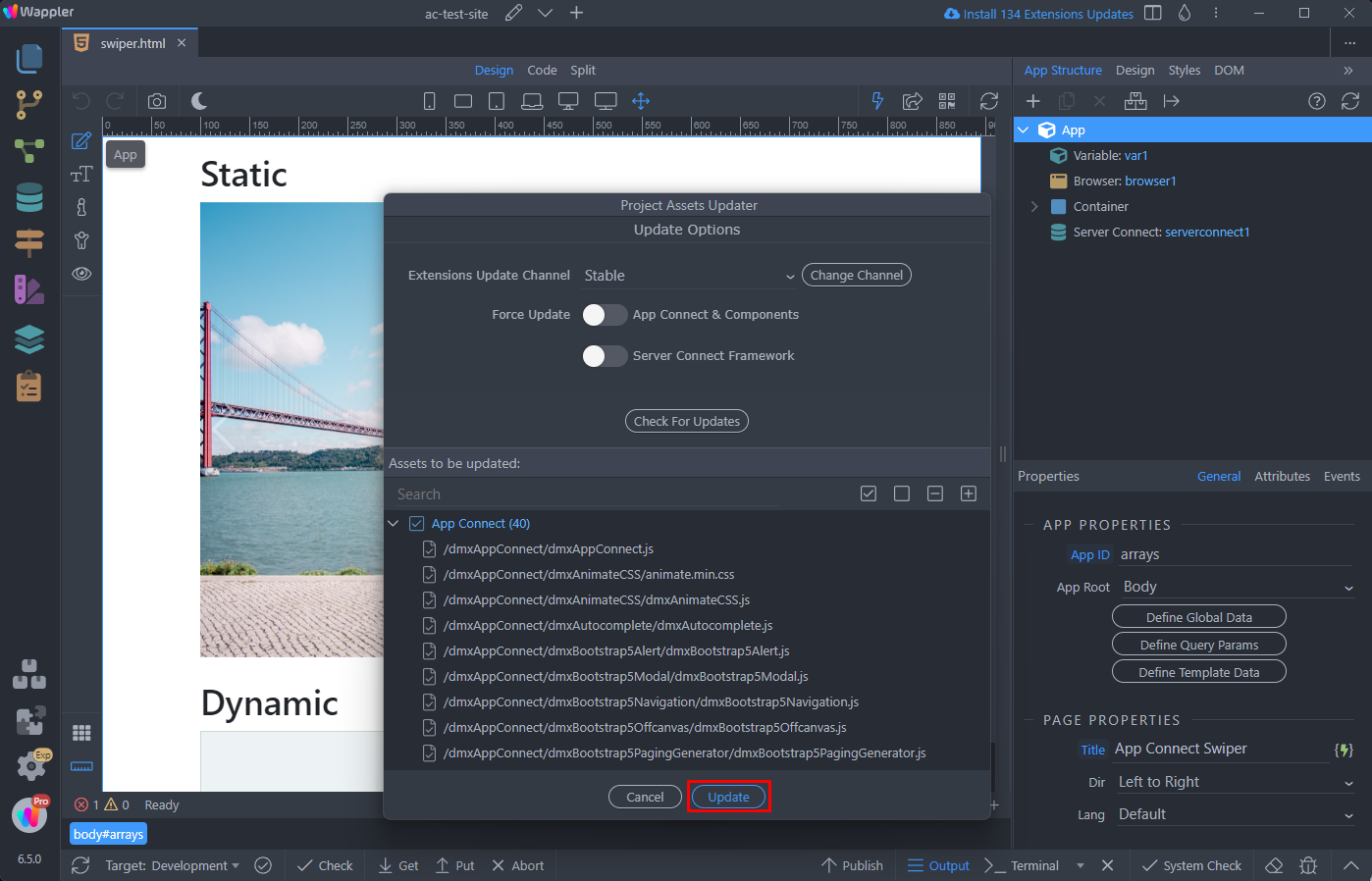
And you are done. The stable updates have been applied to your project.
Section titled “And you are done. The stable updates have been applied to your project.”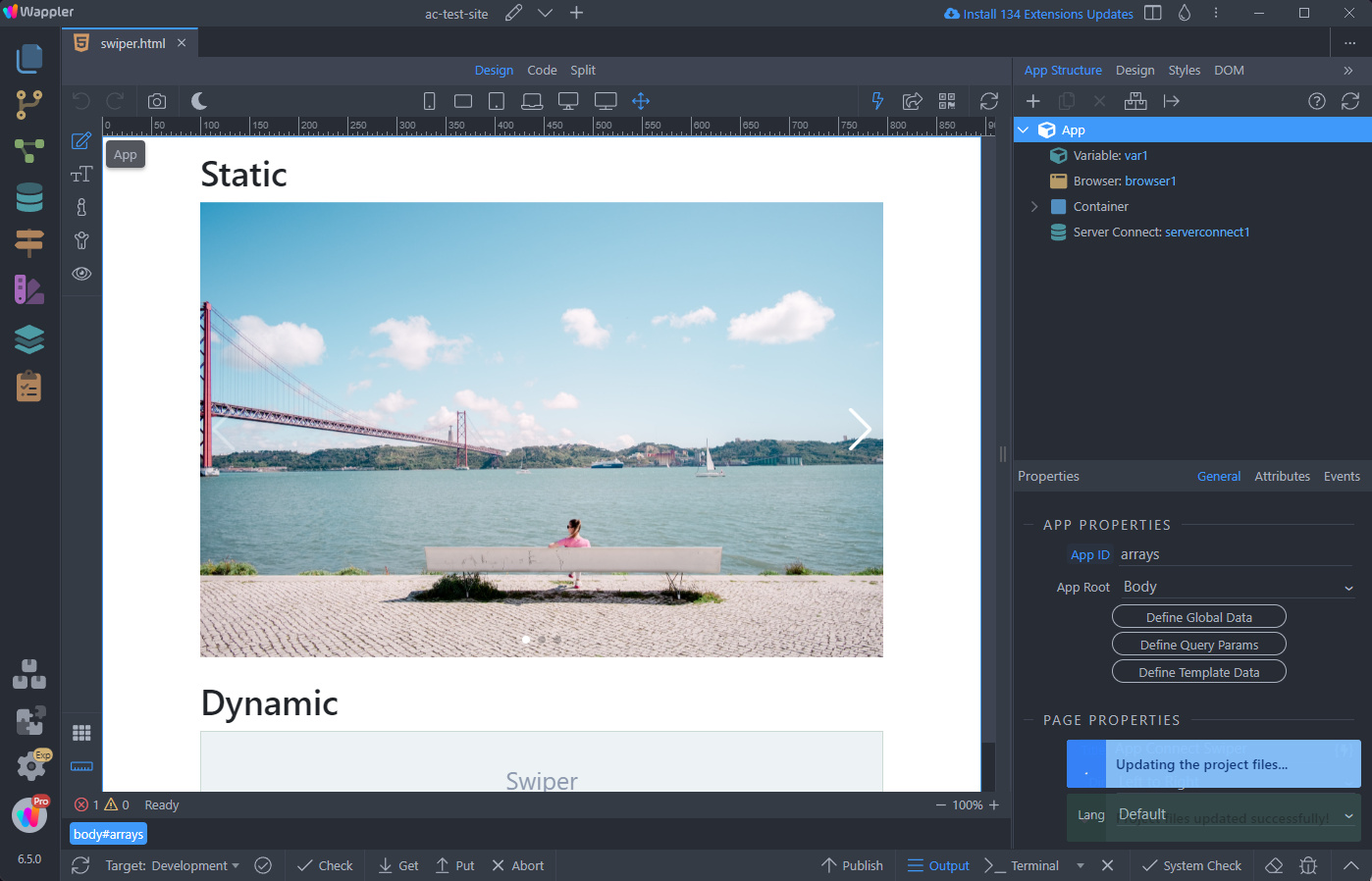
App Connect 1 (Deprecated)
Section titled “App Connect 1 (Deprecated)”There’s an option to revert your project files to App Connect 1 version.
Note that this option is not recommended as App Connect 1 and its extensions have been deprecated and this channel will no longer receive updates and bug fixes.
To switch to App Connect 1 channel, open the project assets updater and select the App Connect 1 (Deprecated) in the extensions channels list:
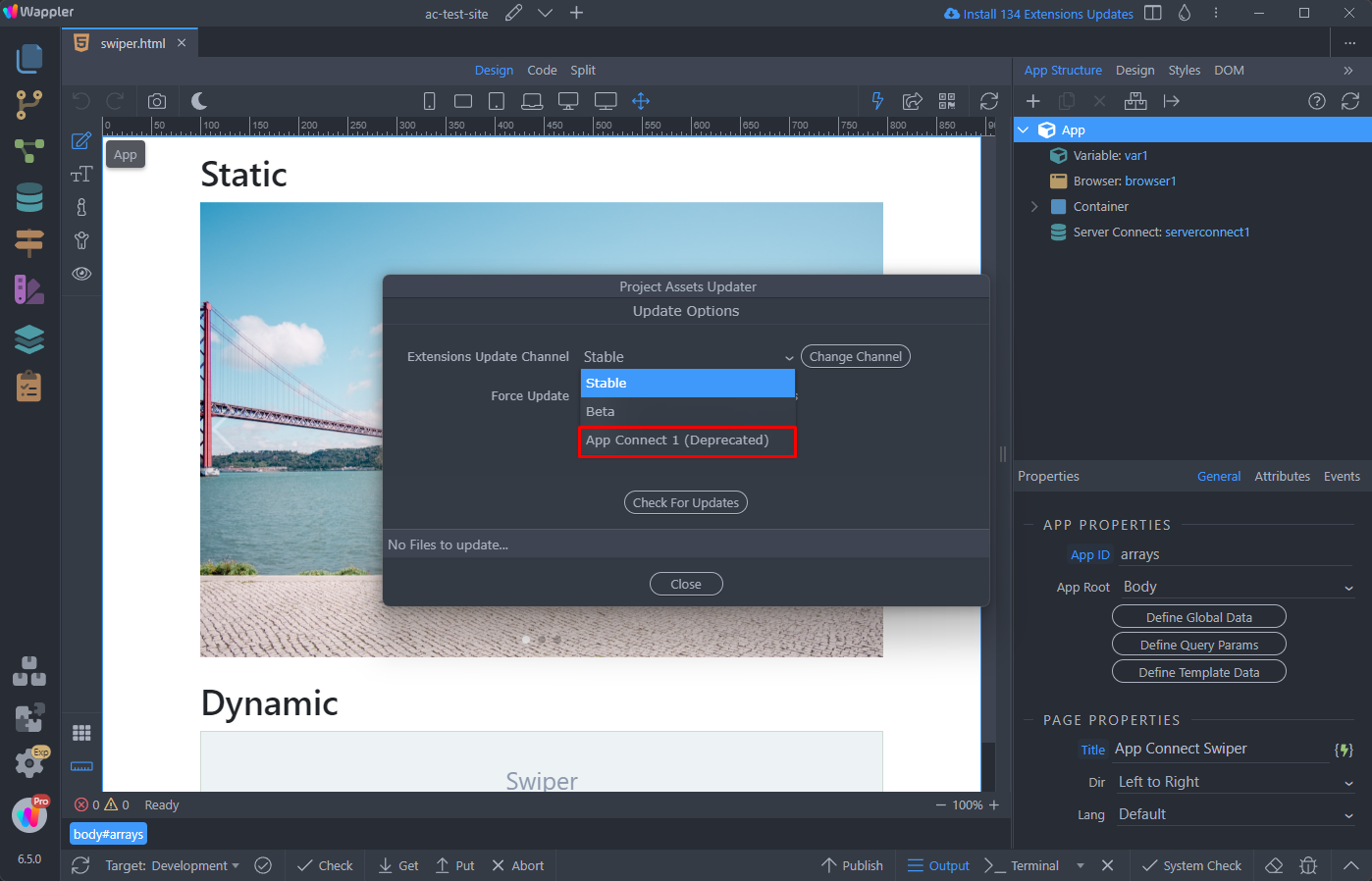
Click the Change Channel button:
Section titled “Click the Change Channel button:”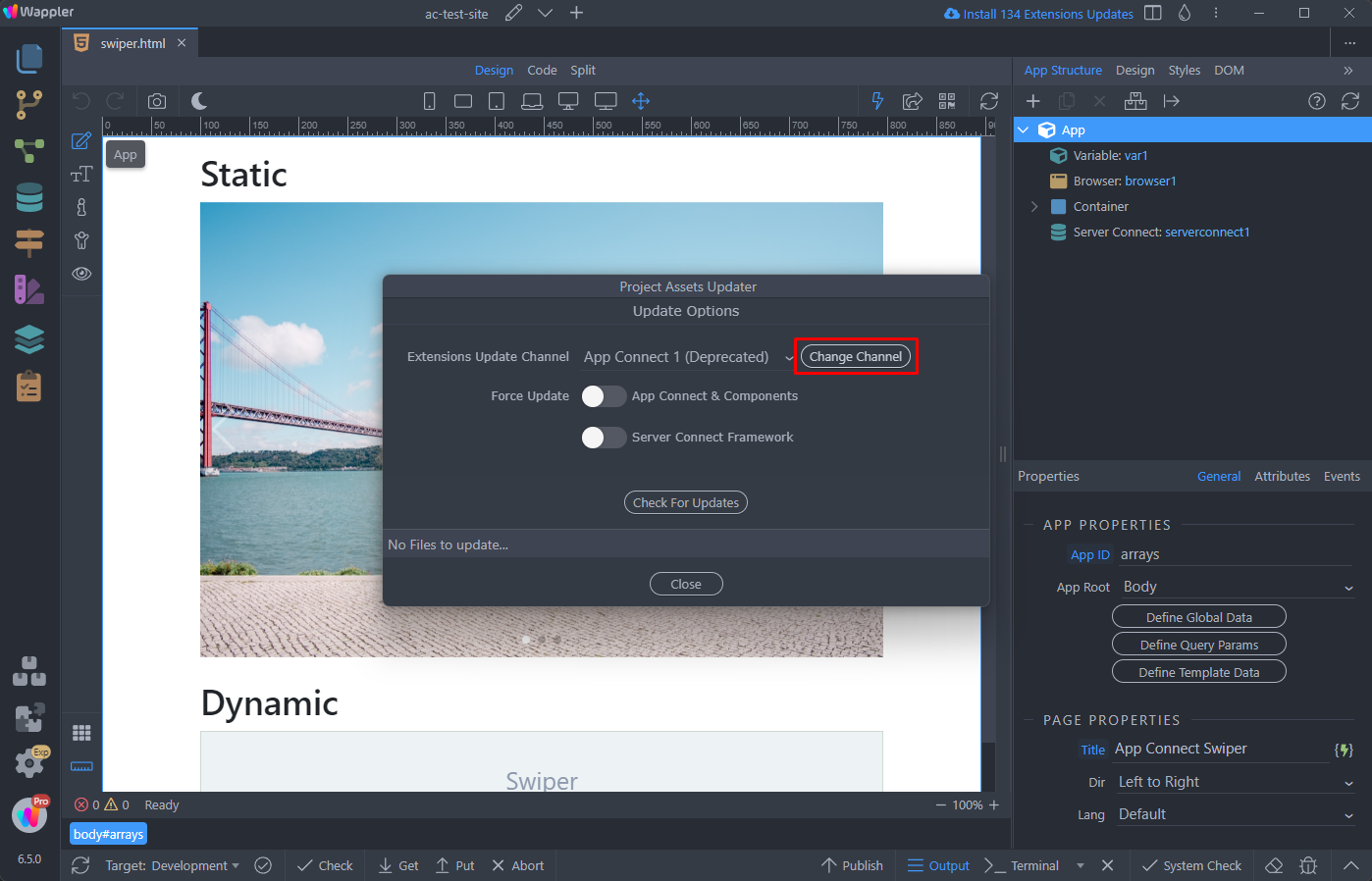
And click Update:
Section titled “And click Update:”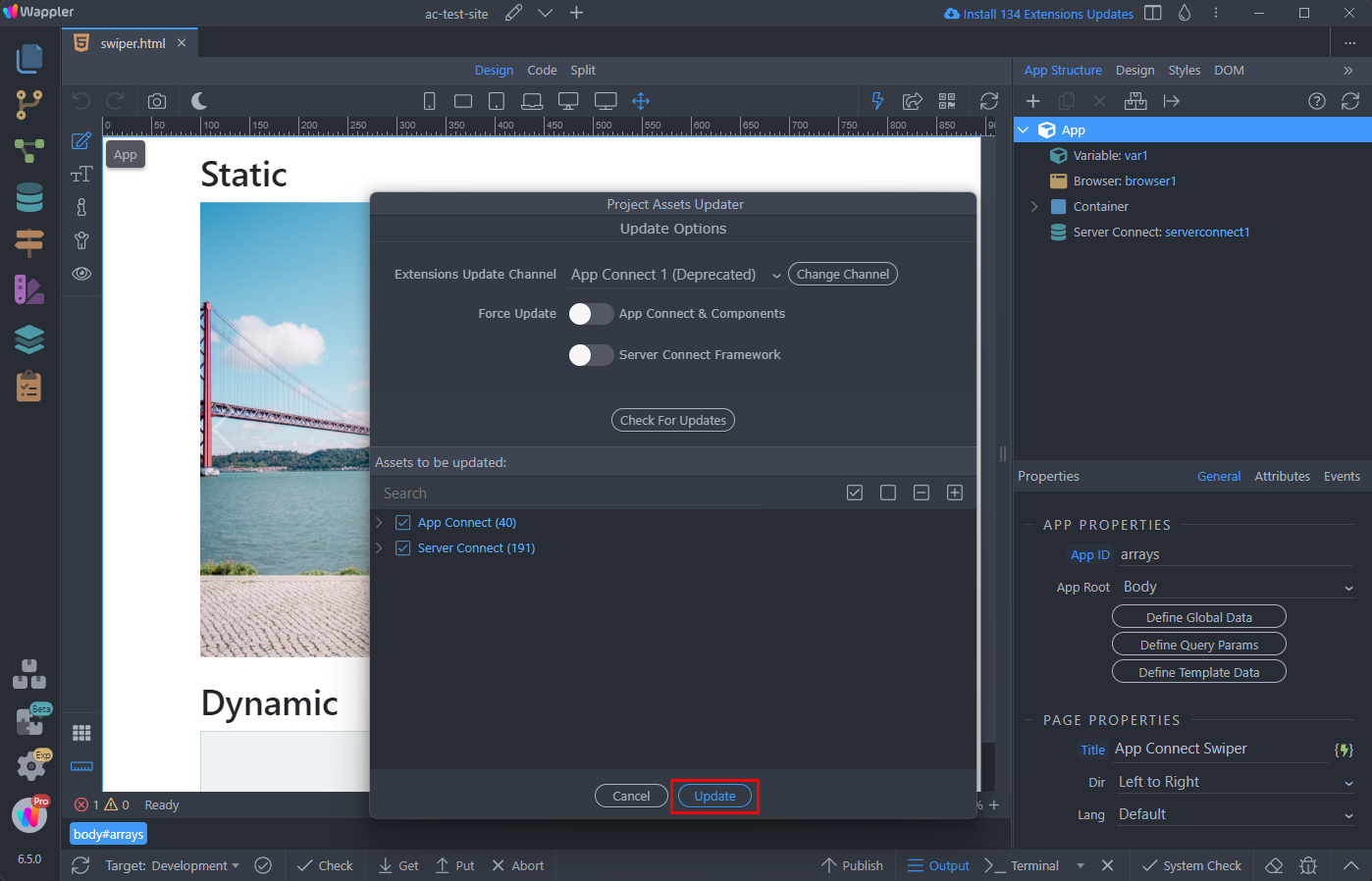
Step 24
Section titled “Step 24”We strongly recommend switching to App Connect 2 as it’s already stable, so this option should be used only as a last resort.