Simple setup
The component only needs an ID and a source, so the section stays easy to maintain.
Use App Connect Background Video to add restrained looping motion behind readable content without complicating the section structure.
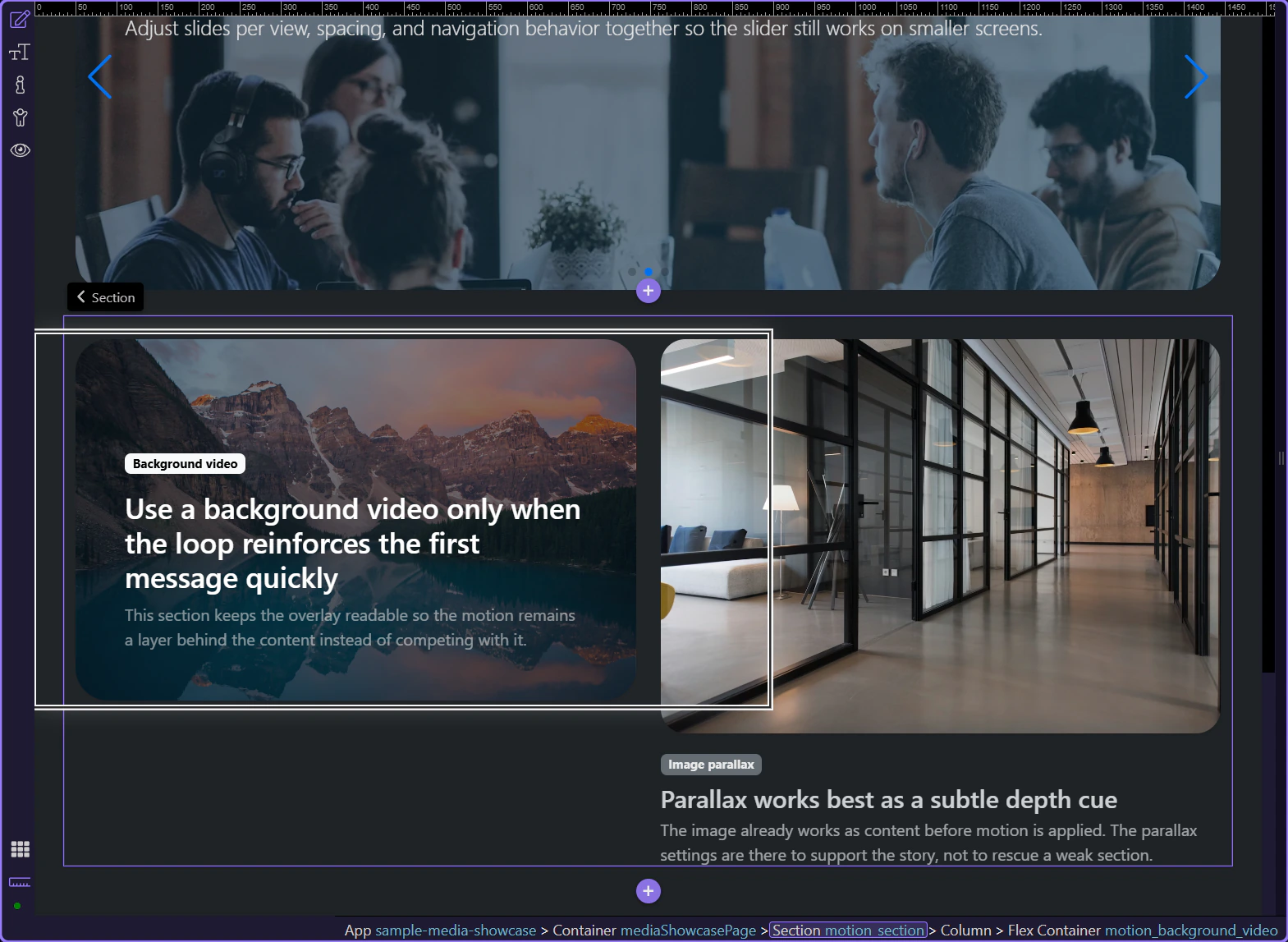
The preview below shows the result first: a restrained looping background layer that supports the message instead of competing with it.
This hero section works because the motion stays in the background and the overlay copy remains readable. In practice, that is the first decision to make before adding the component in Wappler: if the motion competes with the text, it should not be a background video at all.
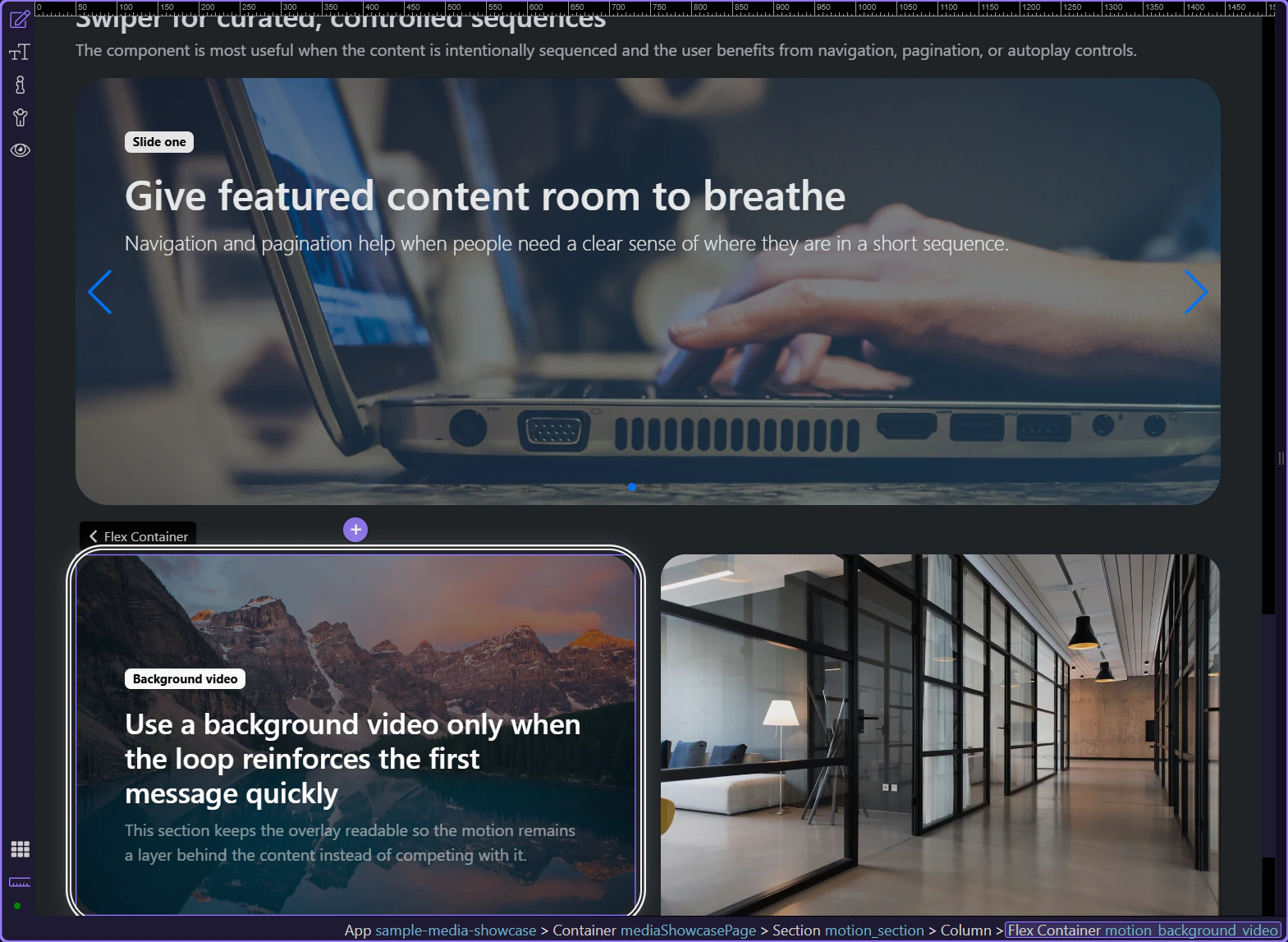
Use Background Video for hero sections, campaign intros, and page headers where one short looping scene can set the tone immediately. Avoid it when the motion is decorative but the text still has to fight for attention.
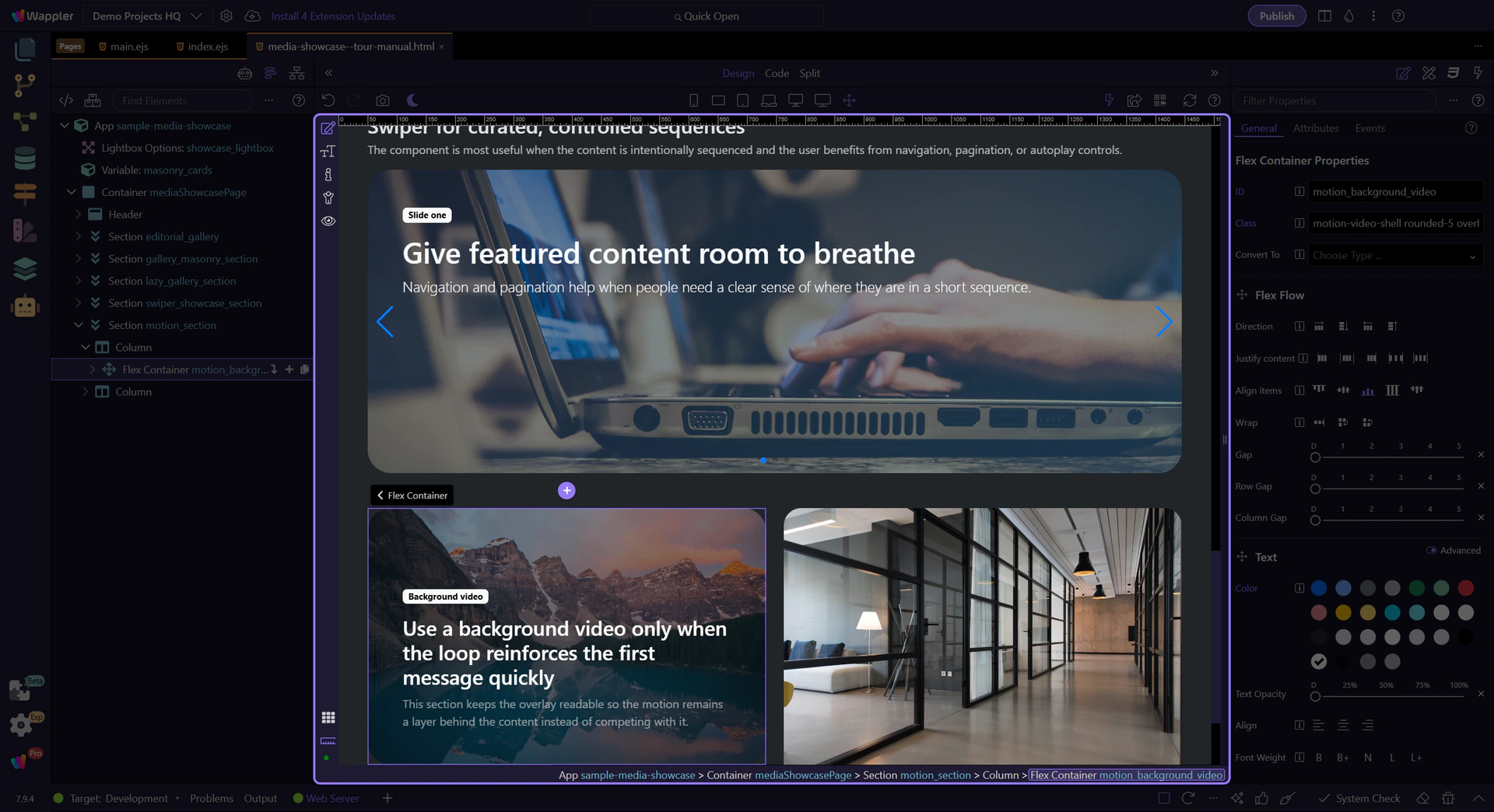
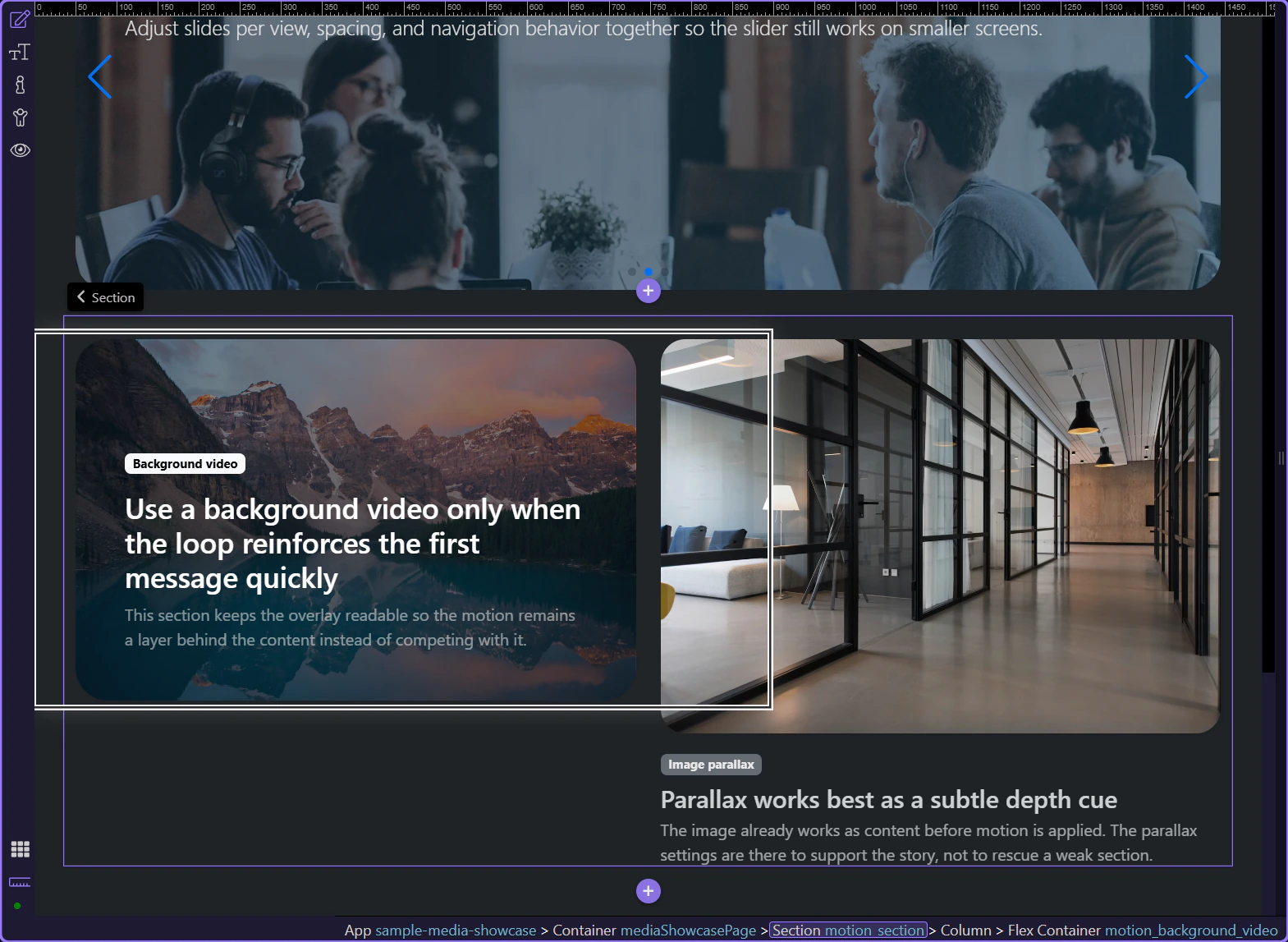
Background Video belongs to the whole section because it plays behind that section’s content. Start by selecting the outer hero section, then insert the component there so the motion stays behind the full content block.
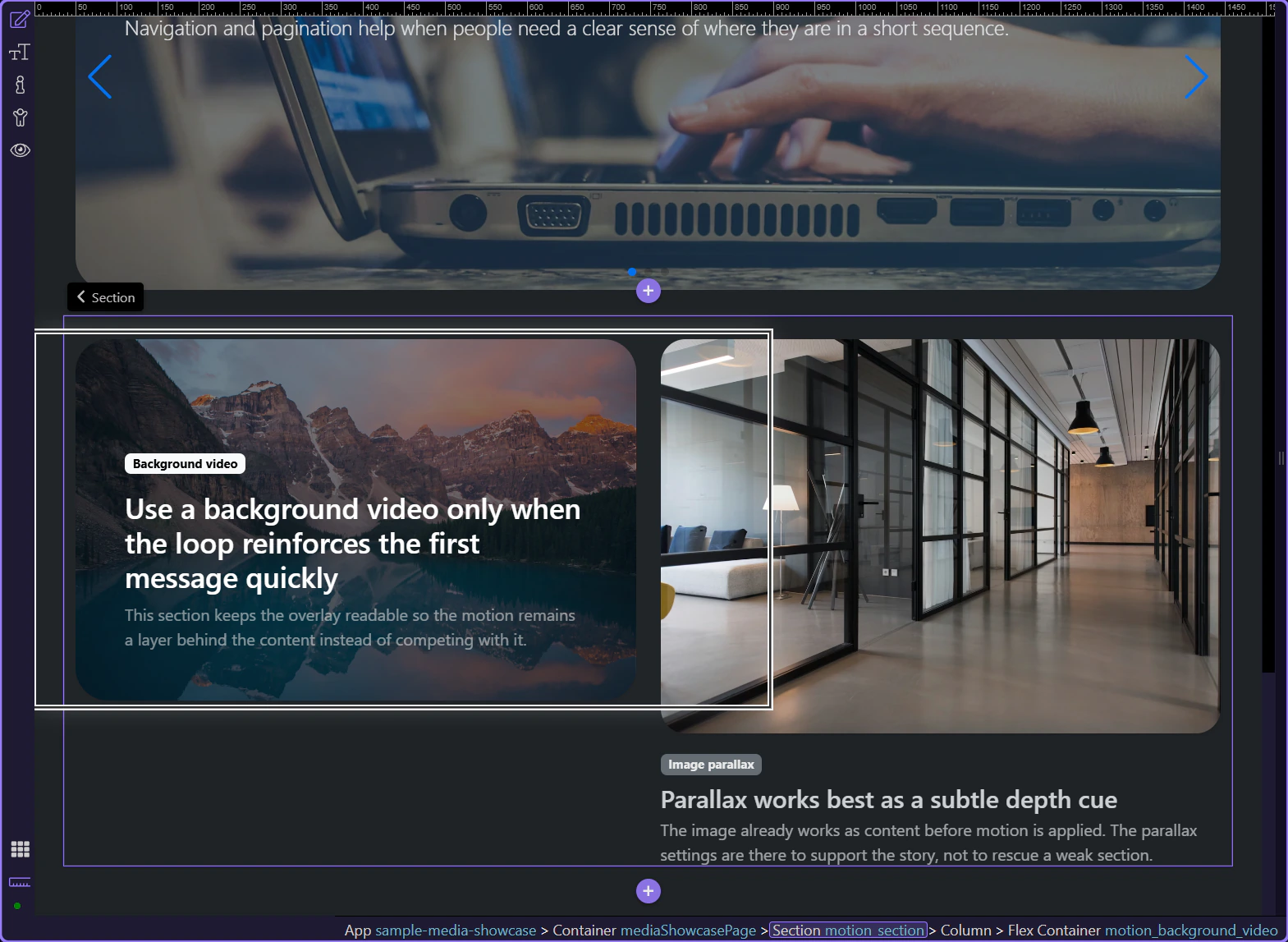
The selected section is mirrored in App Structure. This matters because the Background Video component is about to be inserted as a child of that section, not attached to an inner text block.
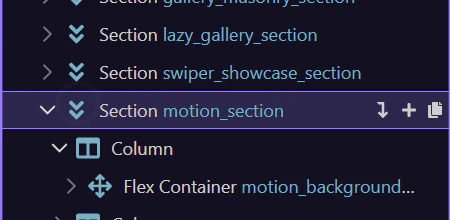
In normal editing, this selected section row is where you open the Components picker to insert Background Video. Keeping the section selected here shows the exact surface that owns that insert flow without adding extra runtime churn during the tour.
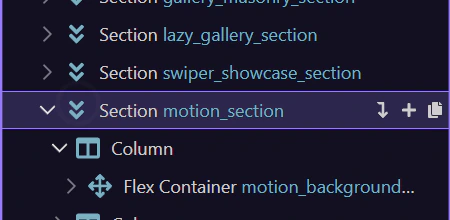
When you do need to insert the component yourself, search is the quickest way to narrow the Components list to Background Video from this section context. The important practical rule stays the same: start from the section that will own the motion layer.
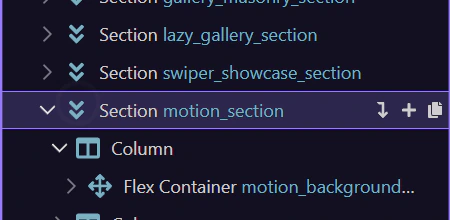
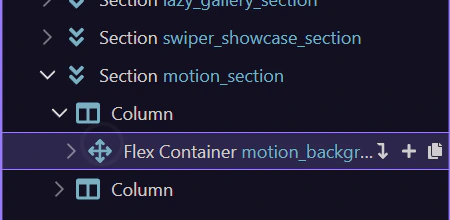
This example page already includes the component so you can inspect the real inserted result directly. In a real page, this is the row that appears under the section after you choose Background Video from the Components picker.
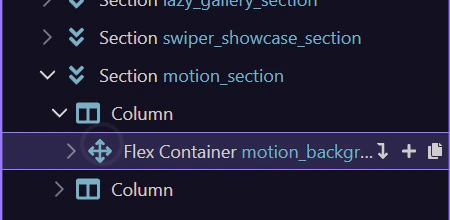
Once inserted, the component lives under the section that owns the effect. That keeps the motion layer tied to the same content block it supports and makes later adjustments easy to find in App Structure.
With the Background Video component selected, pause on the full Properties panel first. This keeps the section-level context visible before the next steps zoom into the specific setup fields.
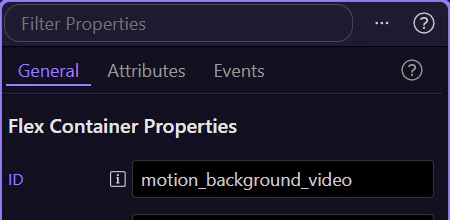
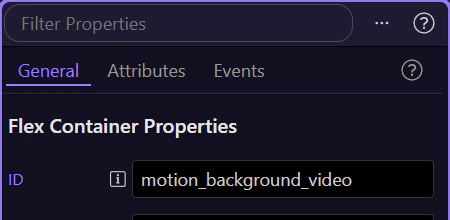
This property points to the actual clip. Choose a short, well-compressed loop that can load quickly and still support the message of the section.
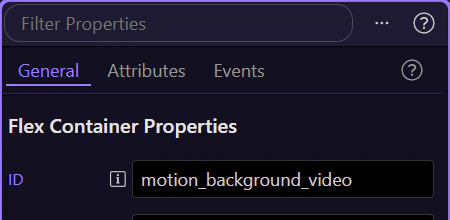
A clear ID keeps the component easy to recognize in App Structure, especially on pages that use multiple media elements. Here the example uses a descriptive section-level name rather than a generic default.
Back in Design View, the result is a section where the loop stays behind the text instead of fighting with it. That balance is the real success condition for Background Video inside Wappler.
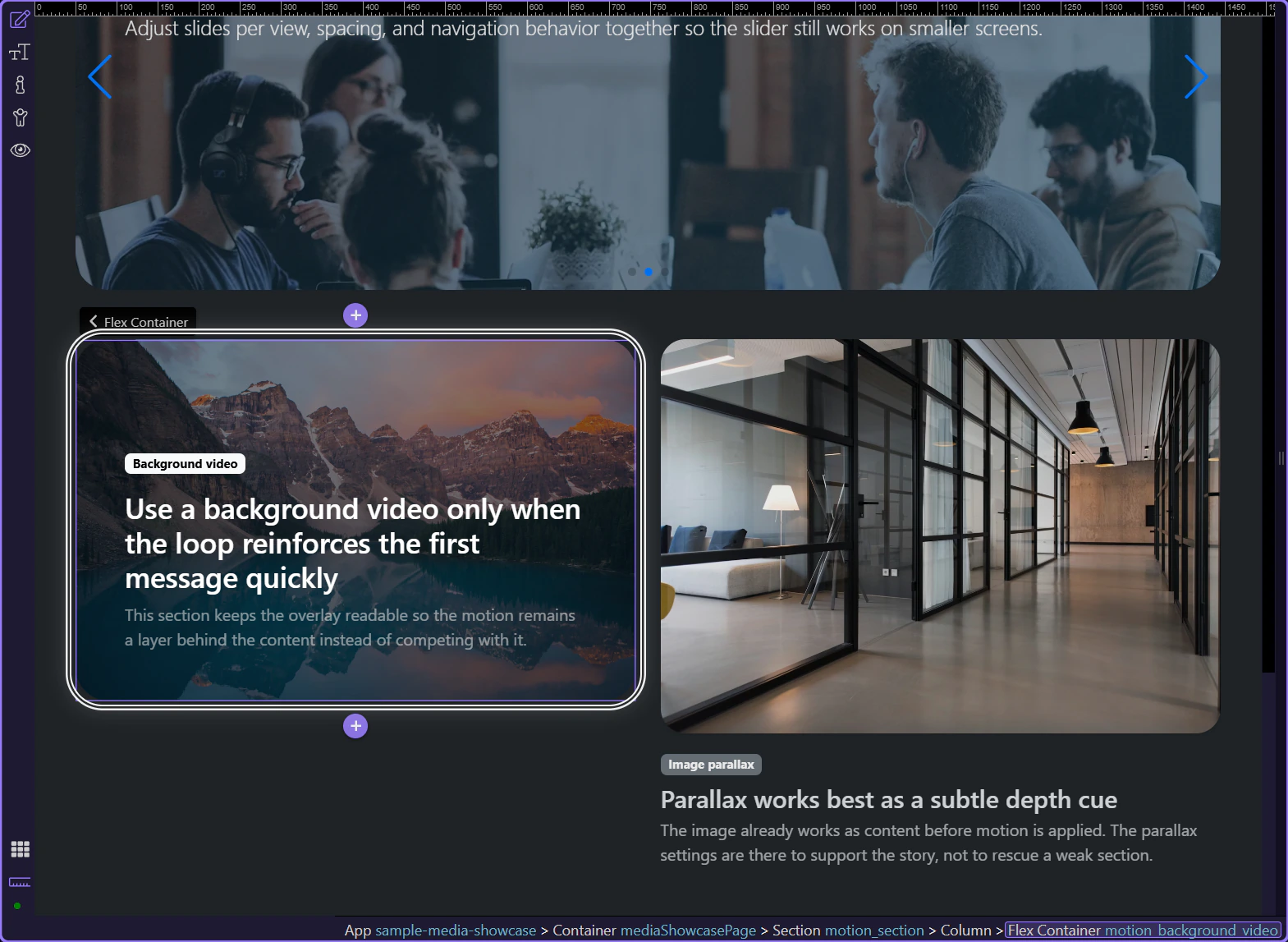
Once the Background Video component is selected, the key questions are whether the video source is correct and whether the section still reads clearly with motion running behind the content.
When the component is selected, the Properties panel exposes the essentials: the component ID and the video Src. That is the real Wappler workflow here. The motion layer is configured on the component, while the readable overlay content remains ordinary page markup inside the section.
This section works because the video loop stays subordinate to the headline and supporting copy. That is the practical test inside Wappler too: if the motion is more noticeable than the message, simplify the source or use a still image instead.
You now have the concrete Background Video workflow in Wappler: choose a section that can host motion behind readable content, add the component through the normal insert flow, and keep the setup minimal so the message stays in charge.
Continue into Image Parallax when the same page only needs a still image with subtle depth, or return to the media hub to choose the next media component workflow.