Preview
Use the page
like a user
like a user
Learn how to switch a page into Preview mode, verify the result, inspect requests, and know where publish-related project setup begins.
Before you think about sharing or deploying anything, make sure the page behaves the way a user would expect. This short tour shows the basic confidence loop: open a page, switch to Preview mode, interact with it, inspect requests, and remember where publish setup begins.
A first success is not just building a page. It is seeing it work, checking the moving parts, and knowing where to continue when you are ready to share it.
The next steps use a simple layout so Preview mode and the page panels are visible in a predictable state every time.
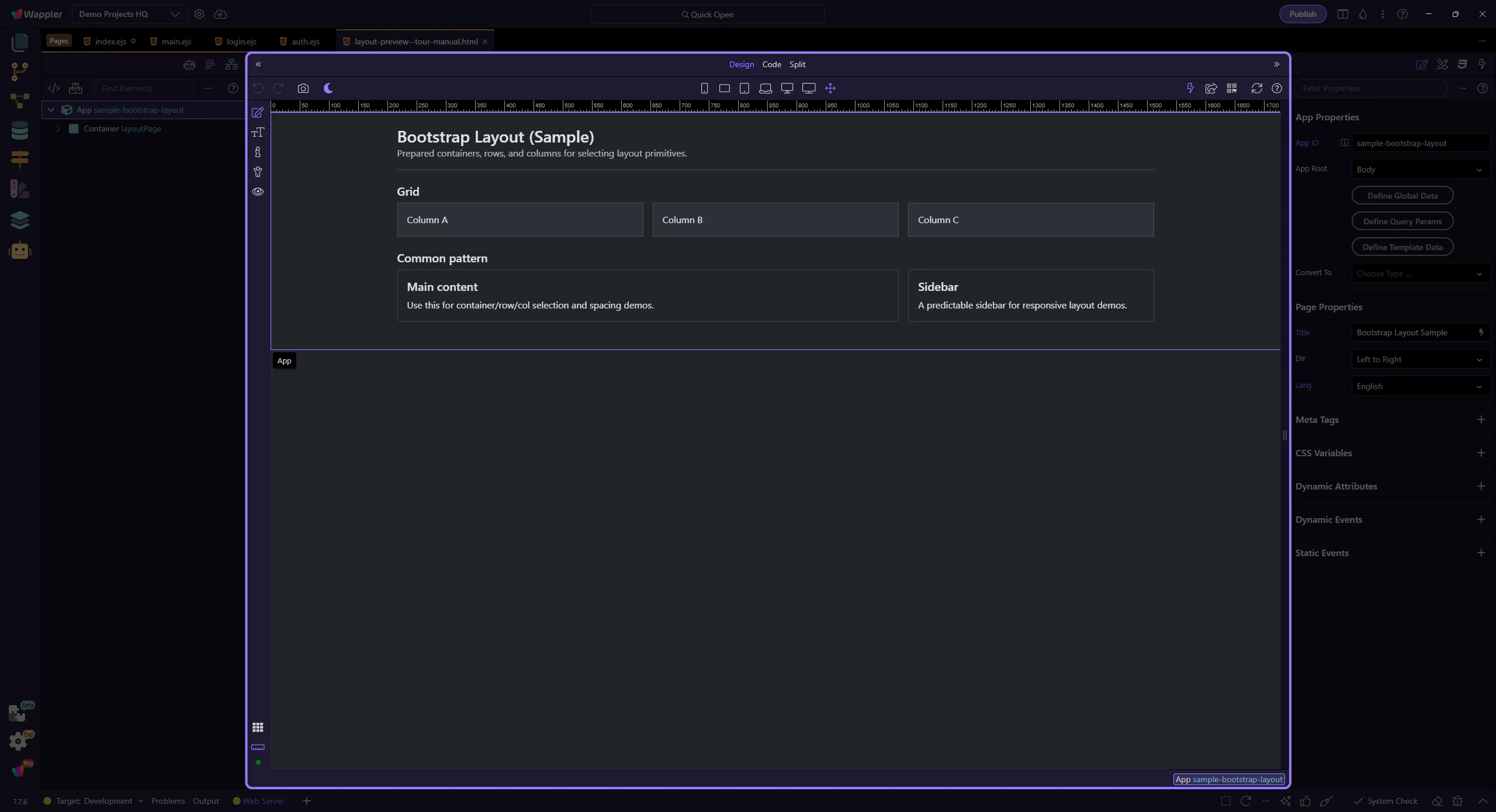
Preview mode lets you use the page instead of editing it. This is the fastest way to answer the beginner question: does the page actually behave the way I expect?
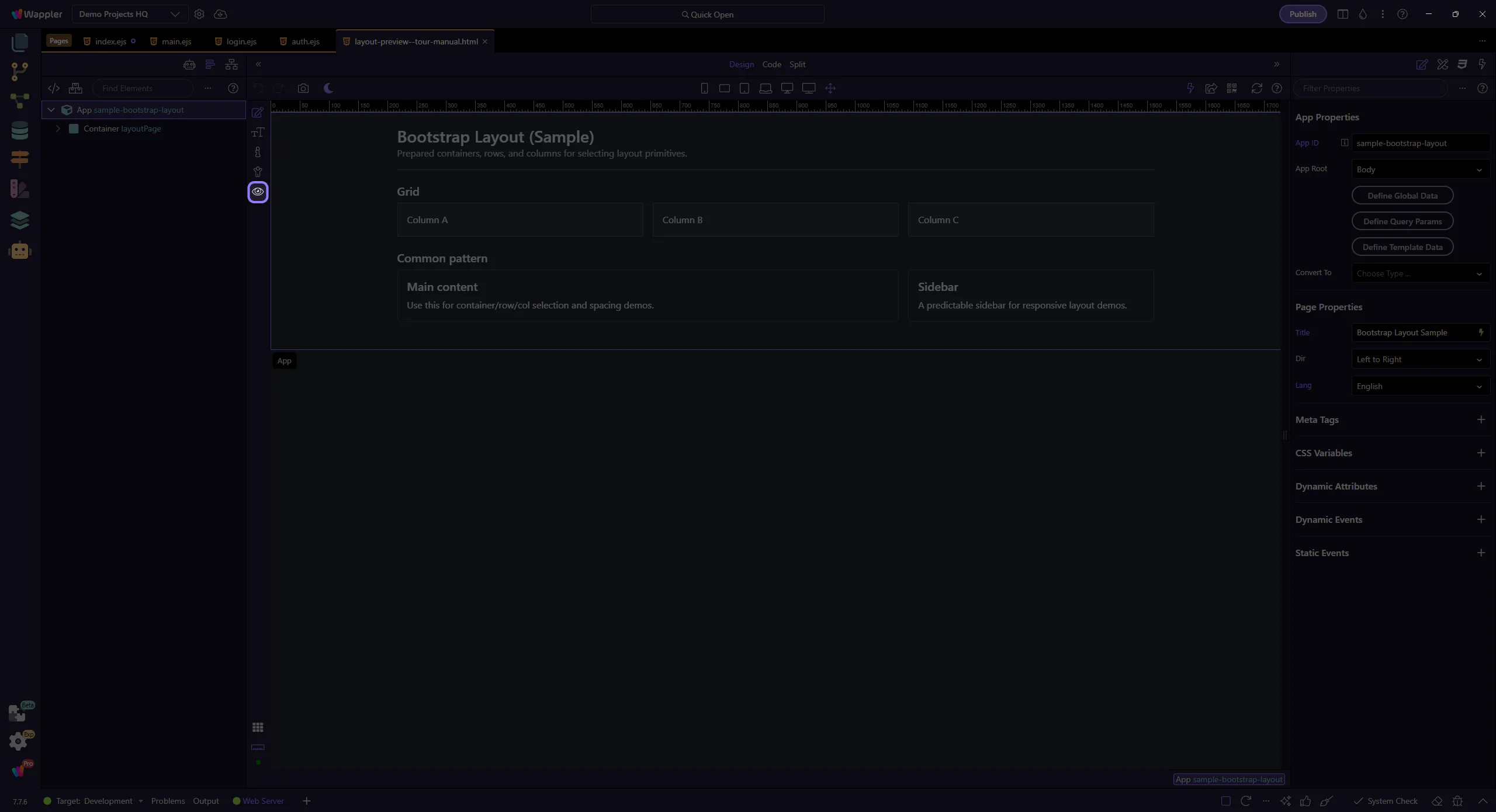
Click, scroll, and read the page the way a real user would. This is where you catch layout problems, missing interactions, or confusing states before you ever think about sharing the app.
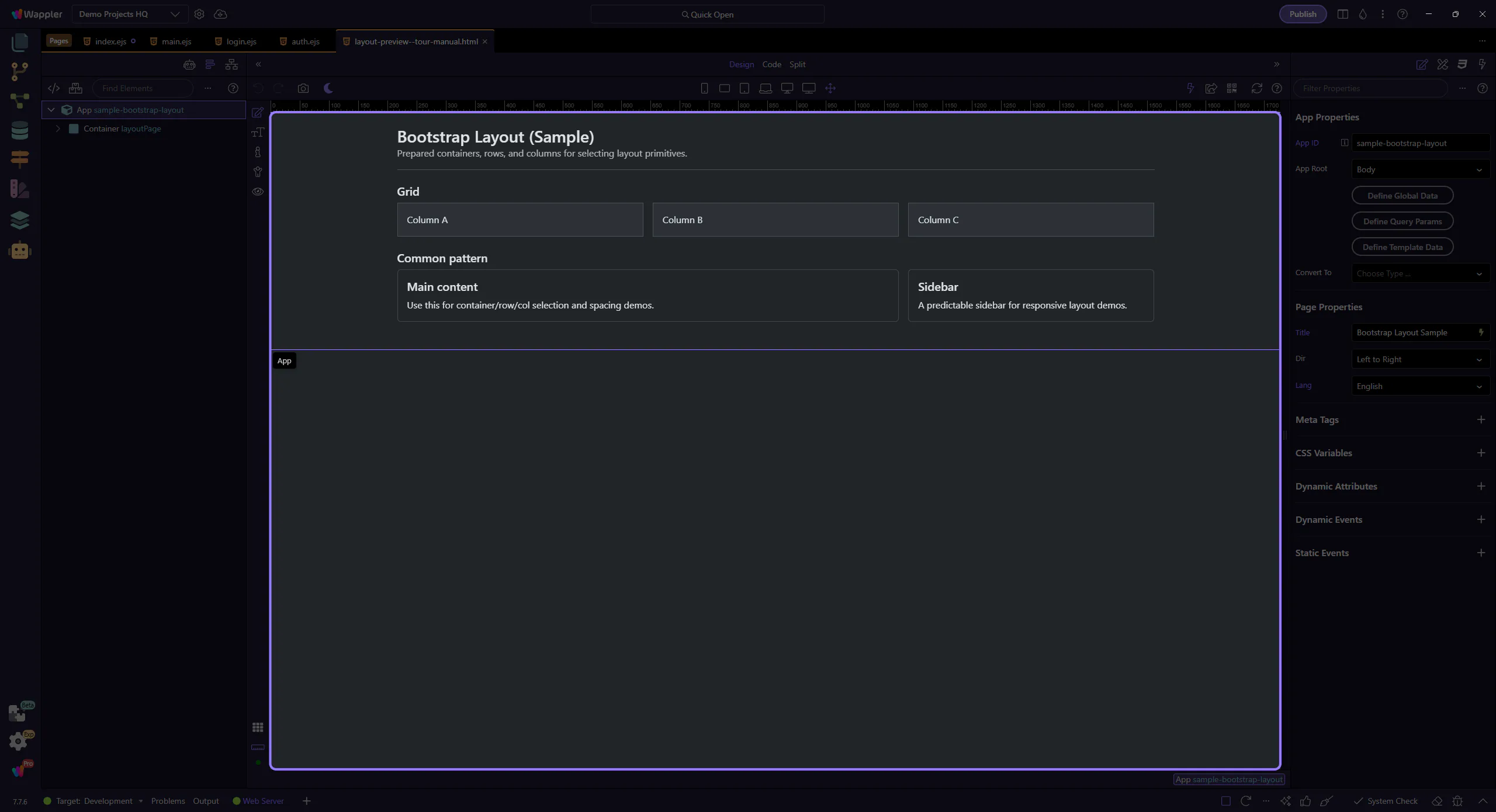
Start with the wider context in the Page Panels area so the next control makes sense in the full workflow. In the next step, you will focus on Watch requests when data is involved and see how it fits into this area.
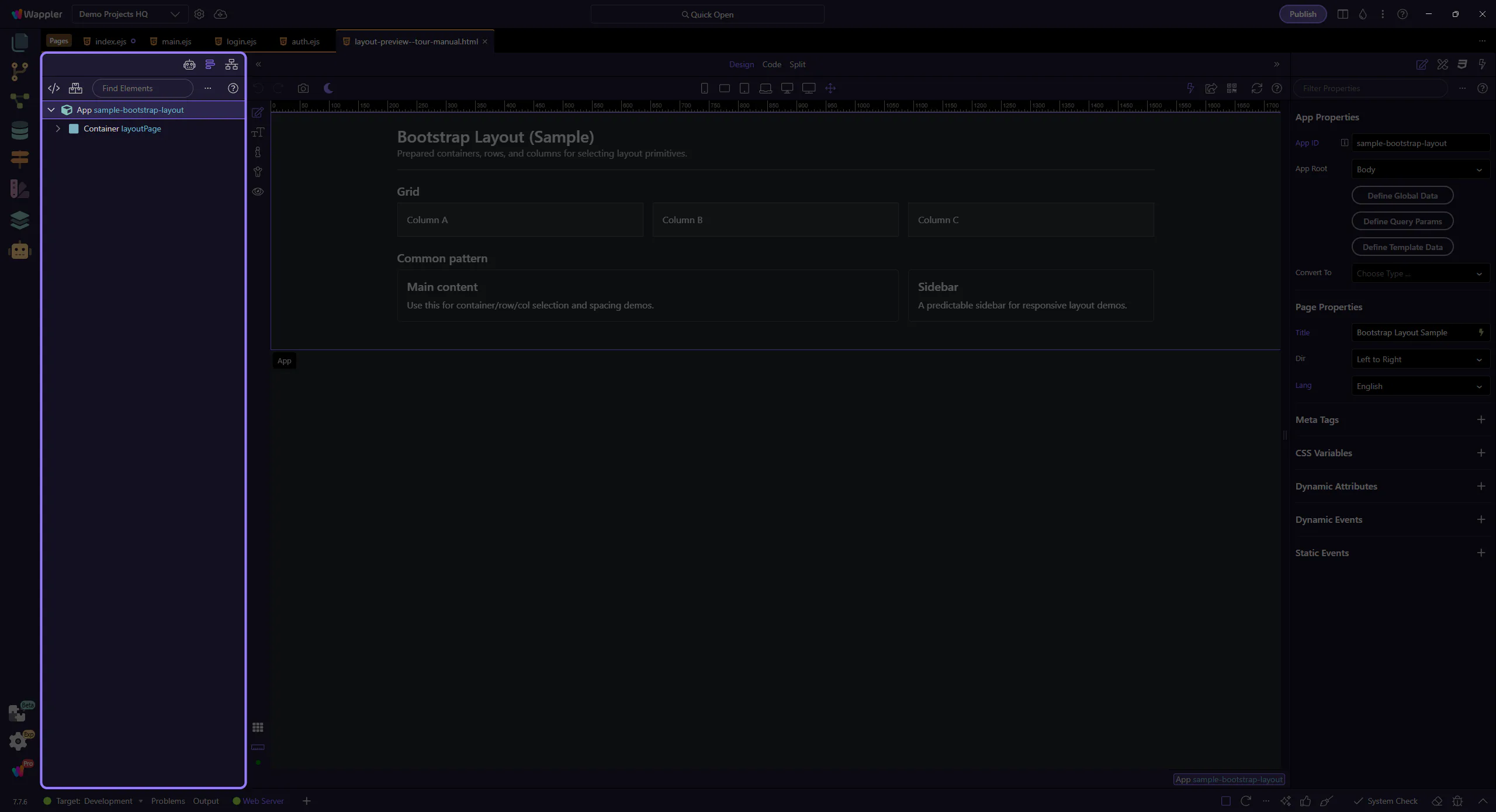
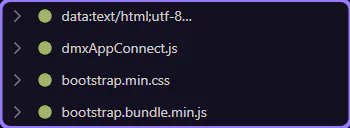
If the page loads data or external assets, Network shows what actually happened. When something does not appear, this panel often tells you whether the issue is the request, the response, or the page binding.
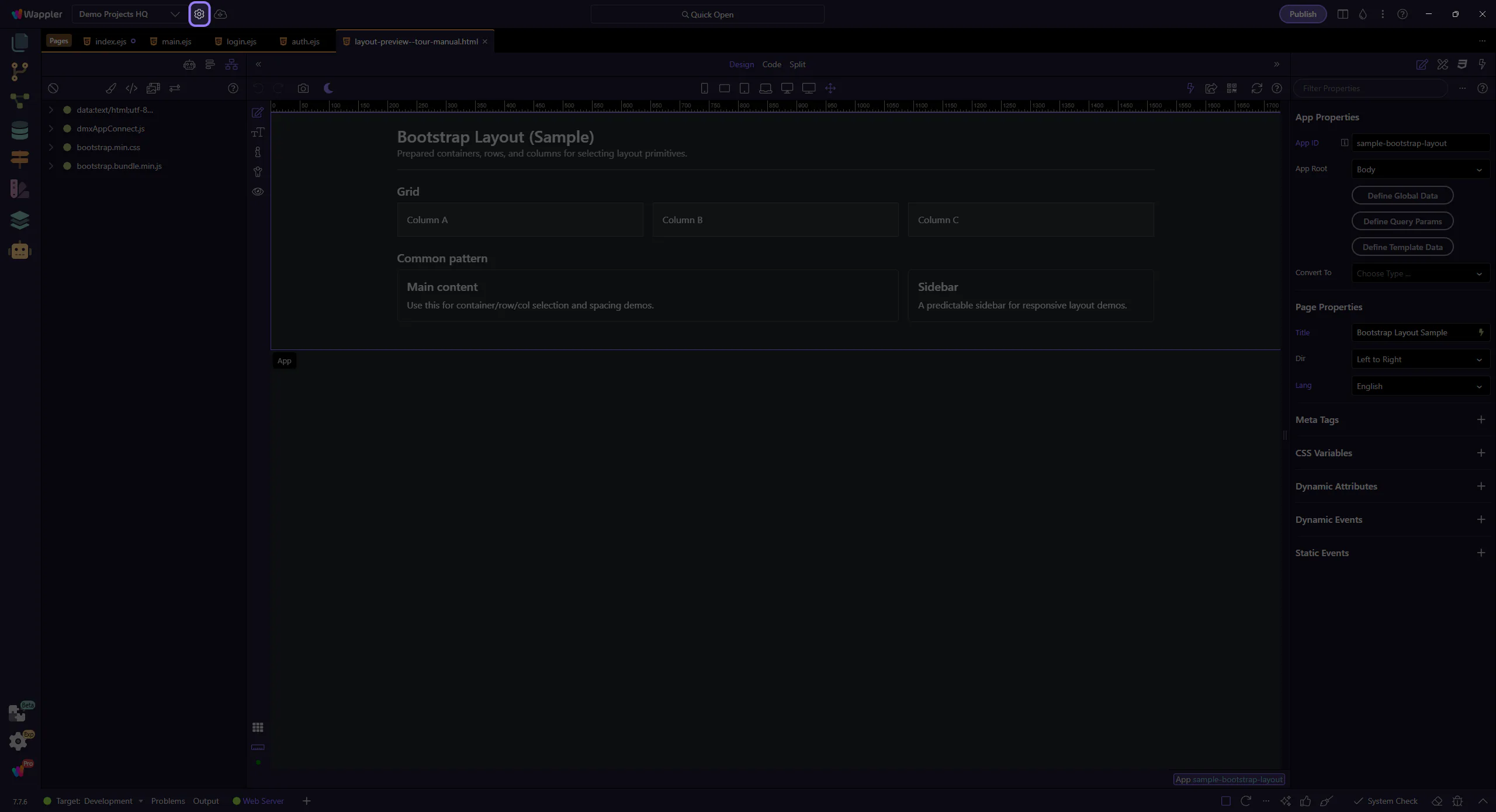
Start with the wider context in the top toolbar so the next control makes sense in the full workflow. In the next step, you will focus on Conclusion and see how it fits into this area.
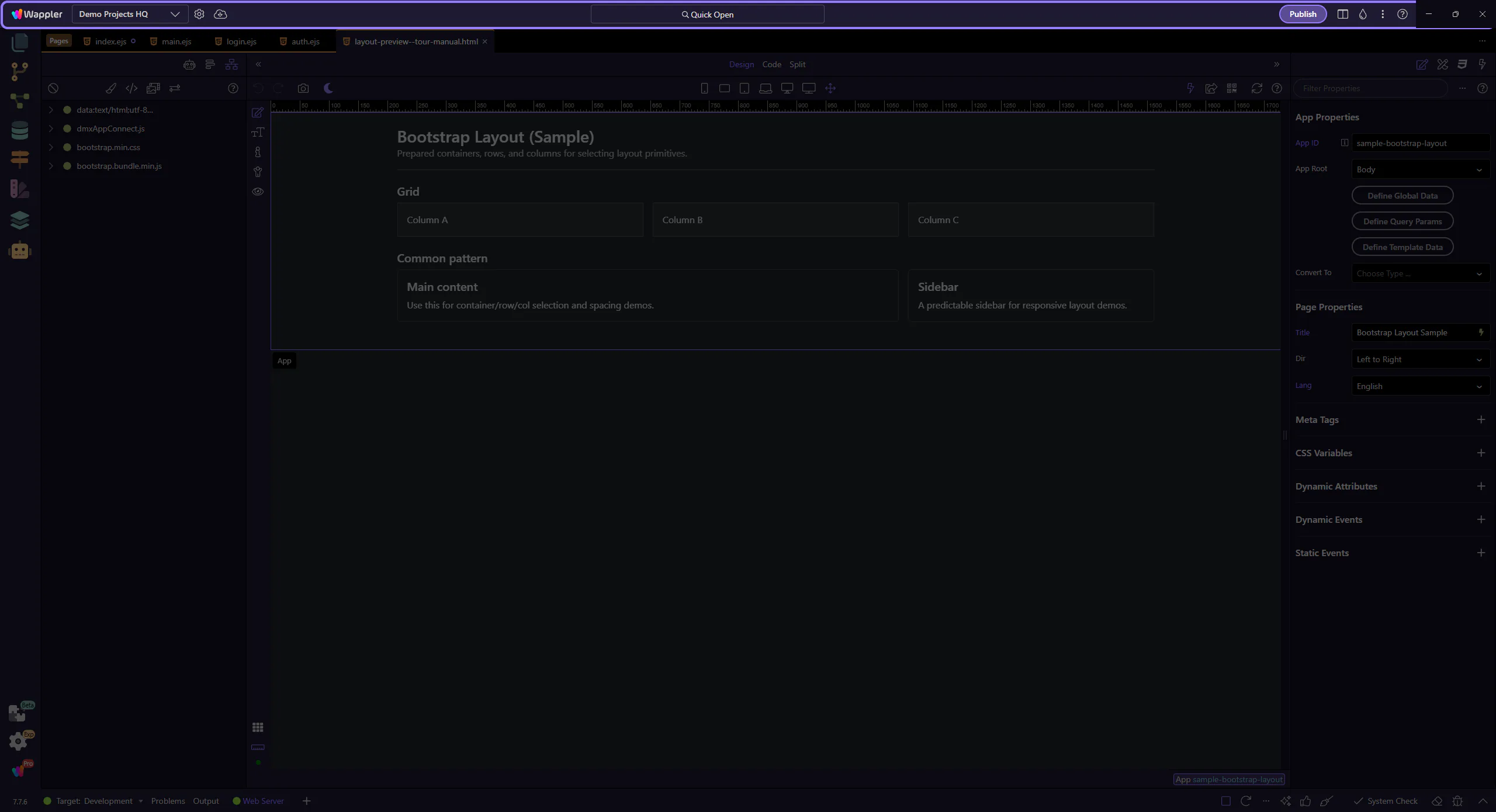
You now have the core beginner verification loop: use Preview mode, interact with the page, inspect requests when needed, and remember that Project Settings is where publish-related setup begins when you are ready.