
Select a step
Properties follow your selection
How to configure steps using the Properties panel, including expressions, pickers, and common patterns.
This tour shows how to configure steps via the Properties panel: editing inputs, using expressions, and applying common patterns.
This tour uses a real workflow step so the Properties panel can show actual inputs and bindings right away. In this sample, update_client is selected for you.
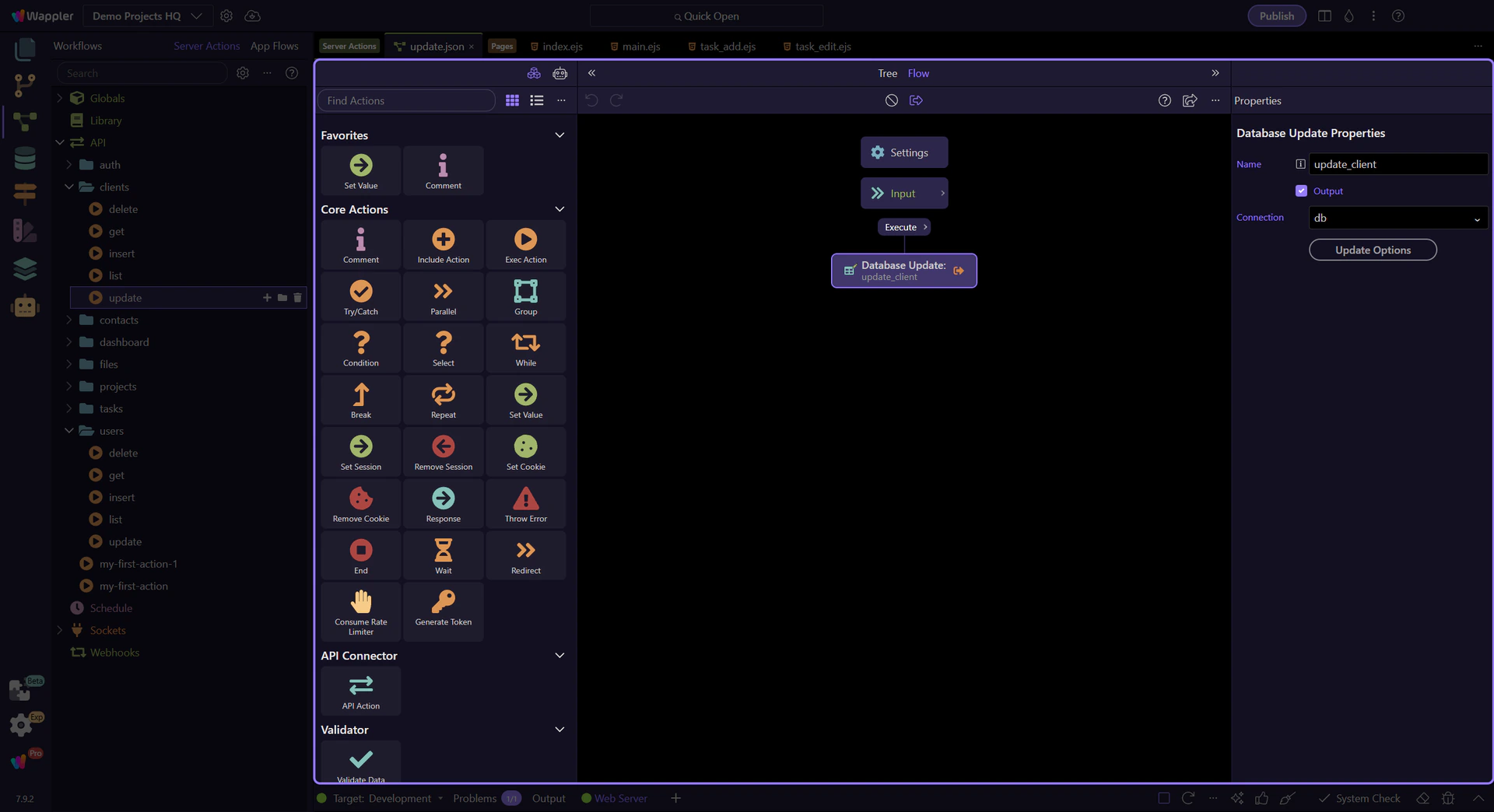
This panel shows the configurable inputs/options for the selected step.
If you don’t see it, enable it via the editor header toggle.
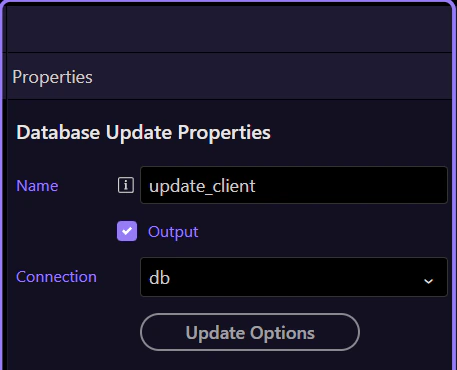
This tour keeps a real step selected for you. Here the update_client step is active, so the Properties panel shows its actual update settings and bindings.
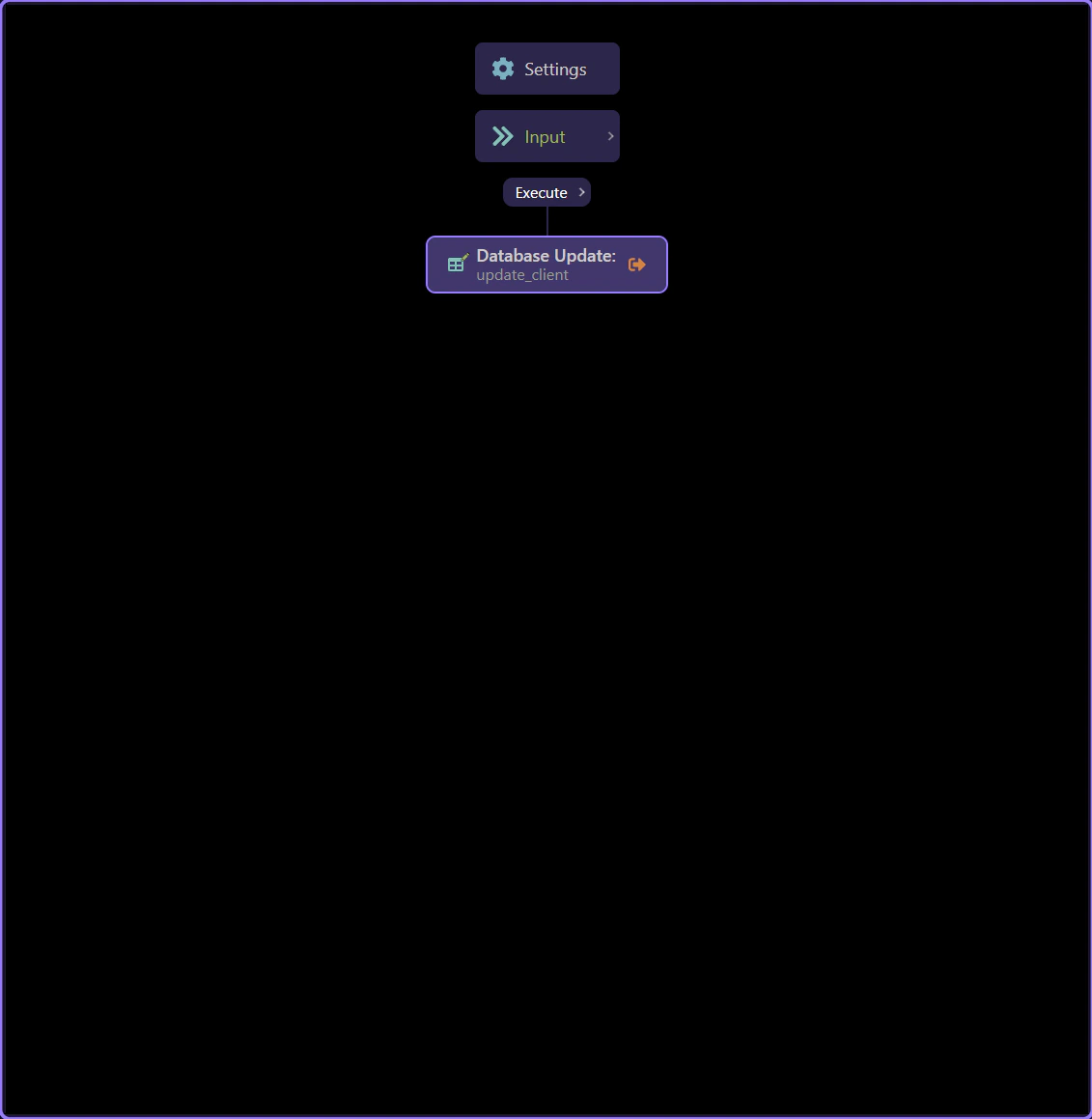
That is the key rule: Properties always follow the current tree selection.
Most inputs accept either a literal (plain text/number) or an expression (bind to previous step output, request data, environment, …).
Tip: treat expressions like code: keep them readable and name intermediate results in separate steps.
Server Connect expressions are bindings: they read data and produce a value.
They are not general JavaScript (no statements, assignments, callbacks, or creating new functions). When you need logic, use dedicated steps or a library action, then bind to that step’s output.
IMPORTANT: If an expression feels like “real code”, it usually belongs in a separate step (or a reusable library action).
Recap what you learned and choose where to go next.
Pick a related tour to continue.