Desktop project
Supplies desktop-specific settings and publishing controls.
Create a Bootstrap 5 Desktop project, structure its routed interface, configure Electron window behavior, and use the app toolbar to build, run, open, and package it.
Choose the Desktop project type when the application is intended to install and run as a desktop program. Bootstrap 5 provides the responsive UI, App Connect provides routing and application logic, and the Electron target provides desktop windows, local execution, packaging, and distribution.
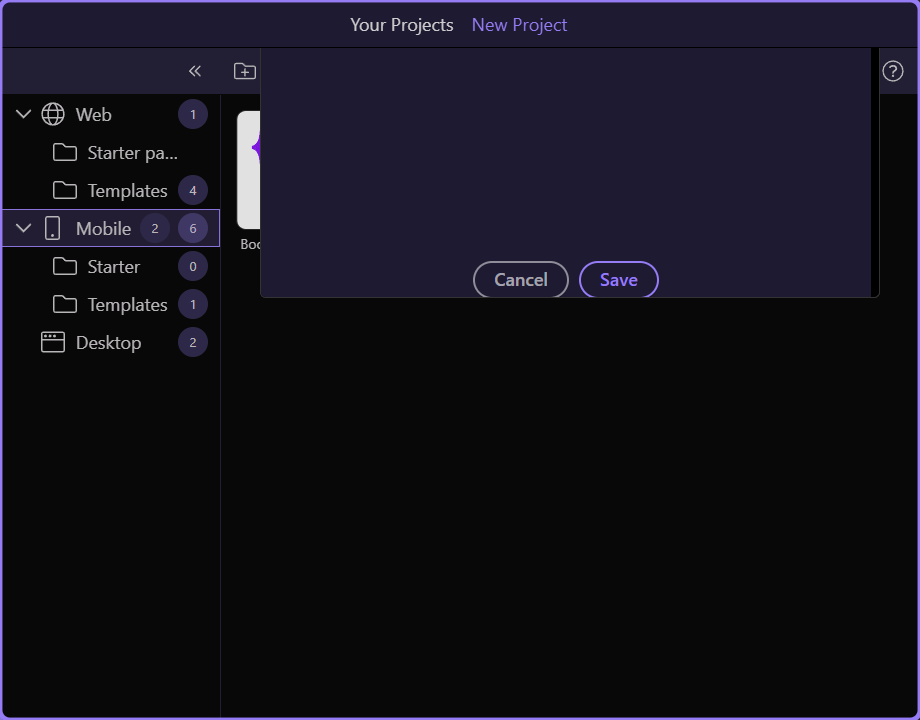
Desktop is its own project category. Select it before choosing a starter so Wappler exposes the correct app metadata, Electron settings, window options, and target workflow.

Bootstrap Blank is the focused Bootstrap 5 desktop starter. It supplies the routed app shell without filling the project with sample screens, so the window and the interface can grow around the product’s real workflow.
In the new-project options and later Project Settings, confirm the Bootstrap 5 design framework, App Connect routing, app file, styles and assets, title, application ID, version, and author. Electron settings control how the installed program opens and what desktop capabilities its window receives.
| Electron setting | Purpose | Check before release |
|---|---|---|
| Width / Height | Initial window size | Fits the smallest supported display |
| Resizable / Fullscreen / Kiosk | User and presentation mode | Matches the app's operating context |
| Always on Top | Window stacking | Enabled only when the workflow needs it |
| Frame / Transparent | Native frame and visual treatment | Custom controls remain accessible |
| Node Integration | Renderer access to Node capabilities | Enable only for a deliberate, secured need |
| Icons / Settings file | Packaging identity and advanced configuration | Production assets and paths are final |
Keep global navigation, shared dialogs, application state, and the routed view in the main shell. Put dashboards, records, settings, and task workspaces in content pages. Define clear routes and use route-aware links so the desktop window behaves like one cohesive application instead of a collection of browser pages.
| Layer | Recommended responsibility |
|---|---|
| Application shell | Top bar, sidebar/offcanvas navigation, status area, shared App Connect data |
| Content pages | Feature screens, forms, tables, reports, and settings |
| Routes | Stable URLs, parameters, default screen, and not-found behavior |
| Desktop services | Local files, network state, update checks, and platform handoffs |
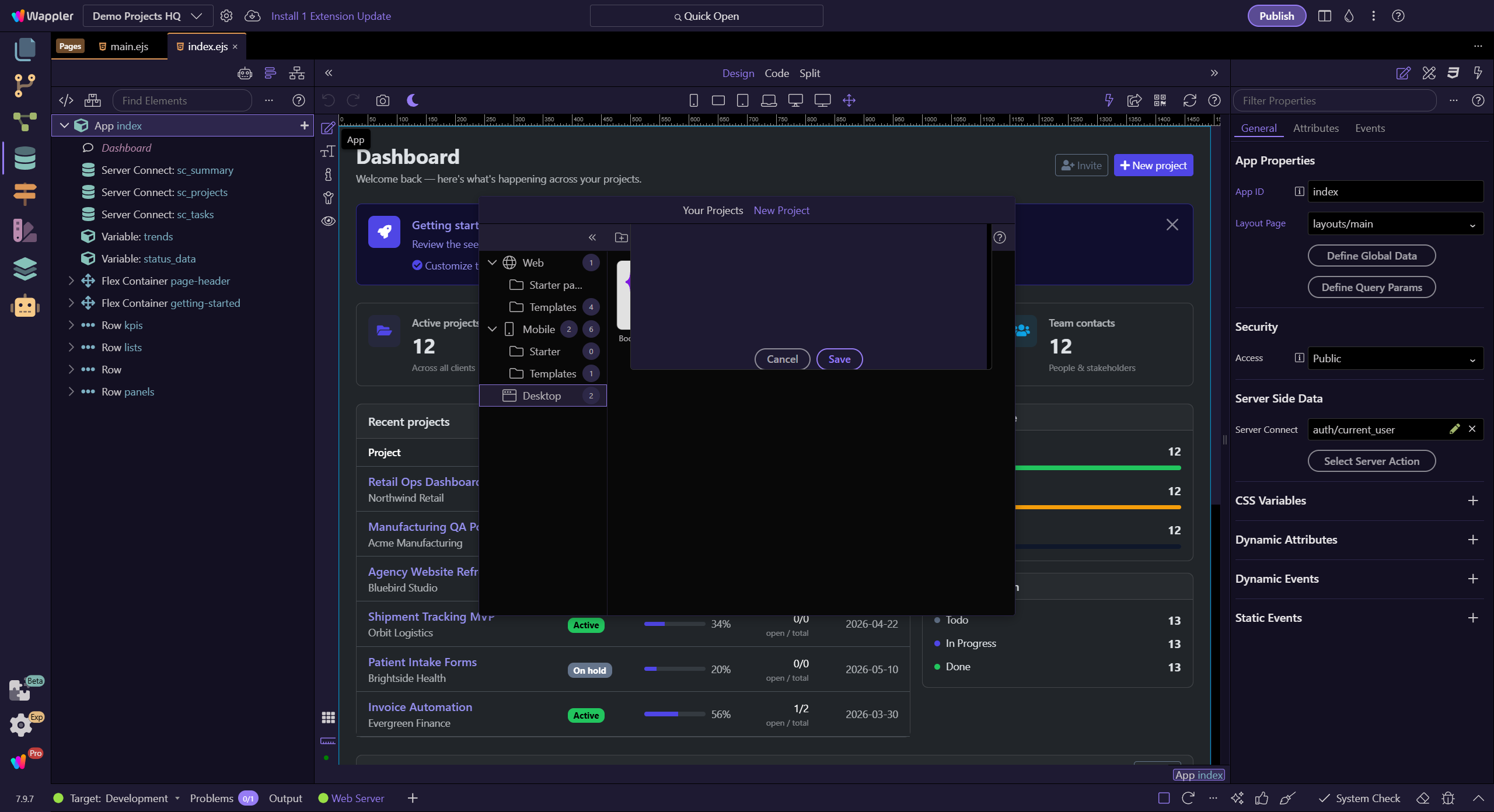
Combine containers, rows, columns, tables, forms, navs, tabs, cards, modals, toasts, tooltips, and utility classes. Design for keyboard and pointer input, clear focus states, resizable windows, high-density data, empty/loading/error states, and the narrow layout users see when they resize or split the screen.
TIP: Desktop does not mean fixed-width. Treat every Electron window size as a responsive Bootstrap 5 viewport.
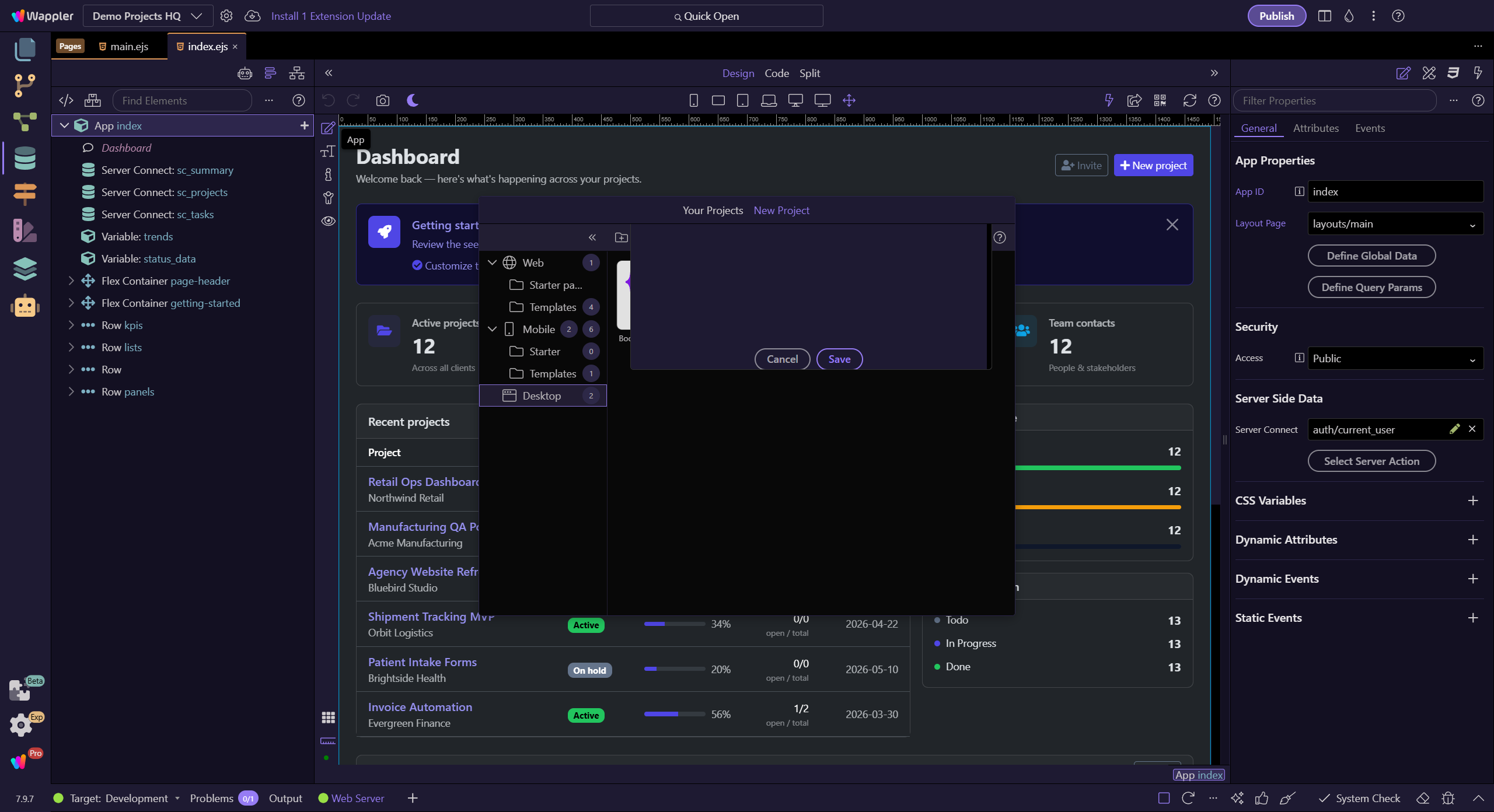
Run System Check, select the development or release environment, select or add the Electron platform, and review its version. Build synchronizes the app assets. Run launches the selected target, Enable Debug supports troubleshooting, Open hands the generated project to its platform tooling, and Pack creates the distributable desktop package. Output and Terminal show the commands and failures; Clear output resets the log.
| Control | Desktop use |
|---|---|
| Refresh List | Reload the available platform and run targets |
| Active Environment | Choose the configuration embedded in the build |
| Platform / Remove / Update | Add, select, maintain, or remove Electron |
| Platform Guide / System Check | Verify prerequisites and target guidance |
| Build | Synchronize and compile the selected desktop target |
| Run On / Run / Enable Debug | Select, launch, and debug the application |
| Open | Open the generated platform project |
| Pack | Create a distributable Electron package |
| Output / Terminal / Clear output | Inspect and manage operational logs |
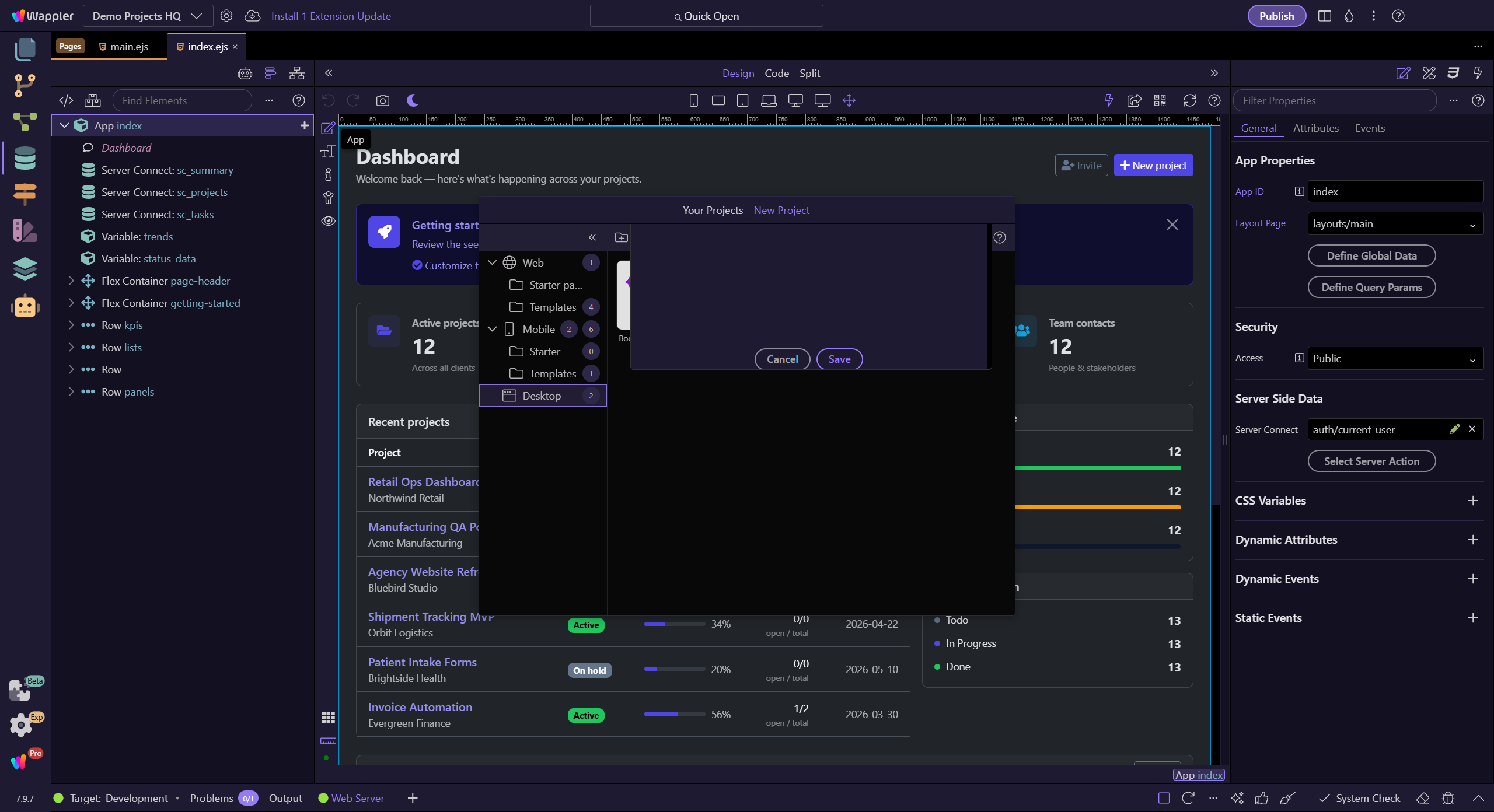
Test a clean production build on every desktop operating system you support. Verify app identity and version, icons, startup and shutdown, window persistence, keyboard navigation, file and network failures, offline behavior, updates, signing, installer behavior, and uninstall/reinstall. Keep native-plugin learning in a Mobile project; this desktop path stays focused on Bootstrap 5, App Connect, Electron, and desktop distribution.
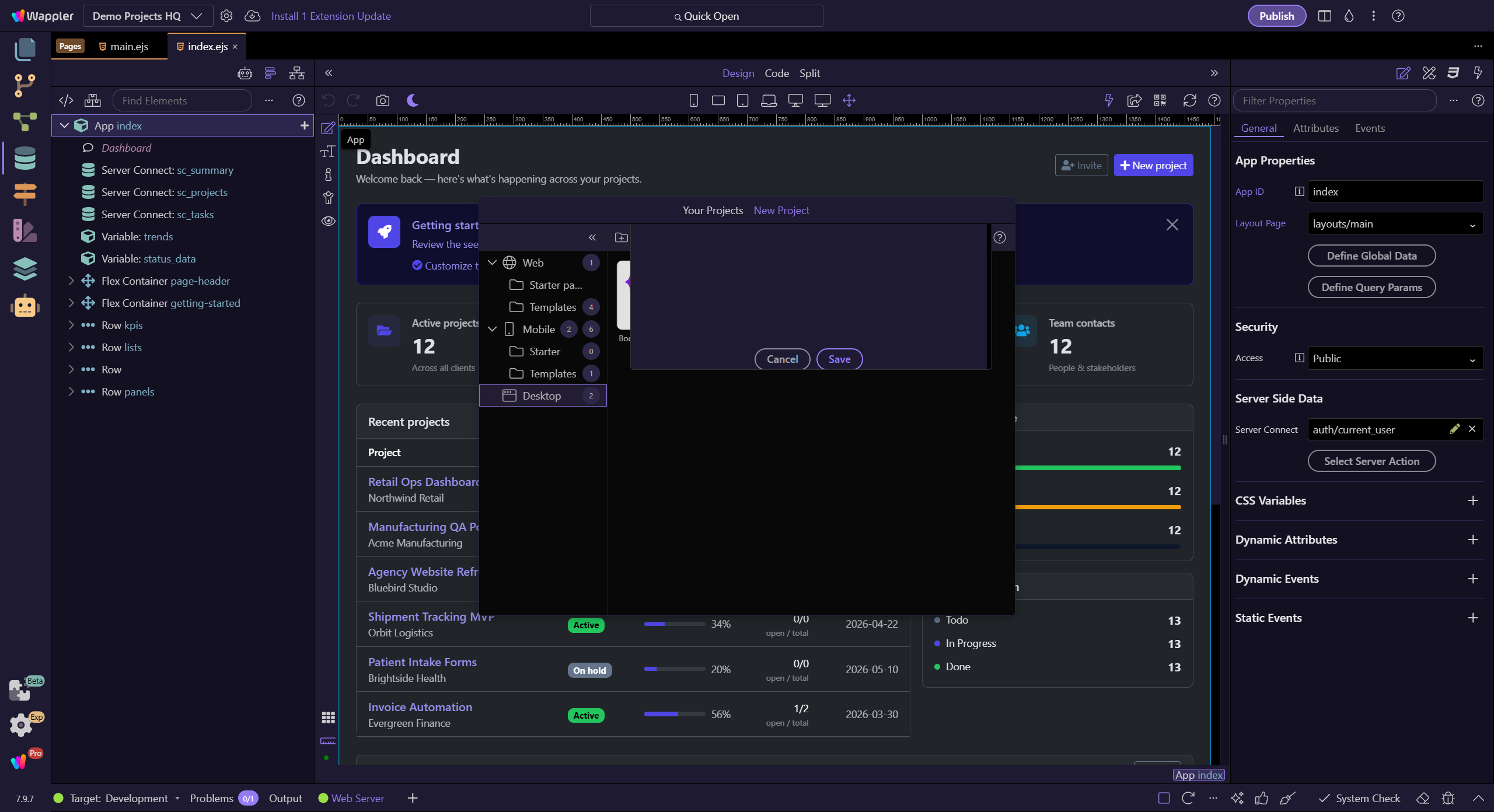
Use the Bootstrap component paths to fill out the interface. For Android and iOS delivery, start a Mobile project and follow the Bootstrap 5 mobile and Capacitor paths.