
Data Picker
Browse available components, data, and methods in a tree and insert them into a field.
Understand App Connect’s reactive model, expression rules, scoping, and how to use Wappler’s data/action pickers to build bindings visually.
App Connect is declarative and reactive: you declare what the UI should show and when actions should run, and App Connect keeps the page in sync.
In Wappler, most dynamic behavior is configured in Properties using bindings and actions. Use the Data Picker and Expression Builder to select data and functions from a tree, so you can build expressions quickly and safely.
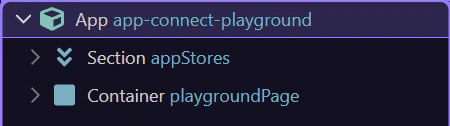
Most App Connect work happens in two places: App Structure (select components) and Properties (configure bindings and events).
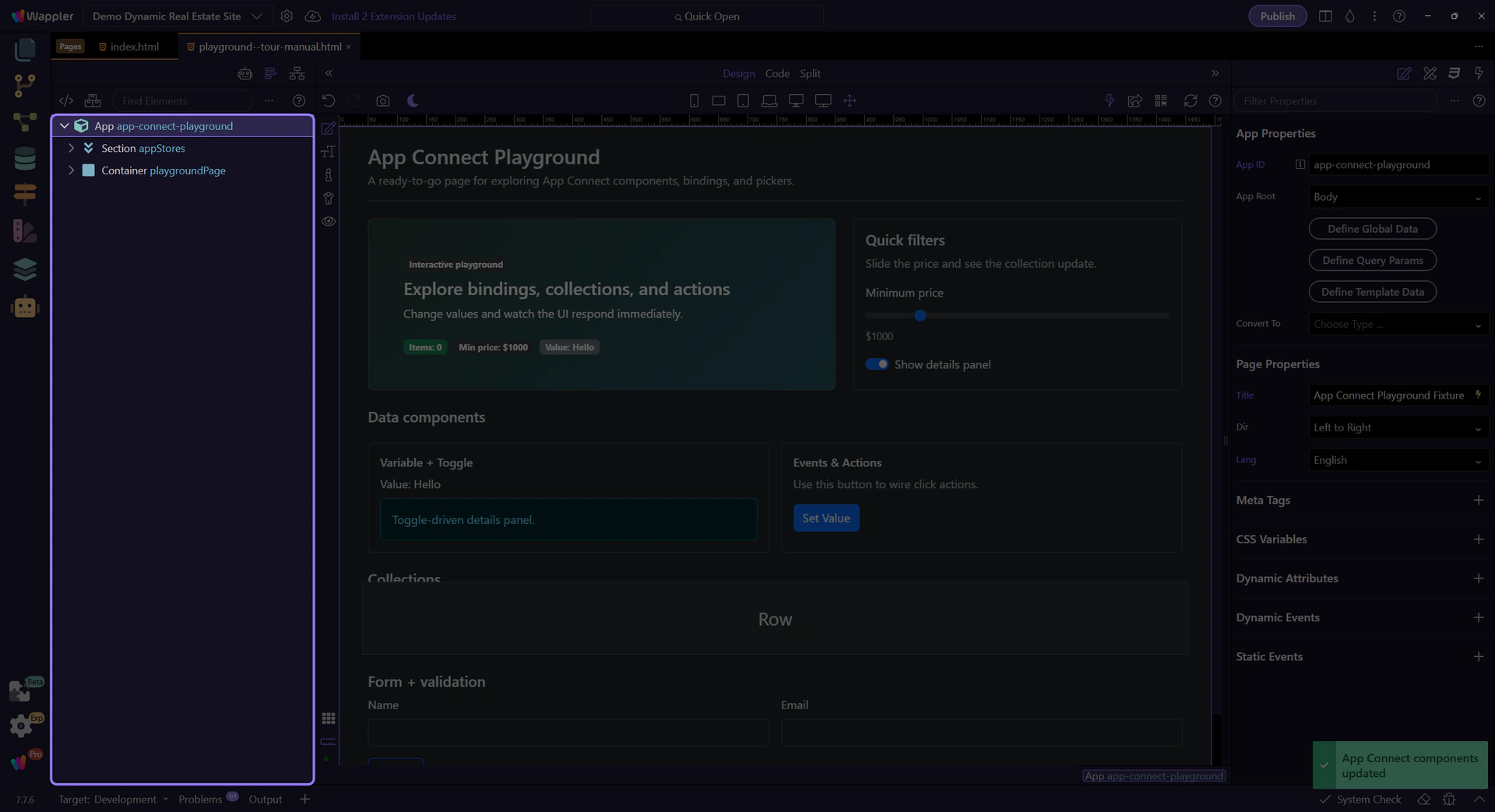
A quick, low-friction example: bind a single value, then format it as currency. This is the “happy path” for most bindings — fast, safe, and picker-driven.
In Properties, open the picker for a bindable field (for example Text/Value). Select a single value (not an array), like a product price or variable value. The picker inserts a valid expression for you.
tip: If you only need a simple path (like
product.price), picking is faster and avoids typos.
With the value selected, apply a number formatter like formatCurrency() so the UI shows a readable price (e.g. $1,234.56) without changing the underlying data.
note: For one-off formatting, the picker is enough. Use the Data Formatter popup when you want to build longer formatter chains visually.
Use the Visual Expression Builder for logic and conditions (operators, comparisons, grouped rules). It’s still scope-aware, but it’s built for expressions like filters and if conditions rather than simple data paths.
tip: Rule of thumb: Data Bindings Picker for “pick a value”, Expression Builder for “build logic”.
A binding connects a property to data. When the data changes, the property updates automatically.
When a field supports bindings, Wappler offers a picker so you can select data sources and methods instead of typing everything by hand.
tip: If you’re unsure what’s available, use the picker to explore the current data scope.
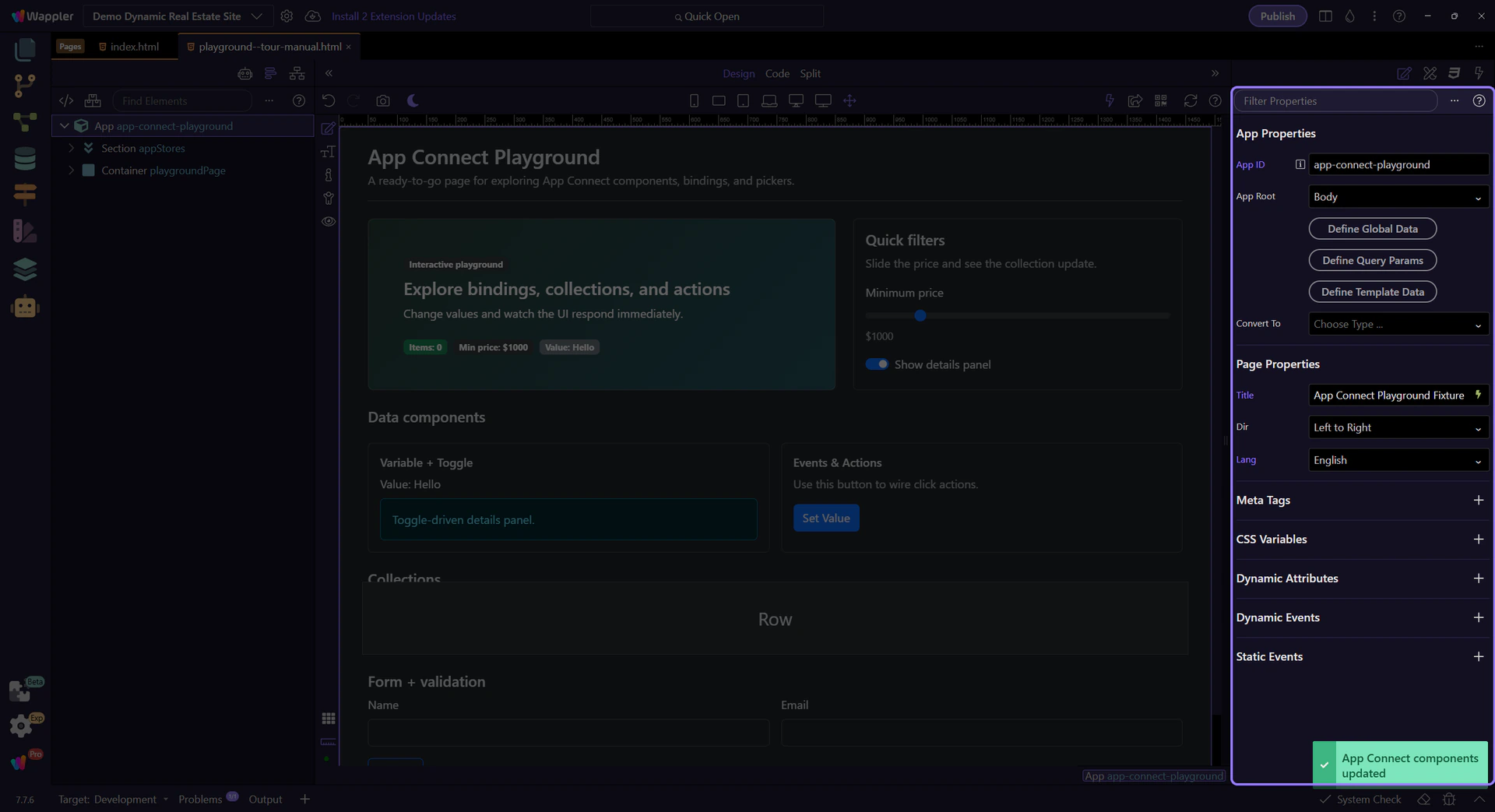
Not every binding starts as a field. In the Dynamic Attributes section, use the ( + ) button to add new App Connect attributes to the selected element. The list is generated from the component’s HTML rules and filtered by what’s allowed on that element (via each rule’s allowedOn).
tip: If you don’t see a specific attribute, try selecting a different element or inserting the related component first.
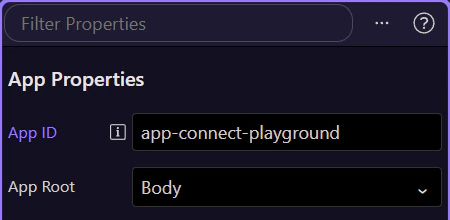
The Dynamic Attributes menu is context-aware: selecting a different element changes the list because different HTML_RULES match, and allowedOn decides where each rule can be applied (for example, some rules only allow a Google Maps attribute on a dmx-google-maps element).
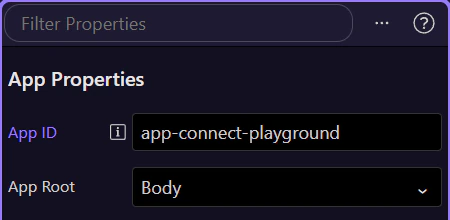
What you can bind to depends on what’s in scope (which components exist on the page and where they are in the structure). In Wappler, this is why selecting the correct node in App Structure matters.
Events are configured in Properties. You enable an event and choose an action to execute.
Choose an action from the Actions Picker (for example: set a value, insert/update a record, navigate, reload data), then configure its parameters in Properties.
tip: If you can’t find an action, check the selected component and the event type — available actions are context-aware.
Modifiers like prevent/stop/once help you control default browser behavior and event propagation without manual code.
Next, take a hands-on tour or jump straight to collections and filtering.
Choose a focused tour based on what you want to build.