
Demo walkthrough: Dynamic Real Estate Site
Guided walkthrough of the renewed Real Estate demo: Server Connect APIs, App Connect Data Views, filters, map, and repeated listings.
Open the renewed demo project
Section titled “Open the renewed demo project”We start from the live Demo Dynamic Real Estate Site so the walkthrough tracks the real Node.js and SQLite sample, not an older static snapshot.
Projects Manager is shown
Section titled “Projects Manager is shown”Projects Manager appears automatically so the walkthrough begins from the same project-switching workflow users use elsewhere in Wappler.
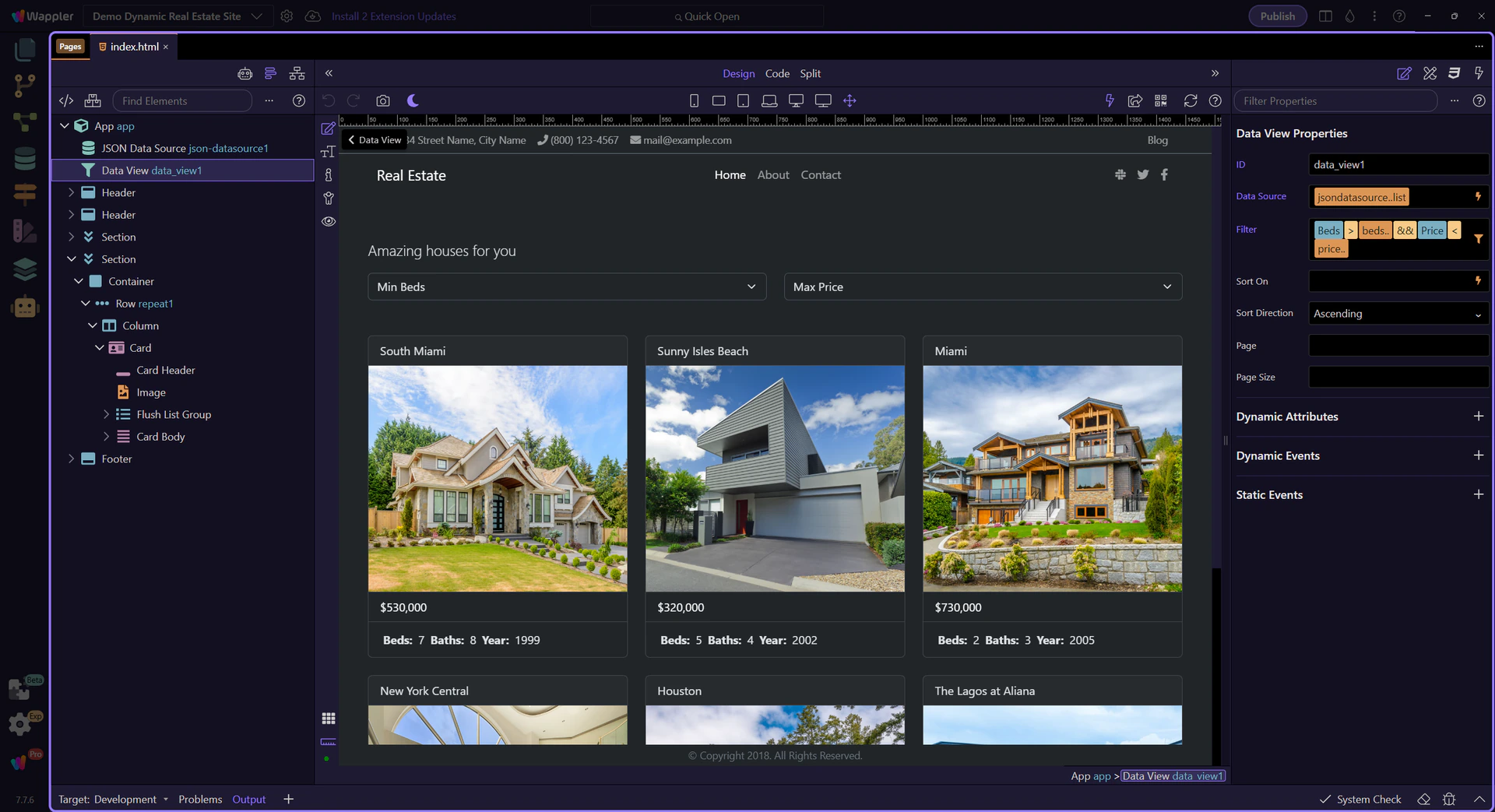
Demo project becomes current
Section titled “Demo project becomes current”The renewed sample becomes the active project so the walkthrough can follow the live EJS pages, Server Connect APIs, and App Connect surfaces that now power the demo.
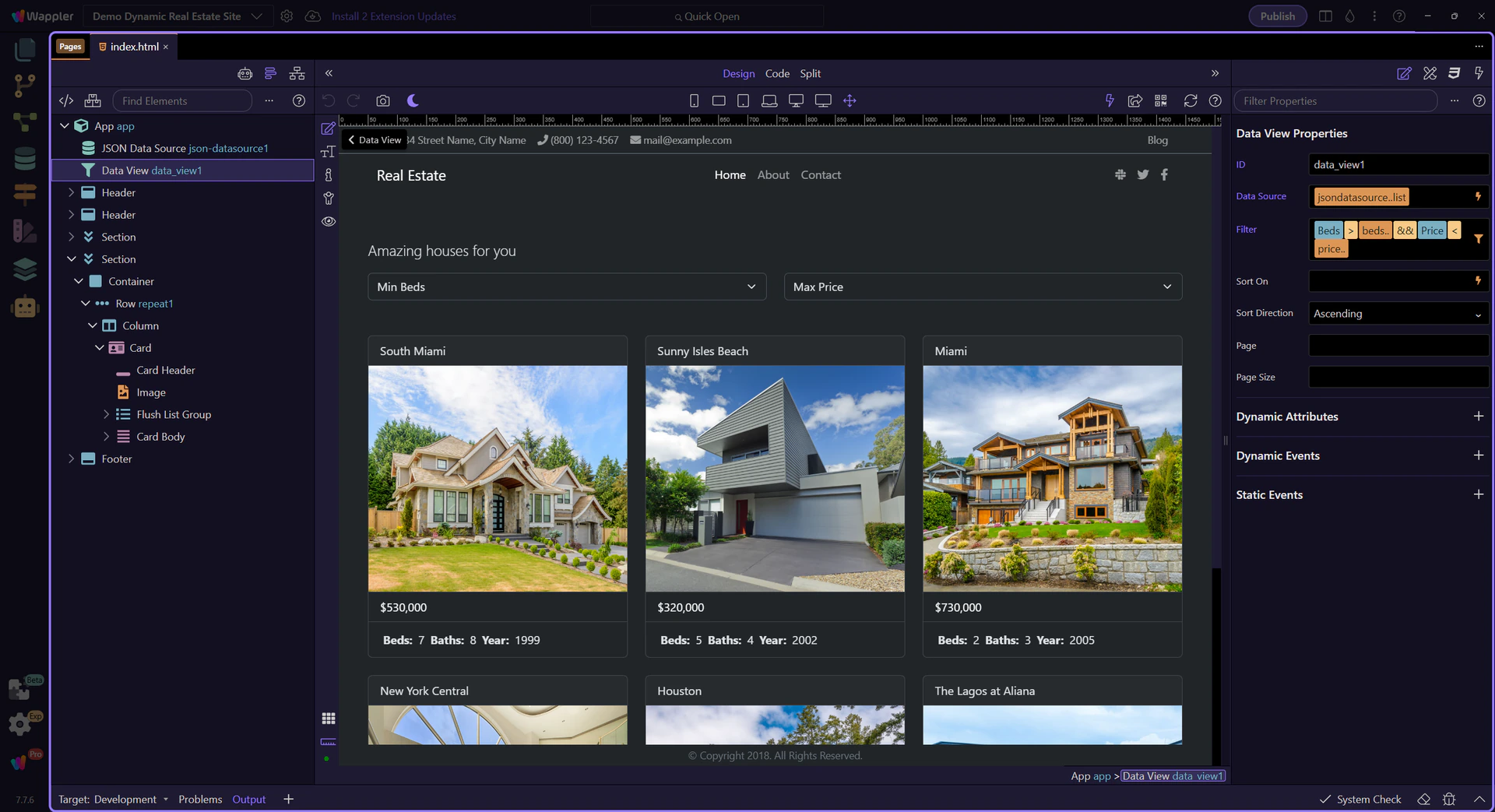
Home page opens
Section titled “Home page opens”The renewed home page lives at views/index.ejs. It uses Server Connect to load listing data and App Connect to shape that data into featured home-page UI.
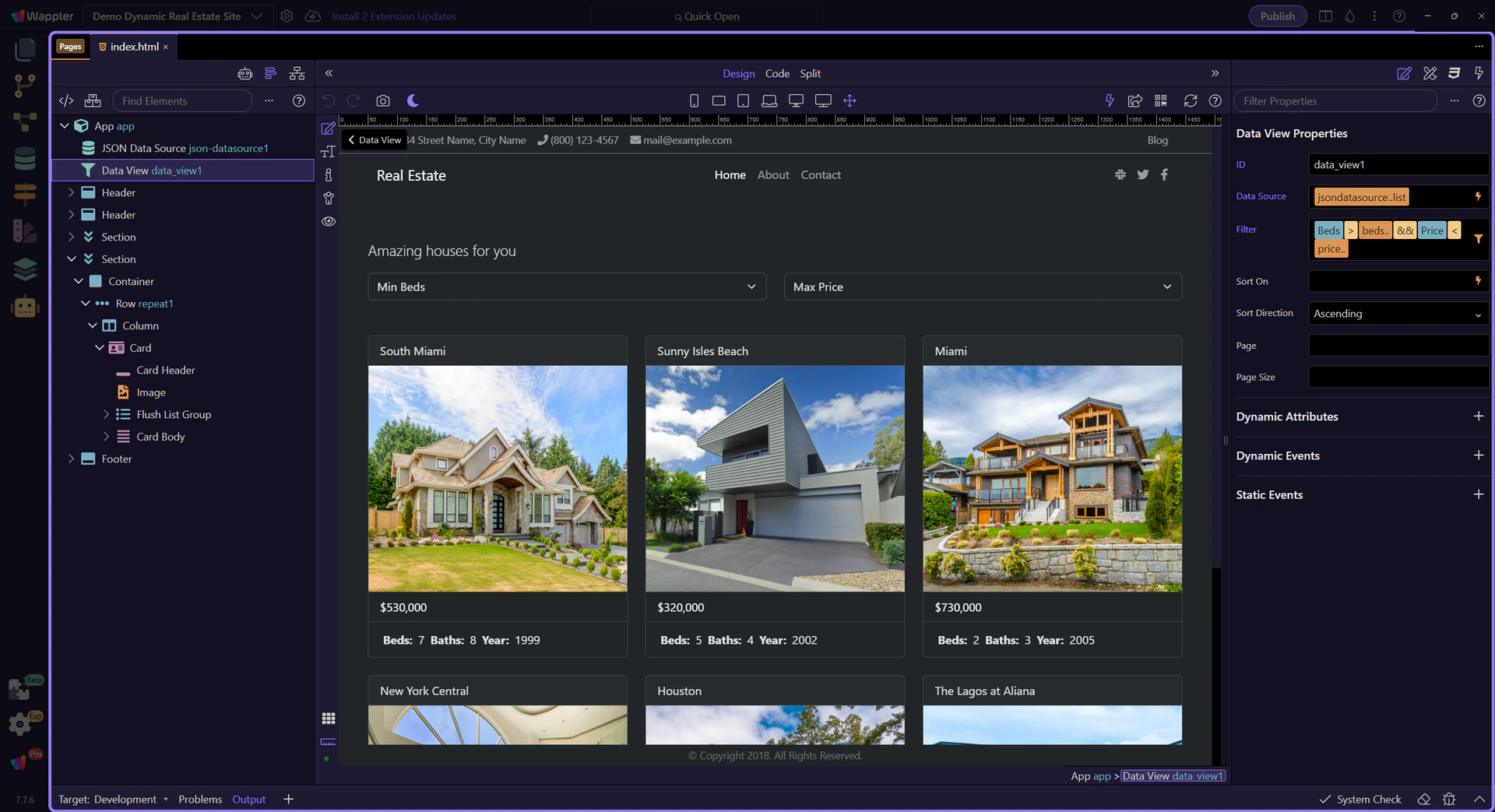
Home page is active in Design View
Section titled “Home page is active in Design View”The home page is now the active HTML editor surface, so the Structure and Properties panels can reflect the live page context correctly.
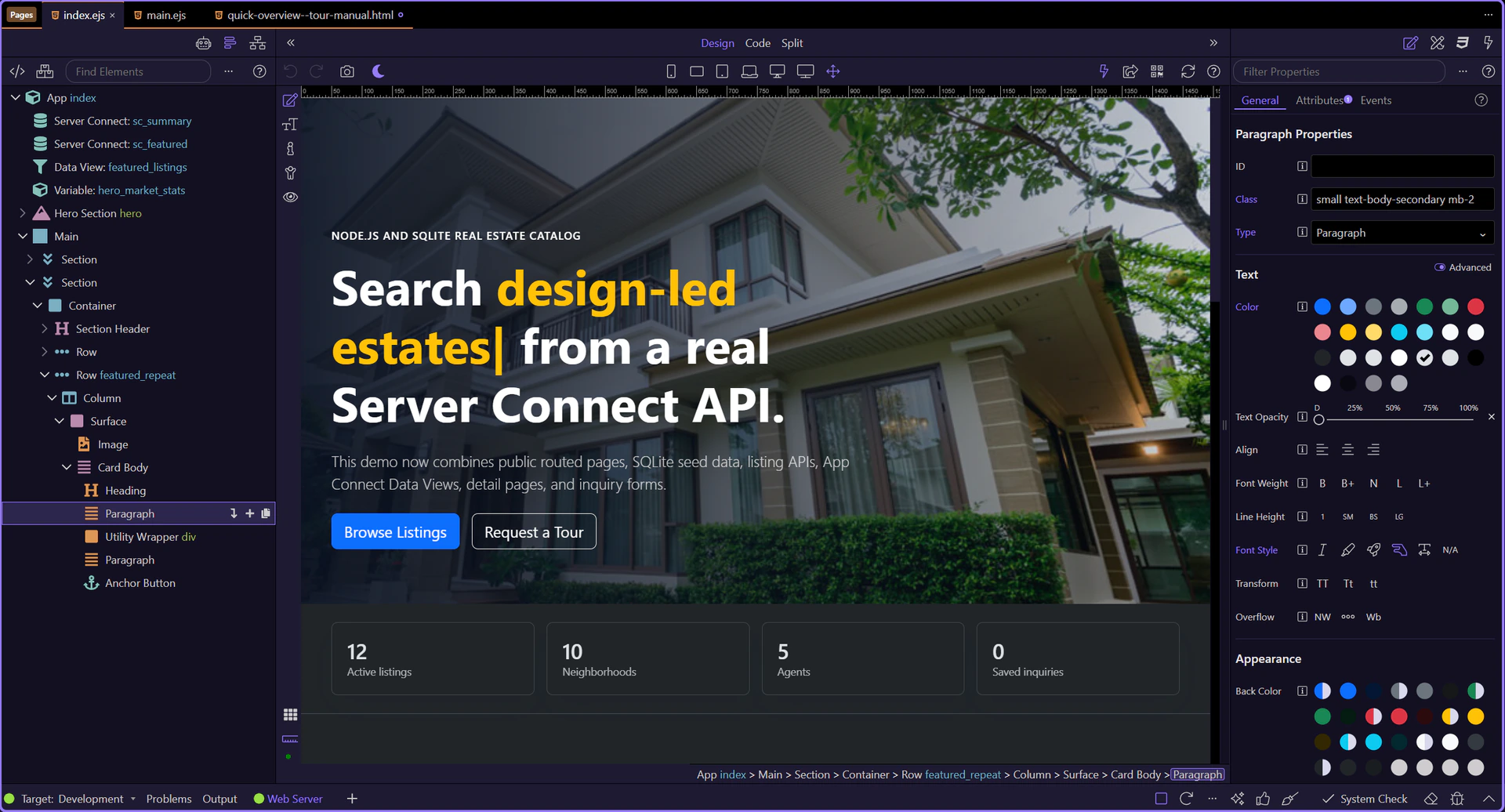
Home page data flow
Section titled “Home page data flow”On the home page, Server Connect loads the catalog and App Connect reshapes it into a featured subset for cards and sliders.
Dashboard summary API
Section titled “Dashboard summary API”sc_summary loads the high-level counts shown in the hero statistics row, so the headline metrics come from real server data instead of fixed markup.
Featured listings API
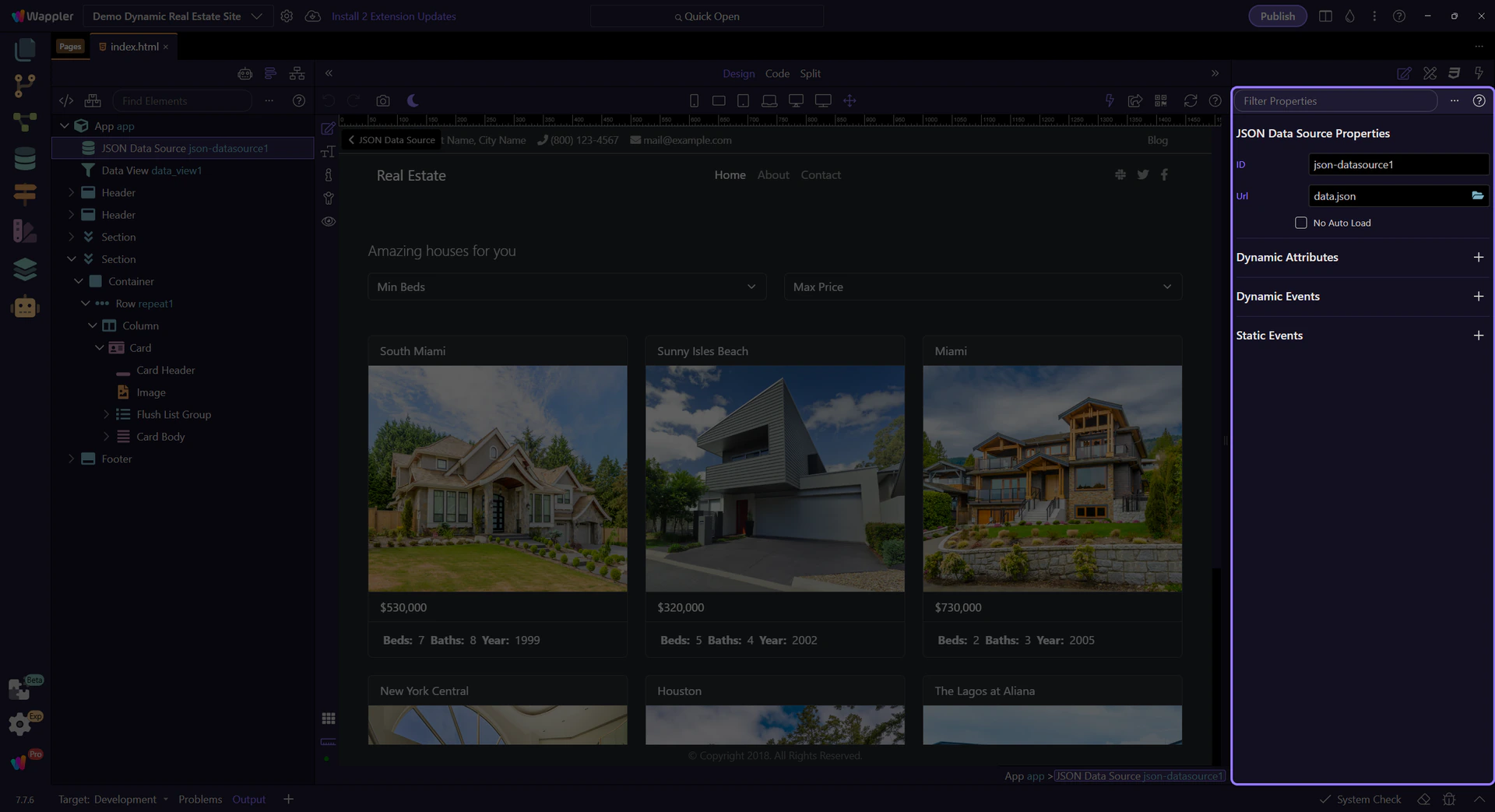
Section titled “Featured listings API”sc_featured calls /api/listings/list. This is the raw server collection the page uses before App Connect filters it down for the home-page presentation.

Featured Data View
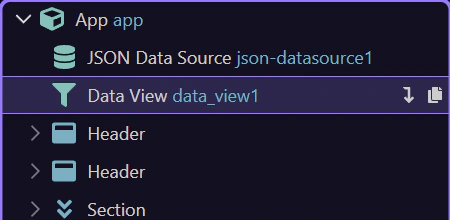
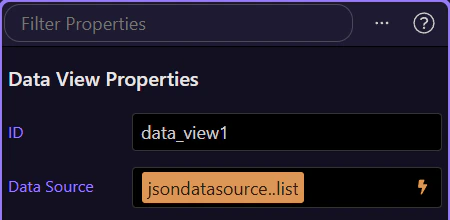
Section titled “Featured Data View”featured_listings is the shaping layer. It reads sc_featured.data.listings, keeps only featured records, and sorts them before the UI repeats them.
Featured section in Design View
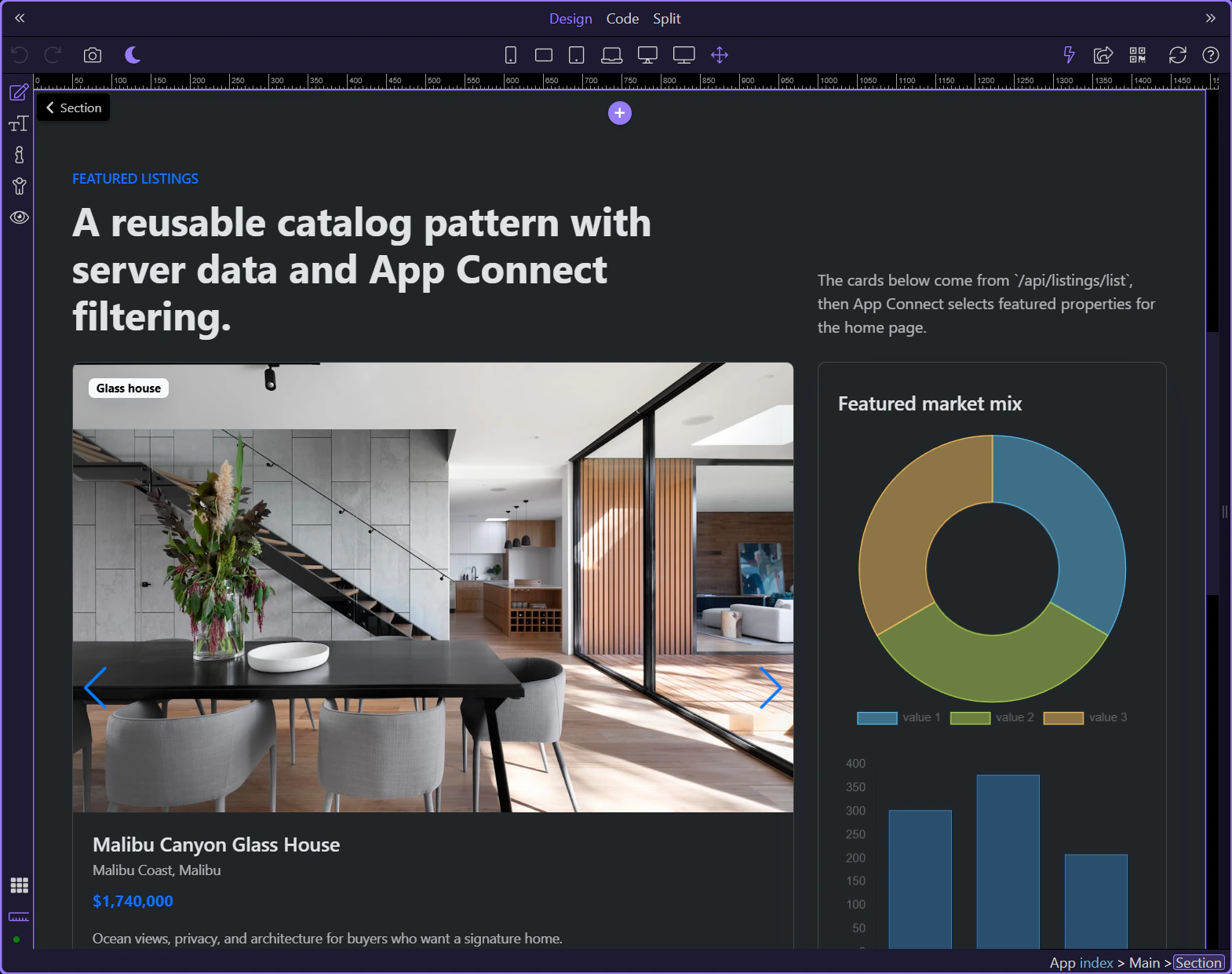
Section titled “Featured section in Design View”This section is the practical result of that data flow: the server collection feeds the Data View, and the Data View feeds the cards and slider users actually see.
Repeated featured cards
Section titled “Repeated featured cards”The repeat region turns the shaped featured_listings.data collection into individual property cards, keeping the UI declarative and driven by live data.
Listings page filters and outputs
Section titled “Listings page filters and outputs”The listings page shows the full pattern more clearly: a server collection feeds a Data View, the Data View reacts to filters, and multiple outputs stay synchronized.
Listings page opens
Section titled “Listings page opens”views/listings.ejs is where the renewed demo makes the filter pipeline explicit. This page shows how App Connect reshapes live API data in place.
Listings API source
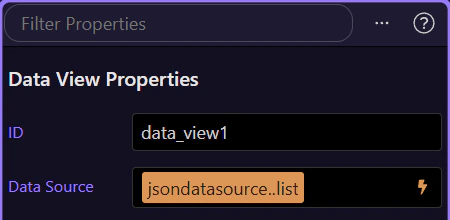
Section titled “Listings API source”sc_listings loads the full listing collection from /api/listings/list. It is the authoritative source collection for this page.
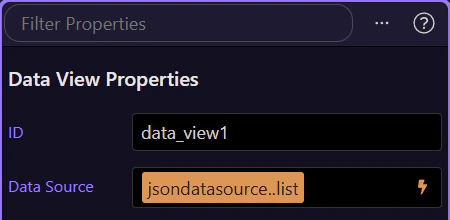
Listings Data View
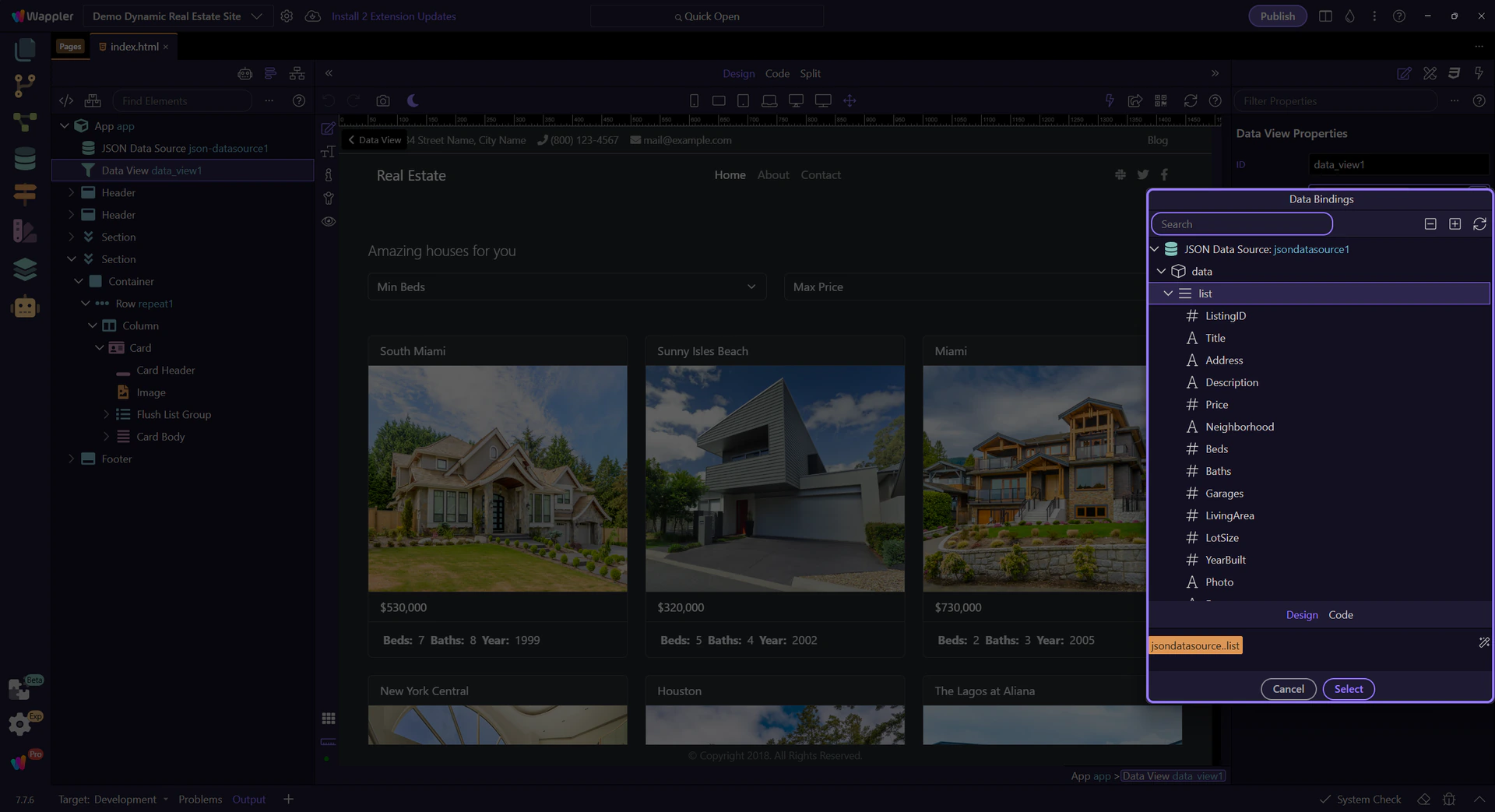
Section titled “Listings Data View”listing_results is the page’s shaping layer. It reads the API result, filters against the UI controls, and sorts using the current sort-direction input.
Filter controls surface
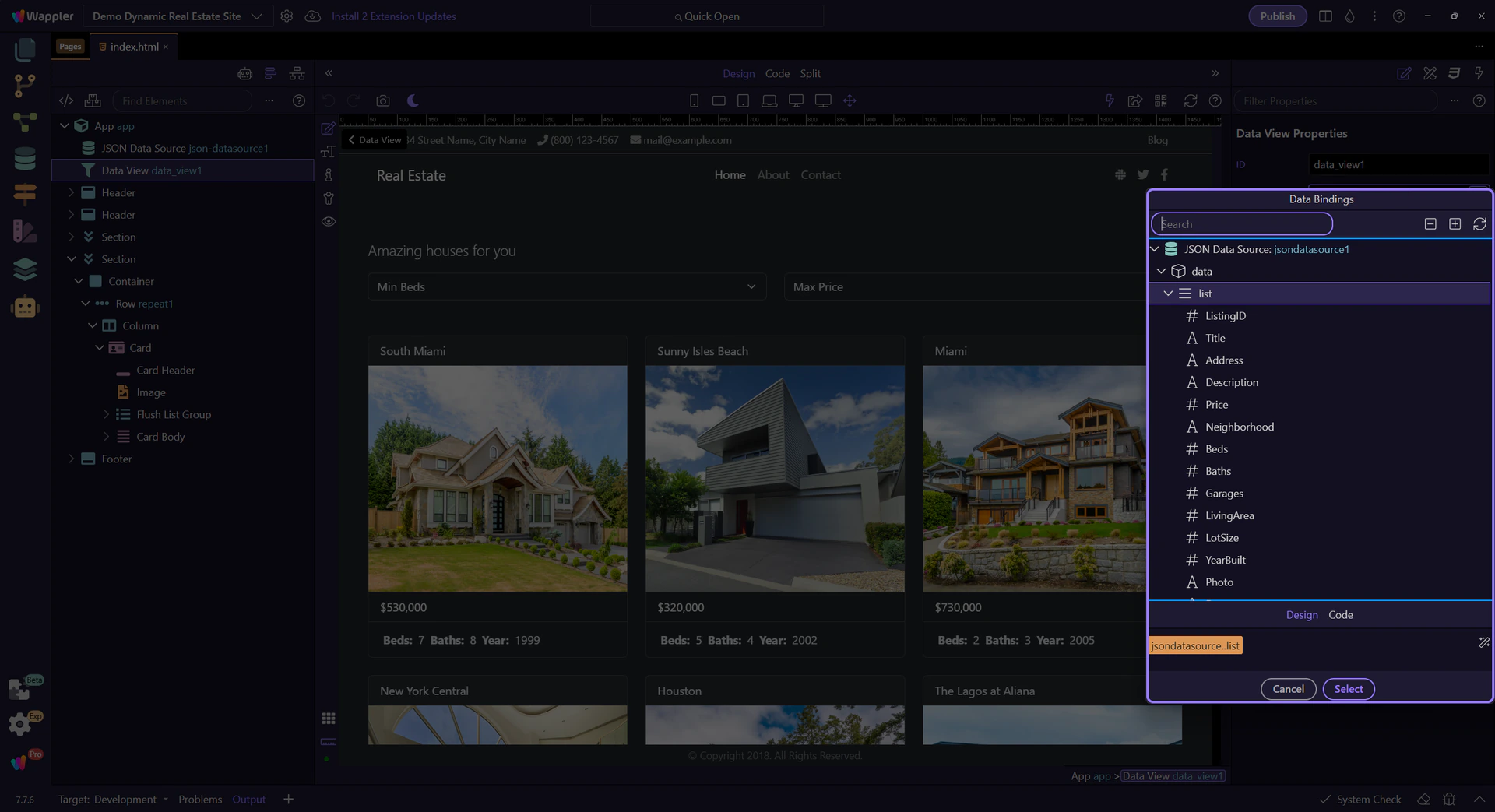
Section titled “Filter controls surface”These controls are the inputs the Data View reacts to. App Connect does not replace the UI here; it connects the UI values directly into the filter expression.
Minimum beds control
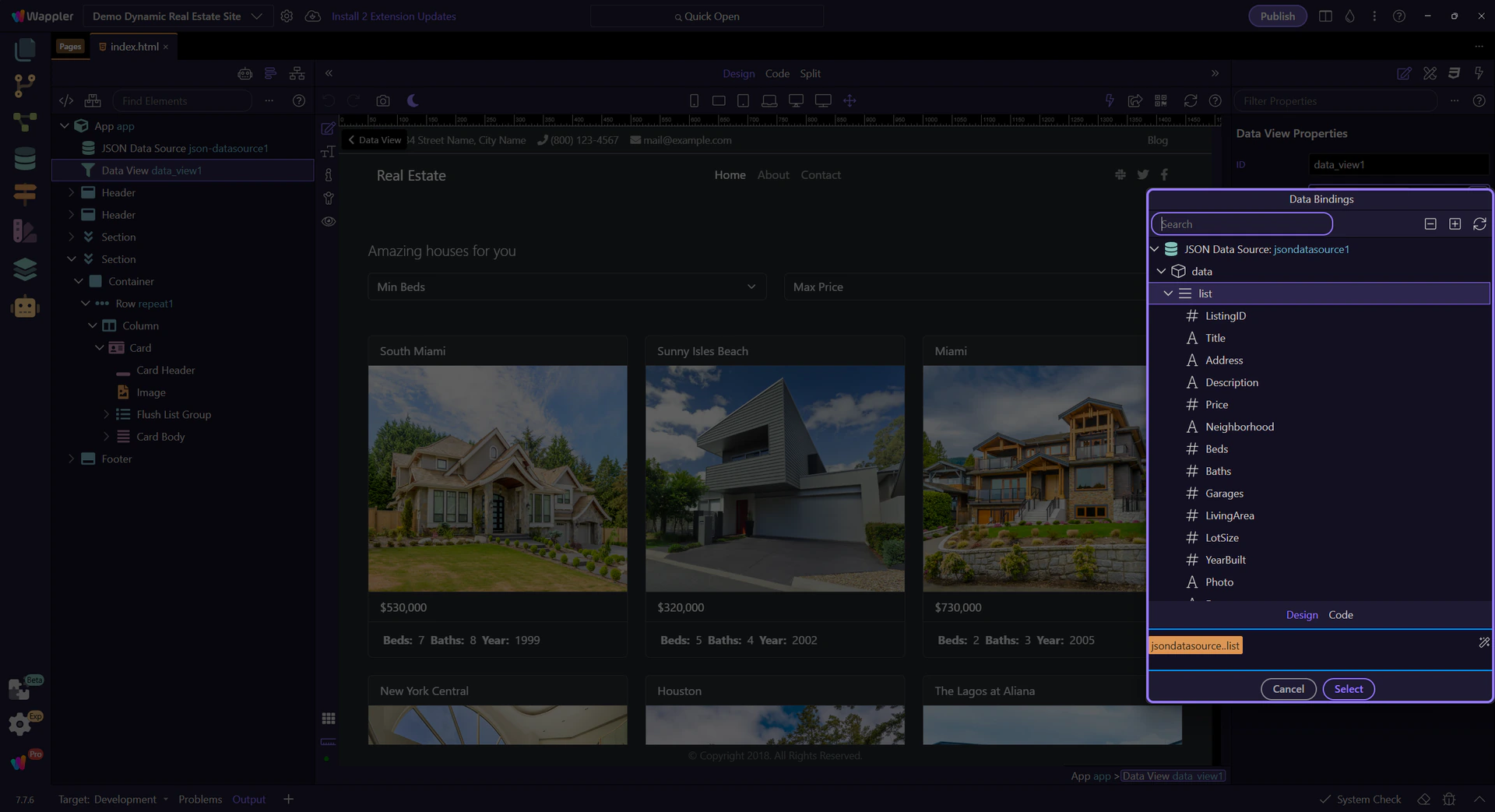
Section titled “Minimum beds control”inp_beds is one of the live inputs inside the filter expression. Changing it narrows the results without needing another request.

Sort direction control
Section titled “Sort direction control”inp_sort_dir shows that the same Data View also owns sorting, not just filtering. The shaped collection updates and every bound output follows it.
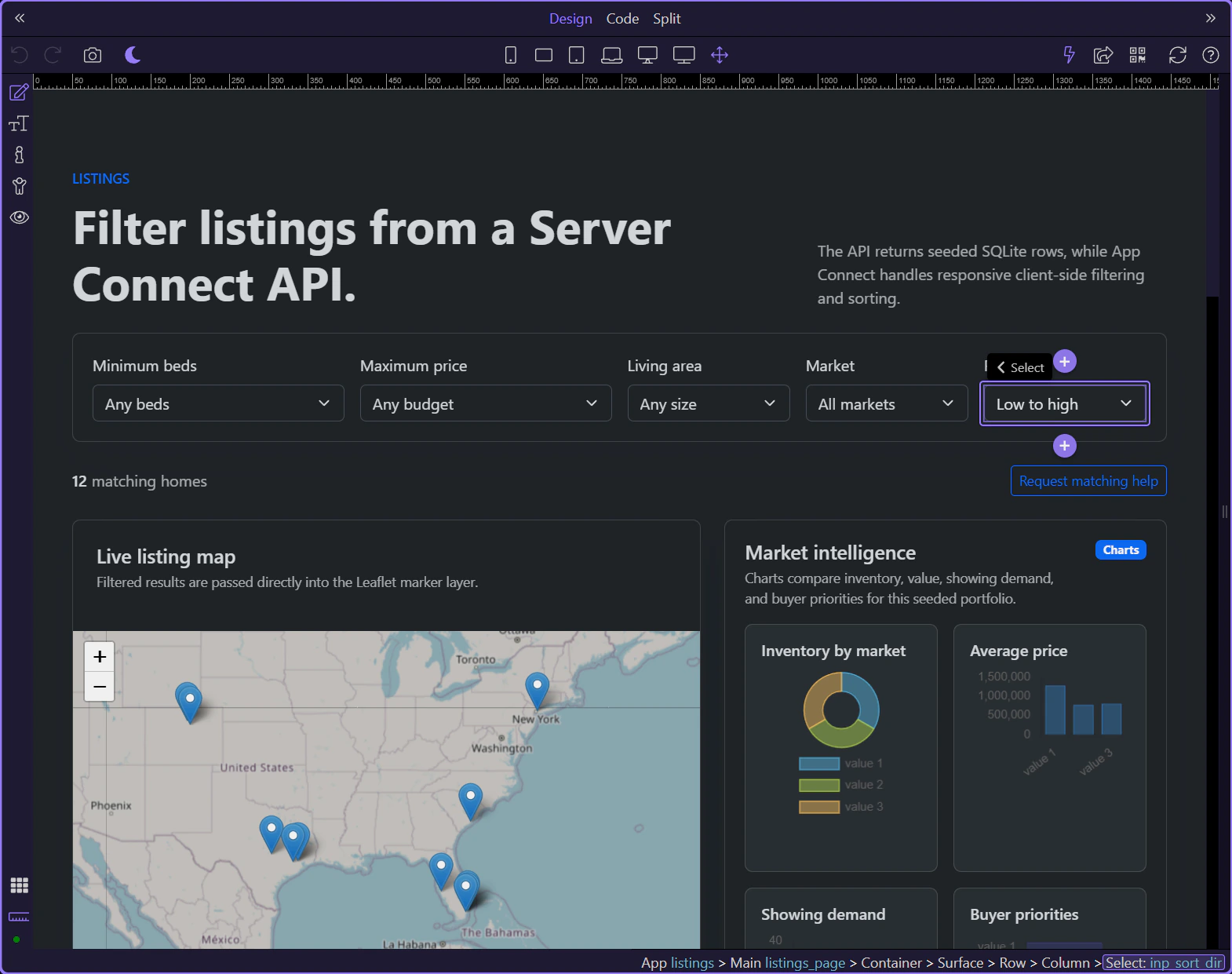
Map bound to the filtered view
Section titled “Map bound to the filtered view”The Leaflet map reads the filtered listing_results.data collection directly, so the map and the card list stay synchronized from the same shaped dataset.
Repeated listing cards
Section titled “Repeated listing cards”The repeat region is the second consumer of listing_results.data. This is the core App Connect pattern in the renewed demo: one shaped collection, multiple synchronized outputs.

Wrap-up
Section titled “Wrap-up”You have now followed the renewed demo’s real architecture: Server Connect loads the catalog, Data Views shape the collections, and the UI binds those shaped results into cards, sliders, filters, and maps.
Next steps
Section titled “Next steps”Continue with the broader Data View guidance or return to the App Connect tour index from here.