
Files library stats, links, and navigation
Use the real files page to see how App Connect turns loaded file rows into summary cards, outbound file links, and project-navigation links.
Introduction
Section titled “Introduction”The files page is a good App Connect example because it does more than repeat rows. It turns one loaded files dataset plus one summary dataset into dashboard cards, outbound file links, and internal project navigation that stay readable after every upload.
Frontend: loaded file data becomes a usable library surface
Section titled “Frontend: loaded file data becomes a usable library surface”App Connect makes the files page practical because one dataset can feed several UI layers at once. The same loaded file rows support the stats cards, the repeated table, direct file links, and project-navigation links without duplicating fetch logic.
The files page combines upload, summary, and library views
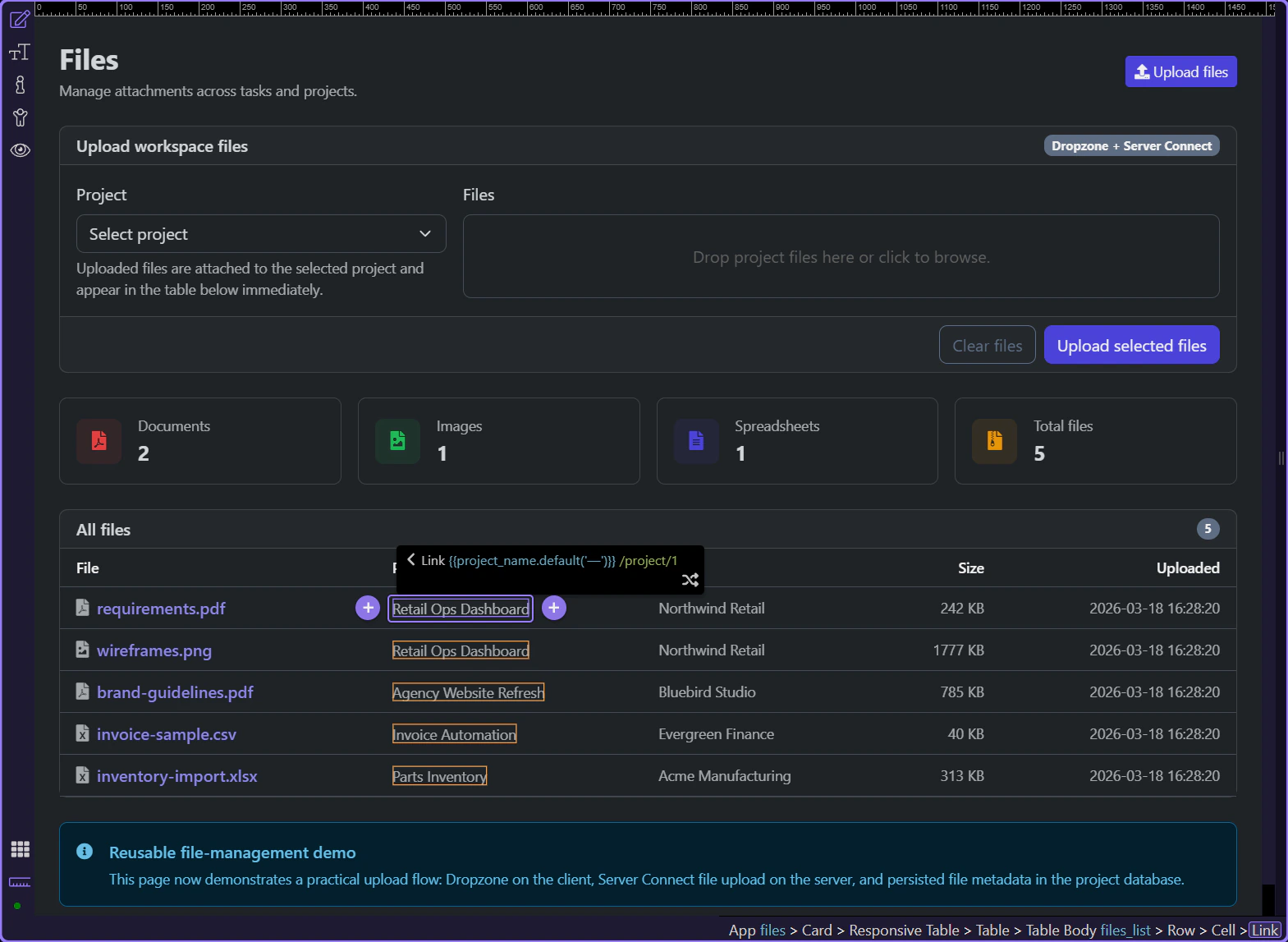
Section titled “The files page combines upload, summary, and library views”Start on the real files page so the whole surface is visible before narrowing into the cards and table. This page is where recent uploads become a usable library instead of disappearing into backend-only state.
Summary cards reuse loaded file data instead of fetching a separate dashboard just for display
Section titled “Summary cards reuse loaded file data instead of fetching a separate dashboard just for display”The quick stats cards mix sc_files and sc_summary to give the page an immediate read on document types and total volume. That keeps the page informative before the user scans the row-level library below.
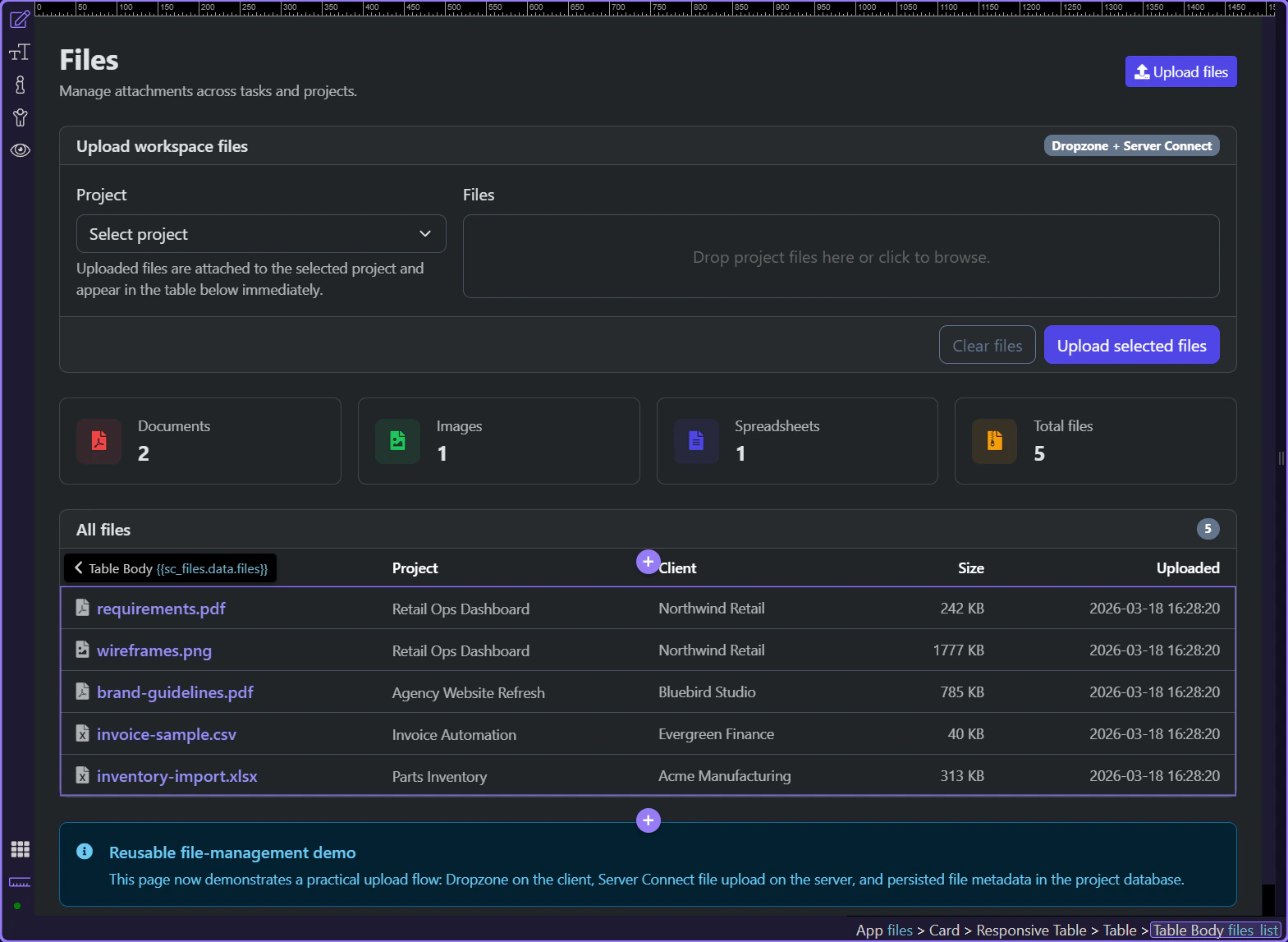
The repeated table turns each file record into one readable library row
Section titled “The repeated table turns each file record into one readable library row”#files_list repeats the loaded sc_files rows directly, so every record keeps its filename, project, client, size, and uploaded timestamp together. That is the App Connect handoff from loaded data to a browseable library view.
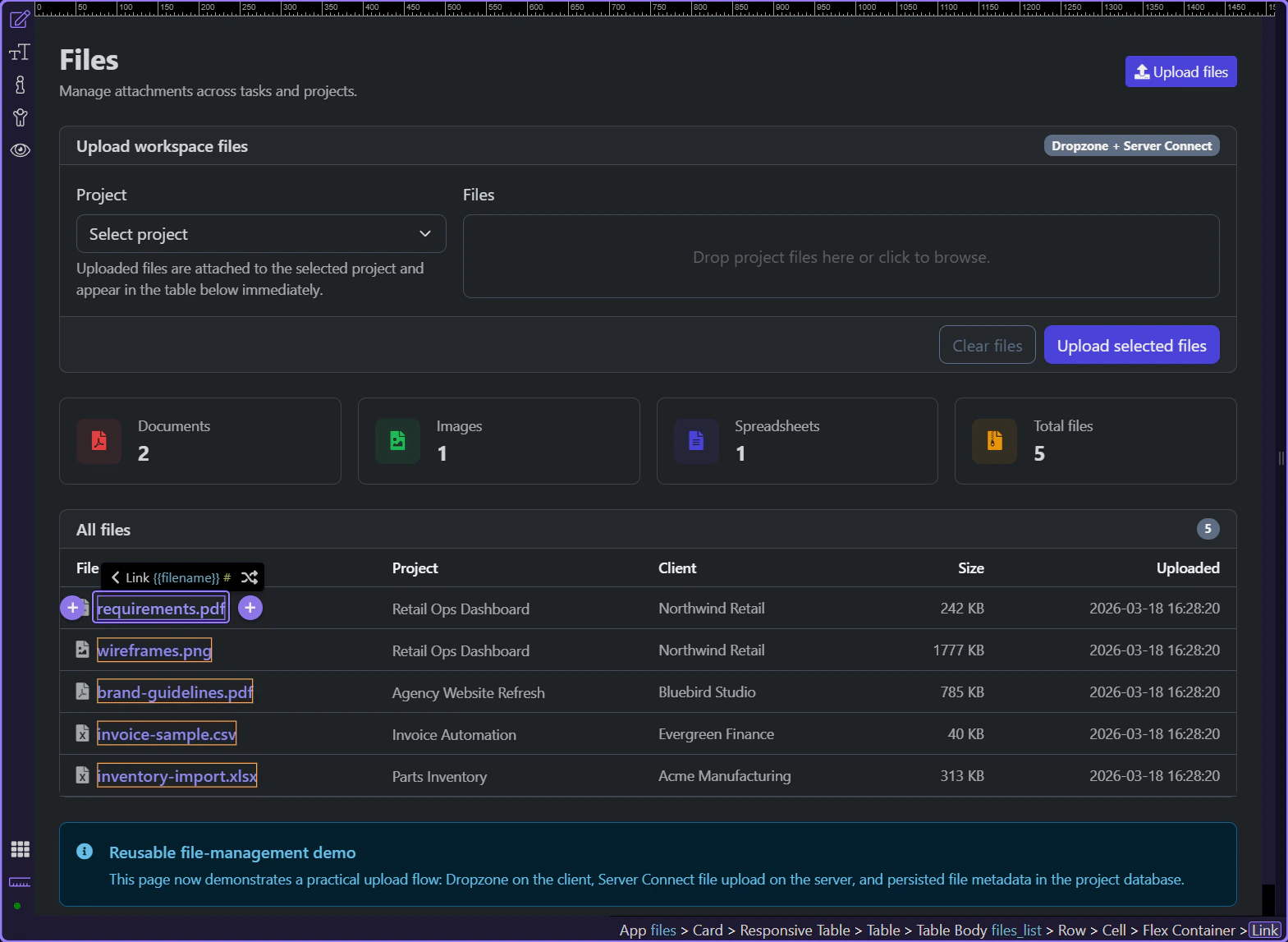
The file link hands control out to the stored file URL
Section titled “The file link hands control out to the stored file URL”Inside each repeated row, the filename link binds directly to url and opens in a new tab. That keeps the library practical because a stored file becomes immediately inspectable or downloadable without extra controller logic on the page.
The project link keeps the file row connected to its business context
Section titled “The project link keeps the file row connected to its business context”The project cell binds an internal route to /project/ plus project_id, so the same row can move the user from a file artifact back into the project that owns it. That is a second handoff path coming from the same loaded record.
Conclusion
Section titled “Conclusion”The files page works as a usable library because App Connect keeps the loaded data reusable. The page can summarize the dataset, repeat it into readable rows, and hand the user either out to the file itself or into the related project without asking for another mental model.