
Real field rules
Required, minlength, numeric, and date-oriented rules already exist on the live task form.
Client-side form validation: configure App Connect Validator and integrate with Bootstrap validation feedback and classes.
Demo Projects HQ already uses App Connect Validator on real forms, so there is no need to explain validation from an isolated sample. The new-task form combines required text fields, number rules, select validation, and Server Connect feedback in one page. This tour stays on that concrete form so you can see how validation rules, messages, and request-state feedback cooperate in an actual workflow.
This title field is a concrete validation example from Demo Projects HQ. It is required, it enforces a minimum length, and it keeps its guidance close to the field instead of hiding the rule somewhere else in the page.
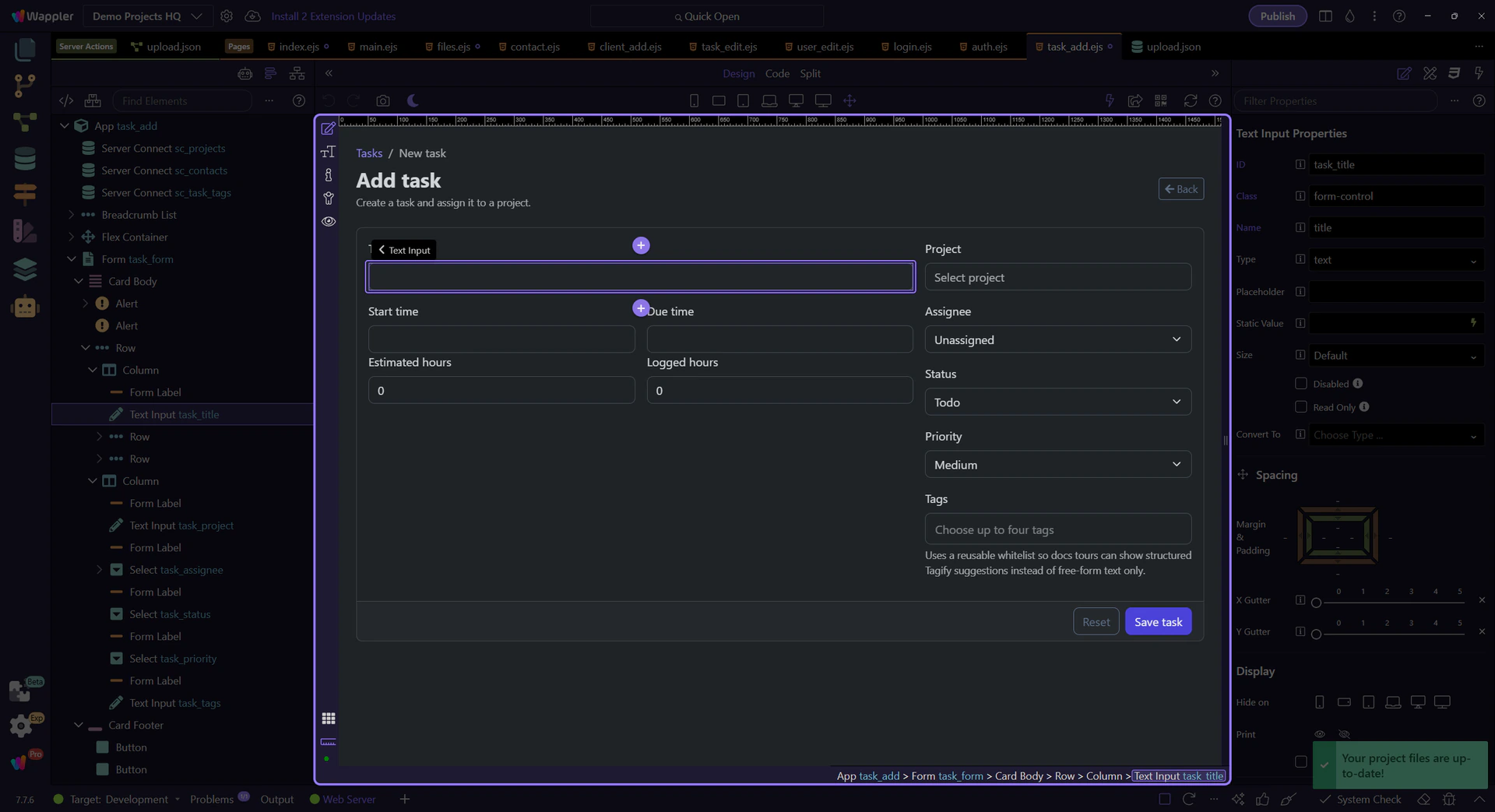
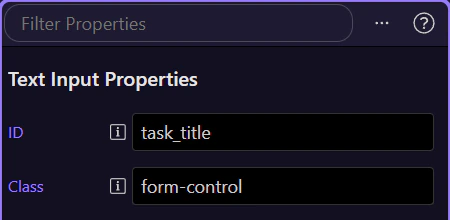
With the title field selected, the Properties panel exposes the validation contract in one place: required state, value limits, and the messages that explain failures back to the user. That is the pattern to preserve as your forms grow.
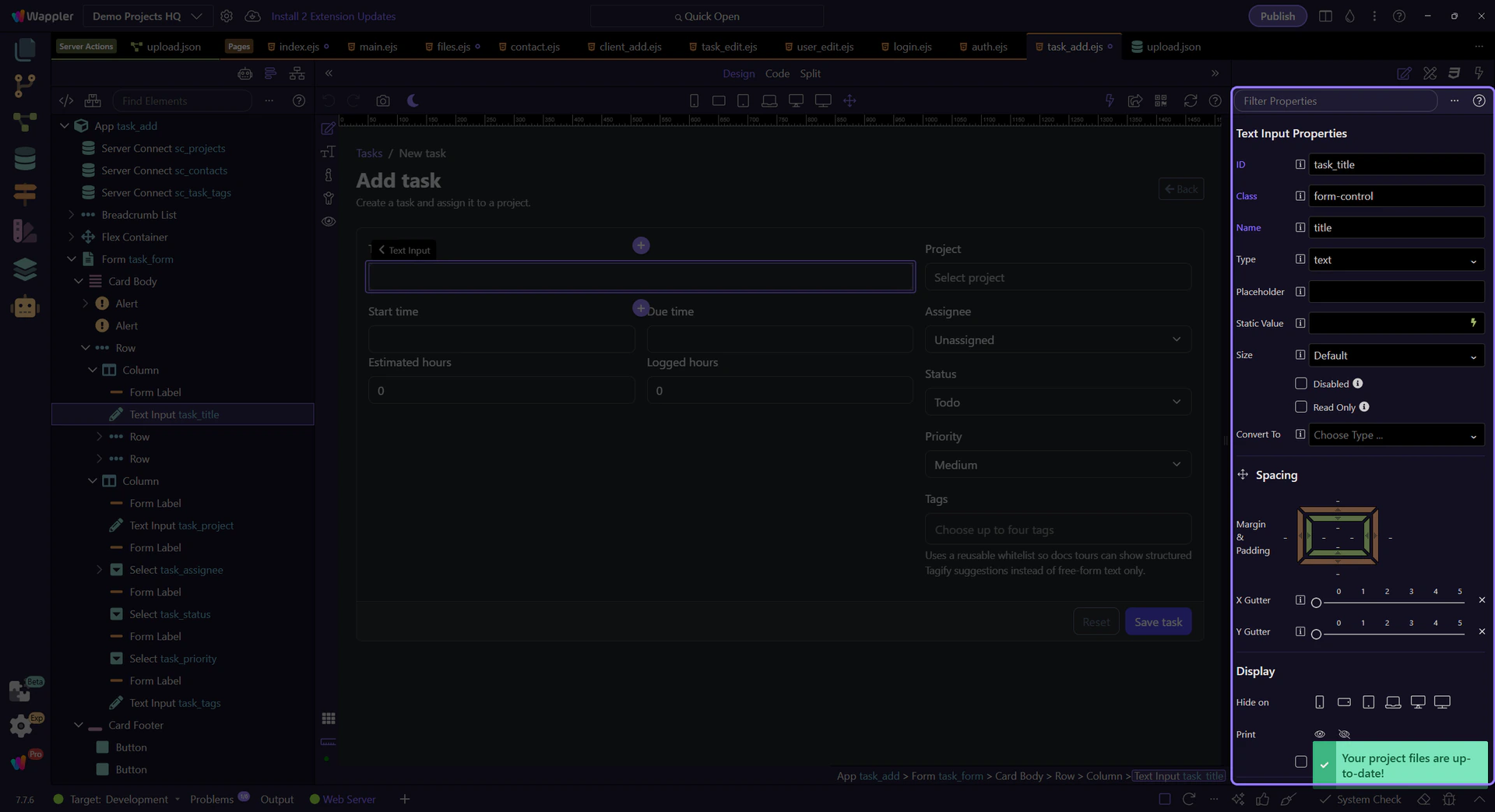
The task form does not stop at a bare required flag. Demo Projects HQ also adds a minimum length and a matching message, which means the field can tell the editor both that a title is missing and that a one-character placeholder is not enough. That combination makes validation feel intentional instead of punitive.
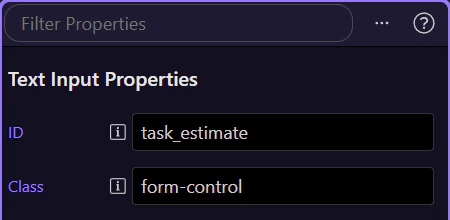
Estimated hours uses numeric validation and a minimum boundary, with messages that explain both invalid numbers and values below zero. This is the same validator workflow, just applied to a different input type. The important point is that the field still declares its rules locally instead of depending on custom click handlers.
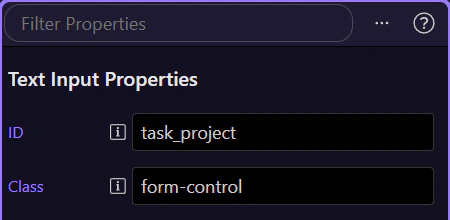
Project is not a freeform text box, but it still needs validation. Demo Projects HQ marks the project picker as required and supplies a clear message so the user understands why the task cannot be saved until a project relationship exists. That is a good reminder that Validator belongs on the whole form, not just on simple text fields.
The task form also shows success, request-state, and server-error feedback through task_form.data, task_form.state, and task_form.lastError. Client-side validation should stop obviously bad submissions early, but the complete user experience still includes request progress and server responses after the form is allowed to submit.
important: Do not treat Validator as a replacement for server-side checks. In Demo Projects HQ it works alongside the real submit action and its response state.
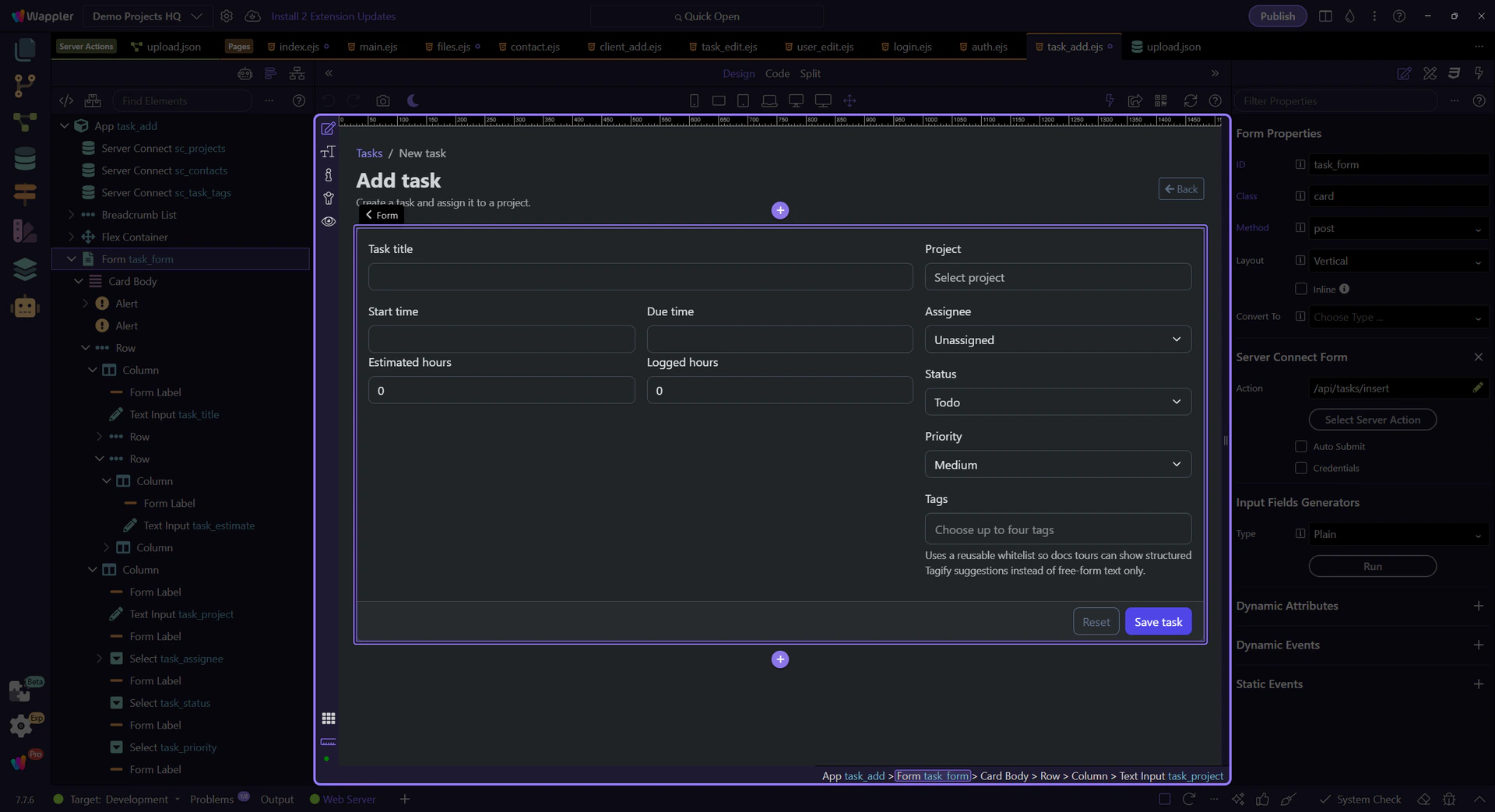
The Demo Projects HQ task form shows the validator pattern clearly: keep each field’s rules close to the field, pair them with plain-language messages, and let the form’s real submit state complete the feedback loop. That gives you a reusable baseline for every other App Connect form in the project.