
Add
Use ( + ) to add a dynamic attribute allowed on the selected element.
Dynamic Attributes overview: use Properties ( + ) to add attributes, then inspect and bind values with picker icons and valid expressions.
Dynamic Attributes let you add reactive behavior to an element as attributes (show/hide, bind:class, repeat, and more) without typing raw markup.
You’ll locate the Dynamic Attributes section, preview the ( + ) menu (categories → submenus), then inspect an existing attribute on a real element.
This tour opens a dedicated tour page so you can experiment safely.
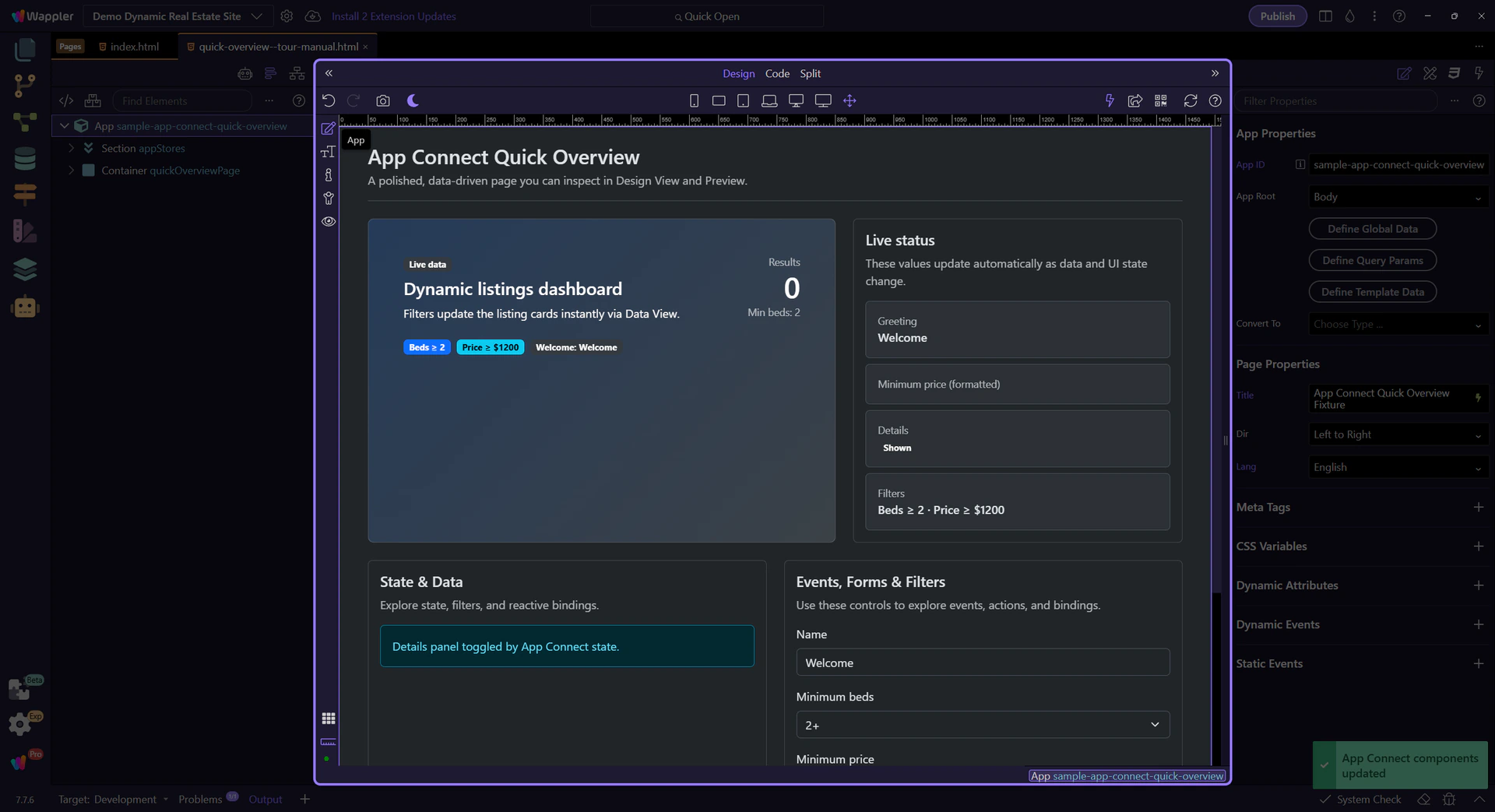
Dynamic Attributes are added from Properties via the ( + ) menu. The menu changes based on the selected element.
A real element is auto-selected in Design View so Properties can show element-specific Dynamic Attributes.
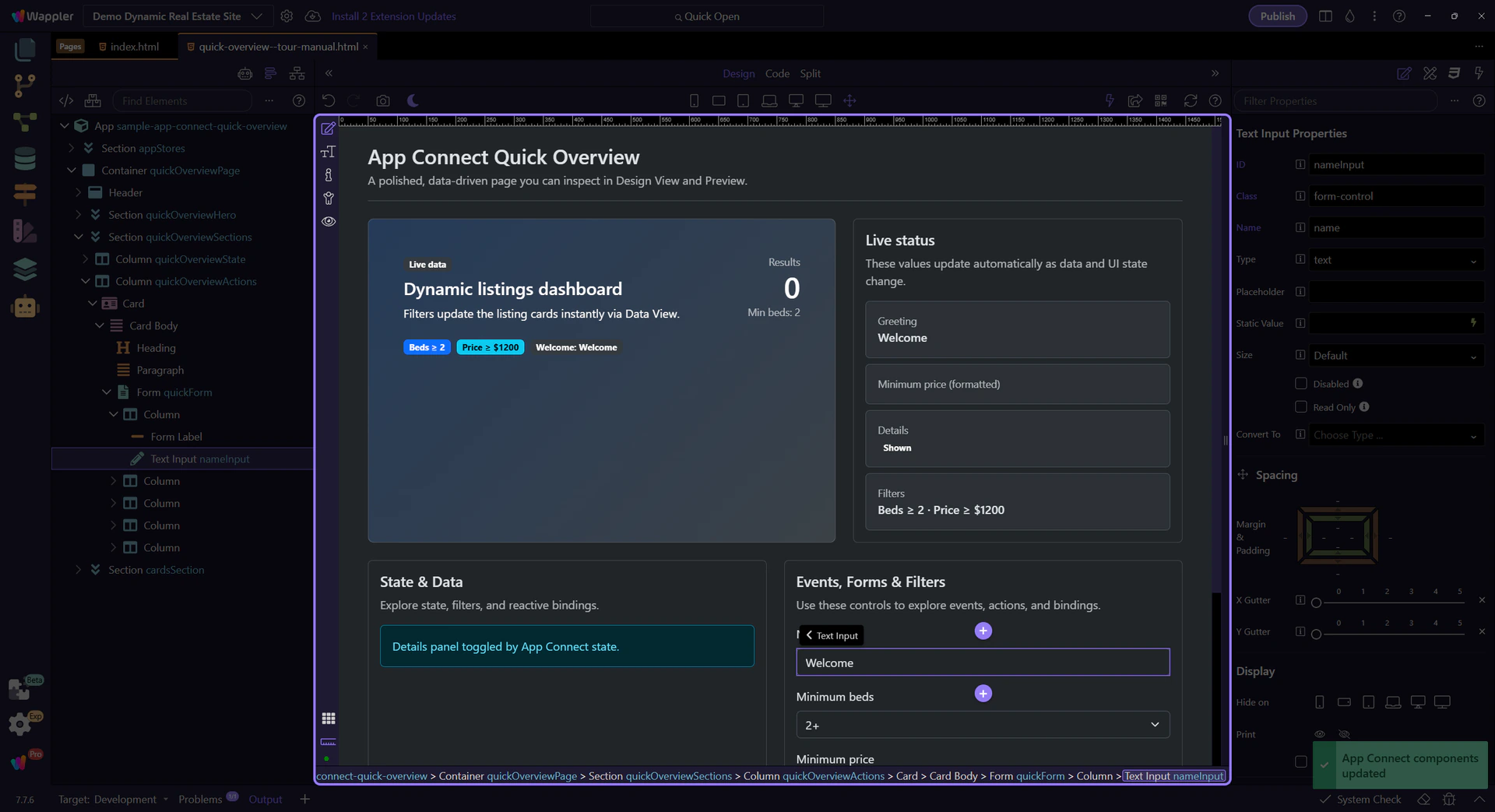
This ( + ) menu lists the available Dynamic Attributes for the selected element, grouped into categories and, in some cases, submenus.

This input already has a binding (dmx-bind:value). You can review and adjust it here, and use the picker icon to insert valid expressions instead of typing.
note: Dynamic Attributes and binding fields share the same expression rules and scope. If the picker doesn’t show something, it’s usually a scope issue.

These are the Dynamic Attributes you’ll use most often across projects.
Use show/hide attributes for simple visibility toggles based on state and data.
warning: Show/Hide toggles visibility but doesn’t prevent processing. For performance, use Conditional Region (dmx-if) when appropriate.
Bind classes and styles to reflect state (active, disabled, error) without writing conditional code by hand.
Use repeat attributes for simple lists. Use Data View + Repeater for larger datasets, filtering, sorting, and paging.
Next: learn Dynamic Events and the Actions Picker.
Continue with related tours.