
Add
Use Dynamic Events ( + ) to add event handlers to the selected element.
Dynamic Events overview: preview the ( + ) menu, open the Actions Picker for an existing event, and understand common modifiers.
Dynamic Events connect user interactions (click, submit, keyup, …) to actions. You configure them visually in Properties.
You’ll preview the ( + ) menu (categories → submenus), then inspect an existing Click event and open its Actions Picker.
This tour opens a small counter page so you can inspect an event/action flow.
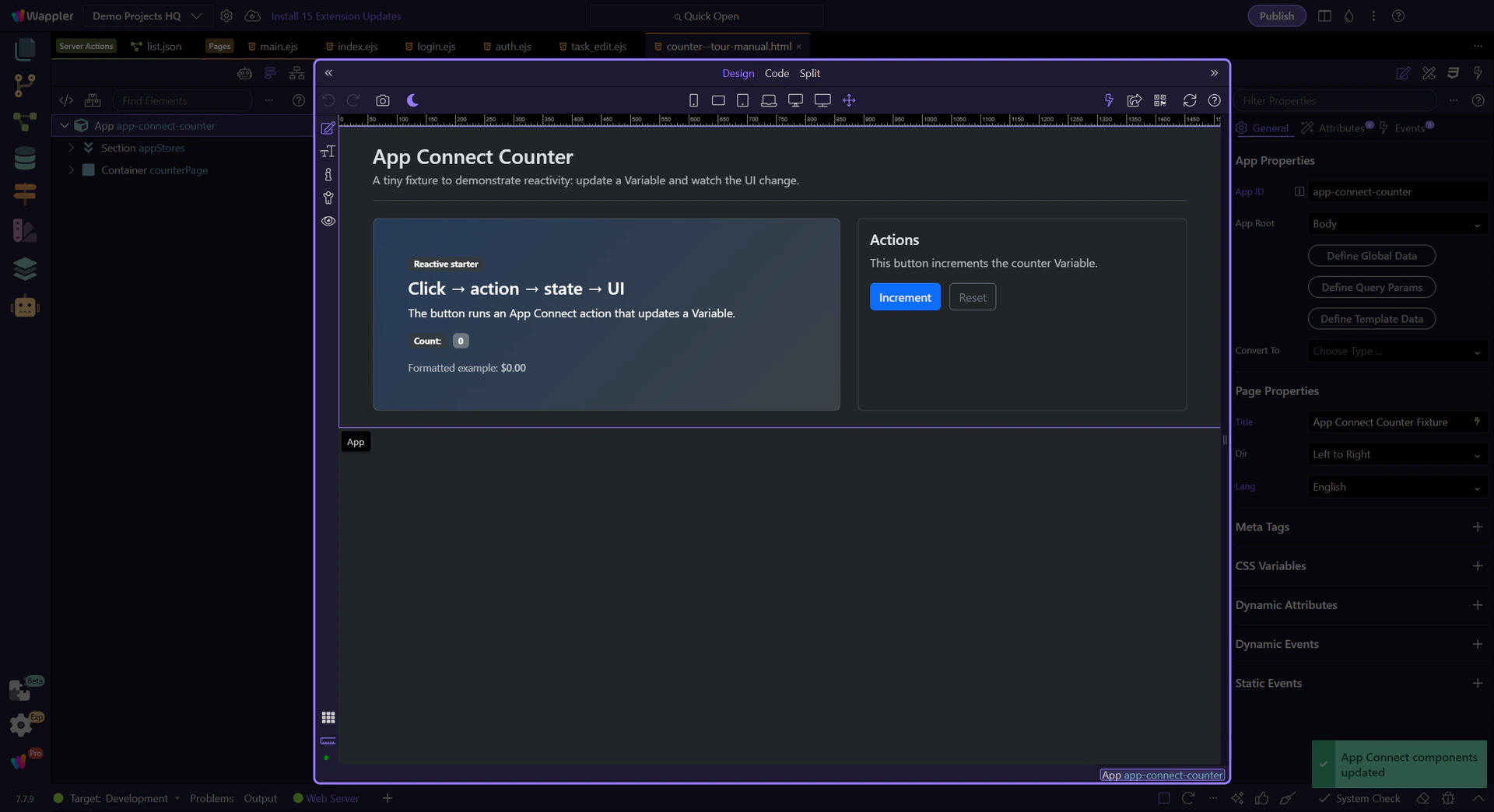
Dynamic Events are added from Properties via ( + ). Available events depend on the selected element.
A real element with no existing Dynamic Events is auto-selected so you can see the full ( + ) menu.
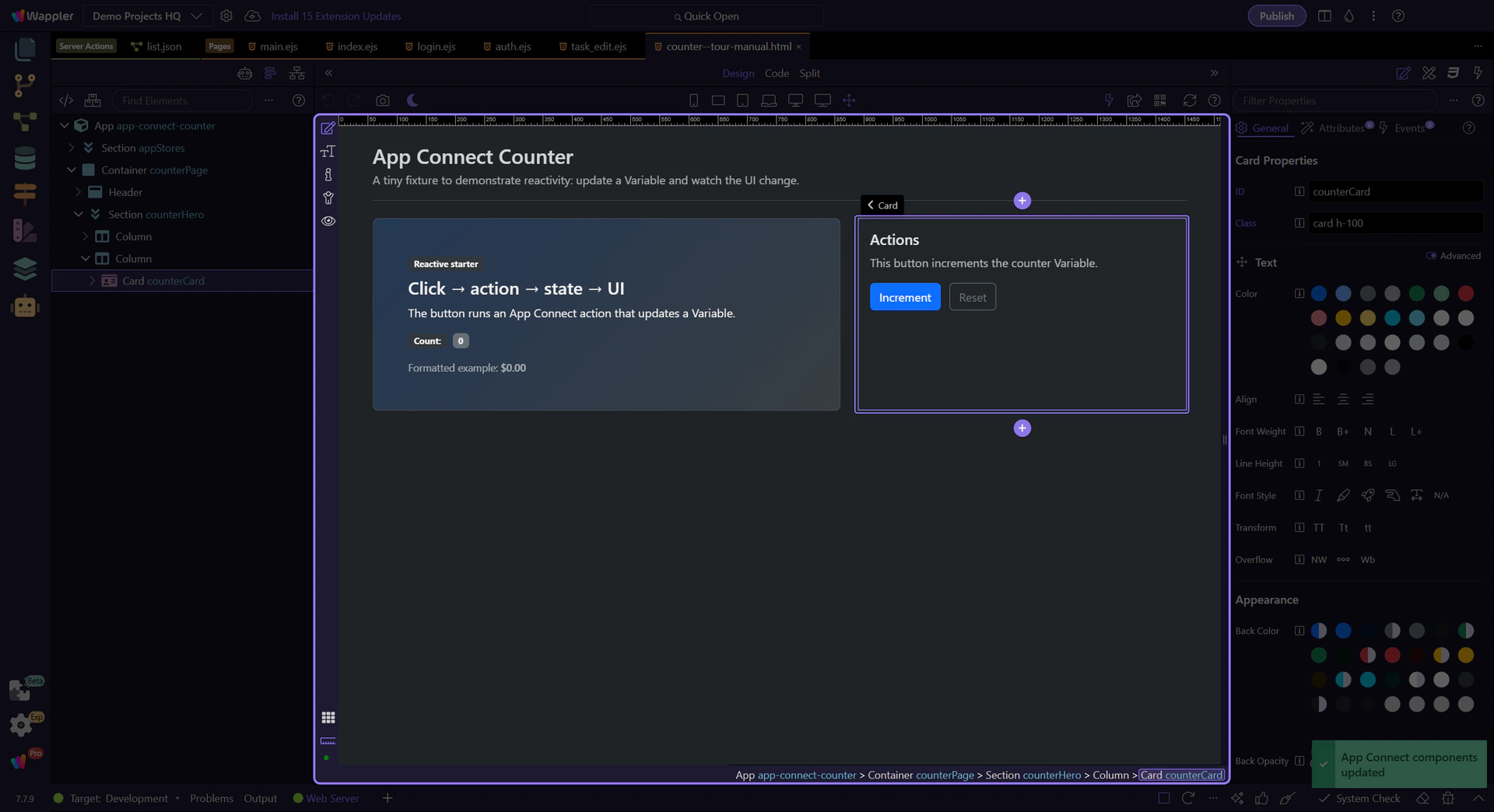
This ( + ) menu lists the available event handlers for the selected element, grouped into categories and, in some cases, submenus.
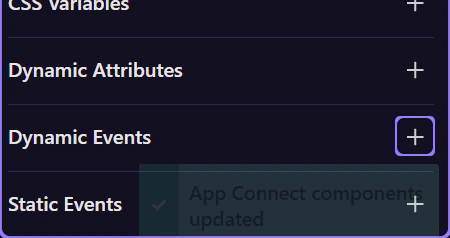
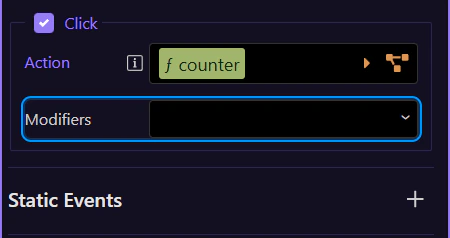
Now the tour selects a button that already has a dmx-on:click event, so you can inspect its Actions Picker without adding anything new.
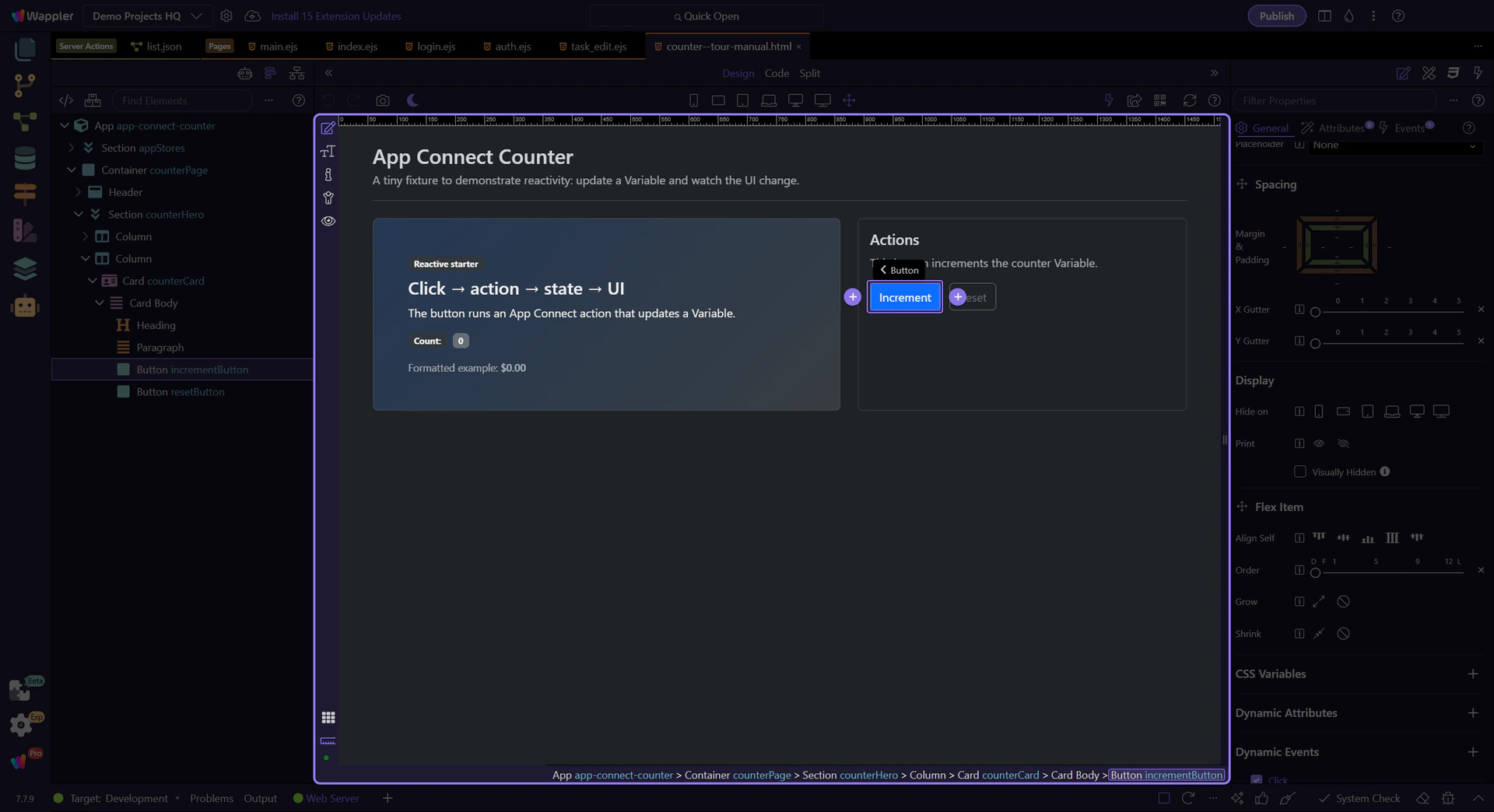
Events run an ordered list of actions. The Actions Picker builds and edits that list.
The Actions Picker shows what runs on Click so you can inspect and edit the action list.
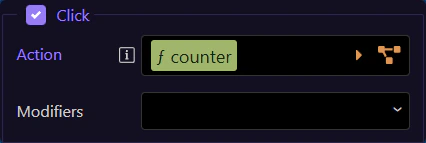
Pick actions from the left tree, then configure action inputs on the right.
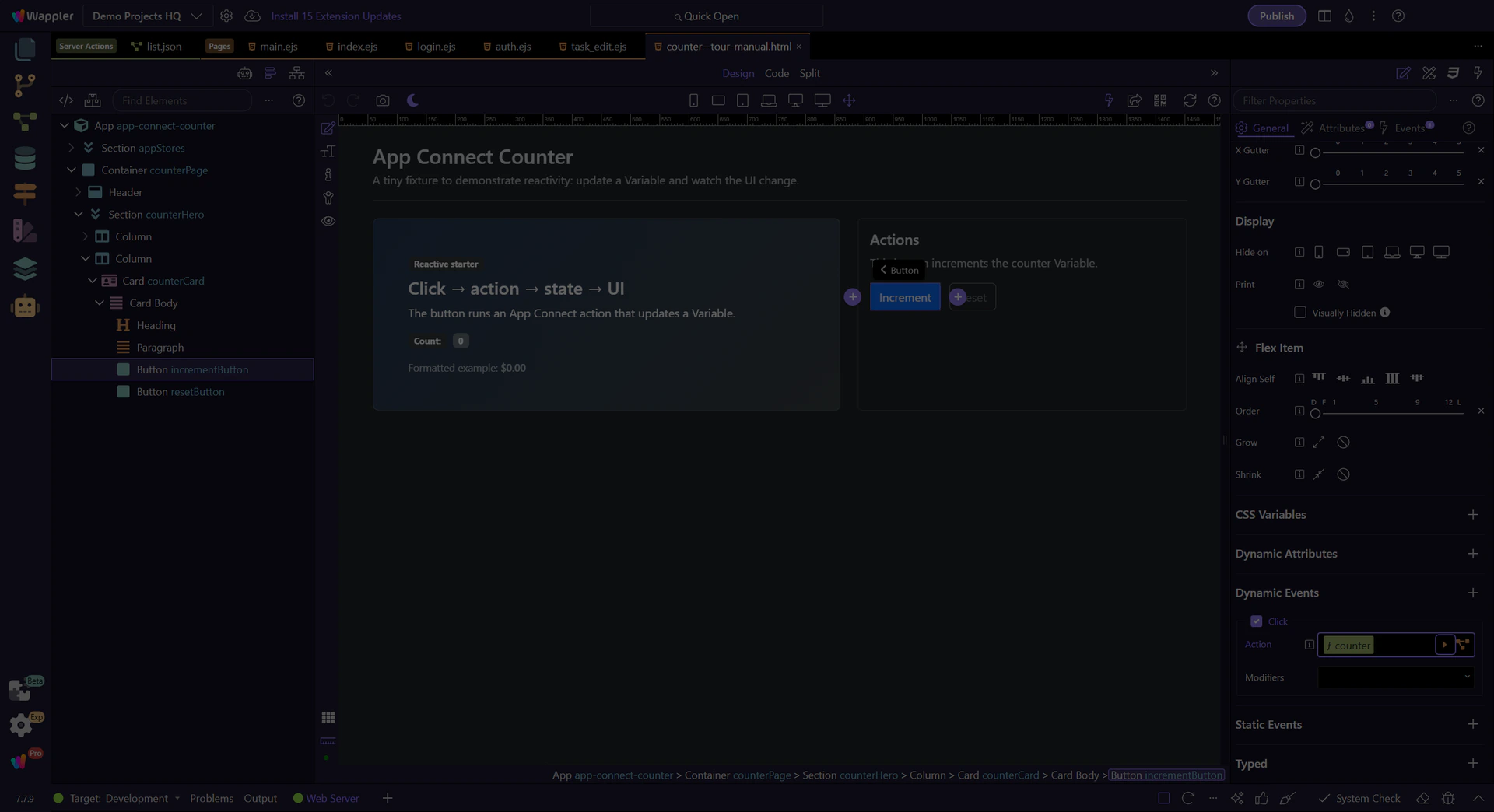
Select the existing action so you can read the real event flow instead of a generic picker example. The next steps use that selection to explain what already happens on this event and where you would refine or extend it.
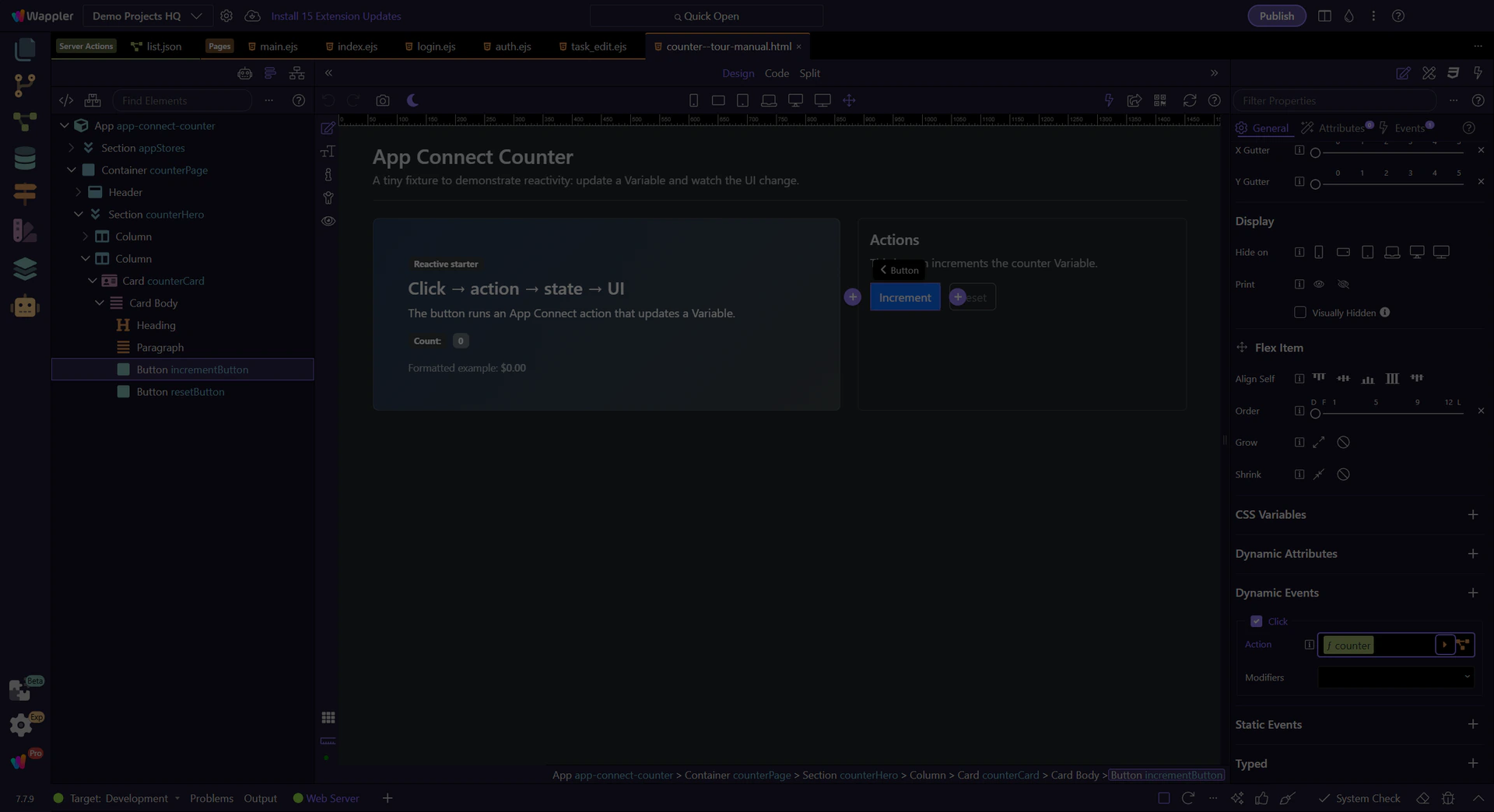
Close the Actions Picker to return to Properties.

Modifiers let you control default behavior and propagation without writing manual code.
Modifiers change behavior (prevent default, stop propagation, capture, once) and can add key/button conditions. The tour opens a dropdown so the options are visible while explaining.
note: Modifiers are a quick way to express common patterns (prevent default, run once, only on Enter, etc.).
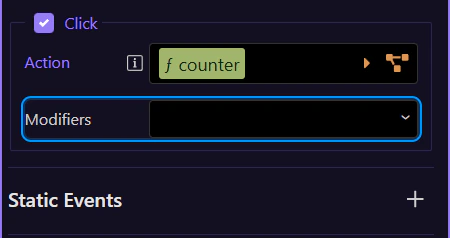
Examples: use prevent + stop for links/buttons, once for one-time actions, and key modifiers to run only on Enter (for key events).
Next: learn how events and dynamic attributes work together.
Continue with related tours.