
Put a preference in the URL with Query Manager
Make a small piece of page state visible in the query string.
Make a small piece of page state visible in the query string.
Before you begin
Section titled “Before you begin”- An App Connect page with an App ID. The in-app tour opens prepared examples with a dedicated test key.
Add the component and declare the test key
Section titled “Add the component and declare the test key”Add Query Manager to the page and name it queryState. Select it in App Structure and use Define Query Params to declare wappler_docs_preference for the data/action pickers. This declares metadata; the key is not stored until a Set action runs.
Set a value from a button
Section titled “Set a value from a button”Add a button. In its Dynamic Events, add a Click action, select queryState → Set, choose Name wappler_docs_preference and use the text value compact. This changes the query string; it does not make an API request by itself.
Bind through the data property
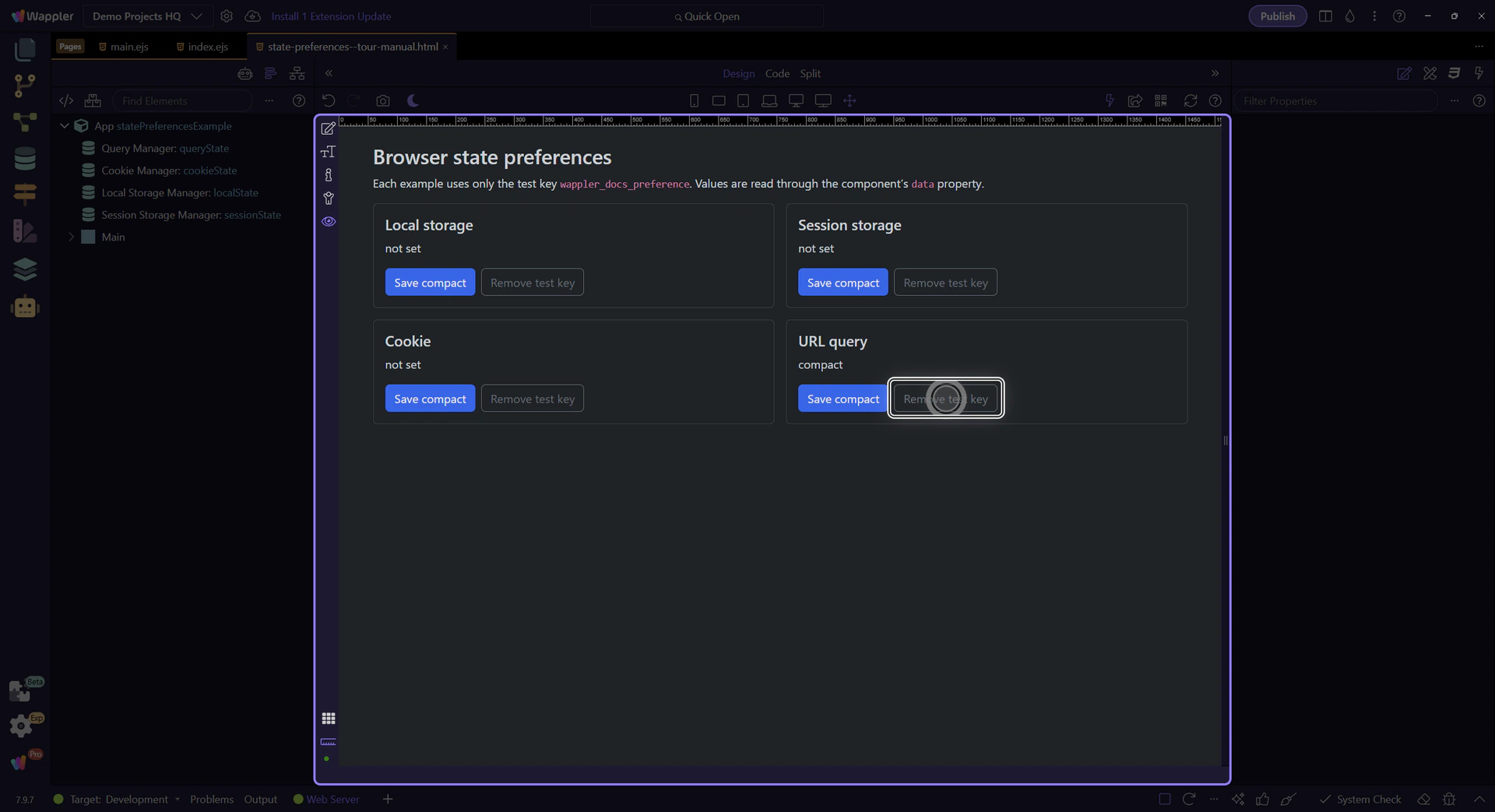
Section titled “Bind through the data property”Add a text label and bind it to queryState.data.wappler_docs_preference. Click the prepared Save compact button in Preview. The label should change to compact. Check the URL parameter and reopen the URL to verify the shareable state.
Remove only the test preference
Section titled “Remove only the test preference”Add a second button using queryState → Remove with the same Name. Use a non-empty value for this test; the installed named Remove can leave an empty-valued parameter in the URL. Do not clear unrelated query parameters.
Keep browser state separate from trusted data
Section titled “Keep browser state separate from trusted data”Browser preferences are editable client-side state. Do not use them as proof of identity, permissions or completed server work. Use the matching reference for exact action options and lifetime limitations.
Check your result
Section titled “Check your result”The query parameter and bound label agree, and removing the named parameter clears that state.