
Using Cookie to Show Modal Once
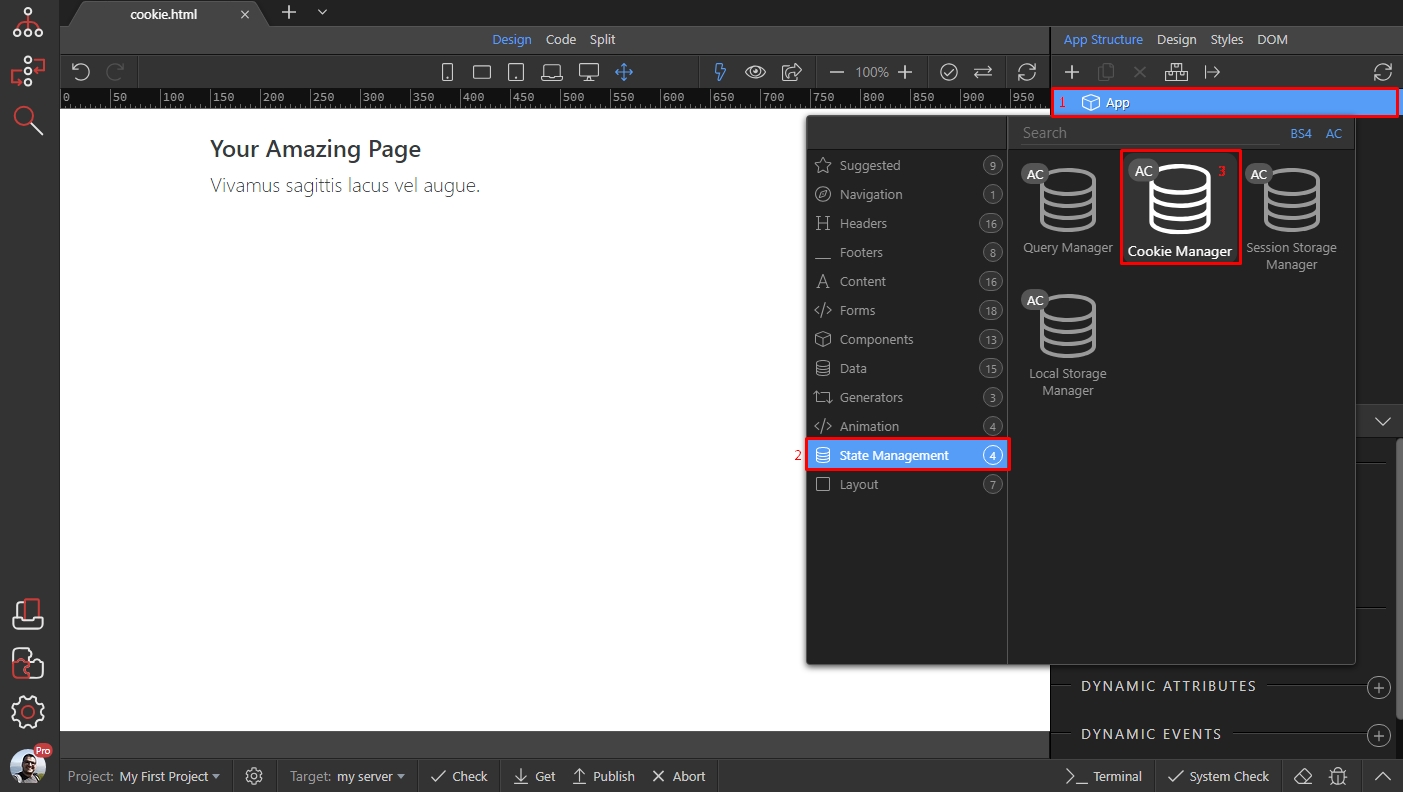
If you want to show modal only on first load, or only once then cookies are the way to go. We added App Connect and Bootstrap 4 frameworks on our page. First let’s setup the cookies. Right click App(1
If you want to show modal only on first load, or only once then cookies are the way to go.
Section titled “If you want to show modal only on first load, or only once then cookies are the way to go.”We added App Connect and Bootstrap 4 frameworks on our page. First let’s setup the cookies. Right click App(1) then open State Management(2) and select Cookie Manager(3):
Then, select the cookie manager in app structure and click the define cookies button:
Section titled “Then, select the cookie manager in app structure and click the define cookies button:”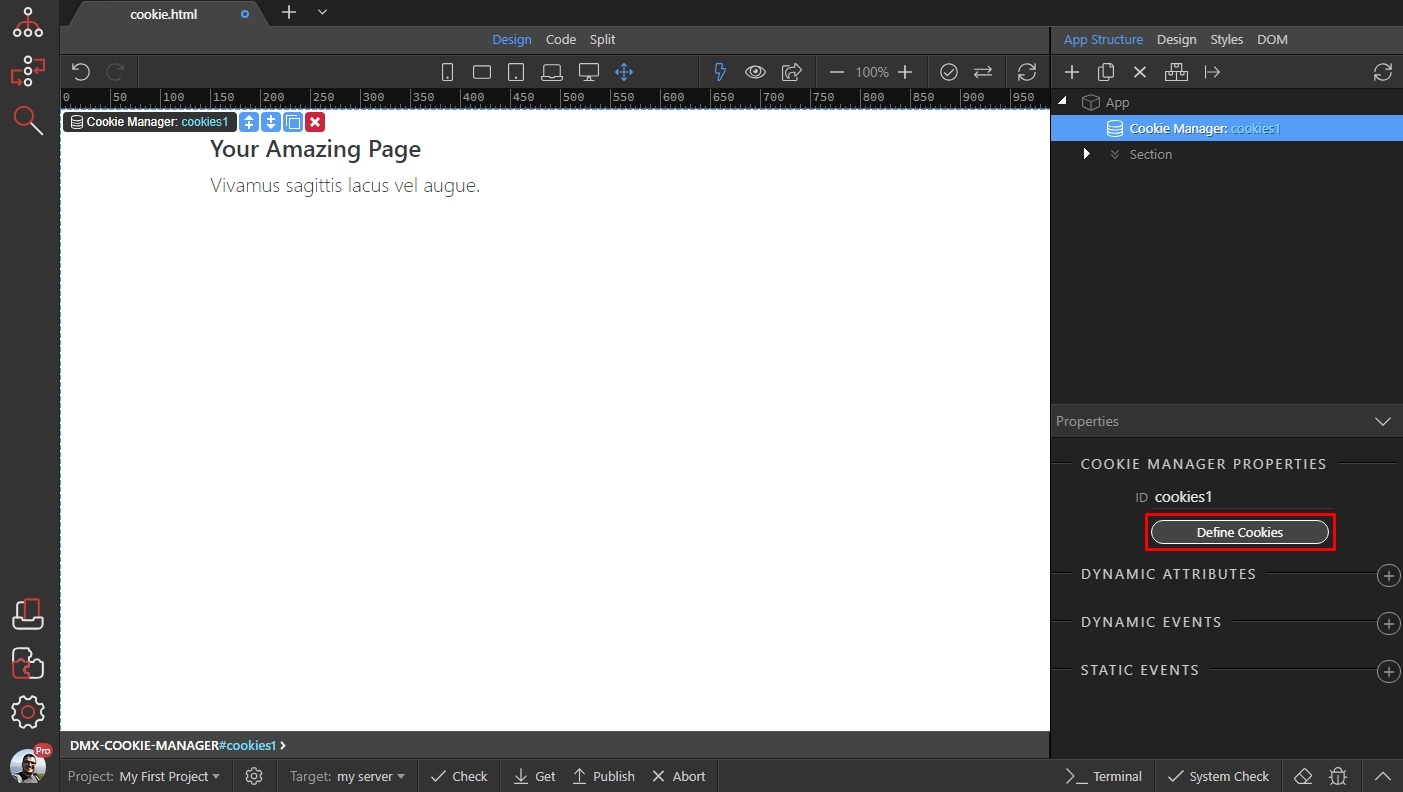
Click the add new button, and select add variable:
Section titled “Click the add new button, and select add variable:”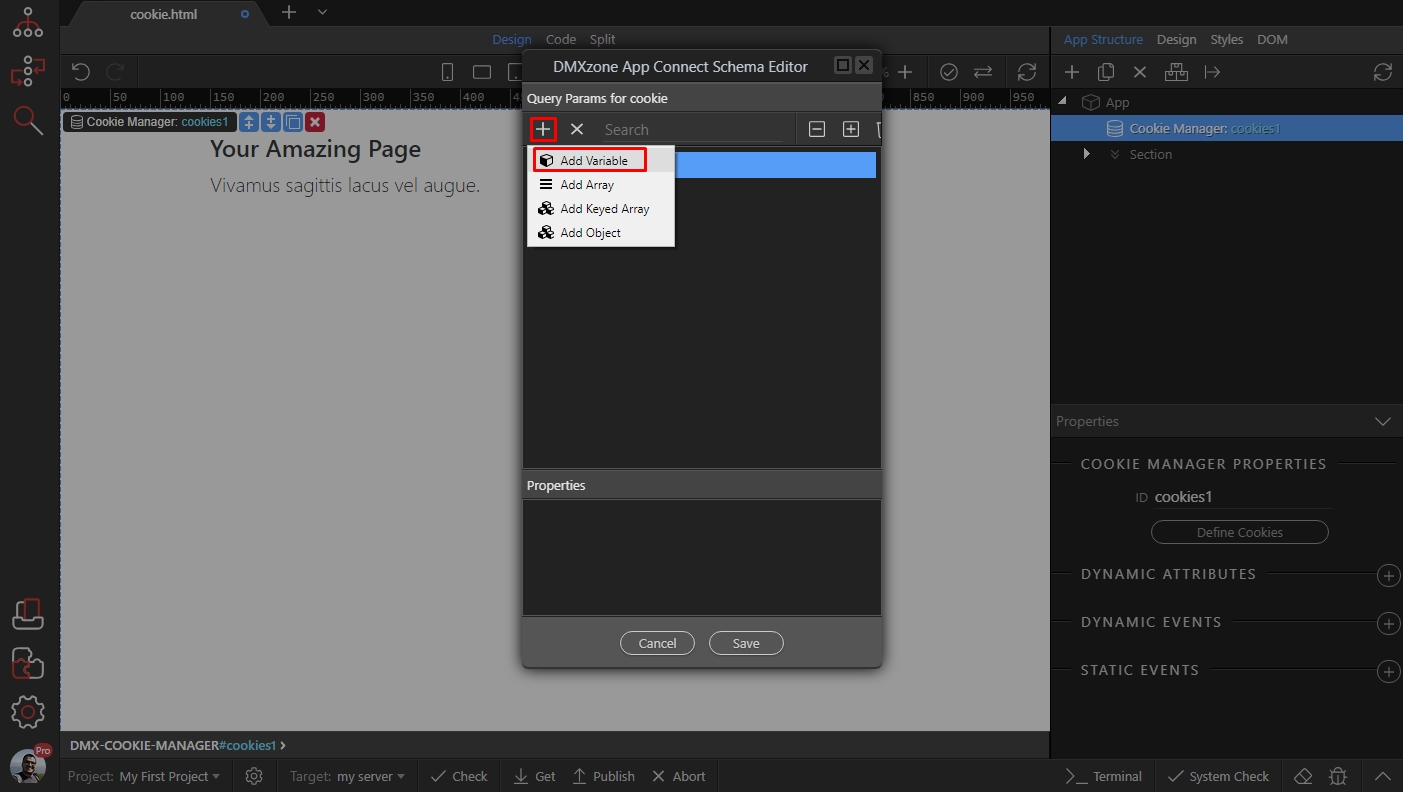
Step 4
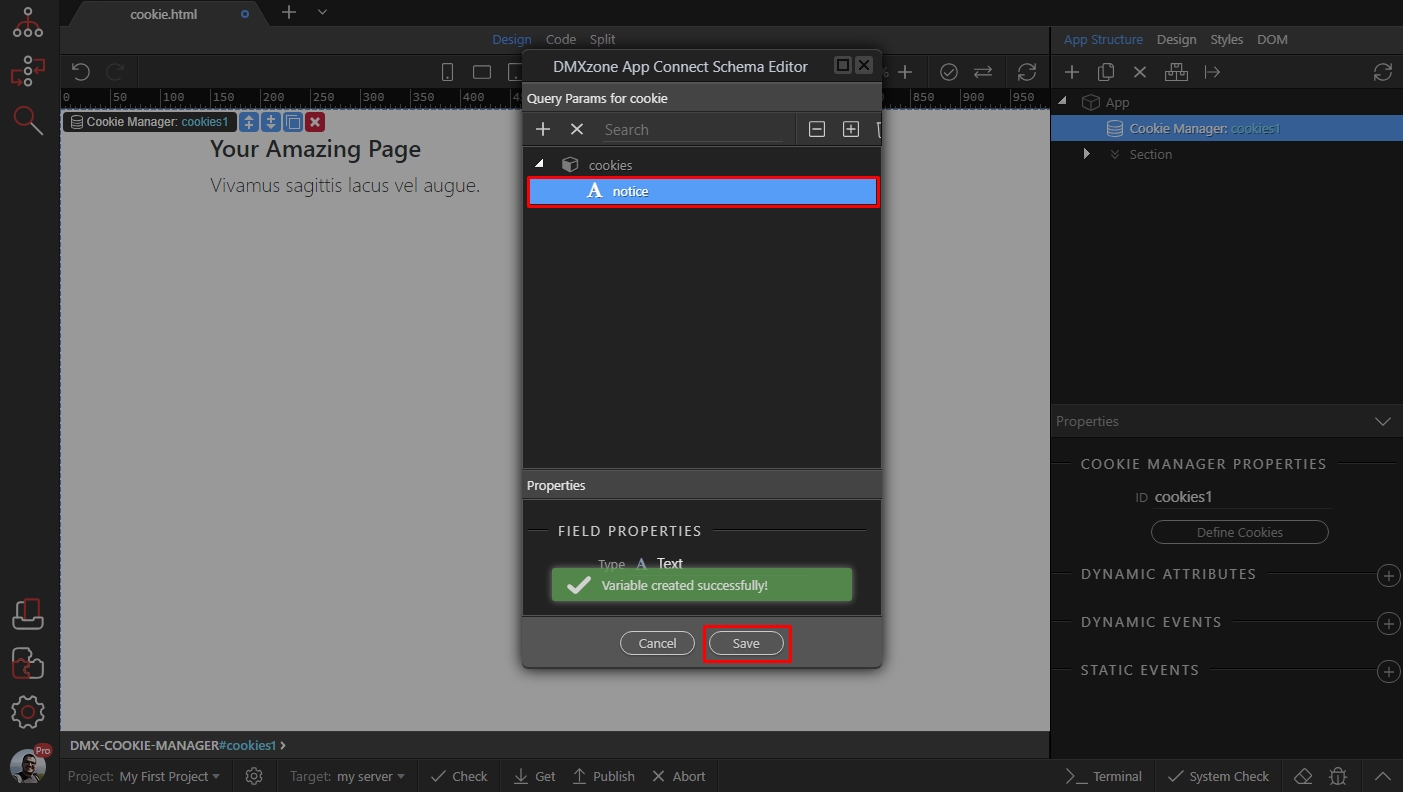
Section titled “Step 4”That’s the cookie which will control the modal. We call it ‘notice’. Click the select button to create the cookie:
Then add the modal - in app structure add new component, open the Component category and select Modal:
Section titled “Then add the modal - in app structure add new component, open the Component category and select Modal:”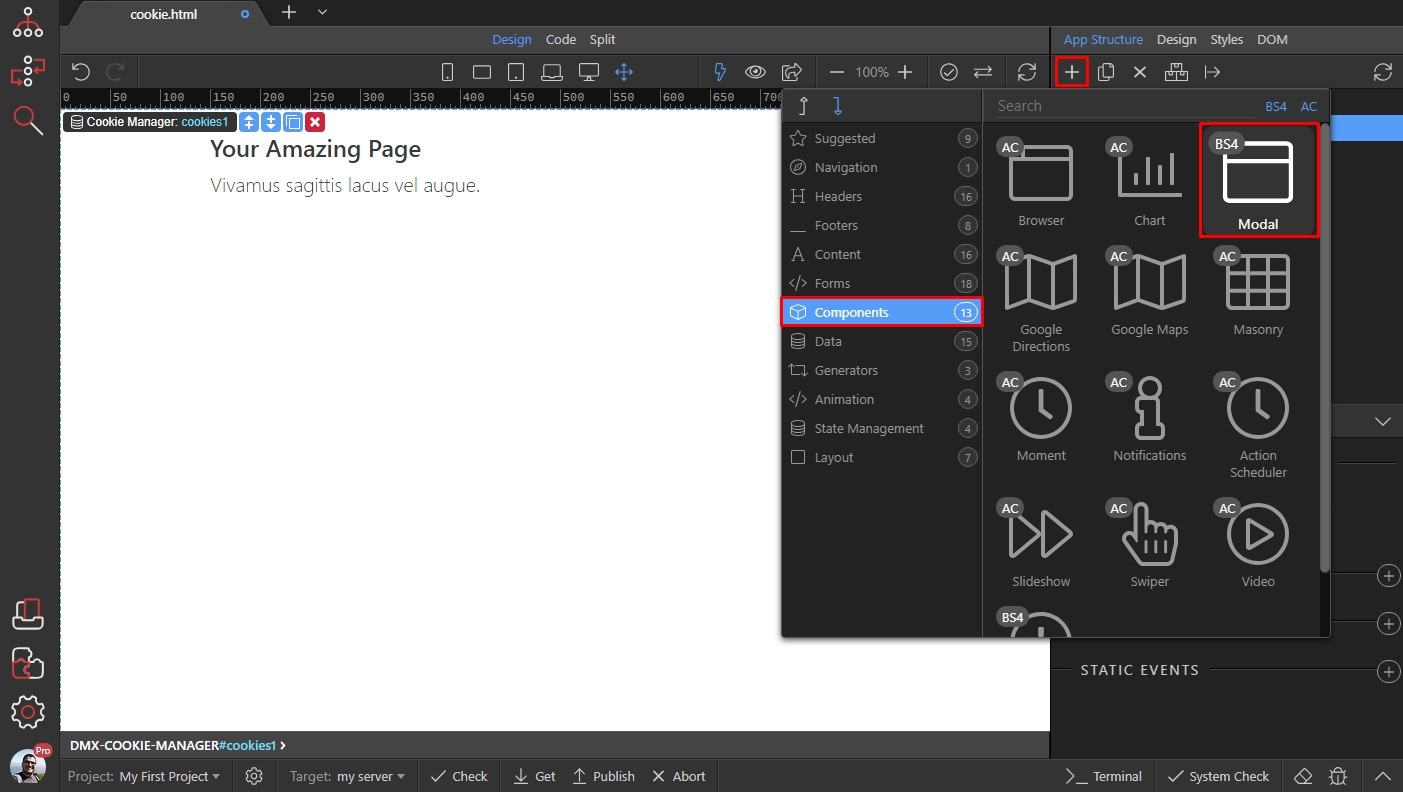
Make sure to leave the Auto Show option for modal turned off.
Section titled “Make sure to leave the Auto Show option for modal turned off.”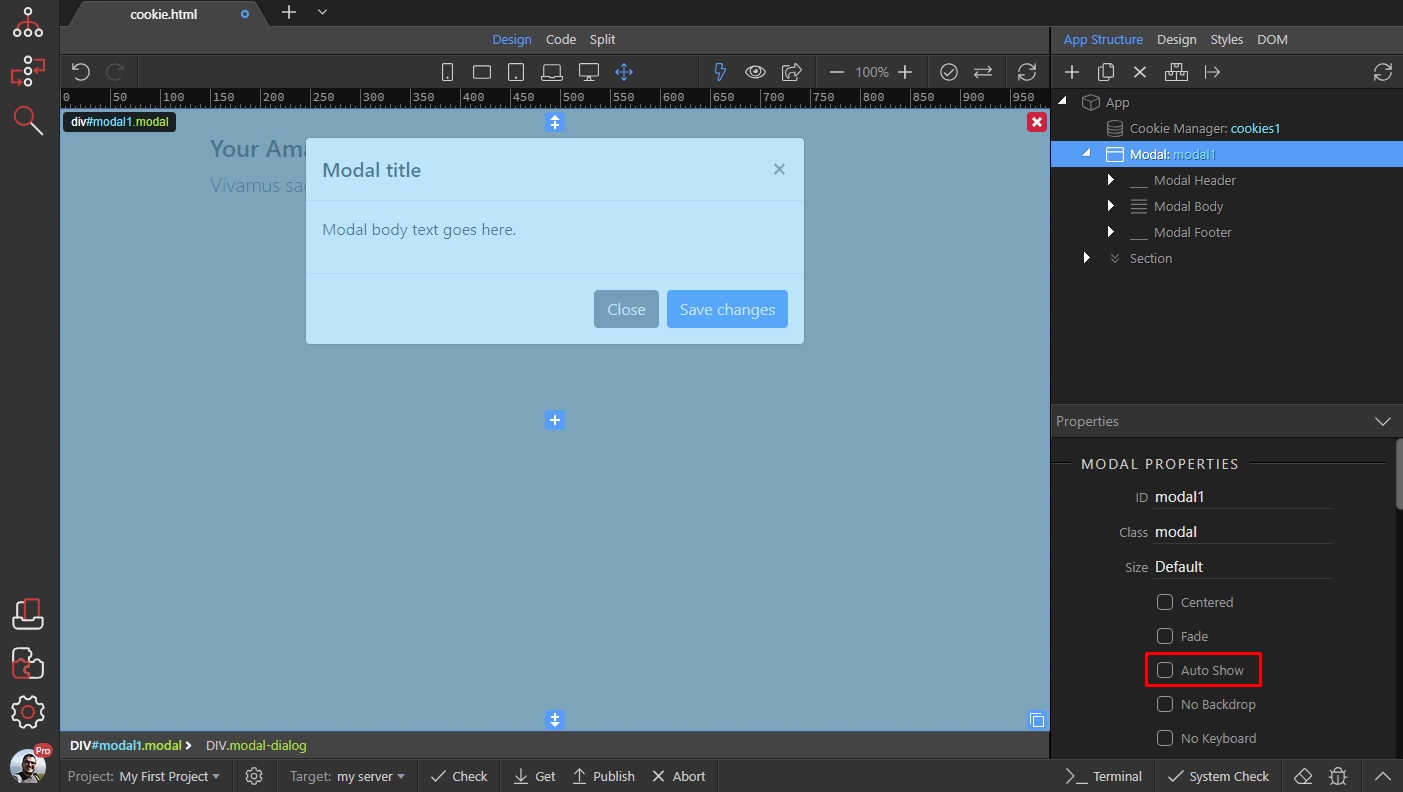
Then add new dynamic attribute:
Section titled “Then add new dynamic attribute:”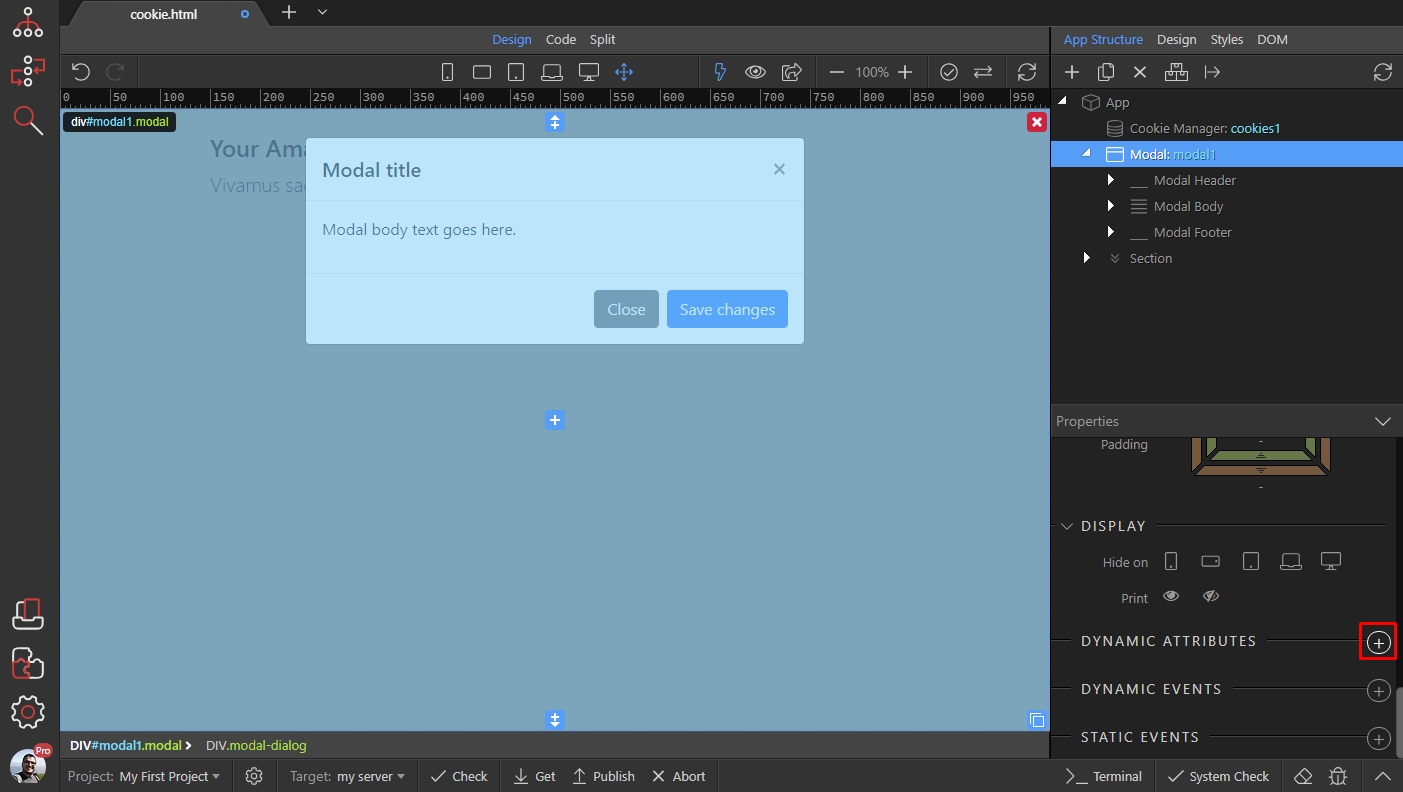
Open the Modals category and select Modal Show:
Section titled “Open the Modals category and select Modal Show:”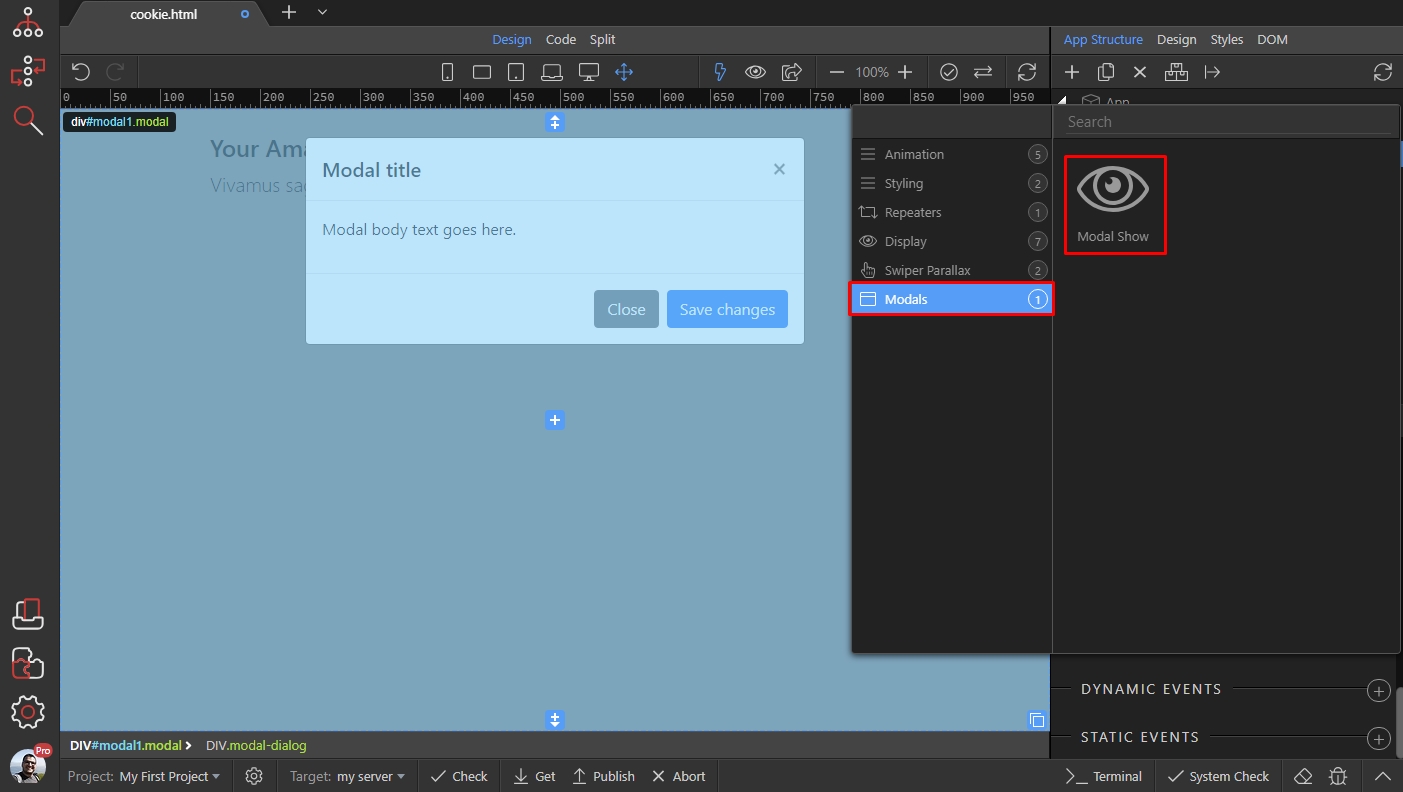
Click the dynamic data picker icon, to select when to show the Modal:
Section titled “Click the dynamic data picker icon, to select when to show the Modal:”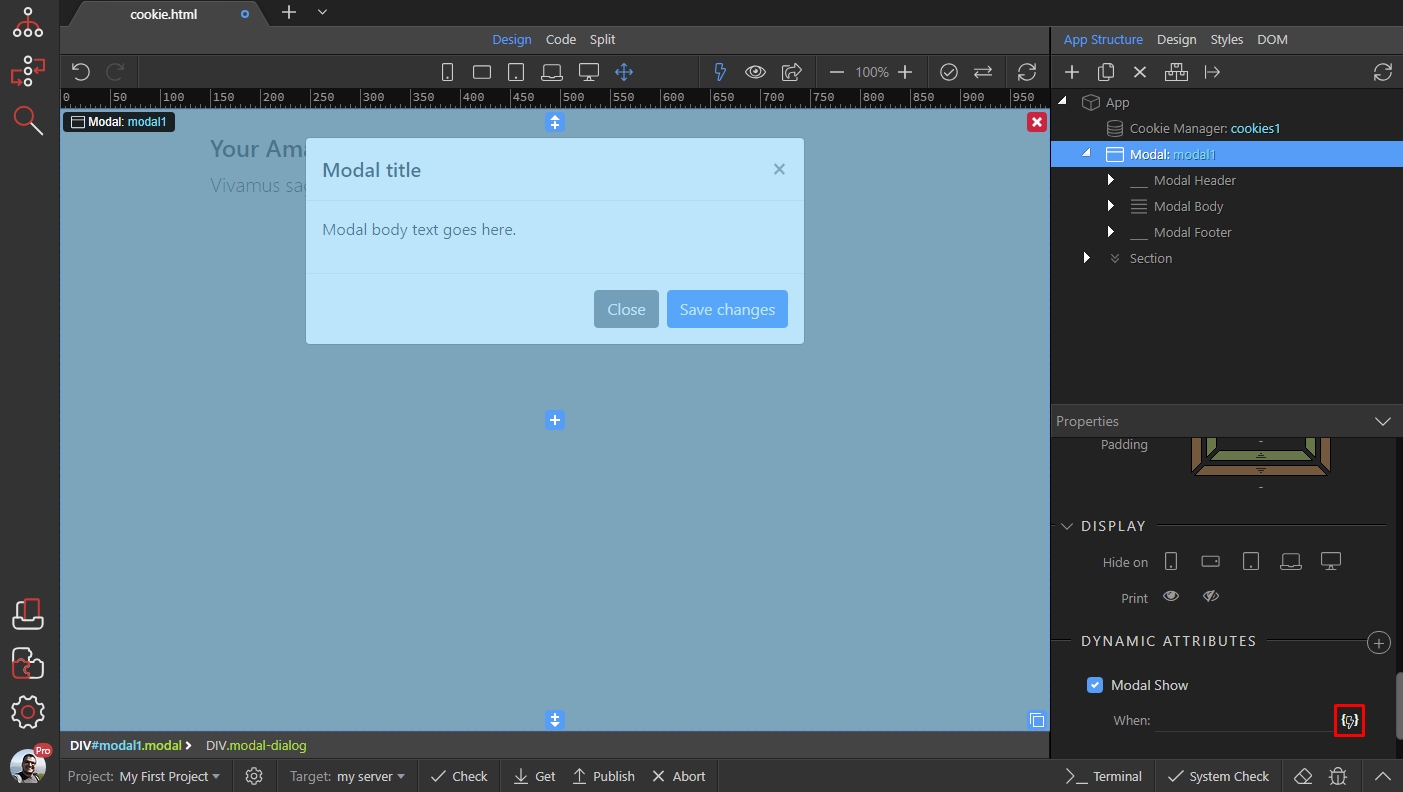
Step 10
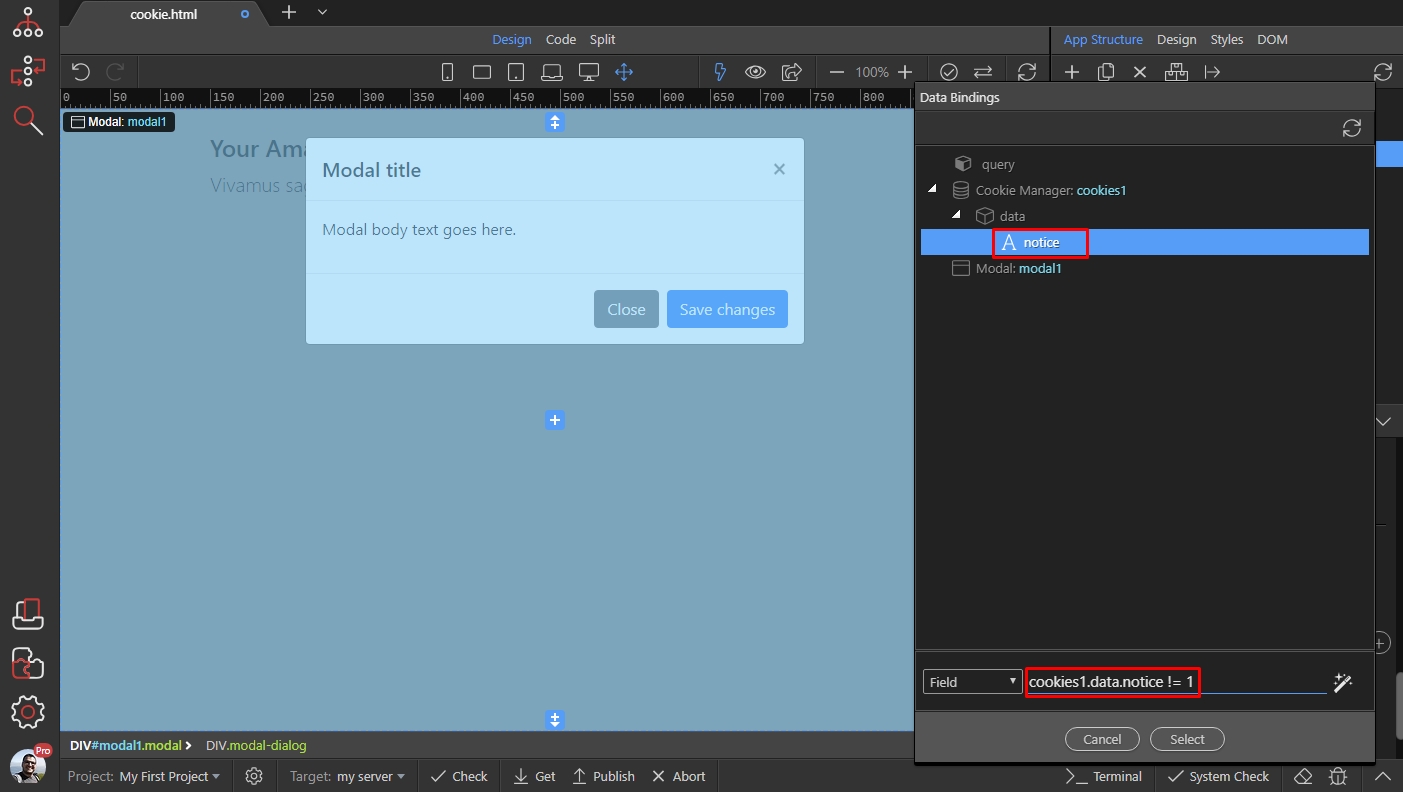
Section titled “Step 10”Select your cookie, under Cookie Manager. Then, we need to setup the condition when to show the modal. We manually add != 1 after the cookie in the expression field. That means - show the modal only when the cookie value is not equal to 1:
Step 11
Section titled “Step 11”Now, select the button which will be used to control the cookie value. For example a button that users click to agree to your site terms and conditions, or to accept cookies policy etc., then add new dynamic event:
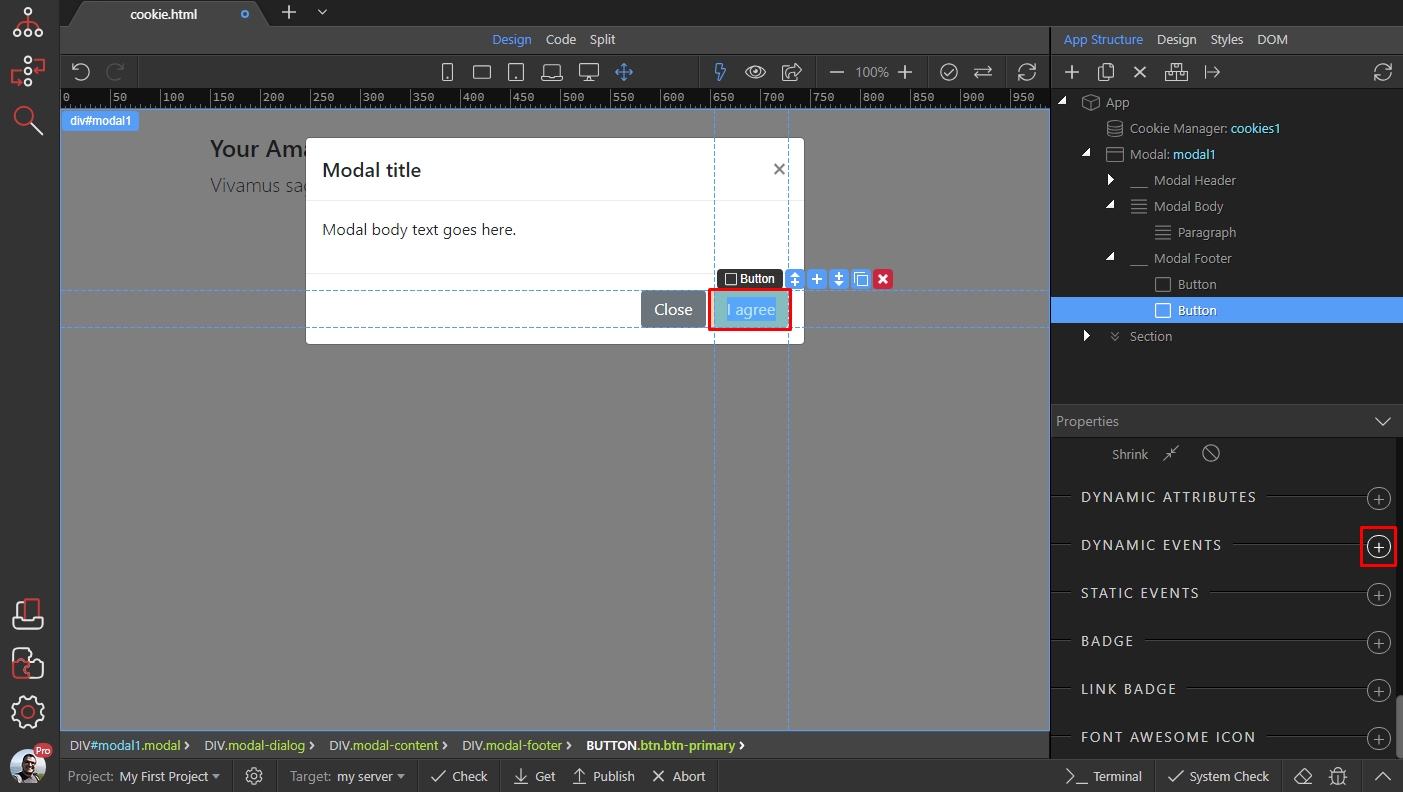
Open the Mouse category and select on Click:
Section titled “Open the Mouse category and select on Click:”
Click the dynamic data picker to set the action on click:
Section titled “Click the dynamic data picker to set the action on click:”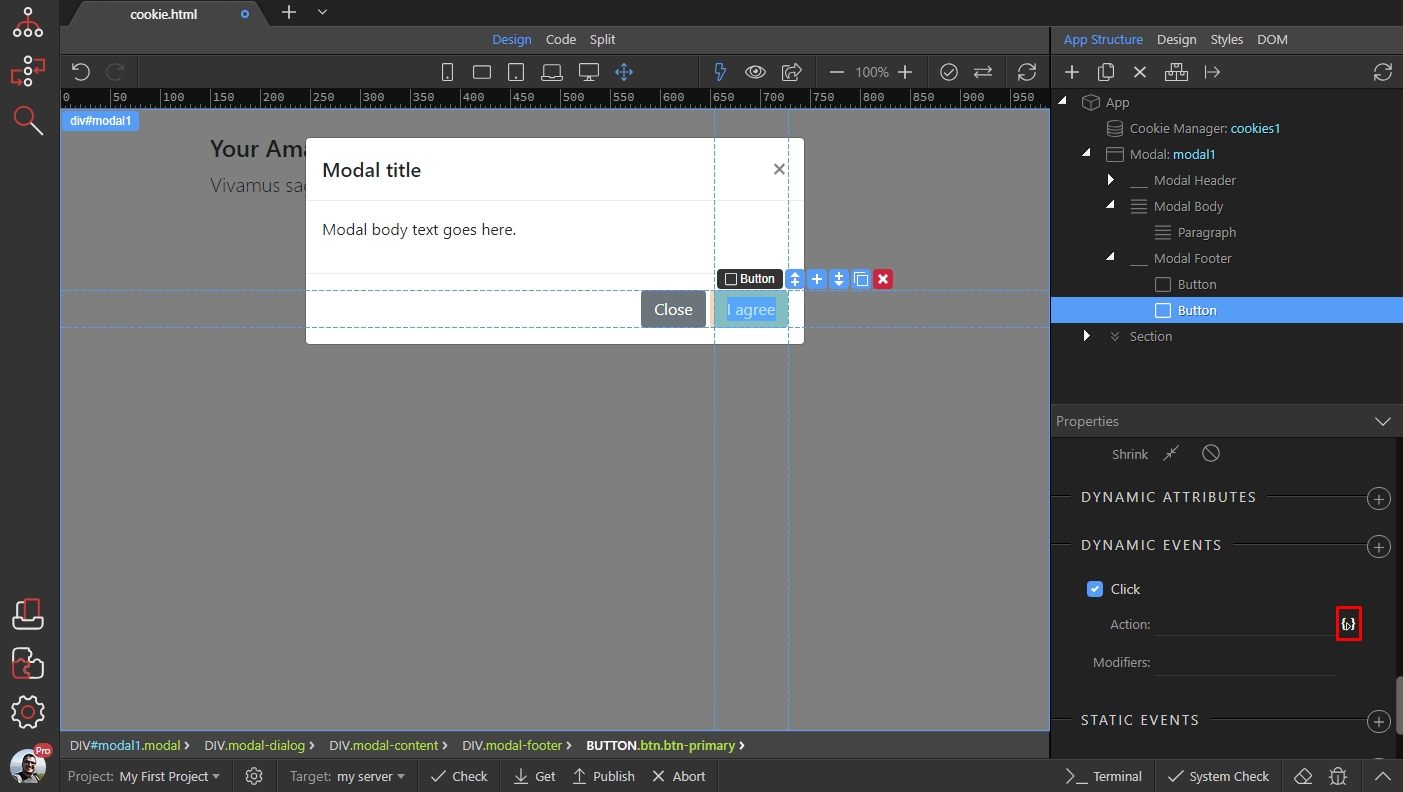
Under cookie manager, select set and then click the add action button:
Section titled “Under cookie manager, select set and then click the add action button:”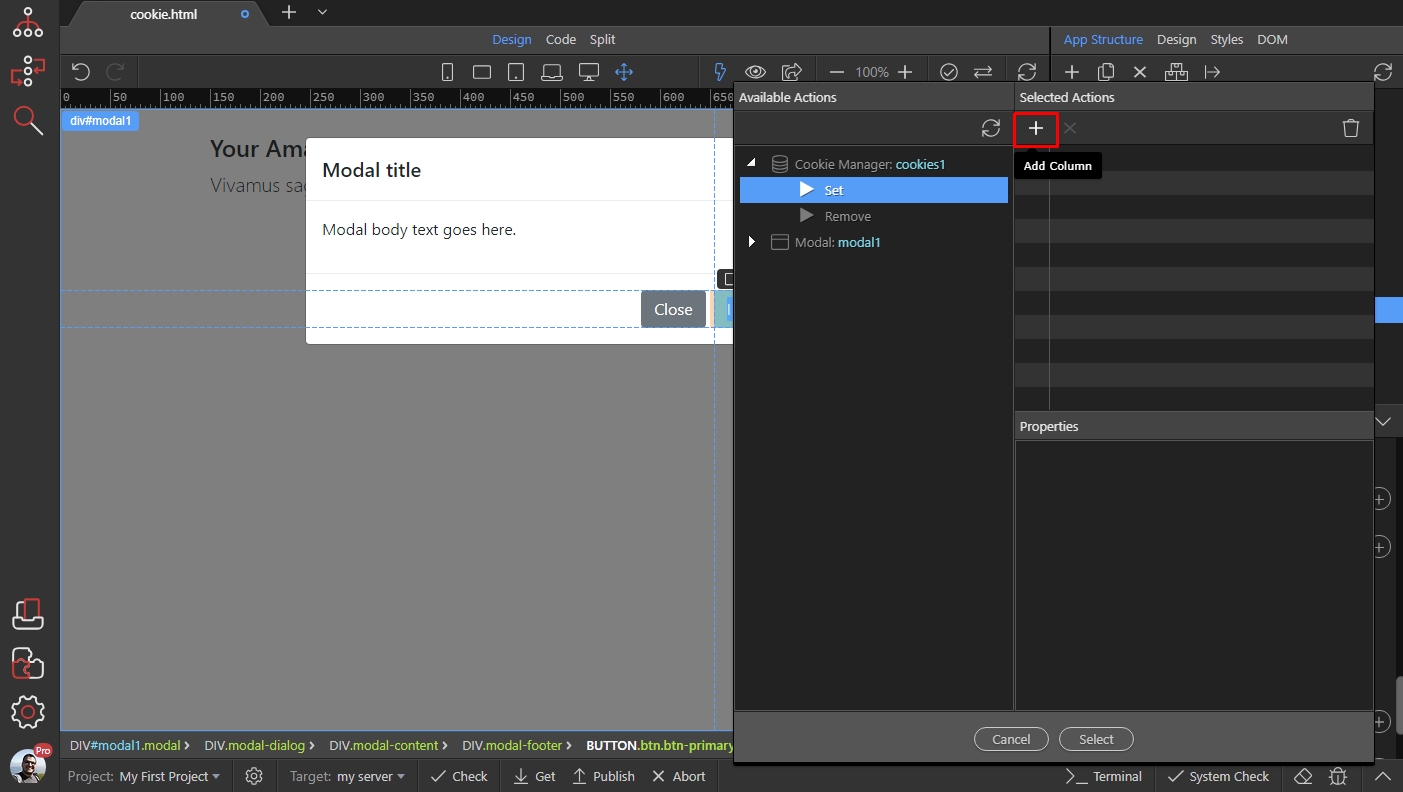
Step 15
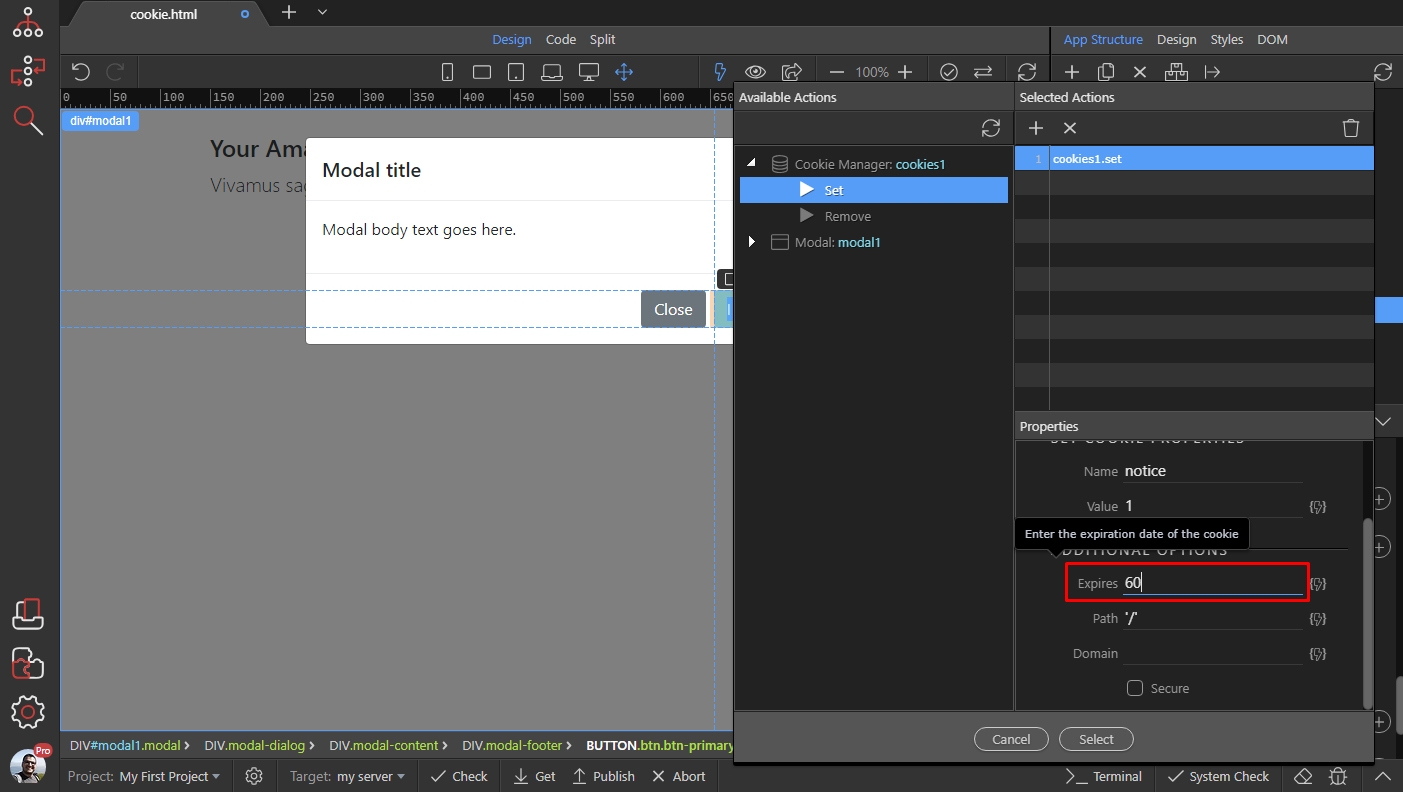
Section titled “Step 15”Select your cookie from the Name dropdown and add a value 1. That means on click the cookie with the name ‘notice’ will receive a value of ‘1’:

Step 16
Section titled “Step 16”Set how long (in days) should the cookie (and its value) be kept in the users browsers. We set this to 60 days:
Step 17
Section titled “Step 17”Then select Hide under modal and click the add action button. This will close the modal, after the button is clicked and the cookie value is set:
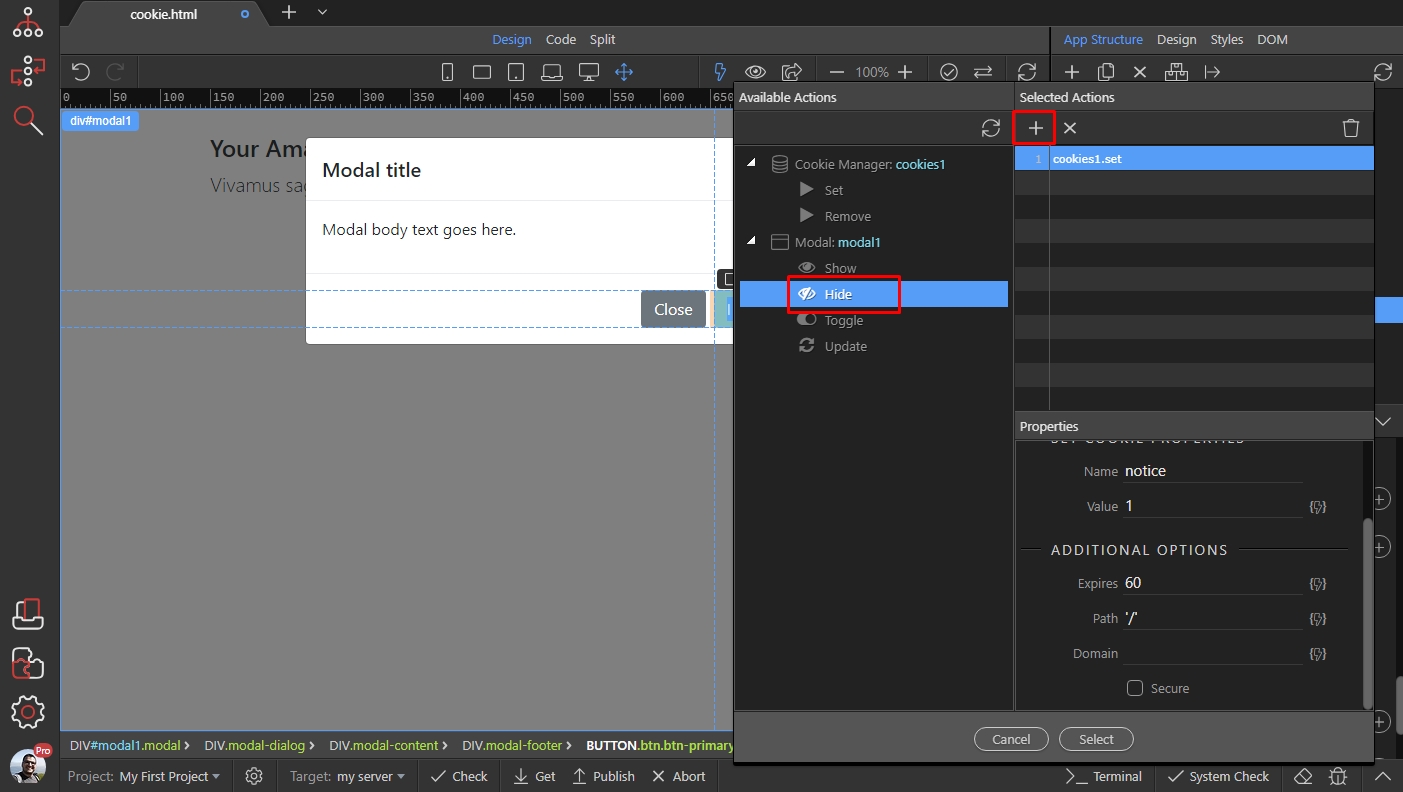
Click the select button, and you are done:
Section titled “Click the select button, and you are done:”
Step 19
Section titled “Step 19”The modal will be displayed only the first time your users visit the site. Once they click the button, it will be hidden and won’t display on page reload.