
Project-aware
Work from the active project
and its real structure
and its real structure
Practical AI Manager orientation to its task surface, history flow, toolbars, model/account controls, and prompt entry workflow.
AI Manager stays beside the real Wappler project instead of moving the work into a disconnected prompt box. Brief a bounded task here, then review its page, data, Server Connect, database, and code changes in the editors that own them. That shared project context is what makes AI assistance useful across the stack while keeping the result visible and reviewable.
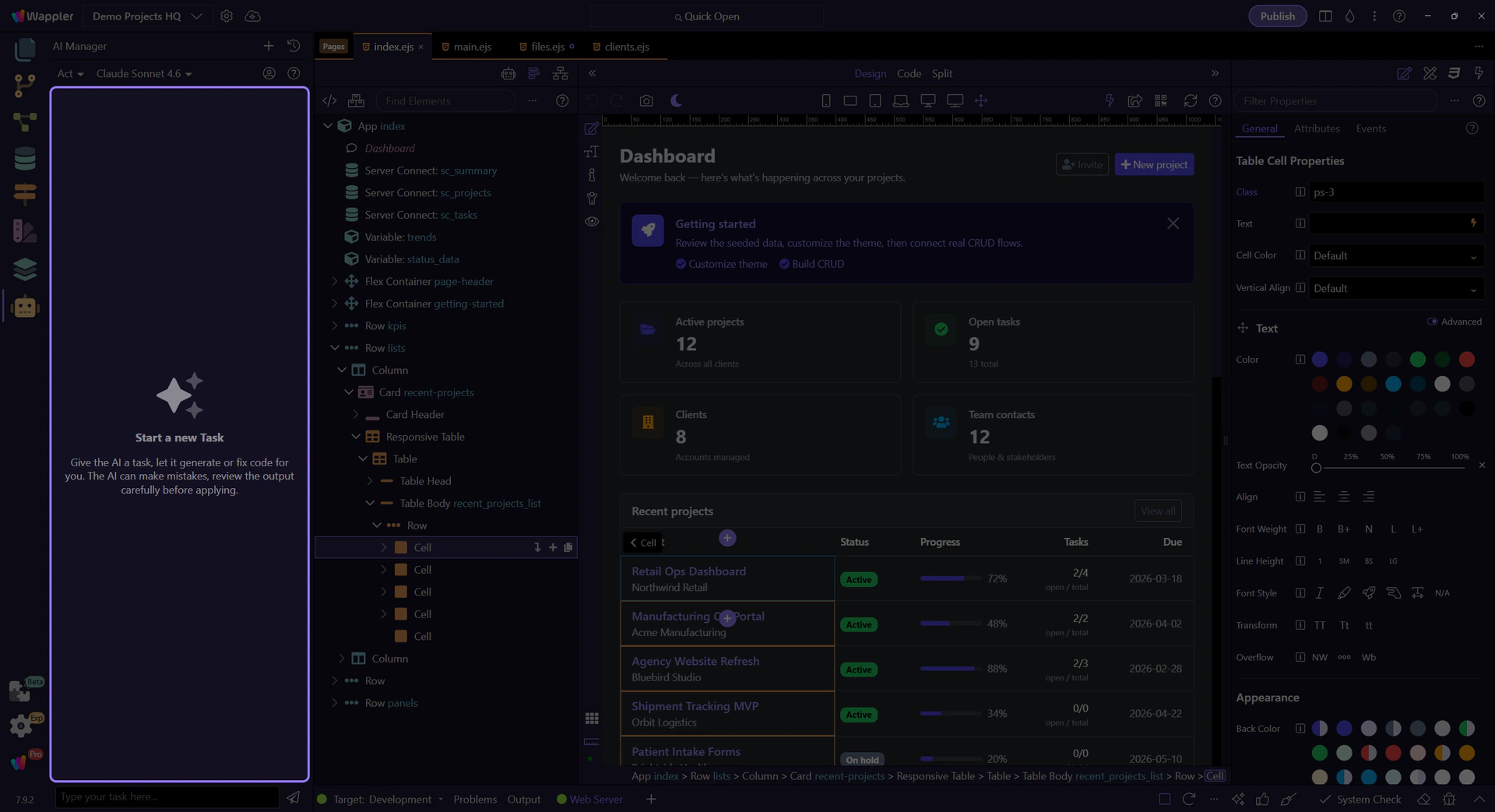
Start by reading AI Manager as one coordinated workspace. The same manager holds the thread history, task navigation, model and mode controls, account usage details, and the live prompt area for the current slice. The useful mental model is simple: first orient yourself in the whole manager, then focus on the specific task surface you are about to use.
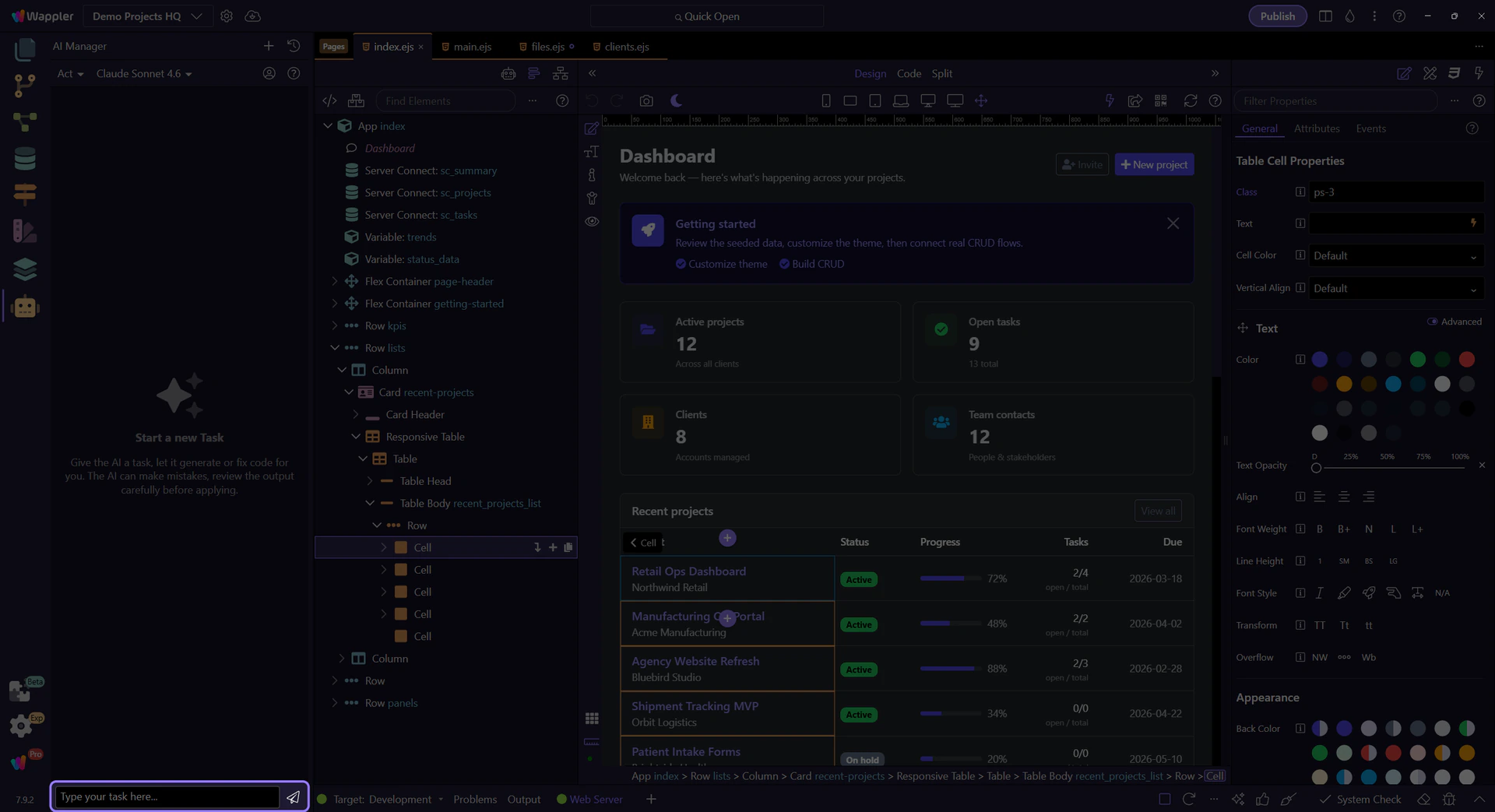
This is where you enter the real brief for the next task. Use one believable request, name the Wappler surfaces involved, and ask for review points instead of a giant opaque dump. The best results usually come from a clear prompt that asks for one bounded pass and tells you what to inspect afterward.
Example opening brief
"Plan the next slice for a feedback feature in this project. I need the public page, the save action, and the admin review page broken into reviewable steps. Tell me which Wappler surfaces I should inspect after each pass."
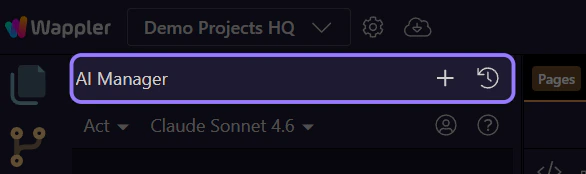
Use the top toolbar for thread-level moves rather than prompt-level decisions. This is where you jump to a brand new task or switch into the history view. Think of it as navigation for whole task threads, not configuration for the current message.
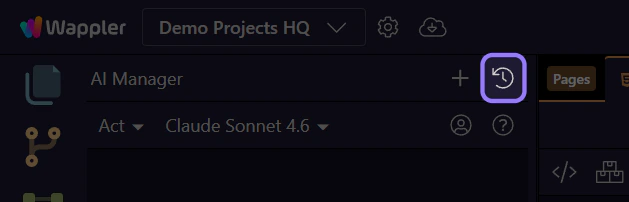
Advance once to open the real history view. This is where AI Manager keeps previous task threads so you can continue an older conversation, compare what you asked before, or reopen a task instead of restarting the whole job from scratch.
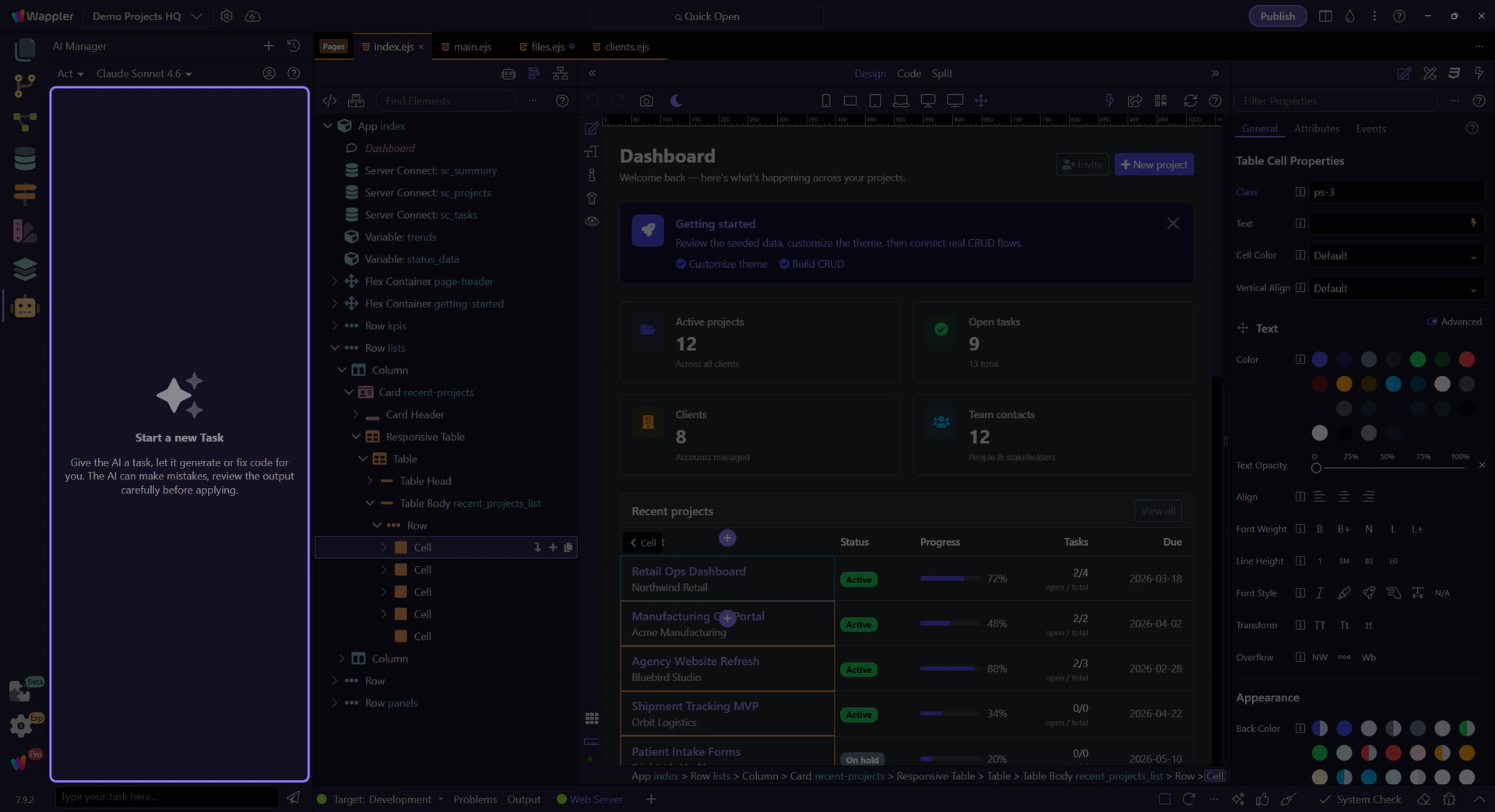
When history is open, this surface becomes the archive for previous threads. If it is empty on your machine right now, that is still useful context: completed tasks will appear here later, and this is the place you return to when you want to continue or inspect earlier AI work instead of prompting blindly again.
Task cards are the units of reuse in AI Manager. They show a time-based thread, the opening prompt, and lightweight usage context. If your history is empty, remember the same rule anyway: once tasks exist, this is where each past conversation becomes something you can reopen and continue deliberately.
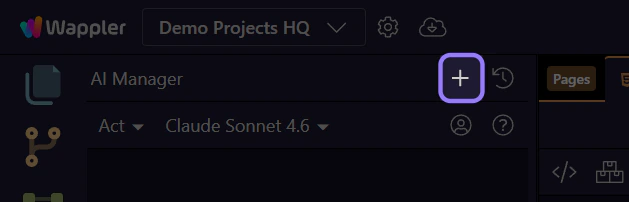
Advance once to reset back to a fresh task state. Use New before a substantially different request so you do not drag unrelated context, assumptions, and history into the next job.
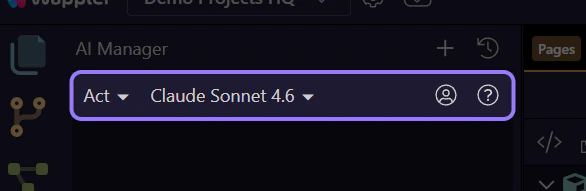
This second toolbar is about the current task, not thread navigation. It is where you choose the working mode, pick the model, inspect provider-side account stats, and access the manager tour entry point. Keep this mental split clear: top toolbar for task threads, main toolbar for how the current task should behave.
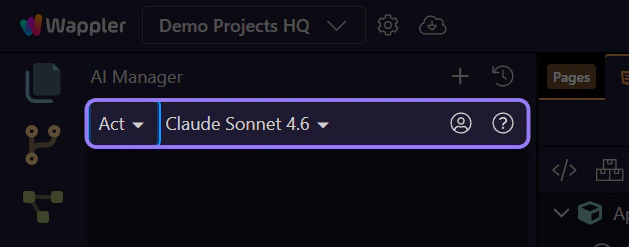
The mode control changes the next kind of help you ask for. Use Ask when you want clarification, planning, alternatives, or review guidance. Use Act when the next step should be an implementation slice, a concrete fix, or a bounded execution pass that you intend to inspect afterward.
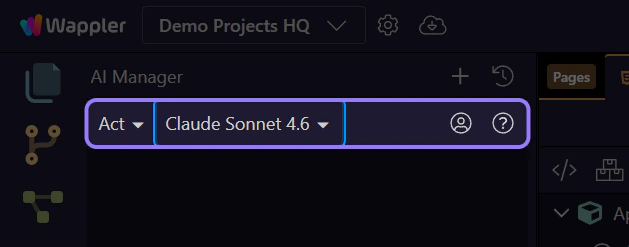
Use the model selector intentionally instead of treating one model as permanent. This button is where you switch between design-oriented judgment and implementation-oriented execution, depending on what the current slice actually needs. The dedicated model-choice tour goes deeper, but this is the control you use in the live manager.
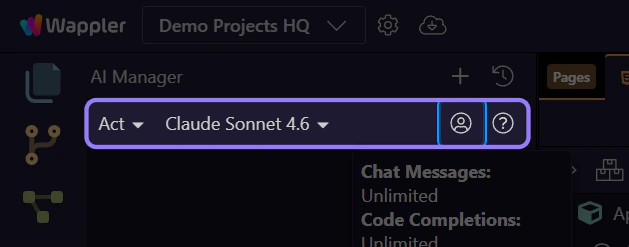
Advance once to open the real account-info popover. This matters because AI Manager is not only about prompts and files. It also sits on top of provider limits, request quotas, and reset windows that affect how aggressively you want to use a model during a long session.
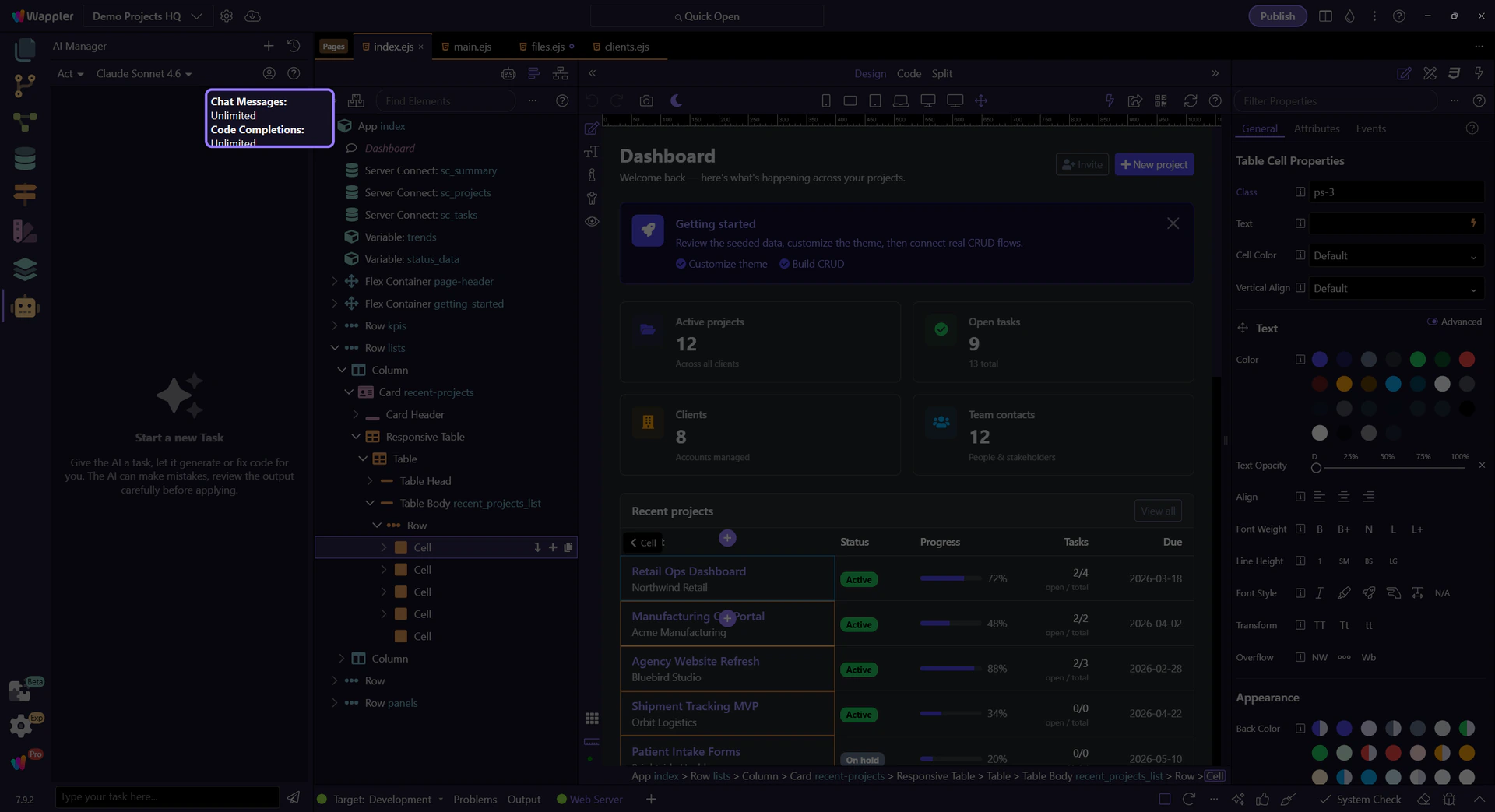
The account popover exposes the usage snapshots behind the current provider account. Chat messages, code completions, premium requests, and the next reset date help you decide whether to keep pushing a long session, switch models, or keep the next task slice tighter and more focused.
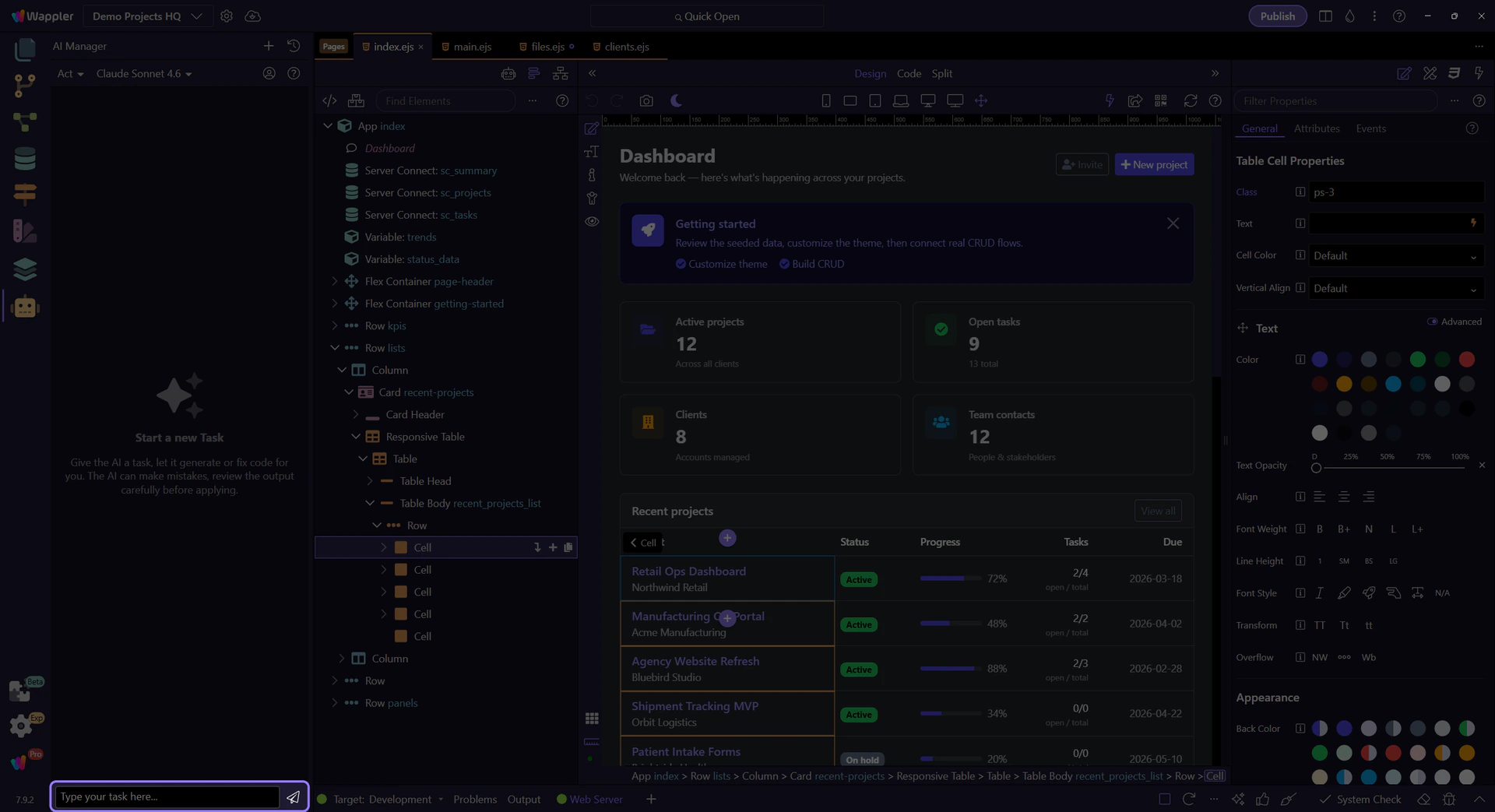
A strong AI Manager workflow is deliberate: pick whether you are continuing history or starting fresh, choose the right mode and model for the current slice, check account constraints when needed, and write a brief that is narrow enough to review properly in the owning Wappler surface.
