
Variable
One value (can be text/number/object/array).
Explore App Connect data components—Variable, Array, and Toggle—and the key Properties you’ll configure for each.
This tour introduces the small set of App Connect components that create client-side state before the rest of the page consumes it. You will compare Variable, Array, and Toggle as foundational building blocks, then connect each choice to the bindings, actions, and UI patterns it supports best.
This tour helps you choose the right state primitive before you start wiring the page. Instead of memorizing three components separately, you will learn the decision rule for each one, how they appear in Structure, and how their values are typically consumed by bindings and actions.
Insert the component via App Structure, then configure ID + bindings in Properties.
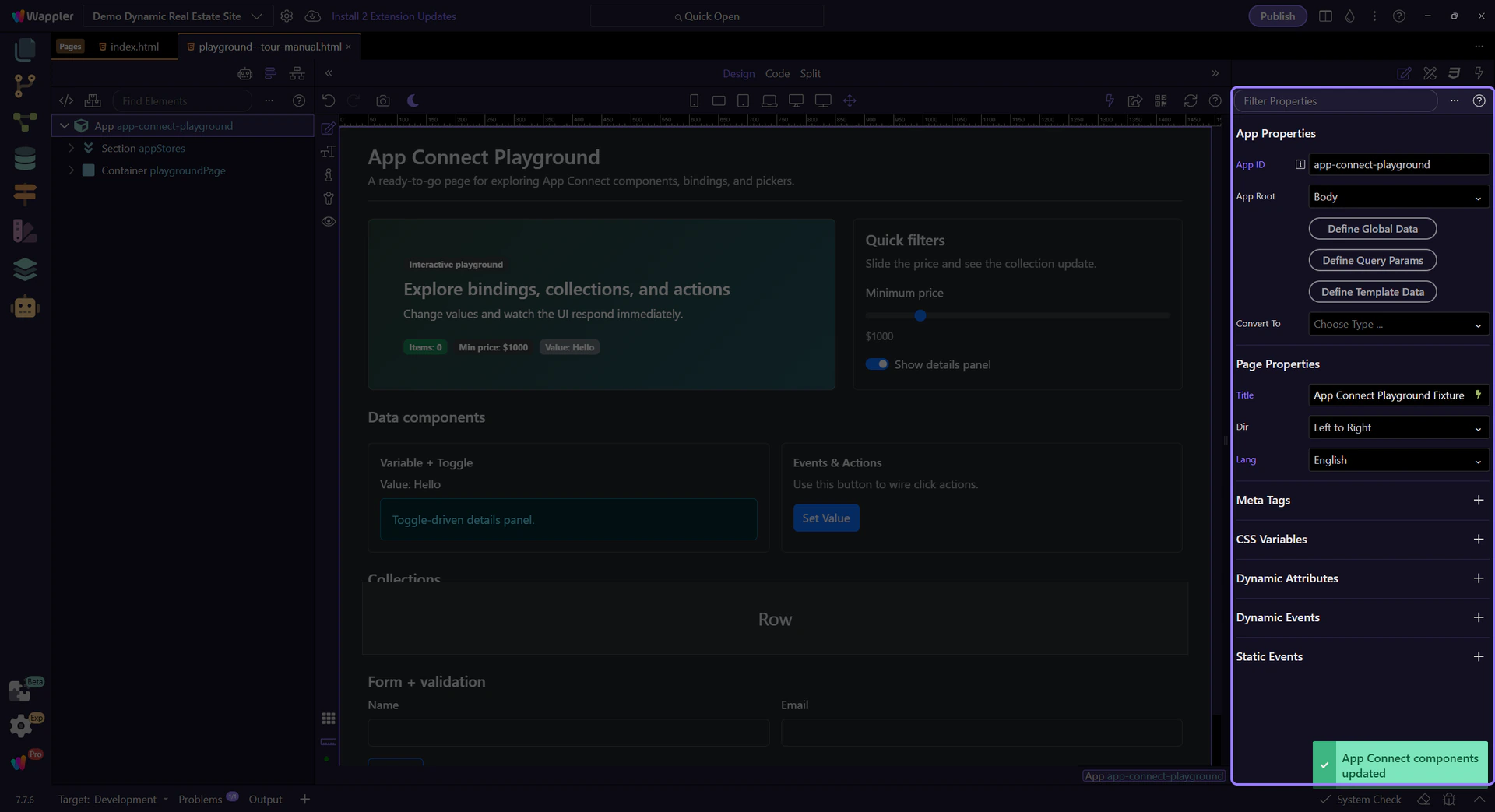
A Variable stores a single value you can reference in bindings and set via actions.
The ID is how you reference the component in bindings and action pickers. This step matters because ID is part of Selection Panels Properties Theid, and understanding that context makes the next action easier to repeat in your own project.

Value is the initial data stored in the Variable. Use the expression picker to select data and formatters.

Most pages use an event (like click) to run setValue on a Variable. This keeps state changes visual and consistent.
Array stores a list of items and offers actions to add/remove/update list entries.
Name it for what it holds (for example: products, tags, steps). This step matters because ID is part of Selection Panels Properties Theid, and understanding that context makes the next action easier to repeat in your own project.

Items defines the initial list (binding). In practice, Arrays are often filled/changed by actions.
tip: If you need filtering, sorting, or paging, use a Data View on top of your source data.

Toggle holds a boolean state. It’s ideal for showing/hiding UI or enabling/disabling actions.
Set a clear ID so it’s obvious what the toggle represents (for example: showDetails). This step matters because ID is part of Selection Panels Properties Theid, and understanding that context makes the next action easier to repeat in your own project.

Checked controls the initial on/off state. You can bind it to other data, or set it through actions.

Next, learn collections and traversal: Data Store and Data View.
Choose a focused tour based on what you want to build.