
Format a date for display
A date-formatting example with a concrete input, format pattern and expected display.
Format a date in a text binding without changing the stored value.
Also called: format date, date format, display date, date formatting.
Before you begin
Section titled “Before you begin”- An App Connect page with a date value. The tour opens a completed sample with a Variable named orderDate.
Check the input date
Section titled “Check the input date”The example Variable orderDate contains 2026-09-08T14:30:00, a date and time without a timezone offset. In your page, first inspect the actual field returned by the action or component. An empty or invalid value cannot be fixed by changing the display pattern.
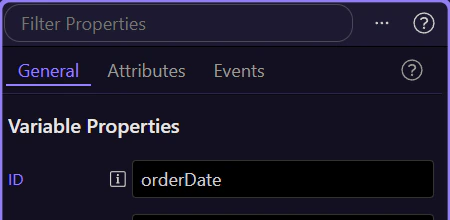
Select the displayed text
Section titled “Select the displayed text”Select the paragraph or table cell that should display the date. Open its Text / Inner Text data picker and choose the date value. In the sample, choose orderDate.value; inside a repeat, choose the date field from that record’s scope.
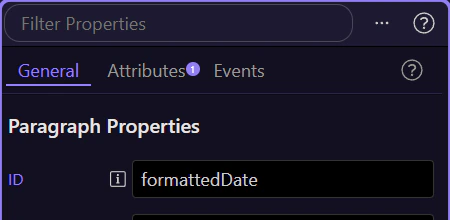
Apply Format Date
Section titled “Apply Format Date”Open the Data Formatter for that binding and choose Format Date from the date/time formatters. Enter dd/MM/yyyy as the pattern. Apply the formatter, then apply the binding back to the text element. The full sample expression is orderDate.value.formatDate('dd/MM/yyyy').
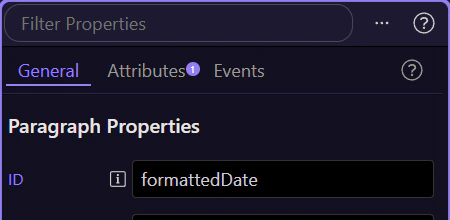
Check the output and source
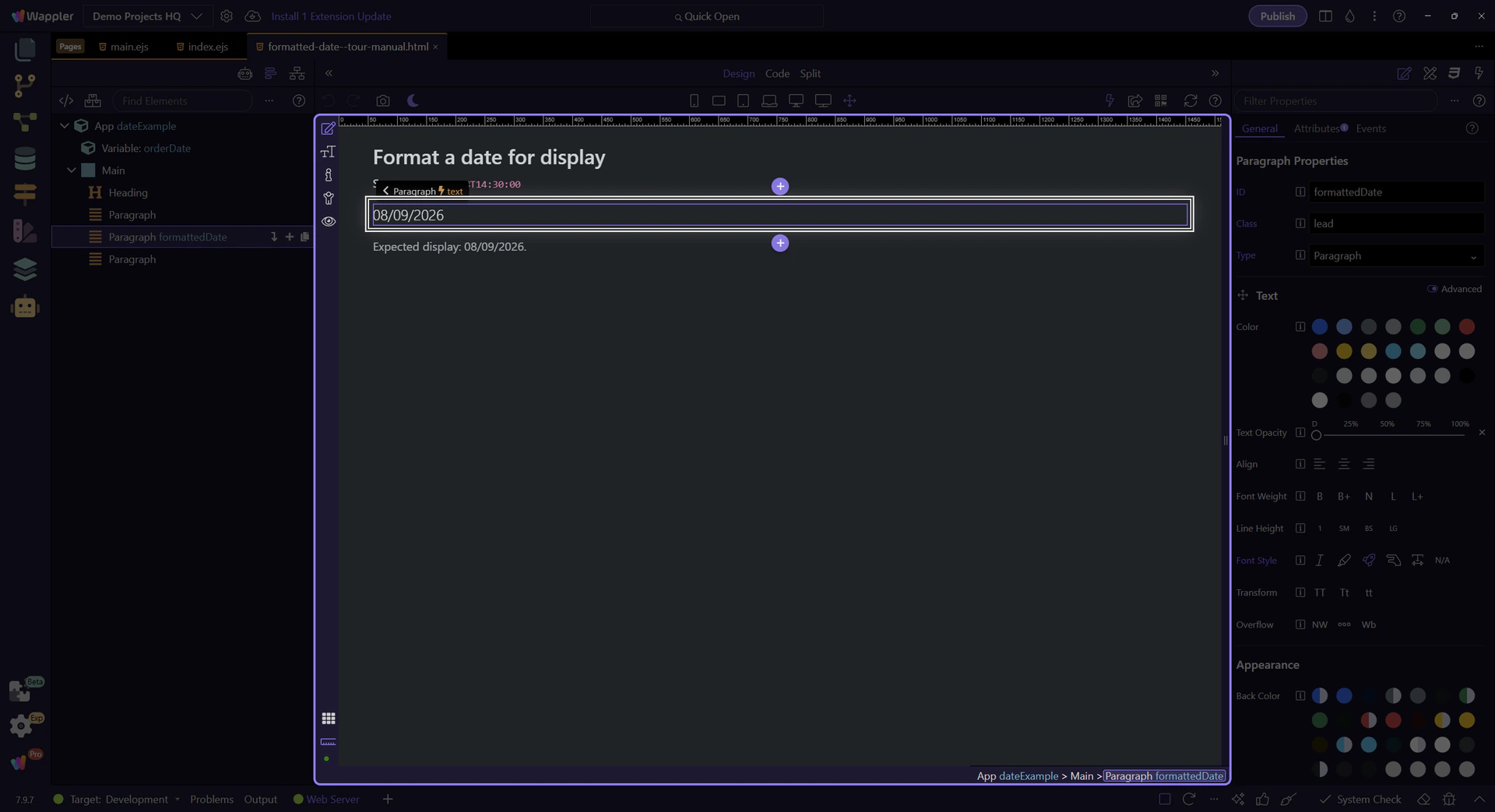
Section titled “Check the output and source”Save and Preview. The formatted paragraph should show 08/09/2026; the source displayed above it should remain unchanged. Use yyyy-MM-dd if you want the calendar date displayed as 2026-09-08 instead.
Resolve format and timezone problems
Section titled “Resolve format and timezone problems”If the output is blank or invalid, inspect the original value and confirm that the binding points to the date rather than the response object. Use the pattern’s exact letter case. Formatting is separate from timezone conversion: decide which timezone a timestamp should represent before formatting it, and keep calendar-only dates distinct from timestamps.
Check your result
Section titled “Check your result”The example displays 08/09/2026 while the source remains 2026-09-08T14:30:00.